Chart and report templates help you create reports and add charts by providing previews of the selected report and chart. A chart preview displays the actual data and metrics, whereas a report's preview shows all the pages within the report.
Note: Only curated reports are listed under the Report templates.
Chart templates
Using chart templates, you can quickly add a pre-built chart when creating a report or while updating an existing report. You can explore different chart types and see their preview before selecting a chart from the available templates. These templates are categorized for easy navigation.
Add a chart to the report using templates
1. Go to Analytics and click New report to create a new report.
2. Click Add Widgets and go to the ADD WIDGETS panel.
3. Click Use a Chart Template.
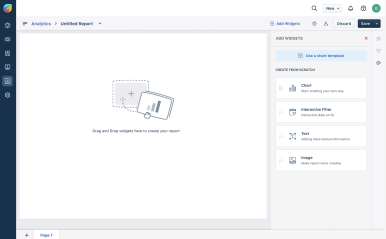
The Chart Templates dialog box appears and lists the templates as follows: My Templates: Chart templates created by you
Shared with Me: Chart templates created by other users and shared with you. All Templates: Displays both Curated (predefined) charts and user-created charts.
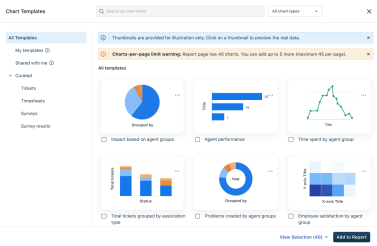
You can filter chart templates by categories listed under Curated. The curated templates are grouped under modules such as Tickets, Timesheets, and Surveys. Templates created by you or shared templates are not categorized by these categories (tickets, timesheets, or surveys). Each category contains a set of auto-generated charts. You can also search for a specific chart template by chart name in the search bar for quick discovery.
4. Click on a specific chart to view the data obtained based on the filters applied. This helps users understand the exact dataset and structure of a chart before adding the chart to the report.
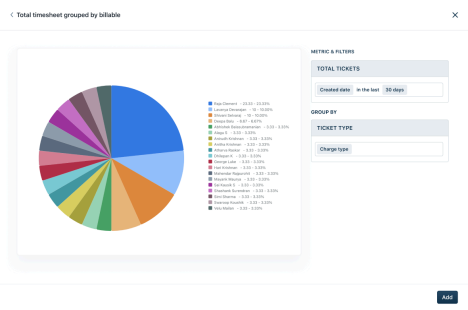
You can also search for a specific chart template by name in the search bar for quicker discovery.
5. Click View Selections to see all the selected charts. You can select or deselect multiple charts across categories as required.
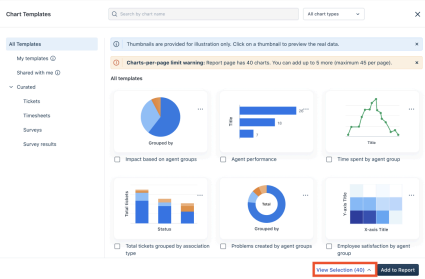
6. After all the required charts are added, click Add to Report to import selected charts directly into the report.
Note: Custom chart templates use generic thumbnails for visual consistency. You can preview the chart structure and metrics before adding the chart to the report.
Report Templates
Report templates let you create reports from curated reports and build on existing structures and logic. This is ideal if you prefer ready-made dashboards or are not familiar with advanced data configurations. The report templates preview shows all the report pages.
Create a report from report templates:
- Click the menu on the New Report.
The Report Templates dialog box lists all available curated reports under All templates. You can also view the templates categorically by clicking the listed categories.
Note: Only the curated reports are shown in the template section, while the user-created custom reports are excluded.
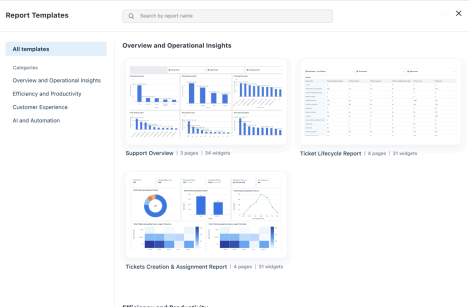
You can also search for a specific report template by report name in the search bar for quick discovery.
2. Click on a report to load the real-time data. You can navigate through the report's pages.
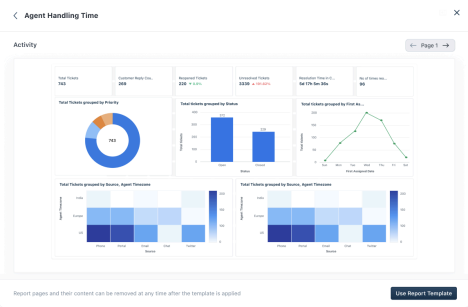
3. Click Use Report Template to create a report from the selected report template and proceed with customizing the report.