Freshworks Analytics supports the following chart types for your visualization needs.
- Area chart
- Bar chart
- Bubble chart
- Donut chart
- Grouped bar chart
- Grouped horizontal bar chart
- Heat map
- Horizontal bar chart
- Line chart
- Matrix table
- Pie chart
- Stacked bar chart
- Stacked horizontal bar chart
- Summary table
The application automatically selects the best visualization for your data set but you can use the dropdown to choose your preferred chart type. Depending on the data set, you might have a lot of choices or just the one. For example, if you're looking for the number of resolved tickets in the last month, the visualization can't be a donut chart because the result is a number. Click here to know more.
Freshdesk Analytics now features the following advanced chart types designed to bring depth and clarity to your reporting:
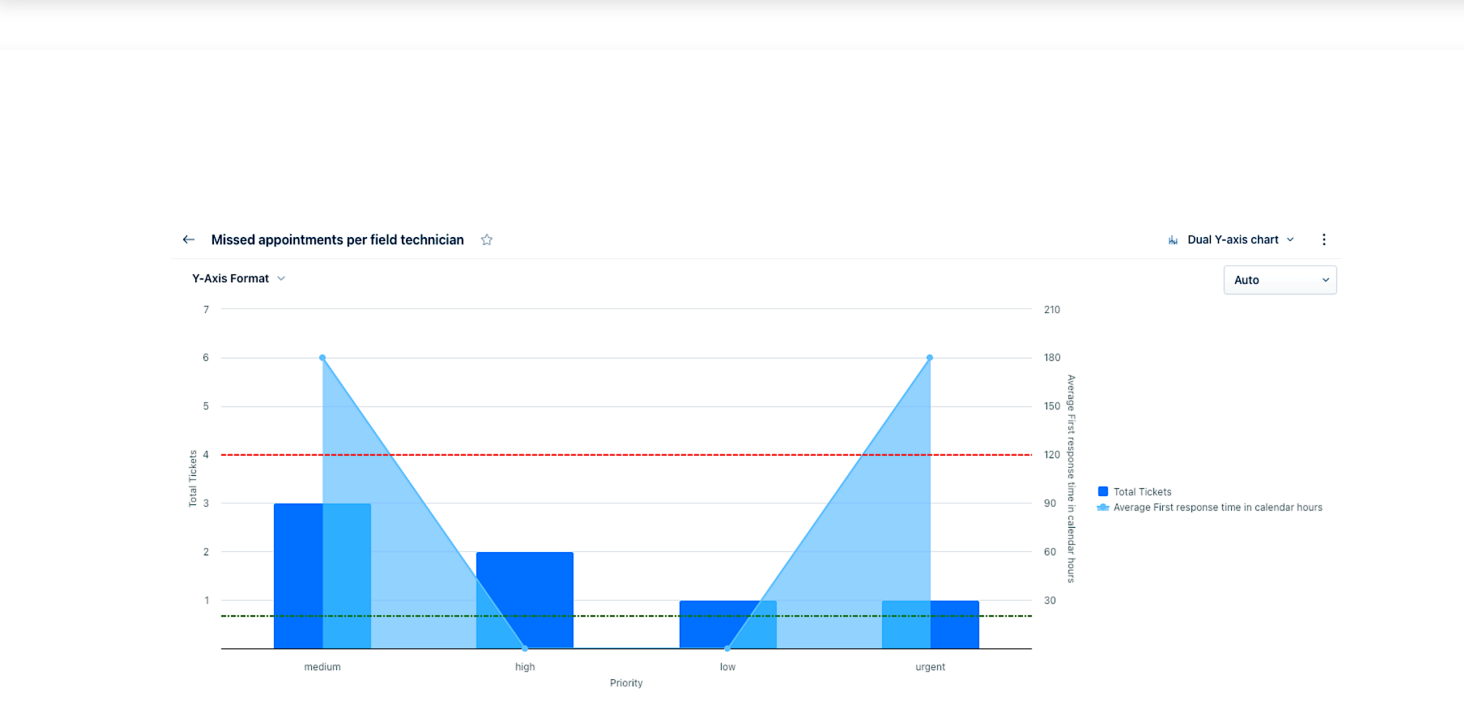
Dual Y-axis Combo Chart: Plot two distinct metrics, such as ticket volume and average resolution time on a single visualization with independent scales.
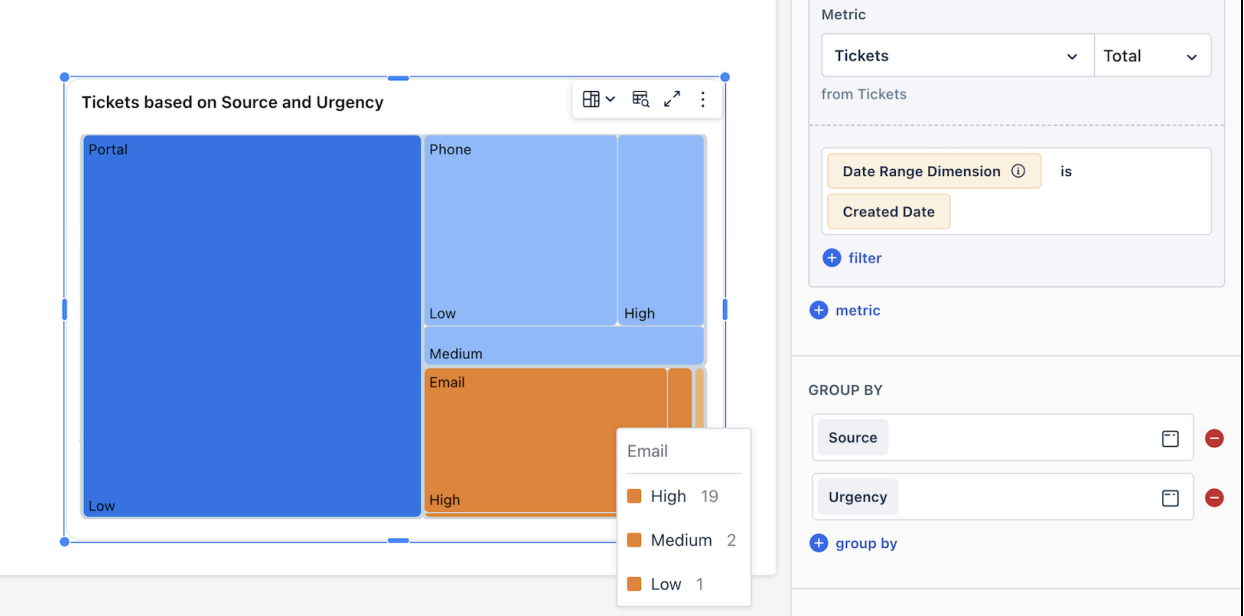
Treemap Chart: Analyze the spread of a metric across grouped categories through blocks sized by value (for example, ticket counts across priorities or sources).
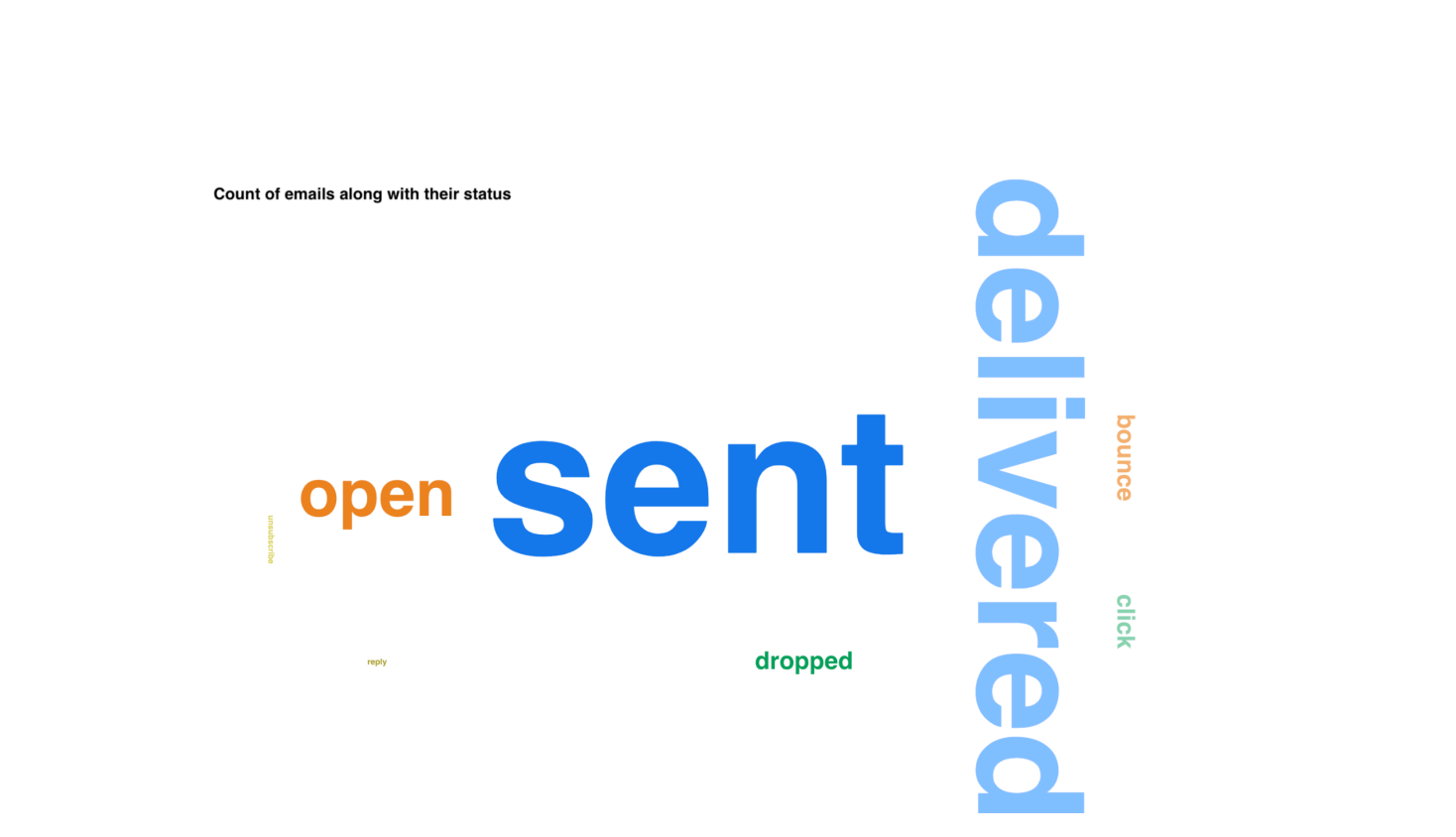
Word Cloud: Visualize the relative prominence of categories (Group by attribute) based on their respective metric values with larger words representing higher values.
Constant Line: Add a fixed reference line to a chart to interpret data relative to a target, threshold, or benchmark.
These advanced chart types offer greater flexibility in how you visualize metrics, enabling you to turn raw data into actionable insights with minimal effort.
Dual Y-axis Combo Chart
Visualizes and compares two metrics on vastly different scales but shared context (common Group by), enhancing comparative analysis.
For example: This combo chart shows how the tickets count and their first response times are distributed against priority.

Implement these configurations to optimize the output:
Two metrics: The first metric should have a bar chart, whereas the second metric should have a line chart. The first metric's scale should occupy the left Y-axis, whereas the second metric's scale should occupy the right Y-axis.
One ‘Group by’.
Treemap Chart
Offers a hierarchical view of data in a compact visual format, ideal for understanding complex
datasets.
For example: This treemap shows distribution of tickets based on Source (Portal, Phone and Email) and Urgency (High, Medium, and Low).
Implement these configurations to optimize the output:
One metric
One or two ‘Group by’
Word Cloud
Simplifies the analysis of large volumes of unstructured data from customer feedback, enabling quick identification of prevalent themes and sentiments.
For example: This word cloud shows the count of emails along with the email status.
Implement these configurations to optimize the output:
Two columns in the raw data: Keywords and their Frequency.
Note: Multiline text fields are not supported. Ensure to configure only single line text fields.
Constant Line
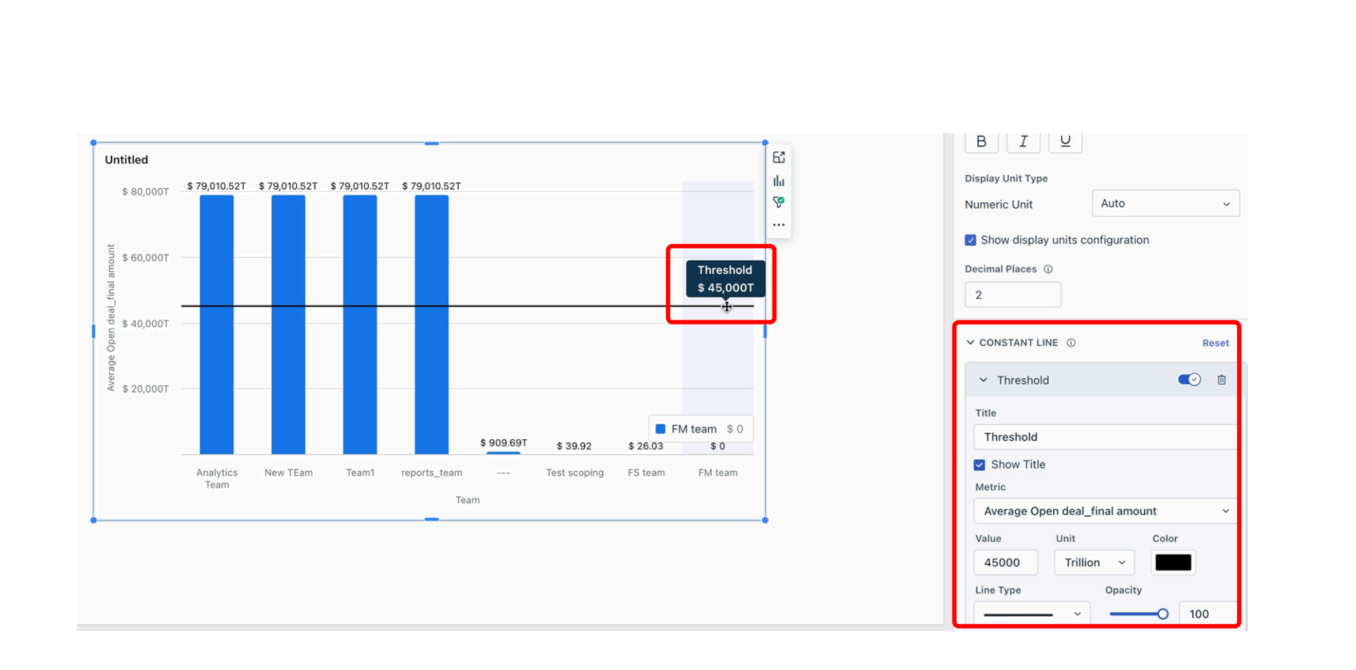
Easily compares performance against benchmarks or identifies trends relative to specific
values, crucial for goal setting and performance reviews.
For example: This chart shows the team-wide metrics for average open deals by various teams,
along with their target they need to meet. And it appears 4 teams have not only achieved, but
have also excelled on their targets and the other 4 below their targets ($45,000 T) .
Implement these configurations to optimize the output:
Select the chart type that supports the constant line feature.
Note: Constant Line is supported for Line Charts, Area Charts, Bar Charts, and Scatter Plots.
Specify the value for the constant line (benchmark or threshold).
Configure the appearance of the constant line, such as color, style, and width.