You can create folders to organize, manage, and access your custom reports efficiently. You can create and manage folders under My reports, and share them with others. Shared folders and reports appear under Shared with me.
Note: You cannot move the curated reports into folders. They continue to appear under Curated reports.
Under My reports, you can
- Create, rename, or delete folders.
- Color-code the folders.
- Move reports between folders or remove reports from any folder.
Under Shared with me, if you have the required access, you can
- Rename or delete folders.
- Move reports between folders or remove reports from any folder.
Manage folders
Create and edit a folder:
- Go to Analytics.
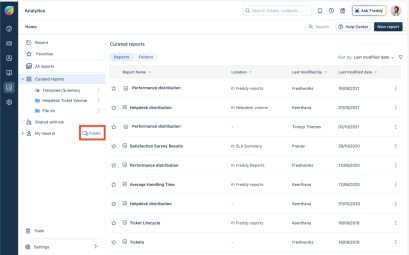
- Click Folder icon next to My reports to create a new folder under My reports.
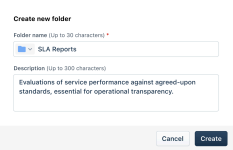
The Create new folder dialog-box appears.
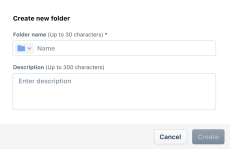
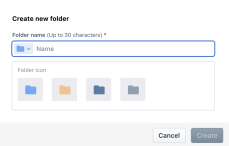
- Add a unique folder name.
You can also select a color for your folder icon to color code the folder.
Note: You cannot use an existing folder name.
- Add a short description about the folder and click Create.
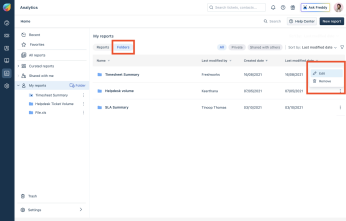
After a folder is created, the folder appears on the list of folders under My reports. Clicking on My reports expands it to show a list of folders. You can also select the Folders switch at the top of the My reports page to see a detailed list of the folders you have created. You can rename the folder and edit its descriptions by clicking on the Edit option in the folder menu.
Delete a folder
You can delete folders by clicking on the Remove option in the folder menu. Note: You can delete a folder only if the folder is empty. Before deleting a folder, remove all the reports from the folder.
All the recently deleted folders will appear in the trash and can be restored within a limited time. However, recovered folders will be empty once restored, as they were empty during the time of deletion.
Manage reports under folders
You can add reports to an existing folder and move an added report between the folders. You can also delete reports from a folder or share them with others as required.
A report you create will appear under My reports, while a report shared with you will appear under Shared with me. These stand alone reports are listed in their respective location unless they are added to a folder.
Add a report to a folder
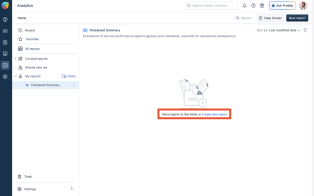
You can create a new report inside a folder by clicking on Create new report.
Alternatively, you can also choose the folder destination while creating or editing a report. 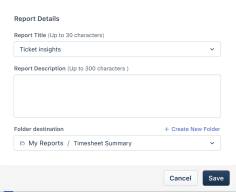
Delete report
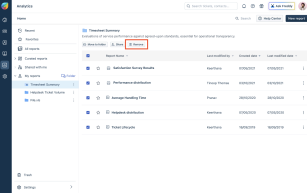
Select a report you want to delete from the folder and click the Remove button. All the recently deleted reports will appear in the trash and can be restored.
Note: The recovered report will not be automatically restored to the folder from which the report was deleted. The recovered reports will be restored to My reports or Shared with me based on the ownership
Move Report
You can move reports between folders to organize them as needed. To move a report to a folder, you need Manage access on the report and at least edit access on the folders.
A report can be moved between:
- Two folders under My Reports
- Two folders under Shared with Me
- A folder under My Reports and one under Shared with Me
To move a report, perform these steps:
- Select a report and click on the Move to folder button.
The Move Report dialog-box opens.
- Click on the folder name from the drop down and move multiple reports simultaneously.
- Once you select the destination folder, click Move. You will be warned that the source folder collaborators will lose their shared access to the report after the move.
- Click on Move to folder again to confirm the move.
Note: When a report from a folder in My reports is moved to a folder in Shared with me, the report will automatically be accessible to the users with access to the folder.
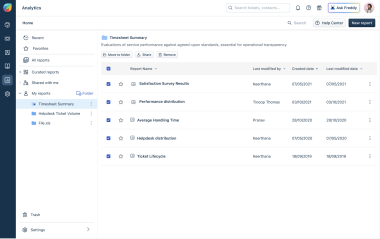
You can also select multiple reports and move them in bulk.
Share reports
- You can share reports with other users by selecting them and clicking on the Share button.
- Select a suitable access type and search for user names, and select users before clicking on the share button.
You can select View, Edit, or Manage access as needed. Report-level access determines which actions are available to users with access to the shared folders. The shared reports will be visible under Shared with me.
Notes:
- Under Shared with me, a report is only visible within its respective folder if the folder was shared with the user, not the report alone.
- When a report from a folder in My reports is moved to a folder in Shared with me, the report will automatically become accessible to users with access to the folder. Since access to the report is not explicitly defined, users who have access to the folder will also have access to the report.
Share Folders
You can share a folder with your peers instead of sharing reports in bulk. While sharing a folder, you set different access levels for the users, such as view, edit, and manage. The folders can be shared with others individually or in groups. The folder you shared will be visible under Shared with me for the collaborator.
Access Levels
When sharing a folder, you can assign one of three access levels to collaborators:
- View access lets you view the folder and the reports inside the folder.
- Edit access lets you modify folder details, including the name, description, and icon color. Along with edit access to a folder, if you have manage access to a report, you can add the report to the folder or remove it from the folder.
- Manage access to a folder lets you update the permissions of users who already have access to the folder and set access for new collaborators.
How does report access levels affect folder actions
Reports inside a shared folder automatically inherit the folder’s access permissions, saving time for large teams. But if the report access level is higher than the folder access level, the higher access level is automatically applied to report actions.
- Example 1: If you have edit access (higher access) to a report but only view access (lower access) to its folder, you’ll have edit access to the report.
- Example 2: If the report allows only view access (lower access) but the edit access (higher access) to its folder, you’ll still be able to edit the report.
- Example 3: To delete a report from a folder with edit access (lower access), you should have at least manage access for the report to be deleted (higher access).
Note: Report owners or managers can modify the permissions that automatically gets updated when a report is moved or shared or a folder is shared, allowing them to maintain access permissions for reports and safeguard sensitive reports.
How to share a folder
To share a folder, follow these steps:
- Go to Analytics and click on My Reports to view a list of folders owned by you.
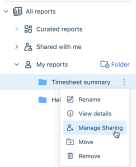
- Hover over a folder, and click the option button
 .
. - Click on Manage Sharing option.
- In the Manage sharing dialog box, search for people to share the folder with and add them.
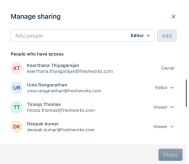
- Select the access as either Viewer, Editor, or Manager as required.
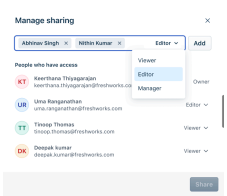
- Click on Share, and the folder will now appear under Shared with Me for the selected users.
Notes:
● You can only share or update sharing permissions for a folder if you have the Manage access for the folder.
● If both the report and its folder have different permissions, the system gives you the highest access level available from either one at the report level. For more information, see Report access.
Folder roles and actions
Folder Owner, Manager, Editor, and viewer roles determine what you can do with the folder and reports.
Folder ownership
When you create a folder, you are the owner of the folder. As a folder owner, you can transfer the ownership of the folder.
How to transfer a folder ownership
You can transfer the ownership of the folder to another user. You are notified before updating the ownership when downgrading to a lower access level. A confirmation prompt appears before the transfer is initiated.
To transfer ownership of a folder, follow these steps:
- Go to Analytics and click on My Reports to view a list of folders owned by you.
- Hover over a folder, and click the option button
 .
. - Click on Manage Sharing option.
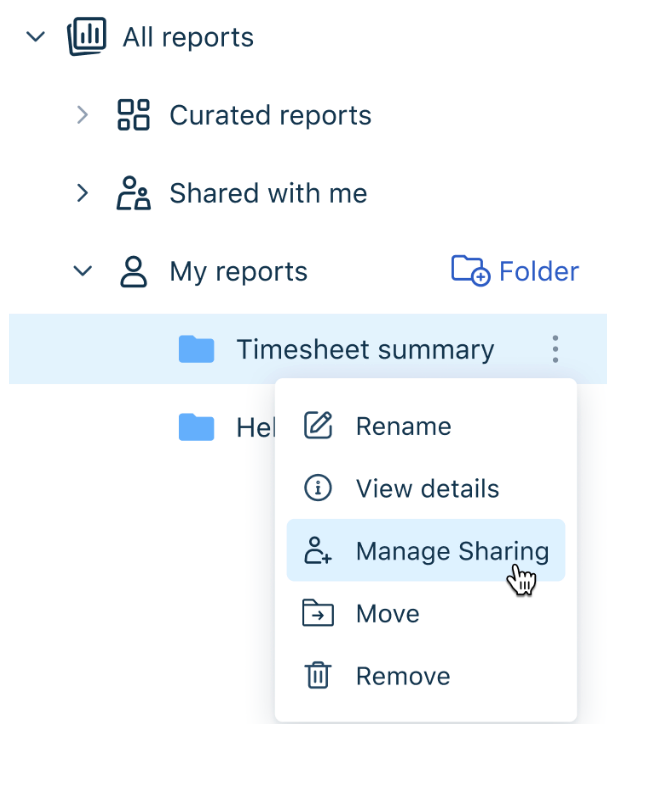
- In the Manage sharing dialog box, click on the existing access of a person.
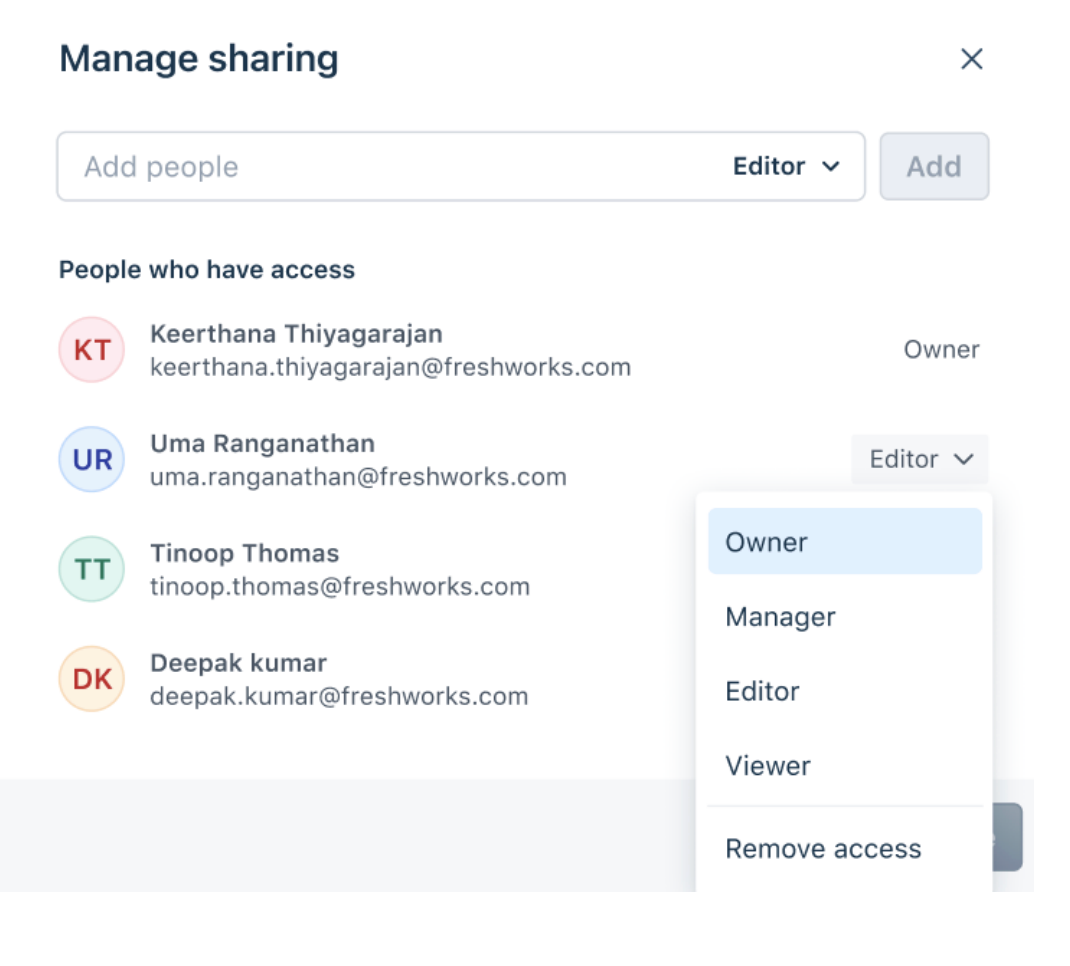
- Click on Owner. You will be prompted to confirm.
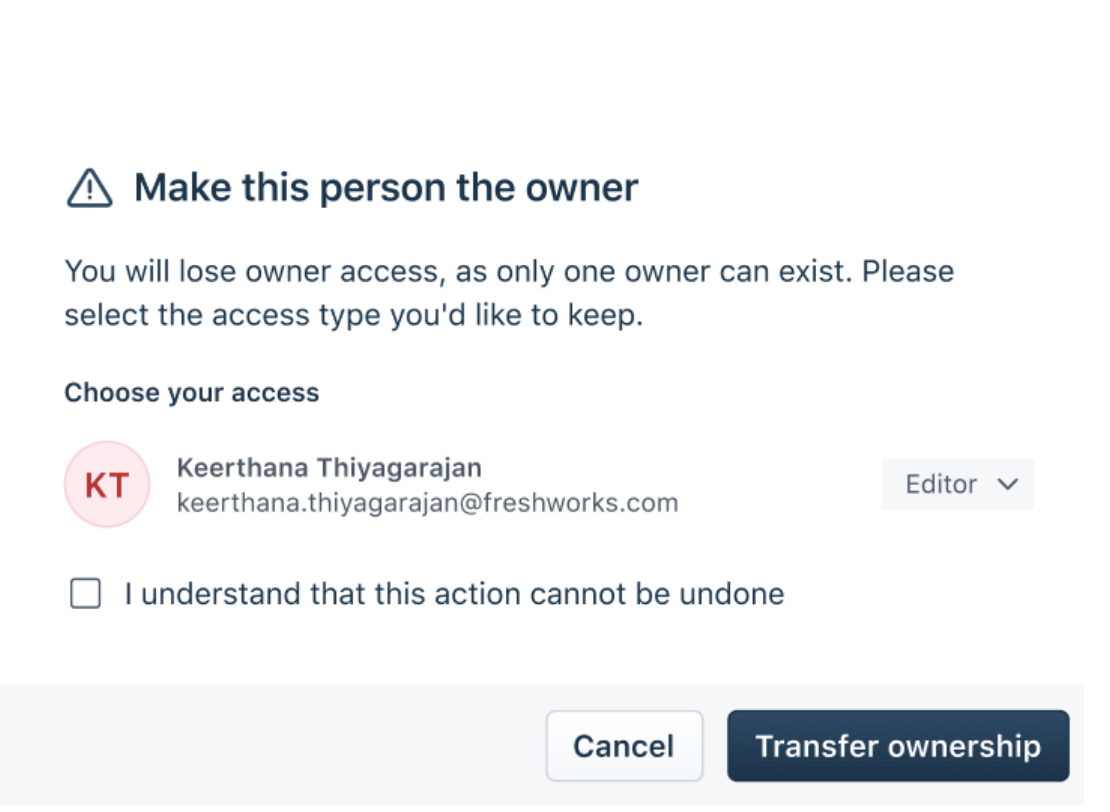
- Click on Transfer ownership to complete the transfer. After transfer, the new owner gets ownership, and the previous owner retains a Manage access unless removed.
Note: Changing the folder ownership doesn’t change the report ownership, and each report within the folder retains its original owner.
Search with folders
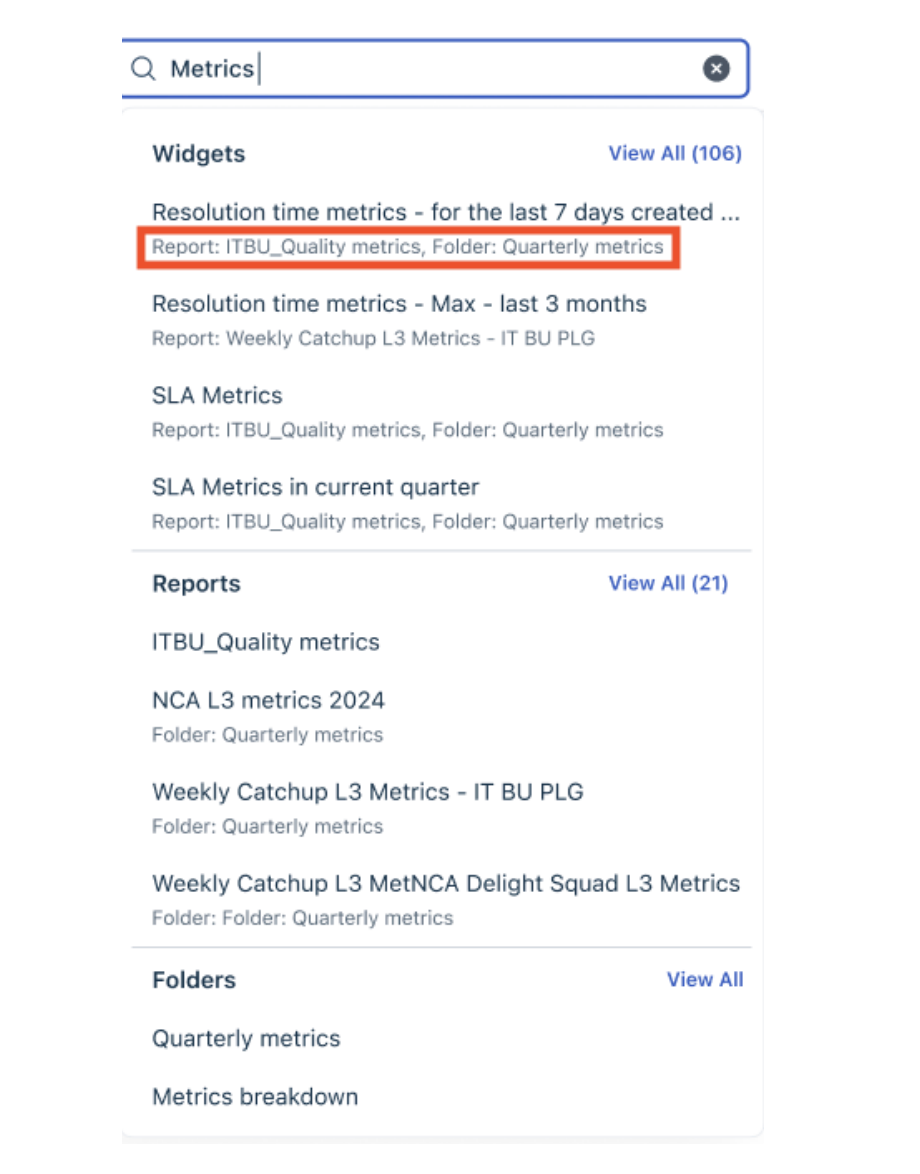
When you use the search option to find a report or widget, the search results also display the respective folder name and location. You can also search for folders using the folder name.