This article explains how Writing Assistant refines responses using Rephrase, tone adjustment, Expand, and Expand as email. It also explains where each action is available in ticket replies, bulk updates, and solution articles.
Writing Assistant is a Freddy AI Copilot add-on available on the Freshdesk Pro and Freshdesk Enterprise plans, and on the Freshdesk Omni Pro and Freshdesk Omni Enterprise plans.
Prerequisites
Before using Writing Assistant, ensure that the following requirements are met:
- Your account has a Freddy AI Copilot license on a supported plan. Contact your account manager, or see the pricing page.
- An Administrator has enabled Writing Assistant under Admin settings > Freddy.
- You have permission to reply to tickets and to create or edit solution articles for the actions available in the article editor.
Understand Writing Assistant
Writing Assistant provides Freddy AI Copilot actions that rewrite, expand, or adjust the tone of text you draft. You can access these actions from the Write with AI button in the editor toolbar.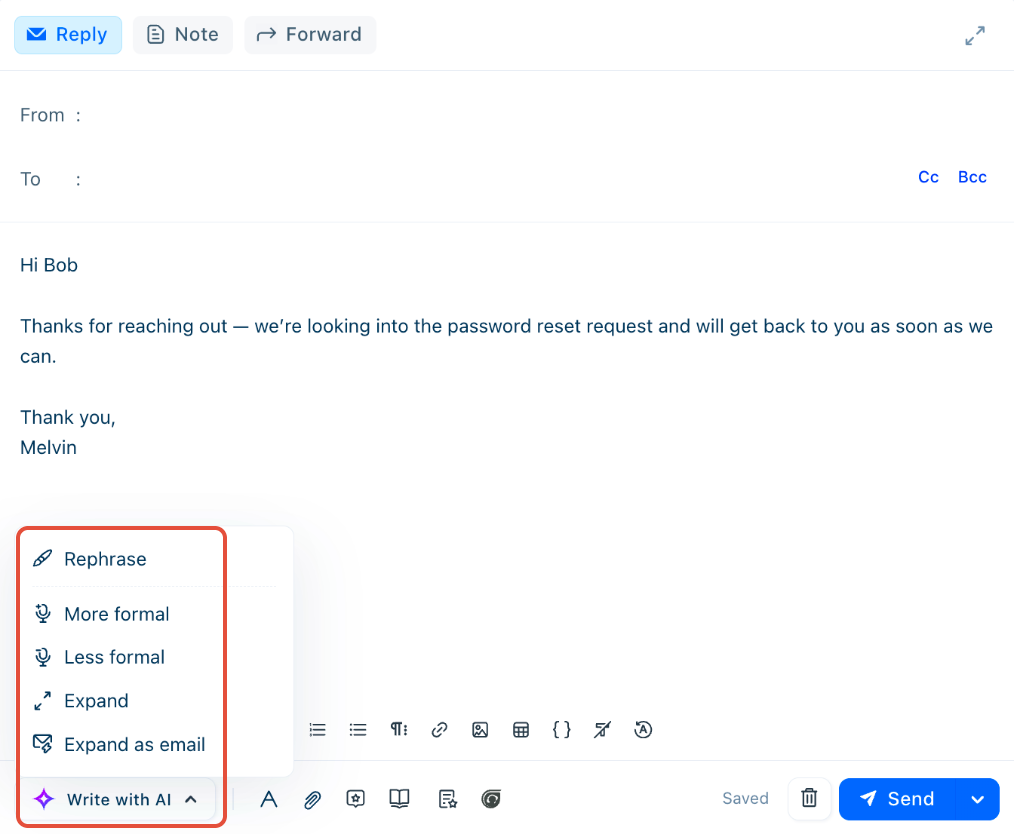
Writing Assistant acts on the text you select. When you do not select text in a ticket reply, it acts on the entire draft.
The available actions are:
- Rephrase — Rewrites the text to improve clarity, grammar, and accuracy.
- More formal and Less formal — Rewrites the text to increase or decrease its level of formality.
- Expand — Turns short notes or key points into a complete response.
- Expand as email — Generates a complete email draft using the ticket subject, customer replies, and any cues you enter in the editor.
Check action availability
The Write with AI menu shows different actions depending on the editor you use:
Action | Ticket reply | Bulk update | Solution article |
Rephrase | Available | Available | Available |
More formal, Less formal | Available | Available as Enhance tone > Professional, Casual, Friendly | Available |
Expand | Available | Available | Available |
Expand as email | Available | Not available | Not available |
Generate solution article | Not available | Not available | Available |
Writing Assistant is also available in the private note editor.
Preserve existing draft content
Writing Assistant processes the body of your draft while preserving formatting that carries meaning:
- Signature blocks — Writing Assistant excludes your signature from the text it processes and applies its output only to the response body. This applies to reply templates, profile signatures, and signatures added through marketplace apps.
- Hyperlinks — Links in the original text retain their formatting and remain clickable in the Writing Assistant output.
- Text length — Writing Assistant supports a maximum length for the text it processes. If your text exceeds that limit, an error appears in the editor, and the Writing Assistant does not generate a suggestion.
Writing Assistant replaces the text on which you run an action. If you apply another action, such as a tone adjustment, after Rephrase, the new output replaces the previous output.
Enable Writing Assistant
An Administrator can enable Writing Assistant for the account.
- Go to Admin settings > Freddy.
- Scroll to the AI Copilot section and turn Writing Assistant ON.
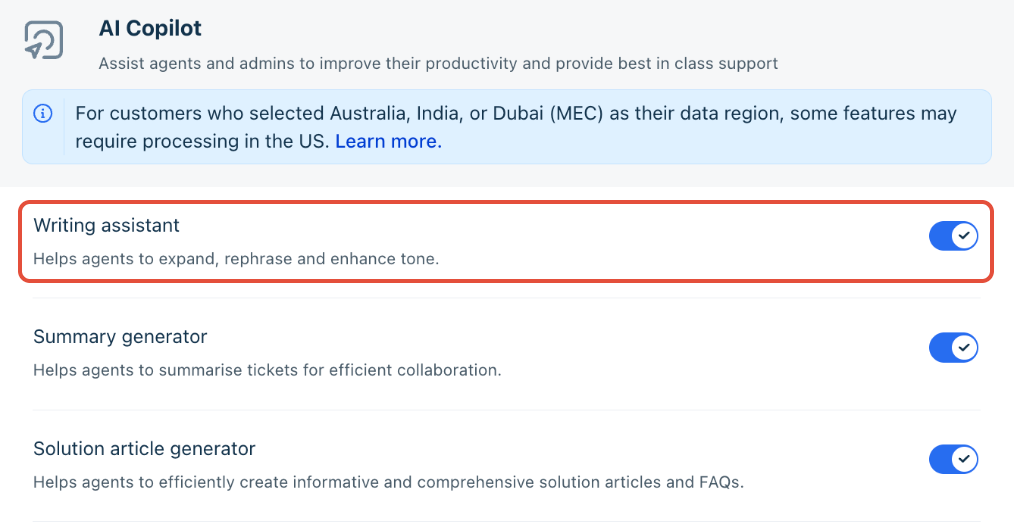
After you enable Writing Assistant, the Write with AI button appears in the ticket reply editor, bulk update editor, private note editor, and solution article editor.
Rephrase a response
Use Rephrase to rewrite a response for improved clarity, grammar, and accuracy.
- Compose a response in the editor.
- Select the text you want to rephrase.
- Select Write with AI, then select Rephrase.
- Review the rewritten text before sending or saving it.
In a ticket reply, you can select Rephrase without selecting text to rephrase the entire draft.
Adjust the tone of a response
The tone options differ between ticket replies, solution articles, and the bulk update editor.
Adjust tone in replies and articles
To adjust the tone in a ticket reply or solution article:
- Select the text whose tone you want to change.
- Select Write with AI, then select More formal or Less formal.
- Review the adjusted text.
Adjust tone in bulk updates
To adjust the tone in a bulk update:
- Select the text in the bulk reply field.
- Select Write with AI, then select Enhance tone.
- Select Professional, Casual, or Friendly.
Tone adjustment adapts to the agent's profile language.
Expand brief notes into a detailed response
Use Expand to turn a short summary or a set of key points into a complete response.
- Compose a short summary or key points in the editor.
- Select the text.
- Select Write with AI, then select Expand.
- Review the generated response.
Expand tailors the response to the agent's profile language.
Generate an email draft
Expand as email is available in the ticket reply editor. Use it to generate a complete email draft from the ticket context and any guidance you provide.
- Optionally enter the essential points or prompts in the reply editor to guide the content.
- Select Write with AI, then select Expand as email.
- Review the draft and make any required edits before sending it.
Expand as email does not extract content from knowledge base articles or ticket history. It uses the ticket subject, the customer's replies, and any text you enter in the reply editor.
Use Writing Assistant in bulk updates
Writing Assistant acts on the text in the Bulk reply field. The resulting text goes to every ticket included in the bulk update.
- Select the tickets you want to update, then open Bulk update.
- Select From and choose the sending mailbox.
- Enter your reply in the Bulk reply field.
- Select Write with AI, then select Rephrase, Enhance tone, or Expand.
- Review the text, then apply the bulk update.
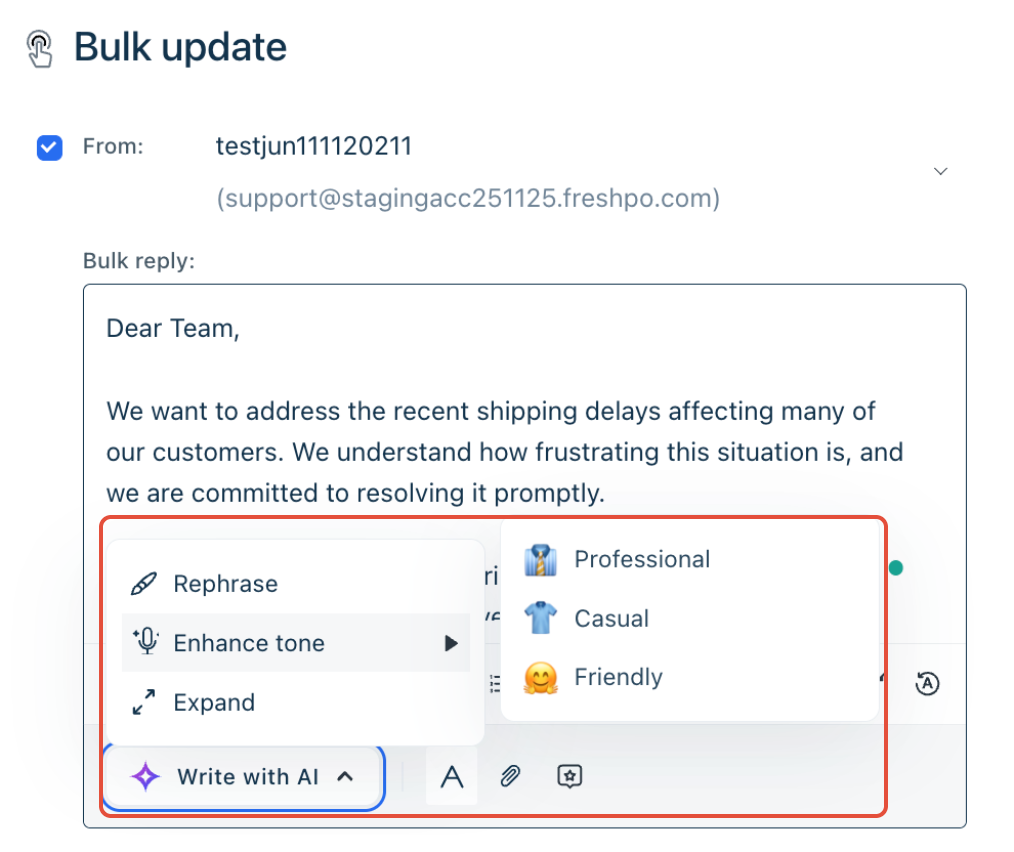
Because a bulk reply goes to multiple customers, the generated text does not contain ticket-specific context.
Use Writing Assistant in solution articles
Use Writing Assistant to refine the content of a solution article.
- Open the solution article in the article editor.
- Select the text you want to change.
- Select Write with AI, then select Rephrase, More formal, Less formal, or Expand.
- Review the text, then save the article.
Use keyboard shortcuts
You can trigger Freddy AI actions from the keyboard without opening the Write with AI menu. On Mac, ⌥ is the Option key and ⌘ is the Command key.
| Action | Windows and Linux | Mac |
|---|---|---|
Rephrase | Ctrl + Shift + H | ⌥ + ⌘ + R |
Expand | Ctrl + Shift + E | ⌥ + ⌘ + E |
Expand as email | Ctrl + Shift + A | ⌥ + ⌘ + A |
Suggest reply | Ctrl + Shift + Y | ⌥ + ⌘ + Y |
Generate solution article | Ctrl + Shift + K | ⌥ + ⌘ + K |
More formal tone | Ctrl + Shift + F | ⌥ + ⌘ + F |
Less formal tone | Ctrl + Shift + L | ⌥ + ⌘ + L |
Summarize | Ctrl + Shift + S | ⌥ + ⌘ + S |
A shortcut works when the corresponding action is available in the editor you use. The Suggest reply and Summarize shortcuts apply to the Reply Suggester and ticket summarization.
To view the complete list of shortcuts in the product, select your profile picture, then select View shortcuts once you’ve enabled the Keyboard shortcuts option.