TABLE OF CONTENTS
- Prerequisites
- Enable and configure Solution Article Suggester
- View and use solution article suggestions as an agent
- Things to keep in mind
Set the field value to the tag that matches the relevant articles in your knowledge base (for example, if the Delivery custom field was selected, add value as Standard delivery or Express Delivery).Freddy AI Copilot's Solution Article Suggester feature automatically recommends relevant knowledge base articles when an agent opens a ticket. Freddy reads the ticket's subject and description and surfaces the articles most likely to resolve the issue — so agents spend less time searching and more time responding.
With the Configure option, admins can now control exactly which subset of the knowledge base Freddy draws from. This matters when a support team operates across multiple brands, product lines, or agent groups, and the full portal contains articles that aren't relevant to every ticket. By scoping suggestions to the right folders or tagging articles to specific ticket fields, teams get more accurate recommendations and fewer irrelevant results.
Note: Solution article suggestions only work on newly created tickets received via Email, Portal, Web Form, Web Chat, Phone, WhatsApp, Instagram (DMs and comments), Facebook (DMs and comments), SMS, and custom sources, including tickets created through the API.
Prerequisites
Before enabling this feature, ensure the following are in place.
- Ensure you have an active Freddy AI Copilot subscription.
- Ensure your knowledge base contains at least 25 published solution articles for suggestions to work effectively.
- Ensure you are logged in as an Admin to access the configuration settings.
- Ensure the Solution Article Suggester is enabled for agents with a Copilot license.
Enable and configure Solution Article Suggester
Admins control both the availability of the Solution Article Suggester for agents and how Freddy scopes its article search. These are two separate but connected steps.
Turning on the feature makes it available to agents in the ticket view. To enable it:
- Log in to your Freshdesk account as an Admin.
- Go to Admin > Freddy.
- Under the AI Copilot section, locate Solution article suggester.
- Toggle it ON.
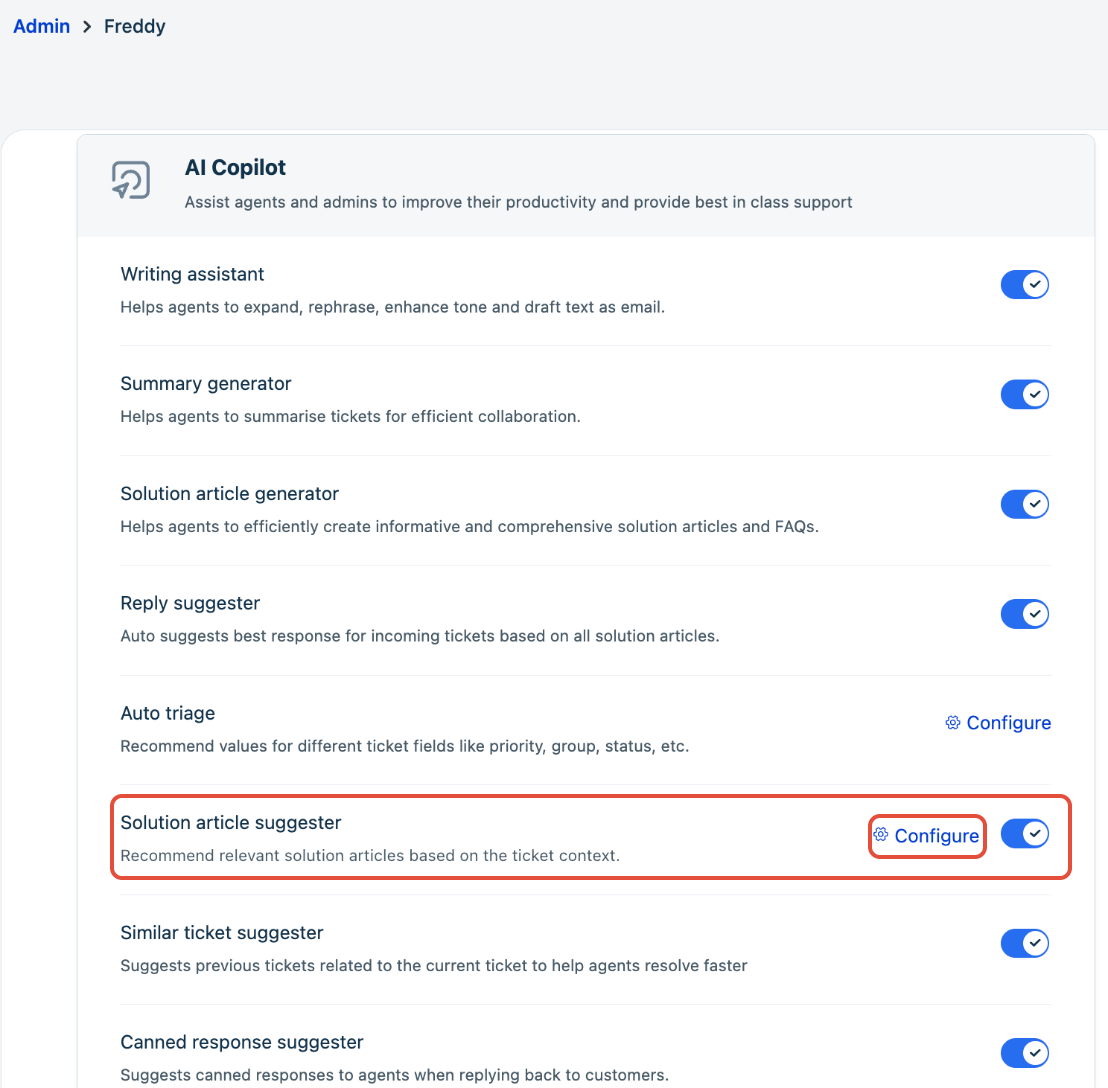
Once enabled, a Configure option appears next to the toggle. Use this to define how Freddy filters articles for suggestions. This panel lets you define how Freddy scopes and filters articles. Choose one or more levels based on how your knowledge base is structured.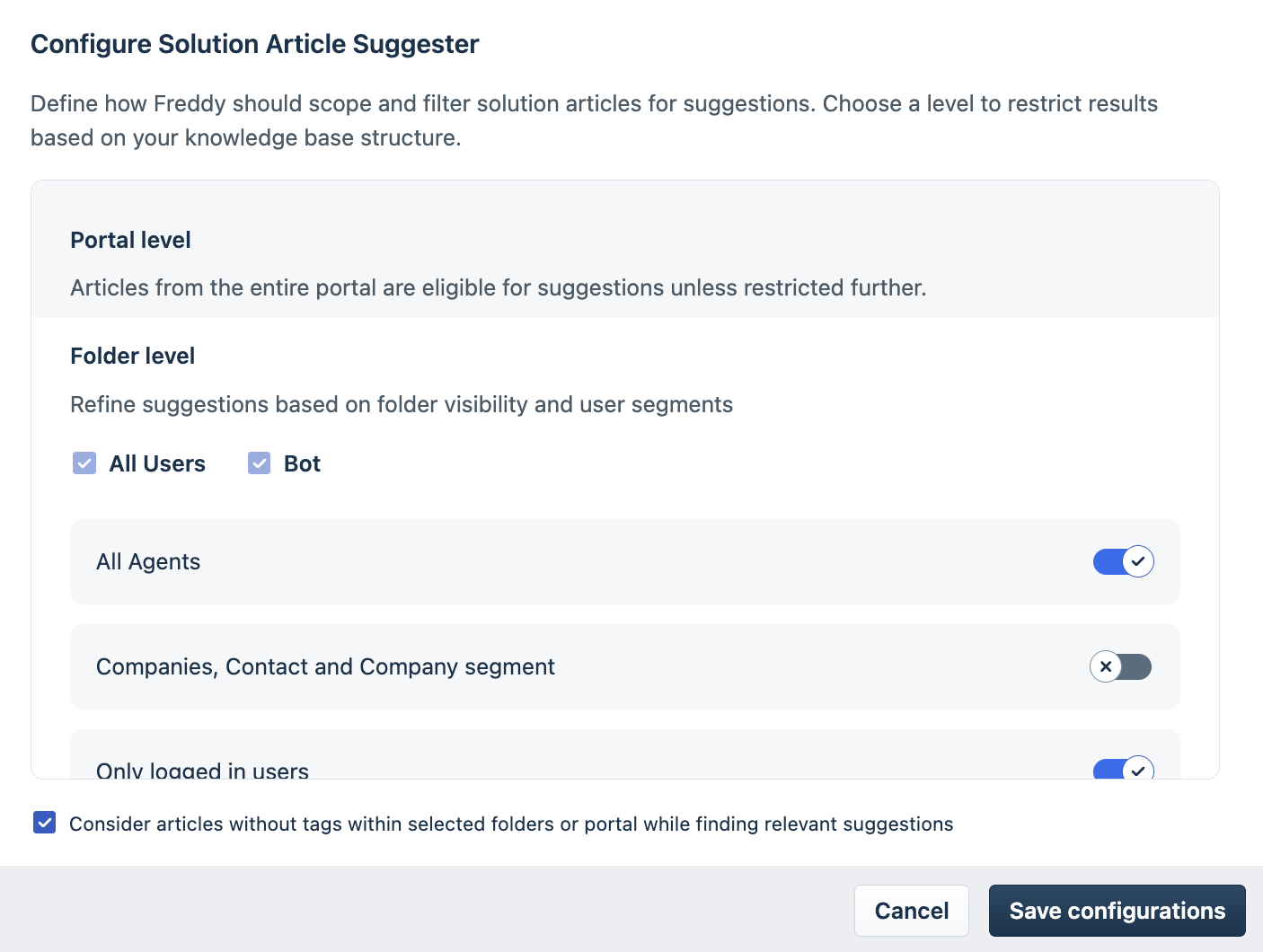
Portal level
By default, Freddy considers all articles from the portal mapped to the ticket. This is the broadest scope and works well for teams that maintain a single, unified knowledge base without brand or product segmentation.
No additional configuration is needed to use portal-level scoping — it applies unless you restrict it further.
Folder level
Folder-level scoping refines suggestions based on the visibility settings applied to your knowledge base folders. This is useful when some folders contain internal-only content or content restricted to specific customer segments, and you want Freddy to respect those boundaries when making suggestions.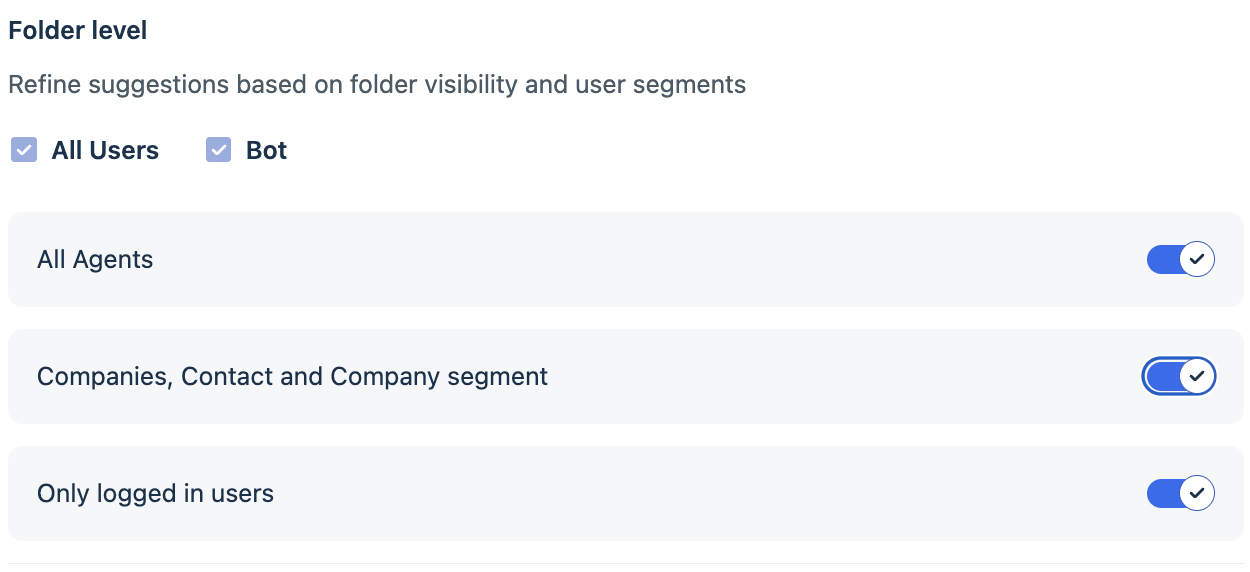
Under Folder level, select the visibility types Freddy should include:
- All Users — Articles in folders visible to all users, including customers and agents.
- Bot — Articles in folders accessible to bots.
- All Agents — Articles in folders restricted to agents only.
- Companies, Contact and Company segment — Articles in folders with contact or company segment visibility.
- Only logged in users — Articles in folders restricted to authenticated users.
Enable the toggles that match the article visibility scopes you want Freddy to draw from.
Note: If an agent's access scope differs from another agent's (for example, due to private article permissions), the suggestions shown may vary between agents on the same ticket.
Solution article tags mapping
Tags mapping lets you connect a ticket field to solution article tags so that Freddy filters suggestions based on what the ticket is about — not just the portal. This is the right choice when your knowledge base uses tags to segment articles by brand, product, or topic, and tickets carry a corresponding field value.
When a ticket arrives, Freddy reads the value of the ticket field you select here and uses it to filter articles — returning only articles tagged with a matching value.
Set up the automation rule: Before configuring tags mapping, you need an automation rule that populates the chosen ticket field with the correct tag value when a ticket is created. Without this, the field will be empty when Freddy runs, and it will fall back to matching on subject and description alone.
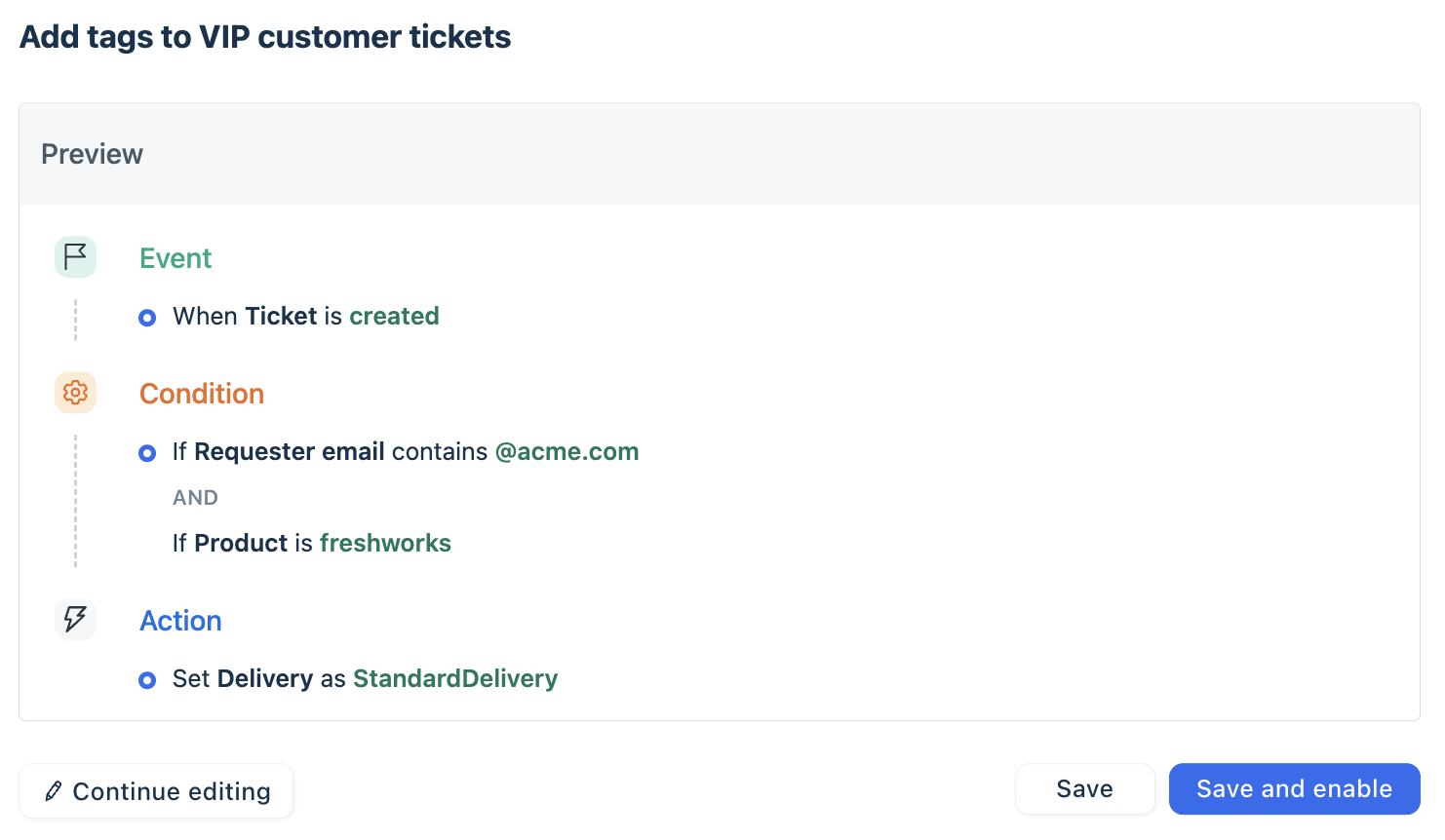
The example below demonstrates how to create a rule that identifies tickets related to a specific product and labels them with the corresponding tag. This ensures Freddy AI only recommends articles associated with that product.
To create the automation rule,
- Go to Admin > Workflows > Automations > Ticket creation.
- Click New rule.
- Under Conditions, define what identifies the ticket. For example:
- Condition: Email address — contains @acme.com to target tickets from a specific company, or
- Condition: Subject — contains Billing to catch billing-related tickets, or
- Condition: Product — is Freshdesk to match by product. You can combine multiple conditions using Match ALL or Match ANY depending on how precisely you want to scope the rule.
- Under Actions, click Add action and select Set <ticket field name>.
- Choose the ticket field you plan to select in the Solution Article Suggester configuration (for example, Product or a custom field like Delivery).
- Set the field value to the tag that matches the relevant articles in your knowledge base (for example, if Delivery custom field was selected, add value as Standard delivery or Express delivery).
- Click Save.
Note: The tag value you set in the automation must exactly match the tag applied to the solution articles you want Freddy to surface. A mismatch means no articles will be returned for that filter, and Freddy falls back to subject and description matching
Tip: Create one rule per segment — for example, one rule for Billing tickets, one for Onboarding tickets. This keeps rules easy to manage and ensures each ticket gets the right tag stamped.
Configure tags mapping in Solution Article Suggester: Once your automation rule is live, connect it to Solution Article Suggester:
- In the Configure Solution Article Suggester panel, scroll to the Solution article tags mapping section.
- Under Ticket fields, select the field your automation rule populates. You can select one field — either a default ticket field (such as Group, Product, or Status) or a custom ticket field specific to your account.
- Check Consider articles without tags within selected folders or portal while finding relevant suggestions if you want Freddy to include untagged articles alongside tagged ones. Uncheck this to restrict suggestions strictly to tagged articles.
- Click Save configurations.
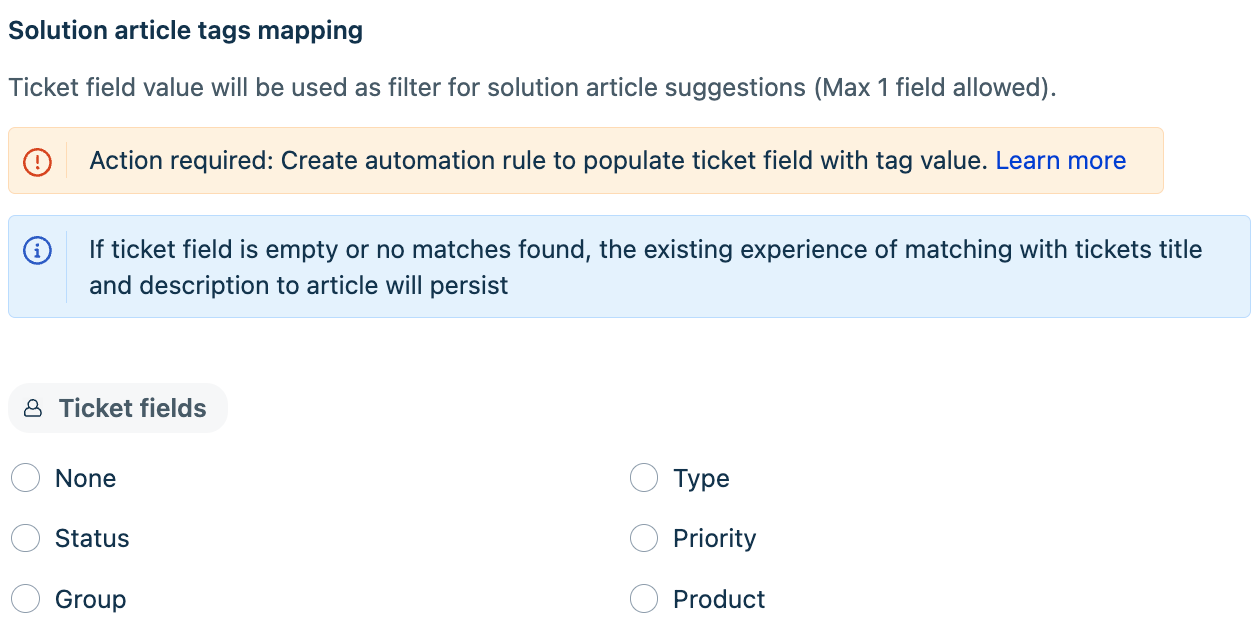
Note: Default ticket fields apply from the same day. Custom ticket fields may take 4–5 days to become active for filtering.
If the ticket field is empty or no tag match is found, Freddy AI falls back to the existing behavior — matching on the ticket's subject and description.
View and use solution article suggestions as an agent
When you open a ticket, Freddy AI automatically analyses the ticket content and surfaces relevant solution articles in the ticket view. Each suggested article shows its visibility label and a confidence score so you can quickly judge its relevance before using it.
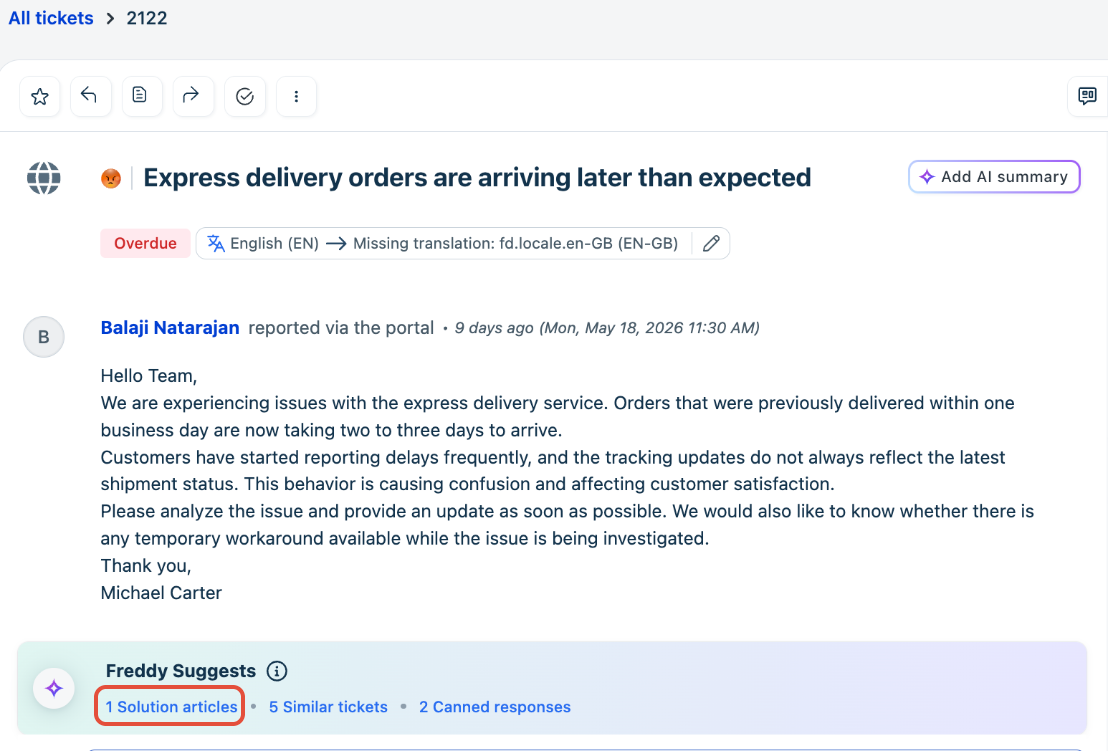
Freddy Suggests card
The Freddy Suggests card appears below the ticket description when Freddy has recommendations. It shows a count of solution article suggestions alongside similar ticket and canned response suggestions. To open the solution articles panel, click Solution articles in the card.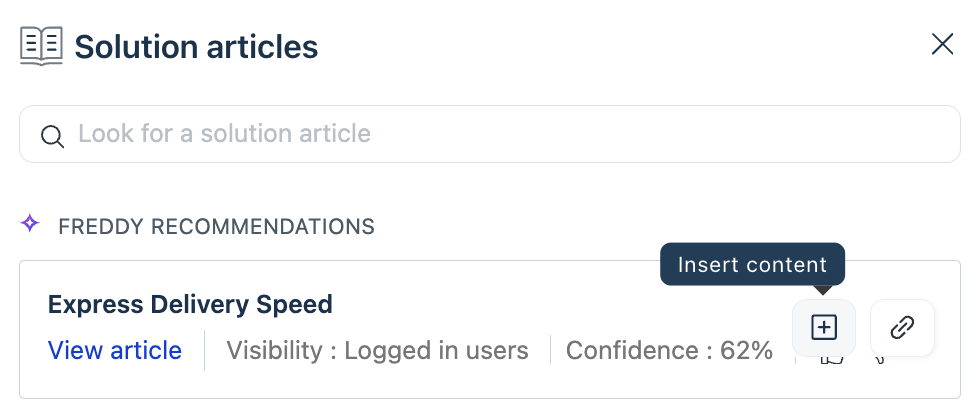
The panel opens on the right side of the screen. Articles are listed under Freddy Recommendations with their title, visibility, and confidence score. To preview an article before using it, click View article.
Search for a specific article
If the suggested articles don't cover what you need, use the Look for a solution article search bar at the top of the panel to find any article in the knowledge base.
You can also open the solution articles panel directly from the reply editor using the keyboard shortcut /s followed by Enter, or by clicking the Suggested solutions button at the bottom of the reply section.
Insert an article into your reply
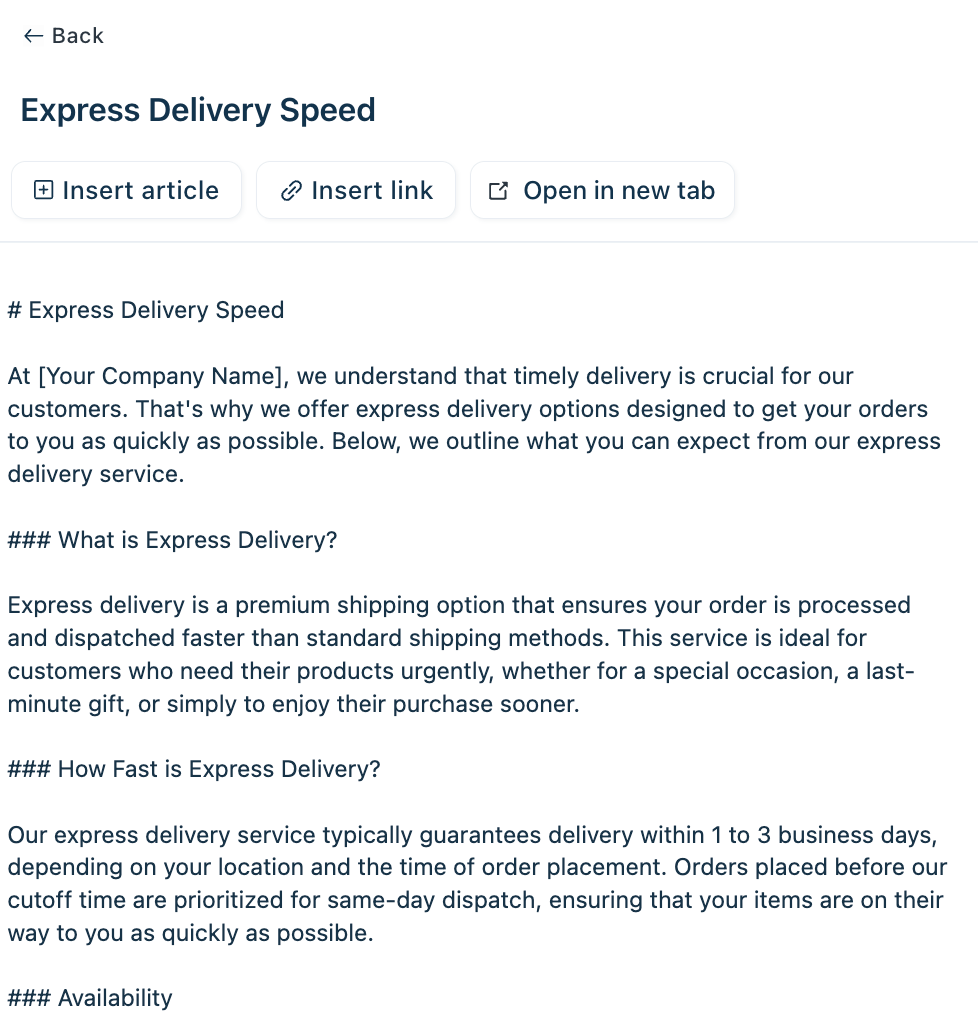
When you view or hover over a suggested article, two options appear.
- Insert article — Inserts the full article text into the reply editor. Any content you have already typed is preserved; the article is appended below it.
- Insert link — Inserts a hyperlink to the article in your reply instead of the full text.
- Open in new tab — Opens the article in a new browser tab so you can read it in full without leaving the ticket.
Things to keep in mind
- Ticket types supported: Solution article suggestions work on newly created tickets received via Email, Portal, Web Form, Web Chat, Phone, WhatsApp, Instagram (DMs and comments), Facebook (DMs and comments), SMS, and custom sources, including tickets created through the API.
- Knowledge base size: Freddy performs best when the knowledge base contains at least 25 articles. Smaller knowledge bases may produce fewer or less accurate suggestions.
- Automation dependency for tags mapping: The tags mapping filter only works when a ticket field is populated at the time the suggestion runs. If the field is empty — because an automation hasn't fired yet or the rule doesn't match — Freddy defaults to subject and description matching. Test your automation rules before relying on this scoping method.
- Custom field activation: Custom ticket fields selected for tags mapping take 4–5 days to become active. Plan ahead if you are switching from a default field to a custom field.
- Agent access scope: Private or restricted articles are only suggested to agents who have the appropriate access. If two agents open the same ticket, they may see different suggestions.
- Minimum article quality: Including untagged articles in your suggestions (via the checkbox in Configure) can broaden results but may introduce less relevant content. For teams with a well-tagged knowledge base, unchecking this option keeps suggestions precise.