TABLE OF CONTENTS
- Prerequisites
- Overview of Auto Triage
- See Auto Triage in action
- Configure and set up Auto Triage
- View Auto Triage suggestions
- Keep automation rules working alongside Auto Triage
- Freddy AI's accuracy calculation logic
Auto Triage leverages Freddy AI in Freshdesk to optimize ticket handling by intelligently prepopulating ticket fields based on historical patterns and contextual signals.
Auto Triage can predict values for ticket fields like Priority, Group, and Type), custom dropdowns, and dependent (nested) fields. When enabled, it automatically manages Priority, Group, and Type, which are set to Manual by default. This feature reduces manual data entry, improves field consistency, and helps teams maintain clean, organized ticket data.
In this article, we’ll discuss how to set up and manage Auto Triage suggestions for default and custom drop-down ticket fields.
Prerequisites
Before configuring Auto Triage, ensure that:
- You have Administrator privileges.
- You are on the Freshdesk Pro/Enterprise or Freshdesk Omni Pro/Enterprise plan.
- Your automation rules are clearly defined and intentional.
Note:  Ticket creation Automation Rules always take precedence over AI suggestions. If an Automation Rule sets a value for a field, and the update type is set to Auto for that field, Auto Triage will not overwrite it. However, for fields configured with the Manual update type, Auto Triage will still surface suggested values on the ticket page regardless of whether the field is already populated.

For further details, see section Keep automation rules working alongside Auto Triage
Overview of Auto Triage
Auto Triage acts as a digital analyst, evaluating incoming tickets via Email, portals, webforms, and phone.
It analyses:
- Ticket subject and description
- Customer intent and sentiment
- Historical ticket patterns
- Contextual signals
Based on this analysis, Freddy AI suggests or automatically updates configured ticket fields to ensure accurate classification and routing.
Auto Triage supports the following three default ticket fields:
- Priority
- Group
- Type
Note: Other default system fields are not supported for Auto Triage.
You can enable Auto Triage for custom dropdown and dependent (nested) fields (e.g., Category > Sub-category).
Auto Triage uses AI Copilot to analyze ticket information and recommend values for fields configured by an admin. It supports two models for generating suggestions:
- Instructed model: Generates suggestions based on the instructions and field descriptions configured by an admin. Use this model when you can define clear rules for determining the appropriate field value, especially when your account does not have enough ticket data for the model to learn from, you are starting with a new account, or the field has a limited number of options that can be clearly defined by rules. A minimum of 20 tickets is required to calculate suggestion accuracy for the Instructed model.
- Self-learning model: Generates suggestions by learning from historical ticket data. Use this model when sufficient historical ticket data is available for the field.
Note: The Self-learning model continues to use historical ticket data for training so that its accuracy can be measured. When it performs better than the Instructed model, the system can automatically switch to the Self-learning model if automatic switching is enabled.Each field also has an update type that controls how a suggestion reaches the ticket:
- Manual: Freddy AI shows a suggestion, and the agent chooses whether to apply it. Use this for fields where human judgment matters.
- Auto: Freddy AI applies the suggested value when the ticket is created, so the field is already filled in when the agent opens the ticket. Use this for high-volume routing fields such as Group.
Note: To ensure business-critical logic remains intact, Automation Rules always take precedence over Auto Triage suggestions, even for Automatic Triage types. Additionally, if an AI agent is handling the ticket, triaging is not available—since predictions are only made on the first message and the AI agent would have already responded—and automatic field updates will be skipped for AI agent tickets.
See Auto Triage in action
When a ticket is created:
- Freddy AI analyses the ticket content and context.
- Ticket creation Automation Rules run and update the configured properties.
- Auto Triage predicts values for the configured fields, excluding properties updated by ticket creation Automation Rules.
- Based on the Auto Triage mode:
- Manual mode: Freddy AI displays suggestions for eligible properties.
- Automatic mode: Freddy AI automatically applies predicted values to eligible properties.
Configure and set up Auto Triage
Admins configure Auto triage from AI Agent Studio. You can add fields, write the instructions that guide suggestions, select the model and update type for each field, and preview suggestions before agents see them.
To enable and configure Auto Triage, follow the steps below:
- Log in to your Freshdesk, go to AI Agent Studio > AI Copilot > Auto Triage, and toggle it ON.
- Click Customize.
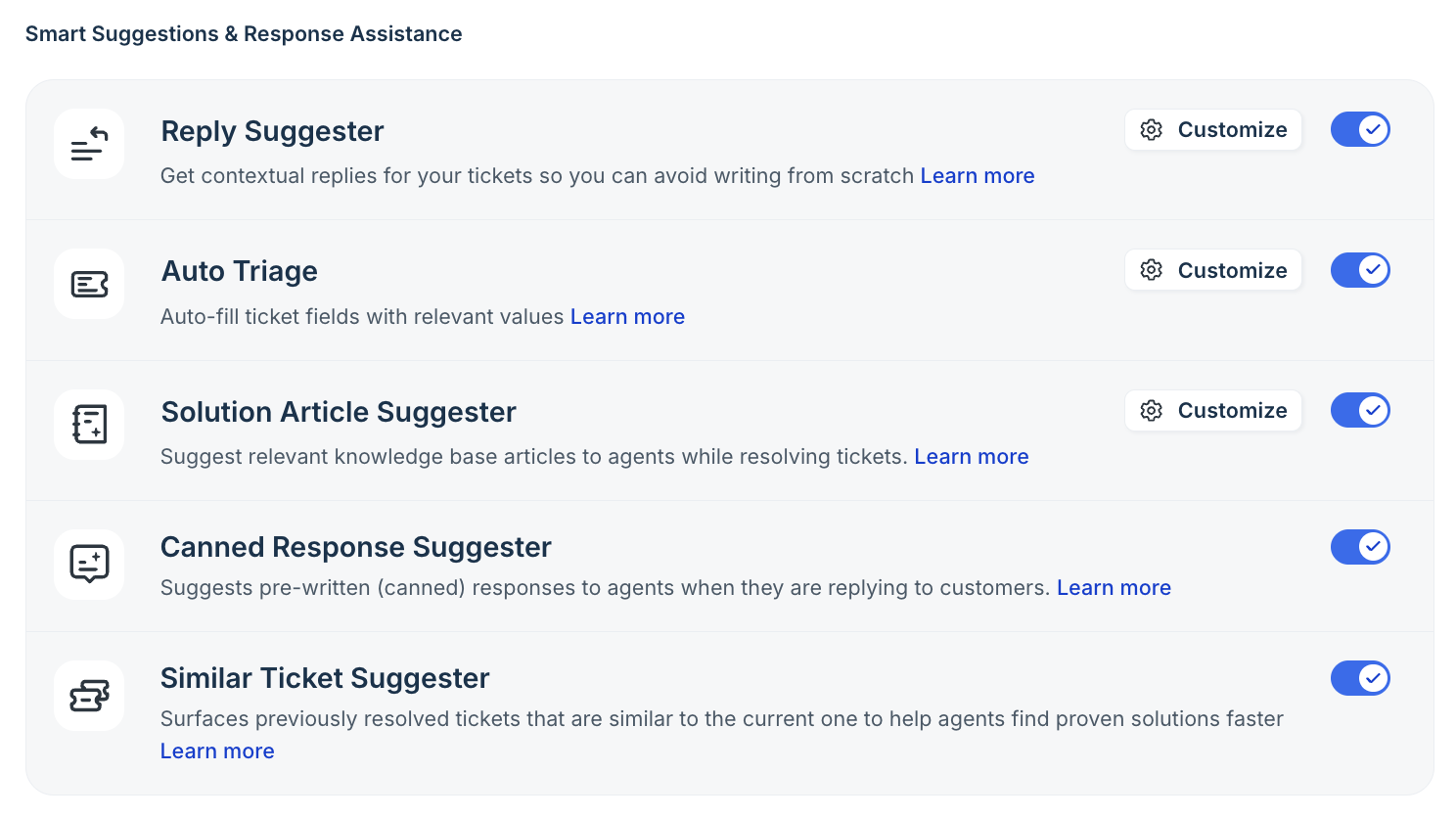
- Review the list of active fields and their statuses.
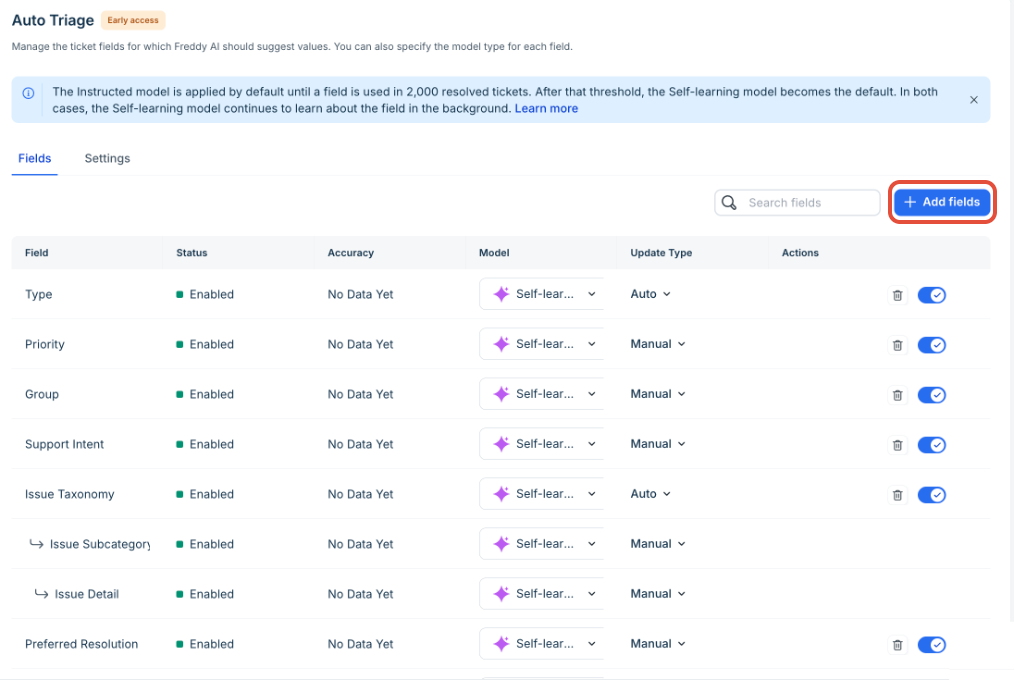
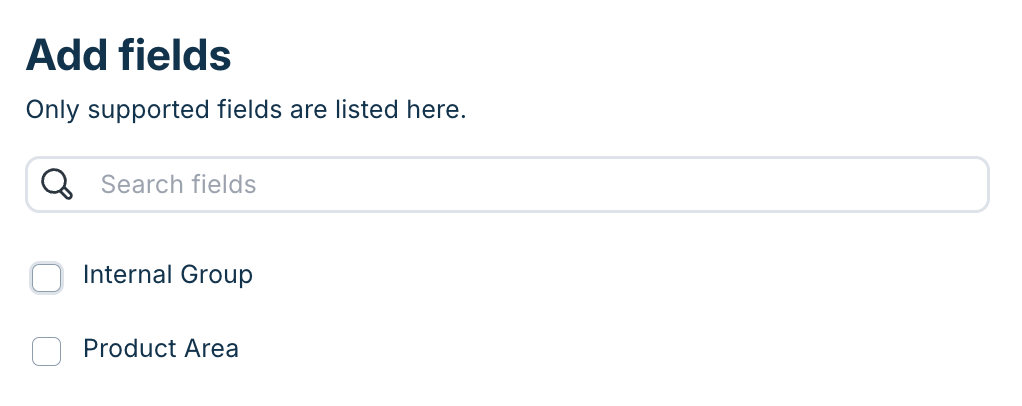
- On the Fields tab, click Add fields. In the Add fields panel, select the fields that you want. Only supported fields are listed and click Add.
- On the Fields tab, click Configure/Set up next to a field to write instructions. See Optimize AI Copilot output with effective instructions to know more about writing instructions.
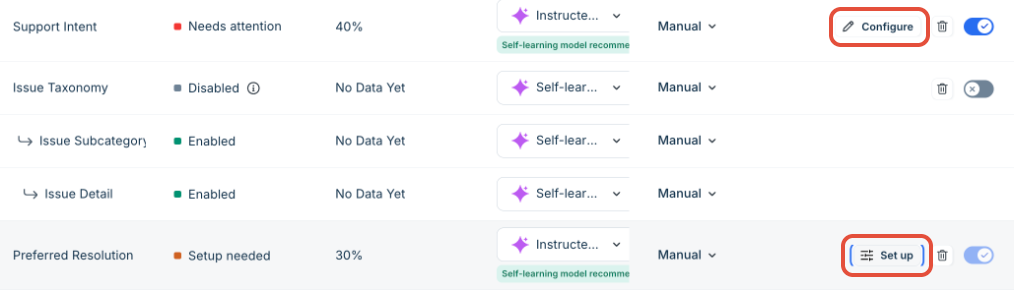
- In the Configure field panel, enter the instructions in the Instructions box. You can enter up to 3,000 characters. Click Rephrase to have Freddy AI reword your instructions, or click Insert template to start from a template and save.
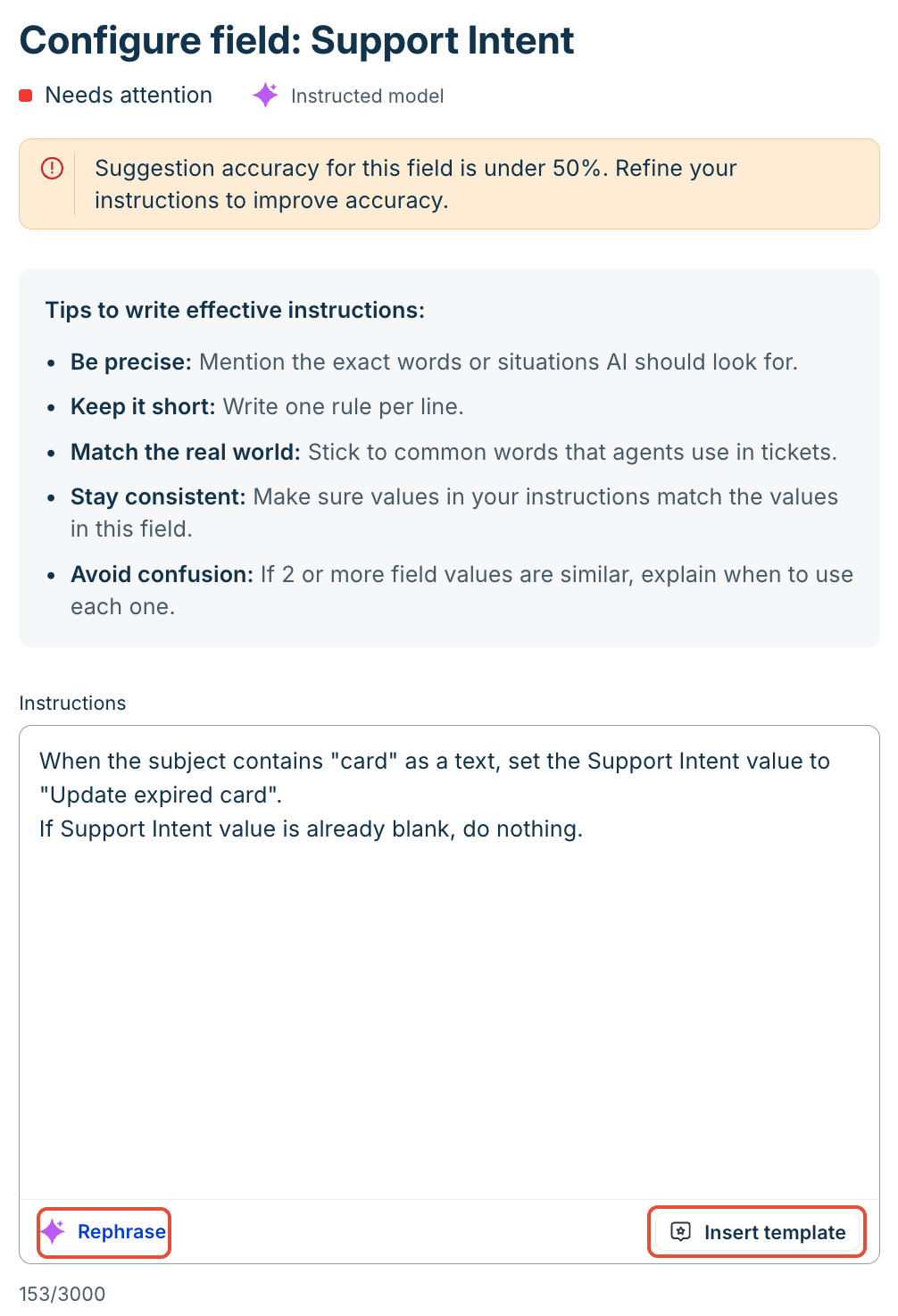
- When specifying keyword matches in your instructions, ensure the text values are enclosed in double quotes (e.g., "card"). Additionally, if an instruction uses another field as a condition, that referenced field must also be enabled in Auto Triage for the condition to work properly.
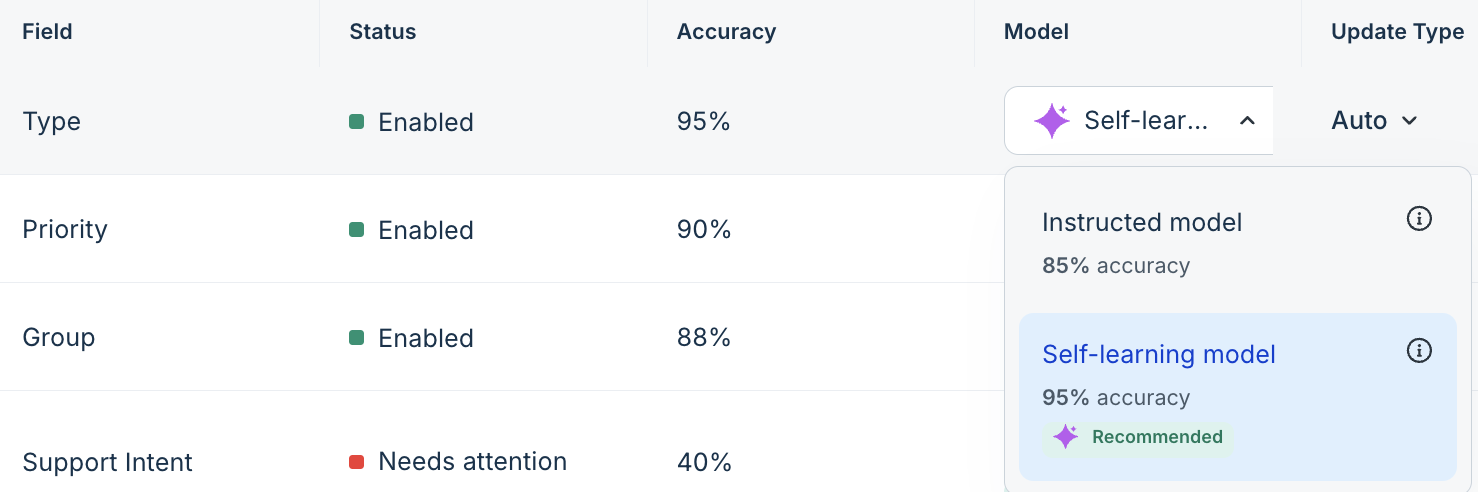
- To select the learning model field, under Model, click the dropdown and select Instructed model or Self-learning model. Each option shows its accuracy for the field, and the better option is marked Recommended.
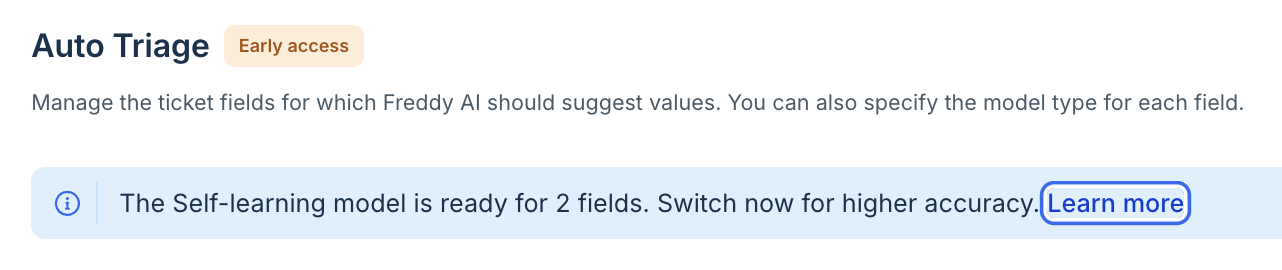
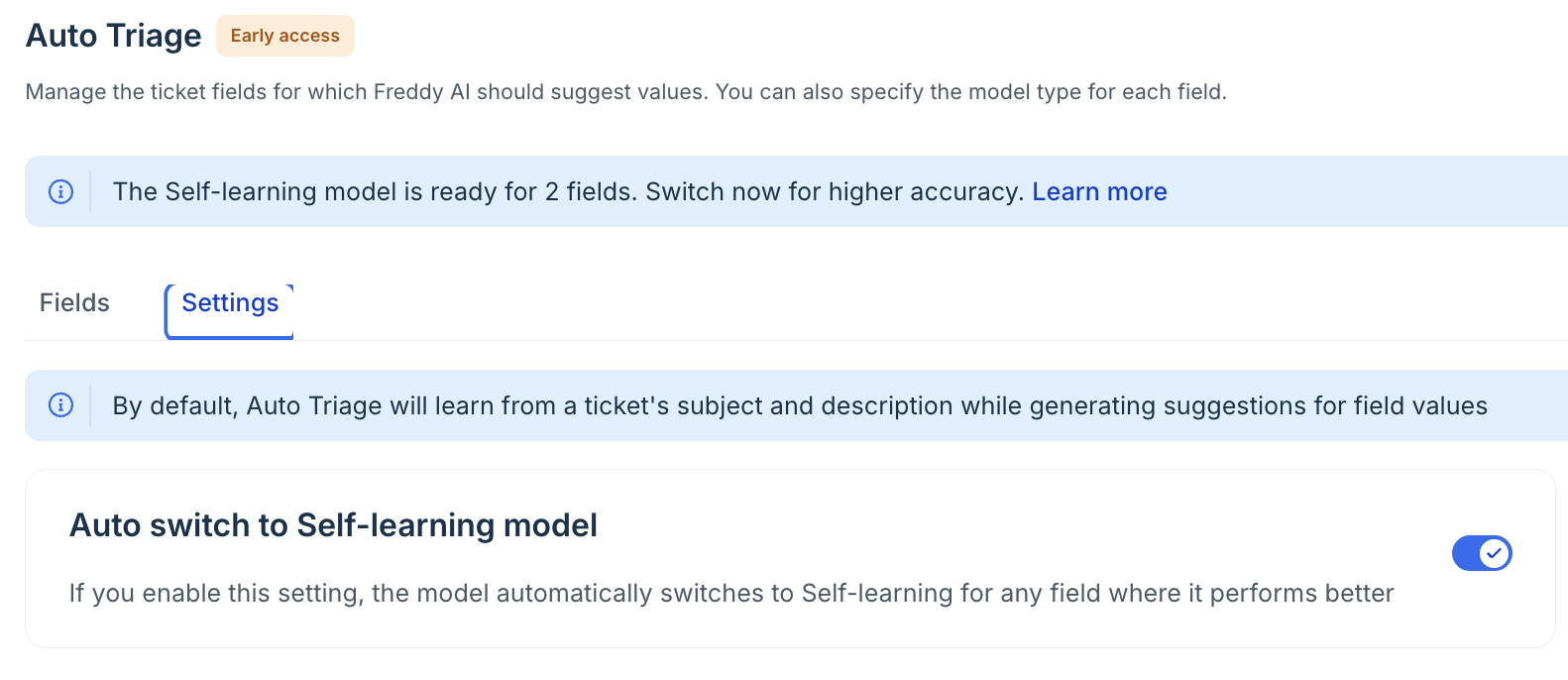
When the Self-learning model is ready for a field, a banner at the top of the page shows how many fields are ready, and the field shows a "Self-learning model recommended" tag.
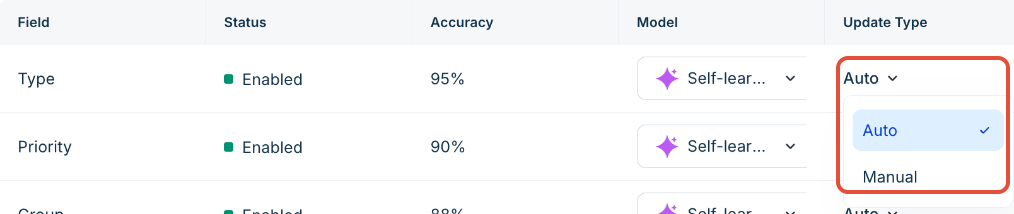
To set the update type, go to the Fields tab, find the field, and under Update Type select Auto (which automatically updates the field value) or Manual (which expects a human agent to review and accept the AI suggestions).
Freddy AI measures accuracy by checking how well its initial suggestions match the final field values when tickets are closed or resolved. If another model performs better, Freddy recommends switching to it.
- Under Actions, use the toggle at the end of each row to turn suggestions on or off for that field. To remove a field from Auto triage, click the delete icon in the row.

You can let Freddy AI switch a field from the Instructed model to the Self-learning model when the Self-learning model performs better. To turn this on, go to the Settings tab and turn ON Auto switch to Self-learning model.
By default, Auto triage learns from the ticket subject and description when it generates suggestions.
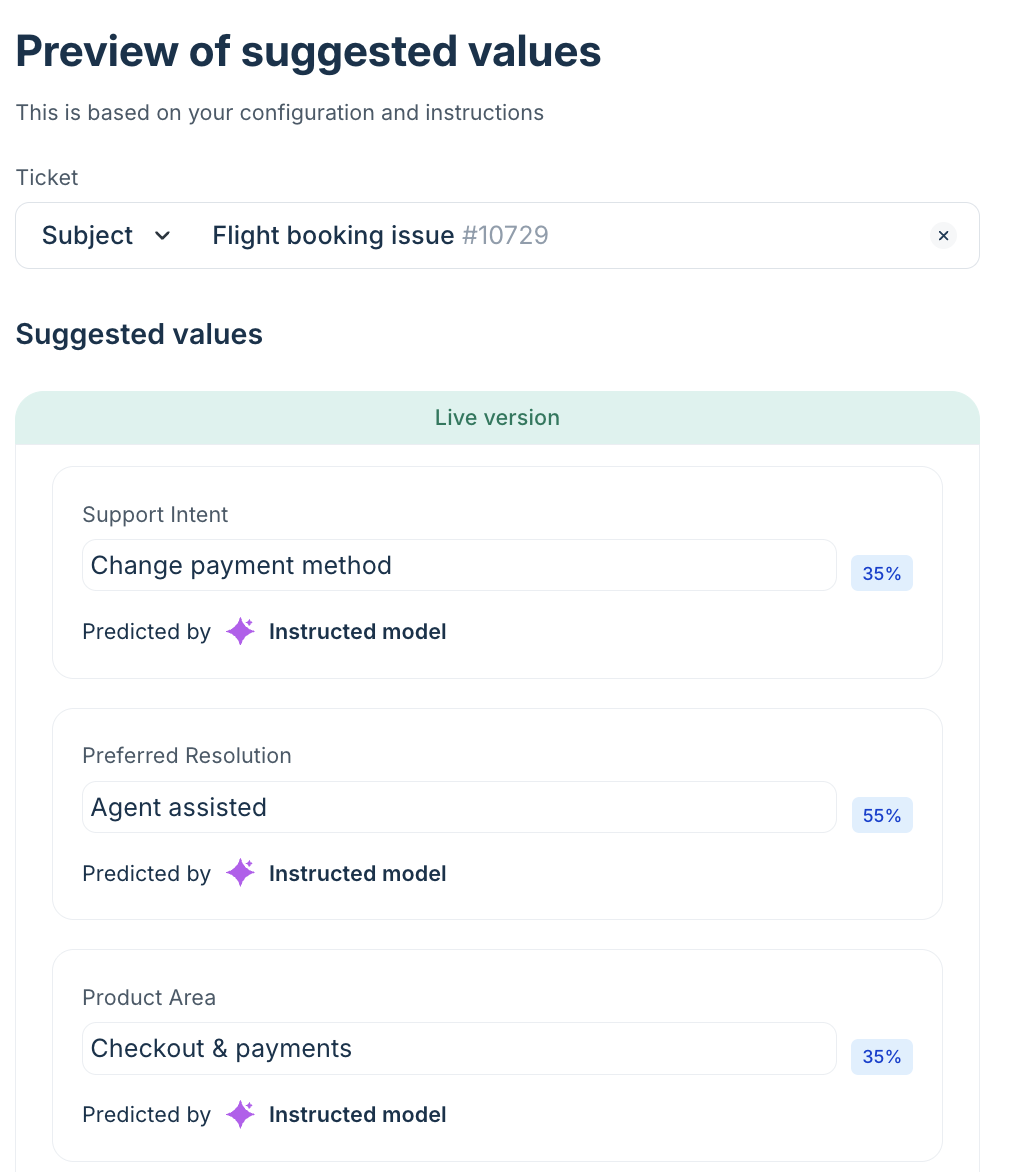
Before agents see suggestions, preview them against an existing ticket by click Preview at the bottom-left.
In the Preview of suggested values panel, search for a ticket by its subject. Review the suggested values that Freddy AI generates for the ticket.
View Auto Triage suggestions
To view Freddy AI suggestions displayed for fields where Auto Triage is enabled,
- Log in to Freshdesk as an Agent.
- Go to the Tickets tab and open a ticket.
- On the ticket details page, under Properties, you will see suggestions generated by Freddy AI.
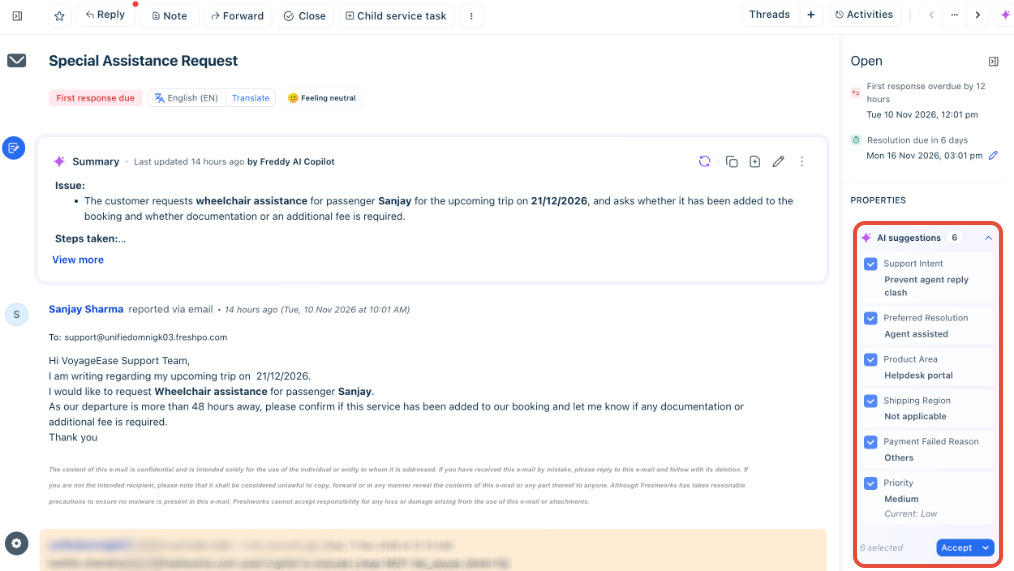
- Each suggestion shows the field name, the suggested value, and a checkbox. Fields with a suggestion are marked with a Freddy icon.
- Select the checkbox next to each suggestion that you want to apply. All suggestions are selected by default.
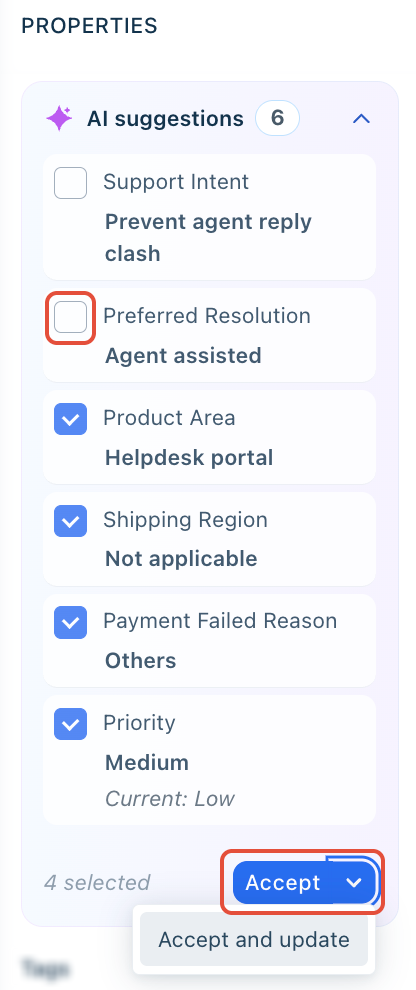
- To choose a different value for one field, click the dropdown for the field that has a Freddy icon.
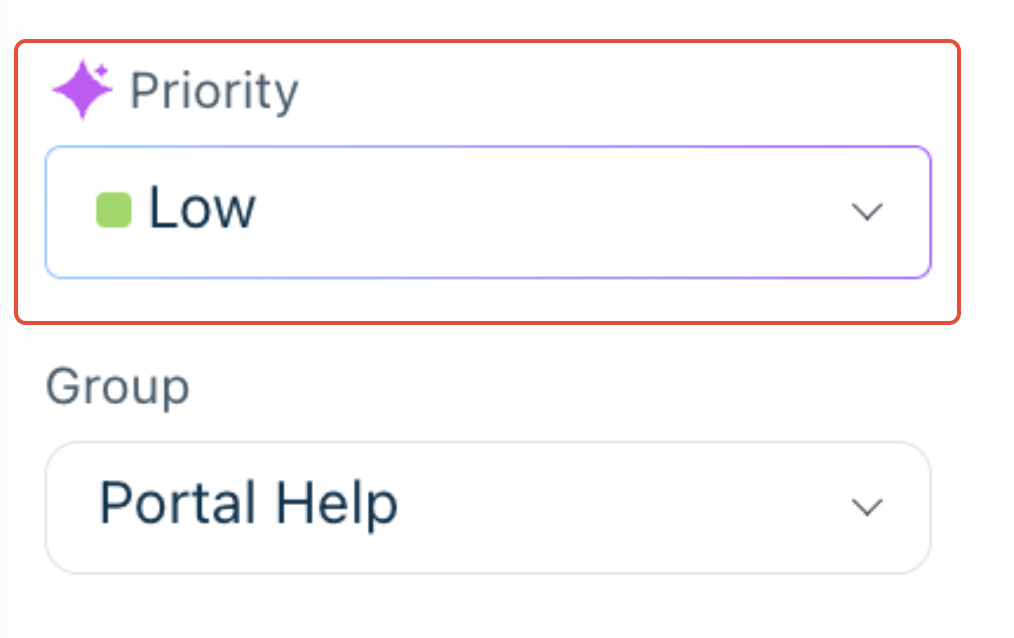
- Select the suggested value, which appears in the list, or select a different value and click Update in the ticket properties overlay.
Freddy AI's accuracy calculation logic
Freddy AI calculates model accuracy using eligible ticket predictions and updates the results periodically.
Minimum ticket requirements
Accuracy is displayed for a field only after a model has been evaluated on at least 20 tickets for that field. Only resolved or closed tickets from the last 90 days (excluding today) are considered. Deleted, spam, and open tickets are excluded.
Tickets with empty predictions count toward the minimum but are marked incorrect. If fewer than 20 eligible tickets are available, accuracy is calculated once the minimum is met.
Accuracy calculation
Freddy AI compares each ticket's latest prediction with its current field value. The comparison uses IDs for Priority, Group, and Internal Group, and trimmed, case-sensitive text for Ticket Type, Dropdown, and Nested fields.
Empty predictions, missing actual values, and invalid or unmapped values count as incorrect.
Accuracy (%) = (Correct predictions ÷ Total predictions) × 100
Accuracy is calculated separately for each field and model (LLM and Freddy).
Calculation frequency
Accuracy is recalculated every 48 hours using a rolling 90-day window. As new predictions enter the window and older ones fall outside it, the accuracy score may change.
Keep automation rules working alongside Auto Triage
Auto Triage evaluates a ticket only after all ticket creation automation rules have run, regardless of whether Execute First Matching or Execute All Matching is selected. Because automation rules execute first, they always act on the ticket's original data, not on values suggested by Auto Triage.
If an automation rule and Auto Triage are configured to update the same field, the automation rule takes precedence. Auto Triage will not suggest or apply a value for that field. This applies to both Manual and Automatic triage types.
The following table describes the resulting behavior by scenario.
Scenario | Behavior when Auto Triage is active |
An automation rule sets a value for a field also configured in Auto Triage (for example, "VIP customers → Set Priority as High") | The automation-set value stands. Auto Triage does not generate a suggestion or apply a value for that field on that ticket. |
An automation rule does not set a value for a field configured in Auto Triage | Auto Triage evaluates the field normally, surfacing a suggestion (Manual) or applying a value (Automatic) as configured. |
An automation rule sets Priority, while Group is configured in Auto Triage and not set by any rule | Priority remains as set by the rule. Group is still evaluated and suggested or applied by Auto Triage independently. Precedence is evaluated per field, not per ticket. |
A field is configured with the Automatic triage type, and no automation rule sets a value for it | Auto Triage applies the value immediately on ticket creation, the same as it would for an unaffected field under the Manual type. |
Note: Precedence is field-by-field, not all-or-nothing. An automation rule that sets one field does not prevent Auto Triage from evaluating other configured fields on the same ticket.
If your automation rules set values broadly across Priority, Group, and Type, review their match conditions before enabling Automatic triage type for those fields.