Note: This feature is currently in an Early Access Program for a select group of Freshdesk customers. Soon, this feature will be broadly available for all users.
Instructions tell Freddy AI Copilot how to generate content across various AI Copilot features. You can use default instructions to control baseline response behavior and additional instructions to add requirements specific to your organization.
This article explains how to understand, edit, and publish Copilot instructions.
TABLE OF CONTENTS
- Prerequisites
- Overview of Copilot instructions
- Default instructions
- Additional instructions
- Edit default instructions
- Add additional instructions
- Preview changes before publishing
- Publish instruction changes
- Guide to write instructions
- Things to keep in mind
Prerequisites
Before you configure instructions:
- Ensure you have administrator access to Agent Studio.
- Ensure the Copilot feature you want to configure is toggled ON in Agent Studio > Freddy AI Copilot.
- Ensure the agents who use the feature have a Freddy AI Copilot license assigned.
Overview of Copilot instructions
Instructions are written guidelines that Freddy AI follows when it generates content for a Copilot feature. They define the tone, the rules, the information to prioritize, and how Freddy AI handles missing information. The Instructions tab also displays tips for writing effective instructions.
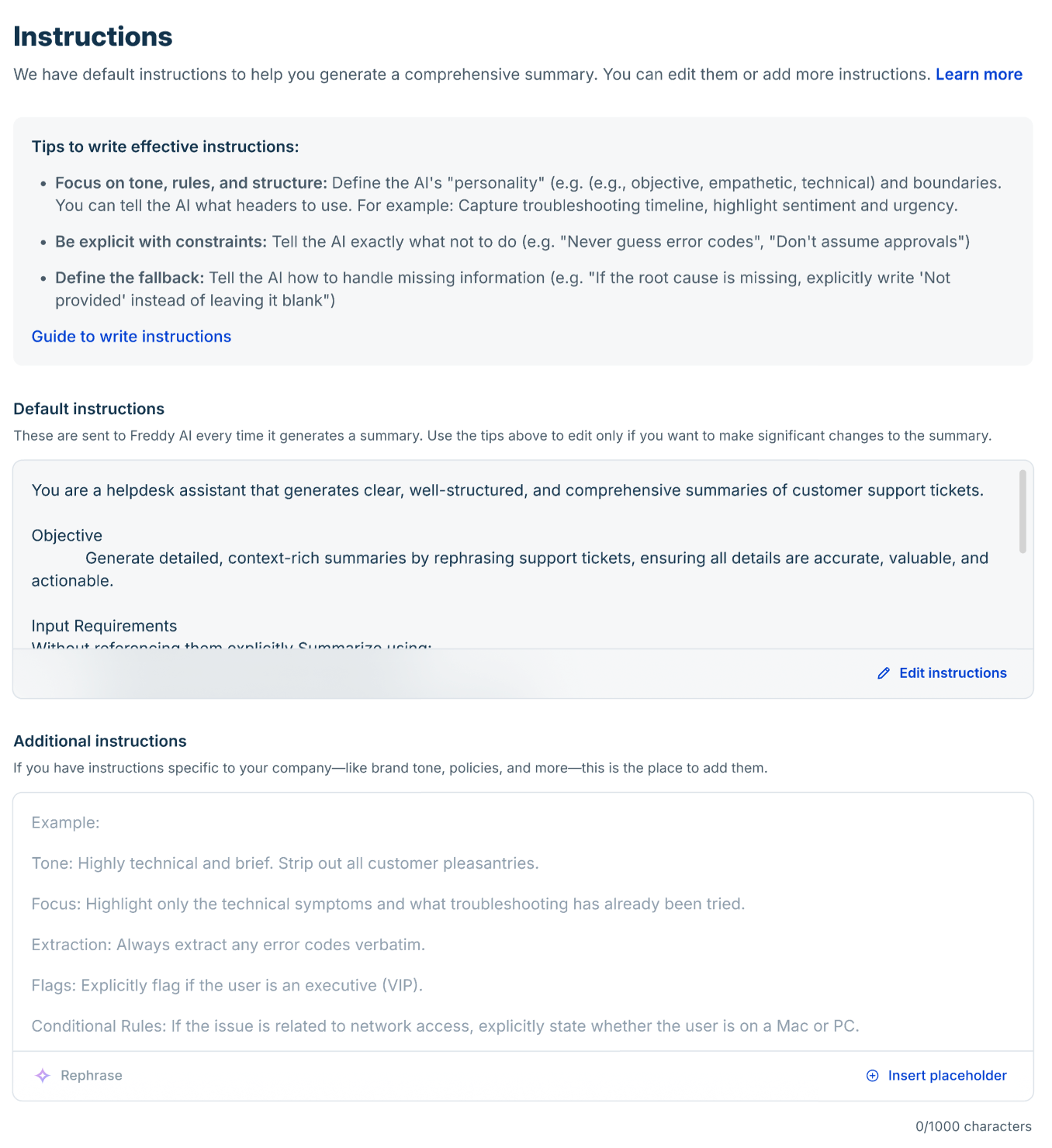
Each configurable Copilot feature has an Instructions tab with two sections:
Instruction type | Purpose |
|---|---|
Default instructions | Baseline instructions that Freshdesk provides. Freddy AI receives these instructions every time it generates content. |
Additional instructions | Requirements specific to your organization, such as brand tone, compliance policies, and formatting standards. |
Default instructions
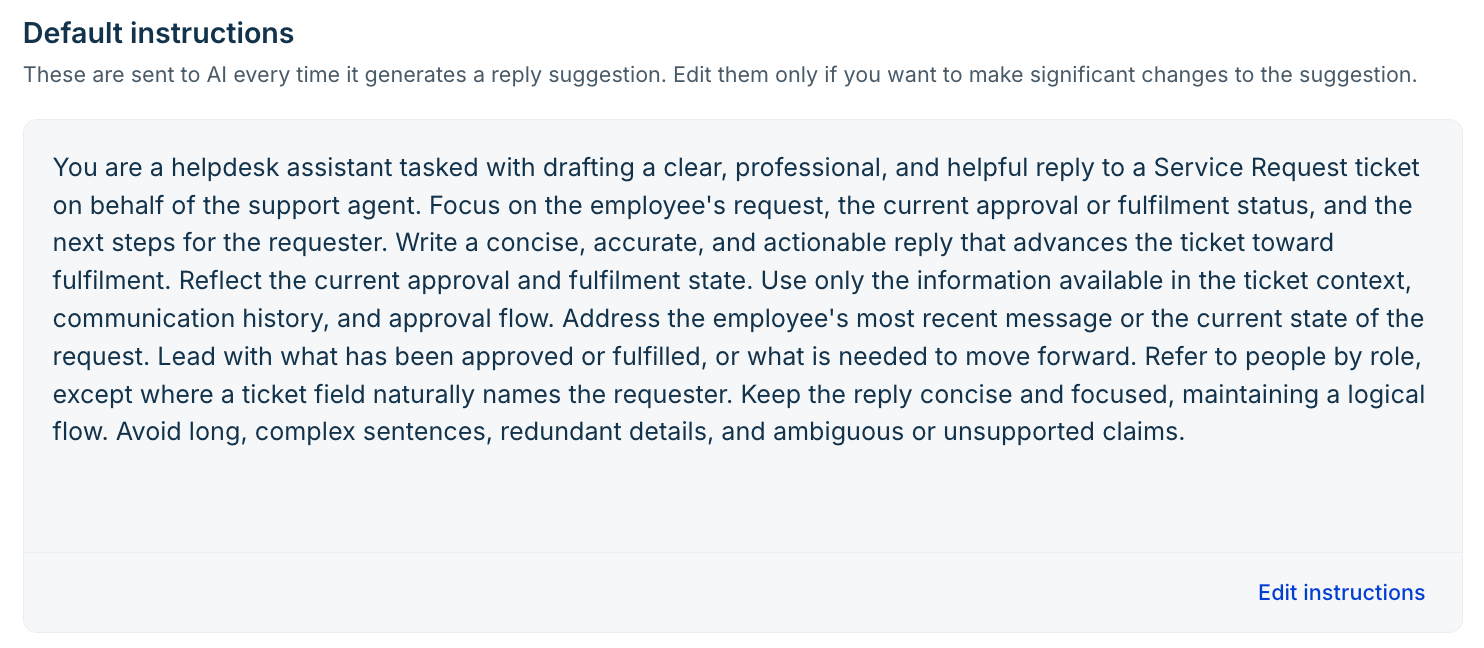
Freshdesk provides default instructions as part of the standard Get started template. These instructions provide guidance on the structure, tone, and other aspects that AI Copilot follows when generating content. Edit them when you need to make significant changes to how the AI output is generated or structured.
Additional instructions
Use Additional instructions to provide requirements specific to your organization's processes, terminology, or documentation standards. These instructions supplement the default behavior and help AI generate content that is more relevant to your requirements. Additional instructions support up to 1,000 characters.
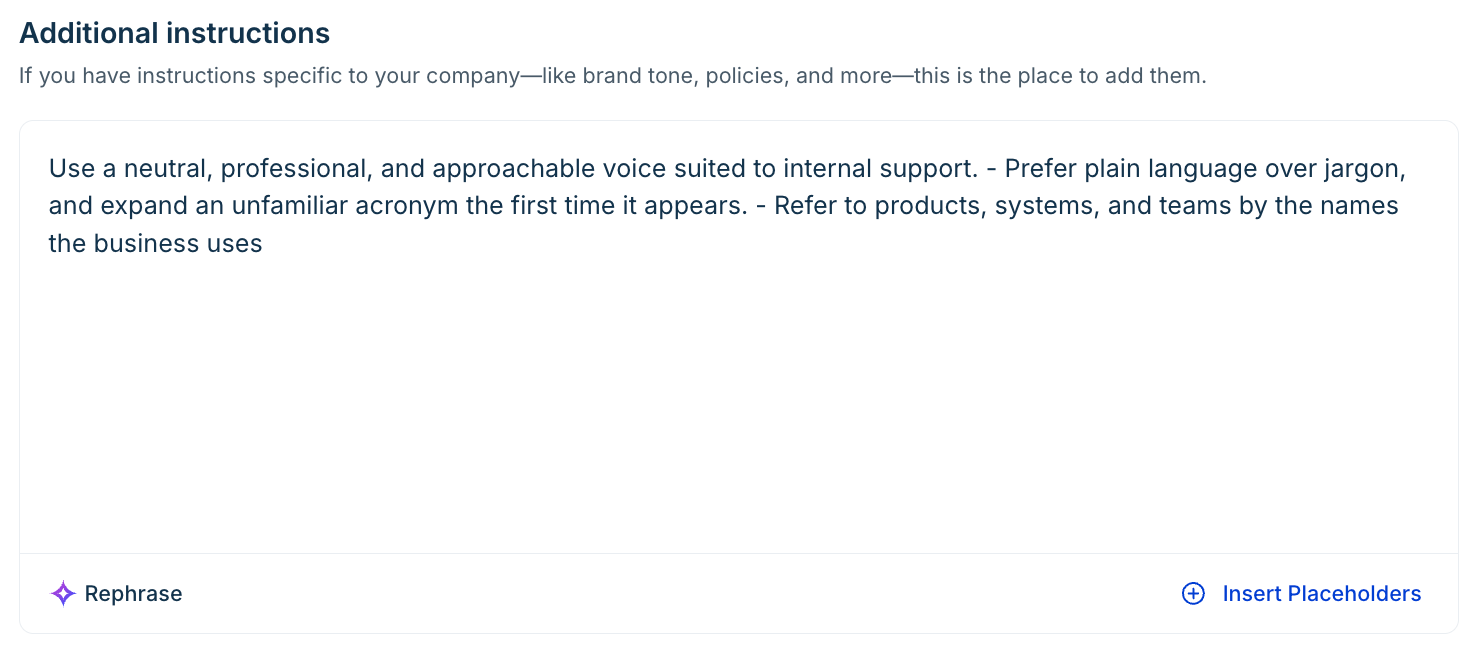
For example, you can use additional instructions to set expectations like the following:
- Tone: Friendly, empathetic, and concise. Avoid technical jargon unless the customer uses it first.
- Focus: Always greet the user by their first name and validate their frustration if they are experiencing a bug.
- Constraints: Never offer compensation, discounts, or account credits unless explicitly prompted by an internal macro.
- Sign-off: Always conclude replies with "Best regards, [Agent Name]".
- Conditional rules: If the issue is related to billing or refunds, explicitly mention that processing takes 3-5 business days.
Edit default instructions
To edit default instructions:
- Go to Agent Studio > AI Copilot.
- Once you’ve enabled an AI Copilot feature, select the Settings icon next to it.
- In the left pane, select Build > Instructions.
- Under Default instructions, click Edit instructions.
- Click Proceed in the confirmation banner and update the instructions.
- Save or publish your changes. For details, see Publish instruction changes.
- (Optional) Select Rephrase to have Freddy AI rephrase the text you entered.
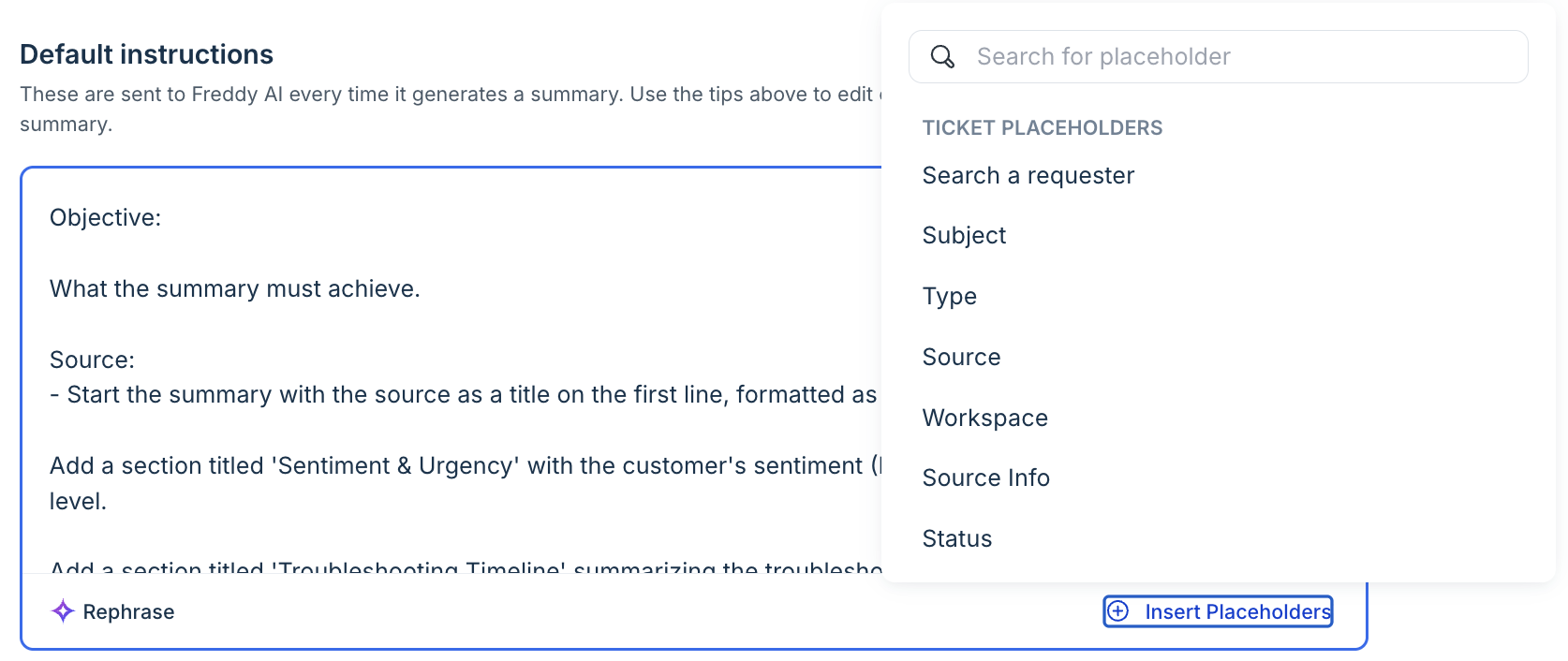
- (Optional) Select Insert placeholder to insert a placeholder into the instructions.
- Save, preview and publish your changes.
Add additional instructions
To add additional instructions:
- Go to Agent Studio > Freddy AI Copilot.
- Once you’ve enabled an AI Copilot feature, select the Settings icon next to it.
- In the left pane, select Instructions.
- Under Additional instructions, enter your instructions.
- (Optional) Select Rephrase to have Freddy AI rephrase the text you entered.
- (Optional) Select Insert placeholder to insert a placeholder into the instructions.
- Save or publish your changes.
Preview changes before publishing
The preview generates output for a selected ticket based on the current configuration and instructions. The preview uses only the ticket subject and description.
To preview generated content:
- In the left pane of the feature settings, click Preview.
- In the Preview panel, select Subject or Ticket ID from the dropdown.
- Search for a ticket, then select it from the results. The generated output appears under the preview panel with the Live version label.
- (Optional) If a draft exists, toggle ON Compare with draft to view the Live version and Draft version side by side.
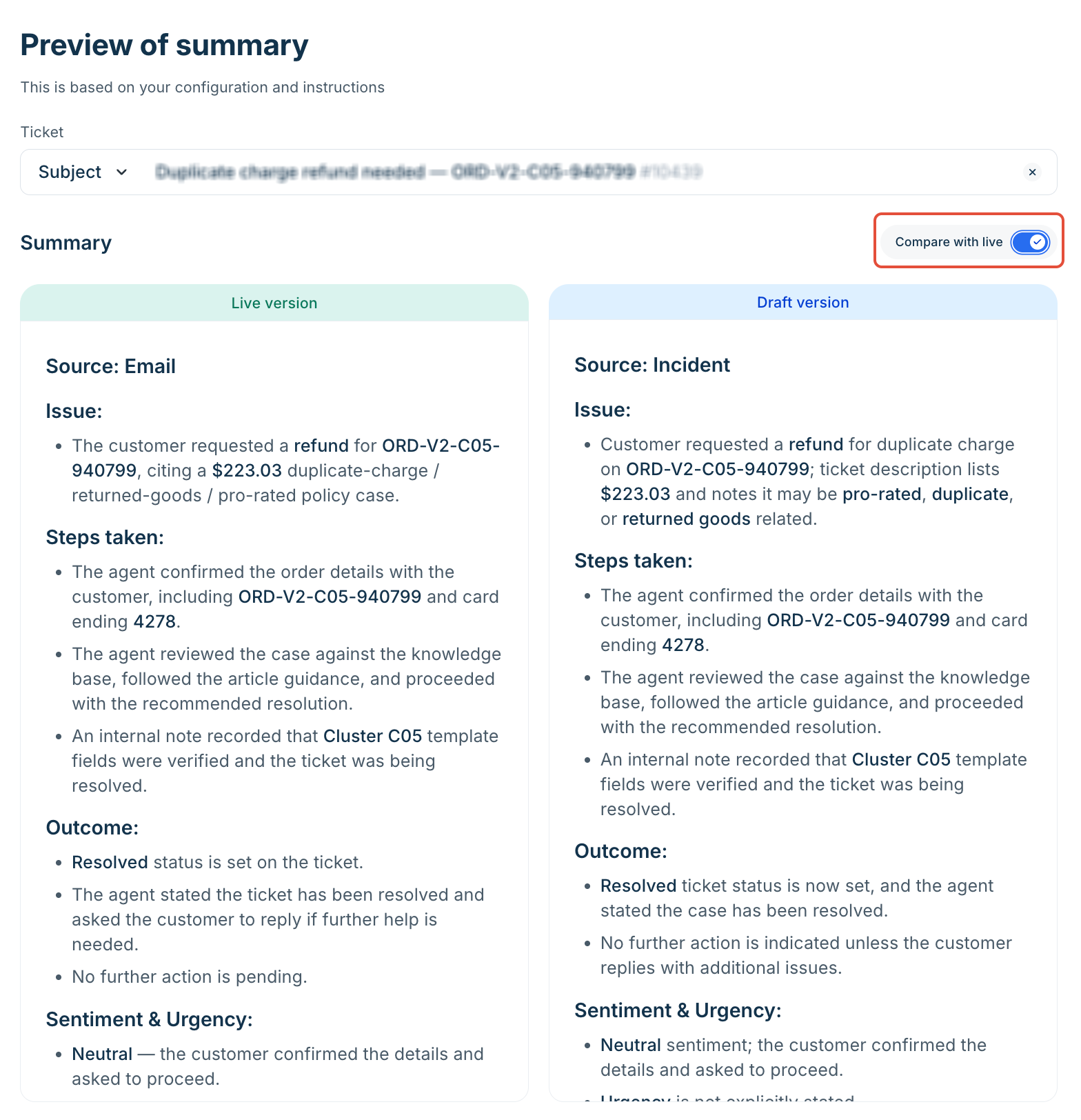
If Freddy AI cannot generate output for the selected ticket, the panel displays a message that no suggestions or generated content are available for the ticket.
Publish instruction changes
When you change the instructions, the feature switches to Draft mode. Agents continue to receive AI output from the Live version until you publish the draft.
To publish instruction changes:
- (Optional) Click Save draft to save your changes without publishing them.
- (Optional) Preview the draft.
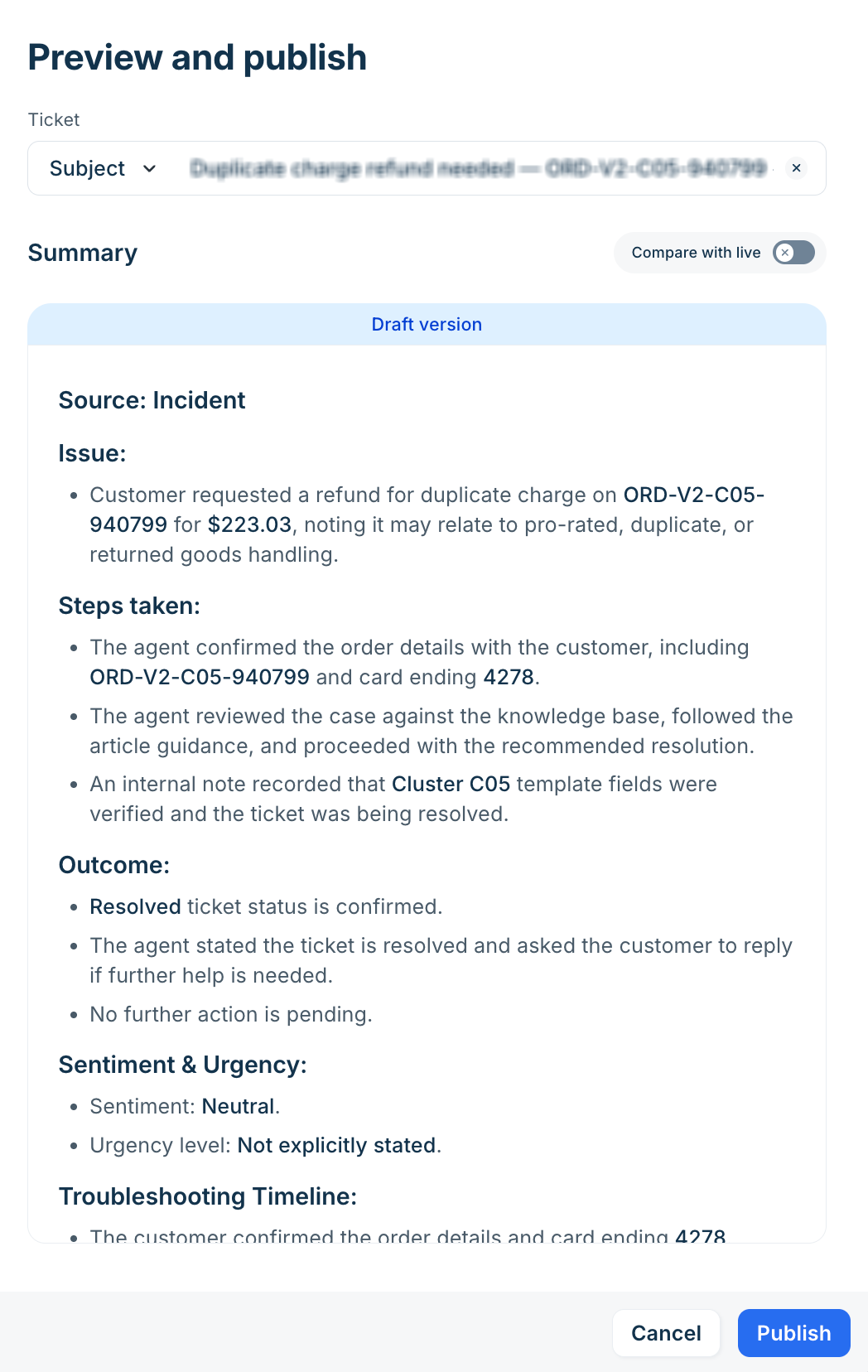
- Click Publish. In the Preview and Publish overlay, search for a ticket, then select it from the results. The generated output appears under the preview panel.
- Check once and click Publish.
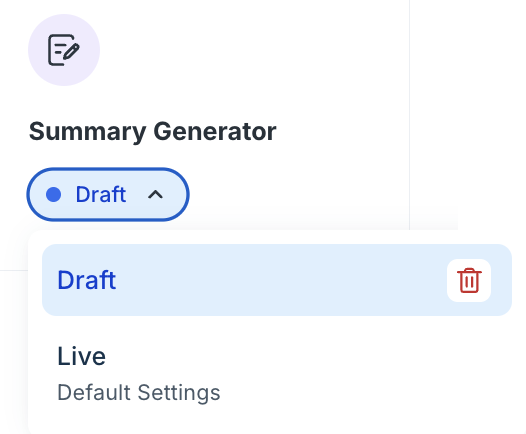
To discard a draft, select the Draft status dropdown below the feature name, then select the Delete icon next to Draft.
Guide to write instructions
The following guidelines apply to both default and additional instructions:
- Define the brand voice and tone: Describe the personality you want Freddy AI to use in its generated content. For example, specify whether output should be empathetic, objective, conversational, or formal. You can also define the boundaries of the interaction.
- Define clear constraints: State what Freddy AI must not do. For example:
- "Never guarantee a refund."
- "Don't promise exact delivery timelines."
- "Never guess account statuses."
- Define fallback behavior: Specify how Freddy AI should respond when it does not have enough information. For example, instruct it to ask the customer for more details instead of guessing when it cannot determine the root cause from the ticket history.
- Specify what to prioritize: Identify the information that matters most for your tickets. For example, prioritize order details for billing queries or troubleshooting steps for technical issues.
- Avoid vague instructions: Replace broad instructions such as "Write a good reply" with specific requirements. For example: "Address the customer's primary question first, then list any secondary troubleshooting steps."
Things to keep in mind
- Scope — Instructions on a feature's Instructions tab apply to content generated by that specific AI Copilot feature.
- Character limit — Additional instructions support up to 1,000 characters.
- Preview scope — The preview uses only the ticket subject and description, so generated output on live tickets may differ when features also use full ticket context such as notes and threads.
- Draft and live versions — Instruction changes affect agents only after the draft is published.