Note: The features described in this article are currently available in early access to selected customers. If you are interested in participating in the early access program, contact your Customer Success Manager (CSM).
The Conversational Copilot Agent operates within the Freddy AI panel to assist in investigating ticket issues, querying knowledge bases, drafting customer replies, and refining text directly within the ticket interface.
Prerequisites
Before you use Conversational Copilot, ensure the following:
- You have a Freddy AI Copilot license assigned to your account.
- Your administrator has enabled Freddy AI Copilot for your account.
- Your solution articles are published, and your canned responses and resolved tickets contain current information.
Understand Conversational Copilot
Conversational Copilot is a Freddy AI Copilot capability that answers questions about the ticket you are working on. Instead of searching articles, past tickets, and canned responses separately, you can ask questions in natural language from the Ask me anything field.
The following video explains how Ticket Summarizer Conversational Copilot Agent works:
Depending on your request, Copilot can:
- Draft a reply for the customer.
- Retrieve published articles.
- Retrieve similar issues that were resolved.
- Refine text you have already written.
- Suggest next steps to address the issue
Every response cites the sources it used. You can open each source and verify the information before sending it to the customer.
Open the Copilot panel
Conversational Copilot runs in the Freddy AI panel on the ticket details page. Select the Freddy AI icon in the ticket action bar to open the panel.
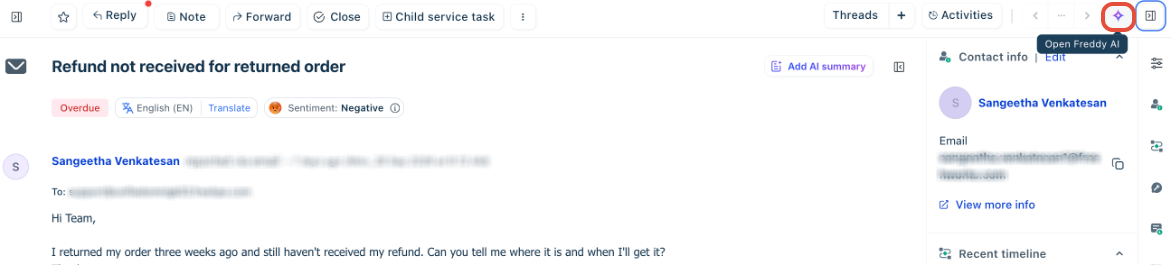
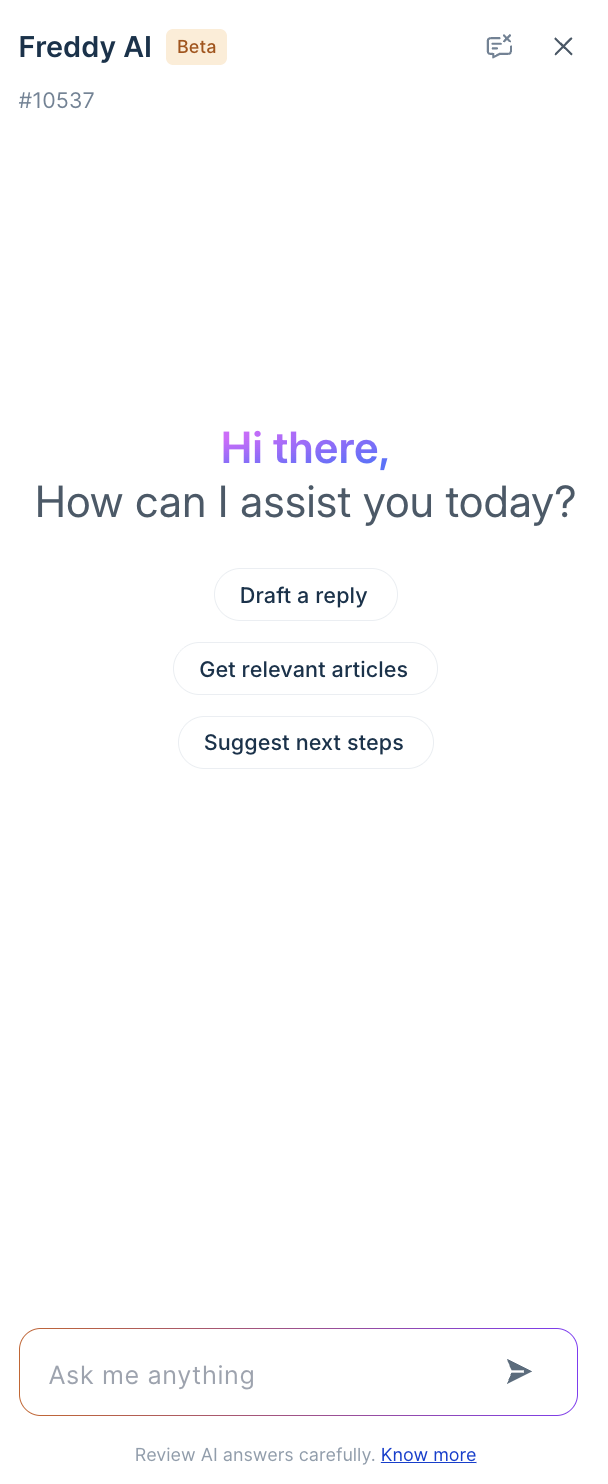
When you open the panel, it displays a greeting, three default action pills, and the Ask me anything field.
Ask questions in the Copilot panel
To ask Copilot a question about the current ticket:
- Select the ticket you want to resolve.
- Click the Open Freddy AI icon.
- Enter your request in the Ask me anything field.
- Press Enter or select the send icon.
- Review the generated response.
- Select Sources to open the cited sources and verify the information.
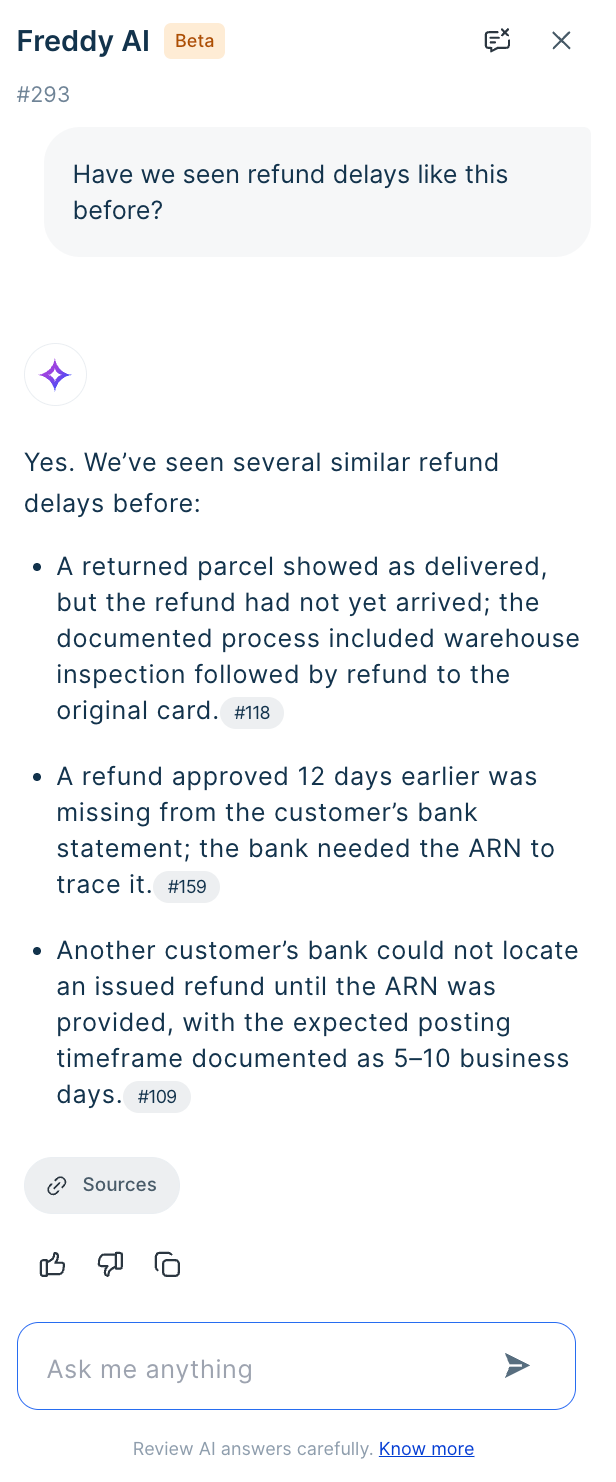
Copilot answers from your knowledge base and resolved tickets. You can specify the source you want Copilot to use. For example, you can ask Copilot to answer only from solution articles. If you do not specify a source, Copilot draws on both.
The following examples show the types of requests Copilot handles in a customer support context:
- "What is our return window for international customers?"
- "How did we handle the bulk refund requests during the last shipping outage?"
- "Can a customer combine a promo code with a gift card during a seasonal sale?"
- "Draft a reply telling the customer their replacement will ship in two business days."
Use default actions
The Copilot panel provides three action pills for common tasks. Select an action pill to run the request without entering it manually.
Action | What it does |
Draft a reply | Generates a customer-facing reply for the current ticket. |
Get relevant articles | Retrieves published solution articles that match the ticket and offers to summarize them and suggest resolution steps. |
Suggest next steps | Provides a read-only panel displaying next steps drawn from relevant articles and resolved tickets. |
Draft replies for customers
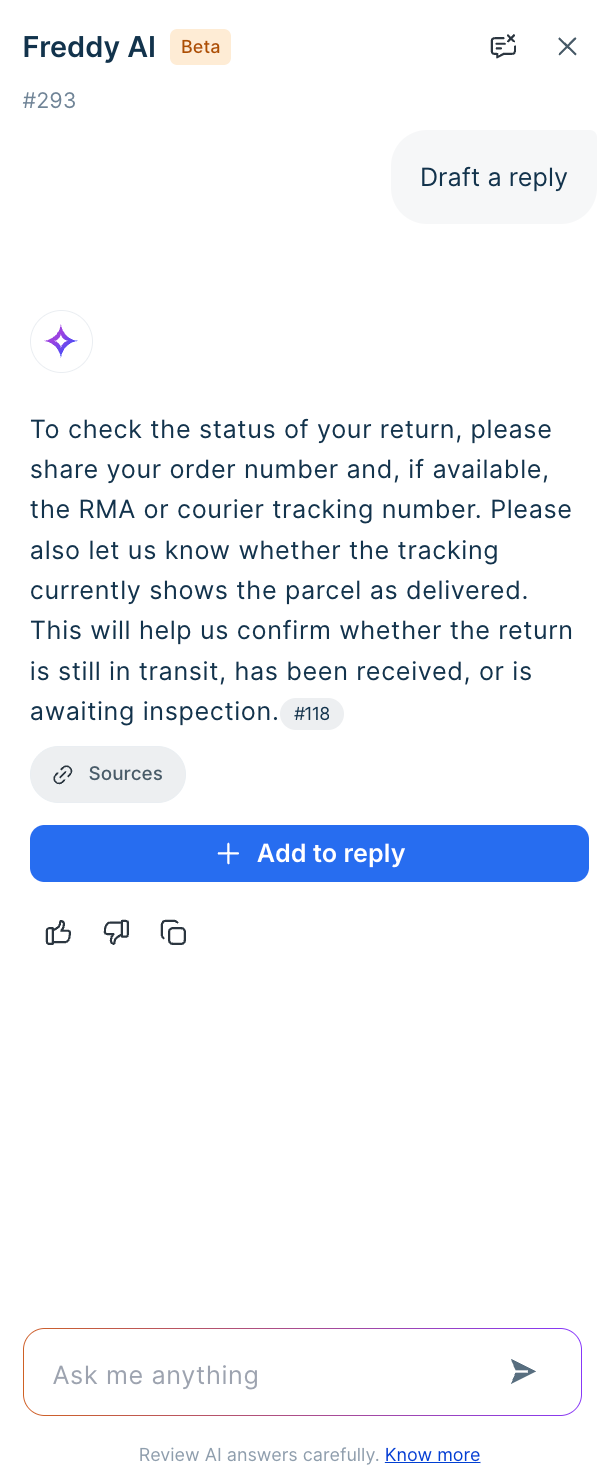
Select Draft a reply to generate a customer-facing response for the current ticket.
The response starts with the subject it drafted for, followed by the draft. Inline chips identify the article, ticket, or canned response behind each part of the draft.
Select + Add to reply to insert the draft into the reply editor. You can then edit the draft before sending it. Copilot also offers to create a more concise or more elaborate version of the same draft.
You can also describe how you want to change the reply instead of using the generated draft as is. For example:
- "Add a line at the start acknowledging the delay in their shipment."
- "Make this less formal and more conversational."
- "Combine the troubleshooting steps from the first draft with the refund offer from the third."
Get relevant articles
Select Get relevant articles to retrieve published solution articles that match the ticket (note that solution articles must be published and take at least 6 hours to appear in suggestions). Copilot returns the articles as links that you can open directly. It also offers to summarize the articles and suggest resolution steps.
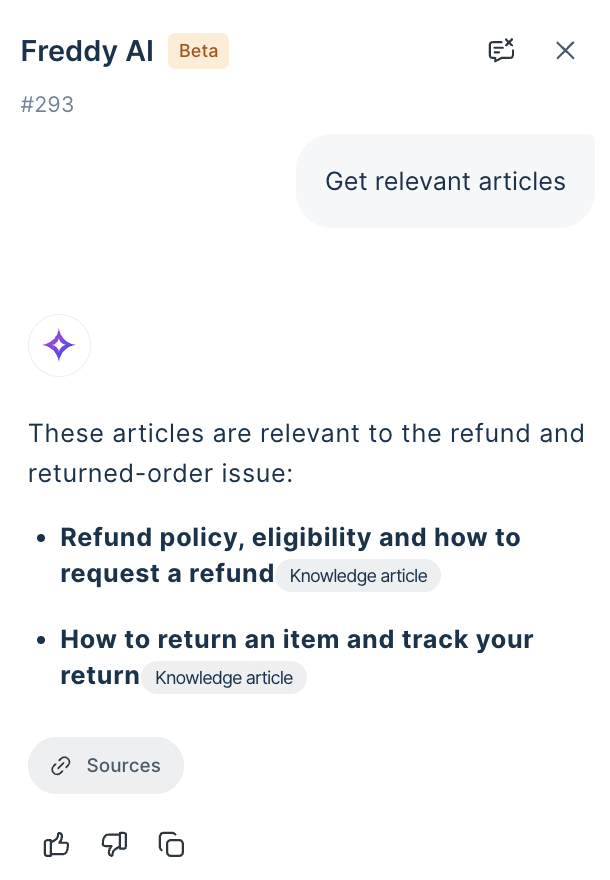
Get suggested next steps - coming soon
Select Suggest next steps to see how agents resolved comparable issues in the past (note that for similar tickets, it takes 24 hours for Freddy to start referring to them in citations).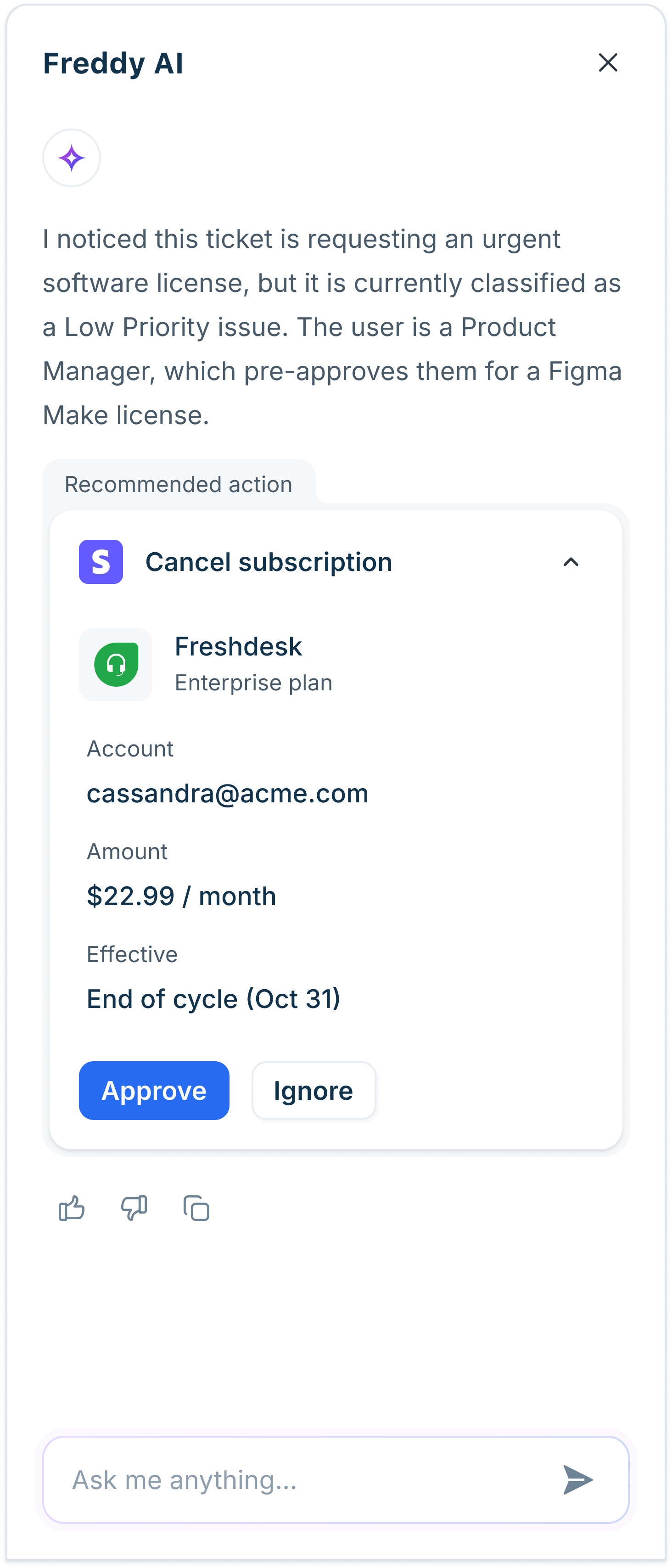
Edit selected text with Copilot
You can send text that you have already written in the reply editor to Copilot for revision.
To edit selected text:
- Select the text in the reply editor.
- Select Edit with Copilot.
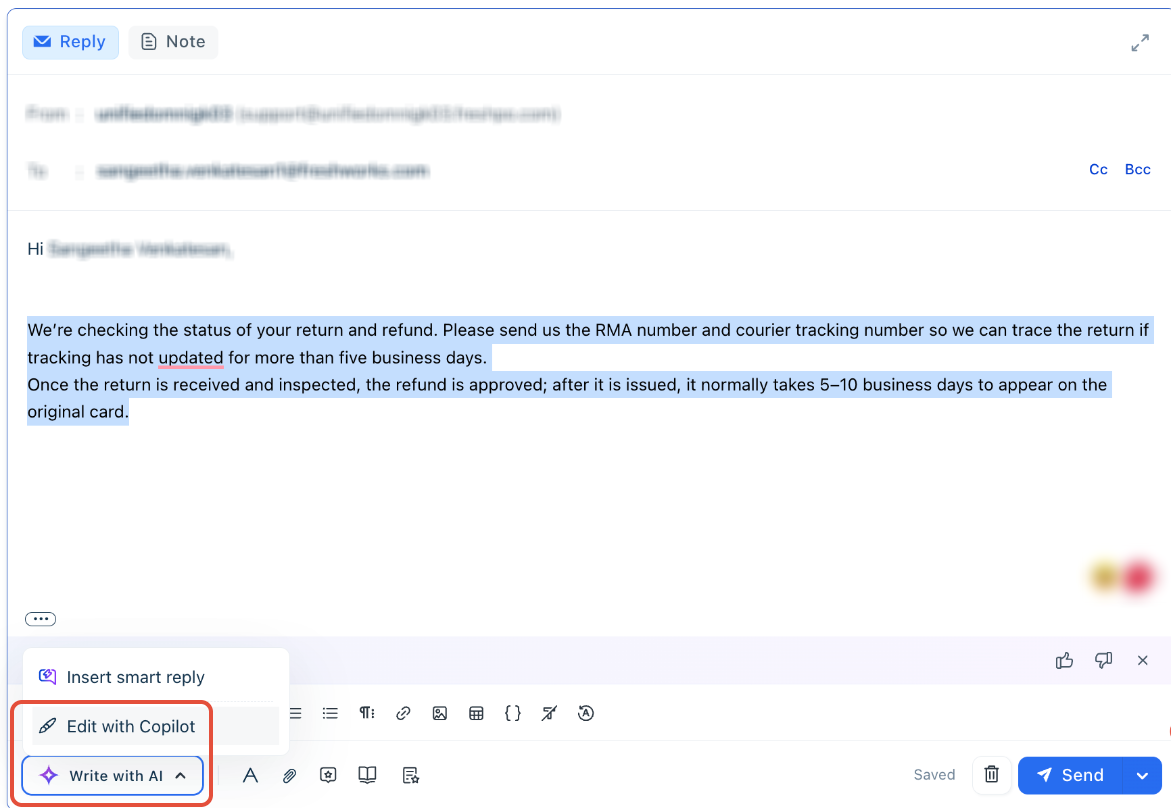
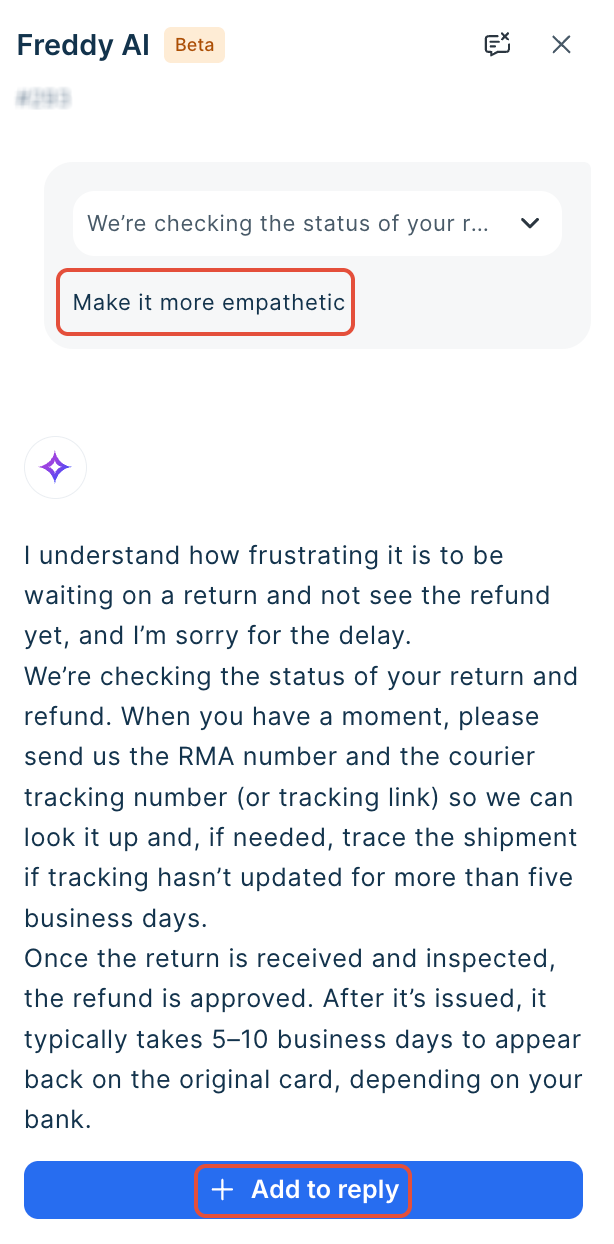
- Enter the prompt or change you want in the selected text in the Ask me anything field. The selected text appears above your request as a collapsed quote so you can confirm what Copilot is working on.
- Review the revised version and select + Add to reply.
Review cited sources
Copilot cites the sources behind every response it grounds in your content, so you can verify the information before acting on it. Citations work the same way for a reply draft, an article lookup, and a next-steps analysis.
Sources appear in two places: as inline chips on the response, and as a full list in the panel.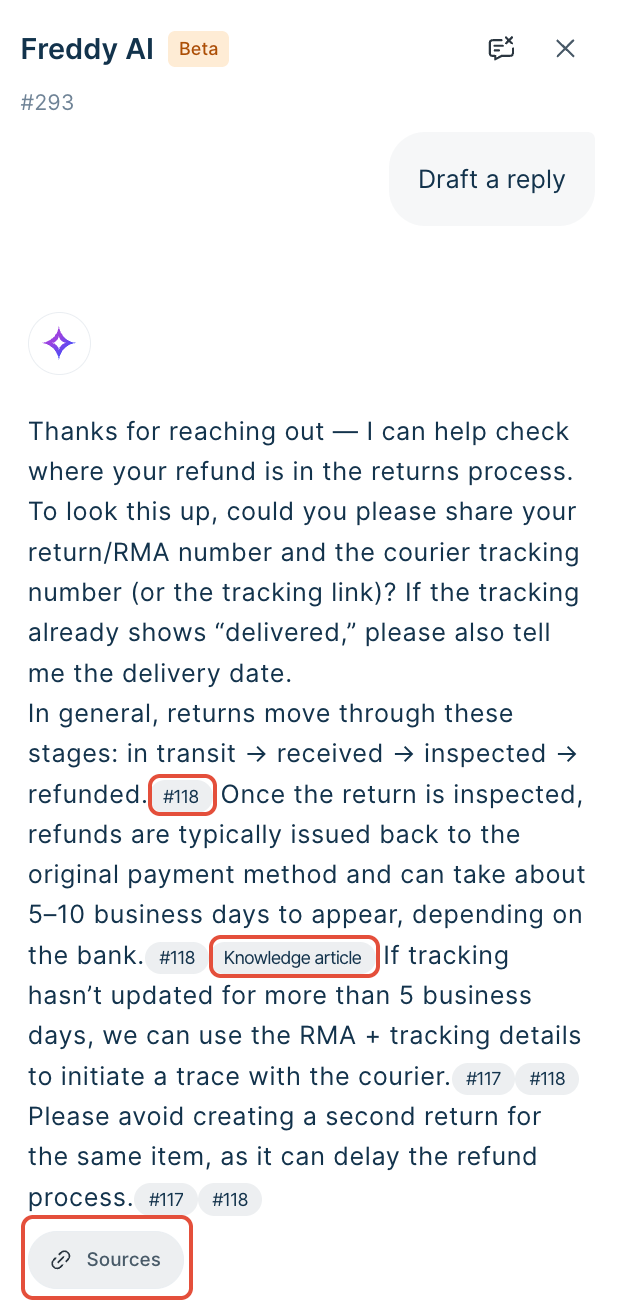
Source chips on a response
Chips appear at the end of the sentences they support, rather than in a single list at the bottom. Each chip names its primary source and, when more than one source supports that passage, carries an overflow count.
The chip label identifies the source type:
Action label | Source |
A ticket number, such as #12404 | A previously resolved ticket with a comparable issue |
Knowledge article | A published solution article |
Canned response | A pre-approved reply template - used only to generate reply drafts |
+N alongside either label | The number of additional sources supporting the same passage |
Select a chip to preview the sources behind that passage without leaving the panel. Each preview entry shows the source title and an extract of its content, so you can confirm relevance before opening the source in full.
Full list of cited sources
Select Sources on a response to see everything it cited. The panel replaces the conversation with the complete list, introduced by a line confirming that these are the sources cited in that response.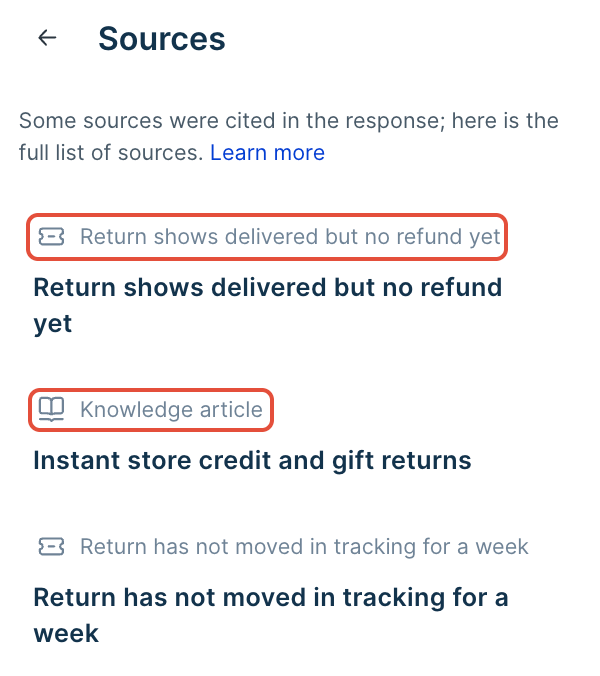
The list groups entries by type, and includes your files, URLs and connected third-party knowledge sources (SharePoint, Google Drive and Confluence) alongside Freshdesk content:
- A resolved ticket, shown with its ticket number and subject.
- Knowledge article, for a published solution article.
Select the back arrow to return to the conversation with the response intact.
When you select + Add to reply on a reply draft, the draft carries its sources into the reply editor along with the feedback controls, so the citations remain available after the text leaves the panel. For how sources behave in the reply editor, see Reply Suggester.
Provide feedback on responses
Every Copilot response includes a feedback row below it. You can:
- Select thumbs up or thumbs down to rate the response.
- Select the copy icon to copy the text.
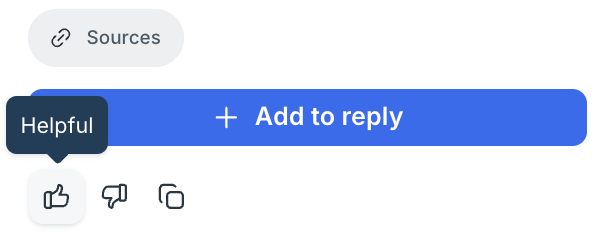
When you select thumbs down, you can record why the response was not useful. Freshdesk will use the feedback and responses for fine-tuning the features for future improvements.
Response boundaries
Copilot answers only what it can ground in your own content and only for the ticket you have open.
- Ticket scope: Copilot answers questions about the current ticket. It does not answer questions about a different ticket unless that ticket is returned as a similar ticket. It also does not answer questions about other areas of the product, such as analytics.
- Source scope: Copilot uses your knowledge base and past tickets to answer questions. General questions unrelated to customer support are out of scope, and Copilot returns a message instead of an answer.
- Permissions: Copilot applies your access permissions when it retrieves articles and past tickets. Two agents working on the same ticket may receive different answers based on what each agent can view.
- Review before sending: The panel displays a reminder to review AI answers before using them.
Error and empty states
When Copilot cannot ground an answer, it reports what information was missing instead of generating an unsupported response. The supported states cover:
- No knowledge found.
- No similar tickets found.
- Neither found.
When a request is too vague to map to the ticket, Copilot asks a clarifying question. For example, if you ask why something failed and the ticket describes more than one failure, Copilot asks which failure you mean.
Apply Conversational Copilot for common scenarios
Conversational Copilot supports the following customer support patterns:
Scenario | How Conversational Copilot applies |
A returns or exchange query where policy detail matters | Ask Copilot for the return window or exchange policy. Then select Draft a reply and verify the draft against the cited articles before sending. |
A recurring issue that other agents have already resolved | Select Suggest next steps to see the root causes and recommendations drawn from resolved tickets, along with the ticket numbers behind each one. |
An escalated or sensitive conversation | Draft the reply, then ask Copilot to adjust the tone, add an acknowledgement of the customer's frustration, or make the response more concise. |
A new agent handling an unfamiliar product area | Ask questions in the Ask me anything field to retrieve relevant articles. Open each cited source to learn the verified answer instead of guessing. |
The accuracy of these scenarios depends on the coverage and currency of your published articles, canned responses, and resolved tickets.
Use Conversational Copilot with other Copilot features
Conversational Copilot works alongside other Freddy AI Copilot capabilities on a ticket.
When you need to | Use this alongside Conversational Copilot |
Receive a reply draft without asking for one | Reply Suggester, which drafts proactively as inline ghost text |
Get up to speed on a long ticket | Copilot Summarize, for a concise recap of the conversation |
Apply a single writing action to text in the editor | Writing Assistant, through the Write with AI dropdown |
Key considerations
- Ticket-bound conversation: The panel header shows the ticket number, and the conversation applies only to that ticket.
- Permission-scoped answers: Copilot retrieves only the articles and past tickets you are permitted to view.
- Source types: Answers are grounded in solution articles, resolved tickets, canned responses, and connected third-party knowledge sources.
- Explicit insertion: Copilot never writes to the reply editor on its own. Text reaches the editor only when you select + Add to composer.
- Panel placement: Below 1680 px, the Copilot panel replaces the properties pane. At 1680 px and above, both the Copilot panel and properties pane appear together.