TABLE OF CONTENTS
This article explains how to create, test, and configure custom functions for use in your workflows.
Prerequisites
Before you use functions, ensure that the following requirements are met:
- Ensure that you have administrator access to AI Agent Studio.
- You have created an AI Agent workflow to process data.
- You have a basic understanding of JavaScript if you plan to create custom functions manually.
About custom functions
AI Agent workflows include a library of pre-built functions for common data transformation tasks. Additionally, you can create custom functions to implement your own transformation logic.
With custom functions, you can perform the following tasks:
- Transform and manipulate data from workflow variables, API requests and responses, and supported properties.
- Apply business-specific logic, such as data validation, calculations, and value formatting.
- Use the function outputs in downstream workflow components.
- Reuse the same transformation logic across multiple AI Agent workflows.
After you create a custom function, you can test it with sample inputs, configure its output parameters, and reuse it across multiple AI Agent workflows.
For an overview of functions, the available function types, and how functions work in AI Agent workflows, see Manage and use functions in AI Agent workflows.
Create a custom function
Create a custom function to define reusable logic that processes data within your AI Agent workflows. During the creation process, you can provide the function details, define the required inputs and outputs, write or generate the function logic, test it with sample data, and save it for use across supported workflow components.
To create a custom function, follow these steps:
.
- On the left navbar, click AI Agent Studio > Library > Functions.
- Click Create.
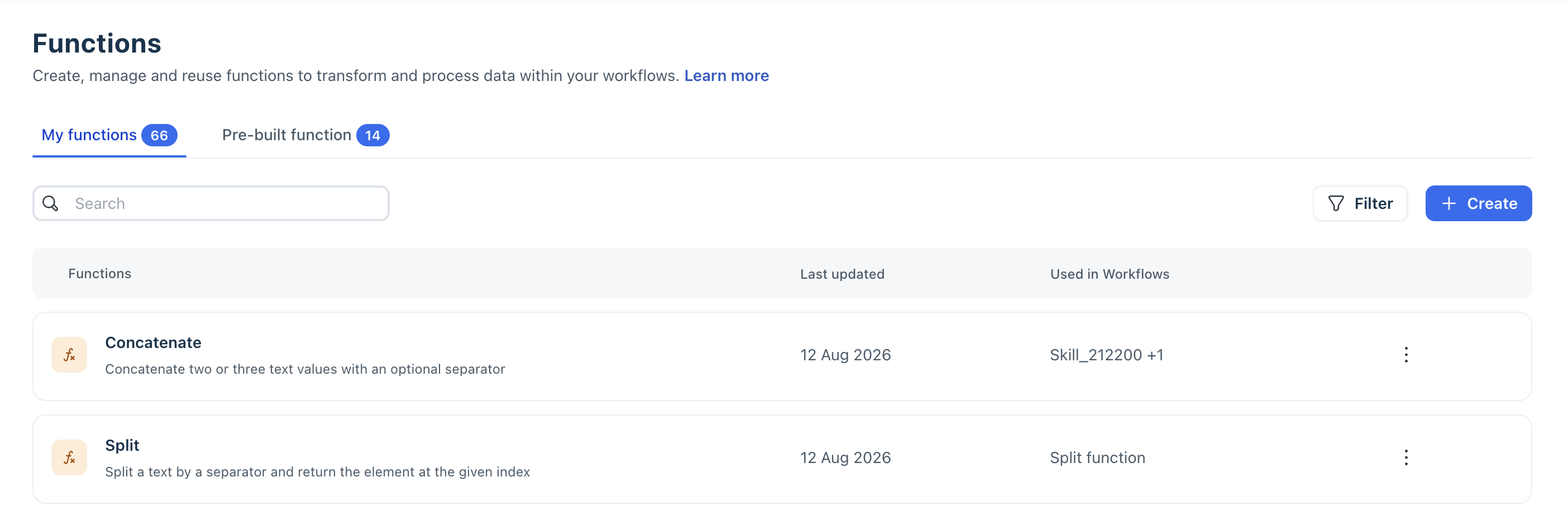
- Click General and enter the name and description for the function.
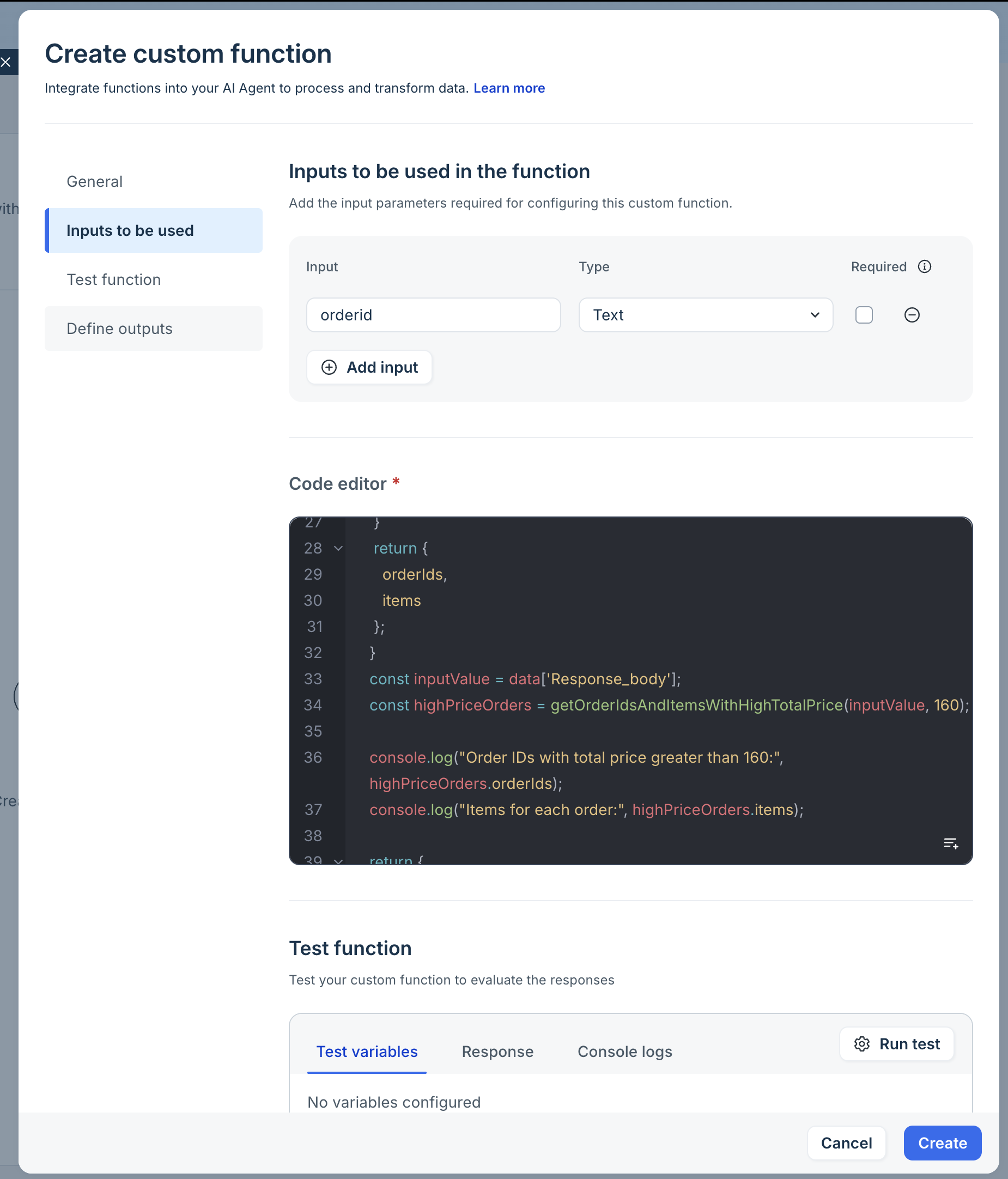
- Under Inputs to be used in the function, do the following:
- Enter a name for the input parameter.
- Map the data type (text, number, boolean, list).
- Select Required if the input should be mandatory for the function.
To add more inputs, click Add input and repeat the steps.
- Click Code editor and write the function logic. The function should process the configured inputs and return a valid JSON object.
For example, define a function that filters orders with a total price exceeding the specified $160, returning their order IDs and item names.function isJSONString(str) { try { JSON.parse(str); return true; } catch (error) { return false; } } function getOrderIdsAndItemsWithHighTotalPrice(jsonData, priceThreshold) { let inputData; if (typeof jsonData === "string" && isJSONString(jsonData)) { inputData = JSON.parse(jsonData); } else { inputData = jsonData; } const orderIds = []; const items = []; if (inputData && inputData.orders && Array.isArray(inputData.orders)) { inputData.orders .filter(order => parseFloat(order.total_price) > priceThreshold) .forEach(order => { orderIds.push(order.order_id); const itemNames = order.items.map(item => item.name).join(", "); items.push(itemNames); }); } return { orderIds, items }; } const inputValue = data['Response_body']; const highPriceOrders = getOrderIdsAndItemsWithHighTotalPrice(inputValue, 160); console.log("Order IDs with total price greater than 160:", highPriceOrders.orderIds); console.log("Items for each order:", highPriceOrders.items); return { orderIds: highPriceOrders.orderIds, items: highPriceOrders.items }; - Click Test function, provide sample values for the input parameters, and then click Run test.
- Click Run test review the test results, including the body response and console logs, to verify that the function returns the expected output.
- Click Define outputs and configure the values that the AI Agent should make available to downstream workflow components.
For example, you can define outputs such as eligibleOrders or orderCount, which can later be used in conditions, custom responses, or API actions. - Click Create.
Tip: Test your function with different combinations of valid, invalid, and empty input values to verify that it handles different scenarios correctly.
Use a custom function in a workflow
After creating a custom function, you can use it as a standalone function node within workflows. For instructions on using functions within workflows, see Manage and use functions in AI Agent workflows.
Manage custom functions
You can manage the custom functions created from the My functions tab. Use the available actions to find a function, review its details, make changes, create a copy, or remove it.
To manage a custom function:
- Go to AI Agent Studio > Library > Functions.
- Select My functions.
- Use the Search field to find a function by name, or click Filter to narrow the list.
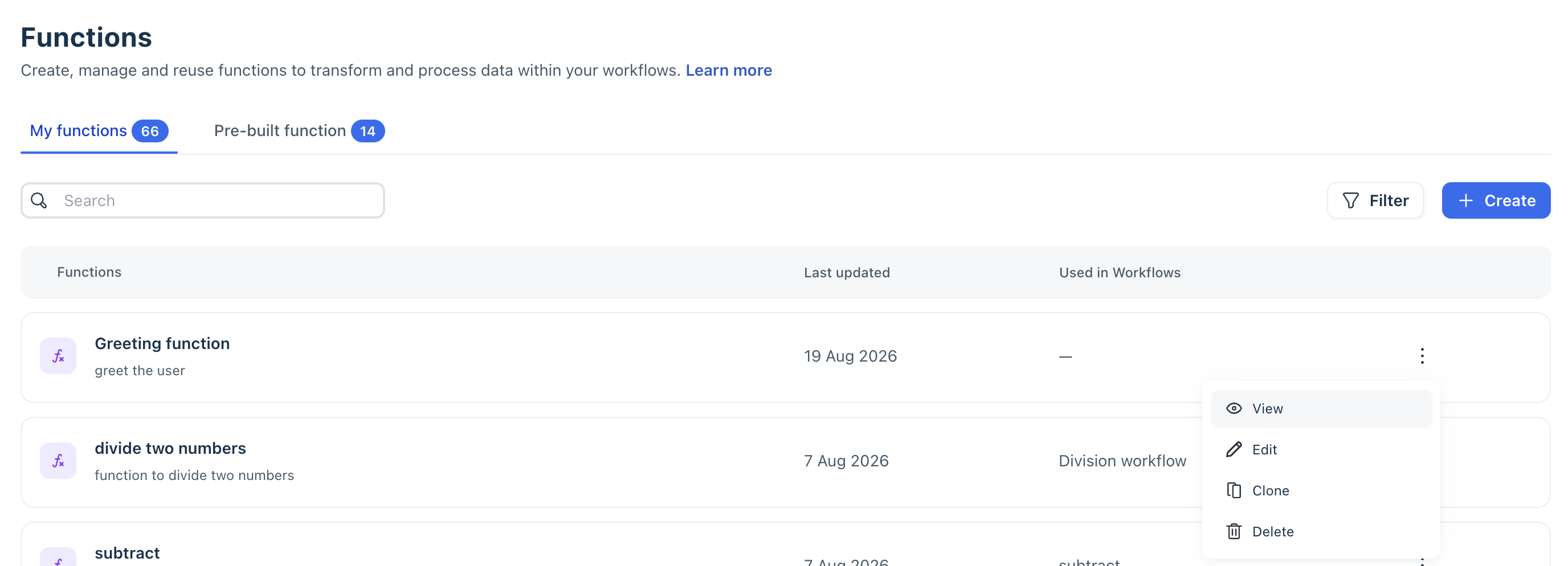
- Click the overflow menu (⋮) menu next to a function and select an action:
- View: Review the function details, including its inputs, code, and outputs.
- Edit: Update an existing custom function.
- Clone: Create a copy of the function that you can modify separately. You can use this option to customize a pre-built function.
- Delete: Remove a custom function that you no longer need.
- If you edit or clone a function, make your changes and save the function.
Note: You can not delete a function that is used in an active workflow. Resolve its workflow dependencies before deleting it.