TABLE OF CONTENTS
- Supported knowledge types
- Add knowledge types
- Scope knowledge retrieval with filtered search
- Manage knowledge effectively
- Error handling & support
Your AI Agent’s response quality depends directly on the knowledge it learns from. By configuring and maintaining Knowledge in AI Agent Studio, you enable the agent to generate accurate, contextual, and reliable responses across customer interactions.
AI Agents learn from a combination of structured and unstructured content, including URLs, files, solution articles, custom Q&As, and external apps. The effectiveness of your AI agent is determined not just by what knowledge you add, but how well that knowledge is curated and maintained over time.
Prerequisites
Ensure you have Administrator access to AI Agent Studio.
Ensure the AI Agent is already created.
Ensure URLs are publicly accessible.
Ensure files are not password-protected and meet size requirements.
Ensure the contact or conversation properties you plan to use as filtered search rule attributes are already configured in your account.
Supported knowledge types
You can configure all knowledge for your AI Agent from a single place in AI Agent Studio. At this stage, you not only add content but also ensure it meets the AI's requirements for processing and use.
The following knowledge types are supported,
URLs: Enable the AI Agent to learn from publicly available web pages such as help centers, product documentation, and policy pages.
Files: Allow you to upload documents such as manuals, SOPs, and internal guides.
Solution articles: Use your existing knowledge base content to ensure consistent and structured responses.
Custom Q&As: Add targeted question-answer pairs for specific scenarios not covered elsewhere.
Apps: Connect external knowledge sources such as Google Drive and SharePoint so AI Agents can search content stored in these applications.
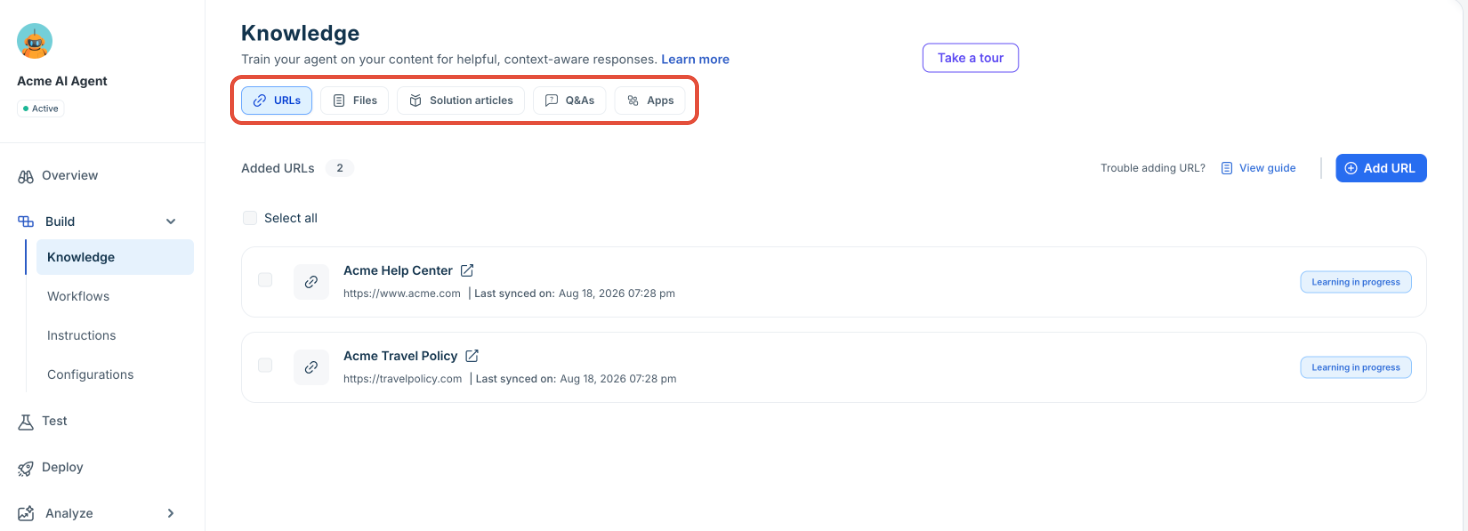
You can add different types of knowledge depending on where your content resides.
Knowledge type | Best used for | Limits | Supported content | Not supported / constraints |
|---|---|---|---|---|
URLs | Help centers, policy pages, documentation sites | 10 per AI Agent, 25 per account, up to 3,000 pages/site | Static text content from public web pages | No videos, images, animations, or gated/auth-protected pages |
Files | SOPs, manuals, internal guides | 200 per AI Agent, 200 per account, max 35 MB/file | .pdf, .docx, .txt (text-based content) | No password-protected files; non-text elements are ignored |
Solution articles | Structured knowledge base content | Depends on KB setup | Published, publicly visible articles | Private or restricted articles are excluded |
Custom Q&As | Specific or edge-case queries | No strict limit (recommended to keep concise) | Direct question-answer pairs | Overly long or vague answers reduce effectiveness |
| Apps | Internal guides, product documentation, and other content stored in external applications. | Up to 100 Google shared drives or SharePoint sites per AI Agent. | Content from connected Google Drive and SharePoint sources | 50 MB maximum file size. Also, empty documents, unsupported file formats, and text within tables and images are not indexed. |
Refer to Write Freddy AI-optimized knowledge content for detailed instructions on improving your writing efficiency and clarity.
Add knowledge types
To access the AI Agent's knowledge tab,
Go to AI Agent Studio from the left nav bar.
Select the AI Agent.
Click Build > Knowledge.
Add URLs
You can add new knowledge or reuse existing content already available in your account.
Click Add URL.
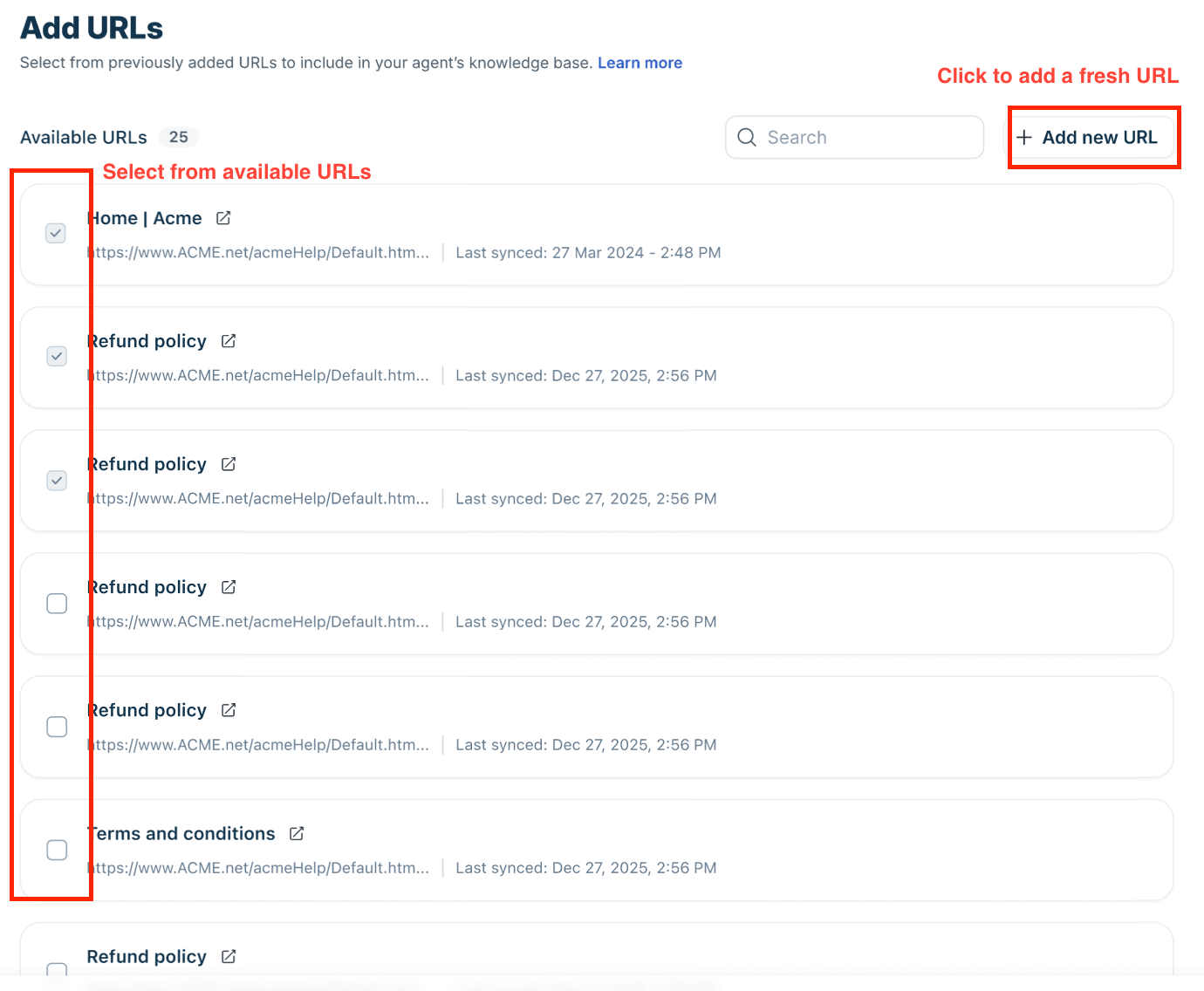
In the Add URLs page, you can,
Select from previously added URLs, or,
Add a new URL not part of any of your AI Agent's knowledge base.
In the Add new URL pop-up, enter a name, add the URL, then select Add URL.
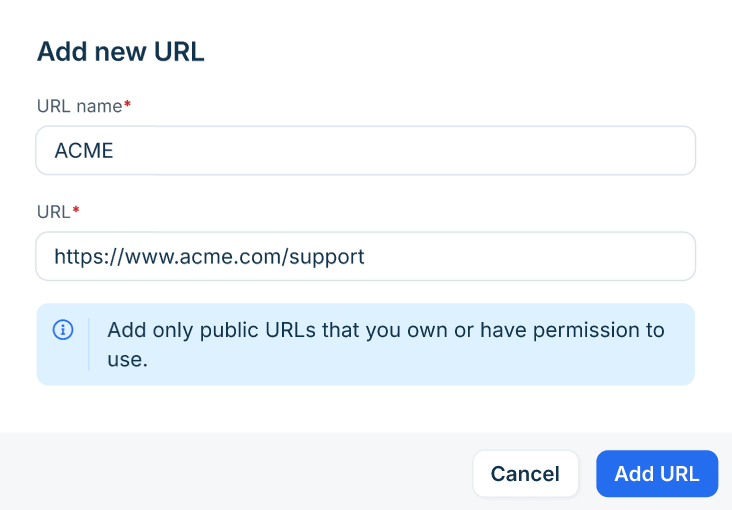
Save to start learning.
Add files
Click Add files.
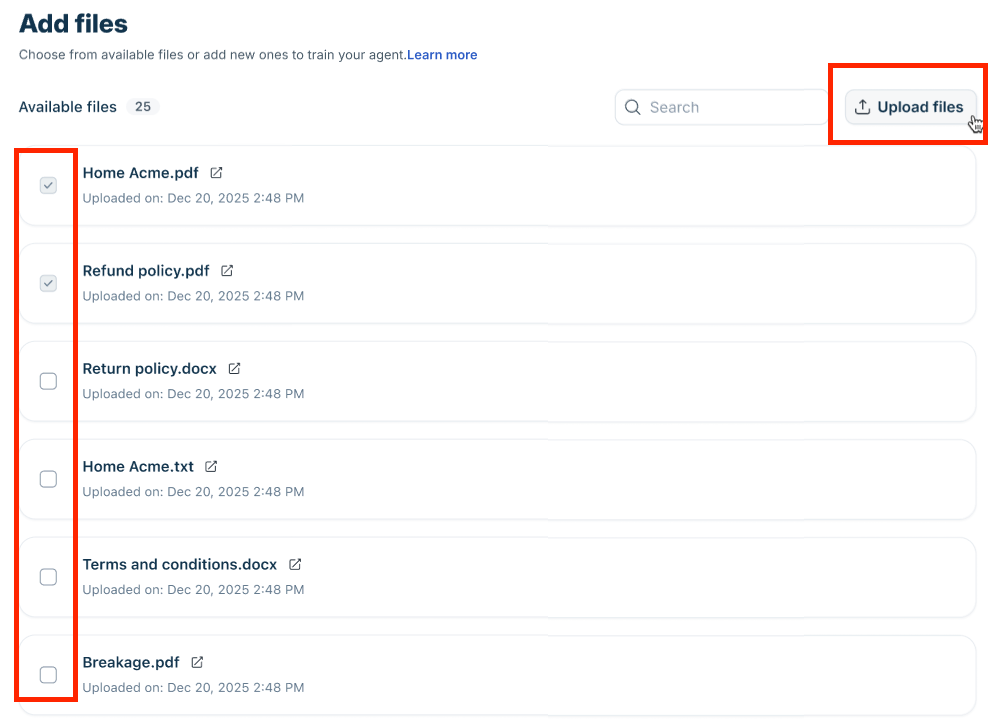
In the Add files page, you can,
Select from previously added files, or,
Upload a new file not part of any of your AI Agent's knowledge base.
Add solution articles
Enable Learn from solution articles and provide the following details:
Portal selection: Choose the knowledge base the AI Agent should learn from (if multiple portals are available).
Set your AI's learning scope: Choose how broadly the AI Agent should learn:
All categories – Learns from all articles in the selected knowledge base.
Selected categories – Learns only from specific folders or topics (use Manage articles to choose).
Note: Only articles visible to All users are used for AI learning.
Display Article References: Enable the toggle to show article links in AI replies.
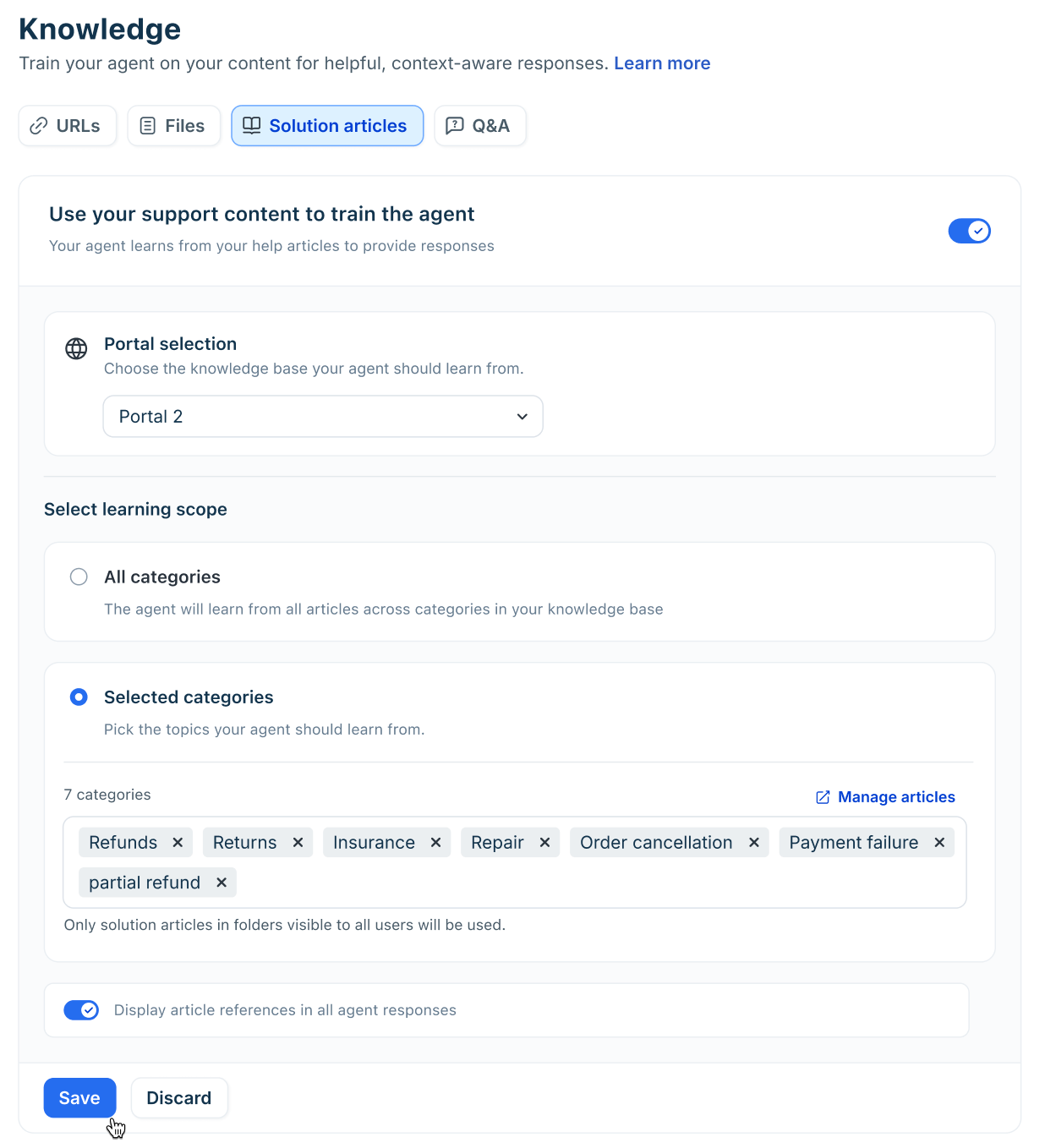
Note: Only publicly visible articles are used for learning. Category selection is supported only in old Freshdesk Omnichannel accounts, not in Freshdesk Omni (formerly Customer Service Suite-CSS) or Freshchat standalone accounts.
Add custom Q&As
Click New Q&A.
Enter a question and answer.
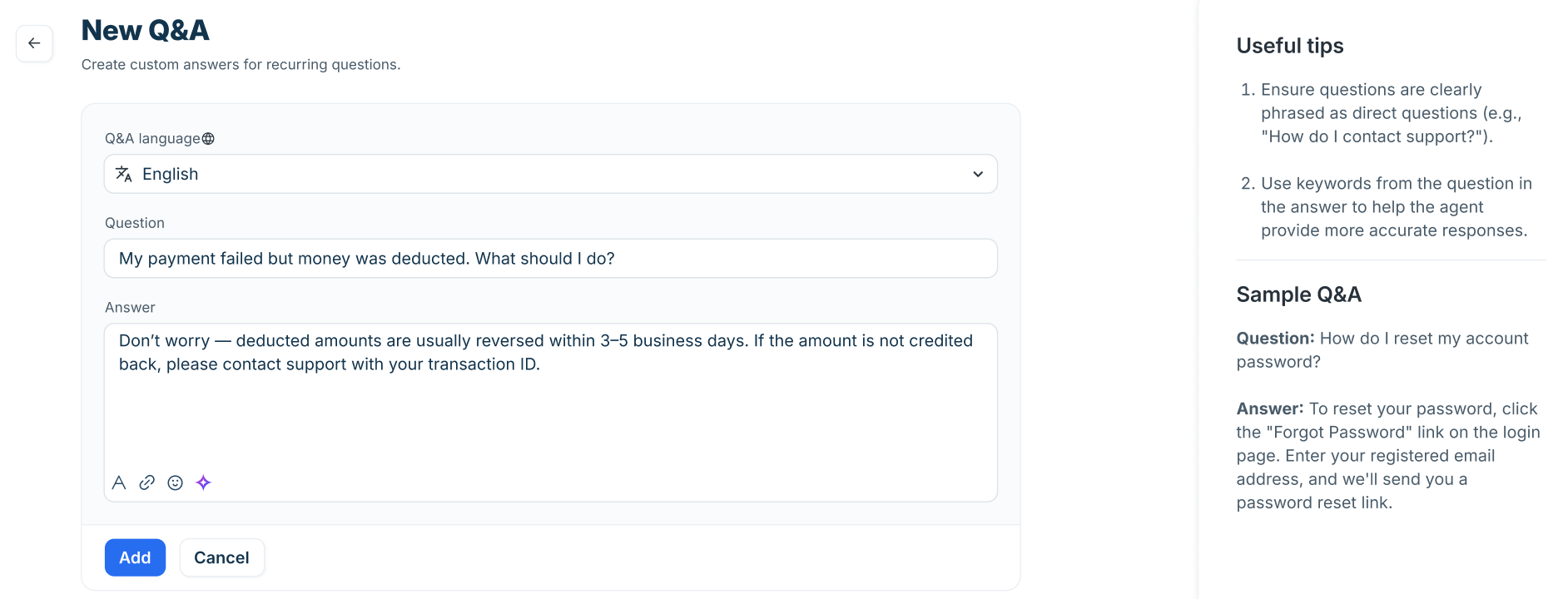
Save and update anytime.
Add apps
You can connect external applications to extend the knowledge available to your AI Agent without manually uploading or duplicating the content in Freshdesk.
The following apps are currently available:
- Google Drive Search Connector: Connect Google Drive to allow the AI Agent to search content in your Google Drive files and folders. You can select up to 100 relevant shared drives to sync.
- SharePoint Search Connector: Connect SharePoint Online to allow the AI Agent to search content from selected SharePoint sites. You can select up to 100 SharePoint sites to sync.
- Confluence Connector: Connect Confluence to allow the AI Agent to search content from selected Confluence pages.
Note: The content supported, file size limits, access permissions, and synchronization behavior depend on the connected app. For information about configuring an individual app, see the corresponding app-specific article.
To add an app:
- Go to AI Agent Studio, select the AI Agent.
- Go to Build > Knowledge > Apps.
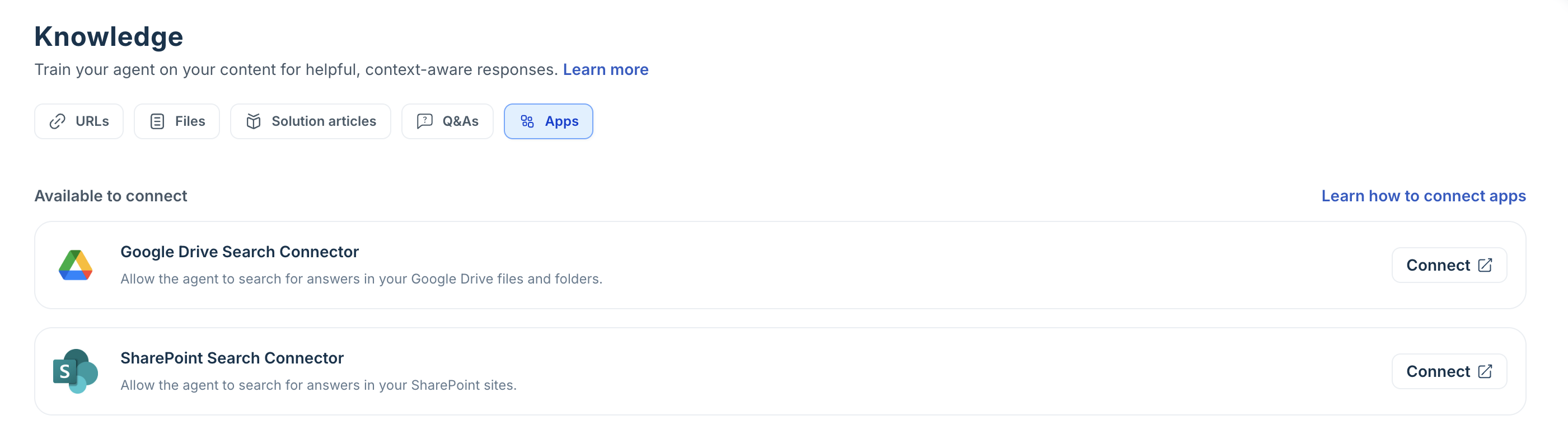
- Select the app you want to connect. Currently you can connect Google Drive Search Connector and SharePoint Search Connector apps.
- Follow the authentication and configuration steps for the selected app.
Scope knowledge retrieval with filtered search
When your AI Agent serves customers across multiple brands, regions, or customer segments, not all knowledge sources are relevant to every conversation. Filtered search enables you to define rules on individual knowledge sources so the agent retrieves only the content that matches the current conversation context — without creating separate agents or duplicating knowledge bases.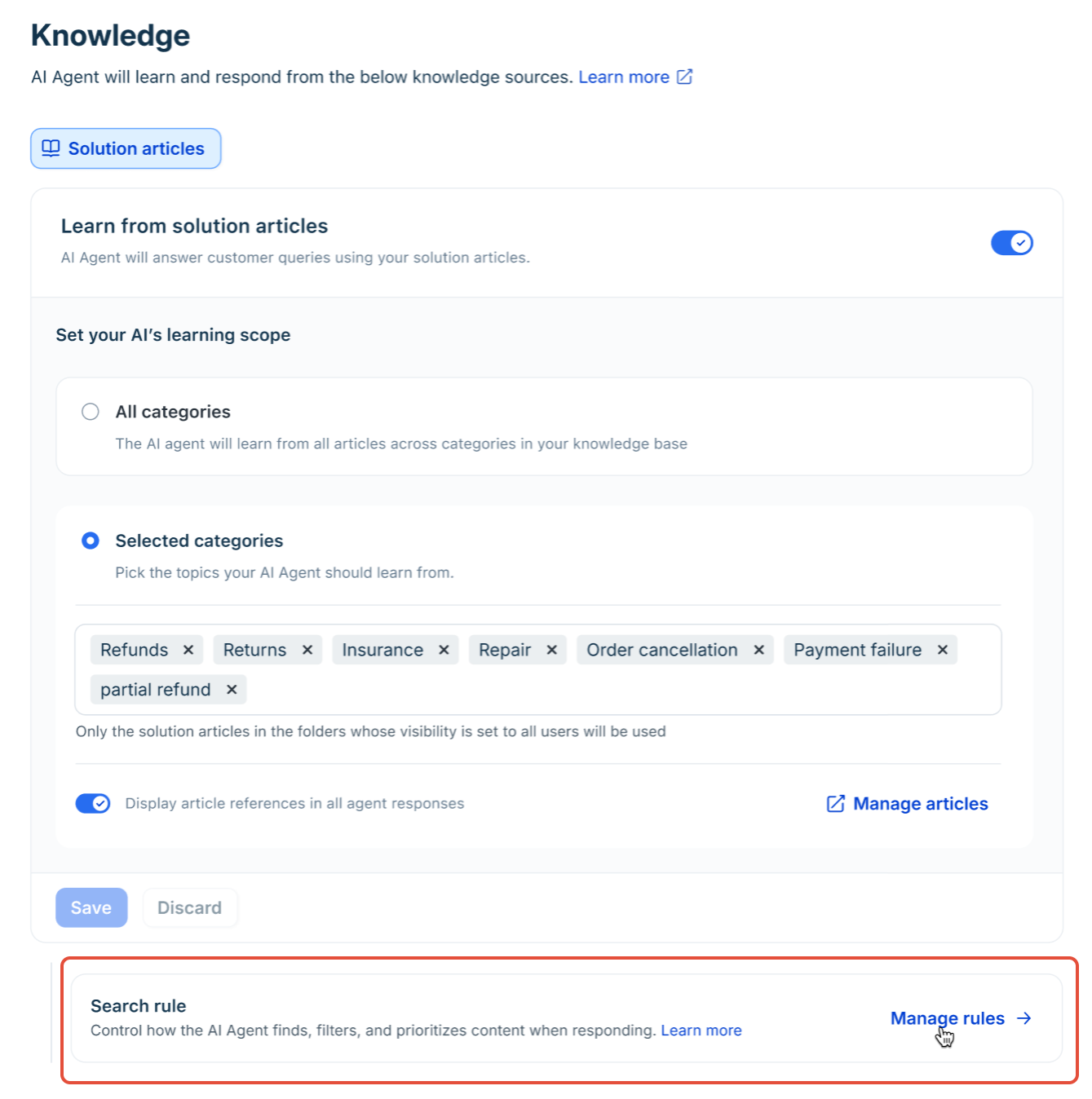
Rules are configured at the source level. At runtime, the agent evaluates those rules against contact or conversation properties and retrieves only from sources that satisfy them. Sources with no rule configured are included in retrieval by default.
Managing context at run time by the AI Agent
Before rules can be evaluated, the AI Agent needs values for the properties referenced in your rules. Context resolves in one of three ways:
How context resolves | What happens | Example |
|---|---|---|
Properties already exist on the contact or conversation | The AI Agent reads existing contact and conversation properties immediately. No user prompting required. | A returning customer’s country and language are already on record. Filtering applies at the start of the conversation. |
AI Agent collects properties at introduction | The admin configures a Collect user details step during the AI Agent’s introduction. Values are written to contact or conversation properties and used immediately for filtering. | The AI Agent asks for the customer’s country and brand at the start of the conversation, then filters knowledge sources accordingly. |
Workflow enriches properties before search | A workflow is triggered (for example, by a booking ID). An API call fetches additional attributes and stores them as conversation properties. Once the workflow completes, filtered search runs using those values. | The customer provides a booking ID. The workflow looks up the booking and stores the airline and destination country. The agent then filters articles to match those values. |
Rule conditions and match logic
Each rule can contain one or more conditions. When building a condition, you choose a contact or conversation property, an operator, and a value.
Available operators:
is — exact match (for example, country = “IN”)
is any of — matches if the property value equals any one of the listed values
includes — partial match (for example, country = “IN” matches tags “in-refund” and “in-cancellation”)
Note: The includes operator is currently supported for URLs, files, and Q&A sources. Support for solution articles is planned as a near-term update.
Match logic applies at the rule level:
Match ALL conditions — every condition must be true for the source to be eligible
Match ANY conditions — at least one condition must be true for the source to be eligible
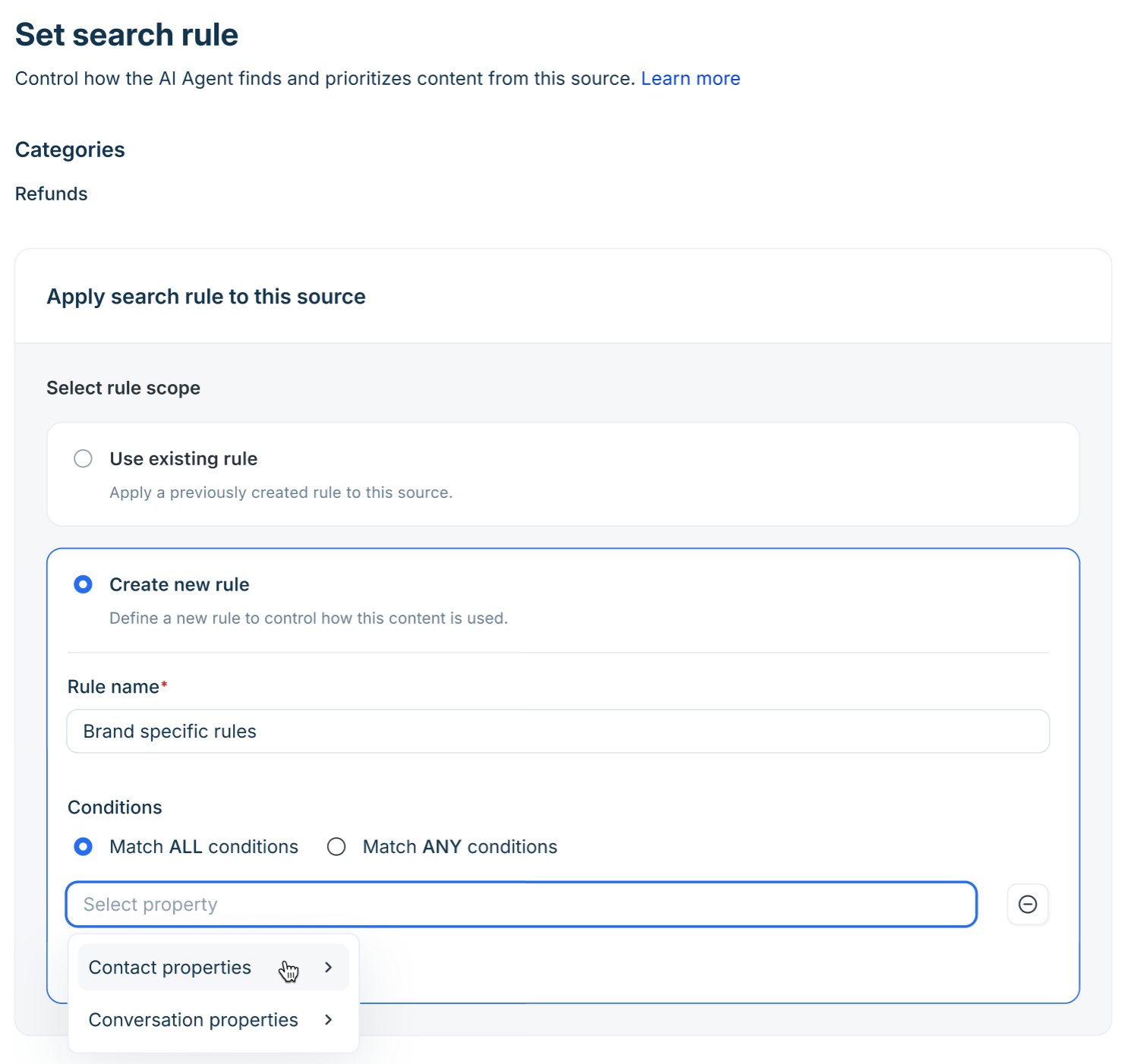
Note: Each source supports exactly one rule. However, a single rule can contain multiple conditions using Match ALL or Match ANY logic to cover complex filtering scenarios.
Filtered search in practice: examples by source type
The examples below use standard contact and ticket properties. Where your setup requires more granular targeting, you can extend any rule by adding conditions based on custom contact or ticket properties configured in your account.
Before you begin, if you're using custom properties as rule attributes, ensure they are already created and configured in your account before setting rules. Out-of-the-box properties — such as those shown in the examples below — are available by default.
URLs — Language + Product routing (Software company)
A software company supports two products and maintains separate help center URLs for English and French-speaking customers. Without filtered search, both language variants for both products would be retrieved for every conversation — increasing the risk of the agent referencing the wrong product documentation or a language the customer doesn't read.
Each URL carries a two-condition Match ALL rule using Requester Language and Product,
URL | Conditions |
docs.company.com/product-a/en | Requester Language is EN AND Product is Product A |
docs.company.com/product-a/fr | Requester Language is FR AND Product is Product A |
docs.company.com/product-b/en | Requester Language is EN AND Product is Product B |
docs.company.com/product-b/fr | Requester Language is FR AND Product is Product B |
Both Requester Language and Product are read directly from the contact and ticket record at conversation start — no collection step is required if these fields are already populated.
Using custom properties: If your setup uses region or brand-specific URLs beyond language (for example, separate URLs per country), you can extend this rule with a custom contact property such as contact.country using the is any of operator.
Files — Group + Product routing (Internal SOPs)
A company's support team is split into functional groups — Billing and Technical Support — each handling different products. Each group has its own PDF runbooks for each product. A Billing agent assisting with Product B should not retrieve Technical Support SOPs written for Product A.
Each file carries a two-condition Match ALL rule using Group and Product:
File | Conditions |
Billing_ProductA_Runbook.pdf | Group is Billing AND Product is Product A |
Billing_ProductB_Runbook.pdf | Group is Billing AND Product is Product B |
Technical_ProductA_Runbook.pdf | Group is Technical Support AND Product is Product A |
Technical_ProductB_Runbook.pdf | Group is Technical Support AND Product is Product B |
Group is set on the ticket when it is assigned or routed, and is immediately available for rule evaluation. If tickets arrive unassigned, these rules will not match until group assignment occurs.
Note: File rules support contact and ticket property conditions only. Tag-based conditions are not available for files.
Custom Q&As — Ticket type + Source routing (E-commerce)
An e-commerce company handles a high volume of refund and exchange queries. The correct response differs depending on whether the customer contacted via email or live chat — chat customers expect faster, more direct answers, while email responses follow a longer resolution workflow. Serving the wrong Q&A increases unnecessary escalations.
They create four Q&A pairs and assign a two-condition Match ALL rule to each:
Q&A | Conditions |
Refund – Email response | Ticket typeisRefund AND SourceisEmail |
Refund – Chat response | Ticket typeisRefund AND SourceisChat |
Exchange – Email response | Ticket typeisExchange AND SourceisEmail |
Exchange – Chat response | Ticket typeisExchange AND SourceisChat |
Both Ticket type and Source are available as ticket properties in the attribute picker and are set at the point the ticket is created.
Using custom properties: If your segmentation goes further — for example, distinguishing VIP customers from standard ones — you can add a third condition using a custom contact property such as contact.customer_tier with the is operator under the same Match ALL rule.
Note: Bulk actions on Q&A pairs are limited to 100 sources at a time. For large Q&A sets, apply rules in batches using the Set search rule bulk action.
Supported property types
Rule conditions support the following property types: Text, Numeric, and Dropdown (including custom fields). Date, checkbox, lookup, multiselect, formula, and auto-number fields are not supported and will not appear in the attribute picker.
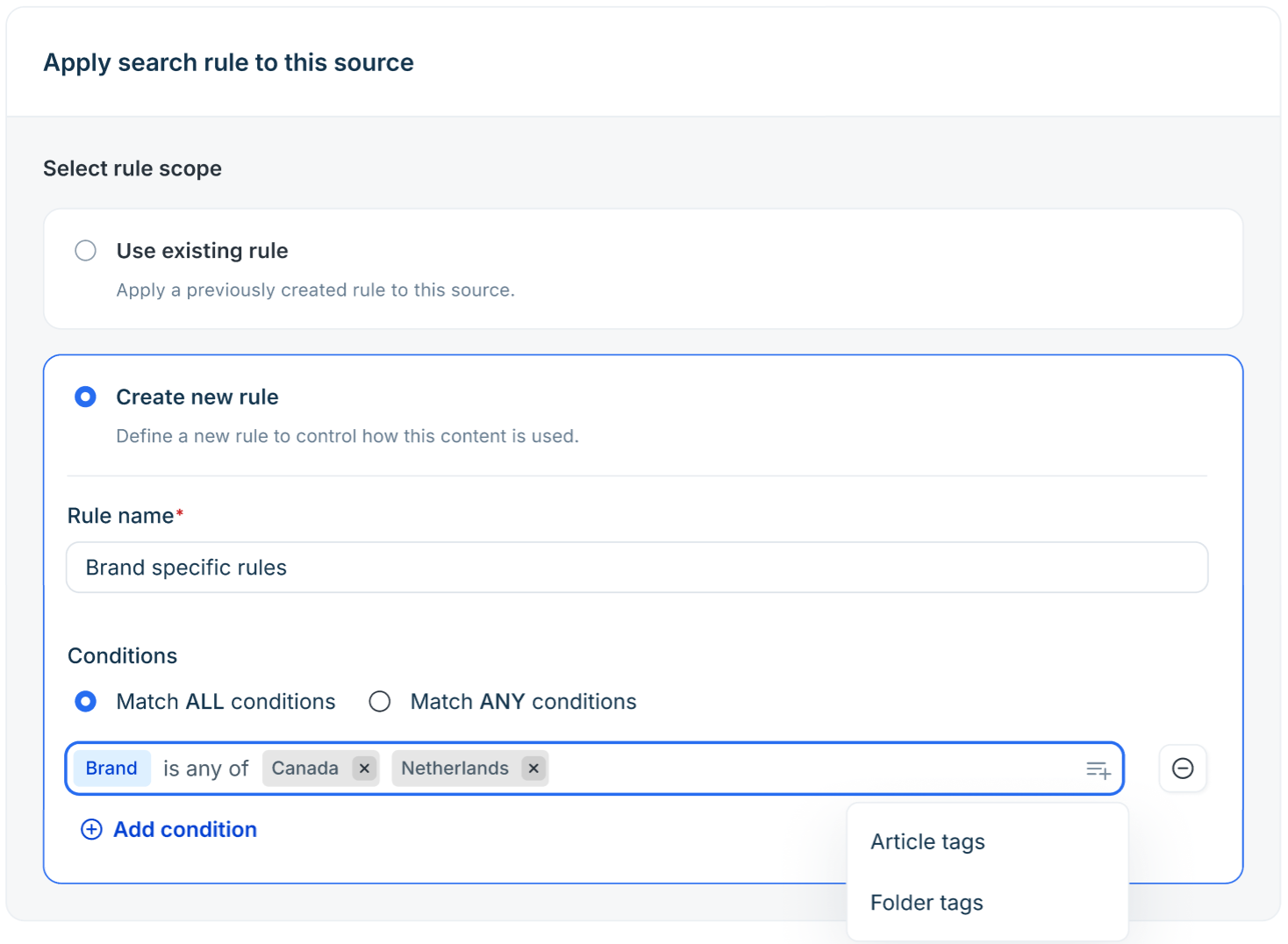
For solution articles, you can also use tag-based conditions in addition to property-based ones:
Article tags — available across all account types
Folder tags — available in Freshdesk accounts
Category tags — available in Freshchat accounts
Manage filtered search rules
Once you understand how rules work, you can configure them for each knowledge source. All rule configuration happens inside AI Agent Studio > Build > Knowledge.
Set a rule on files
File rules use contact and conversation property values. Tag-based conditions are not supported for files.
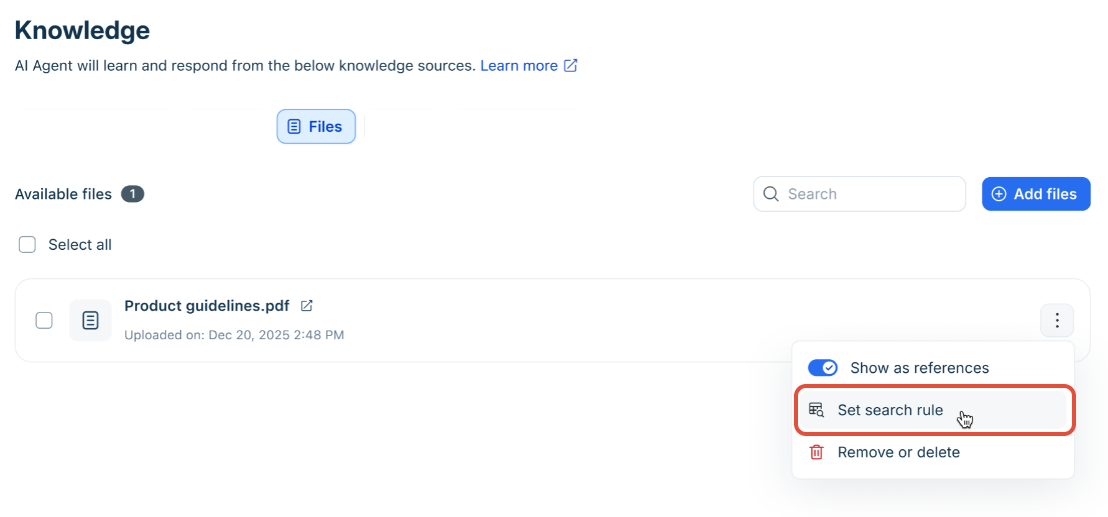
In the Files tab, locate the file and open its options menu.
Select Set search rule.
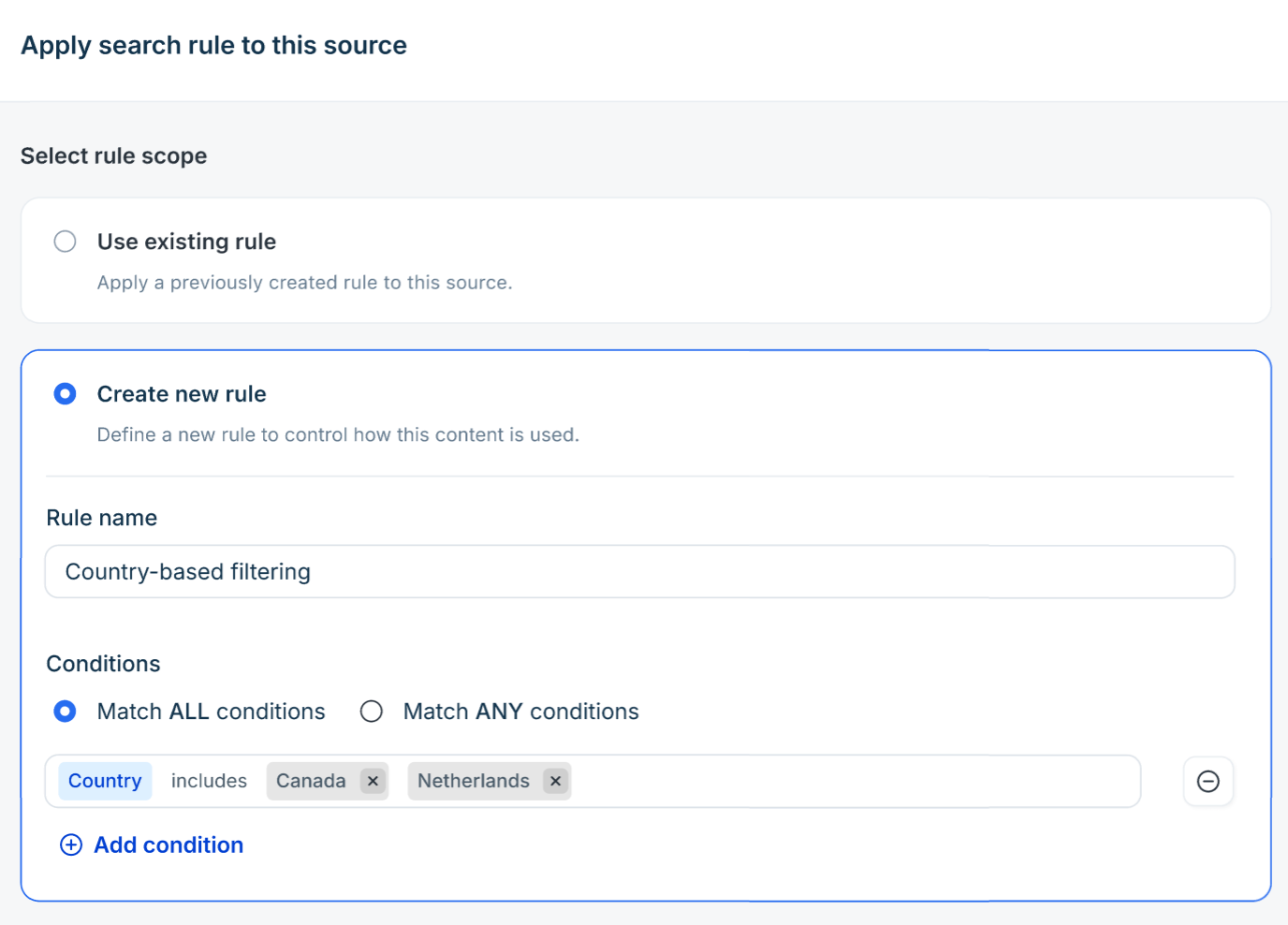
In the Apply search rule to this source panel, choose one of the following:
Use existing rule — select a rule from the dropdown and select Save.
Create new rule — enter a Rule name, select Match ALL conditions or Match ANY conditions, add one or more conditions, then select Save.
Set a rule on URLs
URL rules follow the same steps as file rules.
In the URLs tab, locate the URL and open its options menu.
Select Set search rule.
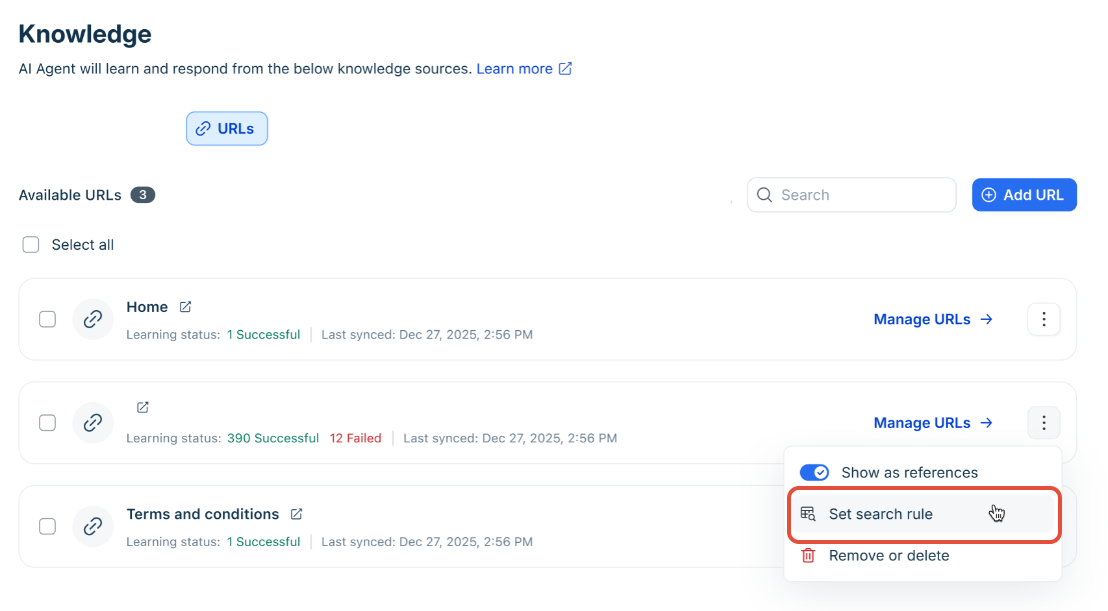
Choose Use existing rule or Create new rule, configure conditions, and select Save.
Set rules on solution articles
Solution article rules are applied at the category level. Each category can have its own rule, and you can use both property-based and tag-based conditions.
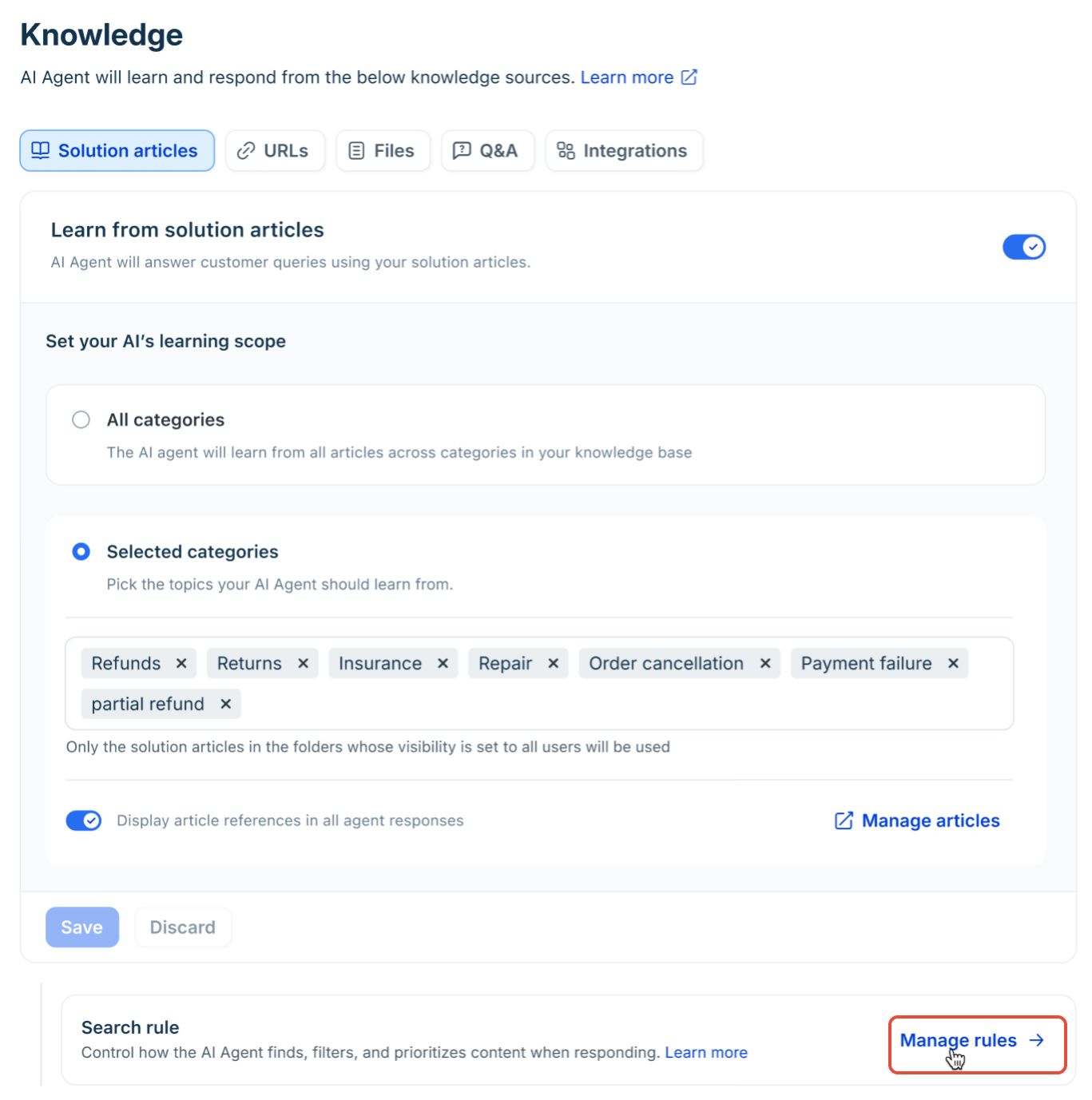
In the Solution articles tab, select Manage search rule.
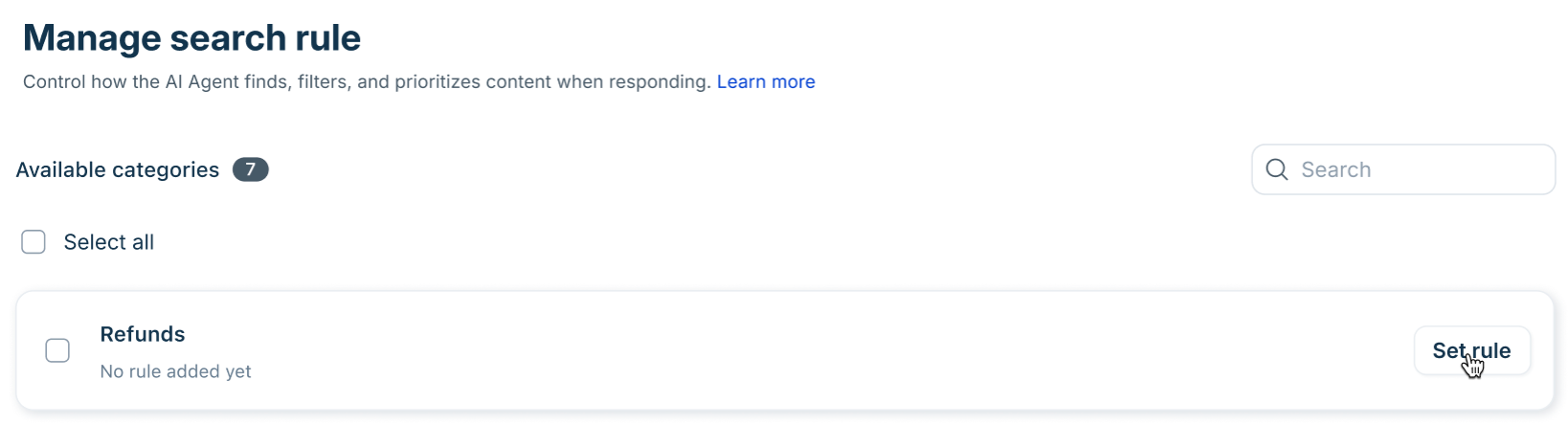
For each category, select Set rule.
Choose Use existing rule or Create new rule. For a new rule, enter a Rule name and choose the match logic.
Add conditions. To use tag-based conditions, select Article tags, Folder tags etc from the attribute picker.
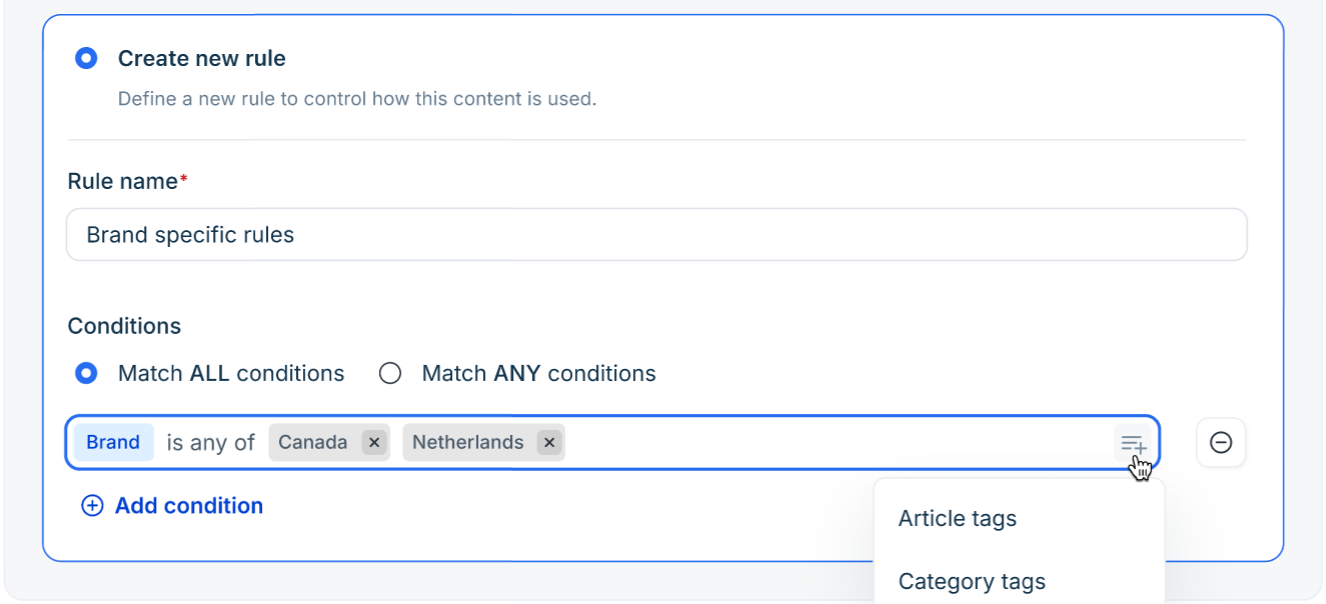
Select Save. A confirmation message appears when the rule is applied.
Note: Rules applied to categories that are later deselected from the learning scope will have their rule associations removed on save.
Set a rule on Q&A pairs
In the Q&A tab, locate the Q&A pair and select Set search rule.
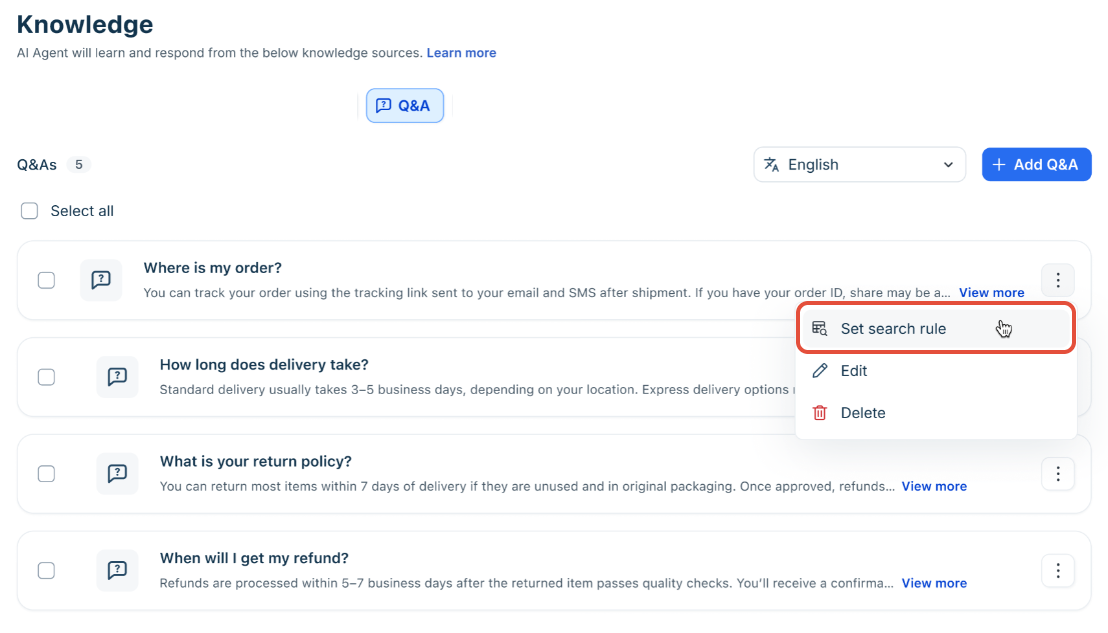
Choose Use existing rule or Create new rule, configure conditions, and select Save.
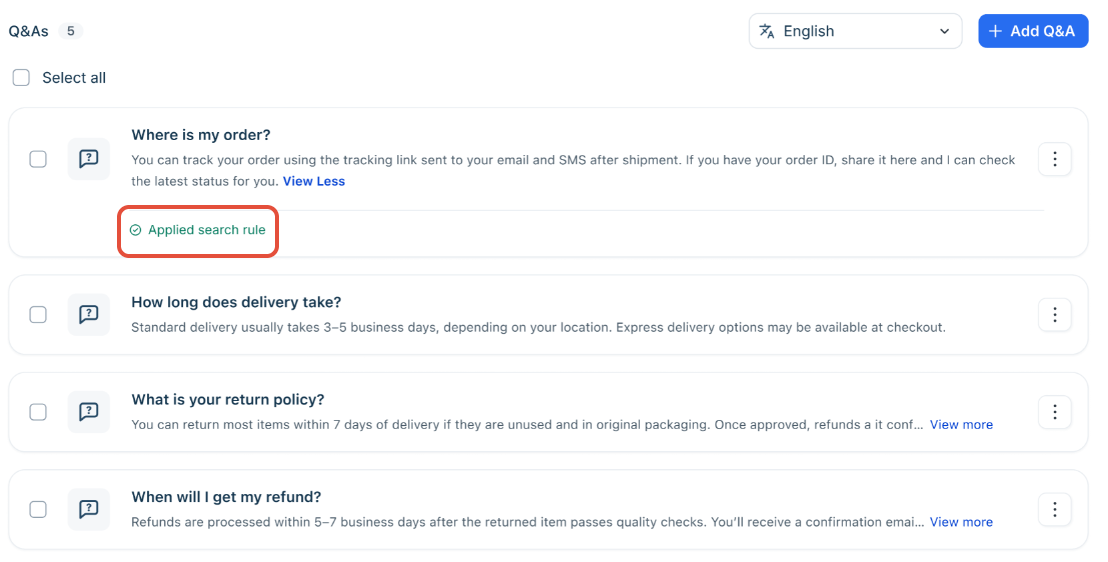
Note: Bulk actions on Q&A pairs are limited to 100 sources at a time.
Edit a rule
Open the Knowledge source’s options menu and select Set search rule > Edit search rule. Make your changes and select Save.
Note: If a rule is shared across multiple AI Agents, a confirmation dialog appears before saving. Changes apply automatically to all agents using that rule.
Remove a rule from a source
Removing a rule unlinks it from the source without deleting the rule itself. The source returns to default behavior and is included in all retrievals.
Open the source’s options menu and select Set search rule.
Select Remove rule from source.
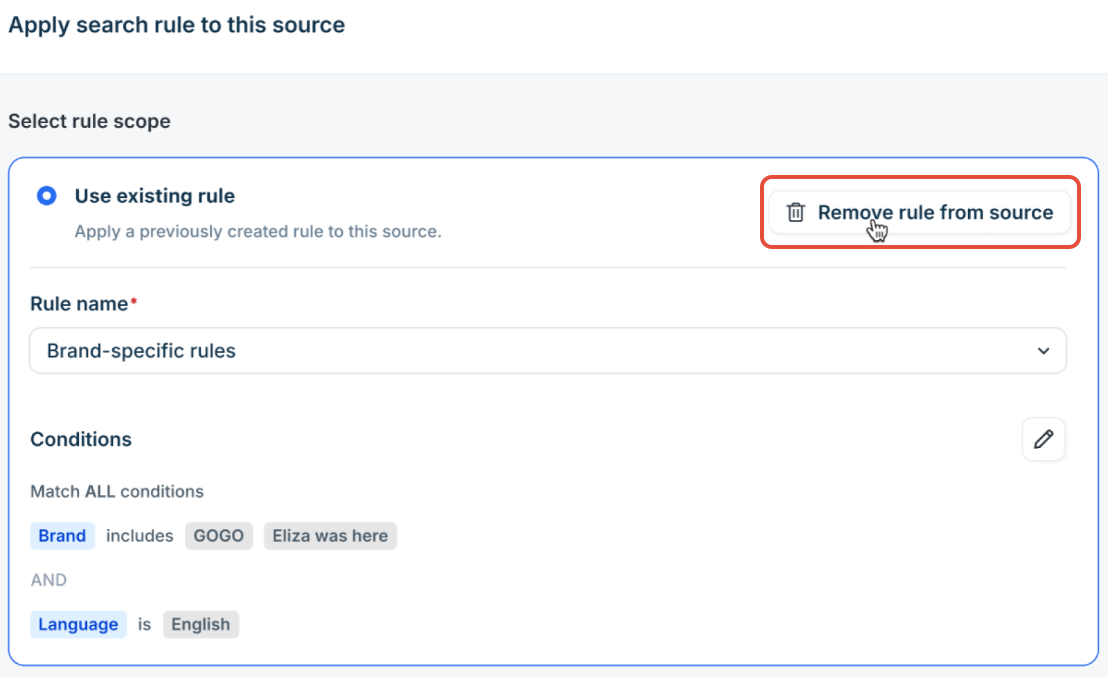
Confirm in the dialog. A success message appears.
Note: If the rule panel has unsaved changes, the Remove rule from source option is unavailable until you discard or save those changes first.
Bulk apply or remove rules
For large knowledge bases, you can apply or remove rules across multiple sources at once.
In the source list, select Select all or check individual sources.
Select Set search rule from the bulk actions bar.
Choose Use existing rule to apply a rule to all selected sources, or Remove rule from source to unlink rules.
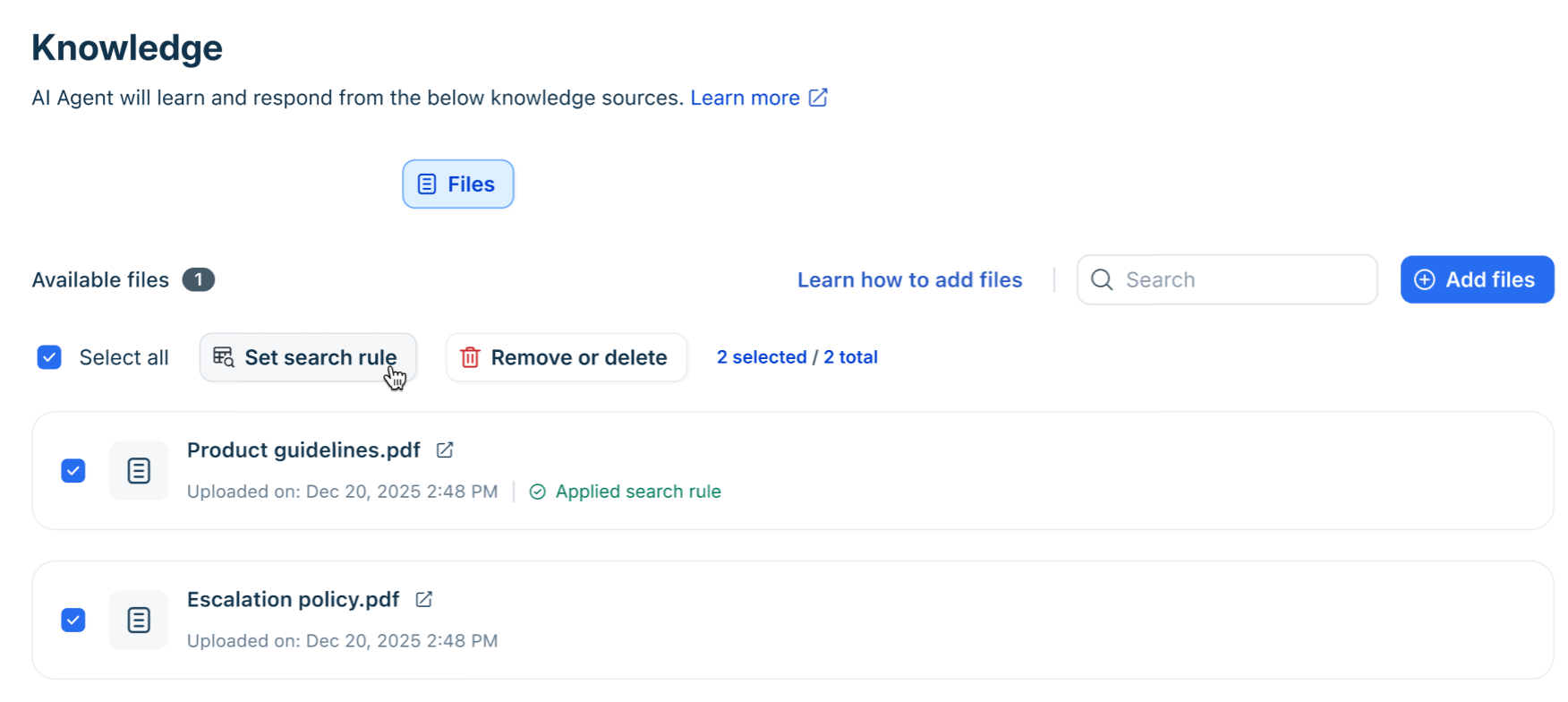
Select Save. A confirmation message shows how many sources were updated.
Manage knowledge effectively
Once added, knowledge needs to be actively managed to ensure accuracy and relevance.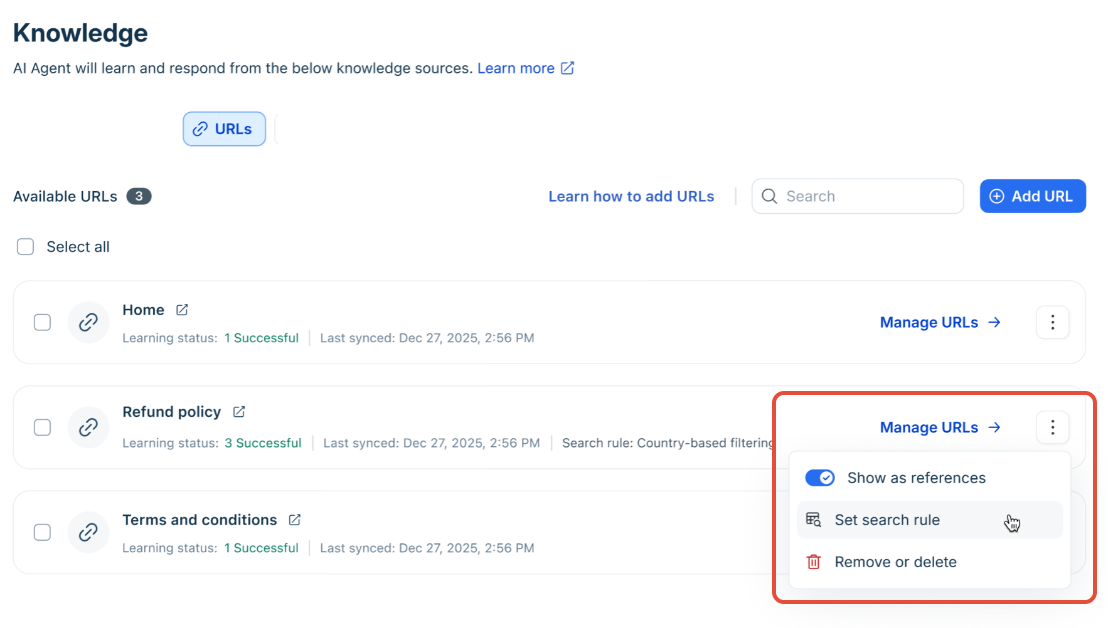
Control how knowledge appears in responses
Each knowledge item can be configured to control visibility:
Show as references (enabled) → Display source links in responses
Show as references (disabled) → Use content for learning but hide citations
This allows you to balance transparency with response experience.
Keep knowledge up to date
As your content evolves, ensure your AI Agent reflects the latest information using the Resync and relearn option.
Use this option when:
Website content is updated
Documents are revised
Resyncing forces the AI Agent to relearn updated content.
Note: For connected apps, content is synchronized from the external source based on the app's synchronization schedule. For example, changes to synced SharePoint documents and user access permissions are indexed approximately every 15 minutes after the initial sync.
Remove knowledge types
To permanently delete or remove a file or URL:
Navigate to Admin Settings > Conversation Resources > Files / URLs.
Locate the specific file or URL you wish to remove.
Click the three-dot menu next to it and select Delete.
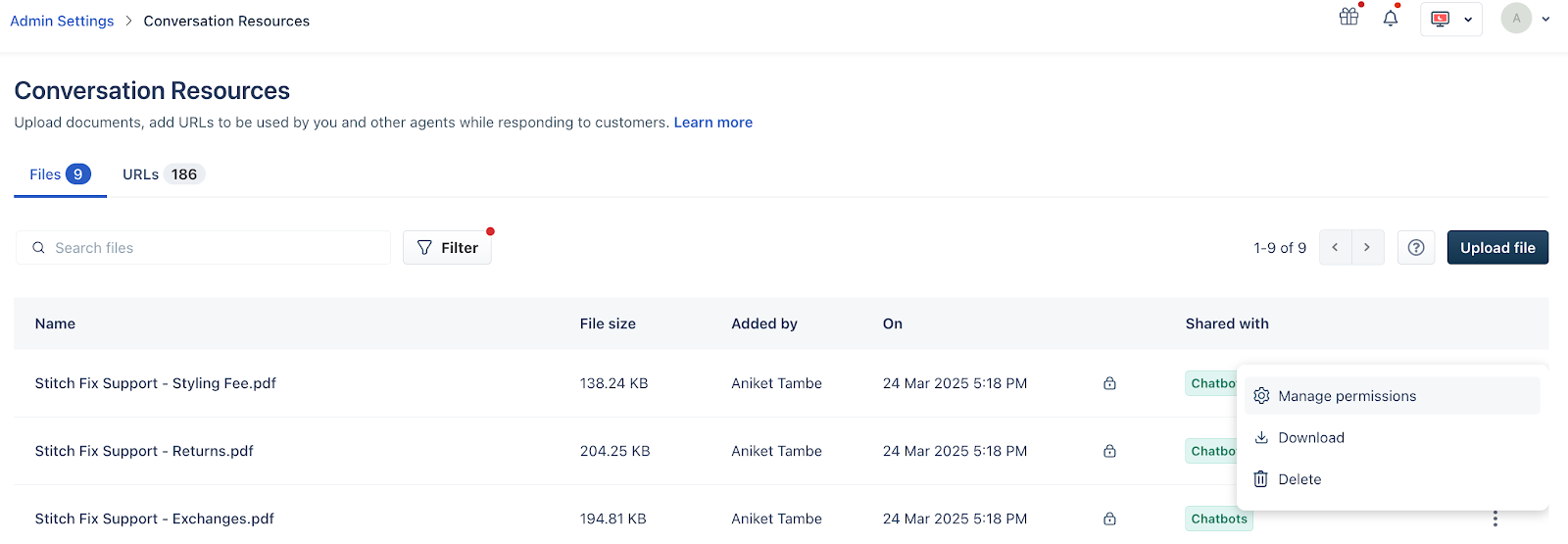
Note: Removing a file or URL from this section permanently deletes it from the AI Agent’s learning pool. This means the bot will no longer refer to this source for any responses. Be cautious while deleting, as this action cannot be undone.
Restore removed knowledge
If previously removed content becomes relevant again:
Navigate to the respective knowledge type (e.g., URLs)
Open Removed URLs
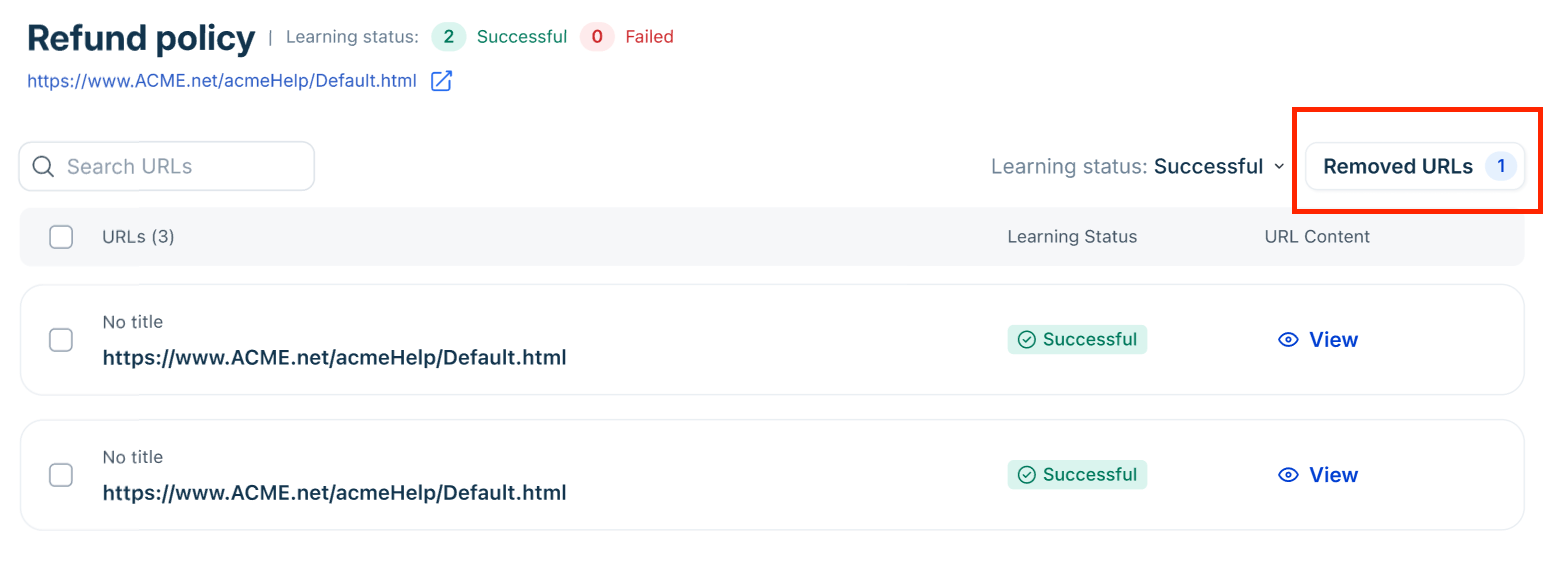
Select and restore
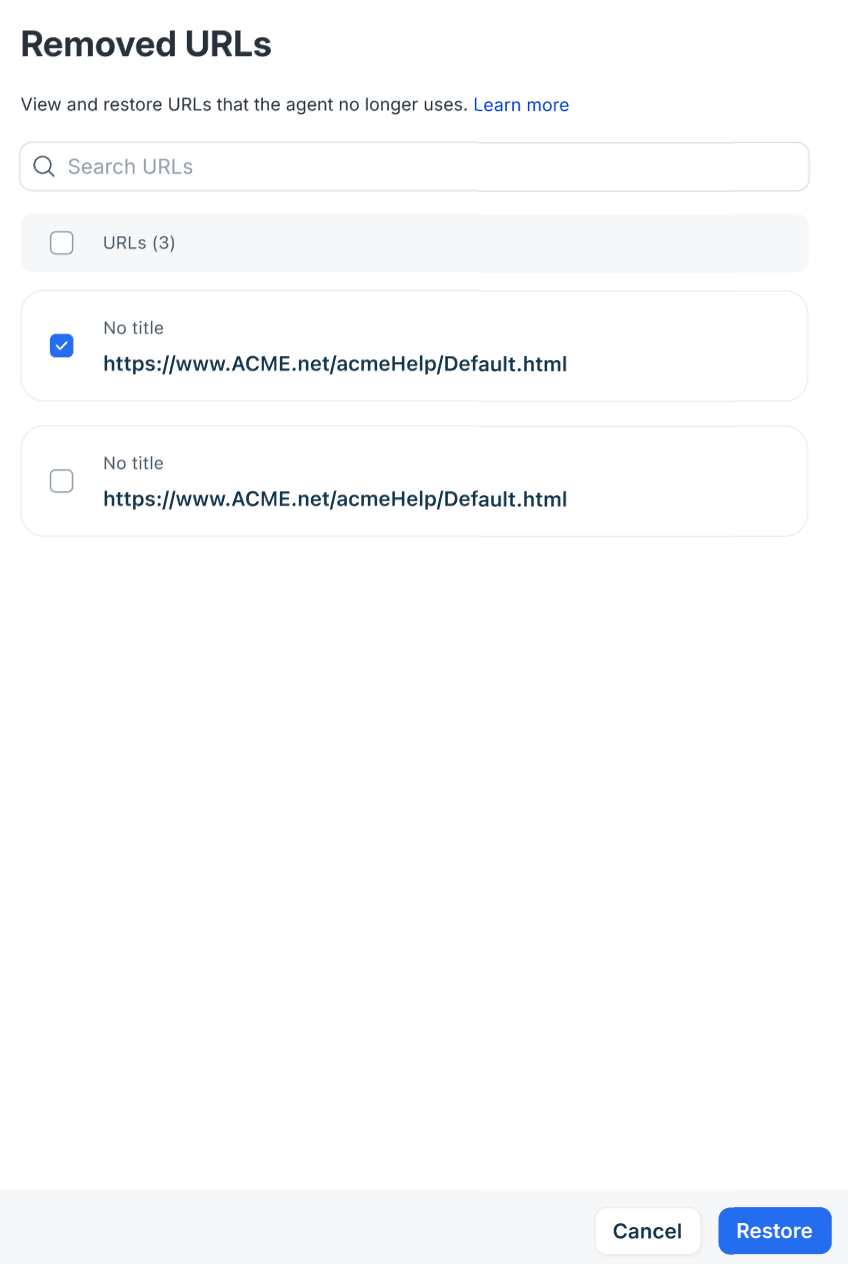
Restored content is reintegrated into the AI Agent’s learning pool.
Review knowledge performance
For each knowledge type (especially URLs), you can monitor:
Learning status (success/failure)
Last synced timestamp
Extracted content preview
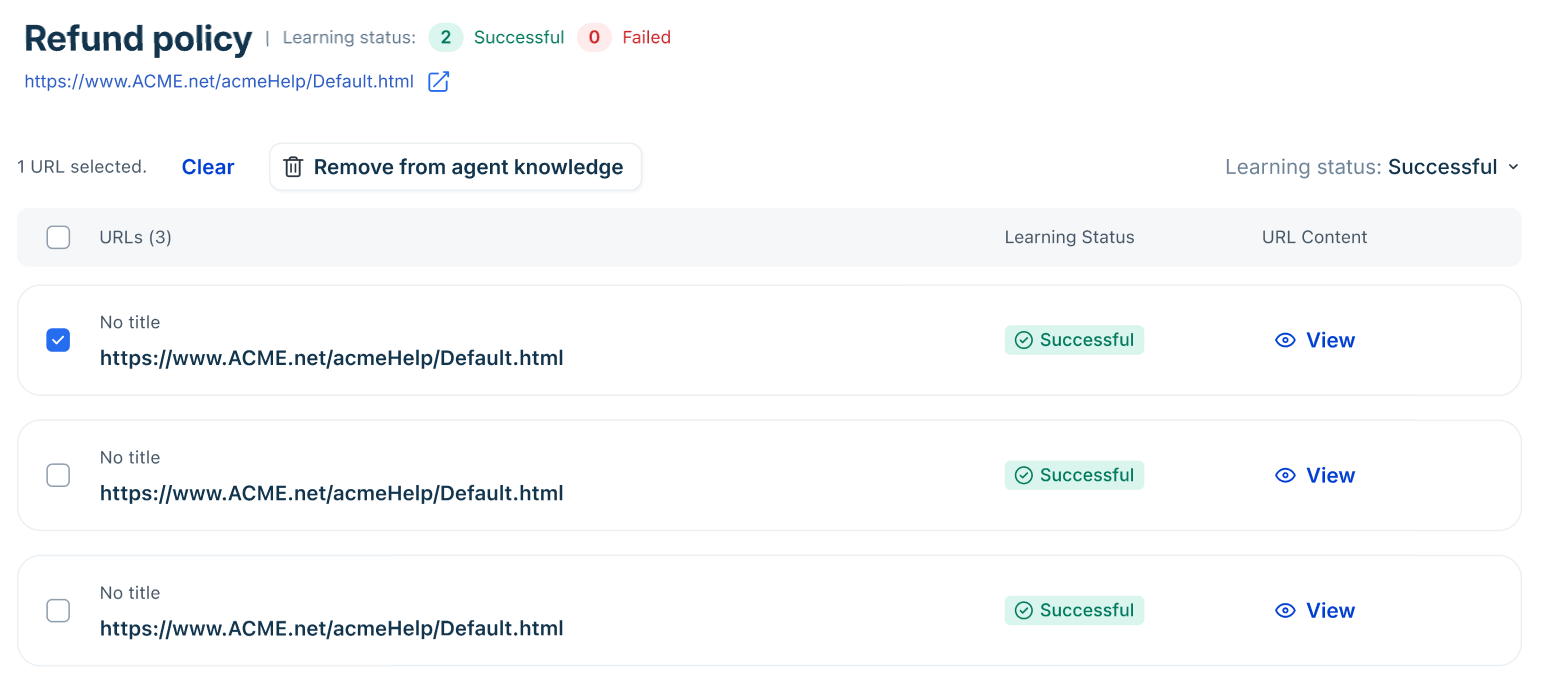
This visibility helps you validate whether the AI Agent is correctly learning from your sources.
Note: For connected apps, you can also review the synchronization status and logs from the app connector to identify synchronization failures or other issues.
View filtered search activity in conversation details
After a conversation is resolved, you can review which search rules were applied and which knowledge sources the agent retrieved from. In Conversation details, the right panel shows:
Applied search rules — the names of rules that were evaluated during the conversation
Knowledge sources referred — the specific sources the agent retrieved content from
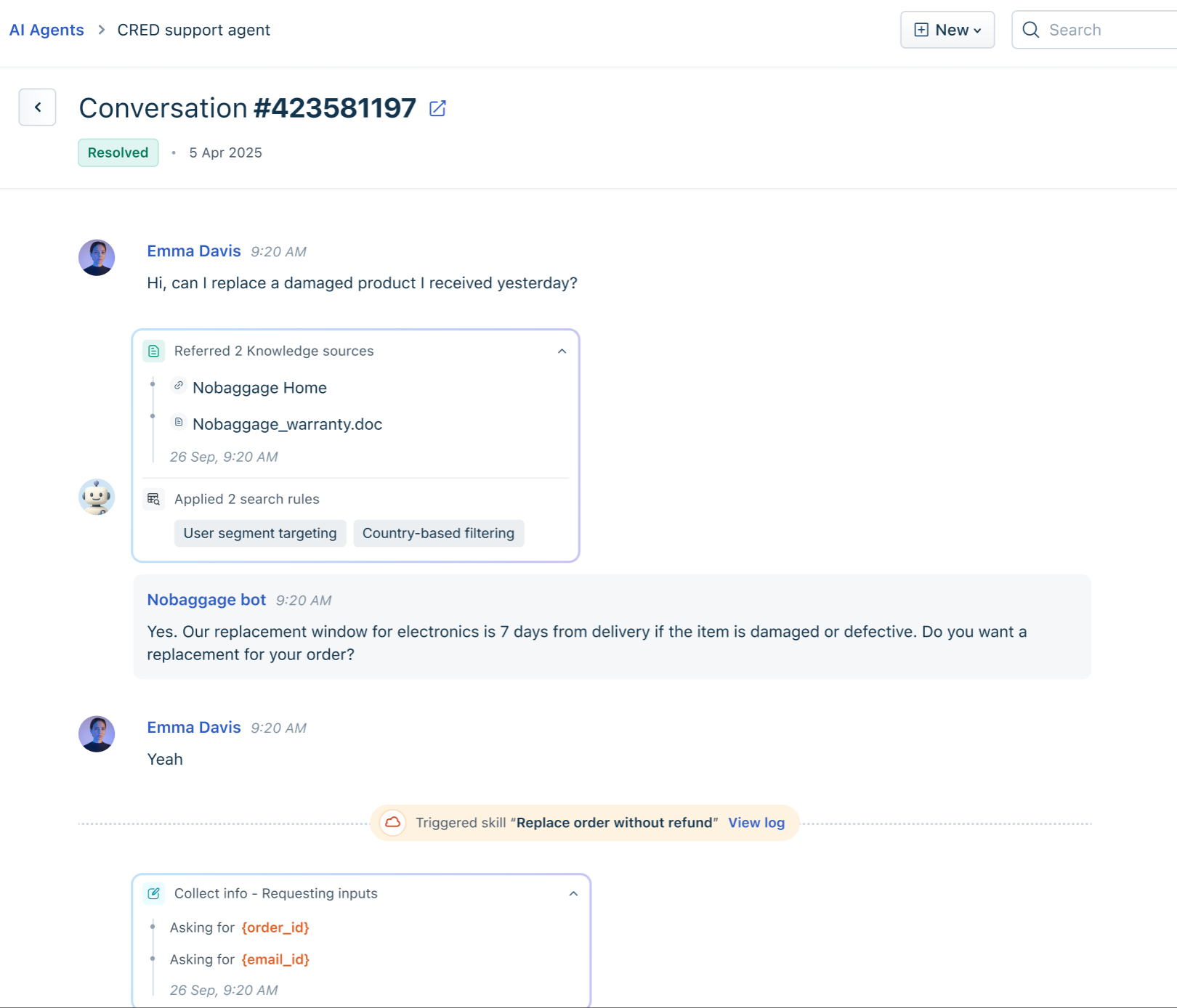
This visibility helps you verify that rules are working as expected and debug cases where the agent may have retrieved from an unintended source.
Error handling & support
Issue with file/URL not loading: Ensure there are no blockers or authentication on the page.
Pop-ups interfering with learning: Reach out to support@freshdesk.com for resolution.
Need to extend file or URL limits: Contact support@freshdesk.com - requests are evaluated based on your business use case.