TABLE OF CONTENTS
- Explore the configurations section
- Reach more customers with multilingual support
- Fine-tune agent response with Conversation behavior
- Keep escalations smooth with handover settings
- Customize customer feedback for every resolution
- Maintain your queue with spam settings
- Keep automation rules working alongside Email AI agents
- Things to keep in mind
Once your Email AI Agent is set up, these configurations shape how it behaves in production — when it escalates, how it handles noise, when it hands off outside business hours, and how it collects feedback. All settings described here live under Build > Configurations in your email AI agent.
For initial agent setup and deployment, see Email AI Agent setup and configuration. Regarding the conversation behavior setting for response tuning — signature, footer, fallback message — see Configure email AI agent conversation behavior.
Explore the configurations section
The Configurations section in AI Agent Studio is where you shape your email AI agent's production behavior. Before configuring individual settings, navigate to the Configurations hub as described below.
- Open AI Agent Studio and select the email AI agent you want to configure.
- In the left navigation, select Build, then select Configurations.
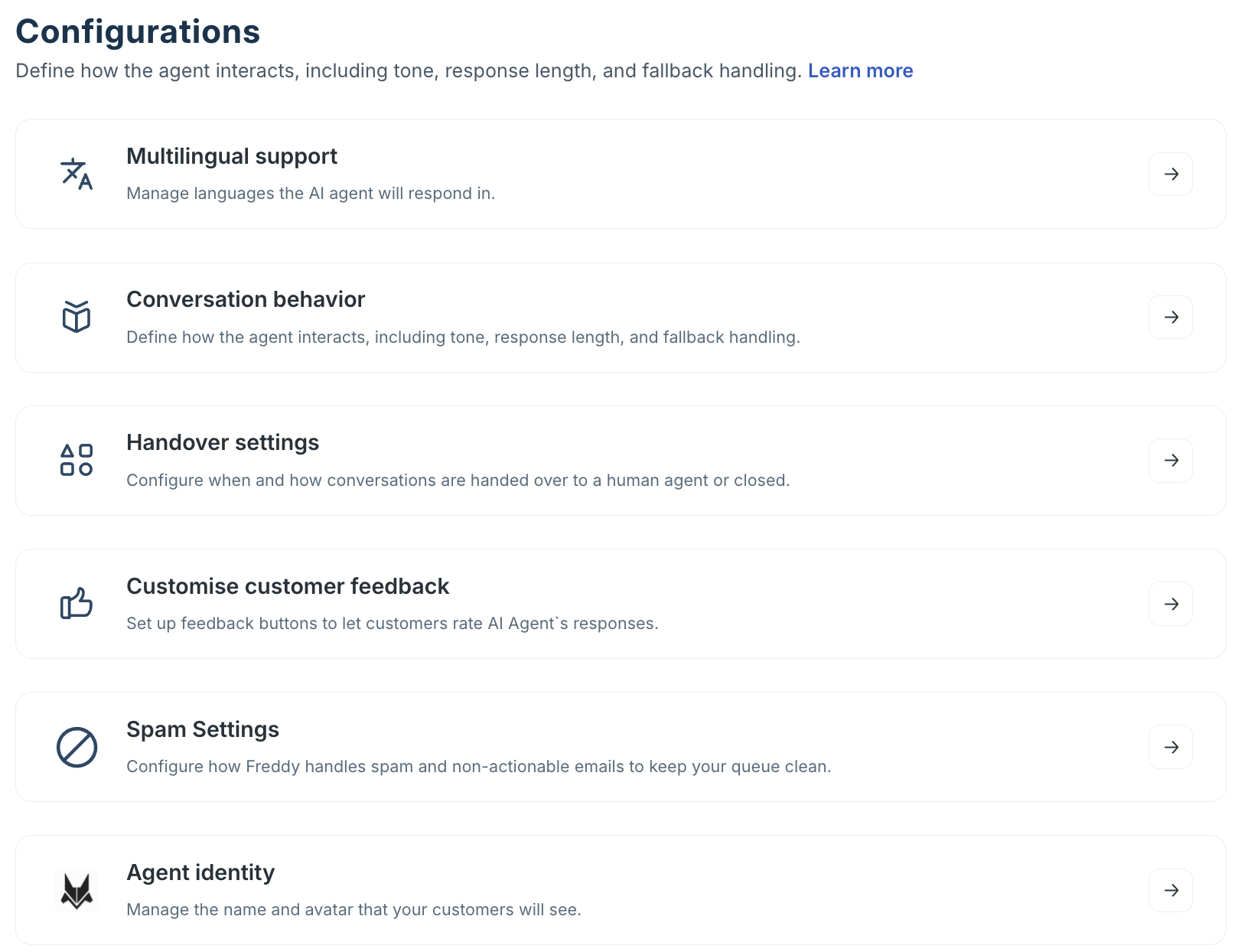
The Configurations hub lists six areas:
- Multilingual support,
- Conversation behavior,
- Handover settings,
- Customise customer feedback,
- Spam Settings, and
- Agent identity.
Reach more customers with multilingual support
Enable multilingual support so the AI agent detects and replies in each customer's language automatically — no customer configuration needed. Mixed-language emails default to the language detected in the most recent customer message.
To enable multilingual support,
- Select Multilingual support from the Configurations hub.
- Select the languages the agent should respond in and click Done.
- Save.
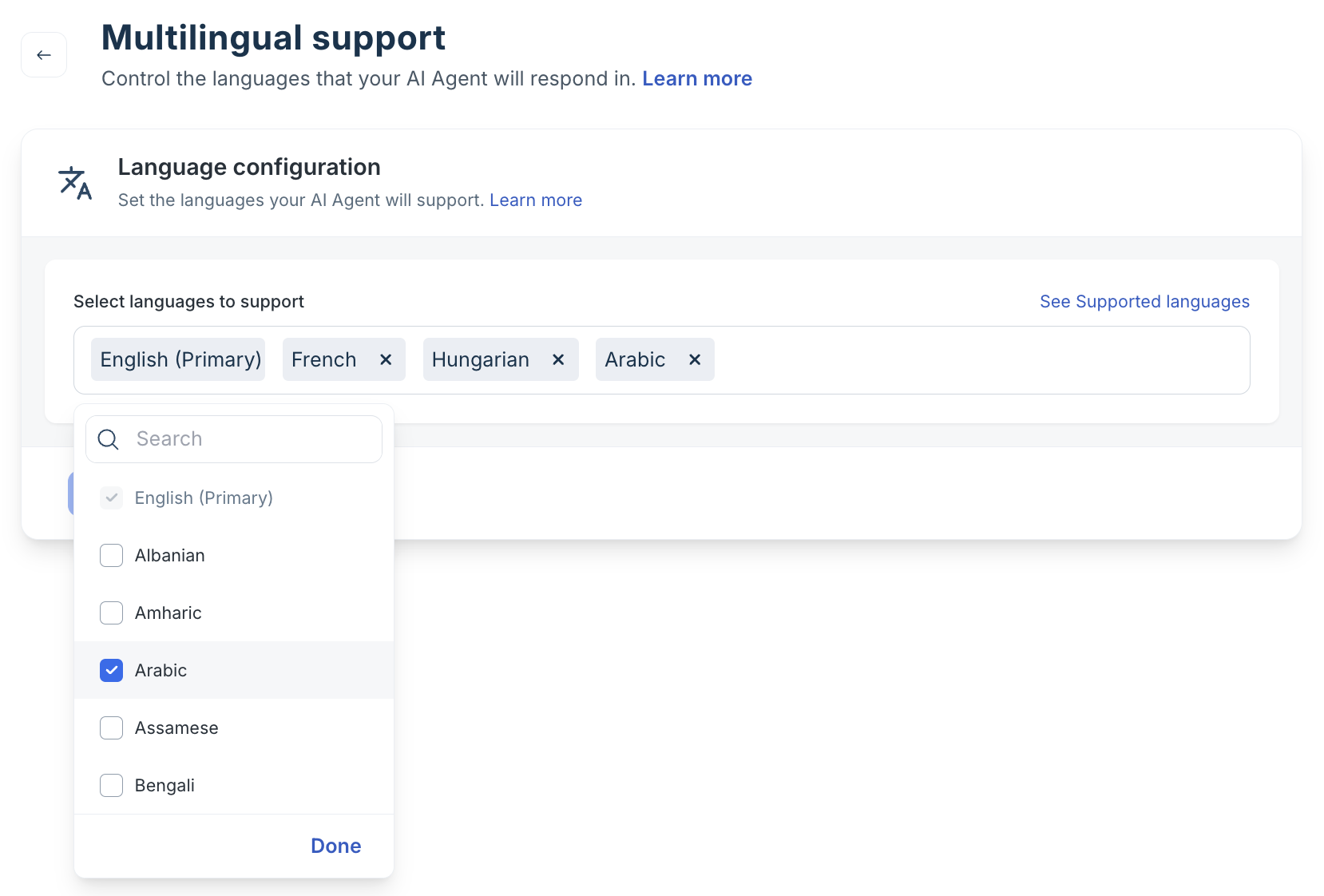
Supported languages
Here is the list of languages supported by AI Agent Studio.
| Albanian | Amharic | Arabic | Assamese | Bengali | Bosnian |
| Bulgarian | Catalan | Chinese | Chinese(Traditional) | Croatian | Czech |
| Danish | Dutch | Estonian | Filipino | Finnish | French |
| German | Greek | Gujarati | Hebrew | Hindi | Hungarian |
| Icelandic | Indonesian | Italian | Japanese | Kannada | Kazakh |
| Khmer | Korean | Kurdish | Latvian | Lithuanian | Malay |
| Malayalam | Marathi | Nepali | Norwegian | Odia | Polish |
| Portuguese | Portuguese (BR) | Portuguese/Portugal | Punjabi | Romanian | Russian |
| Serbian | Sinhalese | Slovak | Slovenian | Somali | Spanish |
| Spanish (Latin America) | Swahili | Swedish | Tamil | Telugu | Thai |
| Turkish | Ukranian | Urdu | Uzbek | Vietnamese | Welsh |
| English |
Note: Signature Management and Legal & Compliance Footer both support language-specific variants. You can configure these under Conversation behavior to ensure sign-off blocks match the response language.
Fine-tune agent response with Conversation behavior
Conversation behavior settings control the structure and guardrails of every AI email reply. Navigate to Build > Configurations > Conversation behavior.
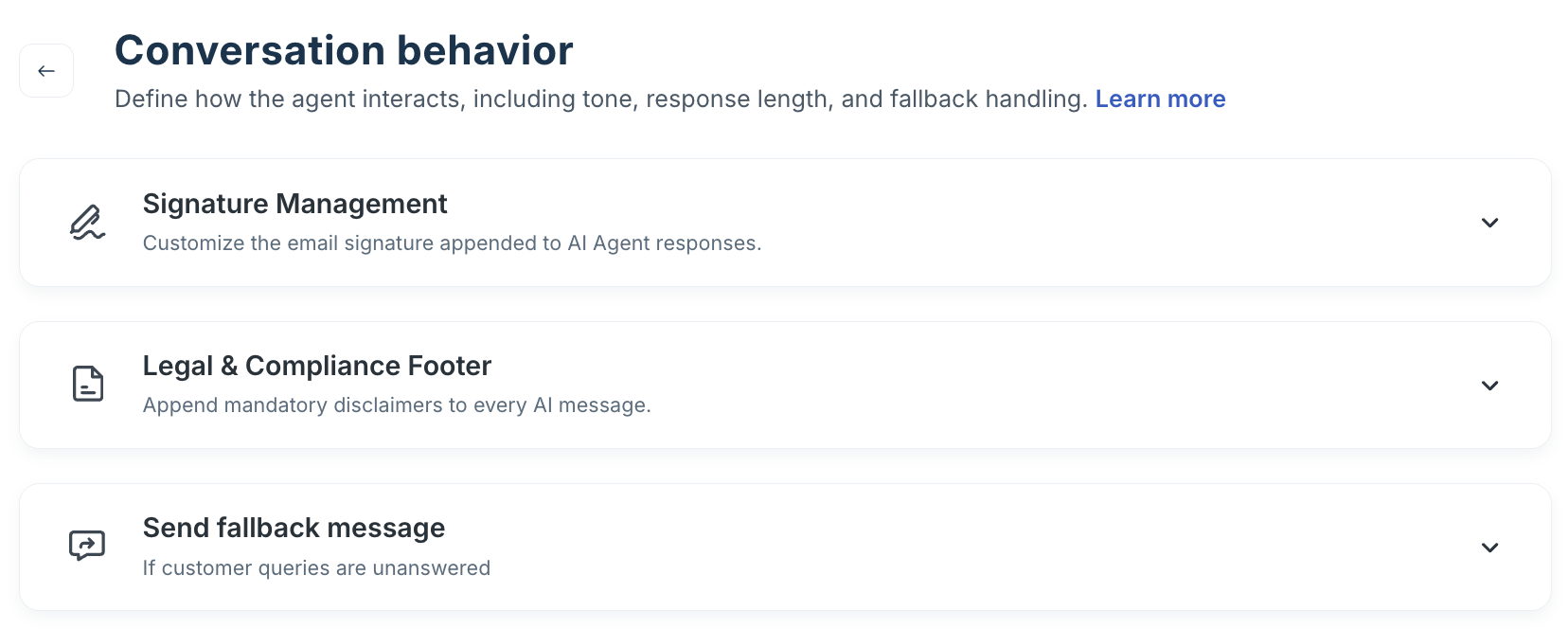
- Signature management: The sign-off block is appended to every AI reply. Configure dynamic placeholders (agent name, team, contact details) and set language-specific variants to match the response language.
- Legal & compliance footer: A mandatory disclaimer on every AI reply. Configure per-region or per-language variants — required for GDPR, CCPA, and industry-specific compliance.
- Send fallback message: The message sent when the AI cannot generate even an initial response. Configure the copy to set expectations and guide the customer to an alternate support path.
Note: Changes to Conversation behaviour take effect for new tickets only. Tickets already in progress continue with the configuration active at the time they were created.
For step-by-step configuration of each of these settings, see Configure Email AI Agent conversation behavior.
Keep escalations smooth with handover settings
Handover settings control how and when the agent transfers a ticket to a human. Configure under Configurations > Handover settings.
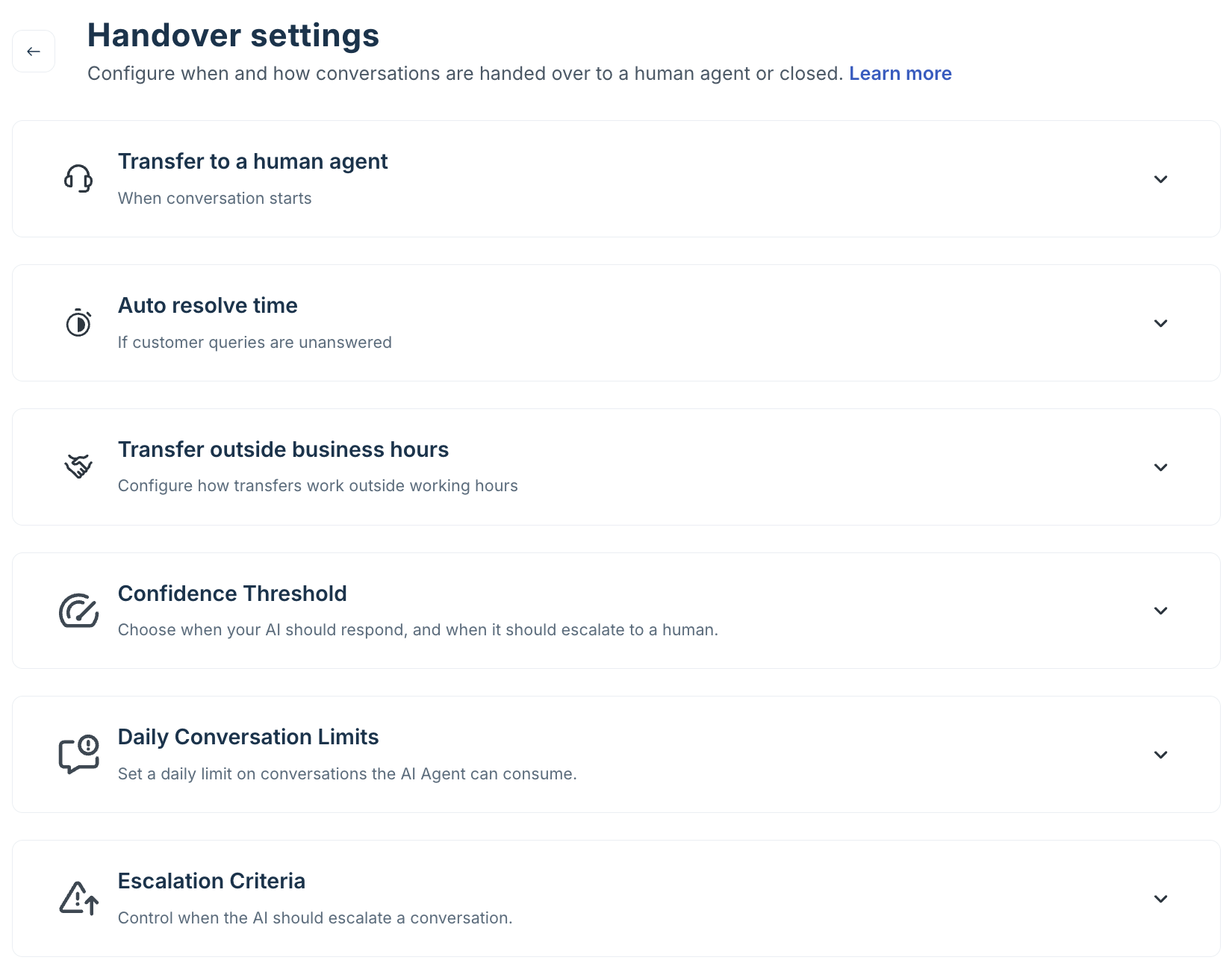
Transfer to a human agent
This setting defines what happens when the AI decides to hand off — because it can't answer, the customer requested it, or the multi-turn threshold was reached.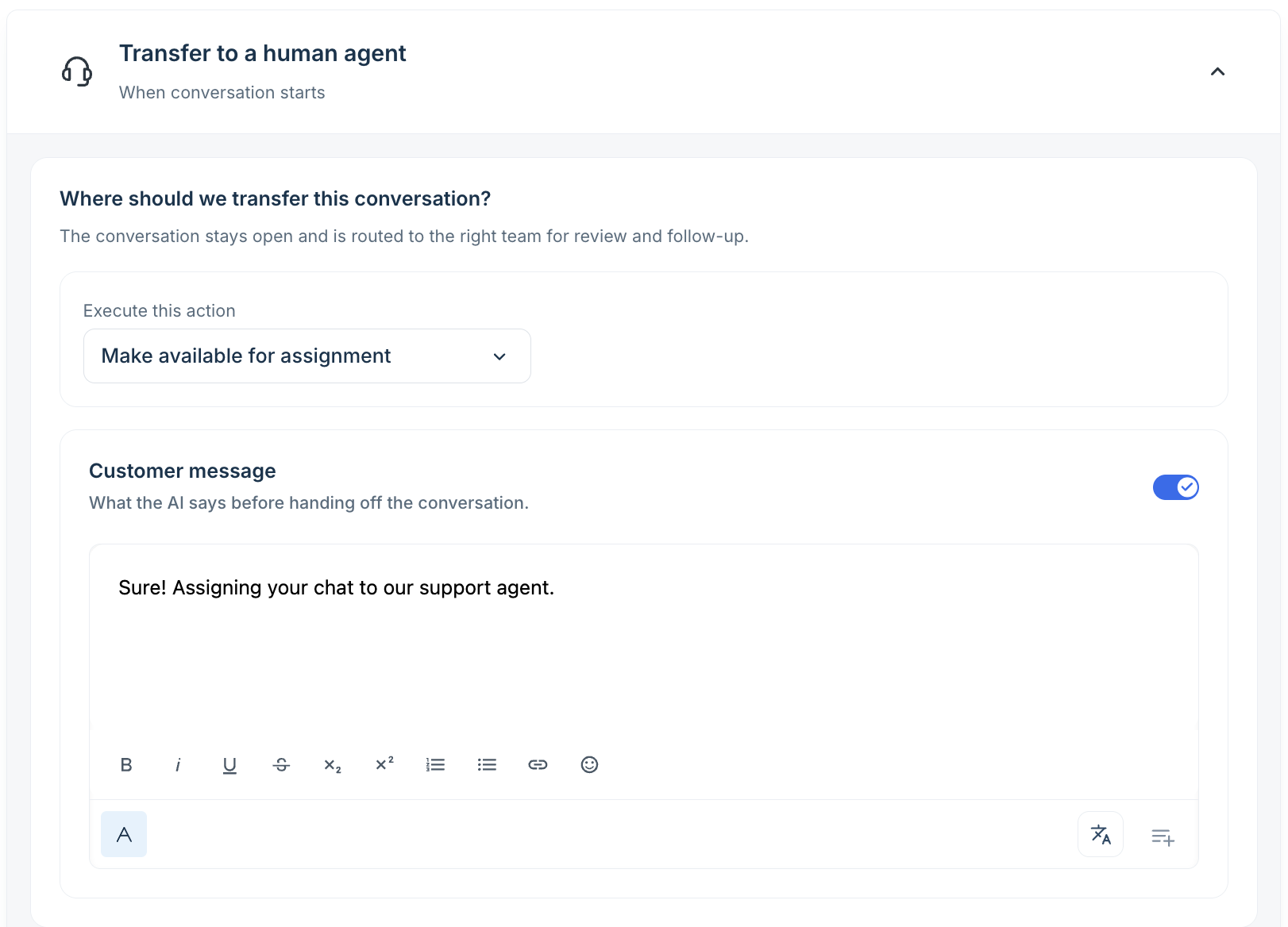
To configure the transfer,
- Under Where should we transfer this conversation?, select the action.
- Make available for assignment: Ticket is unassigned and placed in the queue for any human agent to pick up.
- Transfer conversation to group: Ticket is assigned directly to a configured group — for example, Tier 2 Support or Billing Team.
- Toggle on Customer message to send a message before transferring — for example: "I'm connecting you with a specialist. You'll hear from us shortly."
Note: The transfer action applies to all escalation paths — fallback, customer-requested, and multi-turn. For different routing logic per escalation reason, use a workflow mapped to the relevant system event instead.
You can also define topics that should always route to a human agent, even when the agent has a relevant answer. To configure topic-based routing, follow these steps.
- Under Topics that AI Agent shouldn't respond to, enable the toggle.
- Enter the topics or keywords. Matching tickets are automatically transferred to a human agent.
- Save.
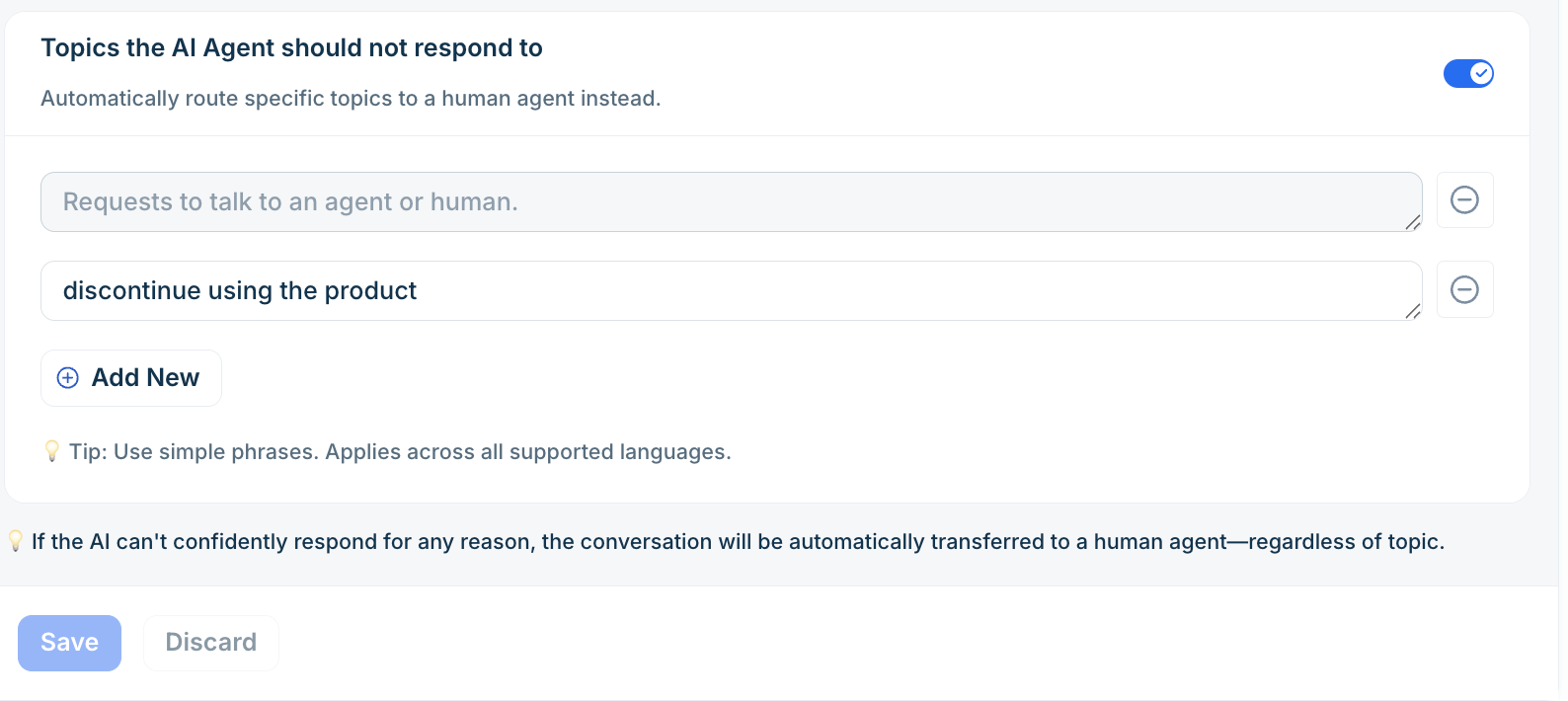
Best practice: Use this for legally sensitive, emotionally complex, or brand-critical topics where AI involvement is inappropriate — safety incidents, large refund requests, or media inquiries.
Auto-resolve time
Auto-resolve closes tickets after a period of customer inactivity — keeping your queue clean without manual effort. Configure under Configurations > Handover settings.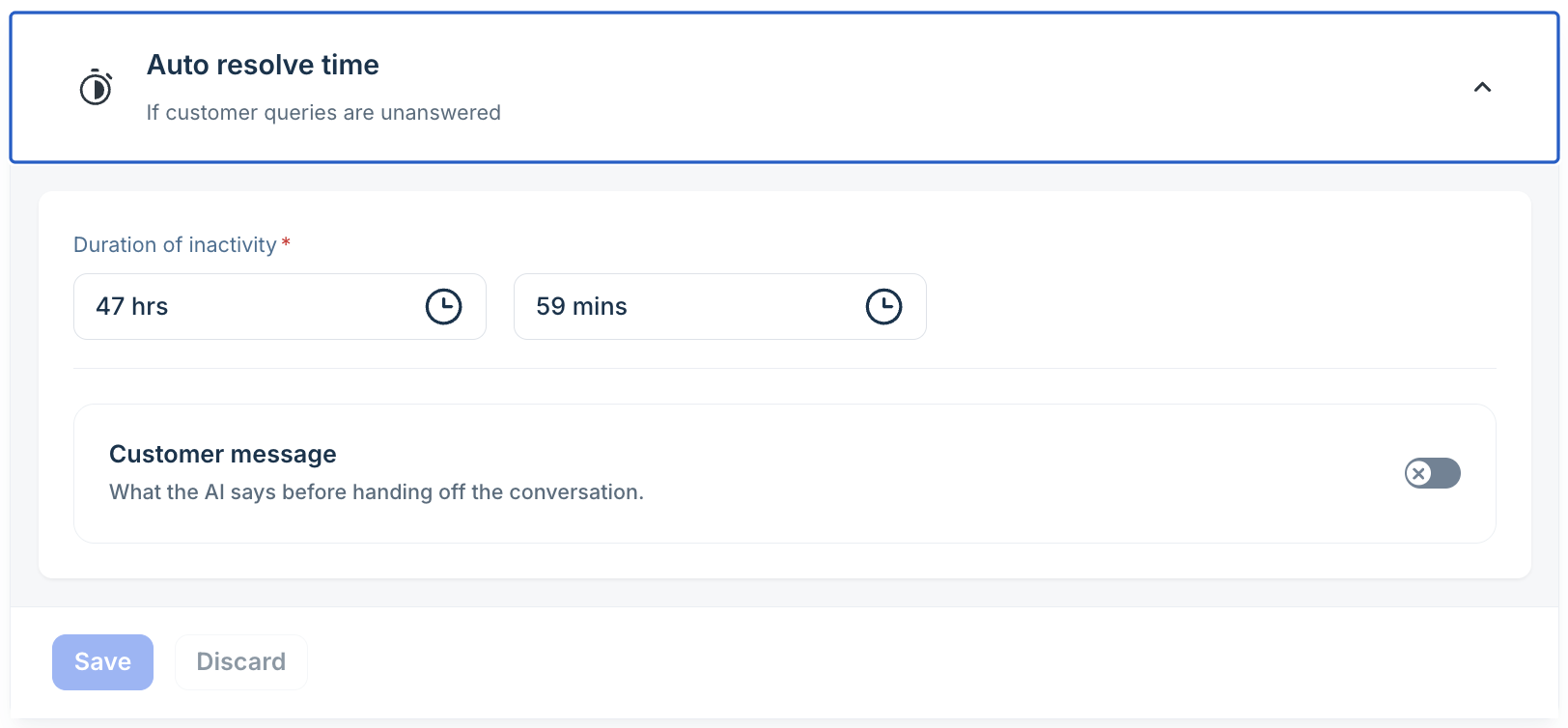
- Scroll to Auto-resolve time setting.
- Set the inactivity duration — hours after the last customer message before auto-resolve fires.
- Optionally enable the customer message toggle and configure the message — for example: "We haven't heard from you. We're closing this ticket. Reply any time to reopen it."
- Save.
If the customer replies before the timer expires, the timer resets. The auto-resolve timer starts only after the full configured inactivity duration has elapsed.
Transfer outside business hours
Configure a separate routing policy for tickets arriving outside your business hours.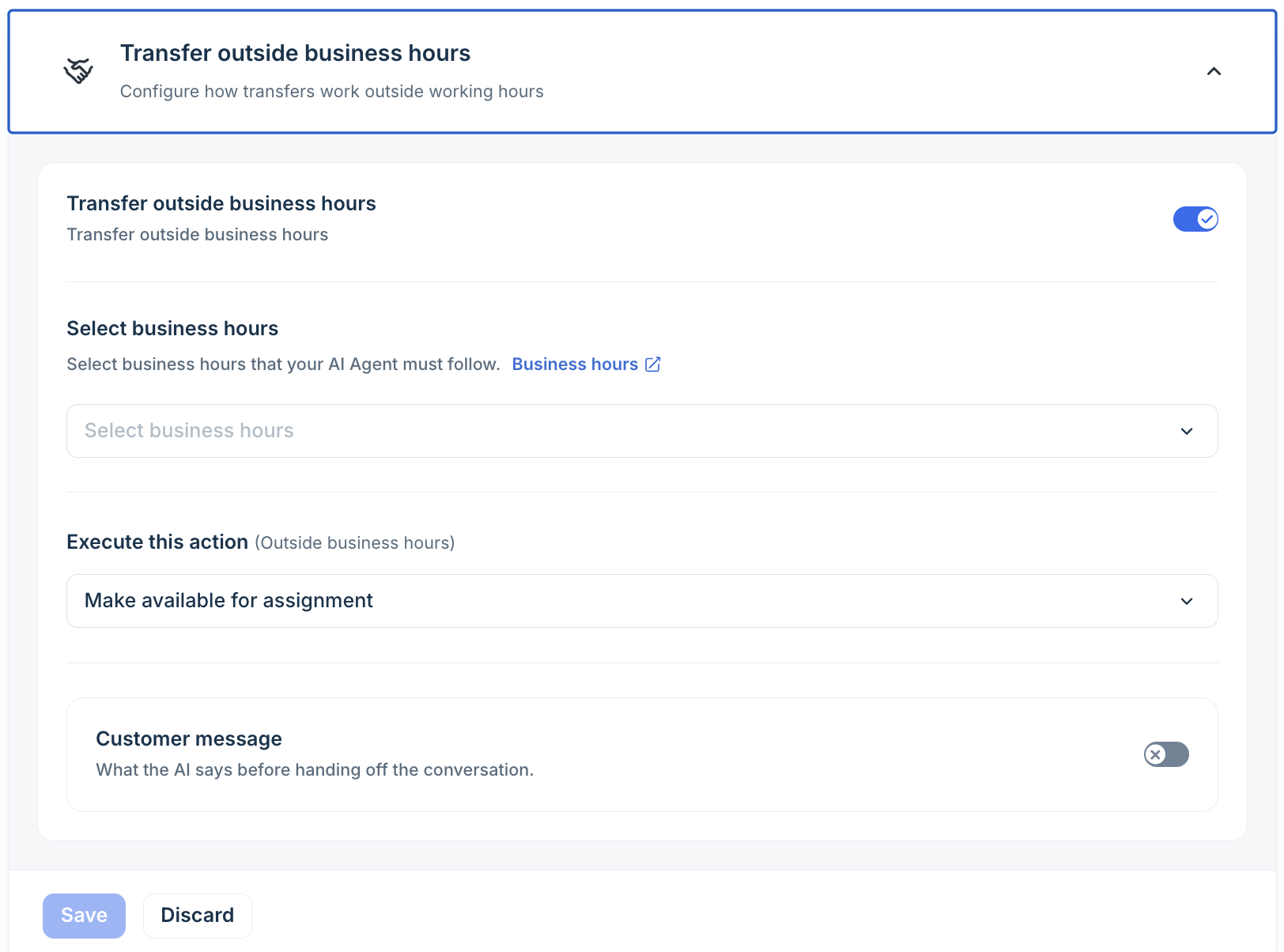
- Under Transfer outside business hours, enable the toggle.
- Under Select business hours, choose your schedule — default 24×7 or a custom schedule from Freshdesk admin settings.
- Under Execute this action (Outside business hours), choose Transfer conversation to group and select the target group — for example, On-Call Team or After-Hours Queue.
- Enable the Customer message toggle and enter your after-hours message — for example: "Our team is currently offline. We'll respond within 8 business hours."
- Save.
Note: Outside business hours configuration is per-agent. If you run multiple email AI agents for different brands or portals, configure outside-hours routing separately for each.
Confidence threshold
Confidence Threshold controls how carefully the AI agent replies — choose when it should respond and when it should escalate to a human. The setting applies globally to this agent across all mailboxes and portals it is deployed to.
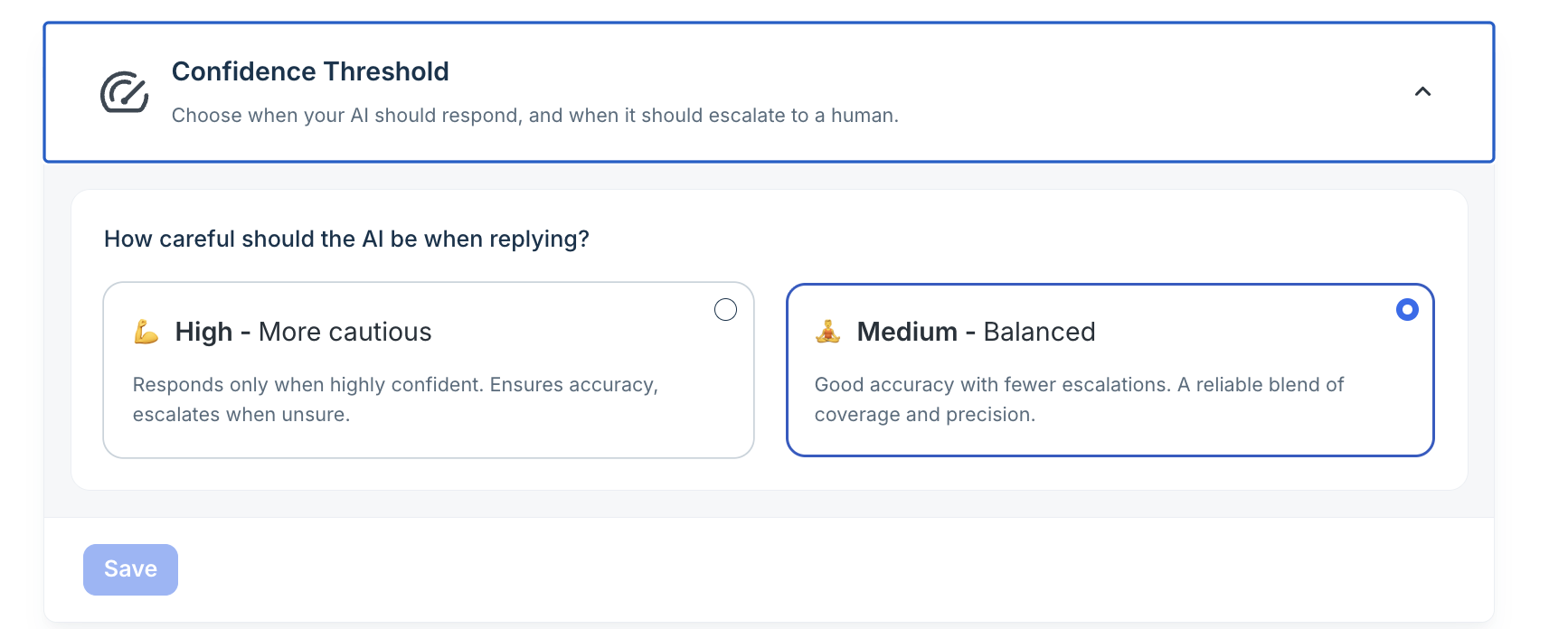
- Expand Confidence Threshold.
- Under How careful should the AI be when replying?, select High or Medium.
- High — More cautious: Responds only when highly confident. Ensures accuracy, escalates when unsure. Use for regulated industries, billing queries, sensitive account changes, or any domain where an incorrect AI response causes significant customer harm.
- Medium — Balanced: Good accuracy with fewer escalations — a reliable blend of coverage and precision. Use for general customer support with a well-curated knowledge base where higher self-service deflection is the priority.
- Select Save
The confidence threshold is global per agent — there is no per-topic or per-mailbox setting.
Best practice: Start with High during initial deployment to ensure quality. After reviewing your deflection rate and escalation patterns in the Analyze tab for 2–4 weeks, switch to Medium if the escalation rate is higher than your team can handle and your knowledge sources are comprehensive.
Daily conversation limits
Daily Conversation Limits lets you cap the total number of conversations the AI agent can consume per day — useful to control costs, manage a staged rollout, or protect against unexpected volume spikes during early deployment.
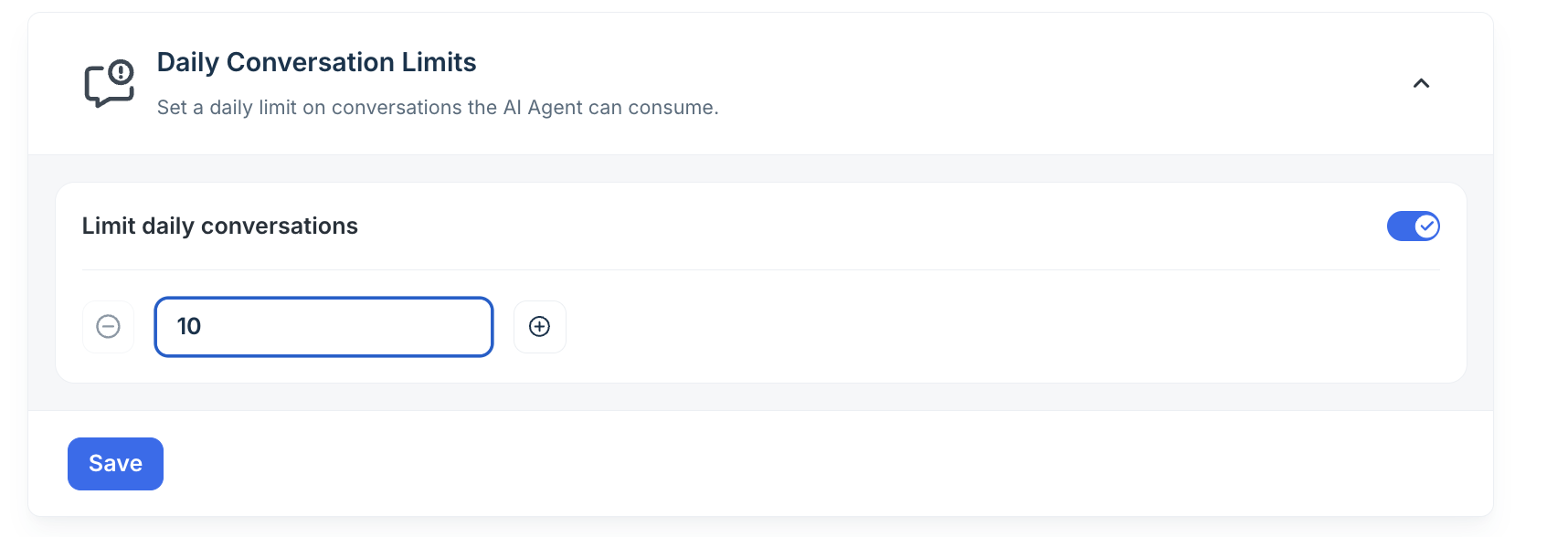
- Expand Daily Conversation Limits.
- Enable the Limit daily conversations toggle.
- Use the stepper to enter the maximum number of conversations per day. The minimum permitted value is 10.
- Select Save.
When the limit is reached, the AI agent stops handling new conversations for the remainder of that calendar day. New tickets continue to arrive and are visible in the inbox, but the AI does not process or reply to them until the limit resets at midnight. Human agents can take over any ticket manually during this period. To begin with, you can follow the below roll-out strategy,
- Controlled pilot rollout — small team validating quality: 10–25 conversations per day to limit exposure while testing.
- Mid-scale deployment with active monitoring: 100–300 conversations per day, adjusted weekly based on volume data.
- Full production rollout: Disable the Limit daily conversations toggle to remove the ceiling entirely.
Note: The daily limit is per agent, not per mailbox. If one email AI agent is deployed to five mailboxes, the combined conversation count across all five counts toward a single daily cap.
Escalation criteria
Escalation Criteria sets the maximum number of back-and-forth exchanges — called Max Conversation Turns — the AI agent engages in before automatically escalating to a human agent. A turn is counted each time the AI sends a reply, and the customer responds.
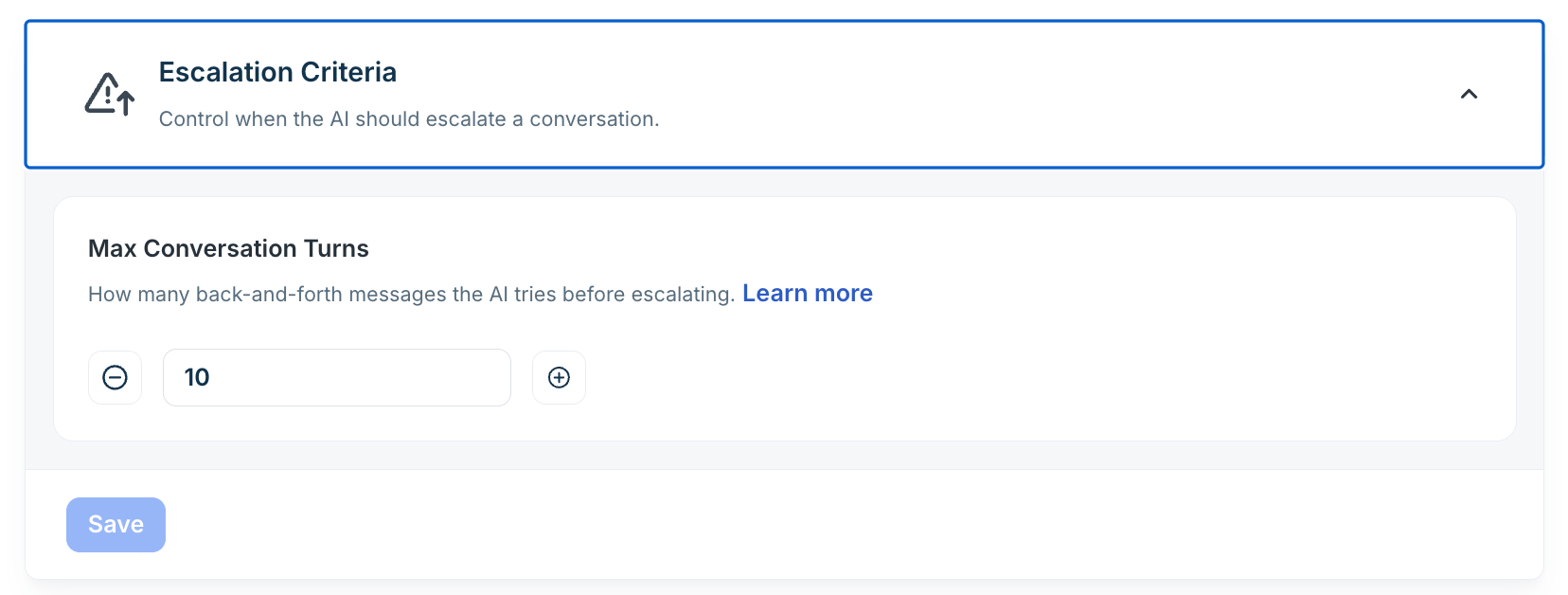
- Expand Escalation Criteria.
- Use the Max Conversation Turns stepper to set the threshold. The minimum permitted value is 10.
- 10 turns (minimum): High-volume, transactional support where quick deflection or escalation is preferred.
- 15 turns: General-purpose support — balances resolution rate with escalation containment.
- 25+ turns: Complex, multi-step support scenarios where longer AI-assisted resolution is valuable.
- Select Save. The threshold applies to all new conversations from this point forward.
When the configured turn count is reached, the agent escalates using the routing defined in Handover settings. The escalation fires exactly at the threshold — not before, not after. Conversations already in progress continue with the count accumulated before the threshold change.
Best practice: Monitor your escalation rate in the Analyze tab. If many conversations escalate at the exact configured threshold rather than naturally resolving, it may indicate the threshold is too low or that knowledge source coverage is incomplete for common query types.
Customize customer feedback for every resolution
After configuring the Handover settings, proceed with the remaining configurations. The Customise Customer Feedback settings determine whether feedback buttons are visible in AI email replies, their appearance, and the actions taken when a customer uses them. Set these options under Configurations > Customise Customer Feedback and enable the toggle next to Enable customer feedback.
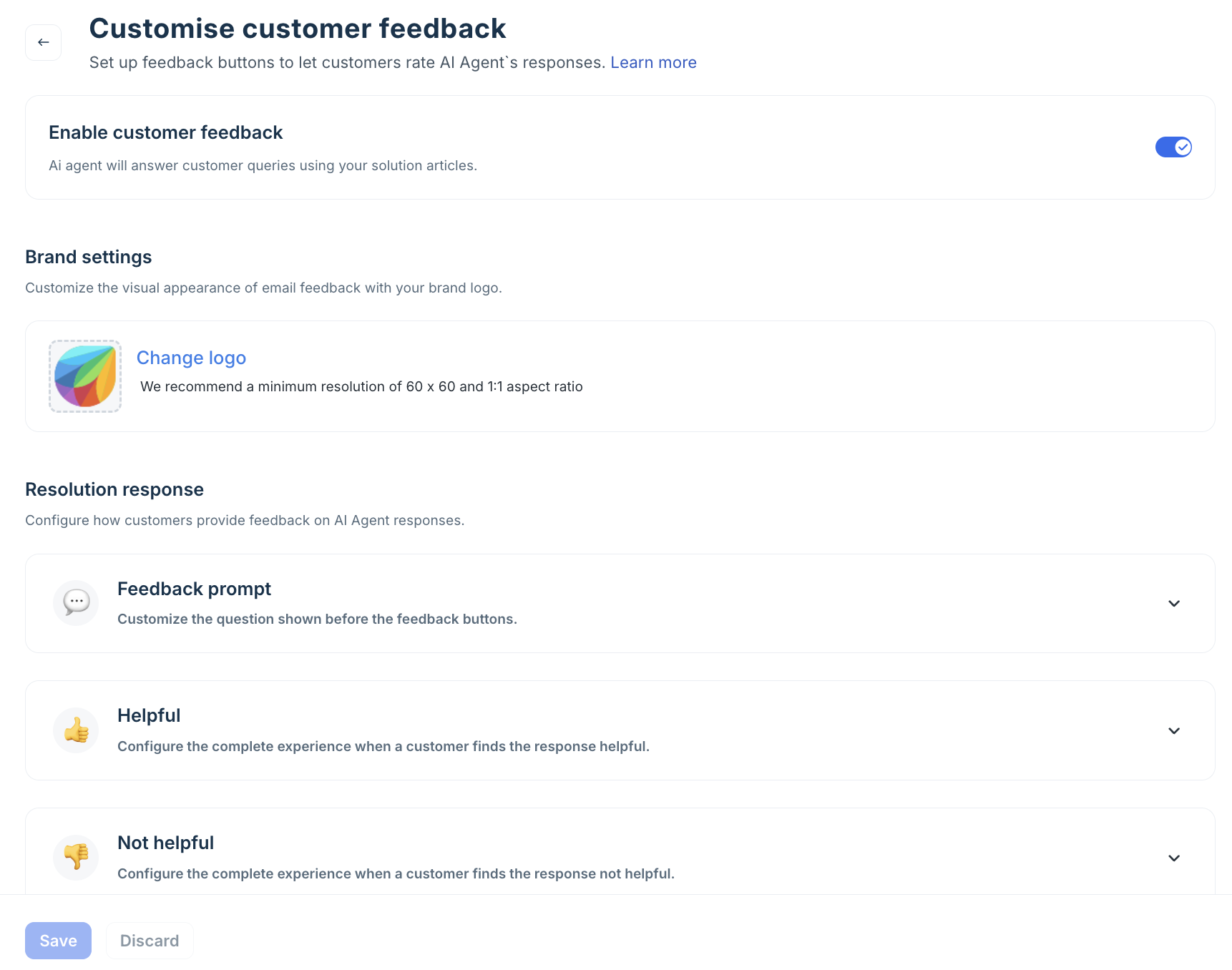
Brand settings
Under Brand settings, select Change logo to upload your brand logo. The logo appears on all customer-facing feedback confirmation pages. Logo requirements: Minimum resolution 60 × 60px. Use a 1:1 aspect ratio for best rendering across email clients.
Resolution response
The Resolution response section has three expandable cards: Feedback prompt, Helpful, and Not helpful. Configure each in order.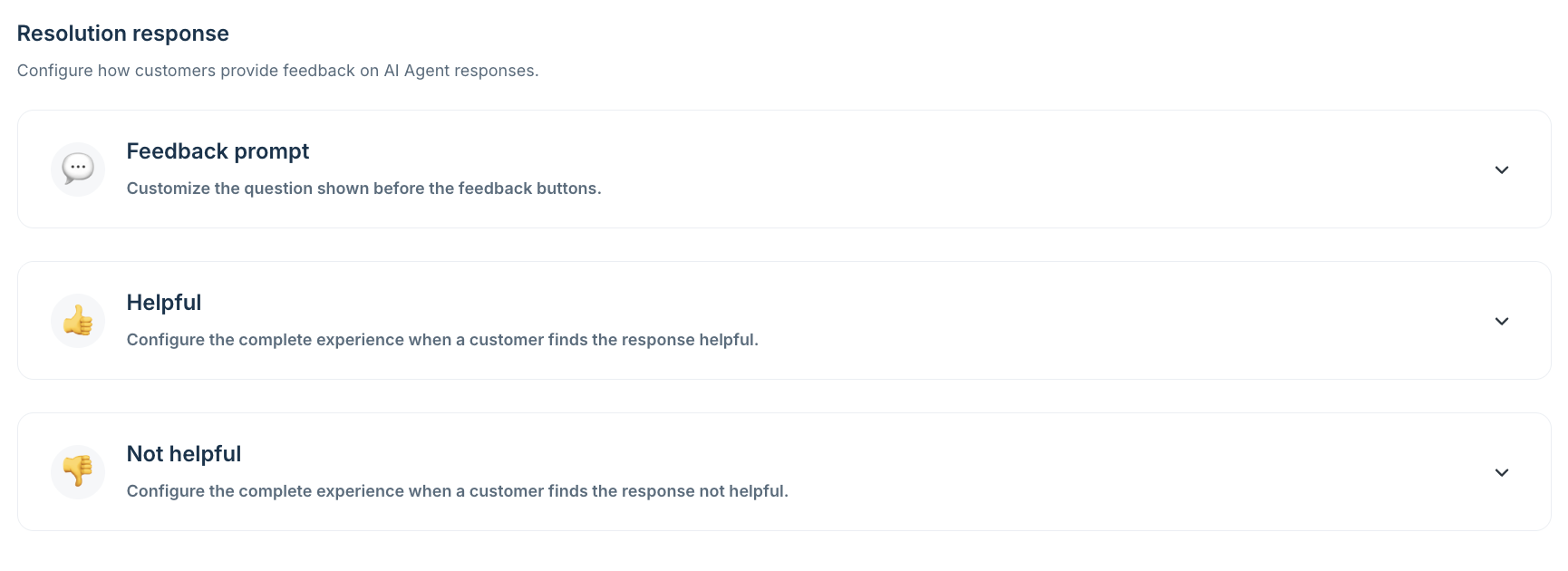
Feedback prompt
Expand Feedback prompt. Under Customise your feedback message, enter the question shown above the feedback buttons in every AI reply.
Default: "Did the provided answer resolve your request?"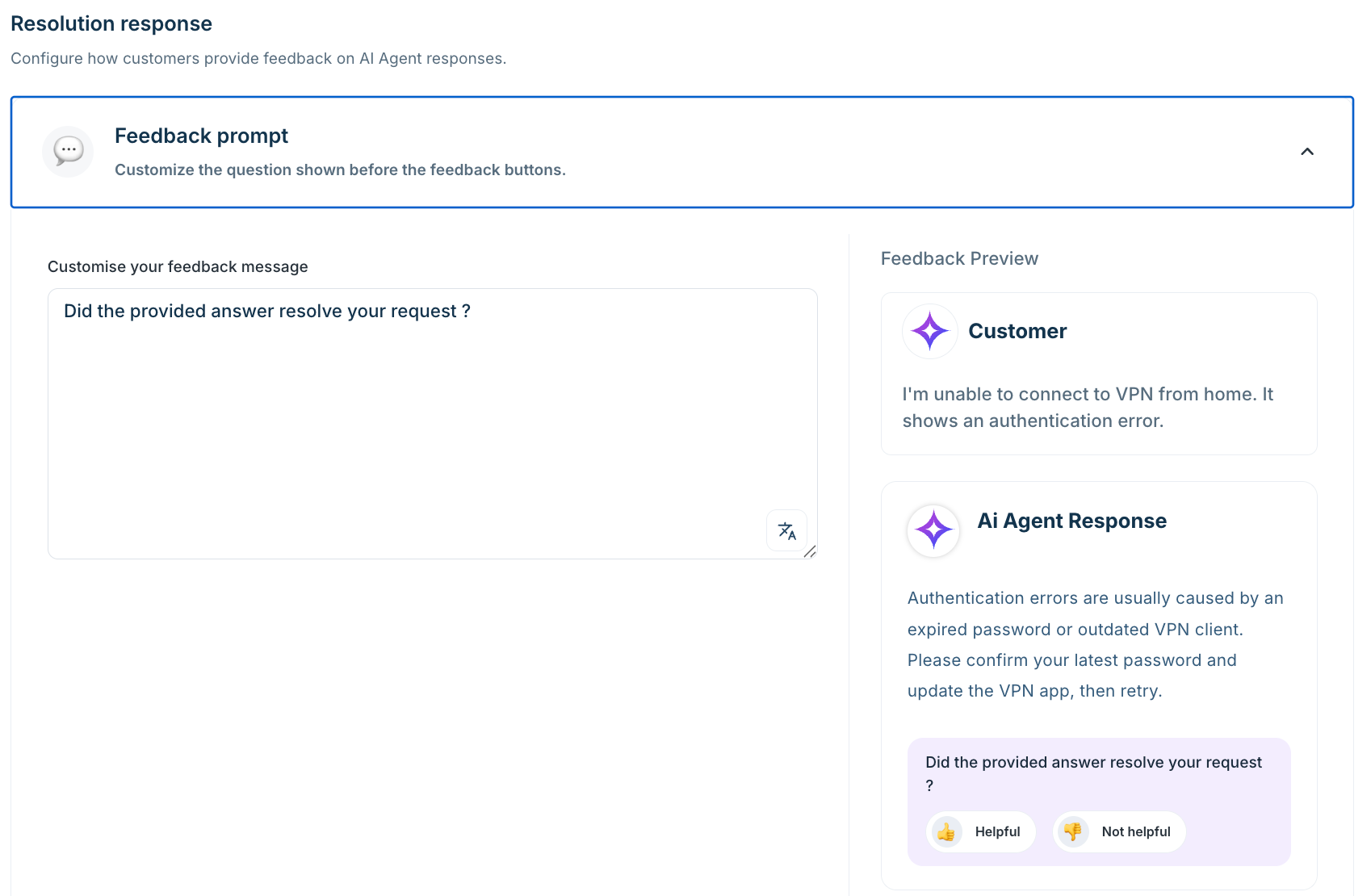
The Feedback Preview panel on the right updates live — showing the customer message, the AI Agent Response, and the rendered feedback buttons below the response as customers will see them in email.
Helpful
Expand Helpful. Configure the complete experience when a customer marks the response as helpful. When customers mark this as helpful, the ticket will be closed.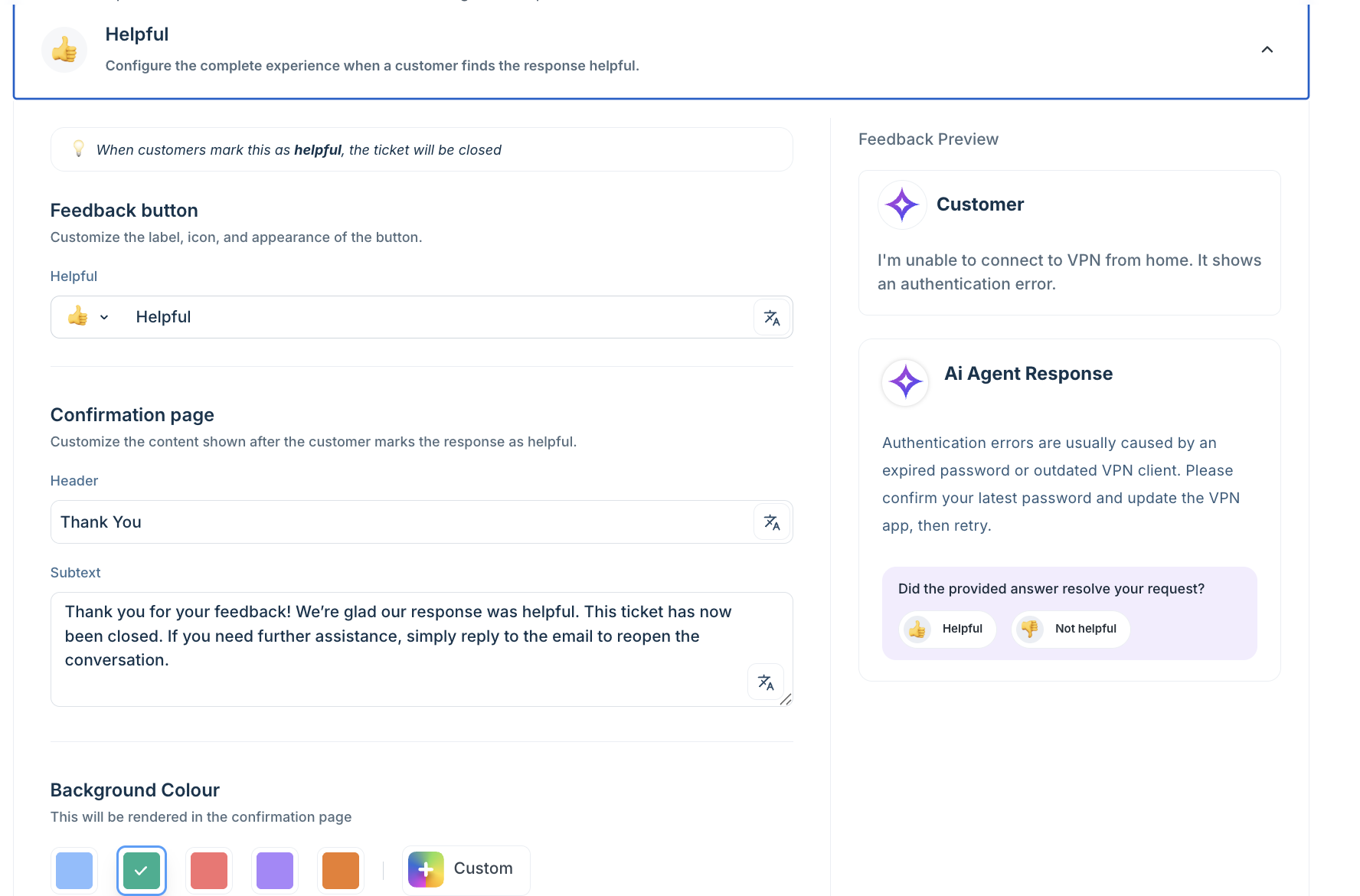
- Feedback button: Under Feedback button, customise the button label and icon. Default label: Helpful.
- Confirmation page — Header: Default: "Thank You"
- Confirmation page — Subtext: Default: "Thank you for your feedback! We're glad our response was helpful. This ticket has now been closed. If you need further assistance, simply reply to the email to reopen the conversation."
- Background Colour: Select from the preset swatches or choose Custom for a hex value. This colour is rendered on the confirmation page the customer sees after clicking.
Not helpful
Expand Not helpful. Configure the complete experience when a customer marks the response as not helpful. When customers mark this as not helpful, the conversation is escalated to a human support agent.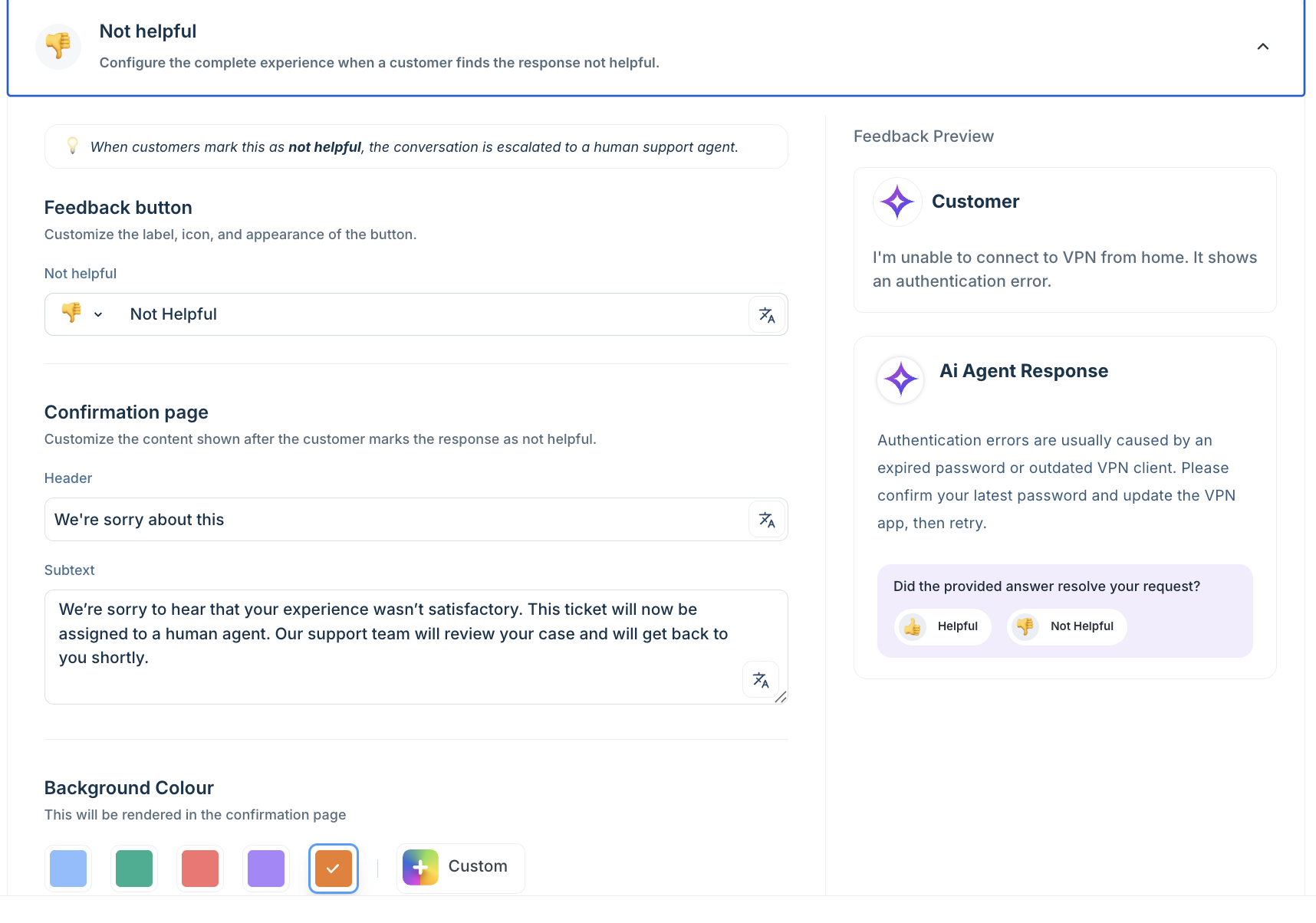
- Feedback button: Under Feedback button, customise the button label and icon. Default label: Not Helpful.
- Confirmation page — Header: Default: "We're sorry about this"
- Confirmation page — Subtext: Default: "We're sorry to hear that your experience wasn't satisfactory. This ticket will now be assigned to a human agent. Our support team will review your case and will get back to you shortly."
- Background Colour: Select from the preset swatches or choose Custom.
Feedback edge cases at a glance
The following table describes how the system handles feedback edge cases.
Scenario | Behaviour |
Customer submits feedback a second time | Redirected to a 'Feedback already shared' page. No duplicate feedback recorded. |
Customer clicks feedback link from an older conversation | Shown a message explaining feedback is only valid for the most recent conversation. No feedback recorded. |
Customer clicks feedback on a closed conversation | Shown a message explaining the conversation is closed. No feedback recorded. |
CC'd participant clicks feedback link | Shown a message explaining only the original requestor can submit feedback. No feedback recorded. |
Ticket is handed over to human agent | Feedback buttons in all previous AI messages in the thread are deactivated. Feedback can no longer be submitted. |
Feedback submitted via portal | Portal feedback and email feedback are synced. If feedback was already submitted via email, the portal reflects this state and blocks resubmission — and vice versa. |
Maintain your queue with spam settings
Spam settings under Configurations let the agent automatically close non-actionable emails — such as out-of-office replies, bounce notifications, and payment receipts — without consuming human review time.
Freddy AI evaluates incoming emails to determine whether they require agent action.
- If the email is confidently identified as non-actionable, Freddy automatically closes it.
- If Freddy is uncertain, the email is routed for agent review instead of being auto-closed.
The configuration is divided into two parts:
- Define which email types should be auto-closed.
- Define where uncertain emails should be routed for review.
Auto-close these emails
Use the Auto-close these emails section to set categories of emails that Freddy will automatically close. Typical examples include out-of-office replies, delivery failure notifications, and spam or promotional emails. You can add multiple email categories depending on your support workflow.
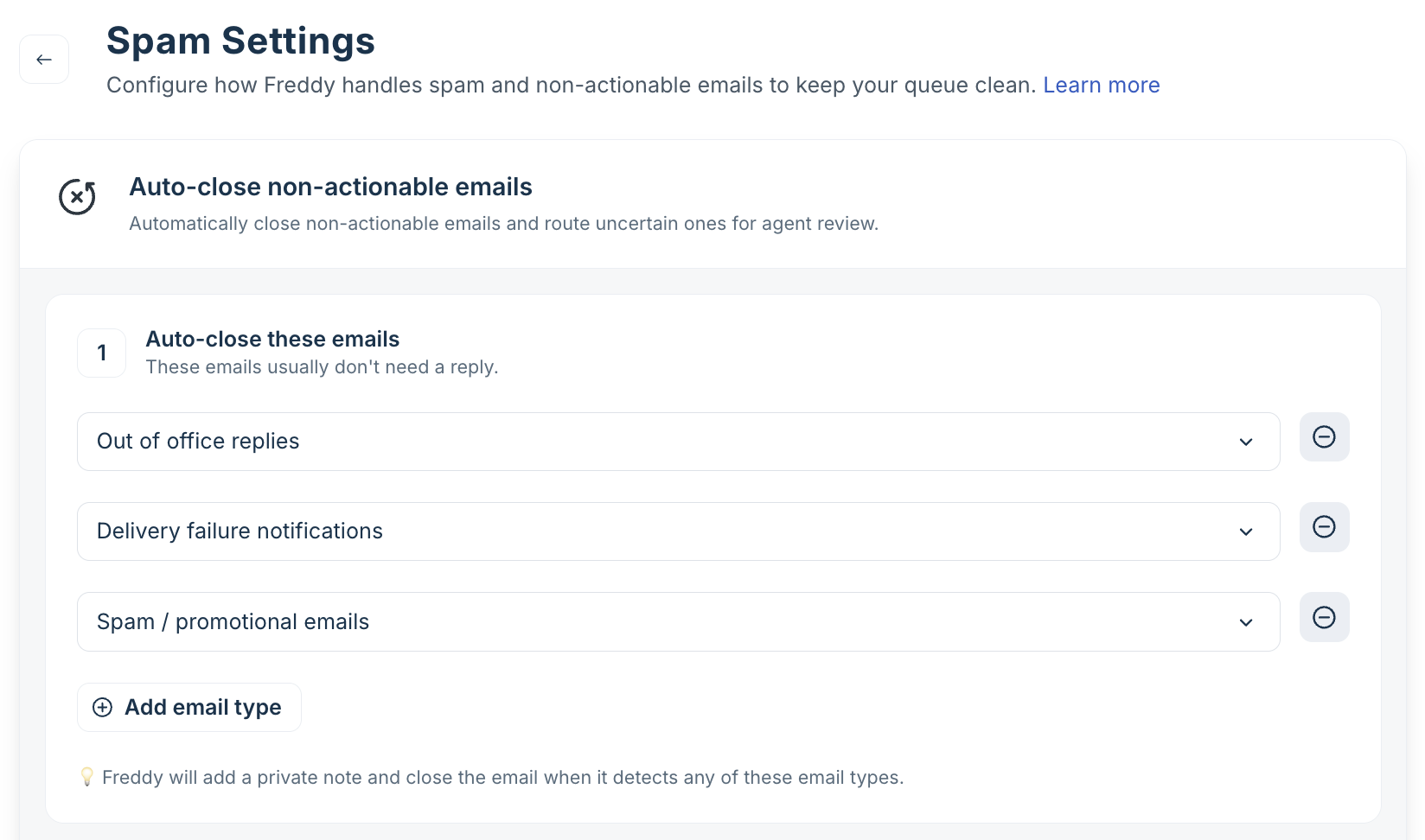
When Freddy AI detects one of these email types, it adds a private note to the ticket and closes the email automatically.
To add an email type for auto-close, follow these steps.
- Open Spam settings.
- In the Auto-close these emails section, click Add email type.
- Select the email category to auto-close.
- Select Save.
To remove a configured category, locate the email type in the list, click the remove icon beside it, and save the changes.
Review routing for uncertain emails
Some emails may not be clearly identifiable as spam or non-actionable. In such cases, Freddy AI routes the email for manual review instead of automatically closing it. Use the What should happen when review is needed? section to configure this behavior.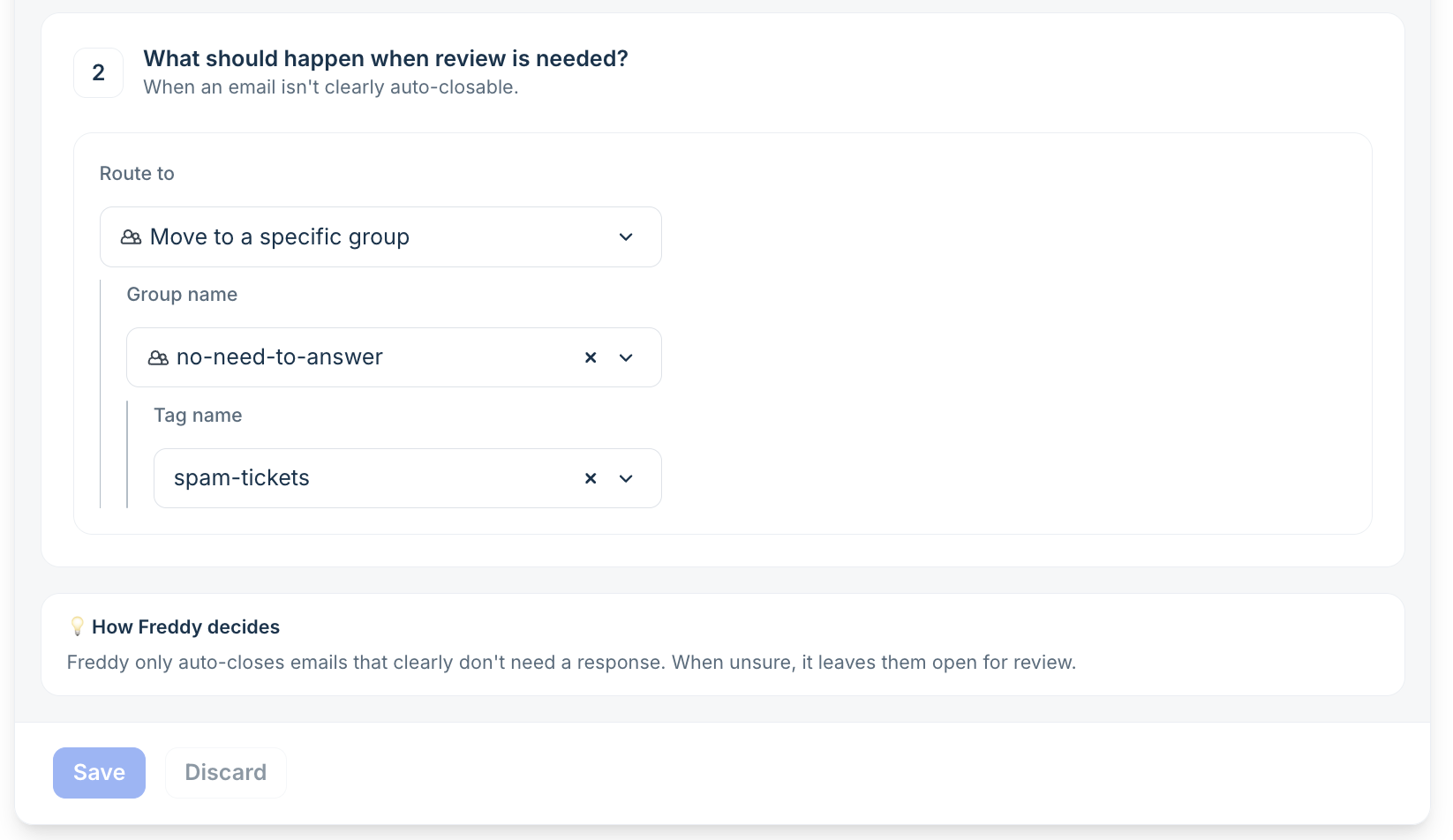
You can route uncertain emails to a specific group, a designated queue, or a workflow, depending on your account configuration. You can also apply tags automatically to help agents identify these emails quickly. For example: route to group no-need-to-answer and apply tag spam-tickets.
This separation helps operations teams distinguish review-required emails from regular support traffic. Freddy AI only auto-closes emails when classification confidence is high — if the email content is ambiguous, Freddy AI leaves the email open and routes it based on your review configuration. This prevents accidental closure of legitimate customer conversations while still reducing spam-related workload.
Keep automation rules working alongside Email AI agents
Email AI agents operate as post-ticket creation automations. They always evaluate tickets after all ticket creation automation rules have run — regardless of whether Execute First Matching or Execute All Matching is selected.
When multiple email AI agents are eligible for the same ticket, only the first matching agent is triggered. This is called the first-match execution model.
The following table describes how specific ticket creation automation actions interact with an active email AI agent.
Automation action | Behavior when Email AI agent is active |
Assign to group | The Email AI agent is evaluated first. If the ticket is assigned to the AI agent, round-robin is skipped. If the ticket does not match the agent’s conditions, round-robin executes as normal. |
Assign to human agent | If a human agent is assigned to the ticket by an automation rule, the Email AI agent does not override that assignment. |
Send reply | If the ticket is assigned to an Email AI agent, this action is skipped. If the ticket is not assigned to an email AI agent, the reply is sent as normal. |
Send email to requester | If the ticket is assigned to an Email AI agent, this action is held and not sent. If the ticket does not match the agent’s conditions, the held email is sent. If the ticket is assigned to the agent but the agent cannot answer the first response, the held email is sent. |
Delete ticket / Mark as spam | The Email AI agent is not evaluated for tickets with this action applied. |
Trigger webhook | Webhooks are allowed to execute. If the webhook assigns a human agent or group, the Email AI agent is not evaluated. Use your third-party service’s automation settings to manage routing logic. |
Trigger API | If a group assignment is made via API and the group has routing enabled, the ticket is assigned to a human agent. |
Email requester notification | Notifications are suppressed if the ticket is assigned to an Email AI agent. Otherwise, standard notification behavior applies. |
Send survey to requester | No change. Surveys are sent as configured. |
Add CC | No change. |
Send email to group / agent | No change. |
Skip new ticket email notifications | No change. |
For more details on Email AI Agent ticket events in automation and how they work together, see Using Automations with Email AI Agent in Freshdesk.
Things to keep in mind
Keep the following considerations in mind when working with Configurations settings.
- Changes apply to new tickets only: Configuration changes to Handover settings, Spam Settings, and Conversation behavior take effect for tickets created after saving. In-progress tickets continue with the active configuration at creation time.
- Spam auto-close adds a private note: When the agent auto-closes a non-actionable email, it adds a private note visible to agents in the ticket timeline — not to the customer.
- Handover reason logged: All AI state transitions — including reason codes (Did not find an answer / Negative feedback / Non-actionable / Max turns exceeded) — are logged in the ticket activity timeline with timestamps.
- Feedback disabled after handover: Once a ticket is escalated, feedback buttons in all previous AI messages become inactive.