TABLE OF CONTENTS
This article provides steps to connect Google Drive and select the shared drives that AI Agent Studio can use as knowledge sources. For details on other types of knowledge sources you can add to AI Agent Studio, see Build and curate knowledge for AI Agents.
Note: The connected apps can be used as Knowledge sources for both Chat and Email AI Agents.
Prerequisites
Ensure that you have the following:
- An active Google account with access to Google Drive.
- Administrator permissions to configure the integration.
Overview
The Google Drive Search Connector lets you connect selected Google Drive shared drives to AI Agent Studio as knowledge sources. This enables your AI Agent to use relevant information from Google Drive along with other knowledge sources configured in AI Agent Studio.
When knowledge is available in Google Drive and other configured sources, AI Agent Studio can use this information to provide relevant responses. The connector also syncs the applicable access permissions for the selected content, so users receive only information they are authorized to access.
Note: Ensure that the user's email address is consistent between Google Drive and Freshdesk. AI Agent Studio uses the user's Google Drive access permissions when retrieving knowledge.
AI Agent Studio uses a hybrid search method that combines context-based and keyword searches to retrieve relevant information from connected Google Drive content. The connector supports the following file formats:
- Google Docs, sheets, and slides
- HTML
- CSV
- XLS and XLSX
- RTF
- PPT
- Microsoft Word
- TXT
Note: Files larger than 50 MB, empty files, and files in unsupported formats are not synchronized. Currently, text within tables and images is not extracted or indexed.
Connect Google Drive
To connect Google Drive to AI Agent Studio, install the Google Drive Search Connector, authorize your Google account, and select the shared drives that you want to use as knowledge sources.
Install and authorize the connector
- Log in as an admin.
- Go to AI Agent Studio and select the preferred AI Agent for which you want to connect the Google Drive as a knowledge source.
- Click Build > Knowledge > Apps.
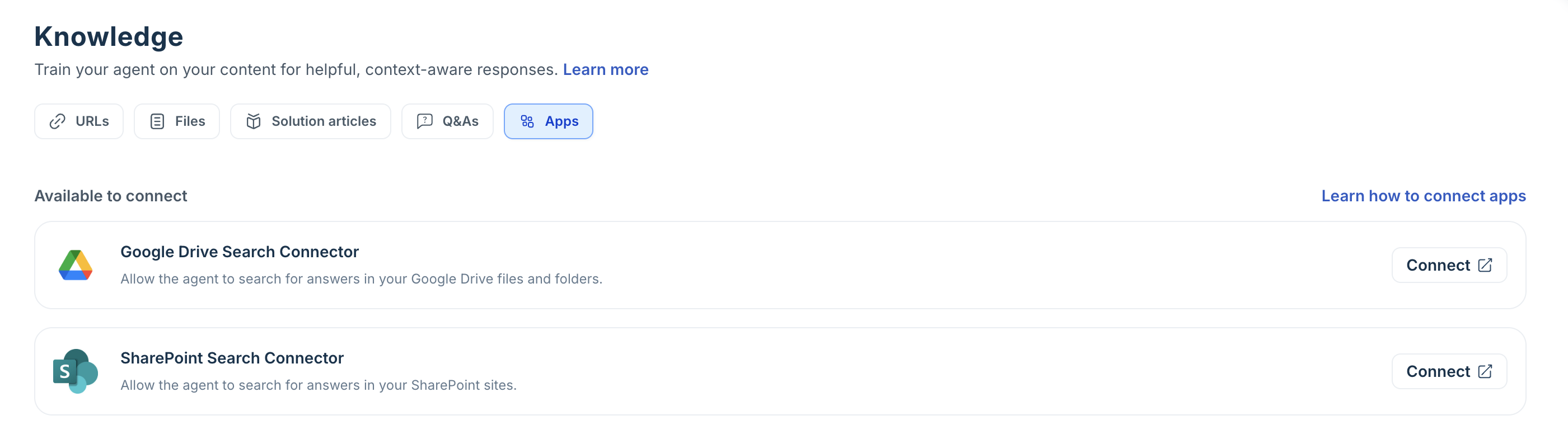
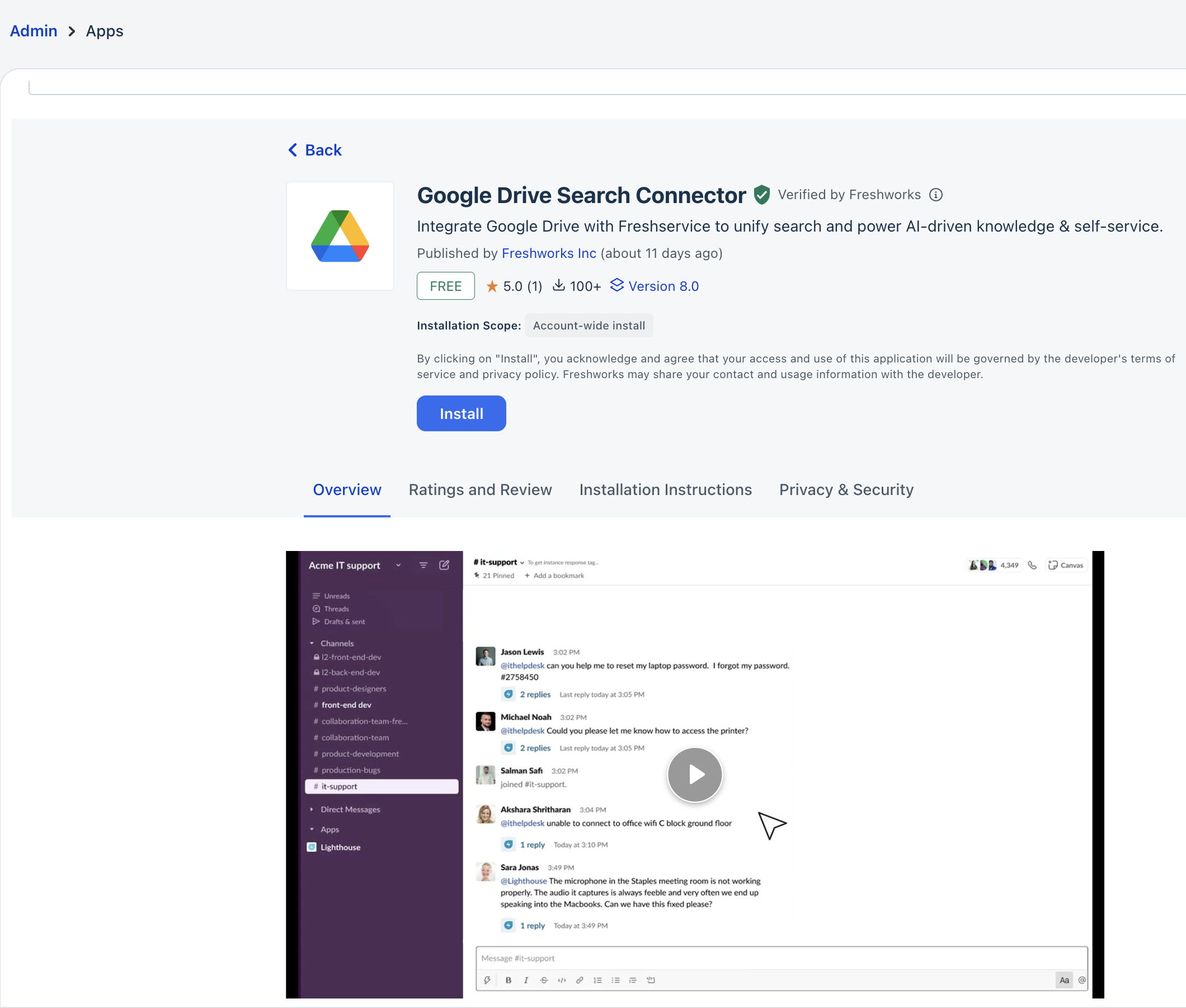
- Click Connect next to Google Drive Search Connector app. You will be redirected to the Freshworks Marketplace apps. Alternatively, you can go to Admin > Support Operations > Apps.
- Search for Google Drive Search Connector.
- Click Install.
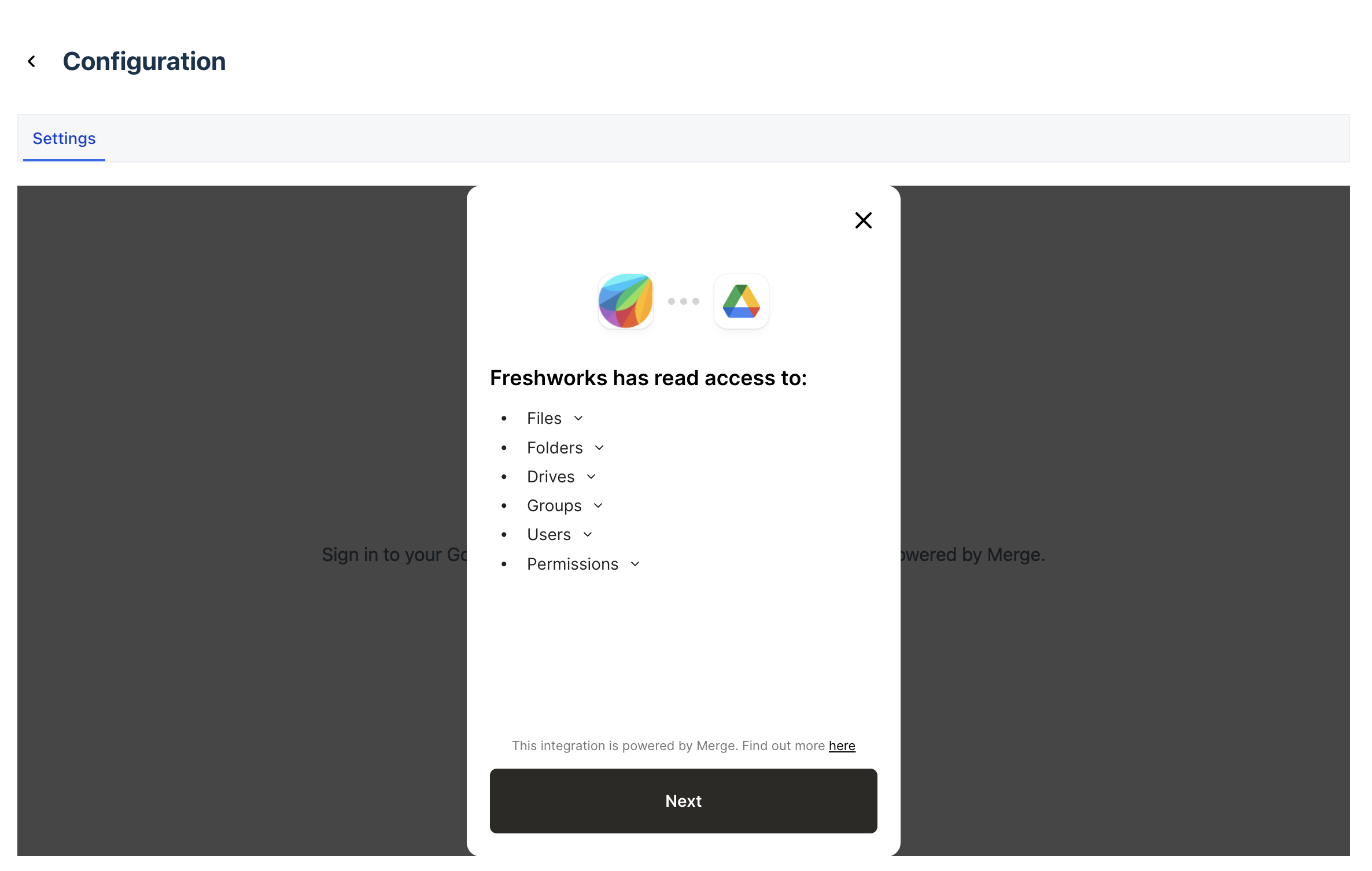
- After the installation is complete, click Connect now to connect your Google account.
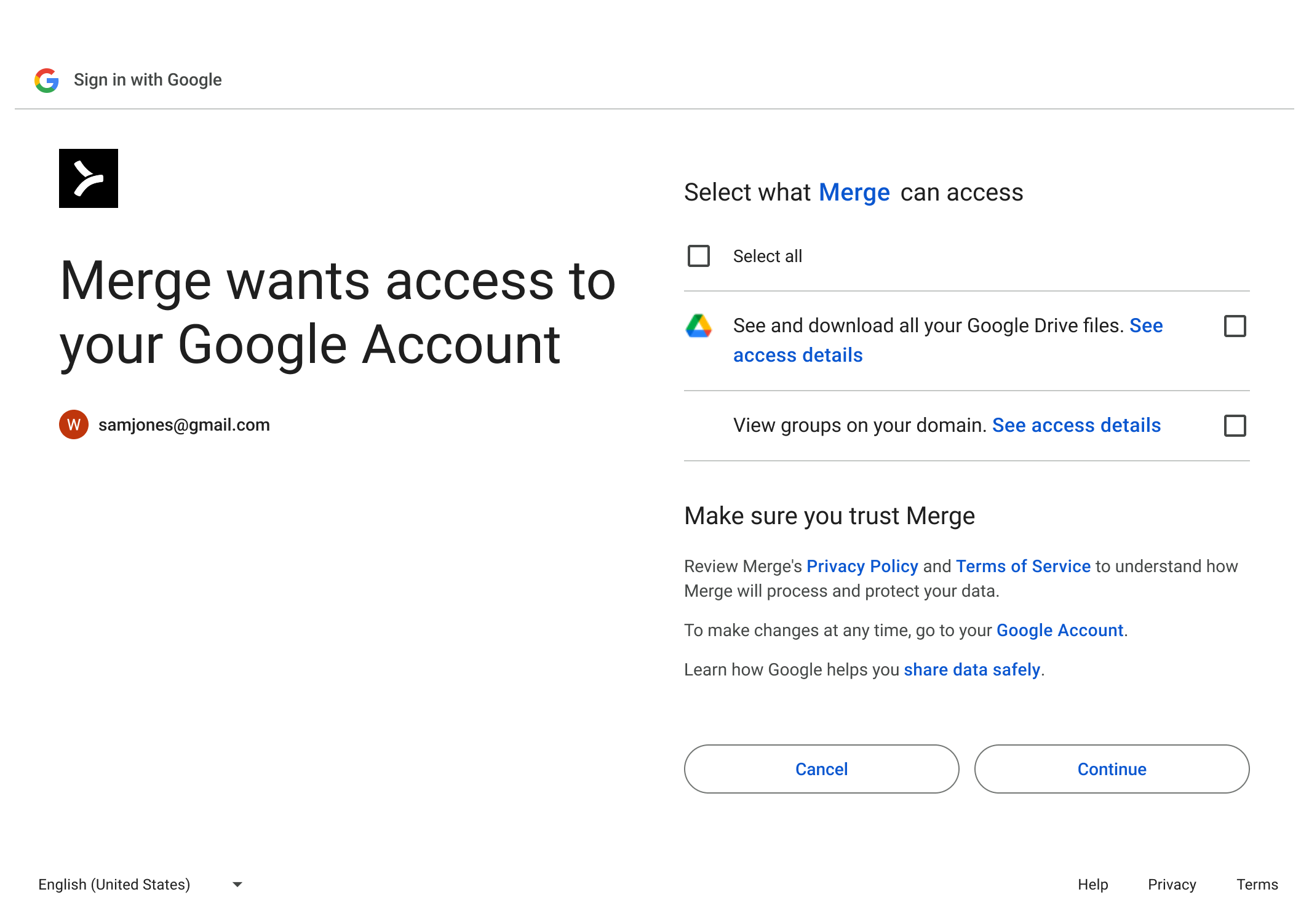
Freshdesk partners with Merge, a third-party integration to establish a secure connection to your Google account. - Click Next to authorize access to Google Drive.
- Select the Google account that you want to connect to.
- Select the permissions that the third-party app Merge can access, and click Continue.
- After you successfully sign in, click Next to continue configuring Google Drive.
Select shared drives
After you connect the Google account, select the shared drives to use as knowledge sources for your AI Agents.
- Once your Google account is successfully connected, you will be redirected to the Google Drive Search Connector configuration page.
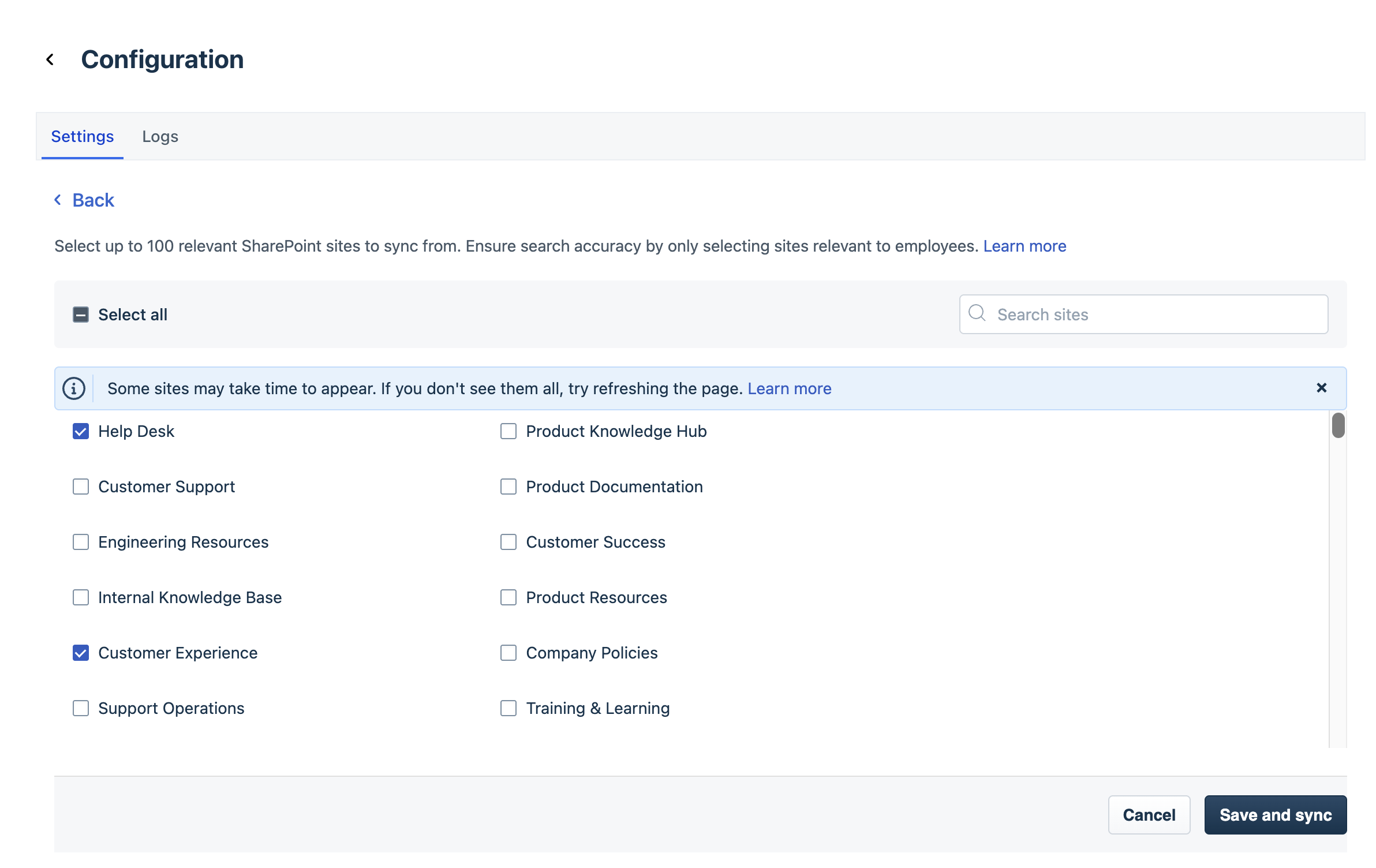
- Select the shared drives that you want to use as knowledge sources.
Use the search option to find a specific drive, or click Select all. - Click Save and sync.
Note: The time required for the initial synchronization depends on the number of files and their total size. For example, synchronizing 1,000 files upto 250 MB can take approximately 3 hours. - After synchronization is complete, you can view the number of synced drives and the last synchronization time on the Apps page.
 Note: Sometimes, even after a successful sync, individual document errors may occur due to unsupported file formats, large file sizes, empty documents, and so on.
Tip: You can select up to 100 shared drives. For the best results, we recommend selecting drives that contain relevant and up-to-date information.
Manage drives and synchronization
You can add or remove the shared drives connected to AI Agent Studio and monitor synchronization.
- Go to AI Agent Studio and select the preferred AI Agent.
- Click Build > Knowledge > Apps.
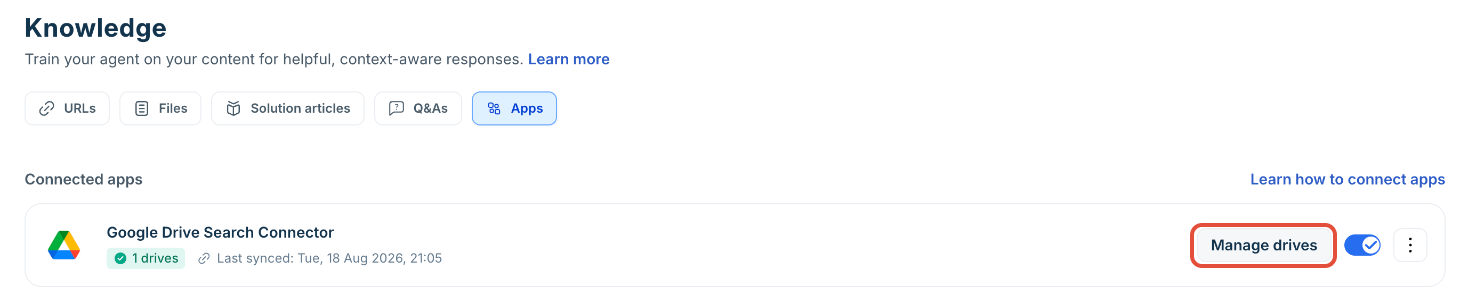
- On the Google Drive Search Connector card, click Manage drives.
- Select or clear the shared drives that you want AI Agent Studio to use as knowledge sources.
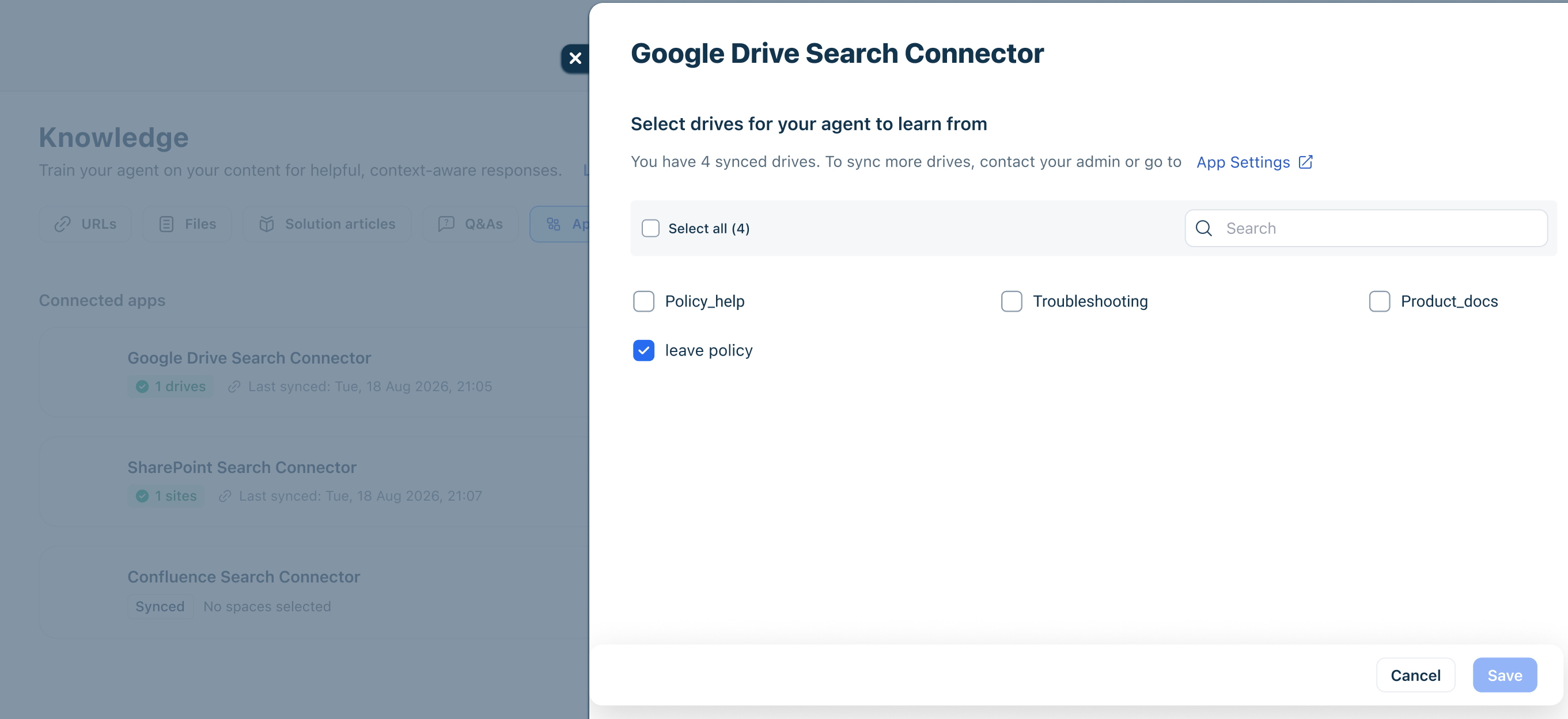
- Click Save.
View and edit app settings
You can sync more drives and monitor the logs directly from the App settings.
- Click App Settings.
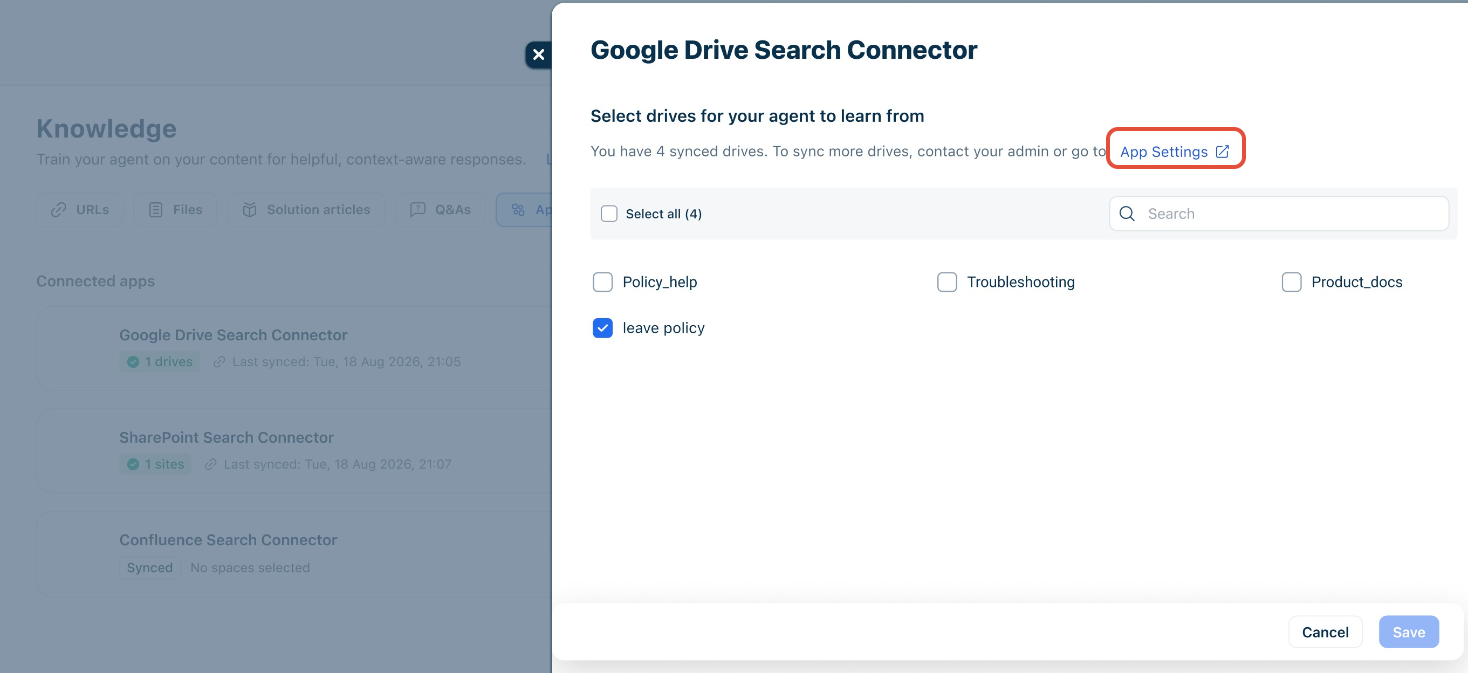
- On the Google Drive Search Connector app page, click Edit settings. You will be redirected to the Configuration page, where you can view the sync status.
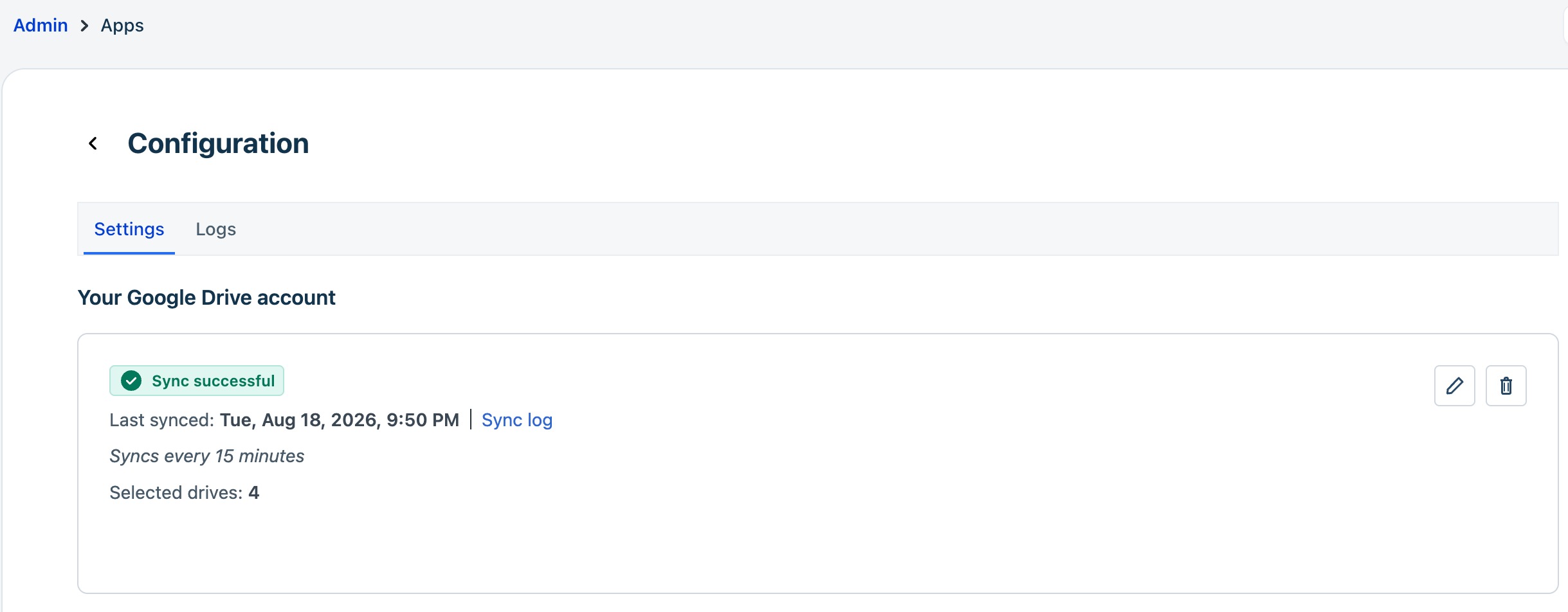
- Click Sync log next to the last synced timestamp to view sync history.
The sync log includes the sync time, status, and the number of documents or shared drives added, deleted, or modified.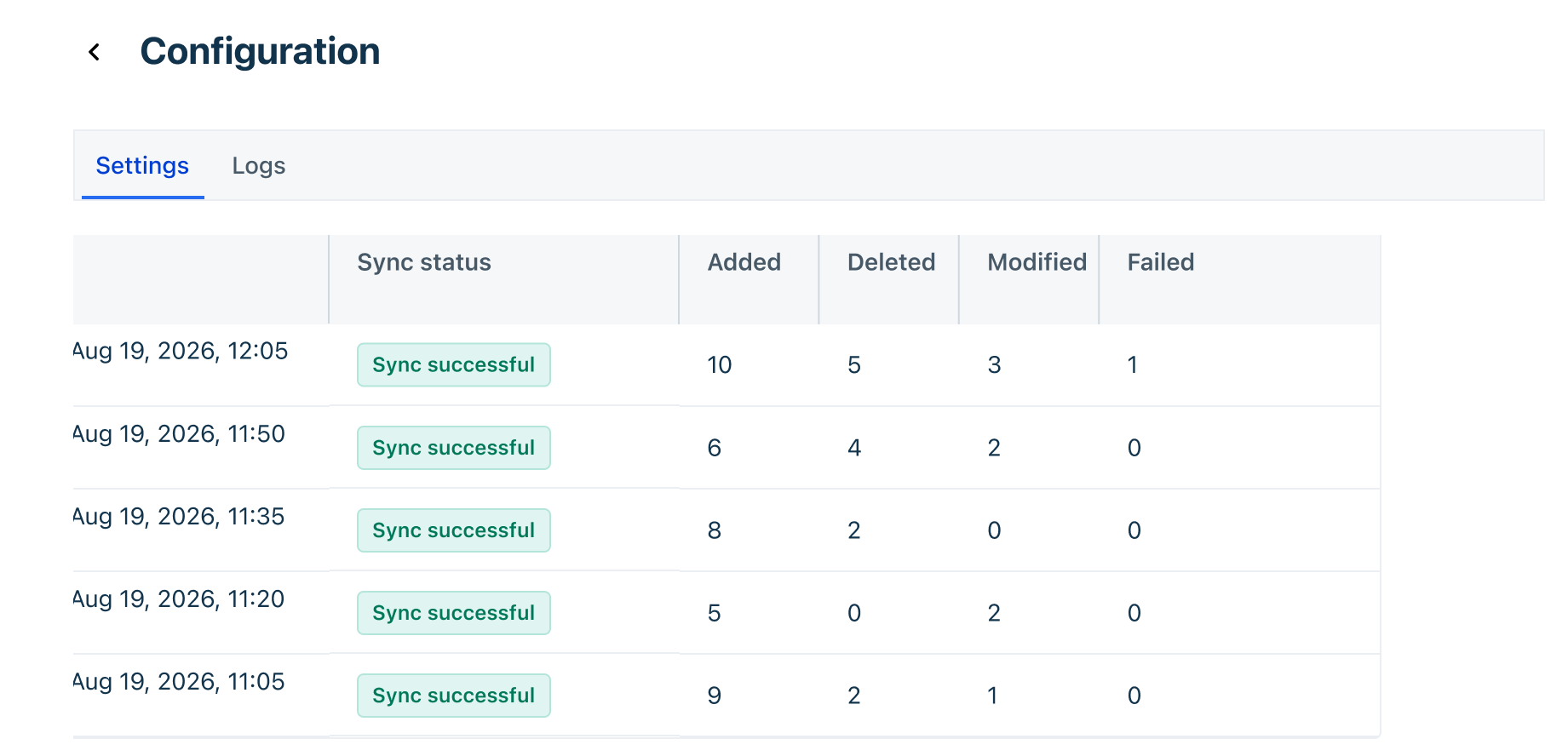
- To add more drives, click the edit icon (pencil) on the Settings tab and select the drives you want to sync additionally.
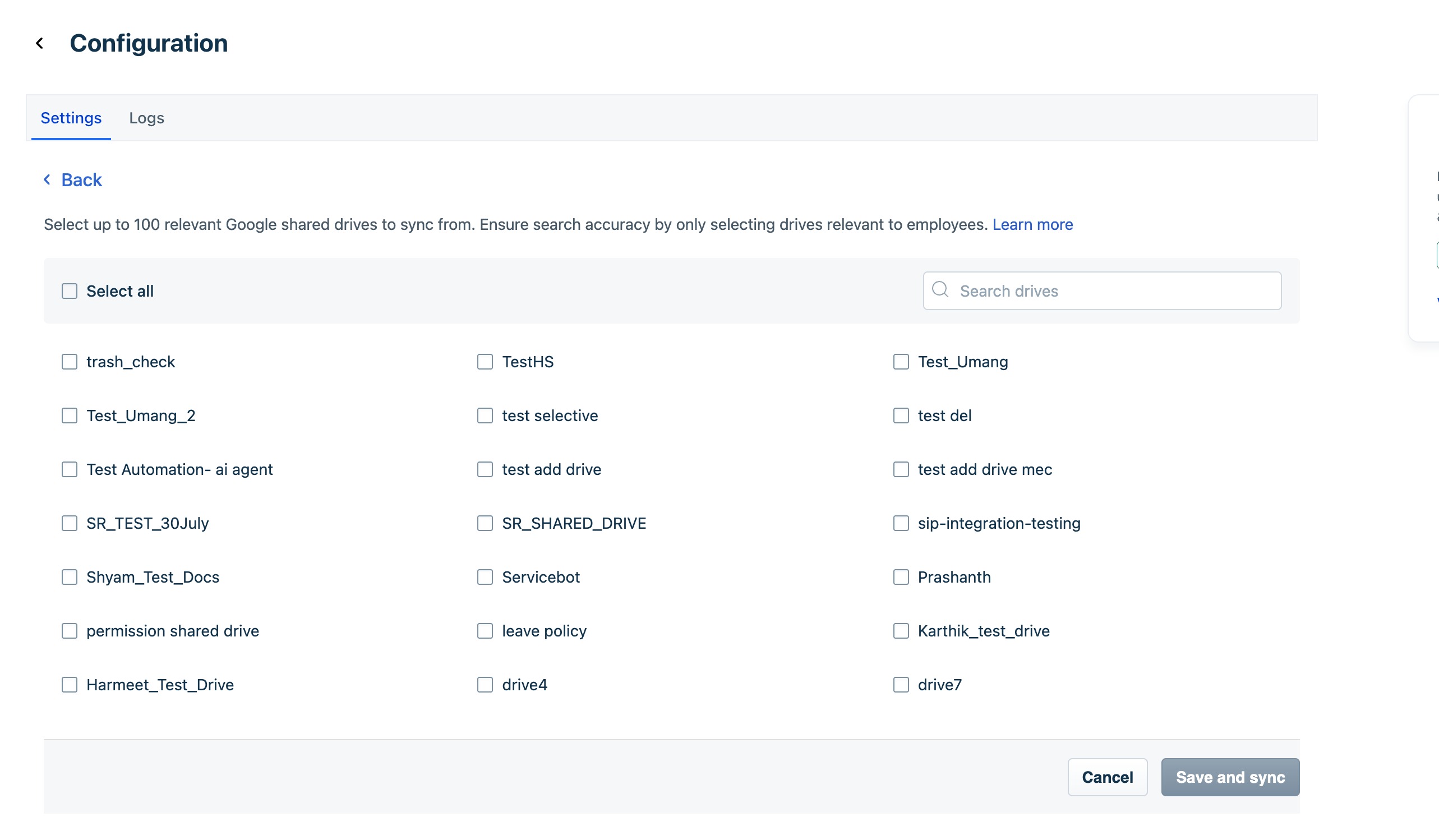
- Click Save and sync.
- Click the Logs tab to view log details for a specific time period. You can view logs from the past hour, past day, or select a custom date and time range.