TABLE OF CONTENTS
- Understanding functions
- Explore the pre-built function library
- Custom functions
- Access the functions
- Execute functions in workflows
This article provides an overview of functions in AI Agent workflows and explains how to create and execute pre-built and custom functions within a workflow.
Prerequisites:
Before you use functions, ensure that the following requirements are met:
- Ensure that you have administrator access to AI Agent Studio.
- You have created an AI Agent workflow to process data.
- You have a basic understanding of JavaScript if you plan to create custom functions manually.
Understanding functions
Functions enable you to transform and process data within AI Agent workflows using JavaScript.
You can use pre-built functions for common transformations, such as formatting dates, manipulating text, and performing calculations, or create custom functions to implement business-specific logic. Once created, functions can be executed within a workflow to prepare data for conditions, responses, API actions, and other downstream workflow steps.
For example, an API may return the complete order details when you only need the delivery date, or you may need to calculate whether an order is still eligible for return before deciding how the workflow should proceed.
How functions work
A function accepts one or more inputs, processes them using custom code (JavaScript), and returns the result as a JSON object. You can provide inputs collected during the workflow, contact or ticket properties, or output parameters from API actions.
For example, in an order management workflow, an API action can return the customer's order date and delivery date. You can pass these values to a function to check whether the order is eligible for a return.
The function processes the dates and returns a result such as:
{
"isEligibleForReturn": true
}
The workflow can then use isEligibleForReturn in a condition to determine the next step, such as showing the customer the return option.
The following illustration shows how the functions operate: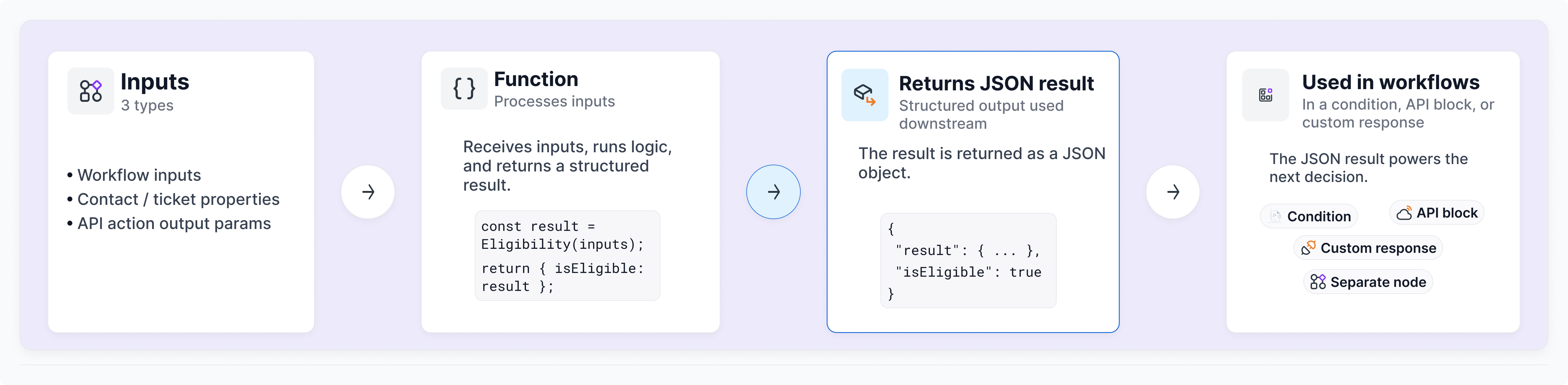
Types of functions
Freshdesk provides the following types of functions that you can use in your workflow.
- Pre-built functions
These are ready-to-use functions for common data transformation tasks. Pre-built functions are ready to use and cover common transformation scenarios. - Custom functions
Custom functions allow you to write your own JavaScript to implement business-specific transformations that aren't available in the default library.
A few scenarios where you may use custom functions are:
- Extract or transform information from API responses.
- Apply business-specific validation rules to check data based on your business requirements.
- Perform custom calculations that aren't covered by pre-built functions.
- Create reusable transformation logic across workflows
Explore the pre-built function library
The Pre-built functions library includes a collection of ready-to-use functions for common data transformation tasks. Instead of writing JavaScript for frequently used operations, you can use these functions directly in your workflows or clone them and customize the logic to meet your requirements.
The pre-built functions are organized into the following categories.
Note: For easier readability, we have grouped the functions logically below. However, these are not actual categories; all pre-built functions are listed together.
Date and time functions
Use these functions to perform date calculations, compare dates, and convert dates into the required format.
Function | Description | Example |
Add Time to Date | Adds a specified duration to a date or time. You can optionally skip weekends when adding days. | A customer asks when their replacement order will arrive. The workflow retrieves the dispatch date from an API and adds 5 business days to estimate the delivery date. Input: Dispatch date = 10-06-2026 09:00:00; Days = 5; Skip weekends = Yes.
|
Get Days Between | Calculates the number of days between two dates. You can optionally exclude weekends. | A customer requests a return. The workflow checks how many days have passed since the product was delivered to determine whether it's still within the return window. Input: Delivery date = 01-06-2026; Current date = 15-06-2026. Output: Days between = 10. |
Compare Dates | Compares two dates and determines whether one date is before, after, or equal to the other. | A customer applies a coupon during checkout. The workflow compares the coupon expiry date with today's date before validating the coupon. Input: Coupon expiry = 20-06-2026; Current date = 30-06-2026. Output:-1, indicating the coupon has expired. |
Format Date | Converts a date from one format to another. | An order API returns the shipment date in ISO format. The workflow converts it into a customer-friendly format before displaying it in the response. Input: Shipment date = 2026-06-15T14:30:00Z; Output format = dd MMM yyyy, hh:mm. Output: 15 Jun 2026, 02:30 PM. |
Get Current Date | Returns the current date and time in the specified format and timezone. | A customer asks whether a seasonal promotion is still active. The workflow retrieves the current date and compares it with the promotion end date. Input: Format = dd-MM-yyyy HH:mm:ss; Timezone = Asia/Kolkata. Output: 21-06-2026 20:00:00. |
Text functions
Use these functions to manipulate, combine, and standardize text before using it elsewhere in the workflow.
Function | Description | Example |
Split | Splits a text value using a specified separator and returns the required part. | A customer provides their email address. The workflow extracts the domain to identify the customer's organization. Input: Email = support@freshworks.com; Separator = @; Index = 1. Output:freshworks.com. |
Concatenate | Combines two or more text values into a single string. | A warranty API expects a lookup key in the format Category-SerialNumber. The workflow combines the product category and serial number before calling the API.
Output: ELEC-SN89234. |
Uppercase | Converts text to uppercase. | A customer enters a promotional code in lowercase. The workflow converts it to uppercase before validating it with the e-commerce API. Input: promo-summer-2026. Output: PROMO-SUMMER-2026. |
Lowercase | Converts text to lowercase. | A customer enters their email address in a mixed case. The workflow converts it to lowercase before performing a CRM lookup. Input: John.Doe@FreshWorks.COM. Output: john.doe@freshworks.com. |
List functions
Use these functions to retrieve or extract specific values from lists and API responses.
Function | Description | Example |
Extract from List | Retrieves an item from a list using its position. You can optionally extract part of the selected value. | An order API returns a list of the customer's orders. The workflow extracts the most recent order and uses it in the next workflow step. Input: Orders = ["ORD-1001-Delivered","ORD-1002-Pending"]; Index = 1; Delimiter = -; Sub-index = 2. Output: Pending. |
Calculation functions
Use these functions to perform mathematical calculations using values collected during the workflow.
Function | Description | Example |
Arithmetic Expression | Evaluates a mathematical expression using one or more numeric values. | A customer asks how much tax they'll pay after applying a discount. The workflow calculates the tax before displaying the order summary. Input: Subtotal = 4999; Discount = 500; Tax rate = 0.18; Expression = (number_1 - number_2) * number_3. Output: 809.82. |
Encoding functions
Use these functions to encode or decode data when working with external APIs.
Function | Description | Example |
Base64 Encode | Converts plain text into Base64 format. | An external API requires credentials to be sent as a Base64-encoded value in the Authorization header. The workflow encodes the credentials before making the API request. Input: Credentials = api_user:Xk9$mP2w. Output: YXBpX3VzZXI6WGs5JG1QMnc=. |
Base64 Decode | Converts Base64-encoded text back to plain text. | A logistics API returns tracking information as a Base64-encoded payload. The workflow decodes the response before extracting the tracking details. Input: Encoded payload = eyJvcmRlcl9pZCI6IjEwMDEiLCJzdGF0dXMiOiJzaGlwcGVkIn0=. Output: {"order_id":"1001","status":"shipped"}. |
Custom functions
The pre-built function library covers many common data transformation tasks. However, in some scenarios, you may need to create logic specific to your business.
In these cases, you can create a custom function to process data exactly the way your workflow requires. For more information, see Create custom functions.
Access the functions
You can access all your custom and pre-built functions from the Functions page in AI Agent Studio. You can view, manage
To access the functions, execute the following steps:
- On the left navbar, click AI Agent Studio.
- Under Library, click Functions.
You can see the list of pre-built and custom functions you have created. For more details on managing custom functions, see Create custom functions.
Execute functions in workflows
Functions can be used as a standalone node to process data and use their output in subsequent steps.
To add a standalone function within your workflow, execute the following steps:
- Select and open the workflow where you want to add the function.
- Click on the plus icon (Add Block) and select Execute Function.
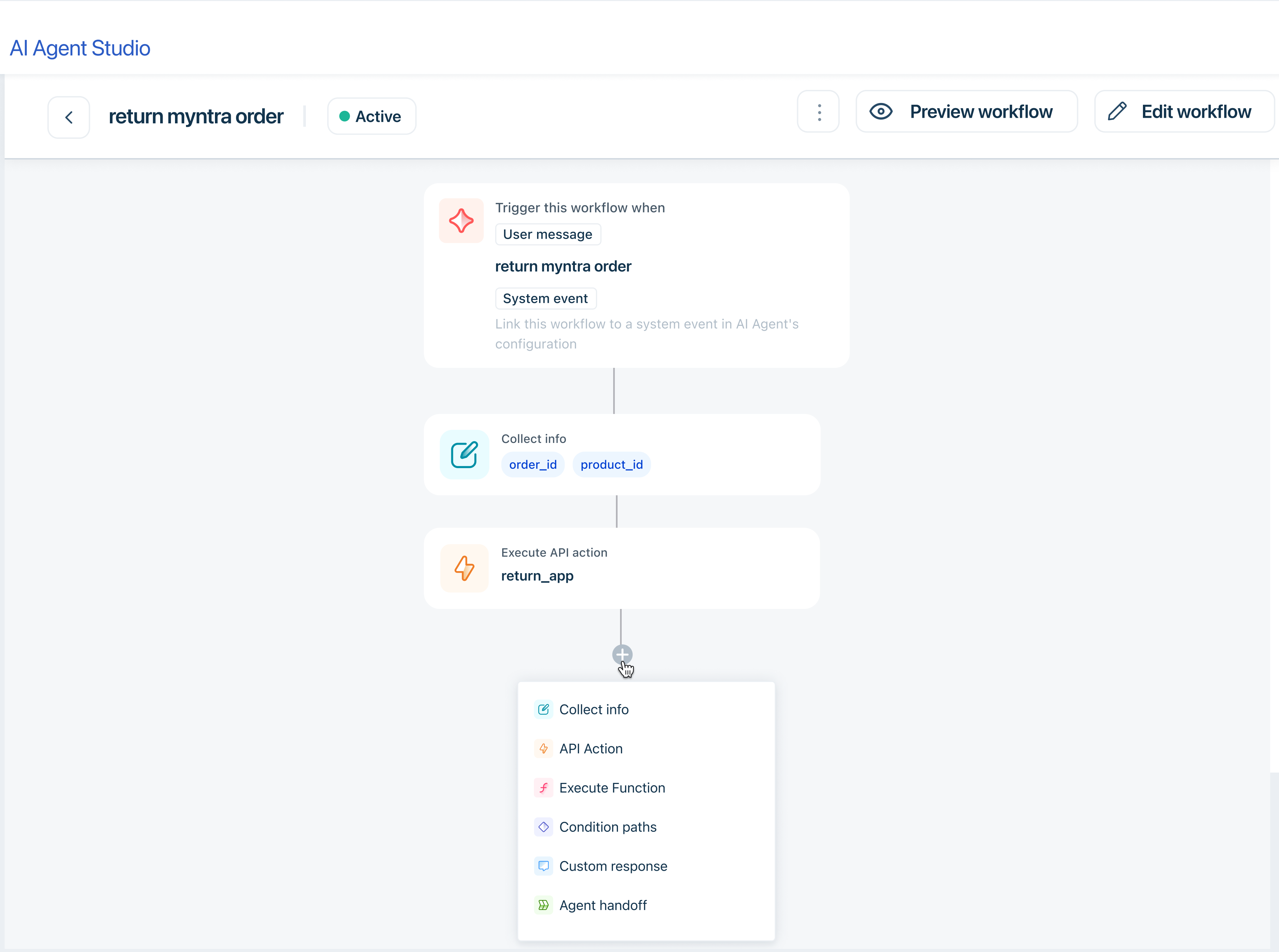
- Under Choose/Create a Function, select a function from My functions or Pre-built functions. You can preview the function before selecting it.
- Under Map inputs to function parameters, select the property type (contact or ticket) and map it to the function parameters.
For example, if the function calculates the delivery date, map the order date from the API response to the function's order date parameter.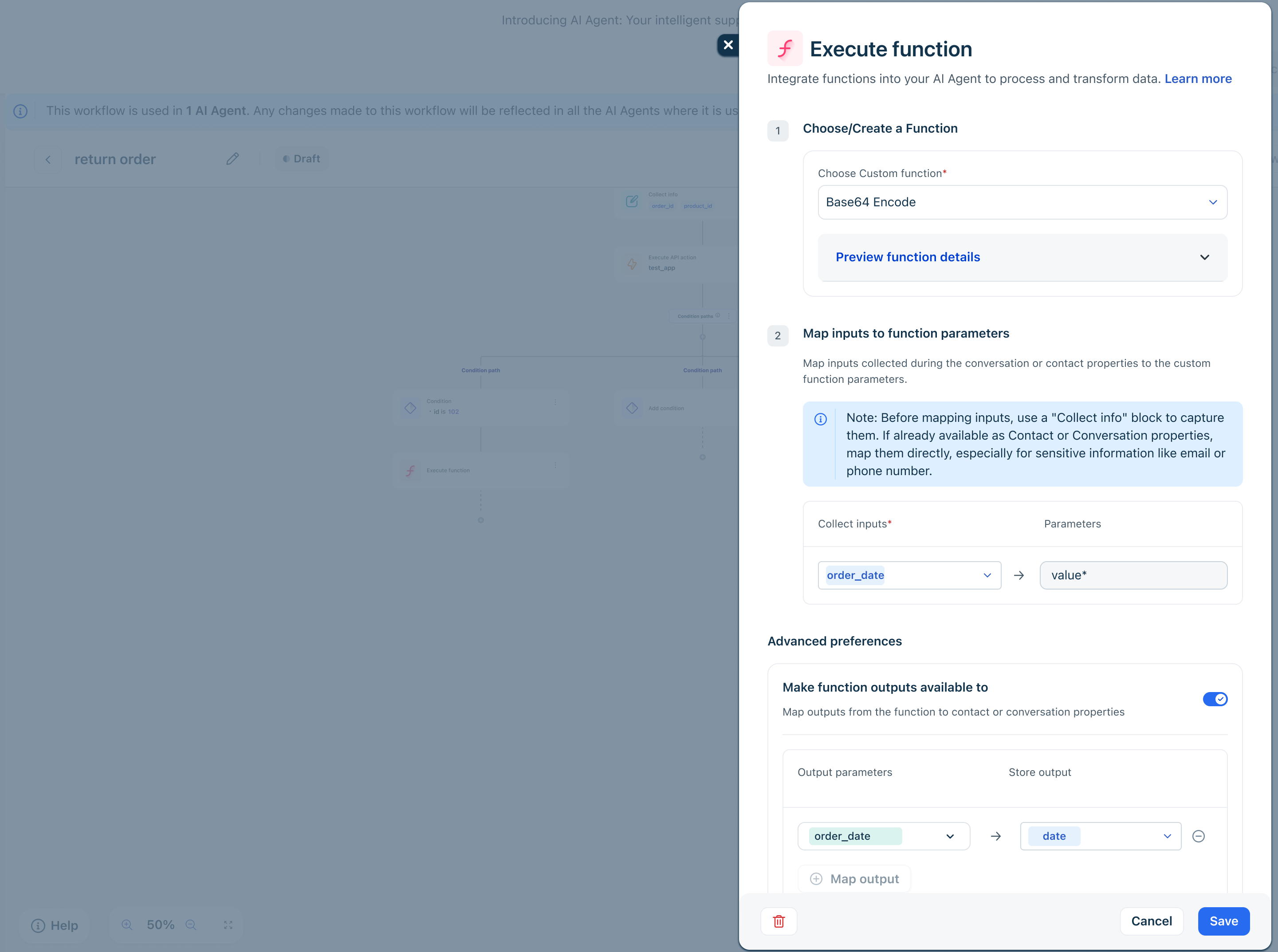
- Under Advanced preferences, map the function outputs to contact or ticket properties, if required.
- Click Save.
Note: Before mapping inputs, use a "Collect info" block to capture them. If already available as contact or ticket properties, map them directly, especially for sensitive information like email or phone number.