TABLE OF CONTENTS
- Overview
- Deploy an Email AI Agent in shadow mode
- Explore common use cases for shadow mode
- Configuration changes in shadow mode
This article provides information about the shadow mode for the Email AI Agent, including its behavior and supported capabilities.
Prerequisites:
Before you deploy shadow mode, ensure that the following prerequisites are met:
- You have administrator privileges.
- Email AI Agent is configured in your account.
- Knowledge sources are available for the AI Agent.
Overview
Shadow mode lets you evaluate the Email AI Agent using real incoming email tickets without sending AI-generated responses to customers.
Unlike live mode, the Email AI Agent in shadow mode does not own tickets or perform customer-facing actions. Instead, it runs silently in parallel with human agents, adds private notes, and allows them to review and use them before the Email AI Agent is deployed in live mode.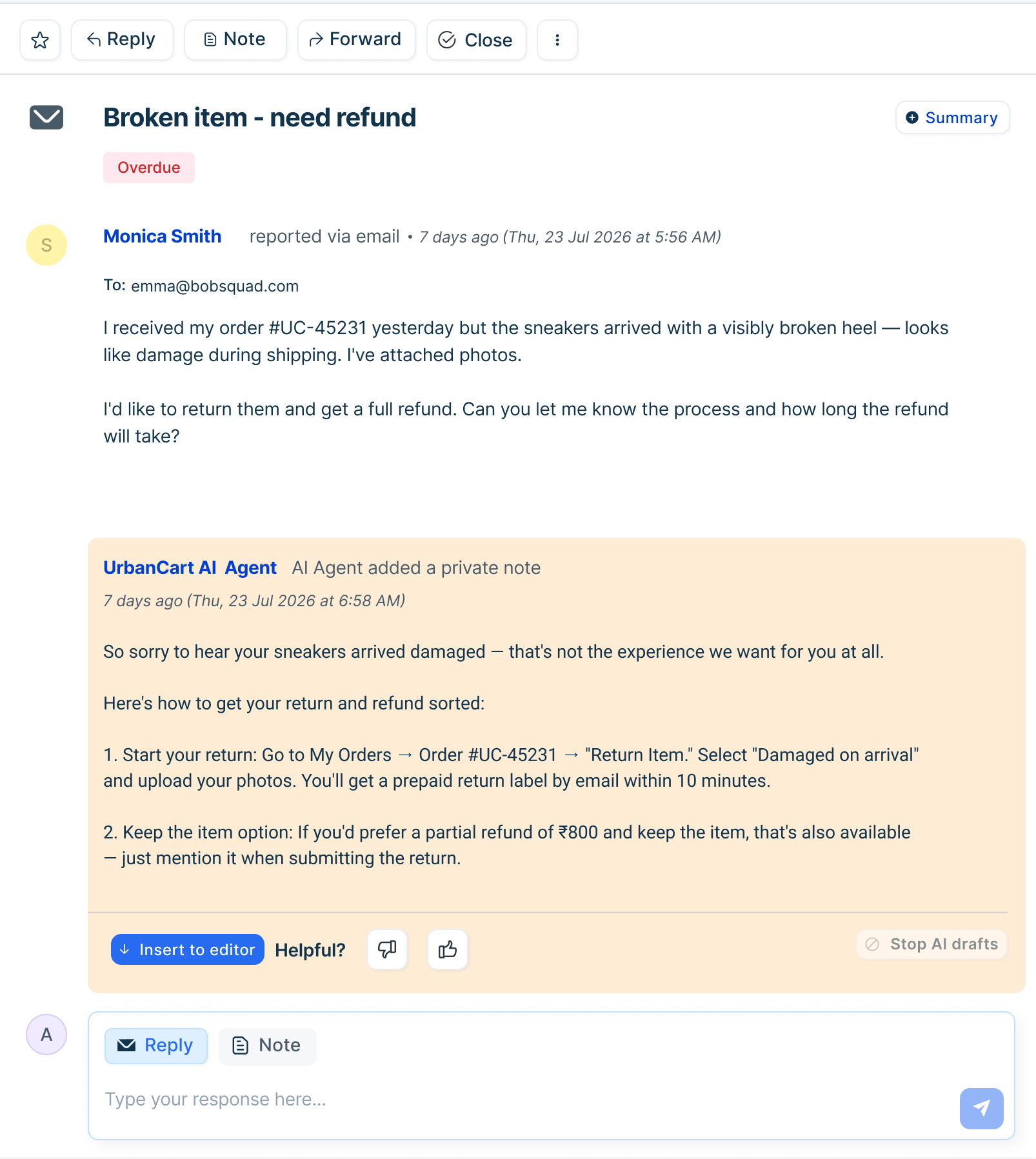
Deploying the Email AI Agent in shadow mode provides the following benefits:
- Evaluate AI-generated responses without sending them to customers.
- Allow human agents to review and manage all customer communications.
- Assess AI performance before enabling live mode.
- Identify knowledge gaps to improve AI responses and your knowledge base.
Note: AI-generated responses will never be sent to customers when shadow mode is enabled. All customer communications will be handled by human agents only.
Understanding shadow mode behavior
When shadow mode is enabled, the Email AI Agent processes incoming email tickets using the same AI workflow as live mode, including intent classification, knowledge retrieval, and draft generation. Instead of sending responses to customers, it adds the generated response as a private note for agents to review.
The following flow describes how shadow mode processes incoming email tickets: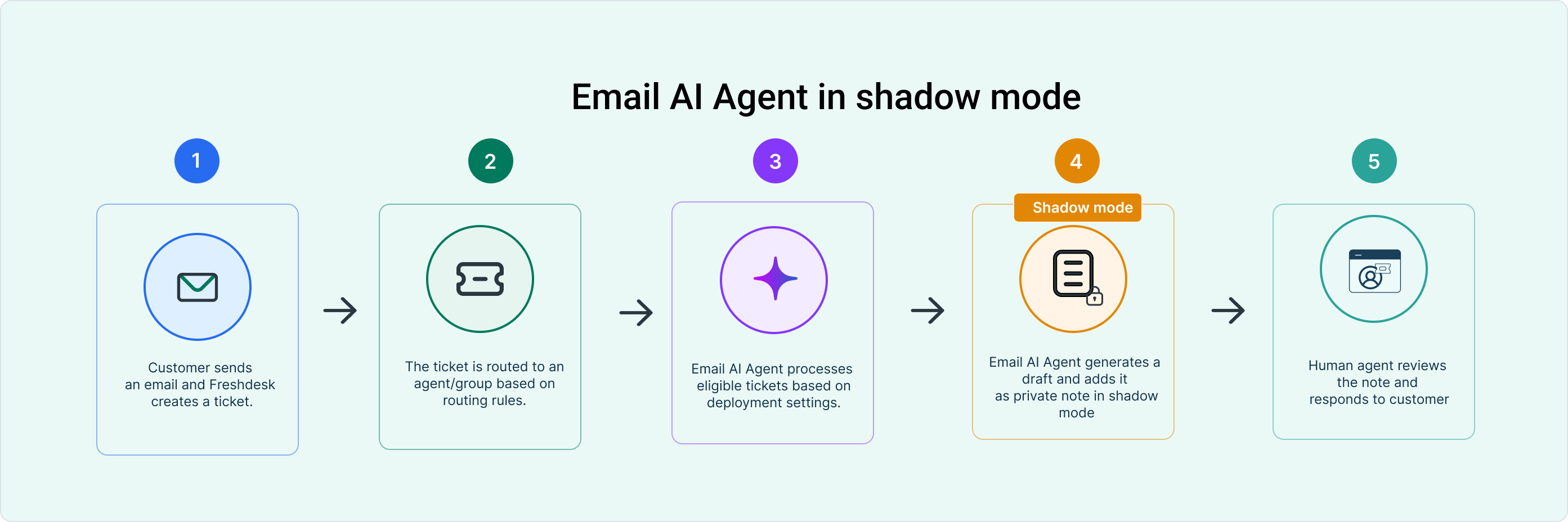
- A customer sends an email, and Freshdesk creates a ticket.
- The ticket is routed and assigned to a human agent or group based on the configured routing rules.
- Based on the configured deployment settings (for example, the selected audience or ticket source), the ticket is assigned to the Email AI Agent.
- The Email AI Agent processes the ticket and generates and adds a response draft as a private note.
- The assigned human agent reviews the draft and can use, modify, or ignore it before responding to the customer.
Deploy an Email AI Agent in shadow mode
To deploy the Email AI Agent in shadow mode, follow these steps:
- Log in to your account as an admin.
- Go to AI Agent Studio and select any Email AI Agent.
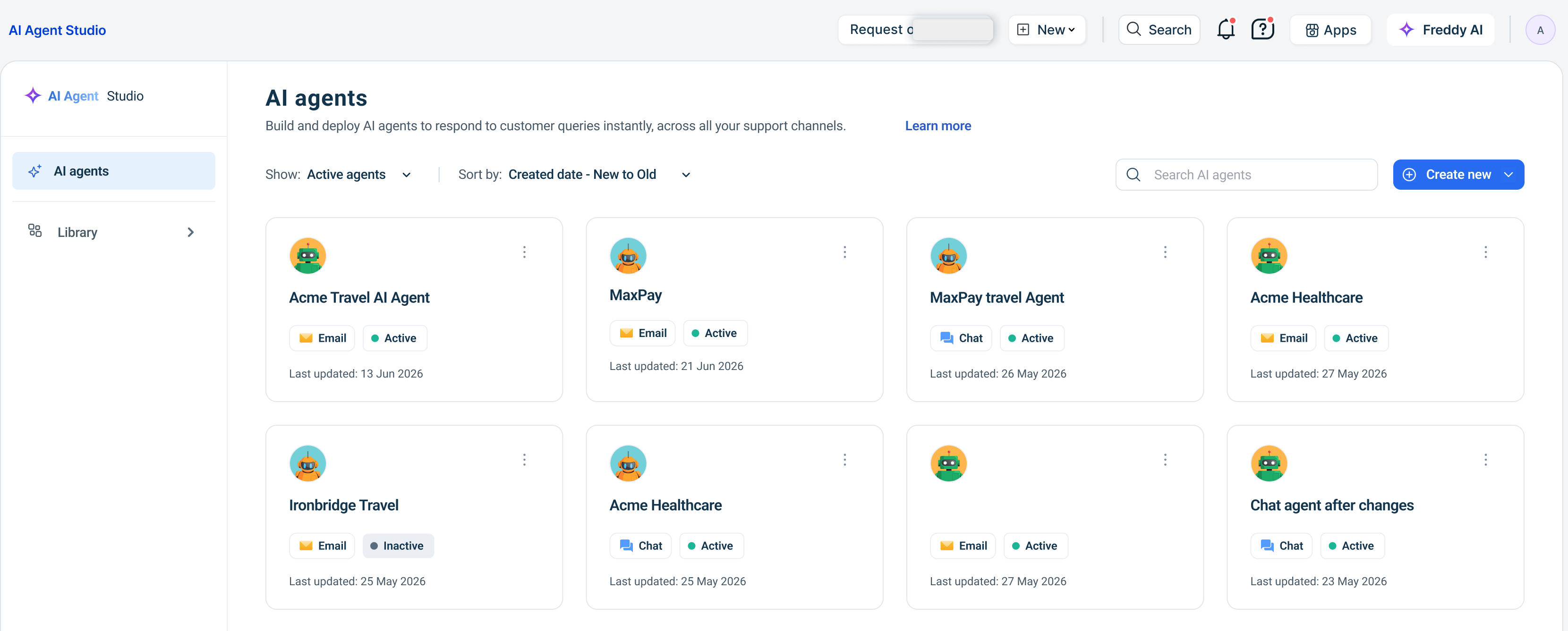
- Click Deploy.
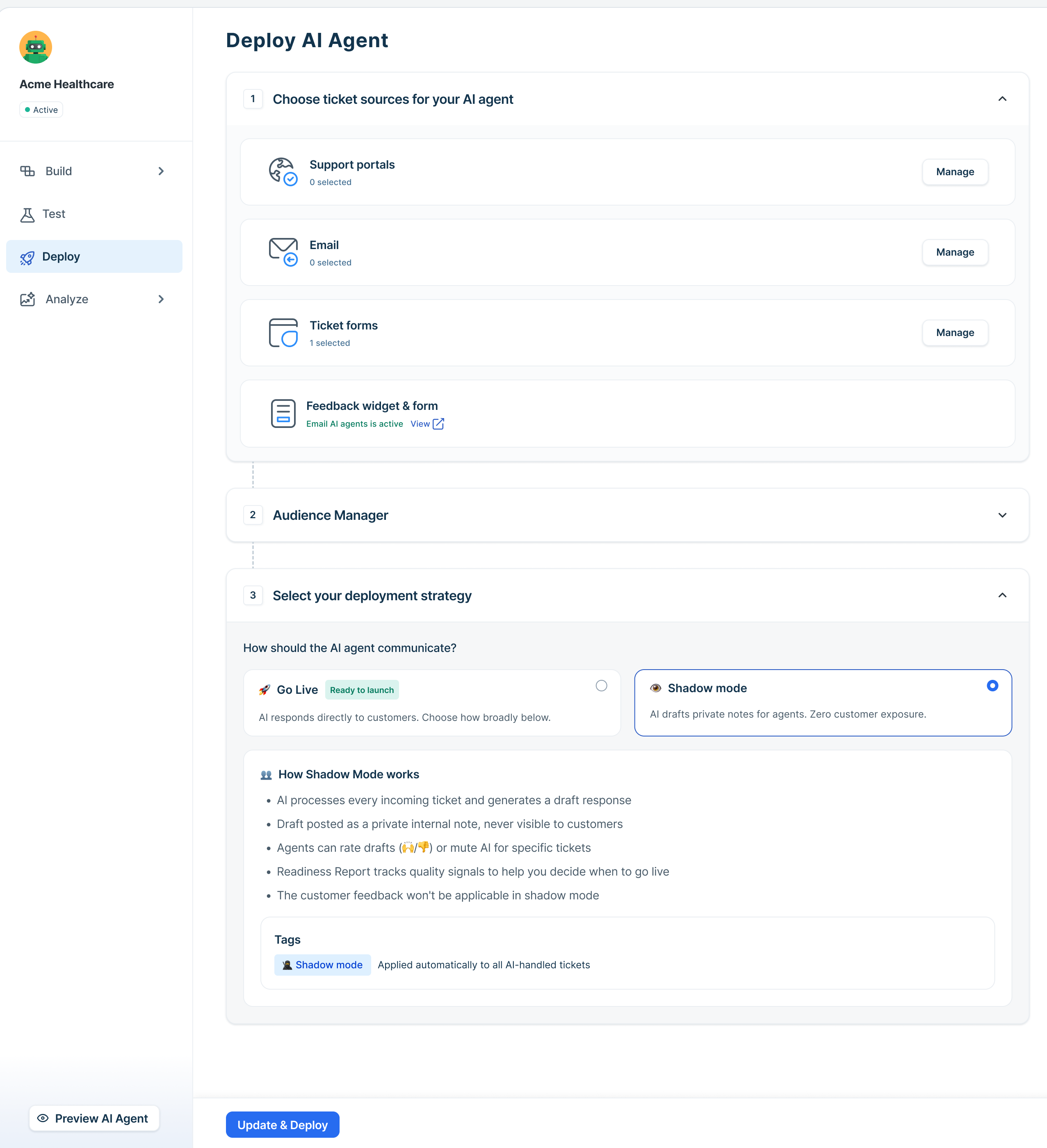
- Select the ticket sources - support portals, mailboxes, or web forms that the AI Agent should observe.
- Choose the audience.
- Select Shadow mode as the deployment strategy.
- Click Update &Deploy.
- Click Confirm.
Note: Deployment in shadow mode becomes active immediately. Only tickets received after the shadow mode is enabled will be processed. Tickets received before deployment and existing tickets are not handled in shadow mode.
Review Email AI Agent responses in shadow mode
After deploying the Email AI Agent in shadow mode, agents can review AI-generated drafts and decide whether to use them when responding to customers.
To review and use a shadow mode draft, follow these steps:
- Open the ticket.
- Locate the AI-generated draft in the ticket thread. The draft appears as a highlighted private note from Email AI Agent.
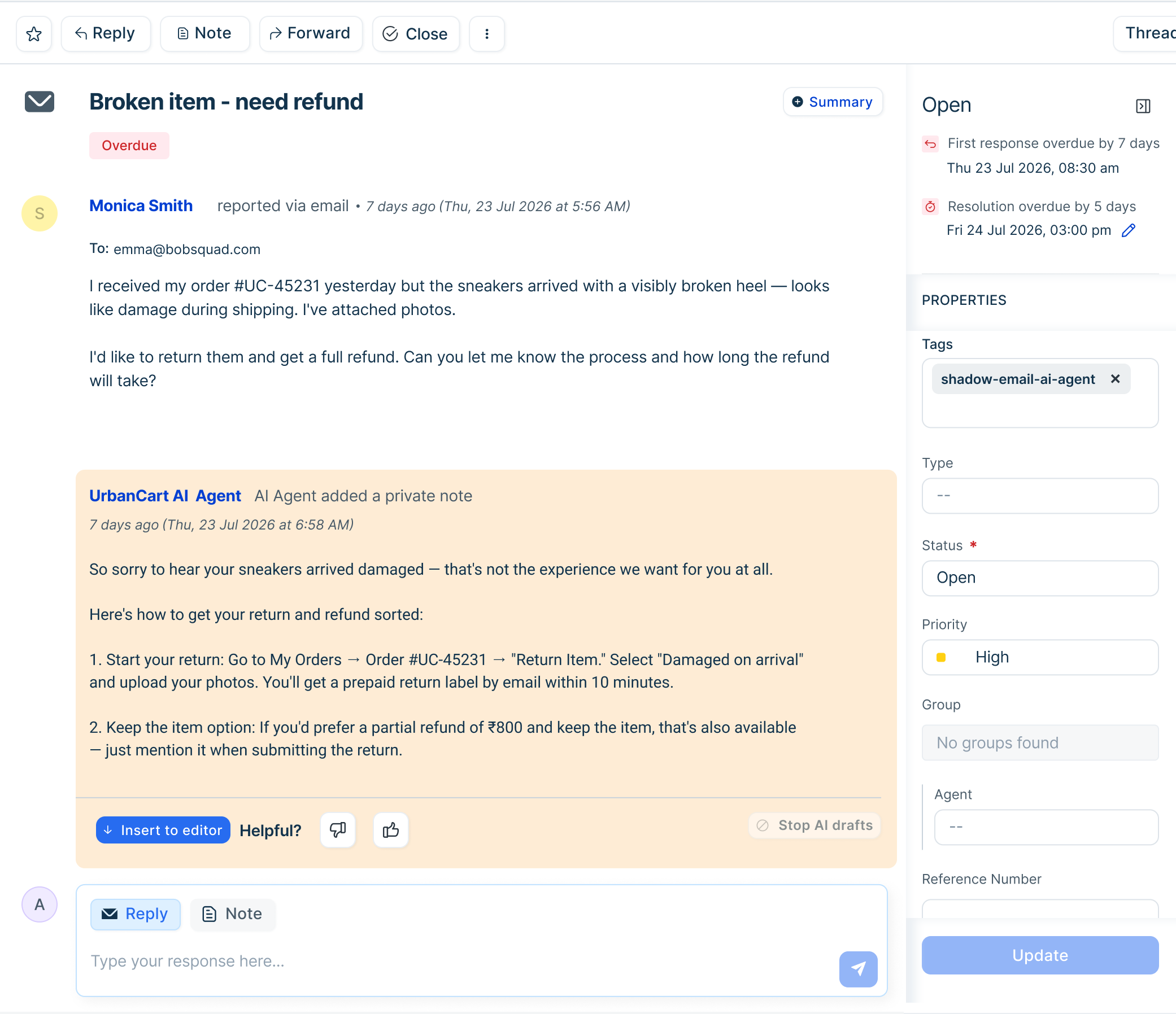
- Review the draft.
- Choose one of the following actions:
- Click Insert to editor to copy the draft into the reply editor. Edit the draft as needed, and then send your response to the customer.
- If you do not want to use the draft, compose and send your own response.
- Rate the AI-generated draft using the available feedback options, if required.
- To stop the Email AI Agent from generating drafts for the ticket, click Stop AI drafts, and then confirm your selection.
Note: Stopping AI drafts affects only the selected ticket. You can re-enable AI drafts at any time. The shadow mode tag remains on the ticket to indicate that it was processed in shadow mode.
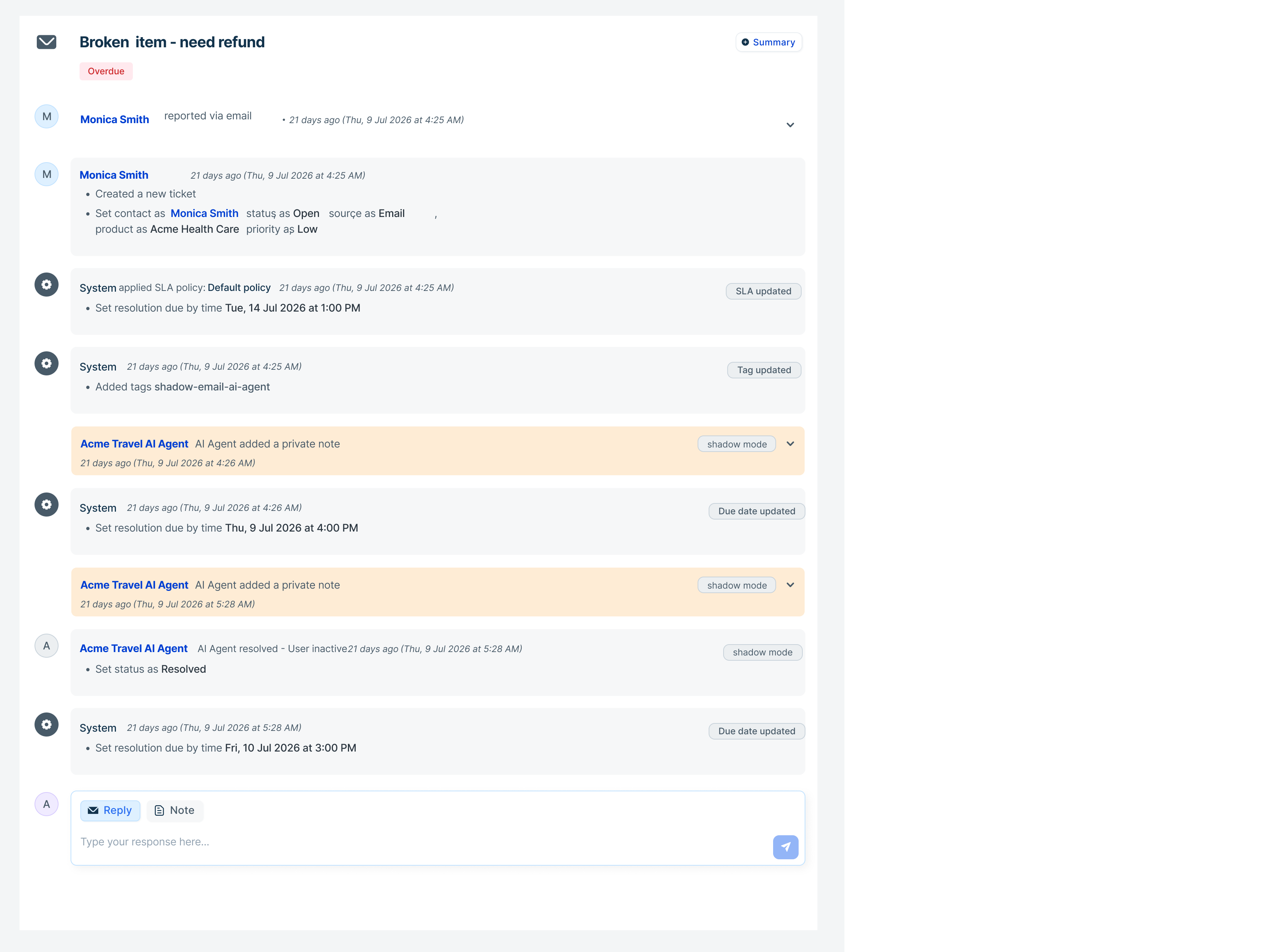
Tip: You can also view the activities log to see the various stages at which responses were generated in shadow mode.
Explore common use cases for shadow mode
The following use cases give you an overview of how you can use Email AI Agent in shadow mode to evaluate its performance.
Use case: Review AI-generated responses before enabling live mode
As an administrator, you can evaluate the Email AI Agent before rolling it out across your entire support organization. Deploy it in shadow mode for specific customer groups or ticket sources to validate its performance on a smaller scale before expanding the deployment.
Your agents continue handling customer conversations while the Email AI Agent generates response drafts as private notes. They can review and rate the drafts to evaluate response quality before deploying the AI Agent in live mode.
To do this:
- Configure the Email AI Agent and deploy it in shadow mode.
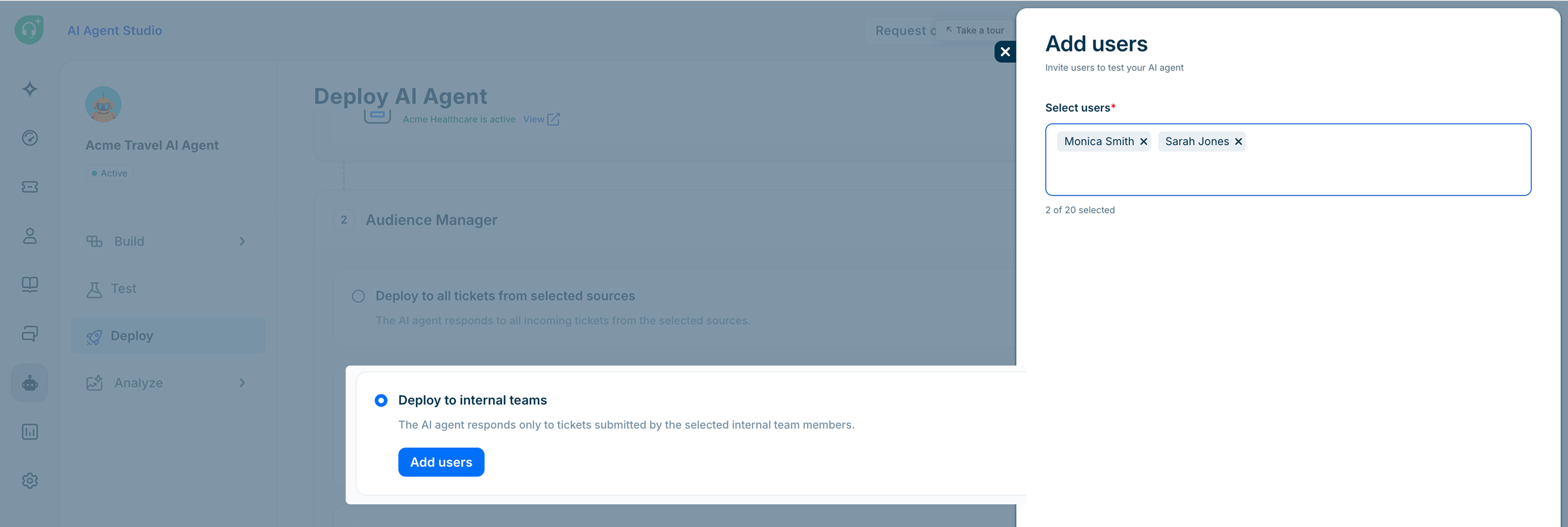
- Limit the deployment to a smaller audience or ticketing channels by using one of the following options:
- Configure Audience Manager to deploy the AI Agent to selected internal teams or tickets that match custom rules.
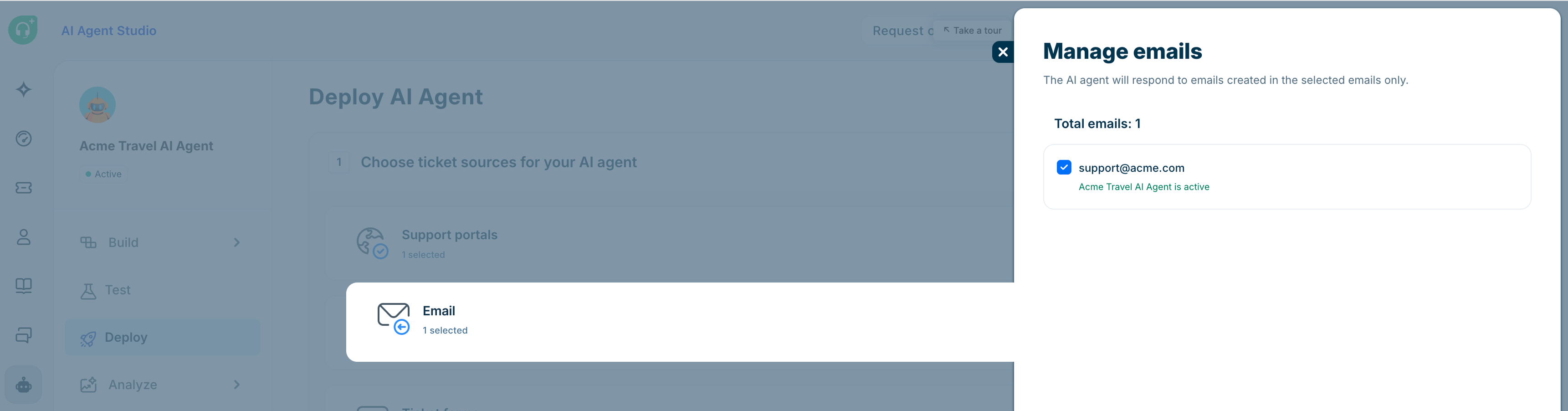
- Select specific ticket sources, such as email inboxes or support portals, to limit where the AI Agent should generate drafts.
- Configure Audience Manager to deploy the AI Agent to selected internal teams or tickets that match custom rules.
- Monitor the results for a defined period, such as two weeks. During this time, you can ask your agents to:
- Review the AI-generated draft on each ticket.
- Compare the AI-generated responses with the final human-generated responses.
- Rate the draft using the available feedback options.
- Go to Analyze > Improve. Analyze ticket activity to identify response patterns, recurring issues, and opportunities to improve your AI Agent.
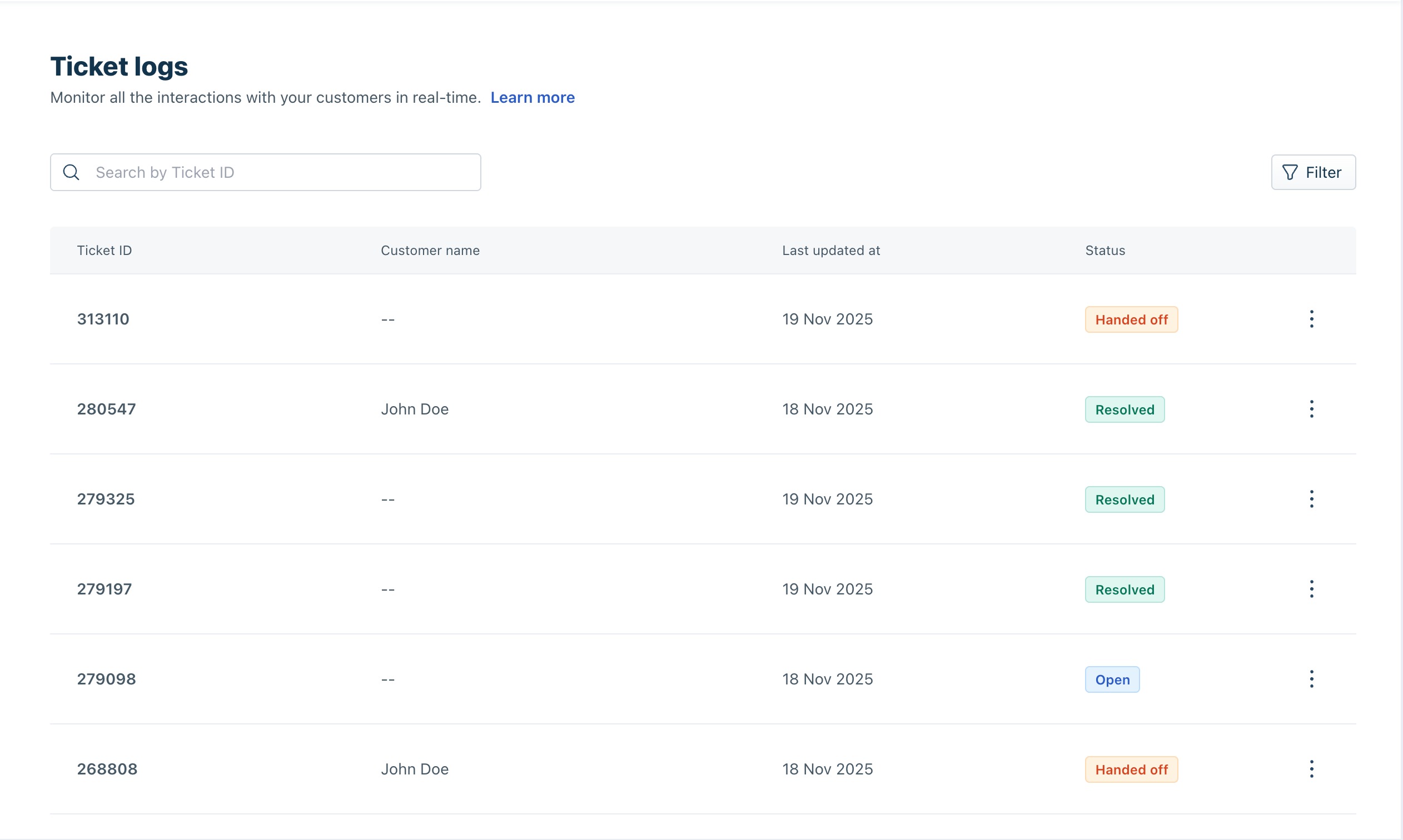
- When you are satisfied with the quality of the responses, deploy the Email AI Agent in live mode.
Use case: Evaluate knowledge source accuracy and improve your knowledge base
You are a content manager ensuring the Email AI Agent has accurate and complete knowledge sources before enabling live mode.
Configure the Email AI Agent to learn from your solution articles, URLs, files, and Q&As, then deploy it in shadow mode. As agents review AI-generated drafts to identify incomplete, inaccurate, or missing information, use the Improve capability to analyze conversations, uncover knowledge gaps, and update your knowledge base.
To do this:
- Configure the Email AI Agent to learn from your knowledge sources.
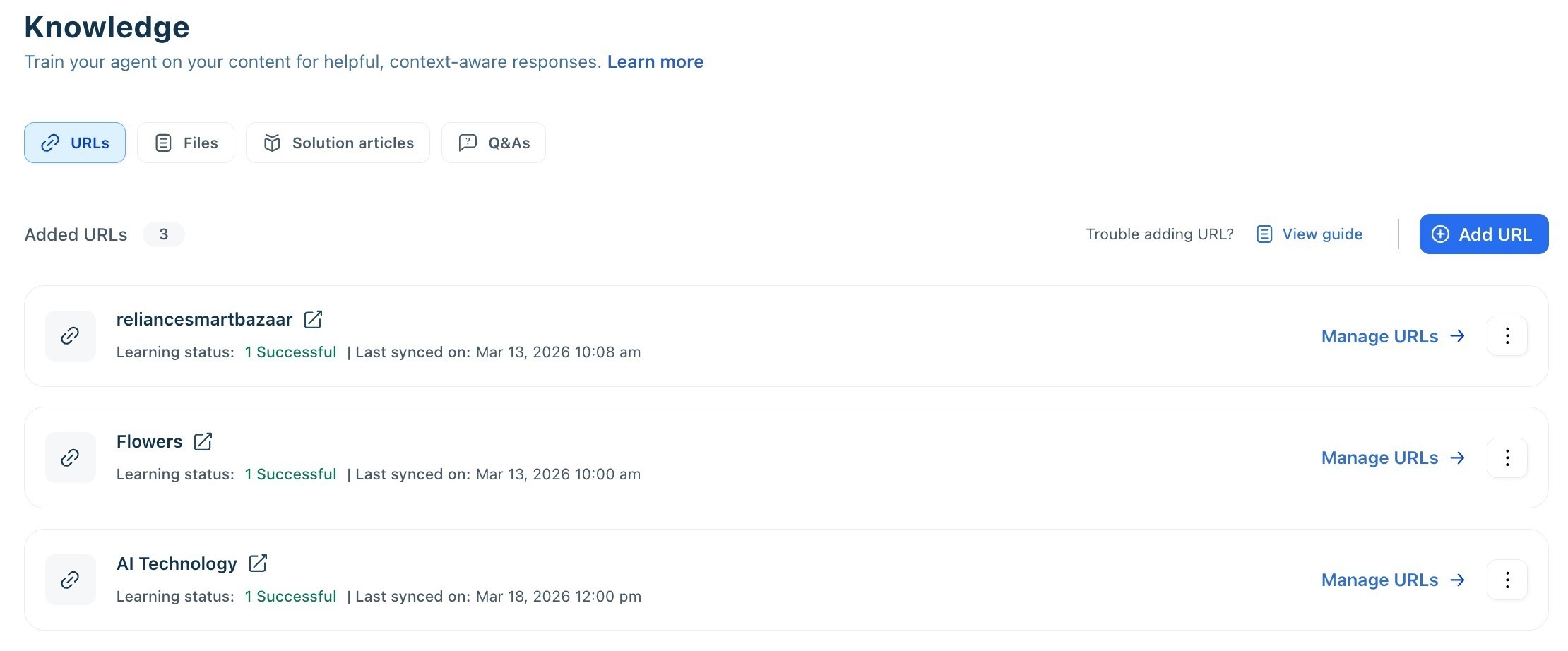
- Deploy the Email AI Agent in Shadow Mode.
- Review AI-generated drafts across different customer conversations and compare them with the responses your agents sent.
- Go to Analyze > Improve to examine AI-generated suggestions for enhancing your knowledge base. It provides insights into missing, outdated, or unclear content based on real conversations and recommends specific updates. For more details, see Analyze performance and improve AI Agent.
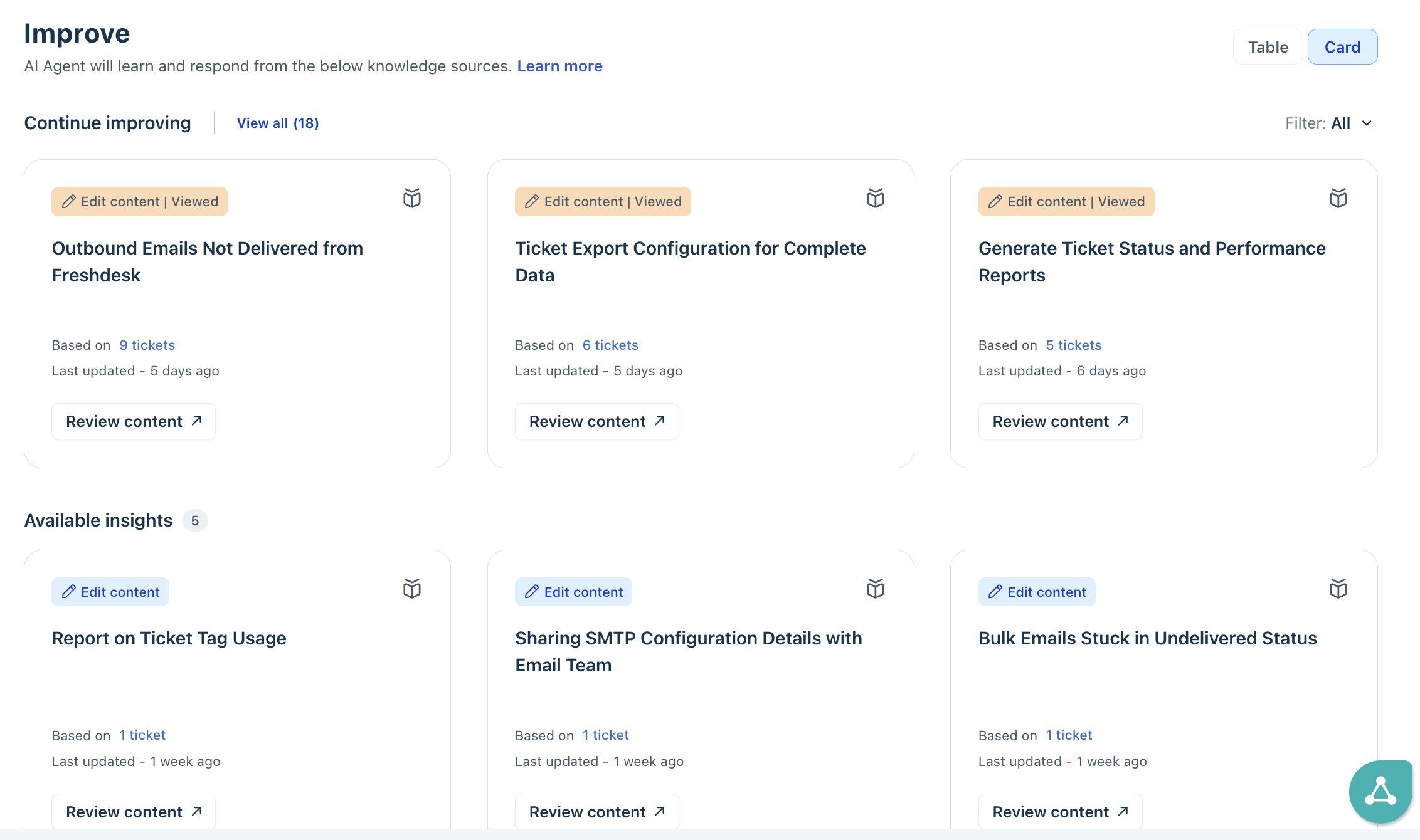
- Go Analyze > Ticket Logs to validate insights from the performance and improve tabs using real interaction data between customers and the AI Agent. Check if the suggested improvements address real customer issues. For more details, see Analyze performance and improve AI Agent.
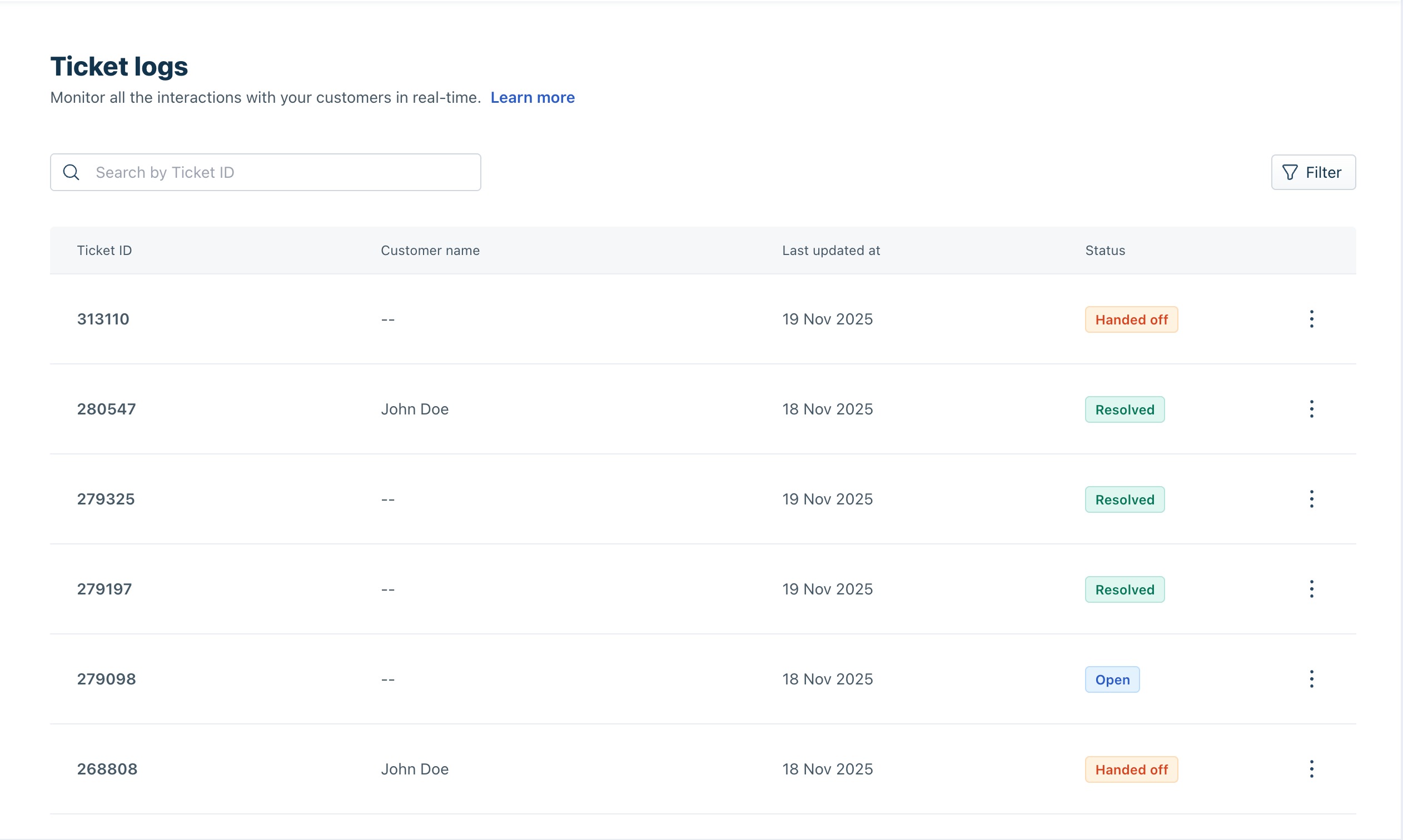
- Update your solution articles or other knowledge sources, and continue evaluating drafts until the AI consistently generates accurate, high-quality responses.
Configuration changes in shadow mode
The following table describes how different configurations behave when shadow mode is enabled.
Configuration | Shadow Mode behavior |
Fallback message | The configured fallback message is added as a private note. It is not sent to the customer. |
Handover settings | If a handover occurs, the configured handover message is added as a private note. |
Disallowed topics | The AI Agent does not generate drafts for configured disallowed topics. |
Auto-resolve | When the auto-resolve timer expires, the configured closing message is added as a private note. The ticket remains open. |
Outside business hours | The configured handover message is added as a private note for conversations received outside business hours. |
Daily conversation limits | No change. Daily conversation limits do not change. |
Automations | Shadow mode adds two ticket update events for automations:
|
Escalation criteria | No change. Escalation rules continue to determine when the AI Agent stops generating drafts. |