TABLE OF CONTENTS
This article provides information about setting up OTP authentication in the bot builder and using it to verify customers before they perform specific actions in a bot flow.
Prerequisites:
- Ensure you have access to the bot builder.
- Ensure you have a bot flow that you can edit. OTP settings cannot be configured on a published bot version.
Overview
OTP authentication provides an additional layer of security when customers perform specific actions in a bot flow. You can configure OTP as an authentication service and use it to verify a customer's identity before allowing them to perform specific actions in a bot flow.
For example, in an e-commerce scenario, customers may use a bot to check their order status or cancel an order. You can add OTP authentication to the relevant bot flow to verify the customer's identity before displaying order details or processing an order cancellation.
Set up OTP authentication
To configure OTP authentication for a bot, follow these steps:
- Go to AI Agent Studio > Chatbots.
- Select the preferred chatbot.
- Click Settings > Authentication.
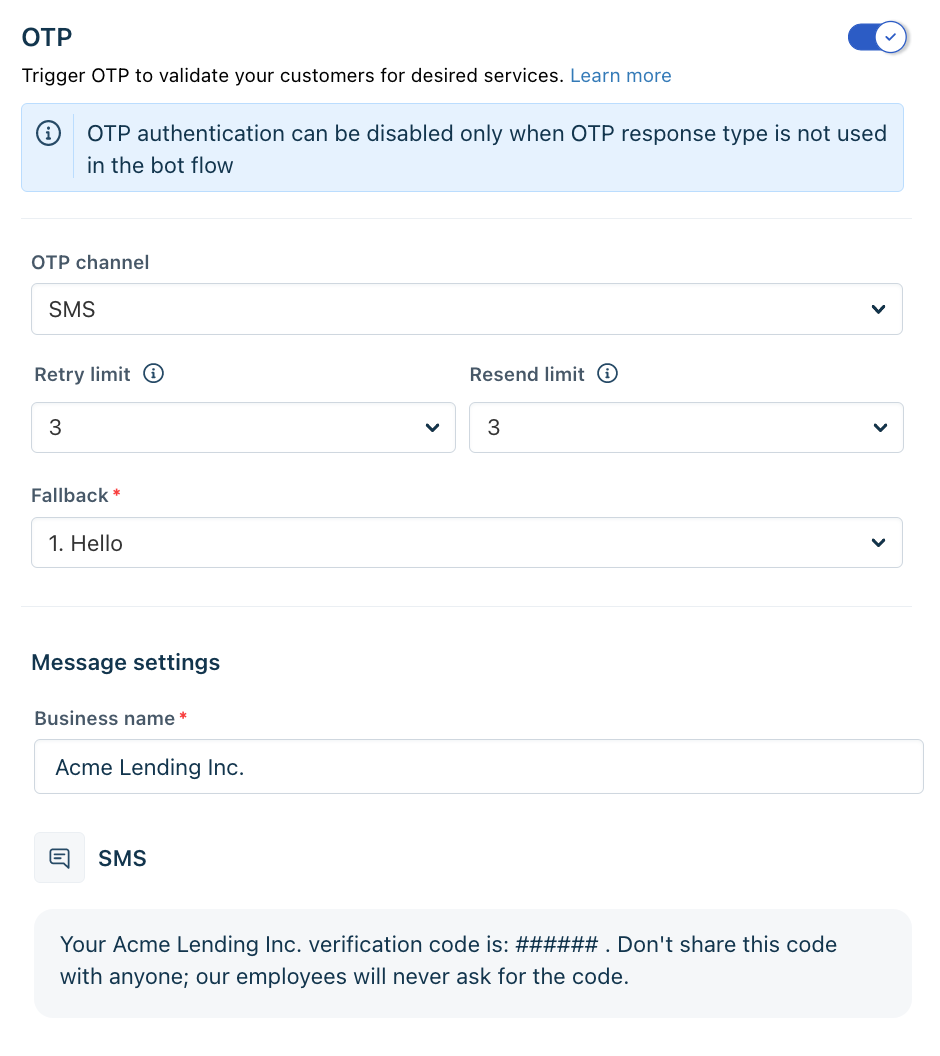
- Turn on the OTP option.
Note: If the OTP toggle is grayed out, create a draft version of the bot flow. OTP cannot be configured for a published bot version. - Configure the OTP settings as required:
- OTP channel: Select whether to send the OTP through SMS or email.
- Retry limit: Specify the maximum number of times a customer can enter an OTP. You can set this to a maximum of five attempts.
- Resend limit: Specify the maximum number of times a customer can request a new OTP. You can set this to a maximum of five requests.
- Fallback option: Select the option that customers should be redirected to if OTP authentication fails. For example, you can direct a customer to the My Orders page if authentication fails while they are trying to cancel an order.
- Business name: Enter the name displayed to the customer when they receive the OTP through SMS or email.
- Click Save.
Use OTP authentication in a bot flow
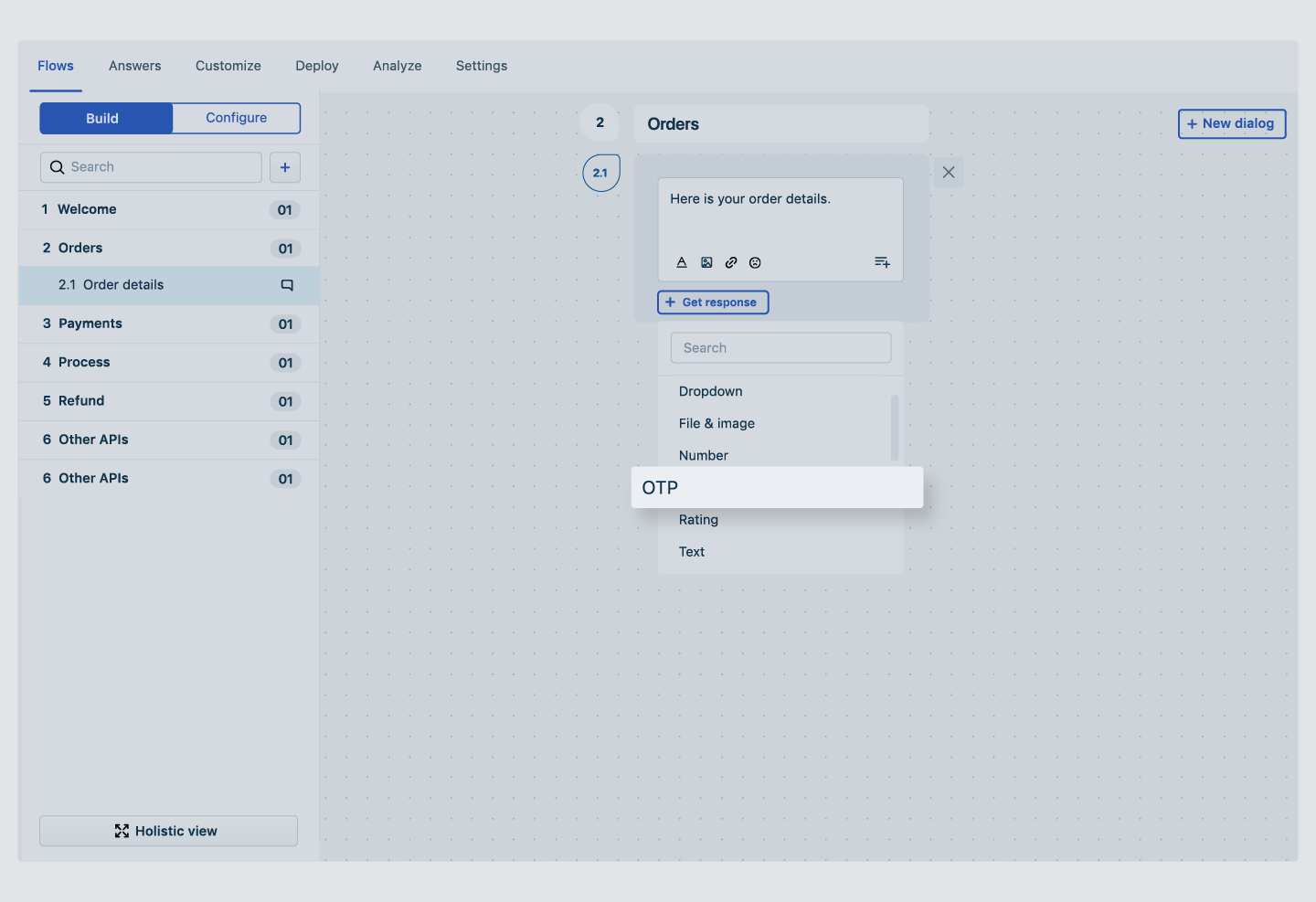
After you enable and set up the OTP authentication, you can use it in your bot flows through the Get Response dropdown.
For example, if a customer says, "I want to cancel my order," you can prompt for an OTP before displaying the order details. The customer must complete the authentication before proceeding with the transaction.
To add OTP authentication to a bot flow, follow these steps:
- Open the bot flow where you want to add authentication.
- Add or select the dialog where you want to verify the customer's identity.
- From the Get Response dropdown, select OTP.
- Configure the flow so that OTP authentication is triggered before the customer performs the action that requires verification.
OTP authentication behavior and limitations
The following behavior and limitations apply when using OTP authentication:
- The first time a customer generates an OTP via the bot, a default system-generated dialog prompts them to provide their email ID or phone number.
- The response type for an OTP dialog cannot be made private.
- You cannot add conditions to a dialog that uses OTP as its response type.
- You can disable OTP authentication only if the OTP response type is not used in any bot flow.