TABLE OF CONTENTS
Quick actions allow customers to navigate your bot more efficiently by providing shortcuts to commonly used actions. This article provides instructions for creating and using quick actions in the bots.
Prerequisites
Before you configure quick actions, ensure that:
- You have access to the bot builder.
- The bot flows, and the dialogs that you want to link to are already created.
Note: Predefined buttons and the widget menu are available only in the Conversations widget and Self-service widget. They are not supported when the bot is deployed on messaging channels.
Configure quick actions
Quick actions provide customers with shortcuts to navigate your bot at any point during a conversation. You can configure quick actions to let customers return to the previous dialog, restart the conversation, navigate to another dialog, or trigger predefined actions using buttons, the widget menu, or slash commands.
Default quick actions
The bot builder provides a set of default quick actions, and you can create additional quick actions based on your requirements.
The following quick actions are available by default:
- Go back: Returns the customer to the previous dialog or menu.
- Start again: Restarts the bot flow from the beginning.
- Looking for something else: Allow customers to search for another query with the help of intent detection.
Note: This option will be visible by default only if you enable Natural Language Settings. - Resend OTP: Allows customers to request a new one-time password (OTP) when OTP authentication is configured.
Create additional quick actions
You can create additional quick actions when the default options don't meet your requirements.
To create a quick action:
- Go to Flows > Configure > Quick actions. You can view the list of default actions.
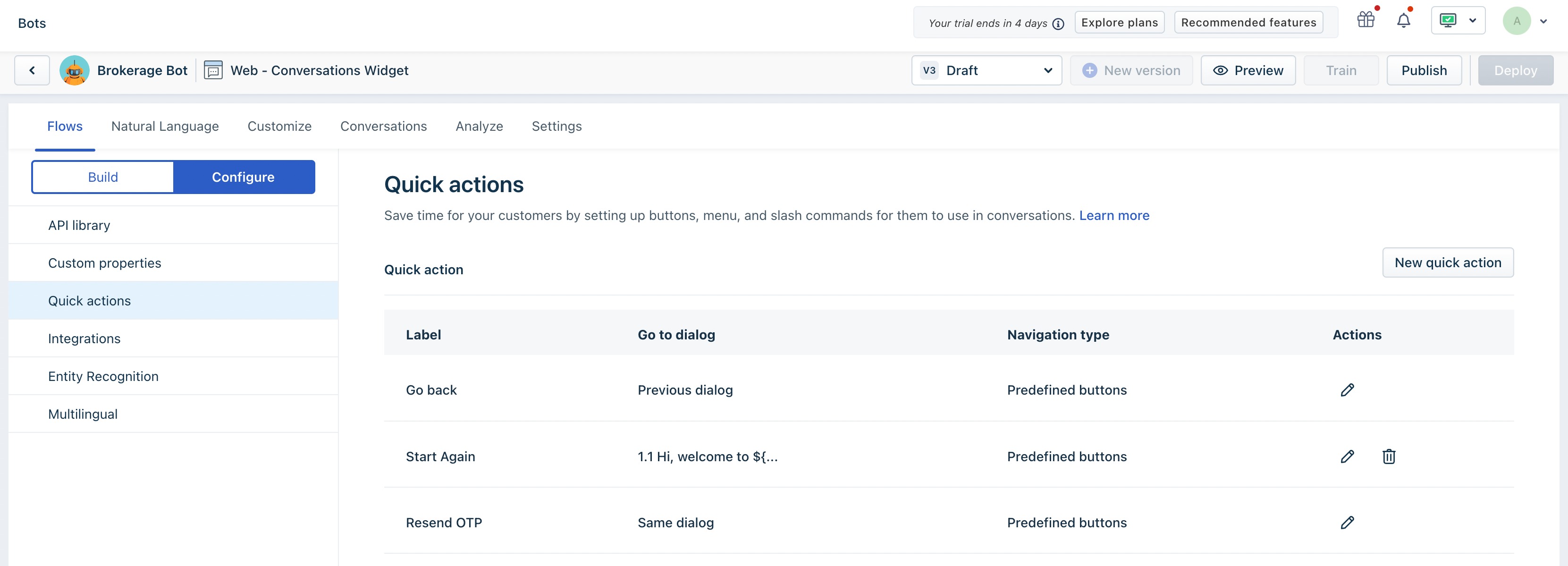
- To create a new action, click New quick action.
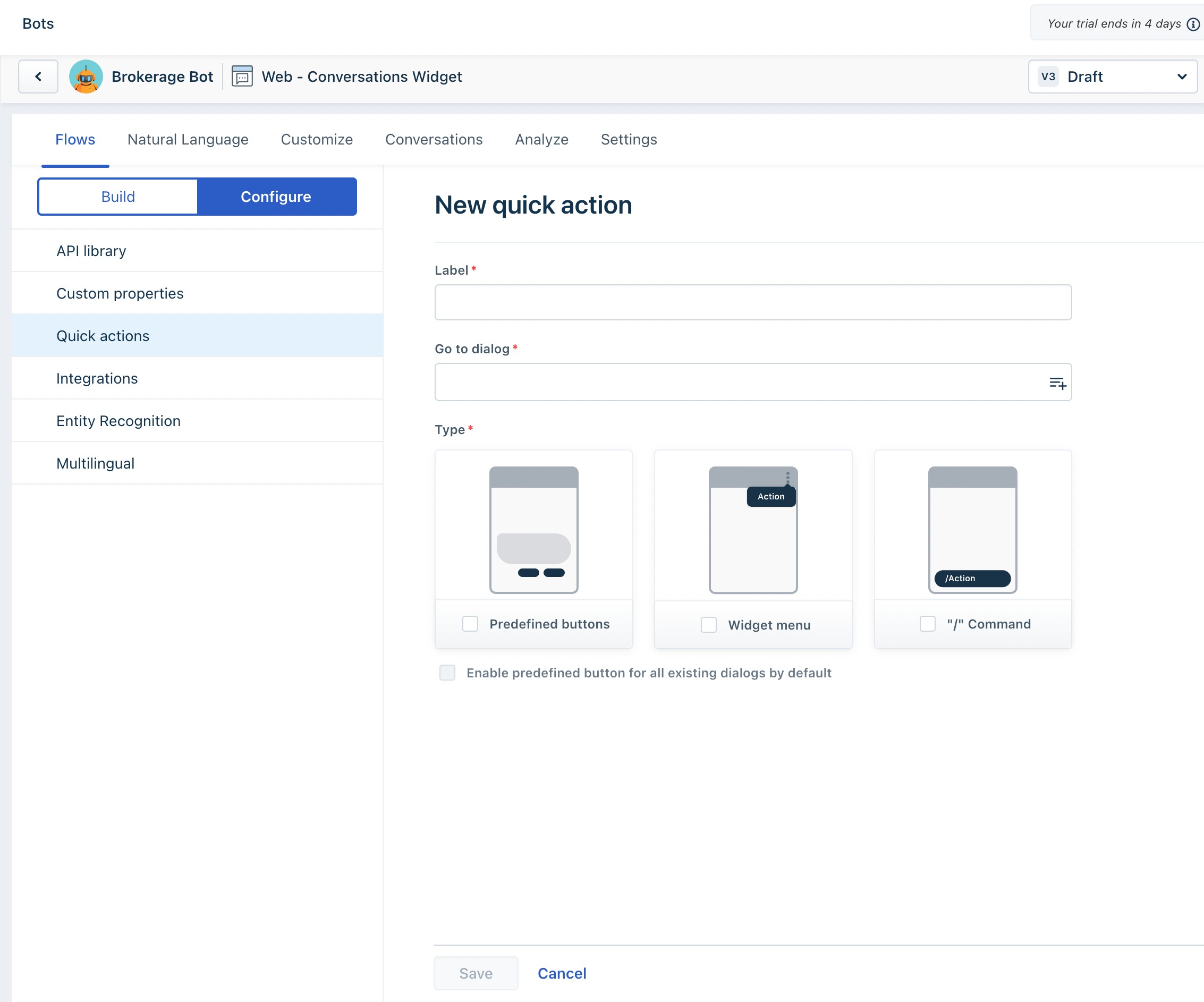
- Enter a Label for the quick action.
- Select the dialog that the quick action should navigate to.
- Select one of the following quick action types:
- Predefined buttons: Display the quick action as a button in the bot flow. You can make predefined buttons available across dialogs and enable or disable them on an individual basis.
- Widget menu: Display the quick action as an option in the widget menu. Widget menu options are configured globally and can't be customized for individual conversations.
- Slash command: Allow customers to trigger the quick action by entering a / command in the input box. Slash commands are configured globally and can't be customized for individual conversations.
You can enable or disable predefined buttons for individual dialogs from the dialog settings.
- Click Save.