TABLE OF CONTENTS
Handover settings determine how and when conversations are handed off from the AI Agent to human agents — or automatically resolved. By configuring these controls, you ensure customers are smoothly escalated when needed, inactive conversations are cleaned up, and after-hours queries are handled professionally.
Transfer to a human agent
Enable this setting to automatically route conversations to a human agent when the AI Agent should no longer continue handling the interaction.
This is typically required when:
- A customer explicitly requests a human agent
- The query involves sensitive topics (billing, refunds, account access)
- The issue is outside the AI Agent’s configured scope
- Manual review or intervention is required
To enable the transfer,
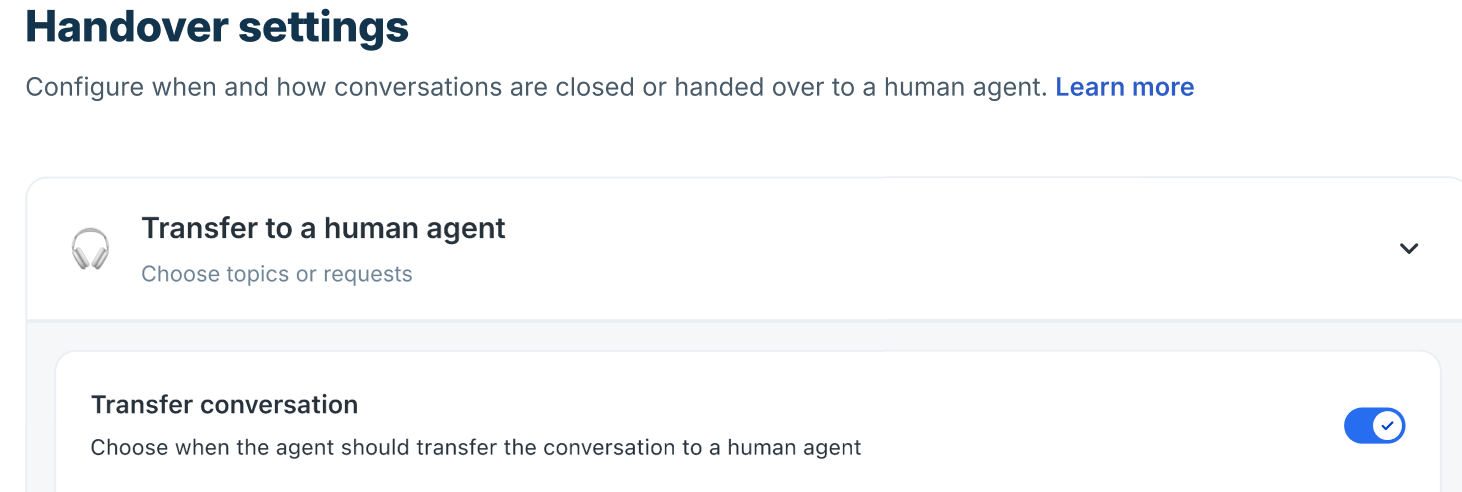
- Go to AI Agent Studio > AI Agent > Build > Configurations > Handover settings.
- Expand Transfer to a human agent.
- Toggle Transfer conversation to enable.
- Under Enter sample queries or topics the AI agent should skip, add phrases that should trigger automatic escalation
- Examples:
- “Talk to an agent”
- “Connect me to support”
- “Payment failed”
- “Refund issue”
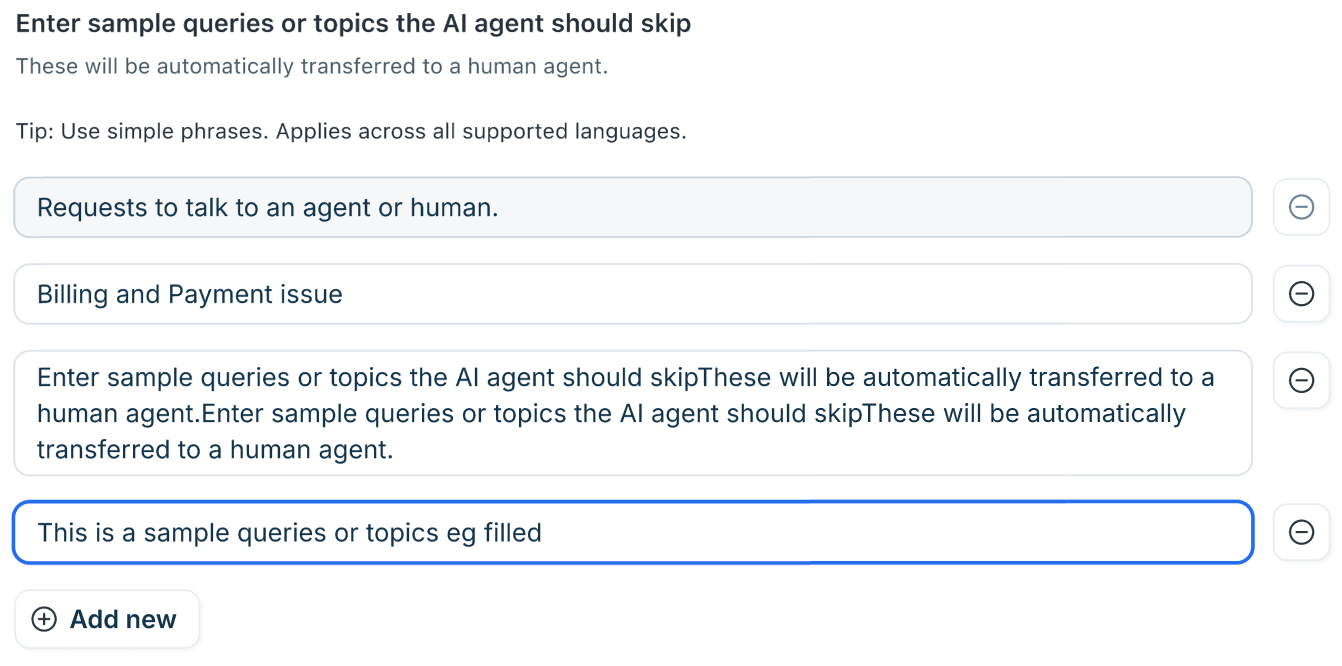
- Click Add new to include additional triggers. You can remove entries anytime.
When the AI Agent detects these phrases, the conversation is automatically transferred. - Under Display a message, define the message the AI Agent should send before transfer.
- Example: “I’m connecting you to a support specialist who can assist you further.”
This ensures the transition feels intentional and reassuring.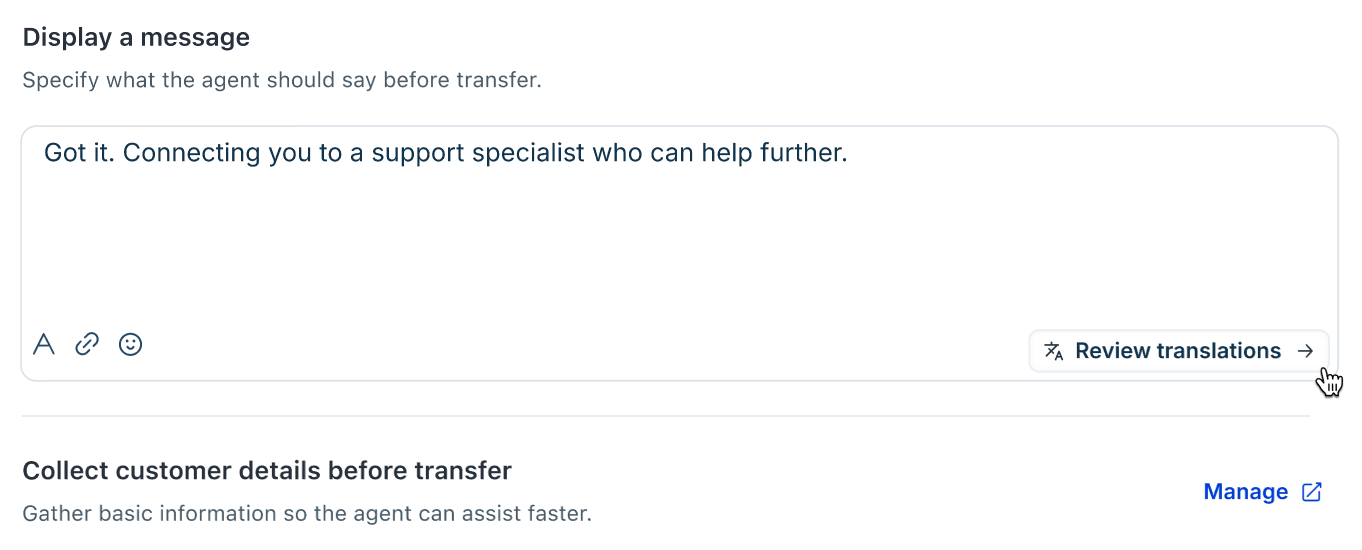
- Example: “I’m connecting you to a support specialist who can assist you further.”
- Click Review translations to manage translations to maintain consistency across supported languages.
- You can choose to collect customer details before transfer. Click on Manage which leads you to the Collect user details page under the Conversation behaviour section of the Configurations page.
- Choose the section to open the Collect user details overlay and add properties to collect from your customers before transferring to a human agent.
- Once done, click Save.
Auto-resolve conversations
Auto-resolve automatically closes conversations after a defined period of customer inactivity. This prevents stale conversations from remaining open and keeps queues manageable.
This helps to,
- Maintain clean queues
- Improve operational reporting
- Reduce manual effort for agents
To enable the feature,
- Go to AI Agent Studio > AI Agent > Build > Configurations > Handover settings.
- Expand Auto-resolve conversations.
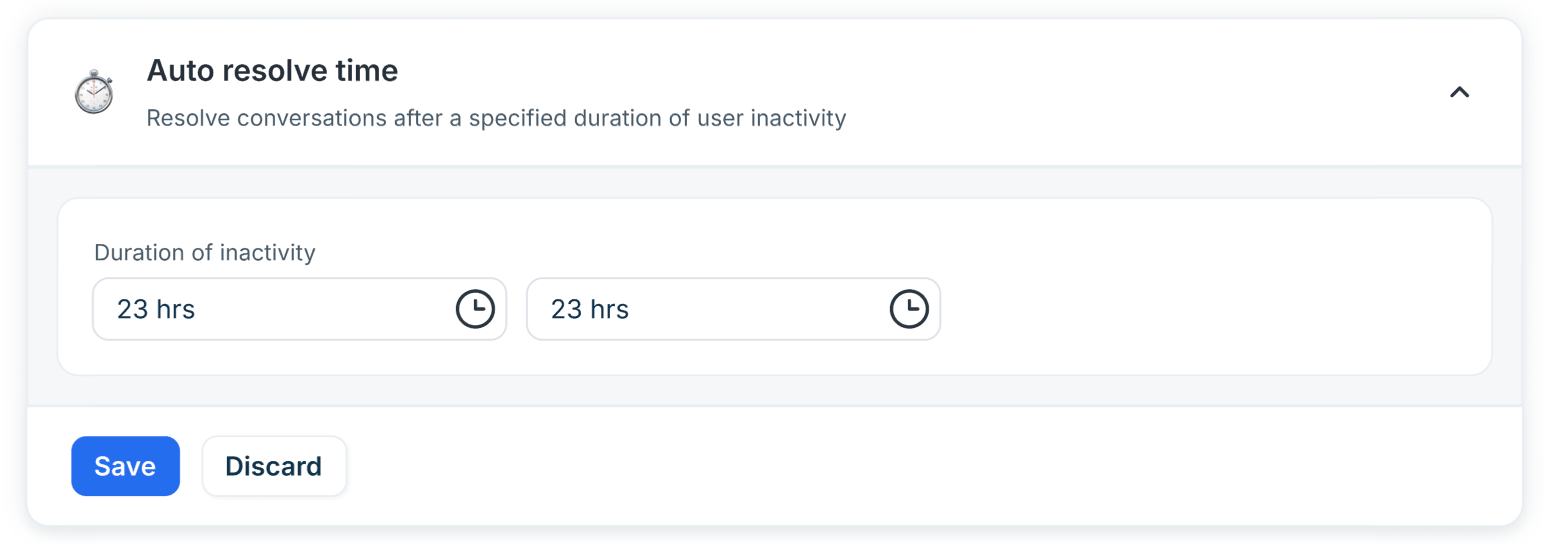
- Set the Duration of inactivity (in hours and minutes). Once the specified inactivity period is reached, the conversation is automatically marked as resolved.
- Once done, click Save.
Transfer outside business hours
Configure how your AI Agent handles conversations received outside your defined business hours. This ensures structured and professional interactions even when your team is unavailable.
- Go to AI Agent Studio > AI Agent > Build > Configurations > Handover settings.
- Expand Transfer outside business hours and enable the toggle.
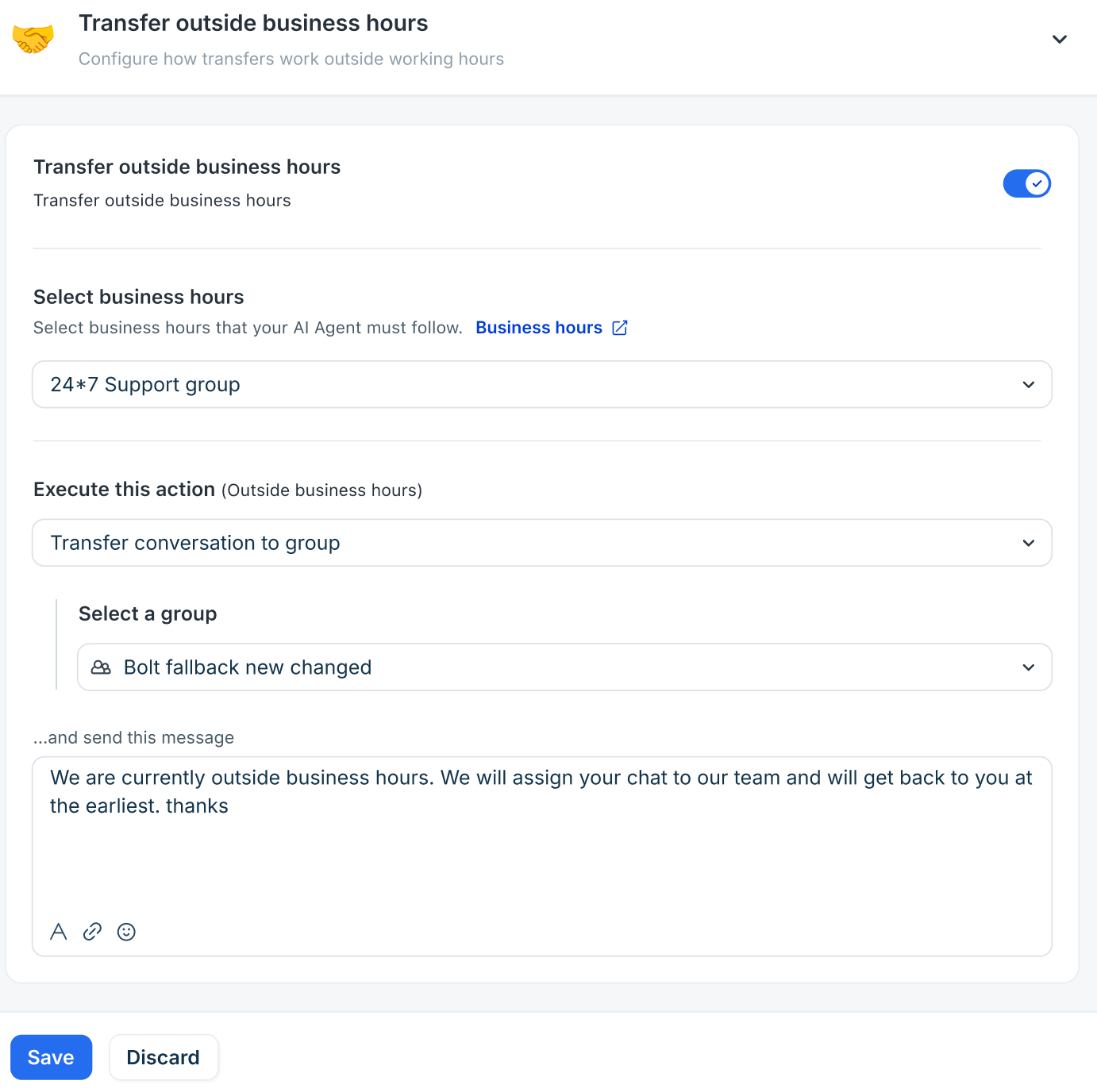
- In the Select Business Hours section, choose the business hours your AI Agent will follow. The default business hours are pre-selected.
- Click the Business Hours link to view, edit, or add business hours.
- Under the Execute this actiondropdown, select one of the following actions for when a query is received outside business hours:
- Transfer conversation to agent: Make it available for assignment to agents.
- Transfer conversation to group: Assign the conversation to a designated group.
- Configure the message your AI Agent should send to the customer under the ...and send this message section. You can also add hyperlinks, if necessary.
- Click Save to enable the away experience settings.
Note: When you enable an AI Agent for a Web Chat topic, the default topic-level Away Experience is disabled. Instead, the AI Agent–level handoff experience will apply to that specific Web Chat topic.