TABLE OF CONTENTS
- Access the Workflow library
- Clone a workflow
- Workflow states
- Workflow versioning
- Pre-built workflows
- Benefits of pre-built workflows
- Add a pre-built workflow from the library
- List of available pre-built workflows
The Workflow library is a centralized repository of all workflows in your account. Use it to discover, clone, and reuse workflows across agents without having to rebuild from scratch.
Access the Workflow library
- In AI Agent Studio, select Library from the left navigation.
- Select the Workflows tab to view all workflows in your account, regardless of which agent they belong to.
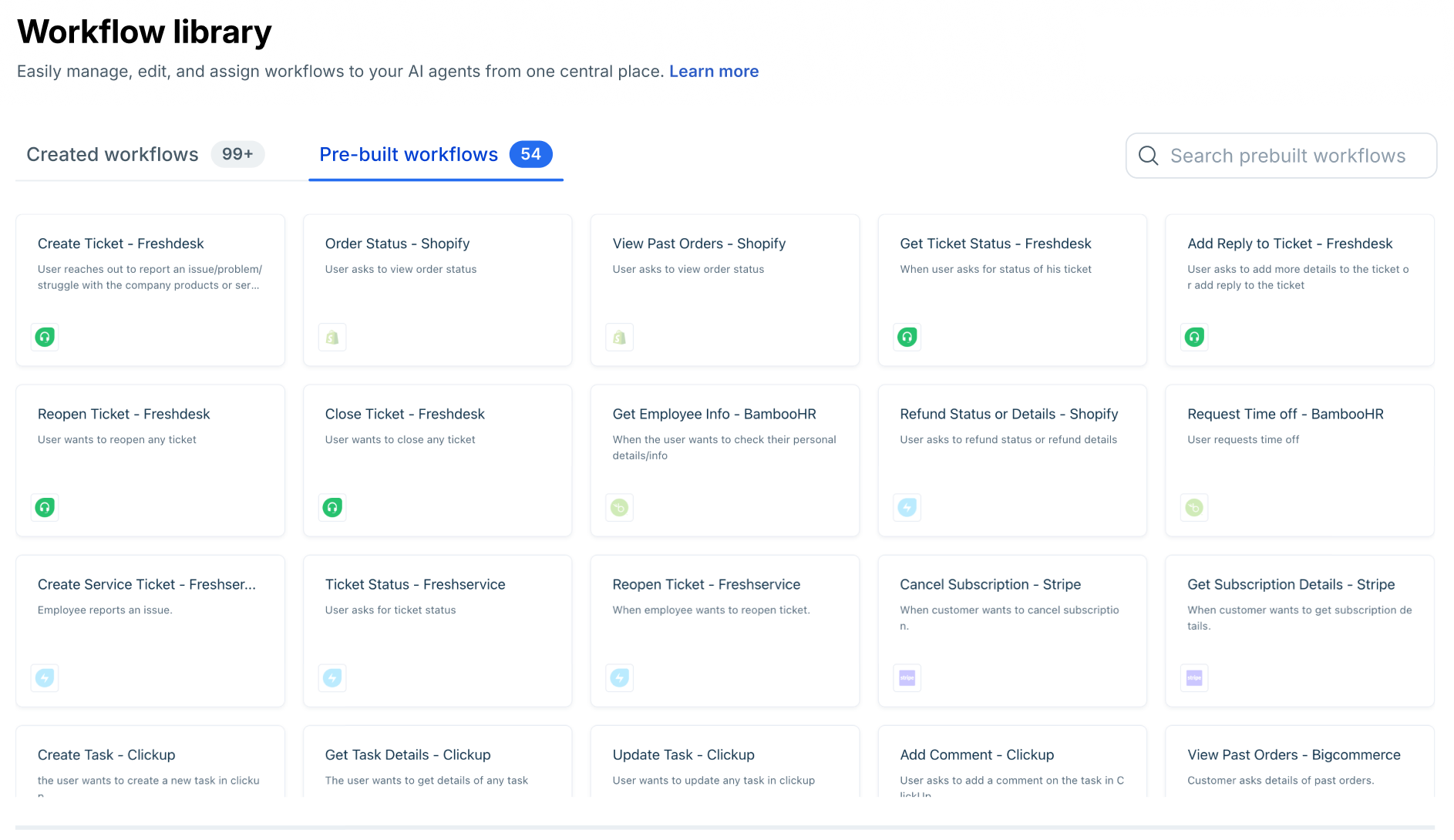
Clone a workflow
- Locate the workflow you want to reuse.
- Select Clone. A copy is created as a draft and added to your current agent.
- Edit the clone as needed — update trigger phrases, API mappings, or response text.
- Publish the clone when it is ready.
Note: Cloning creates an independent copy. Changes to the clone do not affect the original, and vice versa. Modifying a shared API action used by both, however, affects all workflows that reference it.
Workflow states
State | Description |
Active | A published version exists and is live for customers. |
Draft | Created or edited but not yet published. Not visible to customers. |
Active and draft | An older published version is live while a newer draft is being prepared. Customers see the active version until you publish the draft. |
Workflow versioning
Workflow versioning lets you update an existing workflow without disrupting the live version. The active workflow keeps running while you prepare and test changes in a draft.
Edit an active workflow
- On the Workflows list page, find the workflow you want to edit under the Created Workflows tab and select it.
- Select Edit workflow in the top right.
- In the confirmation dialog — which shows which AI agents are using this workflow — select Yes to proceed.
- A draft copy of the active workflow is created. Make your changes in the draft. The active version continues serving customers unchanged.
- Select Preview workflow to test your changes in the preview panel.
- Select Make it active, then confirm.
Publishing behavior
- The draft version replaces the current active version in both the Workflow library and all AI agents that use it.
- The previous active version is removed permanently.
- All AI agents using this workflow switch to the new active version immediately.
- If an unpublished draft exists alongside an active version, both states are shown in the Workflows list view.
Pre-built workflows
Pre-built Workflows are ready-to-use automation templates for common business scenarios. They come with preconfigured steps that you can deploy instantly or customize to fit your setup. Use it to discover, clone, and reuse workflows across agents without rebuilding them from scratch.
For example, the Order Status Workflow can:
- Collect the customer’s order ID
- Fetch order details from your order management system
- Display the current status or delivery date
- Hand off the conversation to an agent if manual review is needed
This enables your AI Agent to handle routine queries efficiently, allowing your human agents to focus on more complex issues. You can find the list of Pre-built workflows by going to AI Agent Studio > Library > Workflows > Pre-built Workflows.
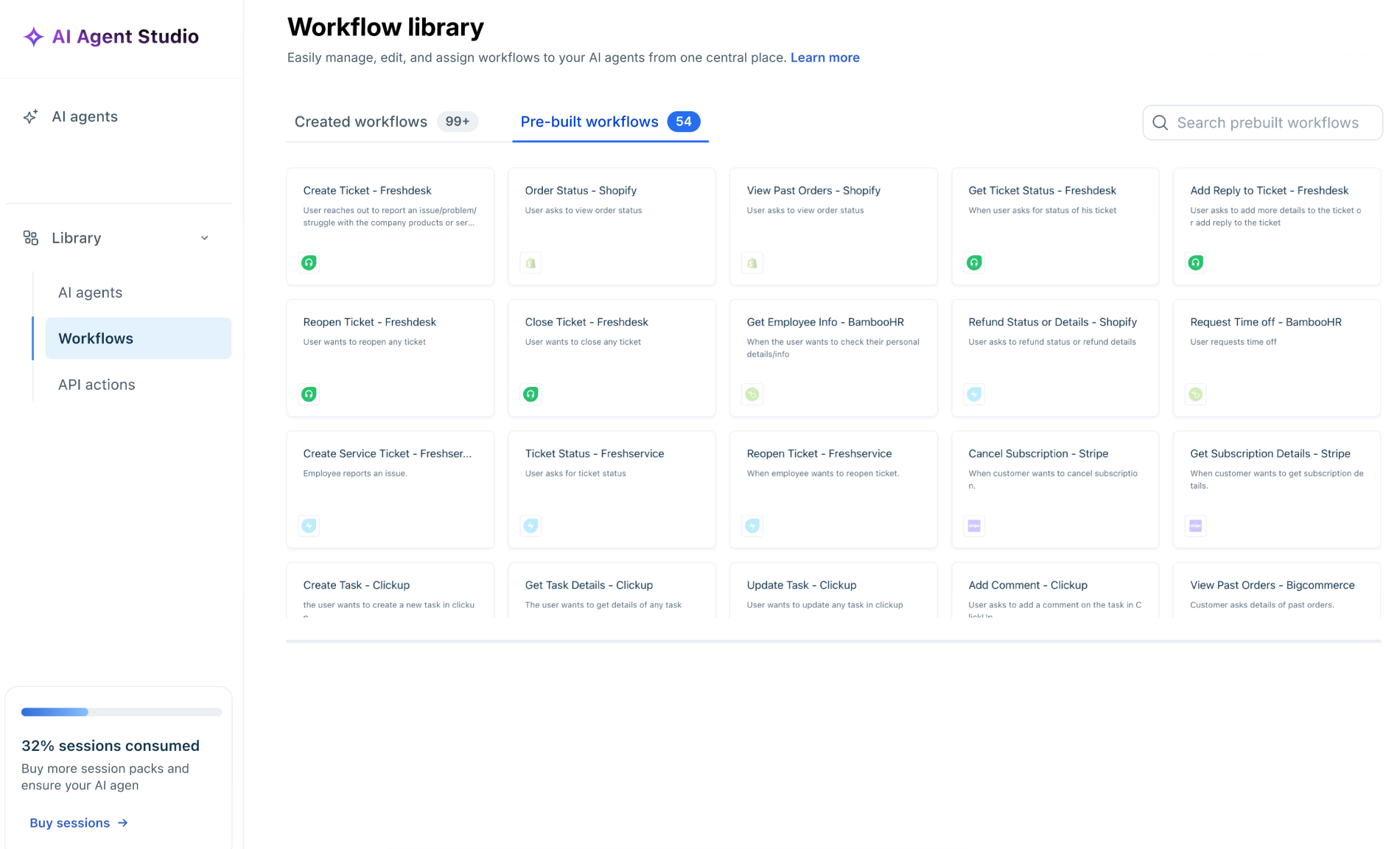
Benefits of pre-built workflows
- Faster setup: No need to start from scratch.
- Customizable: Modify the logic or messages to fit your business.
- Consistent: Delivers uniform responses every time.
- Scalable: Combine multiple workflows as your automation grows.
Add a pre-built workflow from the library
- Go AI Agent Studio > Library > Workflows.
- Locate the workflow you want to reuse.
- Hover on a Workflow and click +Use to add the Workflow to an Agent and make changes as needed for deploying the AI Agent.
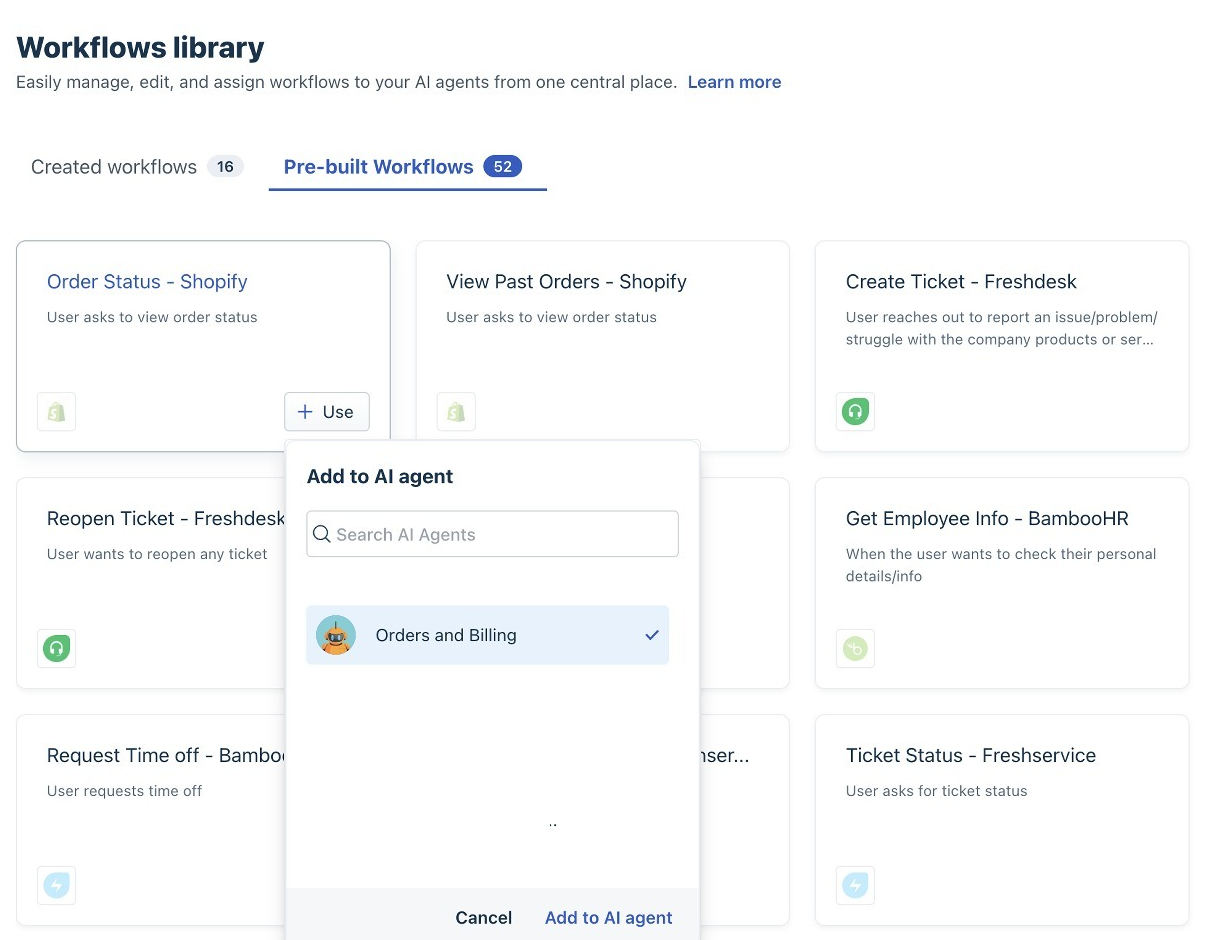
List of available pre-built workflows
The following 52 workflows are available in the library.
| Create Ticket – Freshdesk | Get Ticket Status – Freshdesk | Add Reply to Ticket – Freshdesk | Reopen Ticket – Freshdesk |
| Close Ticket – Freshdesk | Create Service Ticket – Freshservice | Add Ticket Reply – Freshservice | Close Ticket – Freshservice |
| Ticket Status – Freshservice | Create a Deal – HubSpot | Update a Contact – HubSpot | Get Contact Info – HubSpot |
| Create a Ticket – HubSpot | Get Contact Info – Salesforce | Create Opportunity – Salesforce | Retrieve Employee Contact Info – Workday |
| Get Employee Details – Workday | Fetch Leave History – Workday | Check Leave Request Status – Workday | Order Status – Shopify |
| View Past Orders – Shopify | Refund Status – Shopify | View Order Status – Magento | View Past Orders – Magento |
| View Past Orders – BigCommerce | View Order Status – BigCommerce | Cancel Order and Refund Payment | Cancel Subscription – Stripe |
| Get Subscription Details – Stripe | Payment Details from Email – Stripe | View Shipment Tracking – AWB | Create Return Pickup – AWB |
| Cancel Order – Shiprocket | Search User – Azure AD | Search Provisioned Apps – Azure AD | Password Reset – Azure AD |
| Create Task – ClickUp | Get Task Details – ClickUp | Update Task – ClickUp | Add Comment – ClickUp |
| Create Issue – Jira | Update Issue – Jira | Add Comment to Issue – Jira | Get Issue Details – Jira |
| Get Issue Details – Linear | Add Comment to Issue – Linear | Refund Payment – PayPal | Update Profile – Klaviyo |
| Get Member Details – Klaviyo | Flight Details – Amadeus | Cancel Flight Booking – Amadeus |
Choose pre-built workflows by user intent
Pre-built workflows work best when you map them to what the user is trying to do, not what the system can do.
In every conversation, look for signals:
- What is the user asking?
- Are they looking for information, action, or resolution?
- Do they expect the AI to respond—or to do something?
Once you identify that, selecting the right workflow becomes straightforward.
Handle support issues
When users face a problem, they rarely describe it in structured terms. They say things like “this isn’t working”, “I need help”, or “raise a complaint”. These are signals that the conversation should move from answering to issue management.
- Use Create Ticket – Freshdesk / Freshservice / HubSpot to capture new issues. This workflow collects context and ensures the problem is tracked instead of getting lost in conversation.
- When users return asking “what’s the update?”, trigger Get Ticket Status – Freshdesk / Freshservice to retrieve progress without restarting the interaction.
- If users add more context—“I forgot to mention…”—use Add Reply to Ticket – Freshdesk / Freshservice to append details to the same request.
- When the issue persists—“this is still not fixed”—use Reopen Ticket – Freshdesk to move it back into active resolution.
- Once the user confirms closure—“this works now”—use Close Ticket – Freshdesk / Freshservice to complete the lifecycle.
These workflows are especially effective when paired with fallback and feedback signals, ensuring no unresolved issue is dropped.
Handle orders and payments
Order-related queries are direct and high-intent. Users expect immediate answers, not exploration.
- When users ask “where is my order?”, trigger Order Status – Shopify / Magento / BigCommerce to fetch real-time updates.
- If the request shifts to history—“show my past orders”—use View Past Orders – Shopify / Magento / BigCommerce to provide a broader view.
- For refund-related queries—“where is my refund?”—use Refund Status – Shopify to track financial progress.
- When intent becomes action—“cancel my order”—use Cancel Order and Refund Payment to execute the request and initiate refund handling.
- Subscription-related signals like “stop billing” or “what plan am I on?”should trigger:
- Cancel Subscription – Stripe
- Get Subscription Details – Stripe
- For transaction lookups—“show my invoice”—use Payment Details from Email – Stripe.
These workflows work best when triggered directly from user phrases, minimizing friction and time to resolution.
Handle shipping and returns
Shipping queries often follow order-related interactions but focus specifically on delivery and logistics.
- When users ask “where is my package?”, use View Shipment Tracking – AWB to provide delivery visibility.
- If the intent shifts to returns—“I want to return this”—use Create Return Pickup – AWB to initiate reverse logistics.
- For shipment cancellations—“cancel delivery”—use Cancel Order – Shiprocket to stop fulfillment processes.
These workflows reduce repetitive queries and provide real-time operational clarity.
Handle account access
Account-related workflows support identity, personalization, and access recovery.
- When users ask “what details do you have about me?”, use Get Contact Info – HubSpot / Salesforce / Klaviyo to retrieve stored data and personalize the conversation.
- If users want to make changes—“update my email”, “change my phone number”—trigger:
- Update a Contact – HubSpot
- Update Profile – Klaviyo
- When users cannot access their account—“I forgot my password”—use Password Reset – Azure AD to restore access.
- For internal or administrative queries:
- Use Search User – Azure AD to locate users
- Use Search Provisioned Apps – Azure AD to check system access
These workflows are most effective when identity data is already available, reducing the need for repeated input.
Capture sales intent
Not all conversations are support-driven. Some signal opportunity.
- When users express interest—“I want to buy”, “tell me more”—use Create a Deal – HubSpot to capture early intent.
- As interest becomes more qualified, use Create Opportunity – Salesforce to move the conversation into a structured sales pipeline.
These workflows are often triggered during conversation initiation or after product-related interactions.
Handle employee requests
Internal workflows serve employees rather than customers, often within IT or HR contexts.
- When employees report issues—“raise an IT request”—use Create Service Ticket – Freshservice.
- For directory lookups—“find employee contact”—use Retrieve Employee Contact Info – Workday.
- For broader queries—“show employee details”—use Get Employee Details – Workday.
- For leave-related requests:
- Use Fetch Leave History – Workday for past records
- Use Check Leave Request Status – Workday for approvals
These workflows are most effective when user identity is pre-mapped, enabling faster responses.
Handle tasks and projects
Some interactions are action-oriented. The user isn’t asking—they’re instructing.
- When users say “create a task” or “log a bug”, trigger:
- Create Task – ClickU
- Create Issue – Jira
- For updates—“change status”, “assign this”—use:
- Update Task – ClickUp
- Update Issue – Jira
- For collaboration—“add a comment”—use:
- Add Comment – ClickUp / Jira / Linear
- For visibility—“show task details”—use:
- Get Task Details – ClickUp
- Get Issue Details – Jira / Linear
These workflows transform the AI from a responder into an executor.
Handle payments and refunds
When users explicitly request refunds—“refund my payment”—use Refund Payment – PayPal to process the request.
This workflow is often triggered alongside dissatisfaction signals and should be handled with clarity and confirmation.
Handle travel bookings
Travel workflows support time-sensitive and transactional queries.
When users ask “show my booking details”, use Flight Details – Amadeus to retrieve itinerary information.
When users request cancellation—“cancel my flight”—use Cancel Flight Booking – Amadeus to execute the request.
These workflows benefit from fast execution and minimal back-and-forth.
Apply workflow selection
In practice, you don’t need to configure all workflows at once.
Start with the ones that match your most frequent user signals:
- Frequent issues → support workflows
- Order queries → commerce workflows
- Login problems → account workflows
As patterns emerge, expand coverage gradually. The goal is not to use all available workflows.
It is to use the right workflows at the right moment, so every interaction moves forward with purpose.