TABLE OF CONTENTS
- Prerequisites
- Configure agent identity
- Configure instructions for your AI agents
- Write effective instructions
- Things to keep in mind
Instructions and agent identity are the two configuration areas that define who your AI agent is and how it behaves in every conversation. Instructions tell the agent what your business does, which topics it should handle, what tone to use, and what guardrails to respect. Agent identity controls the name and avatar customers see when they interact with it.
Well-written instructions make the difference between an AI agent that answers generically and one that responds like a knowledgeable member of your team. These settings apply to both chat and email AI agents.
Prerequisites
- You must be on a Freshdesk Omni plan or a Freshdesk plan with AI Agent Studio enabled.
- You need Administrator-level access to configure and manage AI agents.
- At least one Chat or Email AI Agent should already be created in AI Agent Studio.
- It is recommended to configure at least one source of knowledge, as instructions alone do not provide the agent with facts—they only guide how the agent uses the knowledge you supply.
Configure agent identity
Agent identity controls the customer-facing name and avatar for your AI agent. Navigate to Build > Configurations > Agent identity to configure these settings.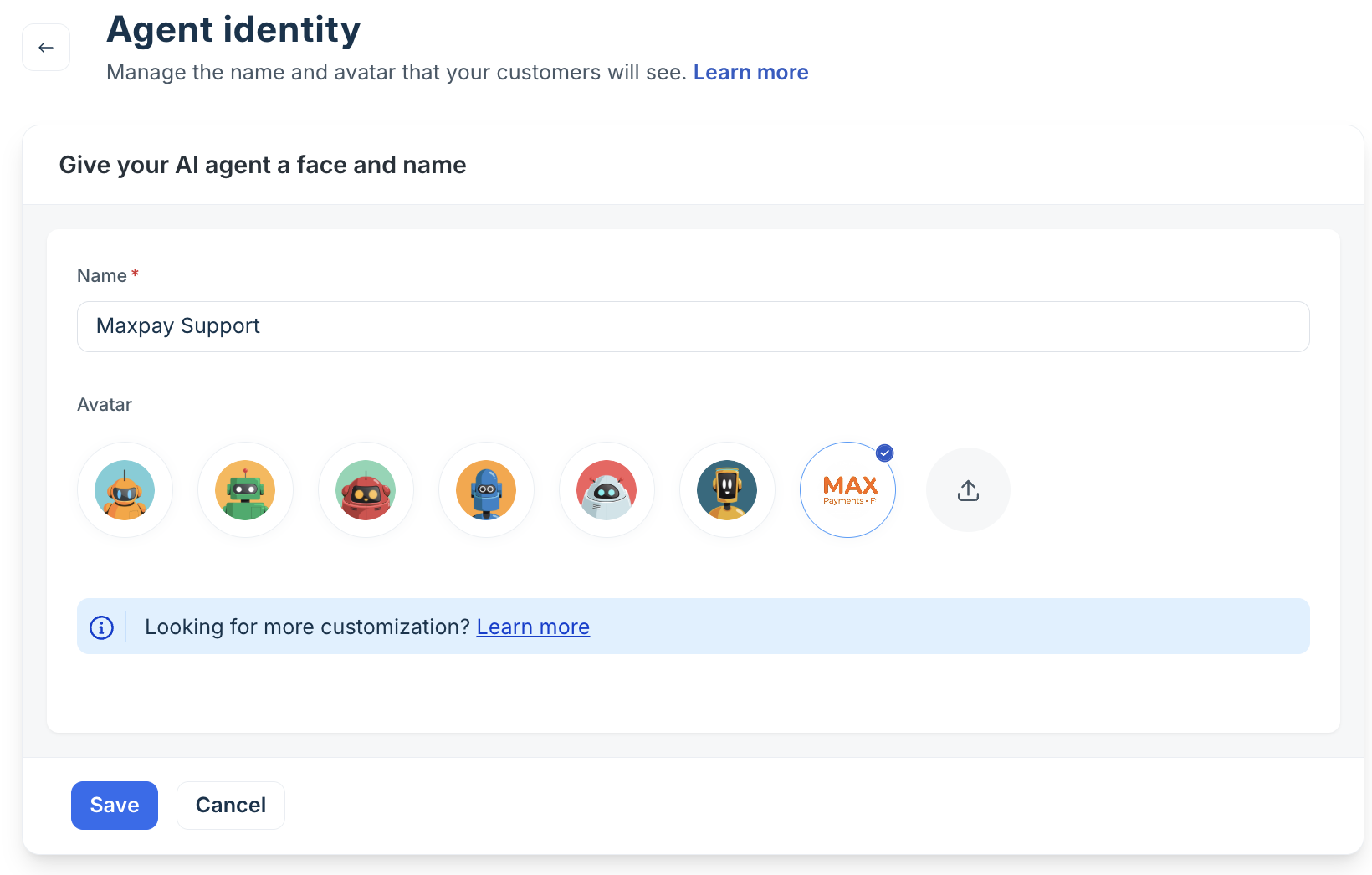
Display name
The display name is the name customers see when interacting with the agent — in the chat widget, in email sender attribution, and in the Freshdesk agent inbox when the AI holds a ticket.
- Choose a name that fits your brand — for example, "Aria", "Max", or "FreshCart Support". Avoid generic names like "Bot" or "AI"; named agents have higher customer engagement and lower abandonment rates.
- The name can reflect a team identity rather than an individual — for example, "UrbanCart Support Team" works well for email agents where a personal name feels misleading.
- The display name has no effect on how the agent reasons or responds. It is cosmetic only.
Channel difference:
Chat AI agent: The display name appears as the agent name in each chat message bubble inside the widget, and as the assigned agent name in the Freshchat conversation view.
Email AI agent: The display name appears in the From field of outbound email replies (combined with the mailbox sender address) and in the Freshdesk ticket timeline as the agent that sent each AI reply.
Avatar
The avatar is the icon or image that appears alongside agent messages.
- For the Chat AI agent: Upload an image to replace the default avatar. Recommended minimum resolution: 60 × 60 px, 1:1 aspect ratio. The avatar appears next to every AI message bubble in the chat widget.
- For the Email AI agent: The avatar is used for branding consistency on customer-facing feedback pages. It does not appear in the email body itself.
- Save after uploading. Changes take effect on the next AI response sent — already-sent messages are not retroactively updated.
Best practice: Use a simple, recognizable icon rather than a photograph. Avatars render small in the widget — a clean icon at 60px reads better than a complex image that becomes unrecognizable at that size.
Configure instructions for your AI agents
Navigate to Build > Instructions in your AI agent. The Instructions section helps you define how your AI Agent understands your business and how it communicates with customers. By setting clear context and response guidelines, you ensure every interaction is accurate, consistent, and aligned with your brand. Without well-defined instructions, the AI agents may provide vague or off-topic answers or escalate queries they could otherwise resolve, leading to a poor customer experience and increased agent workload.
Define your business context
Use this section to describe your organization in detail. This gives the AI foundational knowledge about your operations, helping it tailor responses accurately. You can also use the Write with AI feature to rephrase your business context or generate instructions using the uploaded knowledge sources.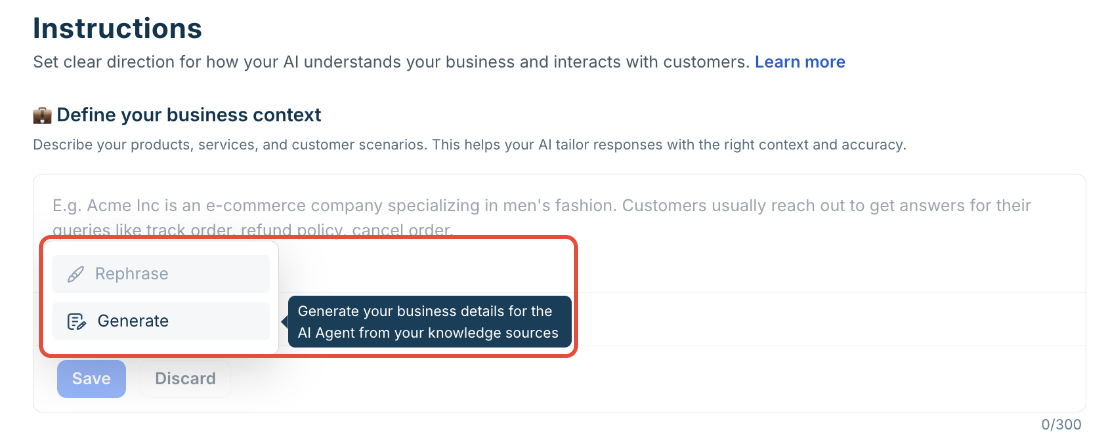
Include information such as:
- Company name, industry, and a one-sentence description of what your business does.
- The products or services the agent supports — be specific rather than broad.
- The scope of what the agent should handle — define the support boundary clearly.
- Any business rules the agent should know — for example, return windows, SLAs, or routing logic specific to your operation.
- Information about your customer base if it affects how the agent should respond — for example, whether you serve B2B or B2C customers, or whether technical terminology is appropriate.
Example — UrbanCart CX agent (Freshdesk Omni)
UrbanCart is a direct-to-consumer fashion e-commerce brand operating across India and Southeast Asia. This AI agent handles post-purchase customer support, including order status, return and exchange requests, refund tracking, and delivery issue escalation.
The agent supports customers who purchased from UrbanCart's website or mobile app. It does not handle wholesale or B2B queries, pre-sales questions, or product recommendations — those should be redirected to sales@urbancart.com.
Return window: 15 days from delivery for most items. Sale items are non-returnable. COD (cash on delivery) refunds are processed as store credit only.
Avoid information such as,
- Vague descriptions — "We are a customer-focused company."
- Overly long business context — keep it under 400 words. The agent needs operational clarity.
- Duplicating knowledge source content — business context should describe the scope and rules
The clearer and more specific your business description, the better the AI can generate context-aware responses. You can also use Write with AI to refine or expand your business context before saving.
Channel difference:
Chat AI agent: Business context is used on every chat turn. For live chat, keep the scope definition tight — chat customers expect instant answers within a narrow domain.
Email AI agent: Email queries are often longer and more complex. The email agent benefits from slightly more detailed business context — especially around rules, exceptions, and routing logic — since it has more time to process before responding.
Set custom instructions
While business context tells the AI what you do, custom instructions define the tone, formality, length, and language rules the agent applies to every response. It is the single biggest lever for making responses feel on-brand and appropriate for your customer base.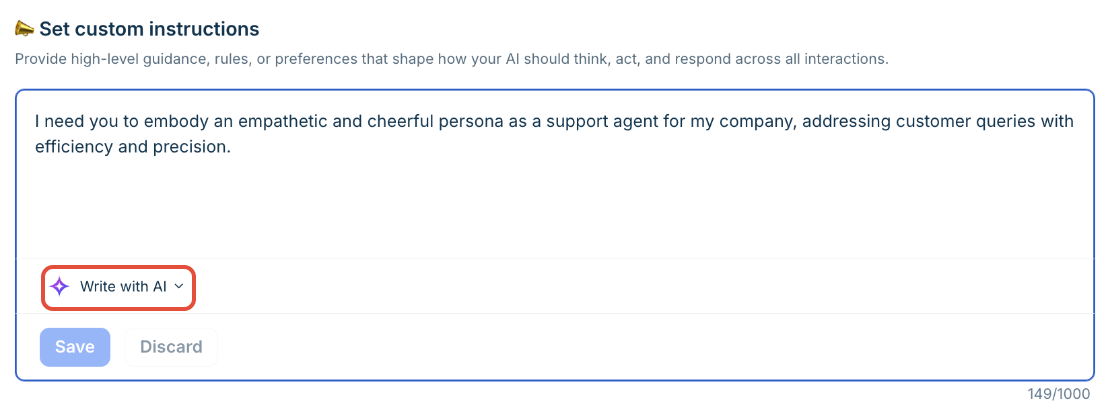
You can define:
- Tone of voice (friendly, formal, consultative, concise)
- Language style (avoid jargon, conversational phrasing)
- Empathy expectations
- Resolution priorities (speed, clarity, escalation rules)
- Key terminology your business uses
- Phrases to prefer or avoid
Important:  Custom instructions are behavioral guidance — the agent tries to comply but edge cases can still occur.
For topics where an incorrect AI response has serious consequences (legal, financial, safety), use the Handover settings "Topics that AI Agent should not respond to" setting instead. That enforces a hard route-to-agent.
See Configure chat handling rules and live handoff or Configure email trigger rules and automation.
Example: UrbanCart CX agent — Set custom instructions
- Tone: Warm, friendly, and helpful. Use contractions. Address customers by first name when available.
- Length: Keep chat responses under 80 words. Use line breaks between distinct points. Do not use long bulleted lists in chat; convert them to short paragraphs.
- Language: Use "return," not "RMA". Use "refund," not "credit note", unless the context involves store credit. Never mention competitor brands.
- Avoid: Do not answer pre-sales queries. Do not speculate on unreleased products. Decline competitor comparisons politely.
- Format: Use numbered steps for processes with three or more steps. Do not use tables in chat. Do not add a sign-off — the feedback prompt handles conversation closure.
- Tone override for complaints: When a customer expresses frustration, acknowledge the issue in one sentence before moving to the resolution. Do not use filler phrases such as "I apologize for any inconvenience."
Channel difference:
Chat AI agent: Chat responses are read on screen in real time. Short, scannable replies with clear structure perform significantly better than dense paragraphs. Explicitly instruct the agent to use short responses for chat.
Email AI agent: Email responses land in a customer's inbox alongside human-written emails. Slightly more formal tone and longer structured responses are appropriate. Include instructions for signature-adjacent language if your Signature Management setting does not cover this.
Write effective instructions
To help you create clear and effective instructions for the bot, here is a simple guide.
Examples of good instructions
Use the following examples as a reference to craft clear, brand-aligned, and compliant instructions for your Freddy AI Agent:
- Style & Formatting Guidance
These instructions help ensure consistency in tone and response length.- Keep responses concise and relevant, ideally under 300 words.
Example: “Respond with short and direct answers; avoid unnecessary elaboration.” - Acknowledge customer concerns before presenting solutions.
Example: “Start responses by acknowledging the customer’s issue in a polite and professional tone.” - Use a formal and respectful tone for all customer interactions.
Example: “Maintain a professional tone across all responses; avoid slang or overly casual language.”
- Keep responses concise and relevant, ideally under 300 words.
- Terminology & Brand Language
Define how business-specific terms or roles should be referenced.- Use internal terms familiar to your customers.
Example: “Refer to delivery personnel as ‘Captains’ instead of ‘agents’ or ‘executives’.” - Treat synonymous terms interchangeably based on your business vocabulary.
Example: “Use ‘recipient’ and ‘customer’ interchangeably—they both refer to the end user.”
- Use internal terms familiar to your customers.
What not to include in instructions
- Do not include complete responses
Instructions should not contain actual reply content, links, or customer-facing actions.
Avoid instructions like: “If a customer wants to cancel their account, share the cancellation form link: https://example.com/form”
Such responses are considered critical and should be added in the QnA section, not in the Instructions. Including them here can overcomplicate your instructions and reduce the AI agent's effectiveness. - Avoid using Instructions for Business Hours Handling
Instead of including time-based instructions like: “Outside these hours, ask the customer to leave their email address.”
Use the Business Hours feature to configure after-hours behavior. - Do not define Agent Handoff Behavior depending on user properties
Instructions such as: “If the customer’s plan is not 'Premium', then don’t transfer chat to humans”.
If you need customized agent handoff rules, please contact the Support Team to explore implementation options.
Do not define Agent Handoff Behavior on Negative feedback or Fallback
Instructions for handling fallback or feedback are: “Before triggering agent handoff due to fallback, take confirmation from the user if they would like to speak with an Agent before transferring the chat.” These settings can be configured in Preset Messages.
Things to keep in mind
- Instructions apply to all knowledge source types: The same instruction set applies across all sources, including solution articles, uploaded files, URLs, Q&A entries, and third-party sources
- Instructions do not replace handover settings for hard blocks: Topics to avoid acts as a behavioral guideline and may not fully prevent responses in edge cases. For strict enforcement, use the “Topics AI Agent should not respond to” setting under Handover.
- Agent identity changes are cosmetic and immediate: Updates to the agent’s name or avatar take effect from the next response onward. These changes do not impact reasoning, knowledge retrieval, or response quality.
- Both agent types use the same Instructions screen: Any channel-specific differences, such as formatting or response length, must be explicitly defined within the Response format field.