TABLE OF CONTENTS
- Prerequisites
- Leverage API actions
- Access the API Actions library
- Manage API Actions
- Create an API action
- Use an API action inside a workflow
- Authentication in API actions
The API Actions library is your central place to define, reuse, and manage integrations with external systems. Instead of rebuilding the same API connection in every workflow, you create it once, test it, and reuse it across all AI agents.
When a workflow runs an API action, it sends a request to an external system, receives a response, and makes selected data available to the rest of the workflow. This allows your AI agent to move beyond static responses and perform real operations—fetching data, triggering actions, and orchestrating multi-step processes.
Prerequisites
- Your account must be on Freshdesk Omni or have AI Agent Studio enabled
- You must have Administrator access
- At least one AI agent must be created
- You need access to either:
- A REST API endpoint, or
- A configured MCP server
Leverage API actions
API actions are designed to make workflows dynamic and reusable. With them, you can:
- Build API integrations once and reuse them across workflows
- Pass workflow variables dynamically into API requests (no hardcoding)
- Chain multiple API calls together within a single workflow
- Ask customers for confirmation before executing sensitive actions
- Connect securely to Freshworks and third-party systems using MCP
Access the API Actions library
The API Actions library is part of the Library section in AI Agent Studio.
- Go to AI Agent Studio
- Select Library from the left navigation
- Open the API Actions tab
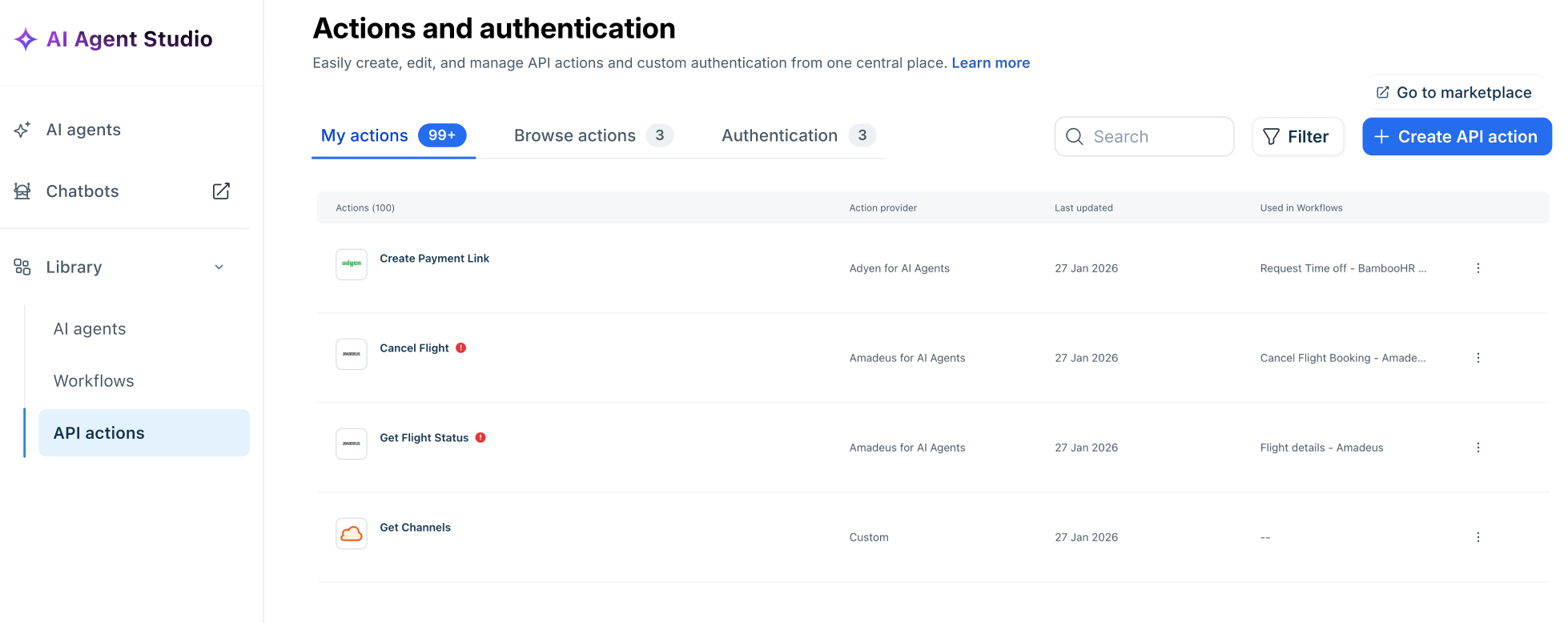
- On the Actions and authentication page, you'll find the Go to marketplace link to review your installed apps and manage them.
- You’ll also find the following tabs that help you manage and create API Actions efficiently:
- My actions: This tab lists the Actions linked to Workflows. You can view the Action Provider (for example, Shopify, Shiprocket, Freshdesk), along with the Workflow/s (for example, Order management, Shipping tracker, etc.) the Action is used in.
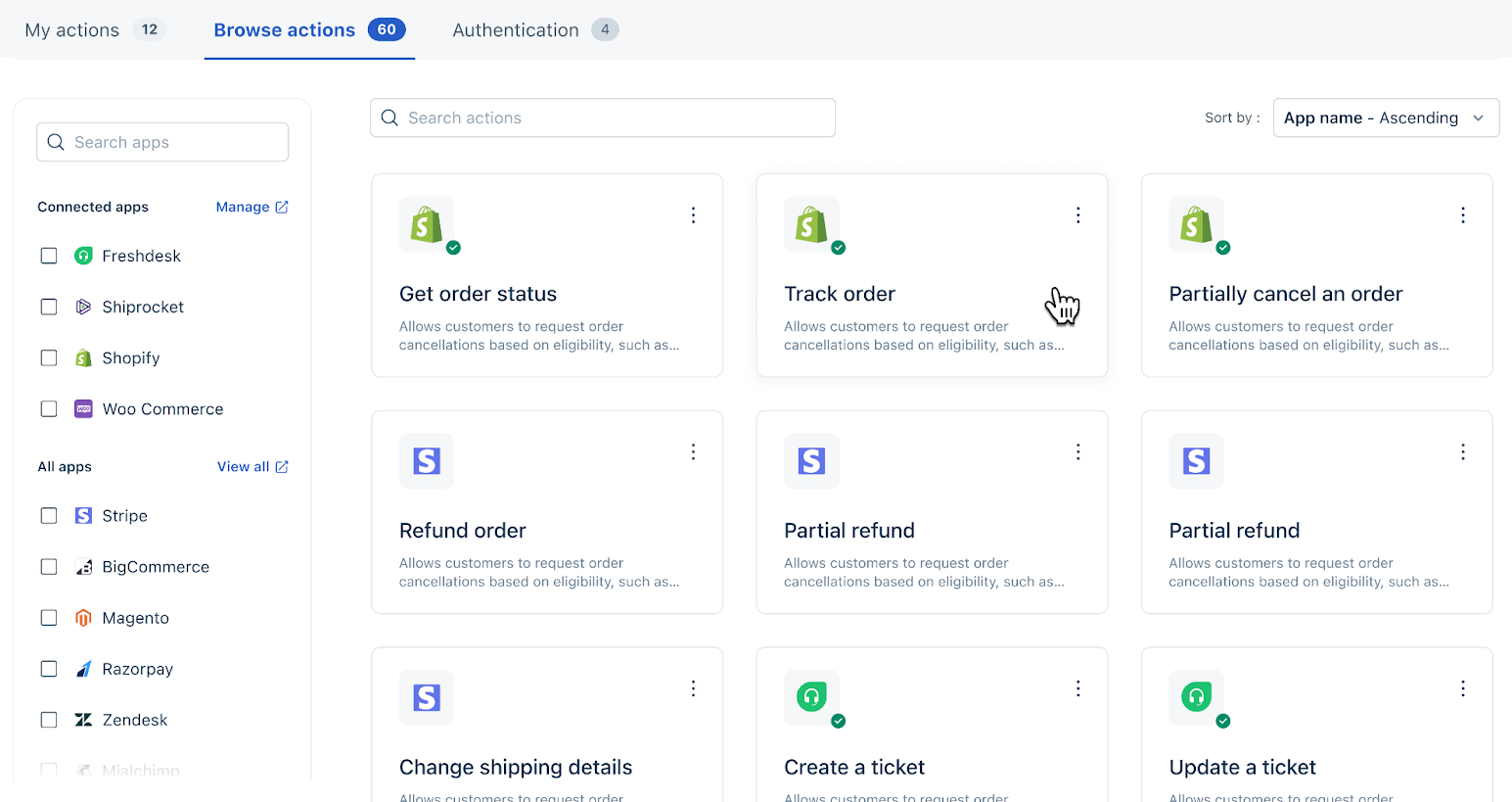
- Browse actions: Choose the Action that you want to use from a list of Actions provided by default.
- Authentication: Choose the Authentication required for Actions to confirm the user’s identity when retrieving details from an external app.
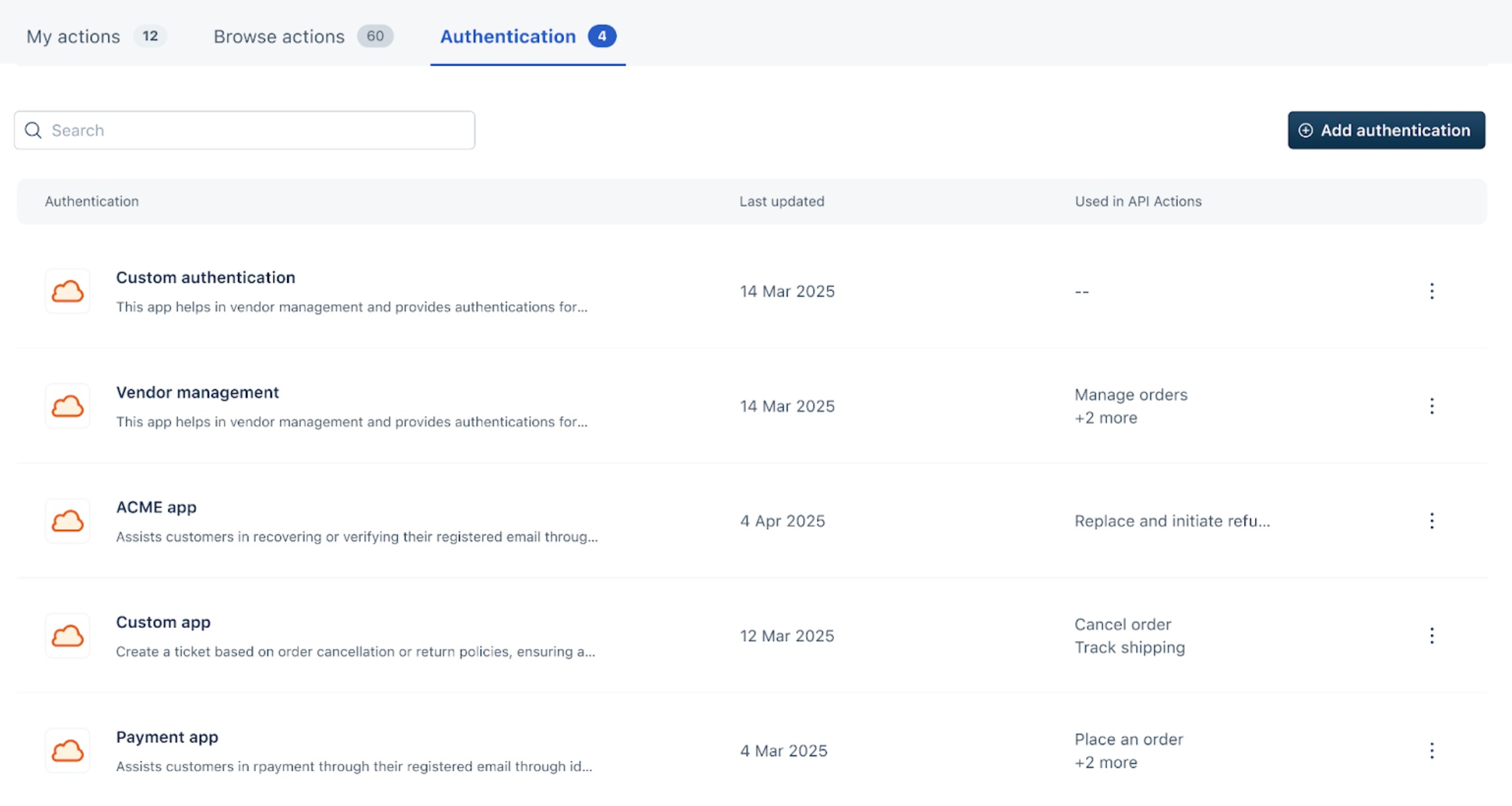
This API Actions tab lists all API actions in your account. Any action created here is available across all workflows and agents.
You can also create API actions directly while building a workflow. These inline actions are automatically saved to the library and become reusable.
Manage API Actions
You can manage default API Actions that are ready to use, or create an Action from scratch.
View, Edit, Clone, and Delete Pre-built or Default API Action
To manage a pre-built or default action,
- On the Actions and Authentication page, click Browse actions
- Here, you can select the API Action that you want for a particular app. You can search by Action (for example: Get order details) or app name (for example: Shopify). You can also filter by specific apps on the left, so Actions related to those apps appear.
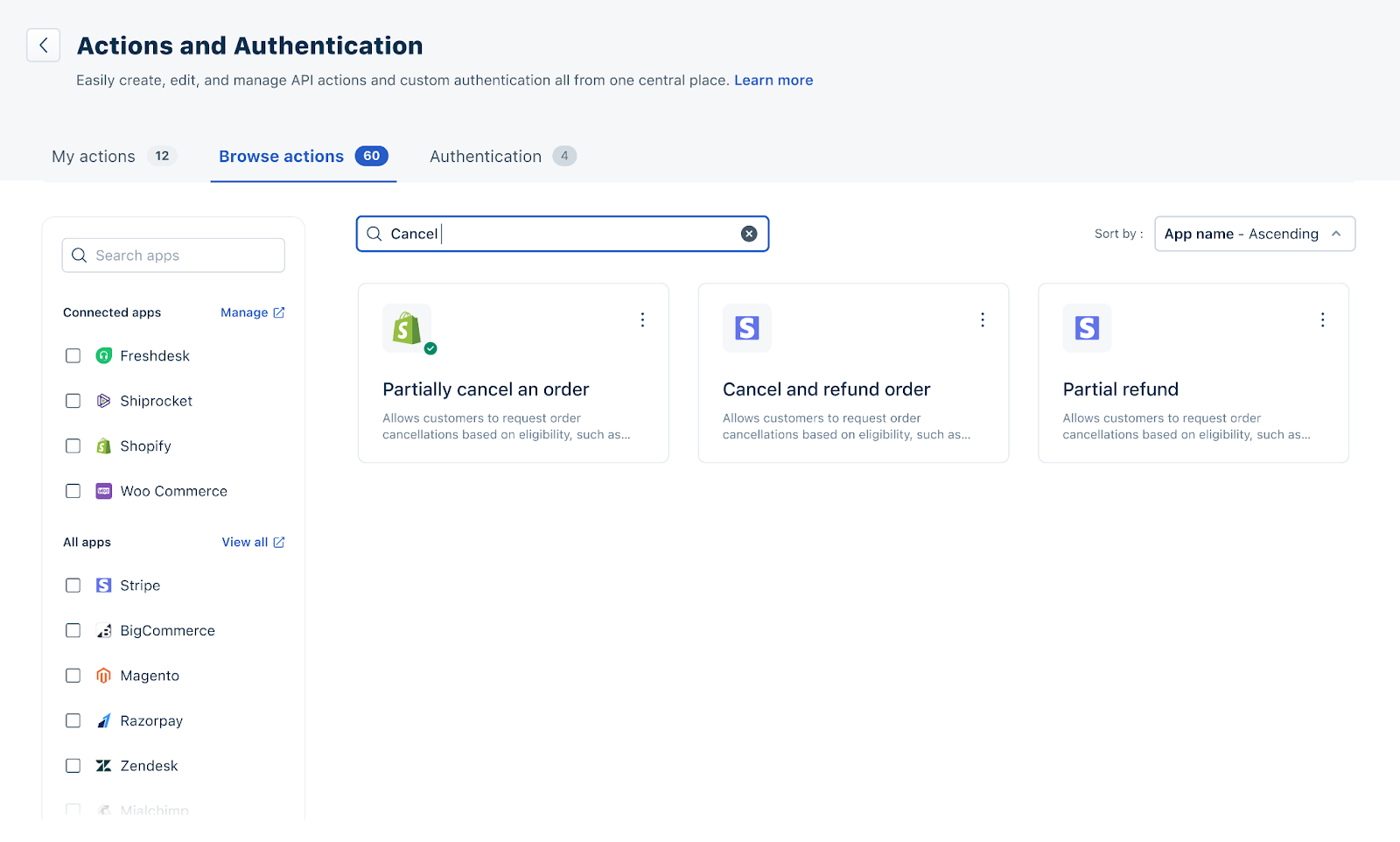
- You can also sort by App name or actions in either ascending or descending order.
- Click on the ellipses icon to the right of an Action. Here you can:
- Edit - Choose to edit the original or make a copy and edit in case the Action is tied to Workflow/s. Here, you can make changes to the name, description, input parameters, API connection parameters and authentication, and API response outputs.
- Clone - Make a copy of the Action and make changes on top of the cloned Action
- Delete - You can delete an Action if it is not used in a Workflow.
Create an API action
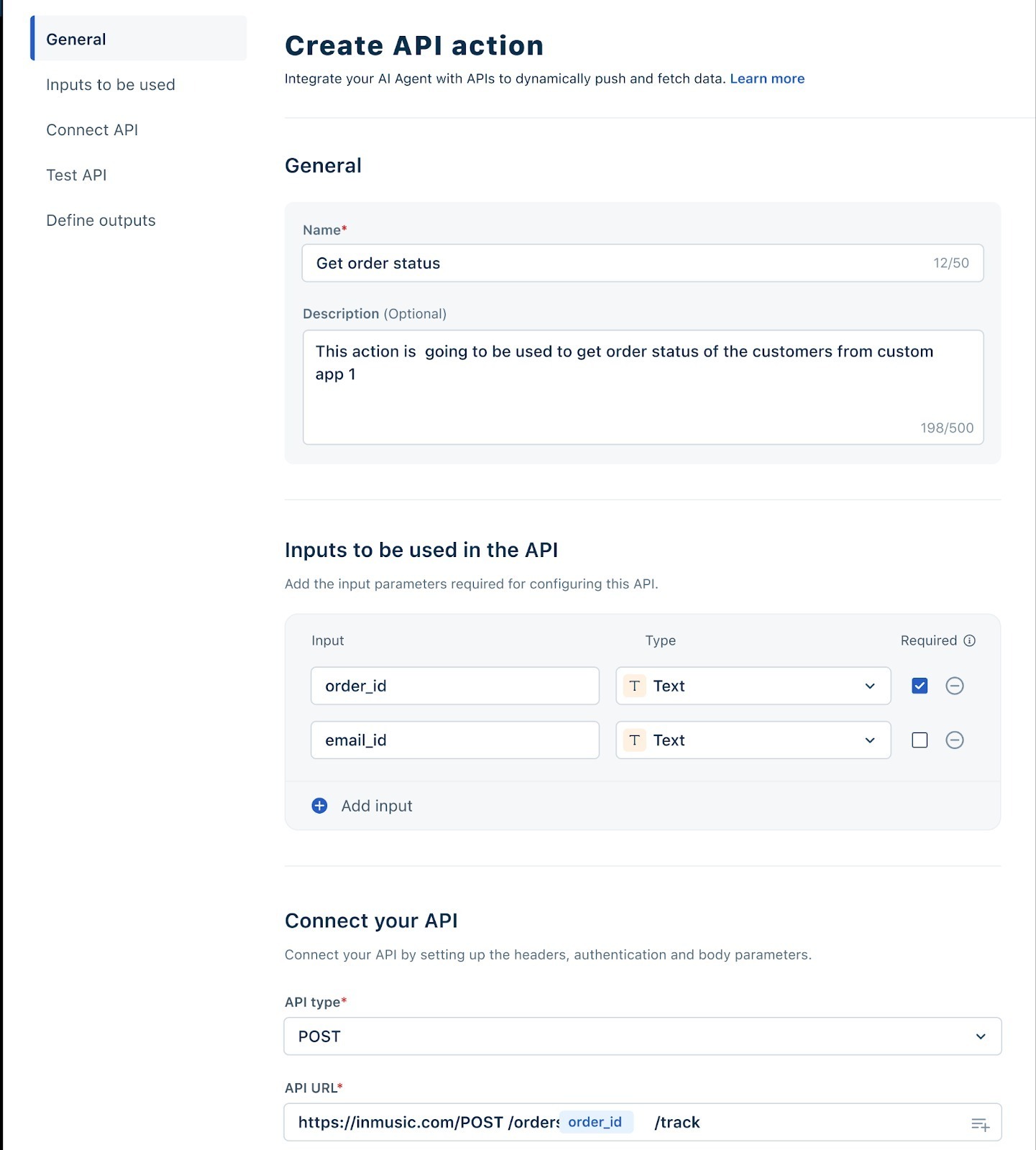
Creating an API action involves defining how your system communicates with an external endpoint.
Step 1 — Open the API Actions library
- In AI Agent Studio, select Library from the left navigation.
- Select the API Actions tab.
- Select Create API action. Alternatively, create one inline from the API action block inside a workflow.
Step 2 — Name and describe the action
- Enter a name that reflects the operation — for example, Fetch Order Status or Initiate Refund. Names appear in the workflow block picker, so clarity here saves time for every admin who uses the library.
- Add an optional description explaining what the action does and when to use it.
Step 3 — Configure the endpoint
Field | What to enter |
URL | The full REST endpoint URL — for example, https://api.yourstore.com/v2/orders/{{order_id}}/status |
Method | GET, POST, PUT, PATCH, or DELETE — choose the HTTP method the endpoint requires. |
Headers | Add any required headers. Common examples: Content-Type: application/json, Accept: application/json. |
Authentication | Select the authentication method: API Key, Bearer Token, Basic Auth, or OAuth 2.0. Credentials are stored securely and never exposed in workflow logs. |
Request body | For POST, PUT, and PATCH: define the JSON body. Reference workflow variables using the {{variable_name}} syntax. |
Note: URL path parameters can also reference workflow variables using {{variable_name}} syntax. For example, https://api.yourstore.com/orders/{{order_id}}/details passes the order_id collected from the customer directly into the path.Step 4 — Define input variables
Input variables are the values your workflow passes into the API at call time. Define them here so the API action block can map workflow variables to API parameters.
- In the Input variables section, select Add variable.
- Enter a variable name that matches the parameter the API expects — for example, order_id or customer_email.
- Select the data type: Text, Number, Boolean, or List.
- Mark the variable as Required if the API call fails without it.
- Repeat for each parameter the endpoint needs.
Best practice: Name input variables exactly as they appear in the API documentation. This avoids mapping errors when wiring the workflow.
Step 5 — Test the connection
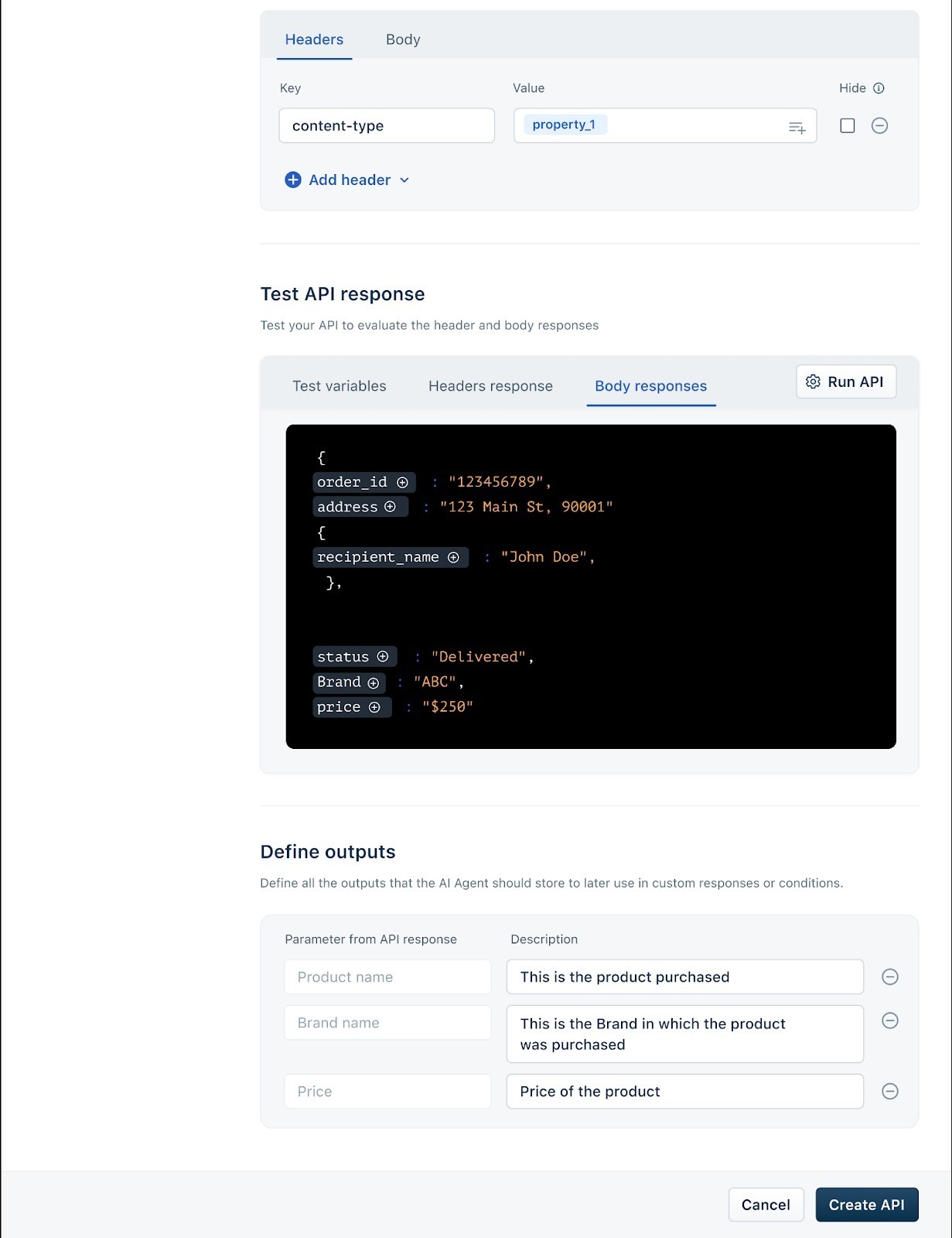
- Select Test API. A test panel opens.
- Enter sample values for each defined input variable.
- Select Run. The system sends a live request to the endpoint and displays the full response.
- Review the response body to identify which fields contain the data your workflow needs.
Note: Test requests use real values and may affect your external system depending on the endpoint. Use a staging or sandbox environment when testing write operations such as order cancellations or refunds.
Step 6 — Define output variables
Output variables extract specific fields from the API response and make them available as variables in the workflow.
- In the Output variables section, select Add variable.
- Enter the variable name you want to use inside the workflow — for example, order_status or refund_amount.
- Map it to the corresponding field in the response body using JSON path notation — for example, $.data.status or $.order.refundAmount.
- Select Save.
Once saved, these output variables appear in the workflow builder wherever variables can be referenced — in Send message text, Condition rules, Set variable expressions, and subsequent API action parameters.
Best practice: Extract only the fields your workflow actually uses. A clean output variable set is easier to maintain and debug.
Step 7 — Save the action
- Select Save. The action is added to the library and available to all workflows immediately.
- To edit it later, return to Library > API Actions, select the action, and modify any field. Changes affect all workflows that reference this action.
Important: Editing a shared API action — changing its URL, parameters, or output variable structure — affects every workflow that uses it. Test changes in a non-production environment before saving to the library, and review all dependent workflows afterward.
Use an API action inside a workflow
The API action block connects your workflow to an external system in real time. See Workflows for AI Agents on adding an API action block within a workflow.
You can use the output of one API action as the input to a subsequent API action in the same workflow. This enables multi-step orchestration without re-collecting customer data.
For example: Fetch order → Initiate refund — UrbanCart
A customer contacts UrbanCart wanting to cancel a recent order and receive a refund. The workflow handles the full operation in two chained API calls:
Step 1: Collect Order ID and email from the customer.
Step 2: API action — Fetch Order Details. Outputs: {{order_status}}, {{customer_id}}, {{payment_method}}, {{order_total}}.
Step 3: Condition — if order_status is "Shipped", route to agent. If "Processing", proceed to refund.
Step 4: API action — Initiate Refund. Inputs: {{customer_id}}, {{order_total}}, {{payment_method}} — all taken directly from the previous API output, no re-collection needed.
Step 5: Custom response confirms the refund amount and expected timeline.
Because output variables are scoped to the workflow session, any block after an API call can reference its outputs — including subsequent API actions, Condition path rules, and Custom response messages.
Channel difference:
Chat AI agent: API action blocks execute synchronously during the conversation. The text input is unavailable while an API call is in progress. Timeout or failure causes the workflow to route to the Fallback path. For chat-specific workflow behaviour, see Set up workflows for AI agents.
Email AI agent: API actions in email workflows execute as part of the AI agent's response generation cycle. Because there is no live conversation, the workflow does not prompt for confirmation interactively — confirmation blocks are skipped for email agents. Ensure high-impact operations in email workflows have appropriate safeguards at the API layer. See Configure email trigger rules and automation.
Authentication in API actions
Authentication lets your AI Agent securely connect to external applications or systems using credentials such as API keys, tokens, or login details. It ensures that when your AI Agent makes a call to an external API (for example, to fetch order details or update records), the target system recognizes and trusts the request.
Without authentication, APIs would reject requests because there’s no way to confirm that the requester has permission to access the data.
Authentication is essential for:
- Secure access – It prevents unauthorized users from retrieving or modifying sensitive data.
- Controlled communication – Ensures that only verified systems can exchange data.
- Reusability – You can create one authentication setup and reuse it across multiple Actions within the same system.
Create a New Authentication
- Go to AI Agent Studio > Library > API Actions > Actions and Authentication page > Authentication tab.
- Click New Authentication.
- Provide the following details:
- Name – Give your authentication a recognizable name (e.g., Order Management API Auth).
- Description – Briefly describe its purpose (e.g., Used for connecting Freshdesk AI Agent with the order management system).
- Headers– Enter the required authentication parameters, such as:
- Authorization: Bearer <your_api_token>
- Content-Type: application/json
- Click Save to create the authentication setup.
Example: Fetch a customer’s recent order details from your e-commerce app.
- The e-commerce API requires an Authorization Token to verify your identity.
- You create an authentication named Ecom Orders Auth, where the header looks like this:
Key: Authorization
Value: Bearer abcd1234xyz
- Once saved, this authentication can be selected in your Action setup (under Connect API) so that every API call your AI Agent makes is verified automatically.
Add an Authentication to an API Action
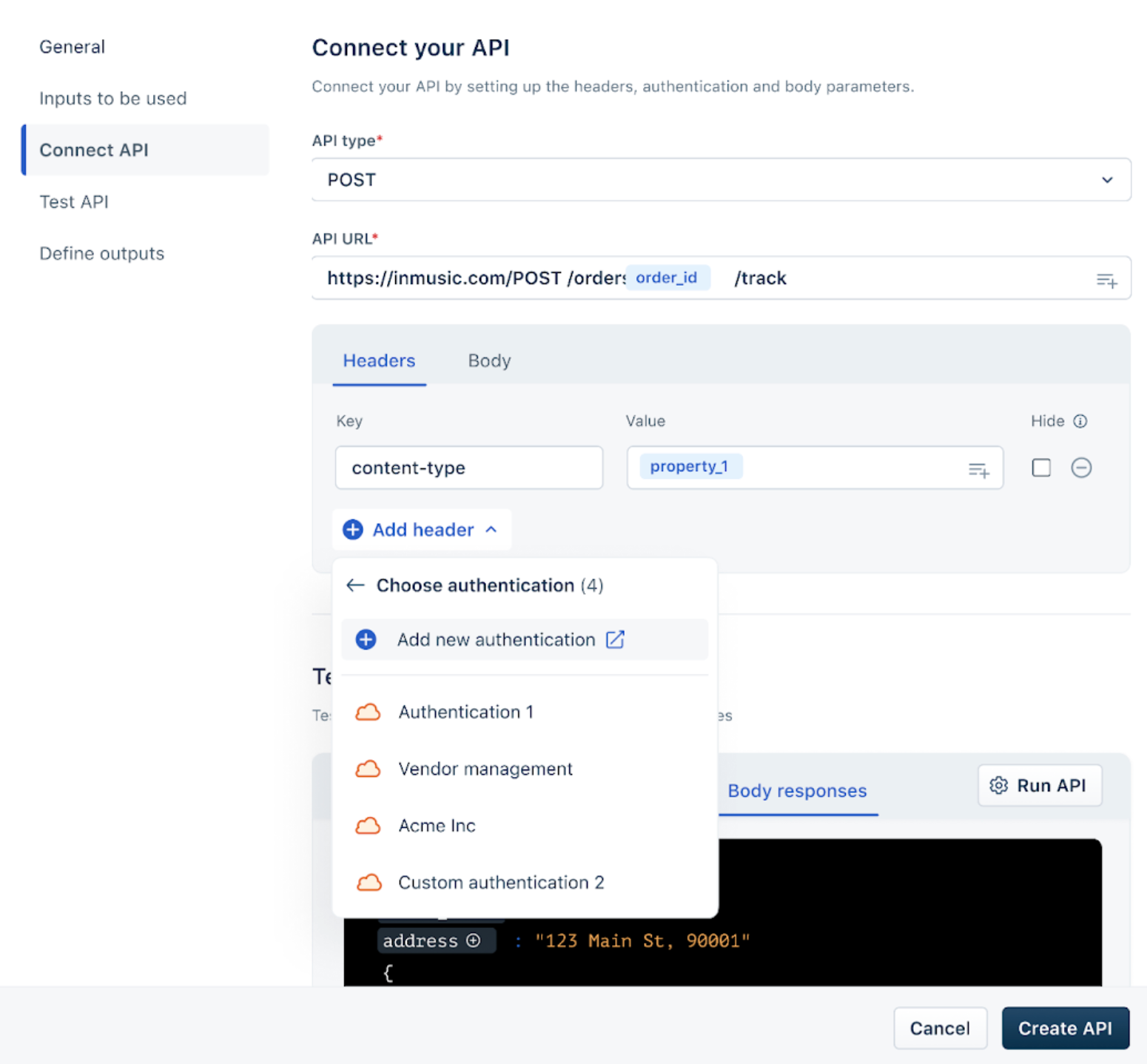
When you create an API Action, you can choose an existing Authentication setup from the dropdown in the Connect API section.
This ensures that every request sent by the Action carries valid credentials — meaning your AI Agent can fetch or update data securely without requiring you to manually enter authentication details for every API call.
Note: You can add only 1 Authentication per Action.
Edit or delete an Authentication
To edit an Authentication,
- Go to AI Agent Studio > Library > API Actions > Actions and Authentication page > Authentication tab.
- Click the ellipsis icon to the right of the Authentication and Edit.
- In the pop-up that talks about the API Actions that are using this Authentication, click Proceed.
To delete an Authentication,
- Go to AI Agent Studio > Library > API Actions > Actions and Authentication page > Authentication tab.
- Click the ellipsis icon to the right of the Authentication and Delete
- In the confirmation pop-up that appears, click Delete Authentication.