The Collect User Details feature in Freddy AI enables your AI Agent to gather essential contact and conversational information from users. This includes contact details such as name, email, and location, as well as up to five custom conversation properties like topics of interest or preferences. This ensures smoother handoffs to human agents and more personalized AI responses.
Key Benefits
Seamless transitions: Capture user details before agent handoff.
Personalized support: Store preferences and discussed topics.
Improved efficiency: Reduce repetitive questions in conversations.
Steps to Collect User Details
Click the AI Agent Studio option from the navigation menu.
Click on an AI Agent > Configure > Settings > Collect user details.
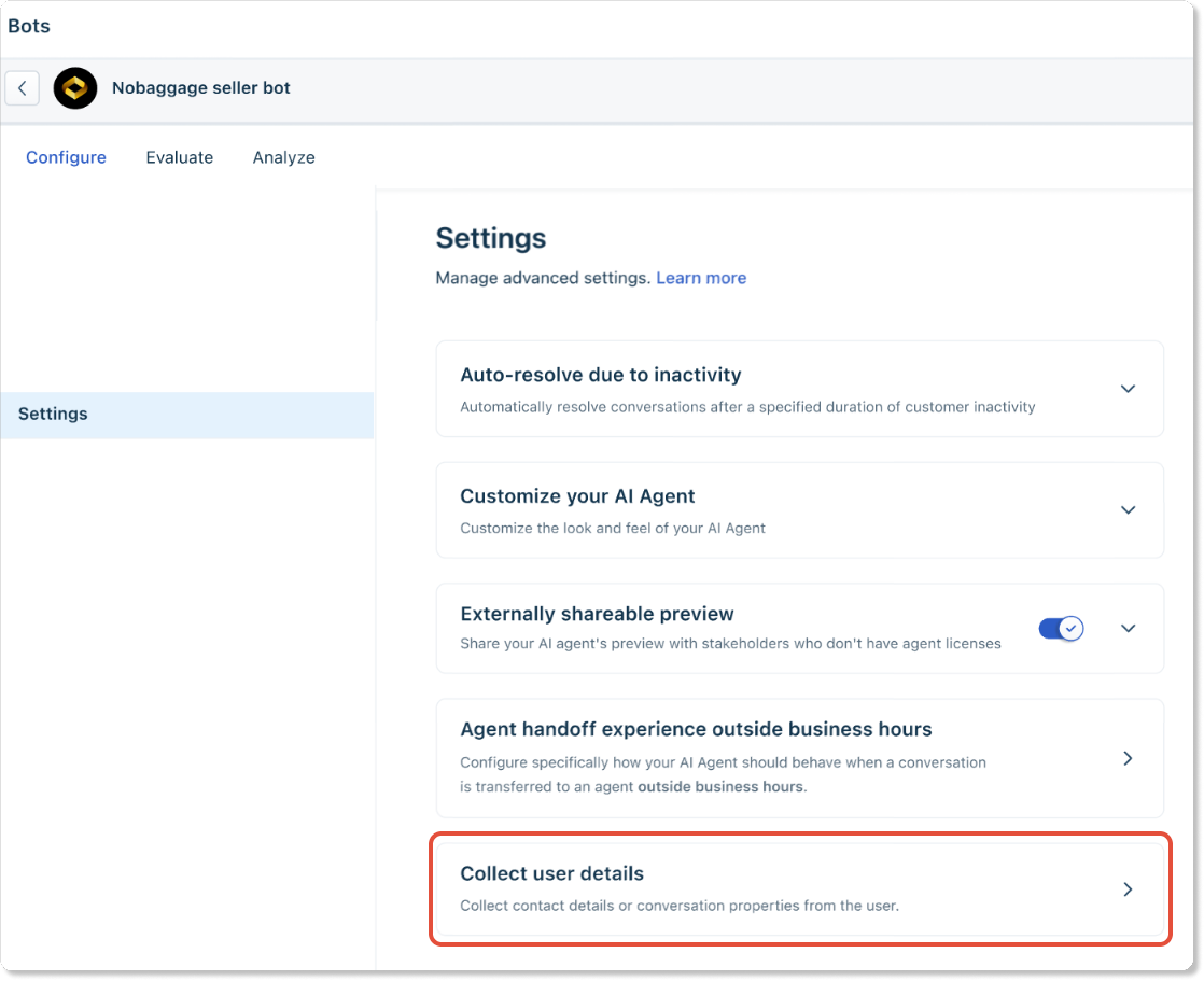
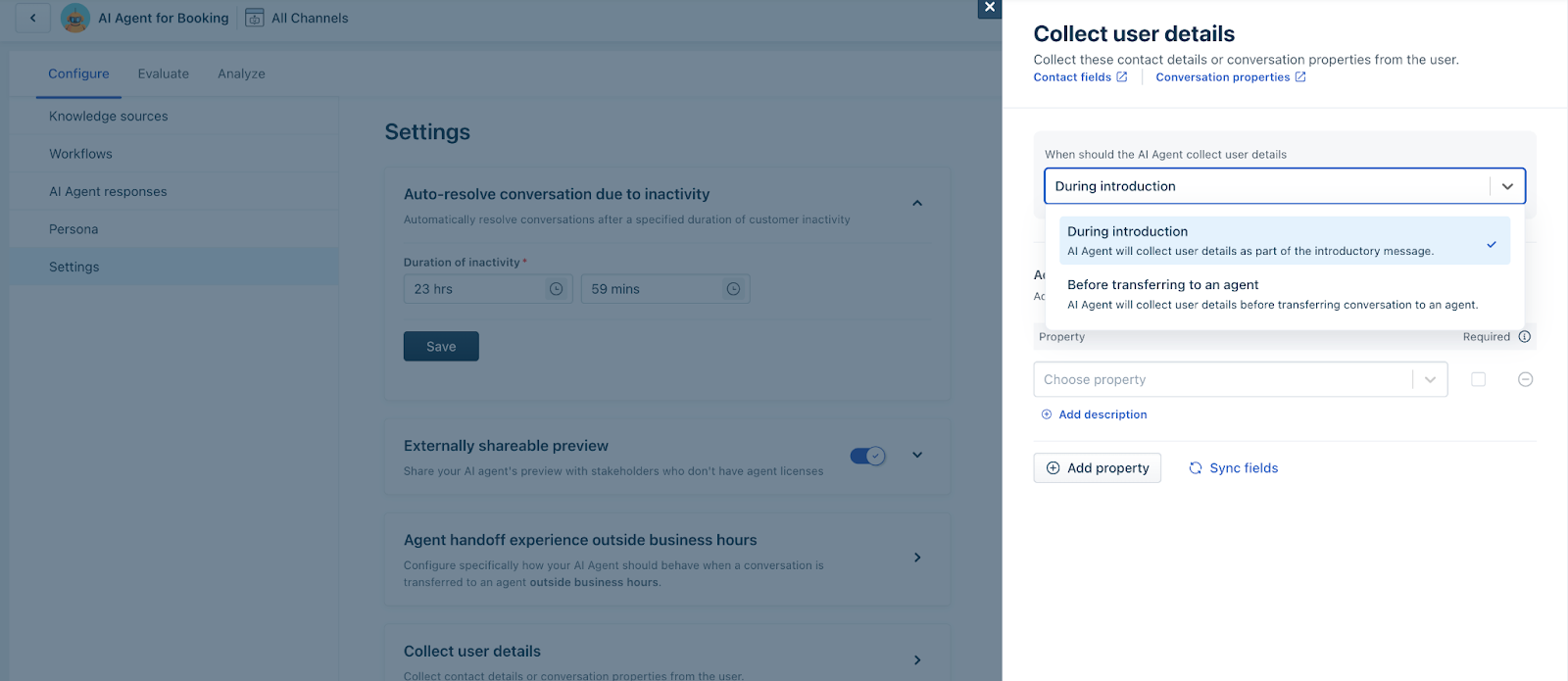
In the Collect user details overlay, you’ll see two main settings to configure:
When should the AI Agent collect user details?
During Introduction: User details are collected as part of the AI Agent’s initial greeting.
Before transferring to an agent: User details are collected before the conversation is handed over to an agent
Property collection will be triggered in the following scenarios:
When queries are left unanswered
When the user explicitly requests an agent
When negative feedback is received
When a user’s query falls under sensitive topics
Note:
User property collection occurs only if Collect user details is enabled in AI Agent Studio > Click on an AI Agent > Configure > Settings.
Properties are not collected if a conversation is handed over to agents through Workflows
Properties are skipped from being collected if they are already passed through the web widget script or exist in the user or conversation properties.
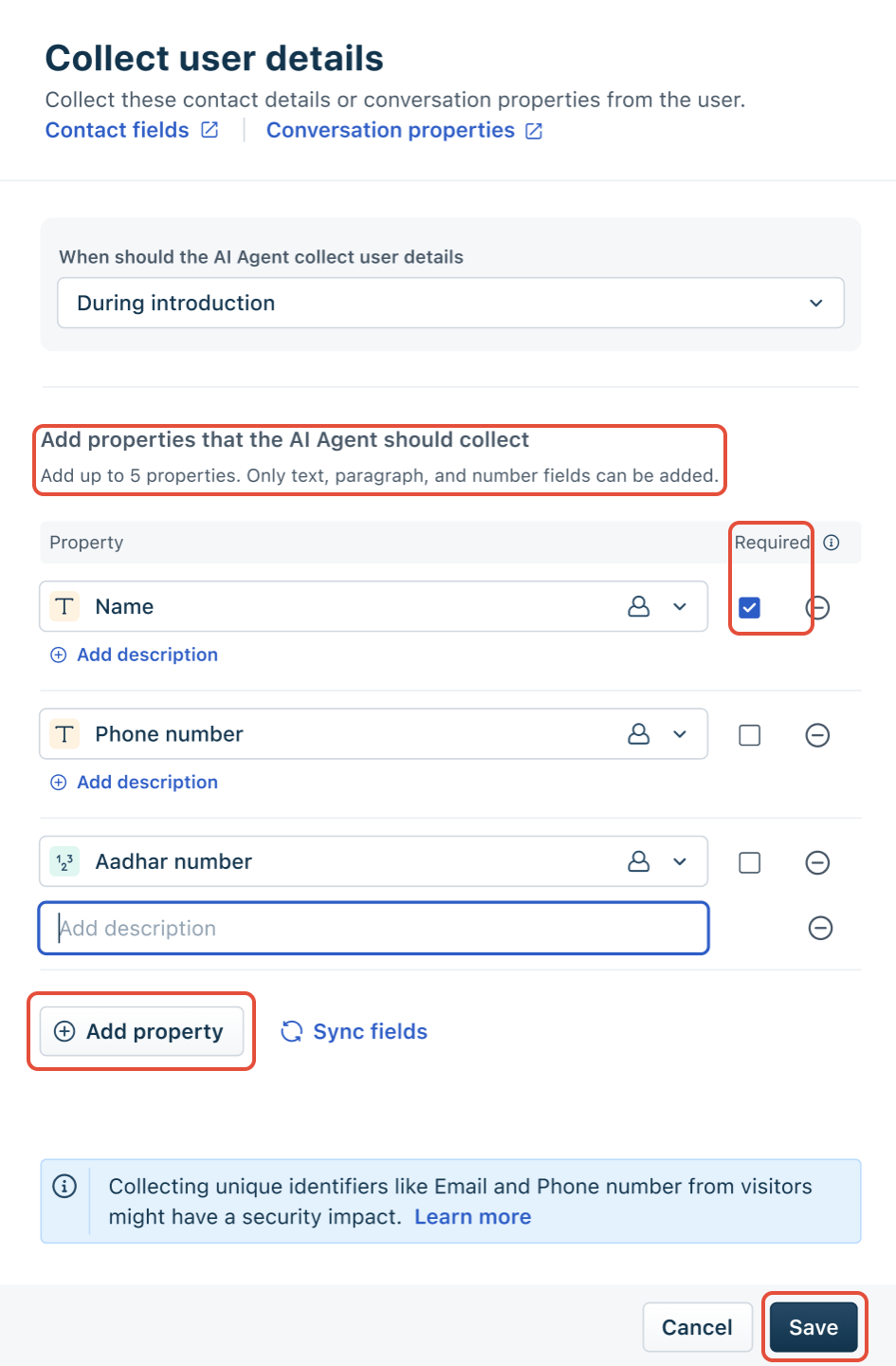
Add Properties to Collect
Click Add property to select from available text, paragraph, or number fields.
You can add up to 5 properties. If the property name is not self-explanatory, you can use the +Add description option to provide additional context.
Properties that are not marked as Required can be skipped by the AI agent if the customer denies them or requests other information.
Once you’ve set up the fields and preferences, click Save.
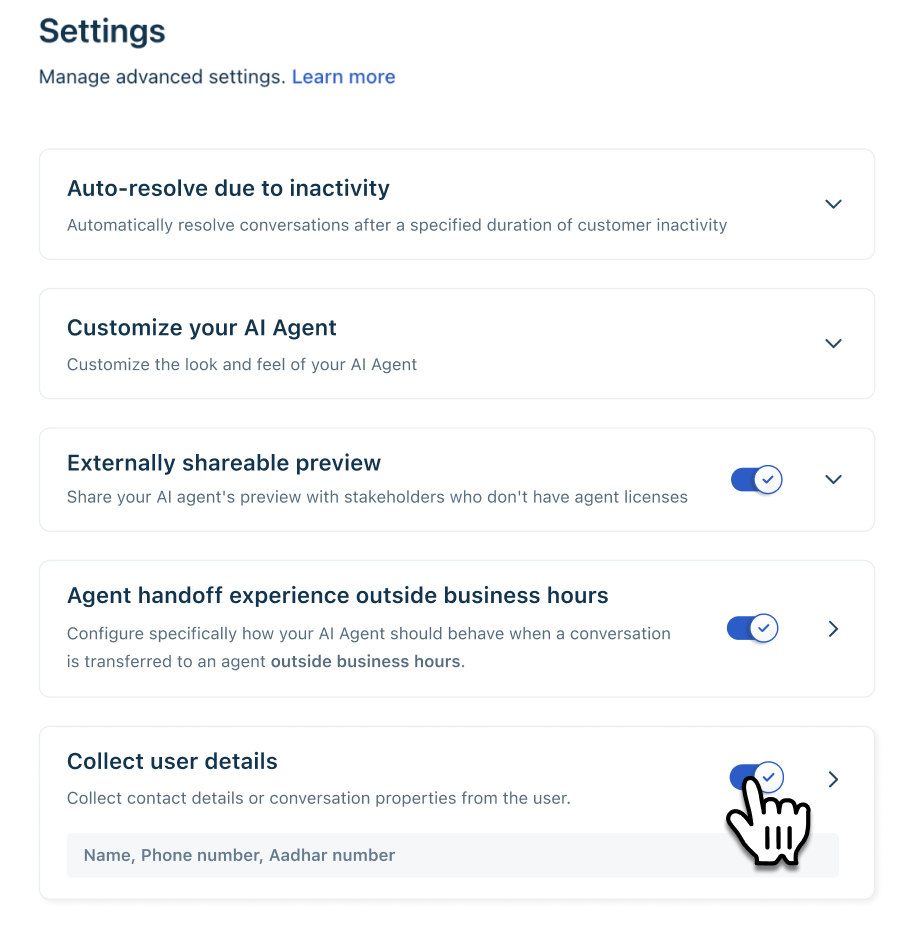
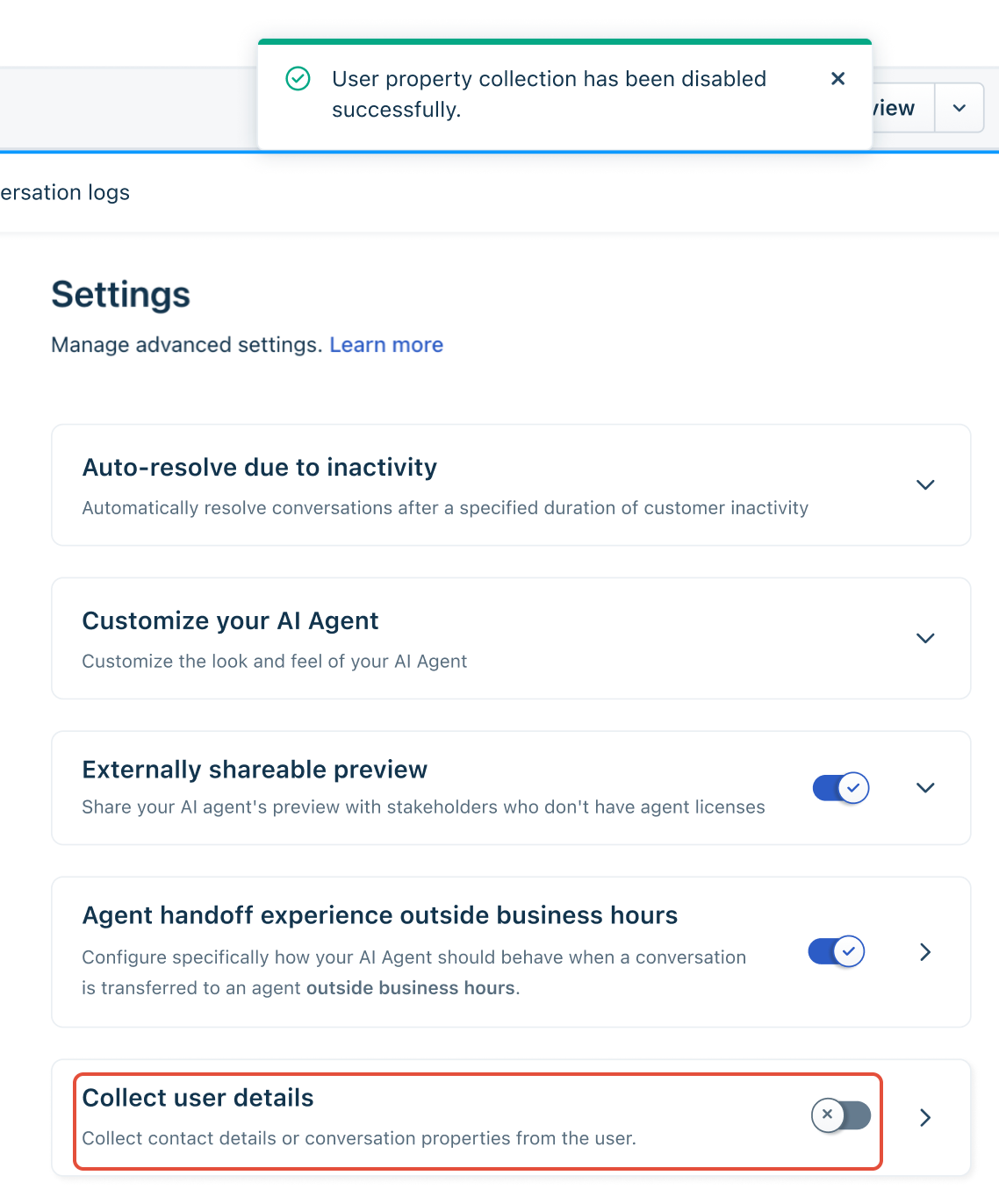
A toggle will appear next to Collect user details to indicate the feature is active.
Note: Collecting unique identifiers like email or phone numbers could have security implications. Please ensure compliance with your organization's data policies.
Disable User Details Collection
If you decide to stop collecting user details:
Navigate to AI Agent > Configure tab > Settings > Collect user details.
Toggle the switch off.
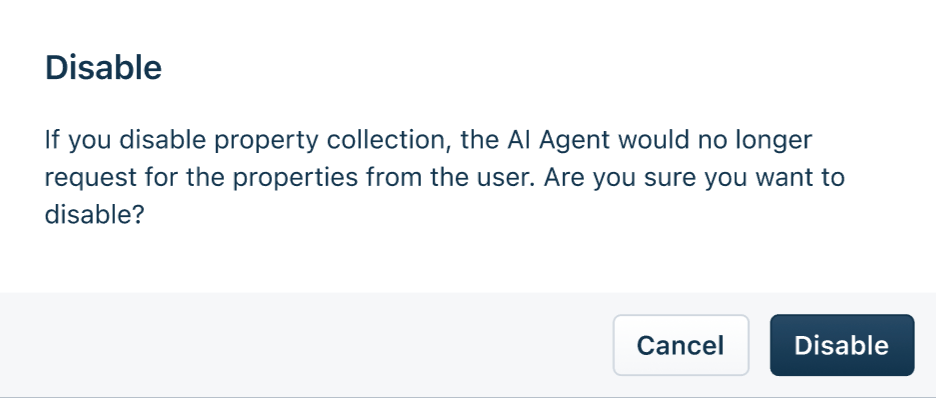
A confirmation message will appear:
“If you disable property collection, the AI Agent would no longer request for the properties from the user. Are you sure you want to disable?”Confirm to disable.
Remove a User Property
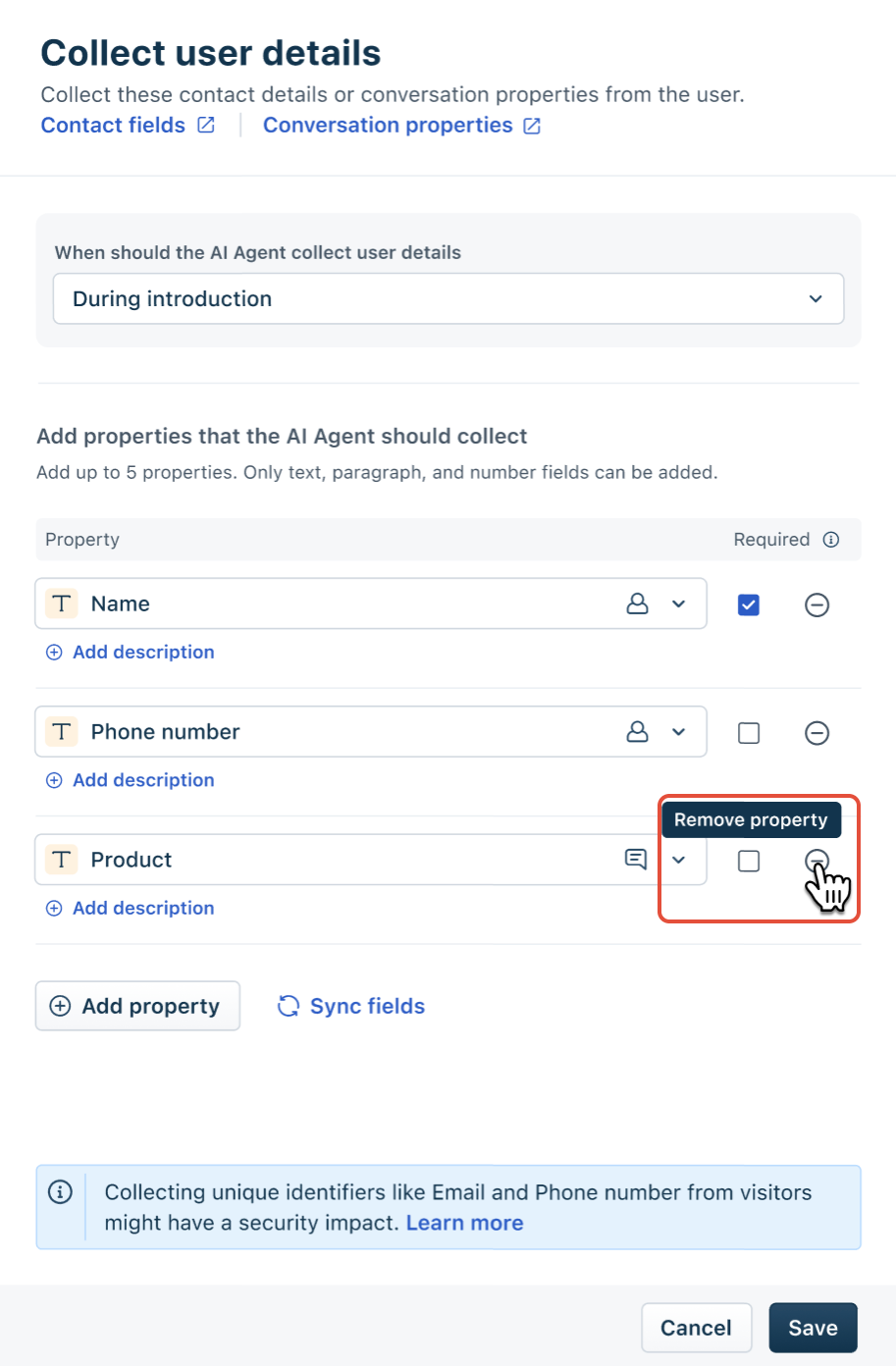
Go to AI Agent Studio > Click on an AI Agent > Configure > Settings > Collect user details.
In the overlay, find the property you want to delete and click the Remove property icon.
Click Save to finalize changes.
Note:
If a selected property has been deleted from your contact fields or conversation properties, you will see the following error next to that field:
“This property was removed from contact fields/conversation properties. Select a different property or remove it to proceed.”
To resolve this, either choose a new property or delete the invalid one from your configuration.
Sync Fields
To ensure your AI Agent is always working with the most current set of fields from Freshchat, use the Sync fields option.
Click Sync fields in the Collect user details overlay.
This action pulls in any new fields added or removes deprecated fields from your Freshchat configuration.
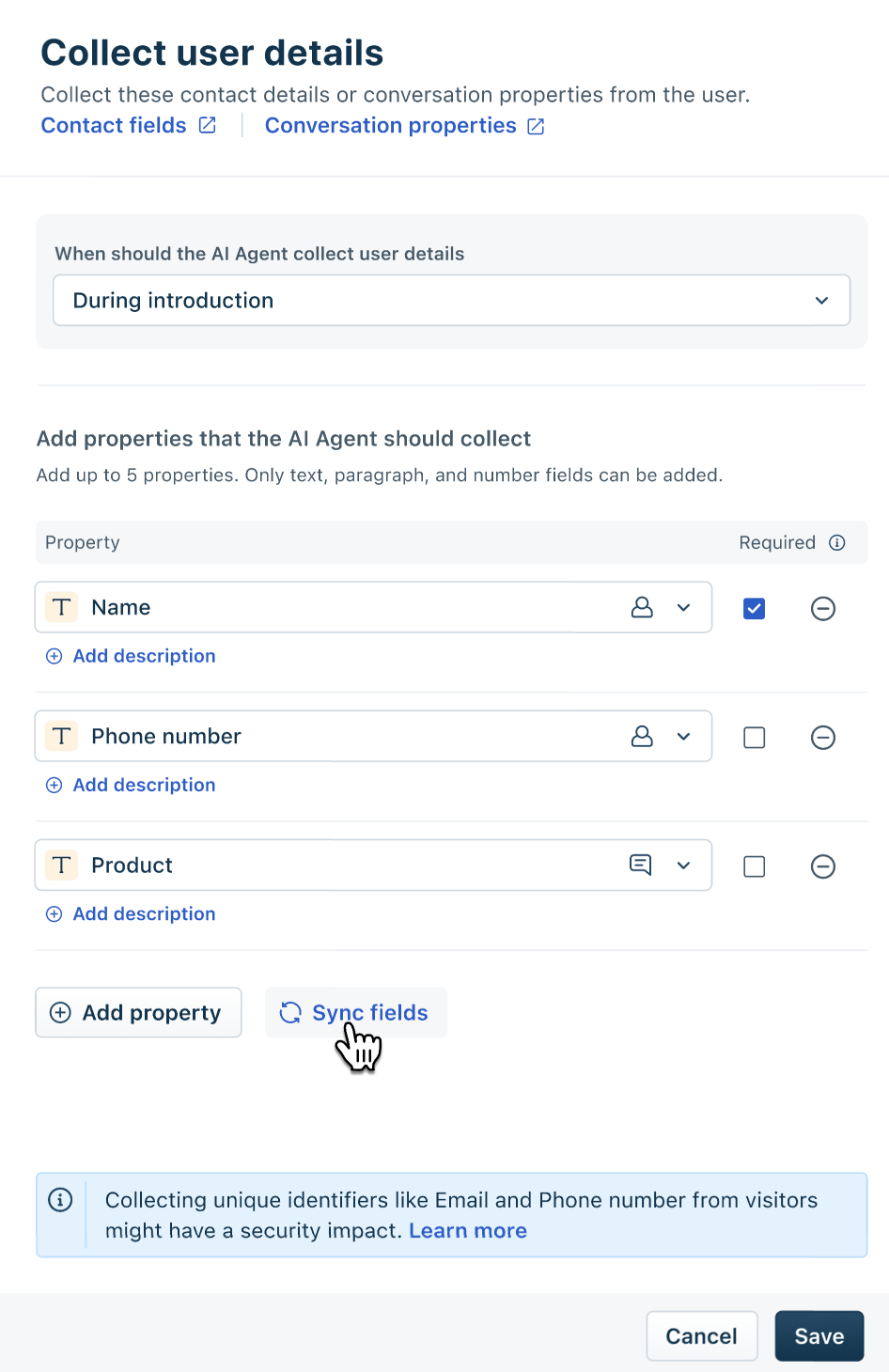
After syncing, the latest set of contact or conversation properties from Freshchat will be available for use in your AI Agent setup.