Applicable Plan
| Freshdesk | Pro, Enterprise |
| Freshdesk Omni | Pro, Enterprise |
Table of contents
Overview
Load-balanced ticket assignment lets you define the number of tickets an agent can handle during the configured business hours. Incoming tickets are routed first to the least loaded agent and then distributed across the group until each agent hits the maximum configured limit. This prevents agents from getting overloaded and helps maintain predictable response times.
For details on other routing methods, see Advanced Automatic Routing.
User requirements: Ensure that you have admin access to enable load-balanced ticket assignment.
Before you begin:
Before setting up load-balanced ticket assignment, ensure you have set up and understand a few key concepts:
- Configure Omniroute settings
All automatic ticket assignments are powered by Omniroute, so ensure you have set up Omniroute. With Omniroute, you can:- Control who can change agent availability
- Control agent ticket load capacity
- Choose assignment preference order
- Check SLA impact
Only tickets with an active SLA timer count towards an agent’s workload and are picked for assignment.
Note: You can decide which statuses should be excluded from counting toward an agent’s ticket capacity, even when the SLA timer is active in Assignment Preferences.
How does load-balanced ticket assignment work?
- Identifies agent availability
Checks which agents in the group are available to receive tickets. - Computes the current agent load
Counts the number of SLA-ON tickets each available agent currently has. If an agent is already at maximum ticket capacity, they will be skipped from ticket assignment. - Checks ticket assignment preference
If multiple tickets are waiting for assignment, the assignment preference order will be checked to determine which ticket to assign. - Identifies the least loaded agent
Identifies the agent that has the least load, and assigns the ticket to them.
Tickets continue to be assigned to other agents until each agent reaches the configured threshold.
When does an agent’s load decrease?
An agent’s current load reduces in the following cases:
- A ticket is resolved.
- A ticket is moved from SLA-ON to an SLA-OFF status
- A ticket is deleted or marked as spam.
Note: If a ticket is manually assigned to an agent, it can cause that agent’s assigned ticket count to temporarily exceed their configured limit. Manually added tickets count as excess and will block automatic assignment to that agent until their count falls back below the threshold.
Examples of load-balanced ticket assignment
Use case 1: Balanced ticket distribution
Your Refund team has two agents, Clara and Dan, with a maximum ticket capacity of five.
Here’s the current assignment scenario:
Clara: 4 active tickets | Last ticket assigned time: 5 minutes ago
Dan: 4 active tickets | Last ticket assigned time: 4 minutes ago
Since both agents have reached the maximum limit of 5, the next ticket can be assigned to both. To decide fairly between the two, each agent’s last received ticket time is checked.
Since Clara’s most recent ticket was assigned slightly earlier (5 minutes ago) than Dan’s (4 minutes ago), it will be assigned to Clara.

Use case 2: Balancing workloads when one agent has reached maximum capacity
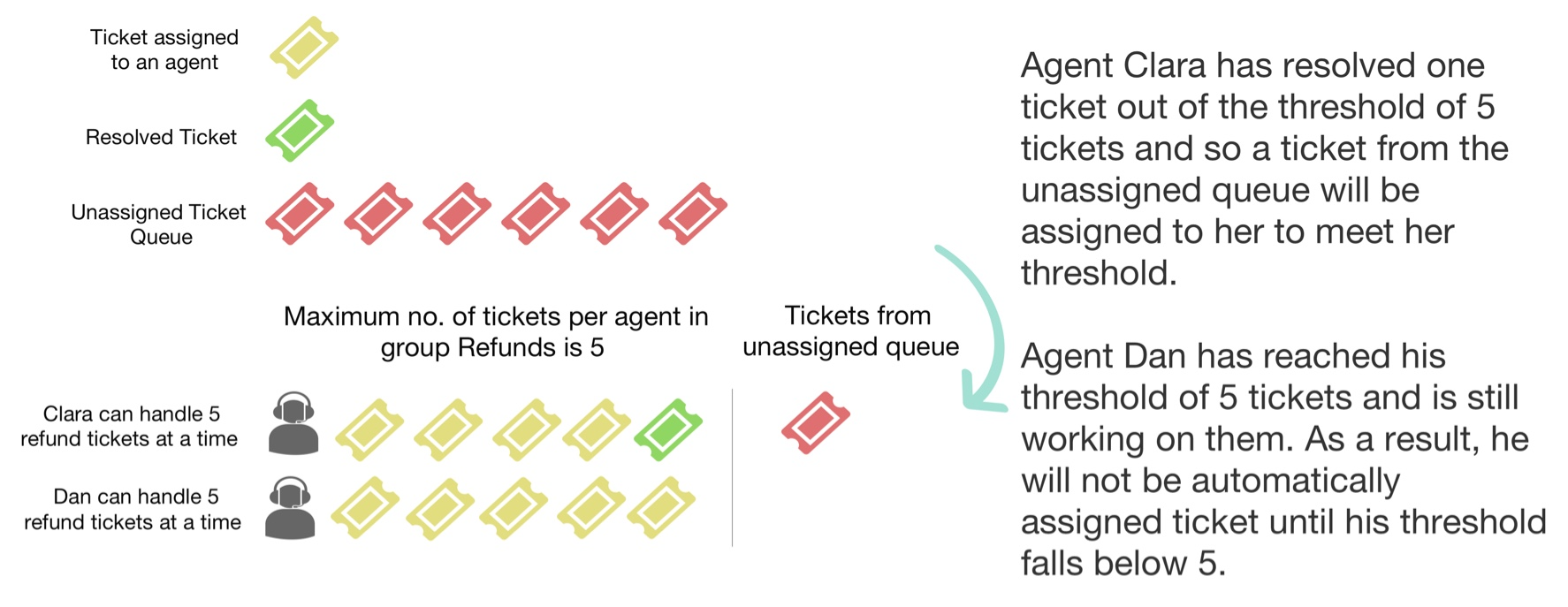
Continuing from the previous scenario, we know that Clara has resolved one ticket and has four active tickets remaining, while Dan still has five active tickets and is currently at full capacity.
Whenever a new ticket is created or reassigned from another group:
- The workloads of both agents are checked.
- Since Clara is able to take on one more ticket (4 out of 5), the new ticket is automatically assigned to her.
- Dan will not receive any new tickets until he resolves at least one.
Use case 3: When both agents are unavailable for new tickets
With the same use case above, consider the following scenario:
- Clara has reached the limit of 5 active tickets and cannot be assigned new tickets until she resolves one.
- Dan has resolved some tickets but is currently offline. As he is unavailable, he cannot receive new tickets.
In this case, the ticket will remain unassigned, unless one of the agents is available.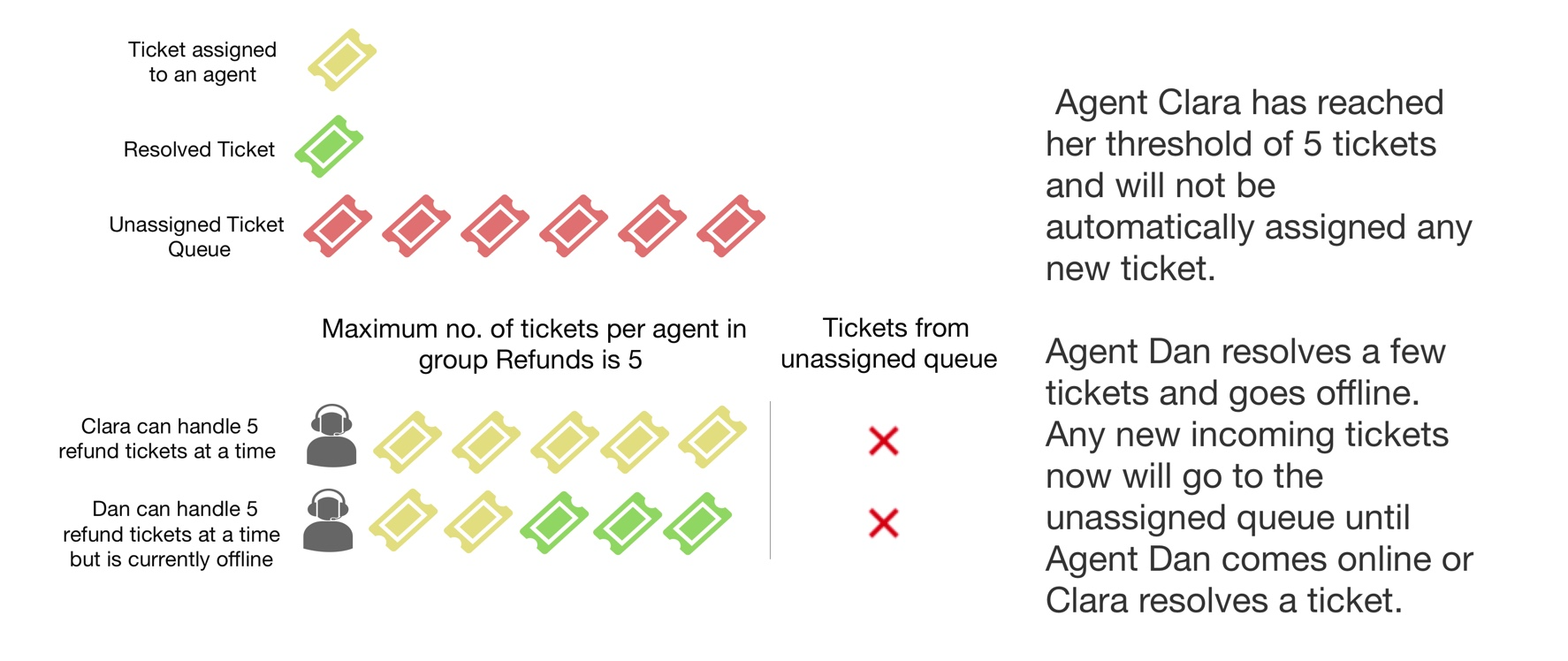
Enable Load-based ticket routing
To enable Load-based ticket routing method:
- Log in to your account as admin.
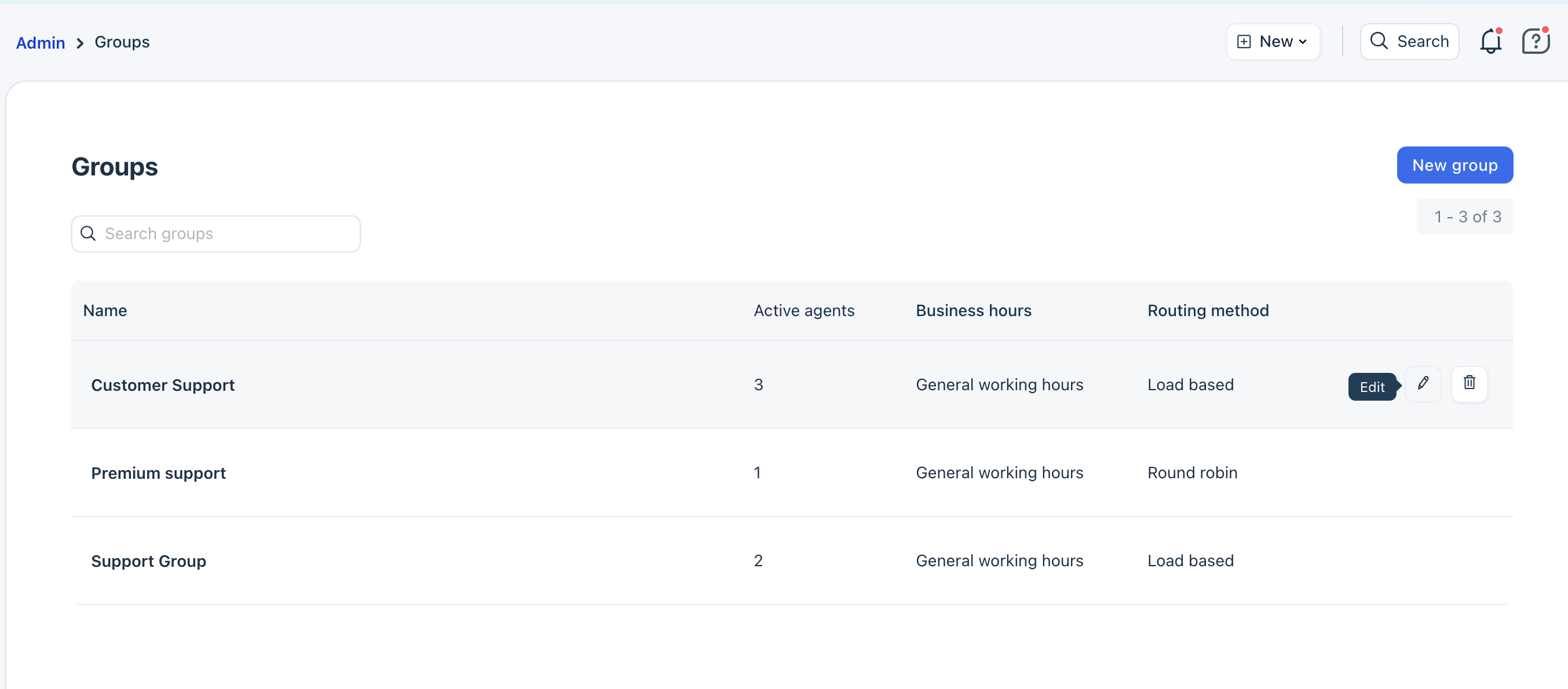
- Go to Admin > Groups.
- Click on the edit icon next to the group.
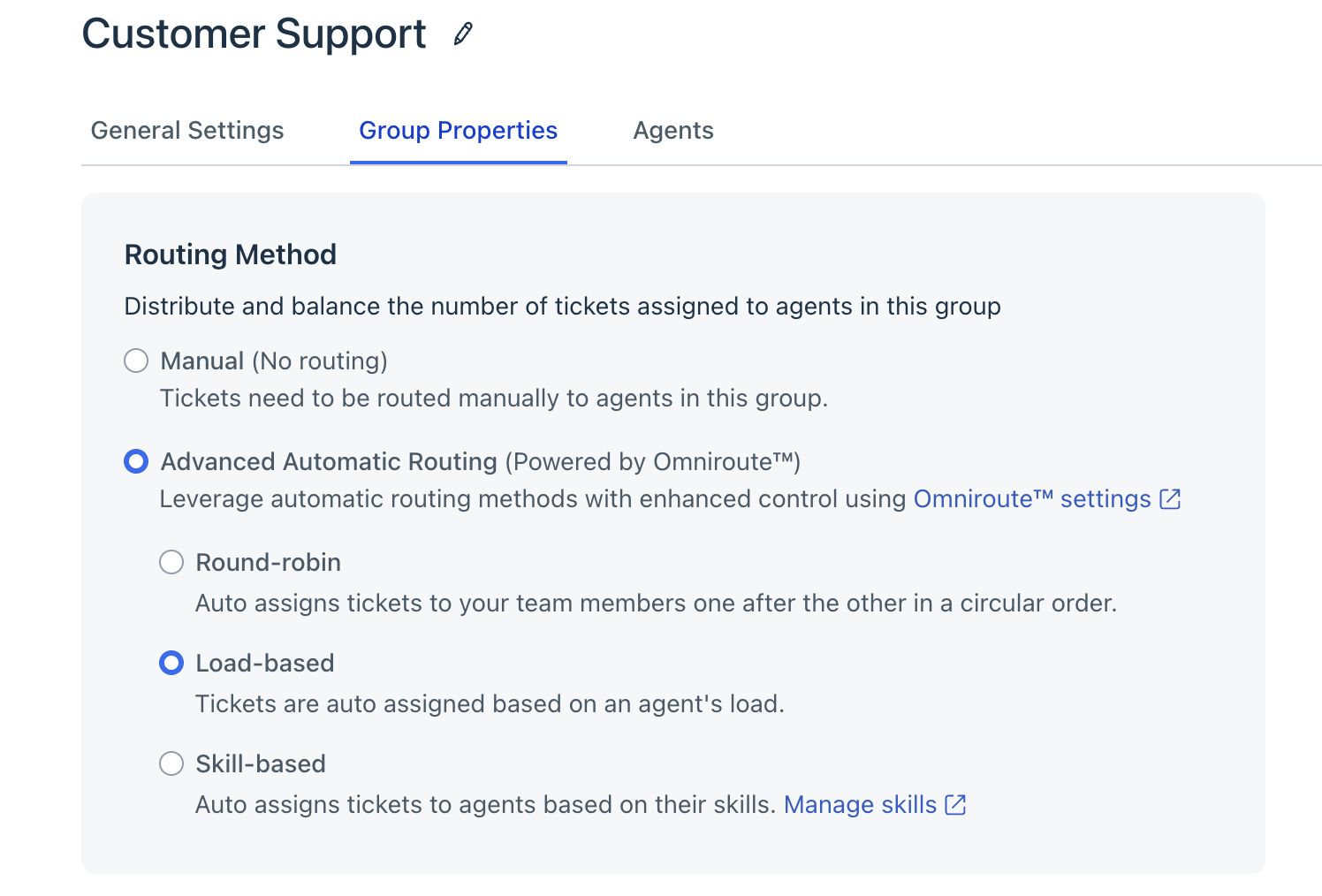
- Switch to the Group Properties tab.
- Select Advanced Automatic Routing and choose Load-based.
- Click Save.
Tip:Click the Omniroute settings link to configure Omniroute, if you haven't already.
Applicable Plans
| Freshdesk | Pro, Enterprise |
| Freshdesk Omni (formerly CSS) | Pro, Enterprise |
| Omnichannel (classic) | Pro Omnichannel, Enterprise Omnichannel |
| Freshdesk (previous) | Estate, Forest |
| Omnichannel (classic-previous) | Estate Omnichannel, Forest Omnichannel |
With load-balanced ticket assignment, you can define the number of tickets an agent can handle at any given time. This way, you can ensure that your agents aren't overwhelmed; especially those who already have a lot of pending tickets.
How load-balanced ticket assignment works?
When tickets are assigned to a group, they are assigned to the least loaded agent first and are then distributed to other agents in the group until they reach the threshold you've set. Thereafter, tickets are assigned to an agent as and when they resolve one of the assigned tickets.
While computing the current load of an agent, only tickets with SLA ON status will be considered. Load-based ticket assignment is supported by Omniroute. You'll be able to set the global limit and the assignment preference under Omniroute.
How is an agent's load determined?
An agent's current load decreases when:
- They resolve a ticket
- They change a ticket from Open to Waiting on Customer (or another SLA OFF status)
- They delete a ticket or mark it as spam
If a ticket is manually assigned to an agent, the number of tickets assigned to them could exceed their maximum load.
Let's look at a team where two agents are routed via load-balanced ticket assignment. The maximum number of tickets has been set to 5 tickets per agent.
SCENARIO 1
SCENARIO 2

SCENARIO 3

Note: If a ticket is manually assigned to an available agent, it will be counted as excess and so new tickets won't be assigned to this agent until his/her number of tickets falls below the set threshold.
For example, if Dan's already reached his threshold of 5 tickets and is assigned 2 more tickets manually, he will not be automatically assigned tickets until his number of assigned tickets drops below 5.
How to set up load balanced assignments (legacy LBRR)?
- Log in as an admin.
- Go to Admin >Team > Groups, and click Edit next to the group you want to modify
- Enable Automatic ticket assignment and choose Load balanced ticket assignment.
- Set the maximum number of tickets per agent by selecting a value from 1-100. The optimal number is 5 as it's a concurrent limit - by setting a small number as threshold limit, you improve your agent's chances of responding to assigned tickets faster.
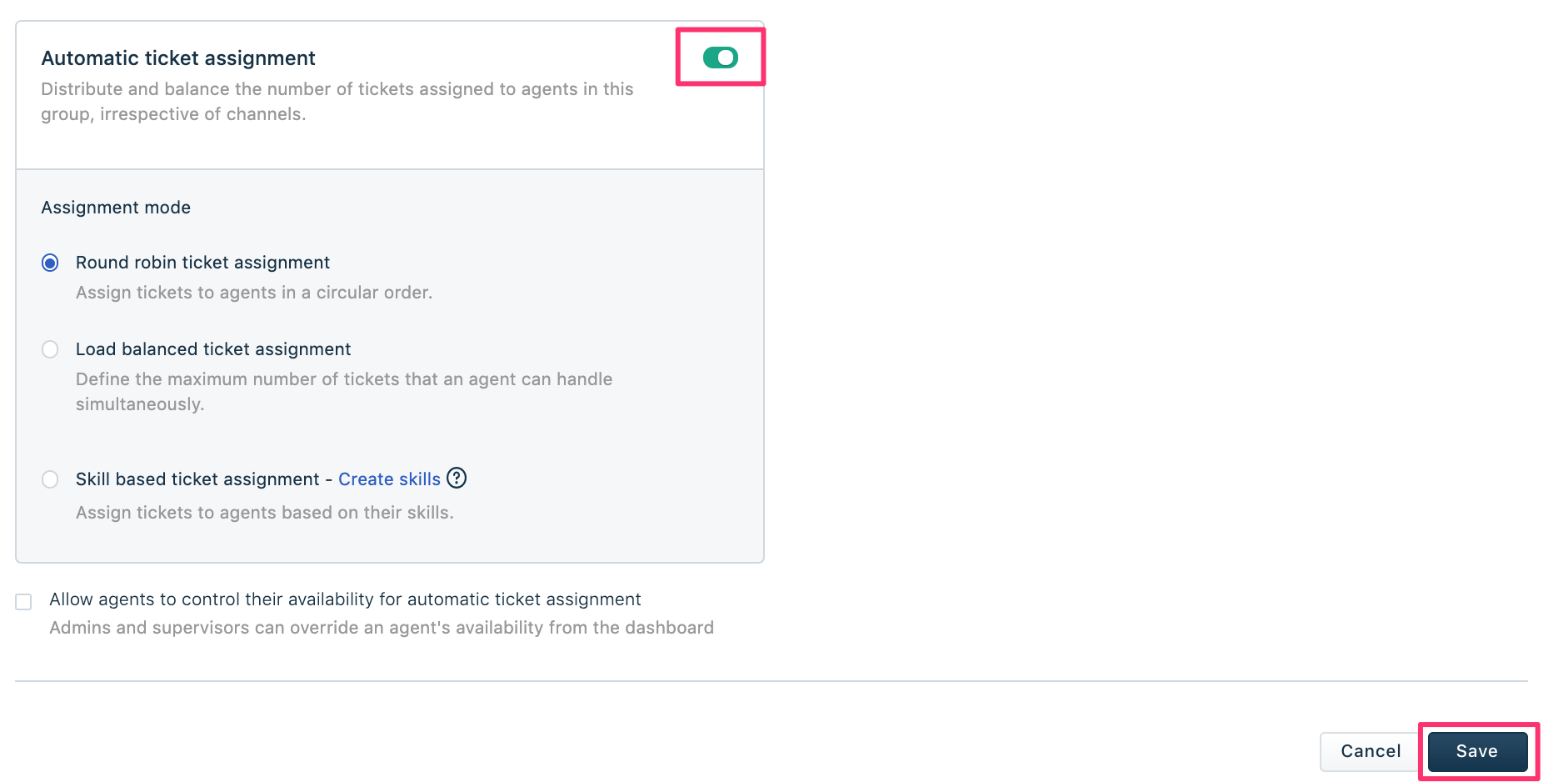
5. Click Save.
6. If you have the latest LBRR by Omniroute, click on Omniroute settings. You will be redirected to the Omniroute page, where you can set the load and the assignment preference.