To export records from a custom module:
Navigate to Analytics.
Click Create Report.
Drag and drop the Chart widget
Under Metrics, select the required Custom Module and click Apply.
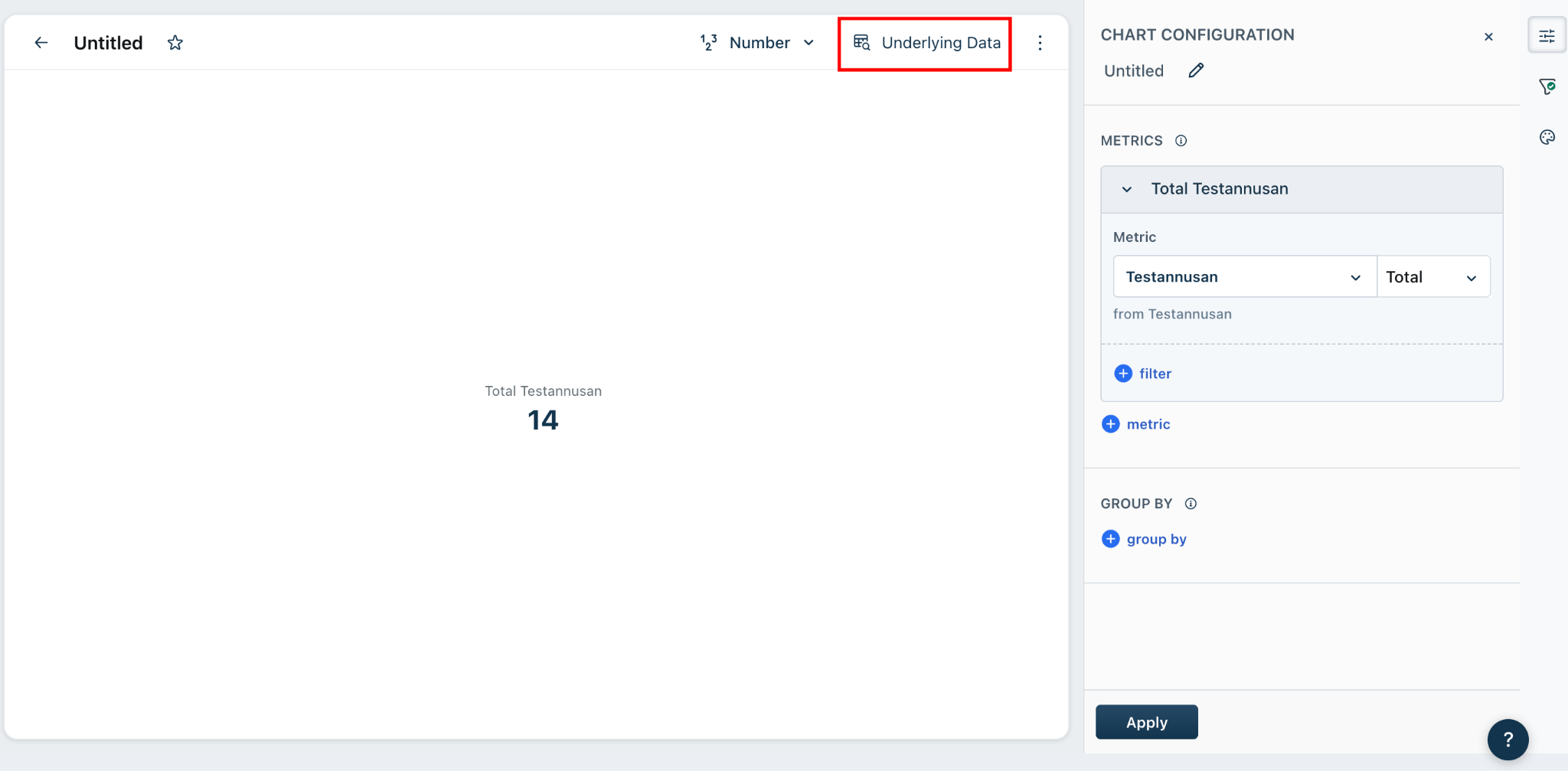
Click Underlying Data, then select Edit Columns to include any additional fields you want in the export.
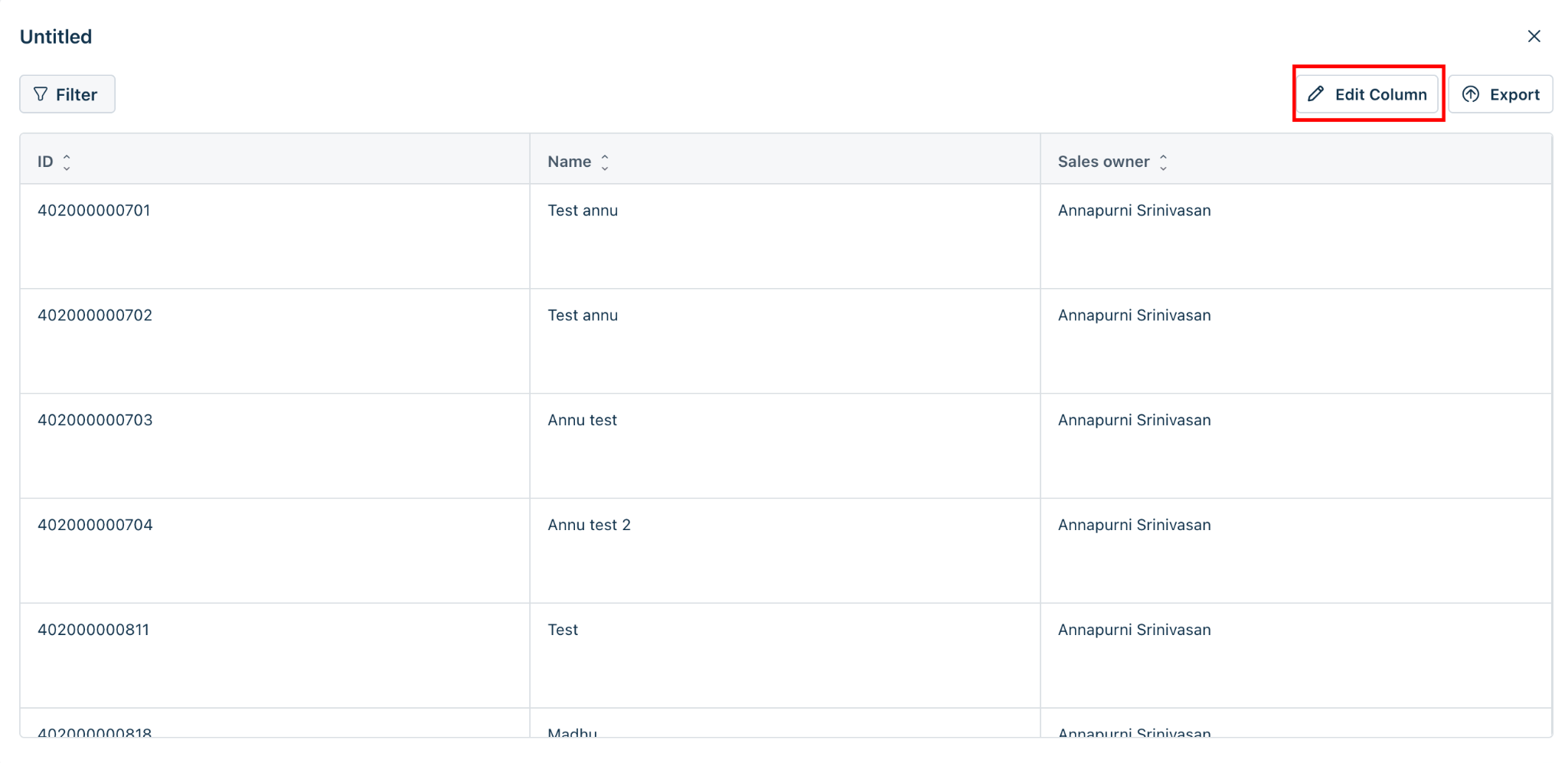
Click Export.
Once the export is processed, an email containing the exported data will be sent to your registered email address.
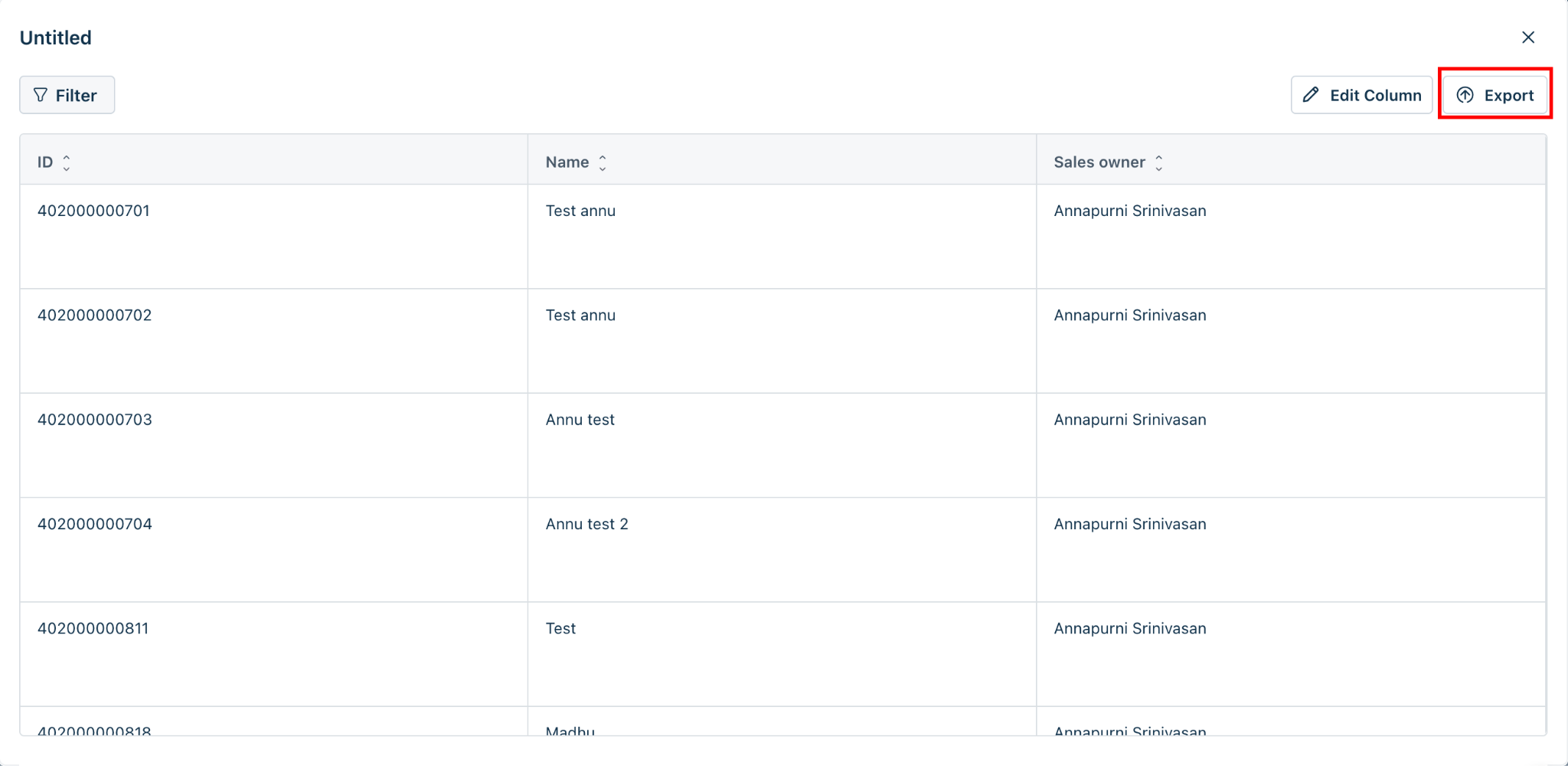
You can also change the charts if you have added a field in the group by section. You will be able to add only 2 fields in the group by section.
NOTE: If the date range dimension cannot be removed, then you can set the report filter to the last 2 years.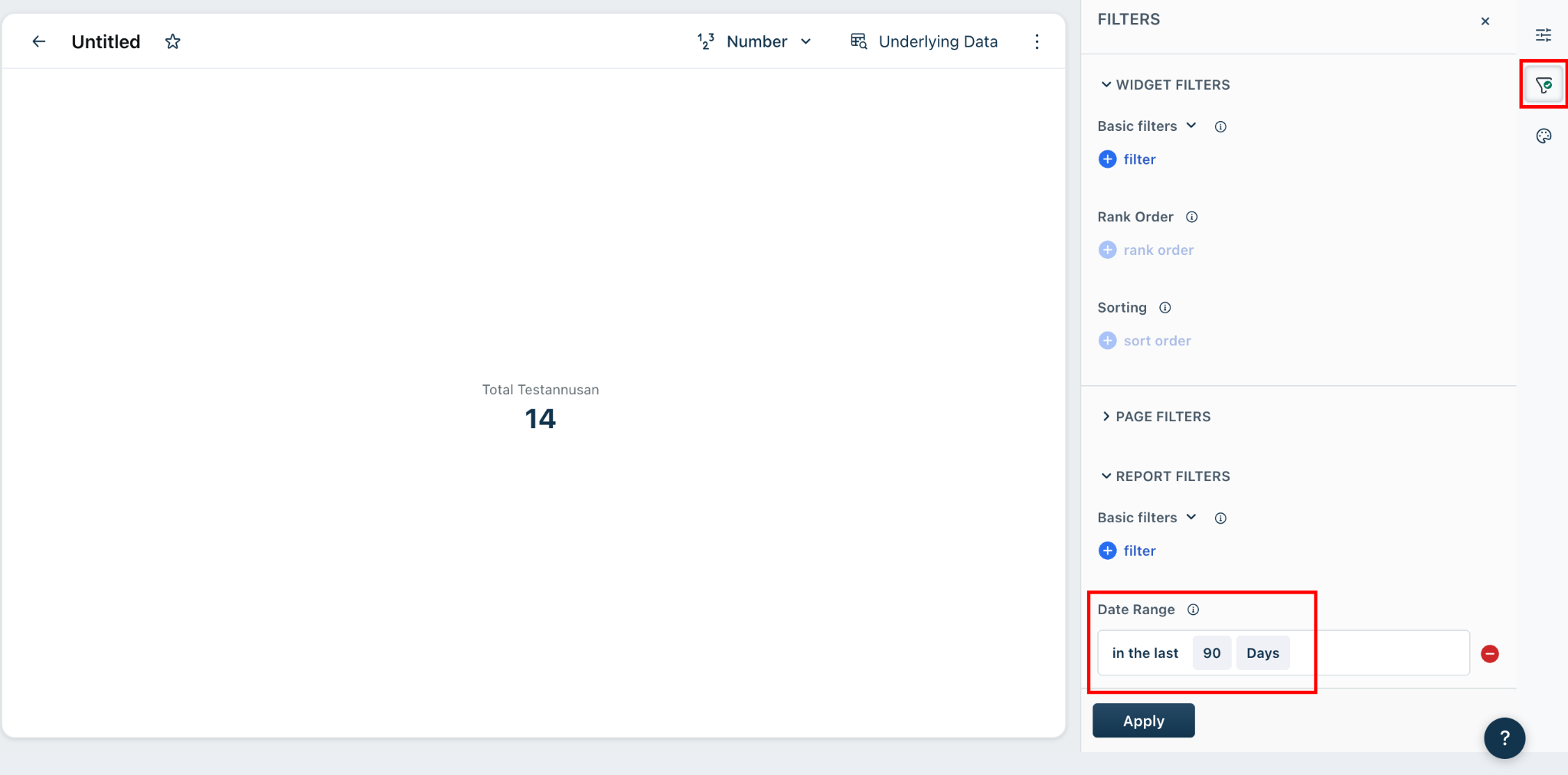
FAQs:
1. Can I export records from a custom module directly from the module page?
No. Custom module records can be exported through Analytics by creating a report and exporting its underlying data.
2. Can I choose which fields are included in the export?
Yes. Before exporting, click Underlying Data > Edit Columns to select the fields you want to include in the exported file.
3. In what format will the exported data be available?
The exported data is delivered as a file via email to your registered email address.
4. I don't see all the records in my export. What should I check?
Verify the report filters, metrics, and date range applied to the report. These determine which records are included in the export.
5. Why can't I remove the Date Range dimension from the report?
In some cases, the Date Range dimension is mandatory and cannot be removed. As a workaround, set the report filter to Last 2 Years to include a broader set of records.
6. Can I export only specific records from a custom module?
Yes. Apply the required filters while creating the report. Only the records that match the applied filters will be included in the exported data.
7. Will changes made to the report columns affect the custom module data?
No. Editing the report columns only changes the fields included in the export. It does not modify the actual records in the custom module.
8. Where will I receive the exported file?
The export file will be sent to the email address associated with your Freshworks account after the export is processed.
9. What should I do if I don't receive the export email?
Check your Spam or Junk folder, ensure the export has completed, and verify that your registered email address is correct. If the issue persists, contact Freshworks Support.
10. Can I export a large number of custom module records?
Yes. Analytics supports exporting large datasets, i.e., 50,000 rows. Depending on the size of the export, processing may take some time before the email is delivered.