This article explains how to find a pre-built chatbot template in Freshdesk Omni, create a chatbot from it, and import template flows into a chatbot you already have.
TABLE OF CONTENTS
- Prerequisites
- Overview of chatbot templates
- Find a template
- Create a chatbot from a template
- Import template flows into an existing chatbot
- Adapt a template before you publish
- Things to keep in mind
- Unlock new AI-powered possibilities
Prerequisites
Before you use a chatbot template, ensure the following requirements are met:
- Ensure you have admin access to AI Agent Studio in your Freshdesk Omni account.
- Ensure the chatbot you want to import flows into has a draft version. You cannot import a template into a published version.
- Ensure the template and the chatbot are mapped to the same channel.
- Ensure you have connected the third-party account before using an integration template. See integration templates for chatbots <anchor link>.
Overview of chatbot templates
A template is a pre-built chatbot containing flows, dialogs, conditions, and API configurations for a particular industry, channel, or integration. You use a template instead of building those flows yourself, then adapt it to your business.
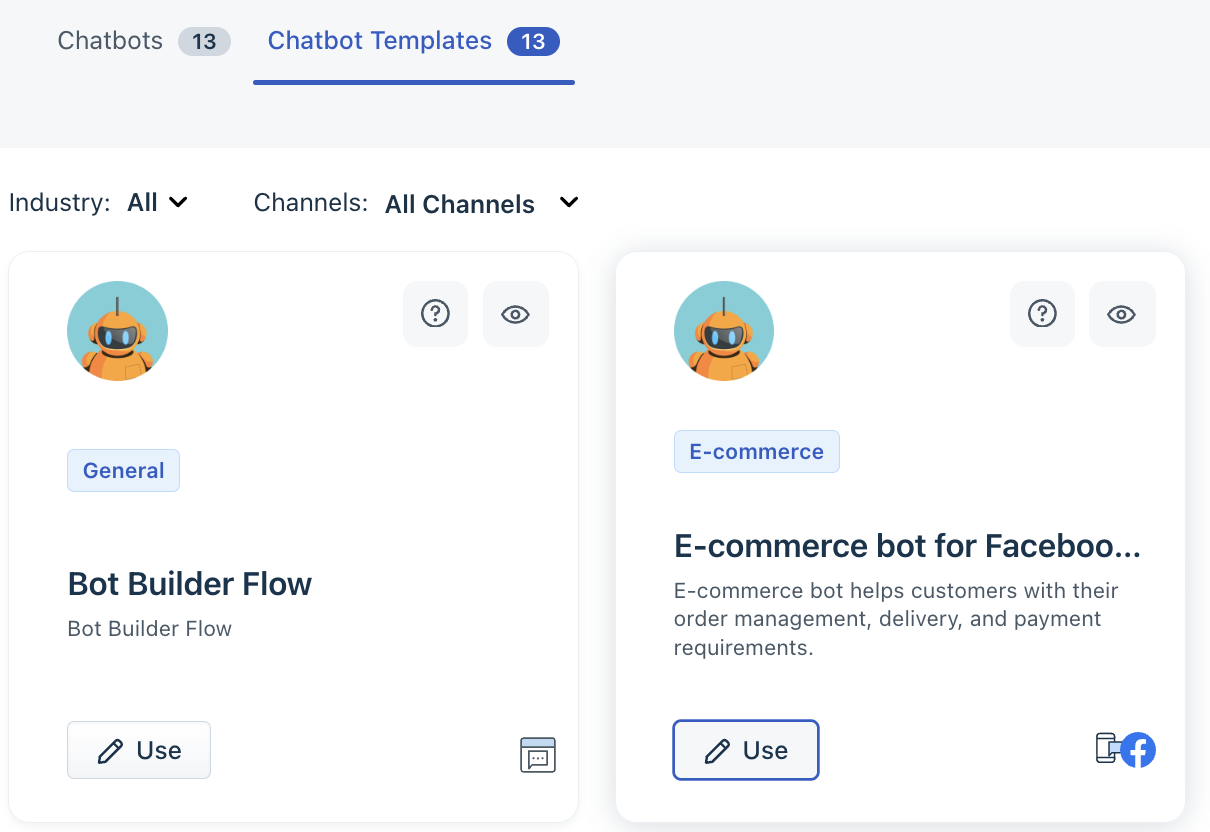
Templates are listed on the Chatbot Templates tab, alongside your own chatbots. Each card shows the template name, its description, its industry tag, and an icon for the channel it deploys to.
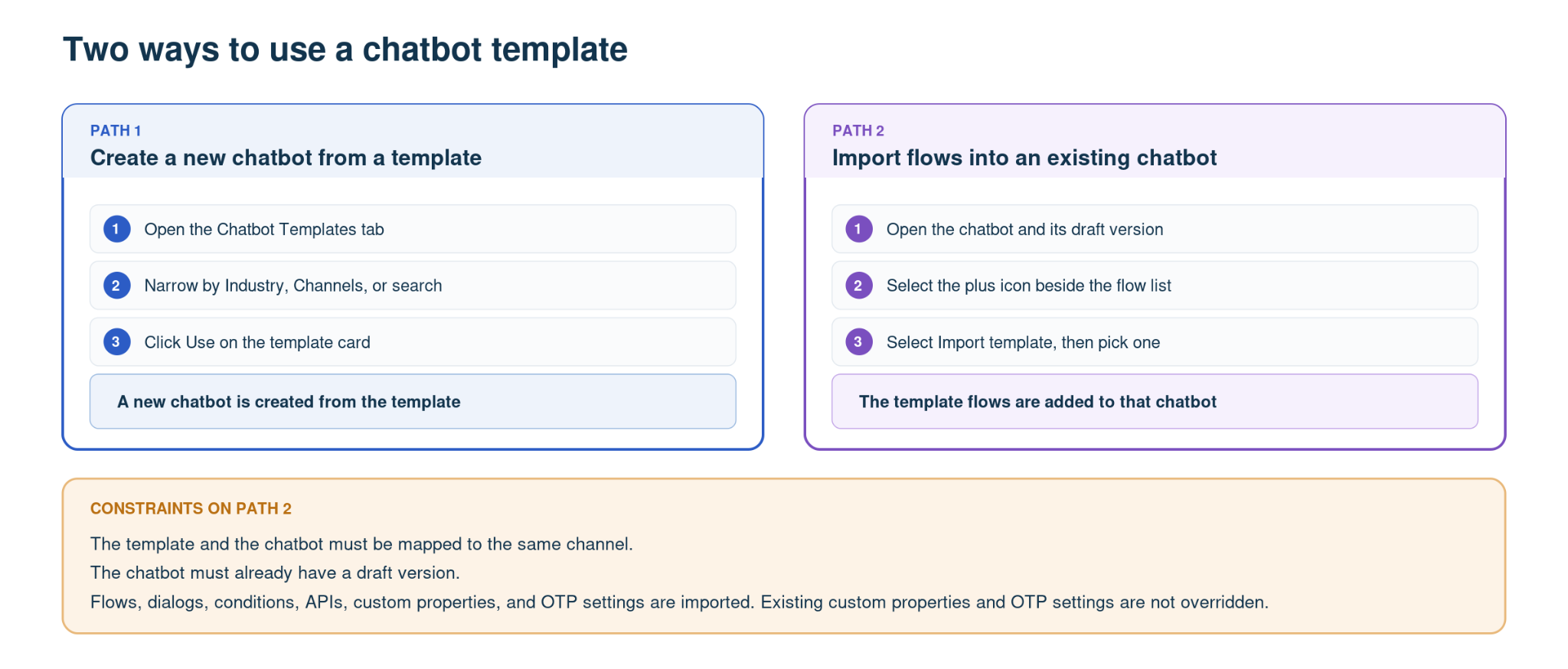
You can create a new chatbot from a template, or add the template's flows to a chatbot you have already built.
Find a template
The template list grows as templates are added, so filter it rather than scrolling.
To find a template:
- Go to AI Agent Studio > Chatbots.
- Select the Chatbot Templates tab.
- Select a value in Industry to narrow the list to one sector.
- Select a value in Channels to narrow the list to one channel.
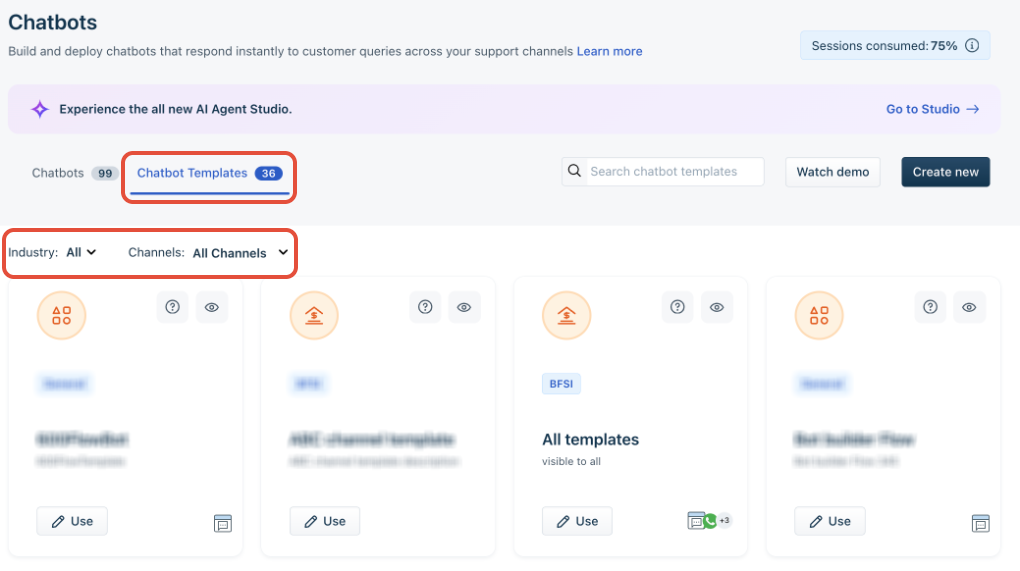
- Alternatively, enter a term in Search chatbot templates.
Select the eye icon on a card to preview the template before committing.
Create a chatbot from a template
Creating a chatbot from a template copies the template into a new chatbot that you then edit.
To create a chatbot from a template:
- Go to AI Agent Studio > Chatbots and select the Chatbot Templates tab.
- Locate the template you want.
- Click Use and provide a name and select a channel.
- Edit the flows, dialogs, and API configurations to match your business.
- Preview the chatbot, then publish it.
Import template flows into an existing chatbot
Importing adds a template's flows to a chatbot you have already built, so you do not have to start again to reuse a template.
To import template flows:
- Open the chatbot you want to add flows to, and make sure it has a draft version.
- Select the plus icon next to the list of existing flows.
- Select Import template.
- Select a template from the list. The list automatically excludes templates that do not apply to your chatbot.
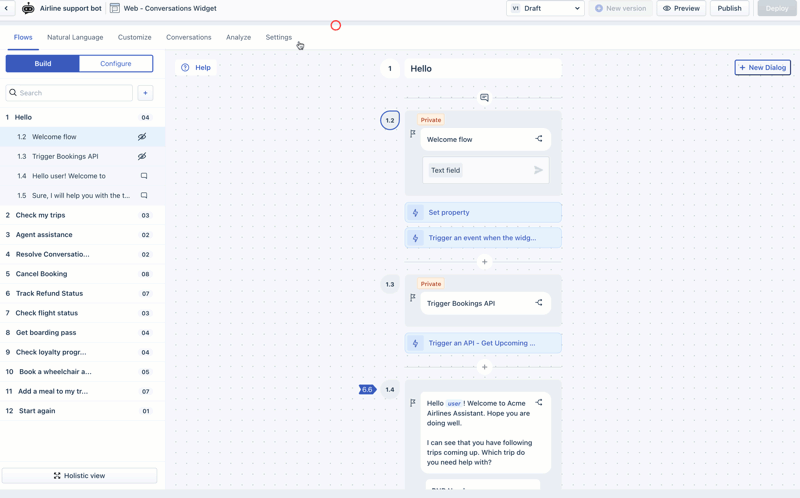
The plus icon dropdown also offers New flow, which creates an empty flow for you to build manually. You can also ask Freddy AI to build flows or dialogs. See Create and refine chatbot content with Freddy AI<anchor link>.
Note: Importing brings across flows, dialogs, conditions, APIs, custom properties, and OTP settings. Existing custom properties and OTP settings in the chatbot are not overridden.
Adapt a template before you publish
Every template ships with placeholder configuration that you must replace. A template published without these changes will not work against your systems.
- API library — The API endpoints included in a template are dummy endpoints. Remove the dummy URLs, response parameters, and payload content, and add your own APIs.
- Placeholders — Responses in the template flows are static because they contain no placeholders. Where a response should come from an external source through an API, replace the static response with a placeholder for the relevant response parameter.
- OTP authentication — The relevant flows in the industry templates have native OTP authentication enabled by default, for secure transactions.
You can also hide or show flows, add dialogs for your use cases, connect the chatbot to your FAQ content, and customize it to match your brand before you deploy it.
Things to keep in mind
- Channel mapping — Each template and each chatbot is mapped to a channel. Import works only between a template and a chatbot on the same channel.
- Draft version — A chatbot must have a draft version before you can import a template into it.
- Multi-channel templates — Some templates contain elements that can be used across channels, allowing a single chatbot to serve customers across multiple channels.
Unlock new AI-powered possibilities
We encourage you to explore the latest version of Freddy AI Agents to unlock new AI-powered capabilities. While chatbot templates remain available, we recommend looking into Freddy AI Agents to see how they can further enhance your customer support experience.