TABLE OF CONTENTS
- Prerequisites
- Begin your first evaluation
- Best practices for optimizing your AI Agent
- AI Agent test scenarios
The Test tab in AI Agent Studio is a vital tool for simulating real customer conversations. It helps validate key aspects such as the accuracy of uploaded knowledge artefacts, the proper triggering of workflows, the relevance of responses, fallback behaviors, and confidence scores—ensuring that the AI agent performs reliably and effectively in real-world interactions.
Prerequisites
Before testing your AI Agent, ensure the following:
- Business context and custom instructions are configured
- Knowledge sources (URLs, files, solution articles, Q&As) are added and fully learned
- Skills or workflows (if applicable) are configured
- Handover settings are defined
- The AI Agent is saved with the latest updates
Incomplete configurations may result in inaccurate or fallback responses during testing.
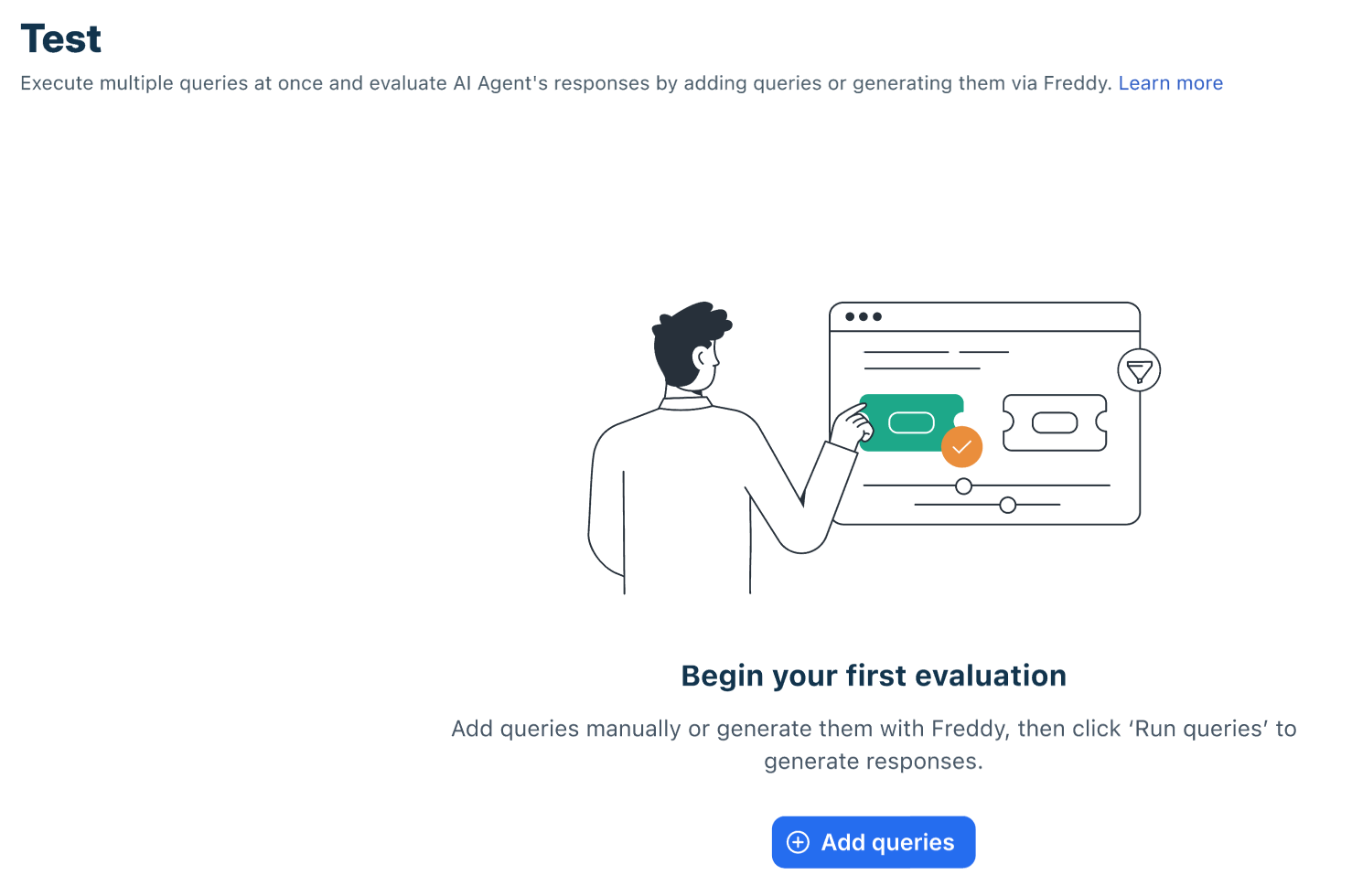
Begin your first evaluation
To test and improve your Freddy AI Agent, follow these essential steps to evaluate, refine, and enhance its responses for better customer support.
- Add queries
- Run Queries
- Review results
Add Queries
- Navigate to AI Agent Studio on the left navigation bar > AI agent > Test > Add queries.
- In the text box, type or paste your queries in bulk.
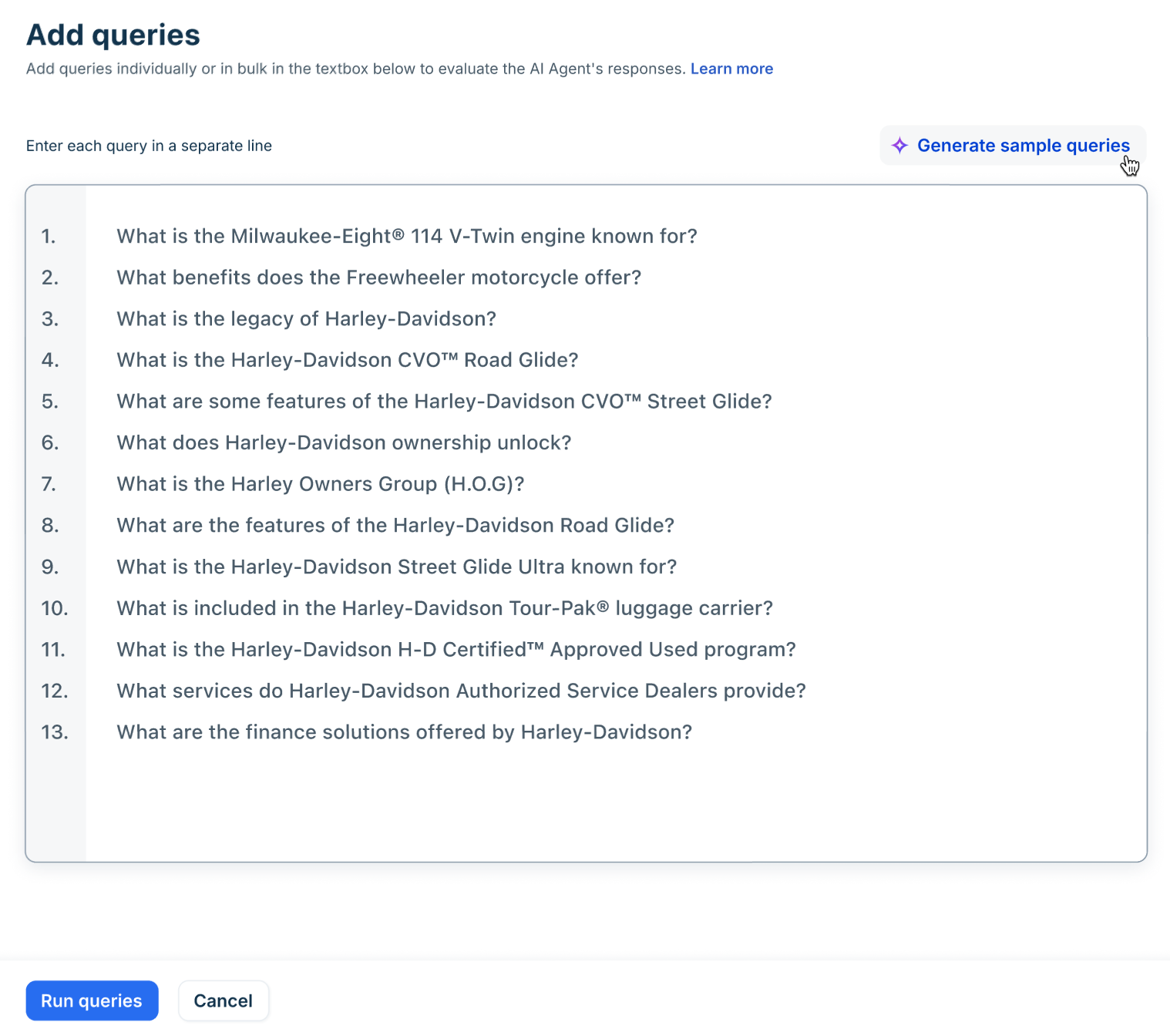
Note: Enter each query in a separate line. You can add up to 100 test queries to be executed in a single run.
- Alternatively, click Generate sample queries to have Freddy AI generate a list of 50 sample queries based on the configured knowledge sources for the AI agent.
Note: When no Knowledge sources are added to the AI Agent, Freddy cannot generate the simple query list and will throw the error: Please add Knowledge Sources to generate queries.
- Review the generated queries, edit them if needed, or click Regenerate for a new set.
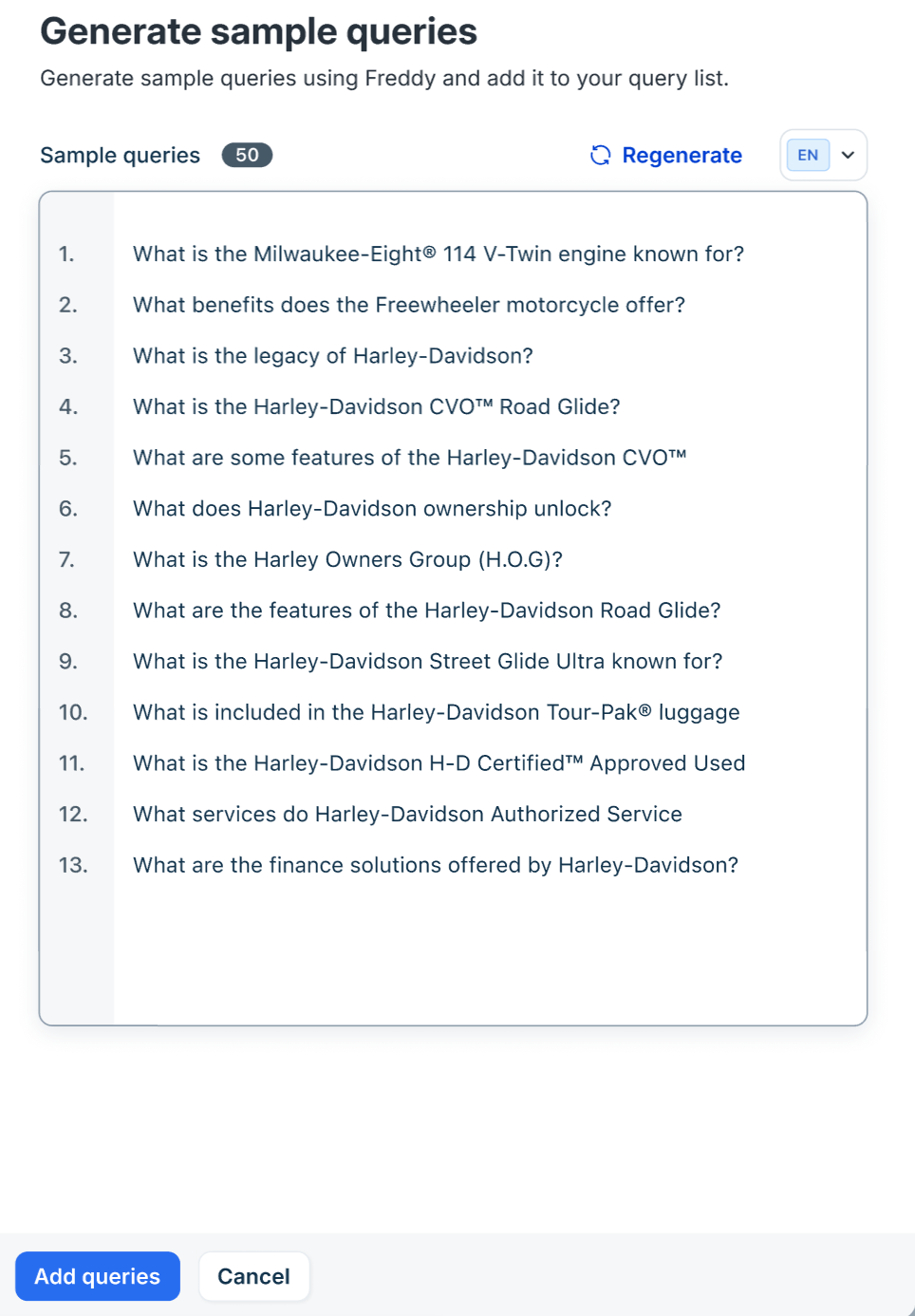
- Click Add queries to include them in your query list.
Note: If the total number of queries exceeds 100, you’ll see the error: Query limit exceeded; please remove the additional queries to proceed.
- You can also choose to translate the generated queries in your preferred languages by selecting the language code from the Language dropdown.
Run Queries
- Click Run queries to evaluate your AI agent’s performance.
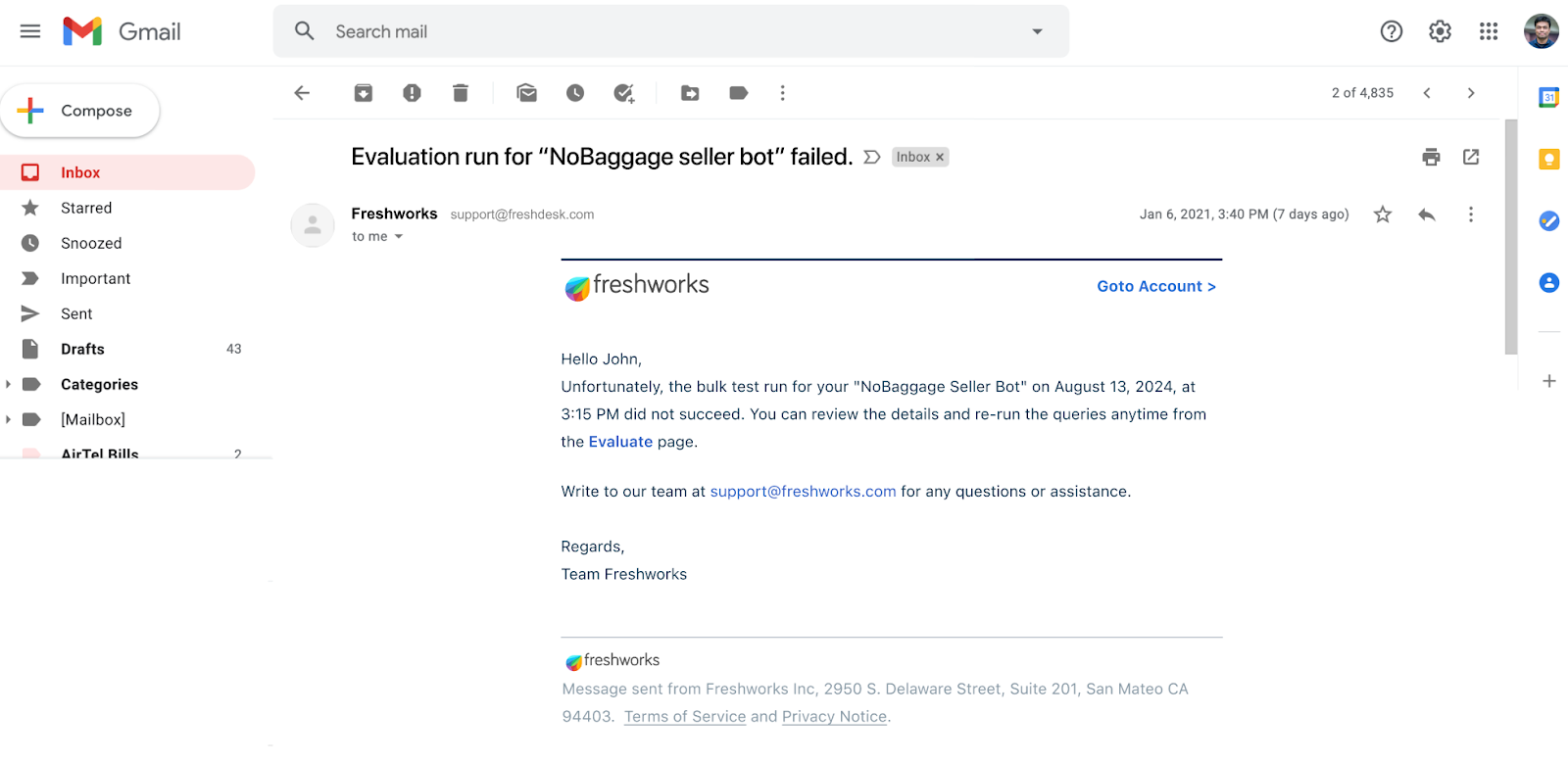
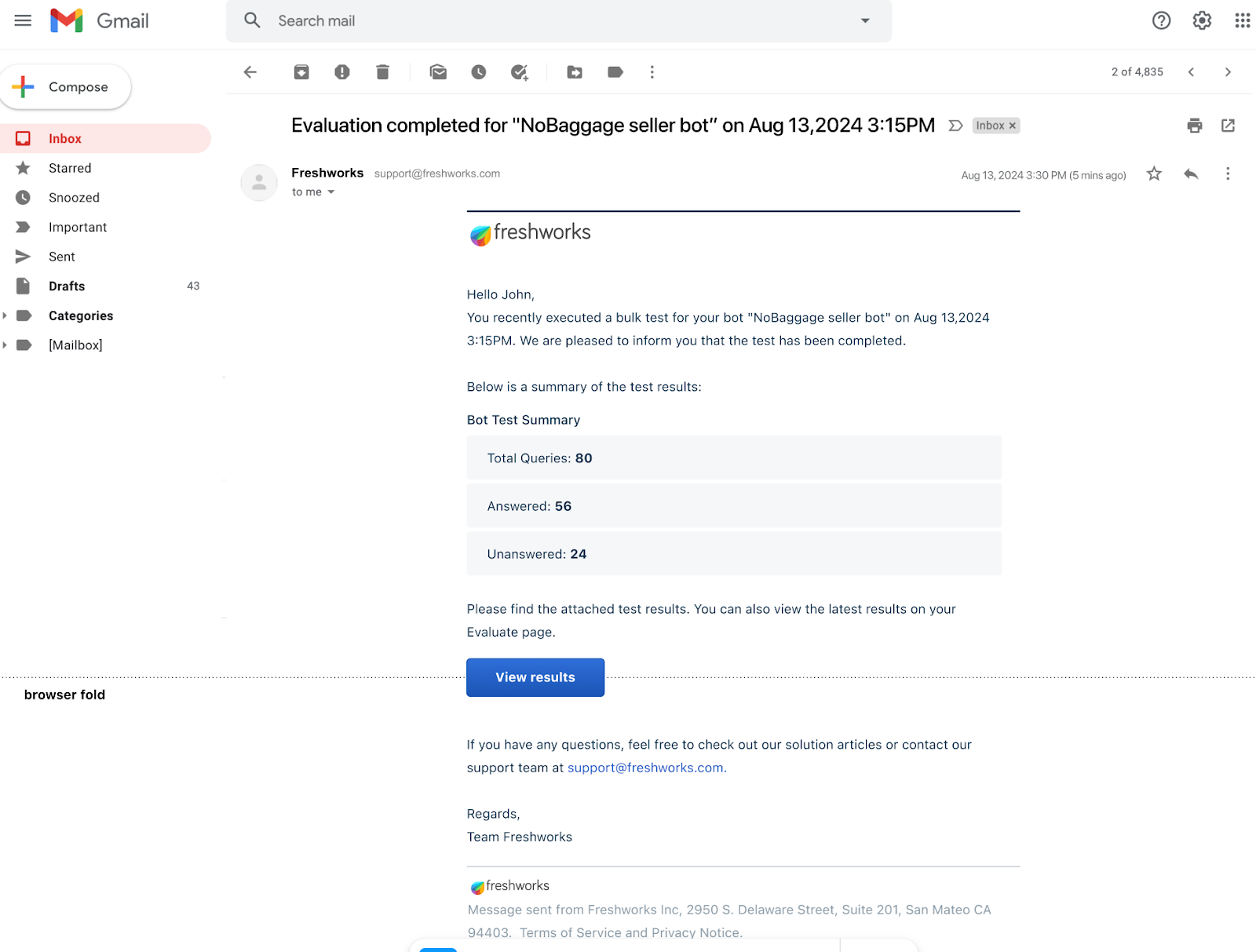
- The evaluation process may take a few minutes. Once complete, you’ll receive an email notification and an in-app alert.
- You can cancel the run at any time by clicking Cancel Run.
If errors occur during the query run or if execution is canceled, the Admin's email address will receive a notification.
Review results
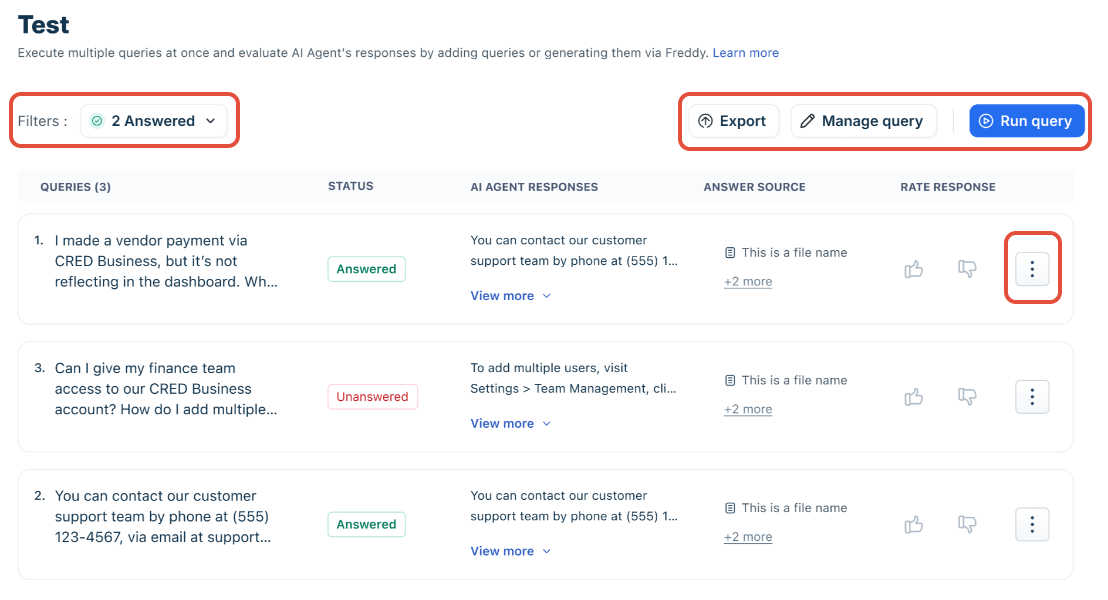
Once the evaluation is complete, the results are displayed in three sections:
- Query Details
- Actions
- Filters and Additional Details
Additionally, the results are sent to the admin's email address who executed the test, ensuring easy access and record-keeping. Admins can also download older test results directly from their emails for the future.
Section 1: Query Details
A table displaying:
- Queries: The list of test queries.
- Status: Whether the query was answered or unanswered.
- AI Agent Responses: The AI agent’s responses.
- Answer Source: The knowledge source used for the response.
- Rate Responses: Option to provide a thumbs up or thumbs down rating.
Section 2: Actions
- Export: Download the evaluation report as a PDF.
- Manage queries: Edit or remove queries from the list.
- Run queries: Re-evaluate the AI agent with the same or updated queries.
Section 3: Filters and Additional Options
- Filter: Narrow down results by:
- Response Type: All, Unanswered, or Answered.
- Evaluation: All, Accepted, Rejected, or Not Evaluated.
- Using the ellipsisicon next to each query, you can,
- Add QnA: For unanswered queries, click Add QnA and provide your answers here so the next time the AI agent is asked this question, it will get answered.
- Retry in preview: You can select a query to retry in preview to evaluate how the AI agent answered the customer query in the preview mode.
Best practices for optimizing your AI Agent
- Test Diverse Scenarios: Include a mix of common, complex, and edge-case queries to ensure your AI agent is well-rounded.
- Refine Knowledge Sources: Regularly update and expand your knowledge base to improve response accuracy.
- Leverage User Feedback: Use thumbs up/down ratings to identify areas for improvement.
- Iterate and Improve: Continuously evaluate and optimize your AI agent to keep up with evolving customer needs.
AI Agent test scenarios
| Section | What to Validate | Example Query | Expected Behavior |
|---|---|---|---|
| Knowledge responses | Accuracy of answers from knowledge sources | “What is your return policy?” | Retrieves correct policy details from configured sources; response is clear and relevant |
| Instruction adherence | Tone, style, and communication guidelines | “My payment failed.” | Responds in defined tone (e.g., friendly, non-technical, empathetic) |
| Workflow execution | Triggering and completion of workflows | “Track my order.” | Prompts for required input (order ID), executes workflow, returns status |
| Workflow edge case | Handling incomplete inputs | “Track my order” (no ID) | Asks for missing details instead of giving incorrect or generic response |
| Handover (explicit ask) | Escalation when user requests human support | “I want to talk to a human.” | Triggers transfer, shows message, routes to agent |
| Handover (skip topics) | Escalation for predefined sensitive topics | “I need a refund.” | Immediately transfers without attempting resolution |
| After-hours behavior | Handling conversations outside business hours | “Need help with my order” (after hours) | Sends configured message and performs selected action (resolve/assign/transfer) |
| Edge cases | Handling vague or complex queries | “It’s not working.” | Asks clarifying questions or triggers fallback appropriately |
| Multi-intent queries | Handling multiple requests in one query | “Track my order and change address.” | Prioritizes or guides user step-by-step to resolve both intents |
| Fallback scenarios | Response when answer is not found | Unknown query | Sends fallback message and escalates if configured |