TABLE OF CONTENTS
The Analyze section of AI Agent Studio gives you a complete picture of how your AI agent is performing — what it resolves, where it struggles, and exactly what happened in any individual conversation or ticket. It has three tabs that serve distinct purposes:
- Performance : Quantitative metrics — conversation volumes, deflection rates, topic distribution, workflow usage, knowledge source effectiveness, and customer feedback.
- Improve: AI-generated content insights — the agent identifies gaps, and outdated content in your knowledge base and recommends specific fixes, grounded in real conversations. All customers can access the Improve feature through September 30, 2026, as part of a limited-time promotional offer.
- Ticket logs: Detailed conversation logs, including customer names, timestamps, conversation IDs, and links to the respective conversations.
The Performance tab helps you identify where the agent is underperforming, whereas the Improve tab translates those gaps into actionable fixes, and Ticket logs let you validate issues using real conversations.
Prerequisites
- Your account must have AI Agent Studio enabled
- You must have Administrator access
- At least one AI agent must be created
Access the Analyze section
- Open AI Agent Studio and select the AI agent you want to review.
- Select Analyze in the left navigation. The sub-tabs — Performance, Improve, and Conversation logs — appear below it.
- Use the date range picker in the top right to filter data. The default range is the last 30 days.
Performance tab overview
Note: The Performance tab shows data from May 22, 2026 onward; earlier data is not available in the new view. During a 2–3 month transition, you can switch between the new and classic views via the toggle. The classic view will be retired once enough data is in the new system.
The Performance tab is the primary quantitative dashboard for your AI agent. It shows how conversations flow from start to resolution across the selected date range, and gives you widget-level breakdowns for topics, channels, feedback, workflows, and knowledge sources. All widgets on the Performance tab refresh every 30 minutes, except the Topic distribution widget, which refreshes biweekly.
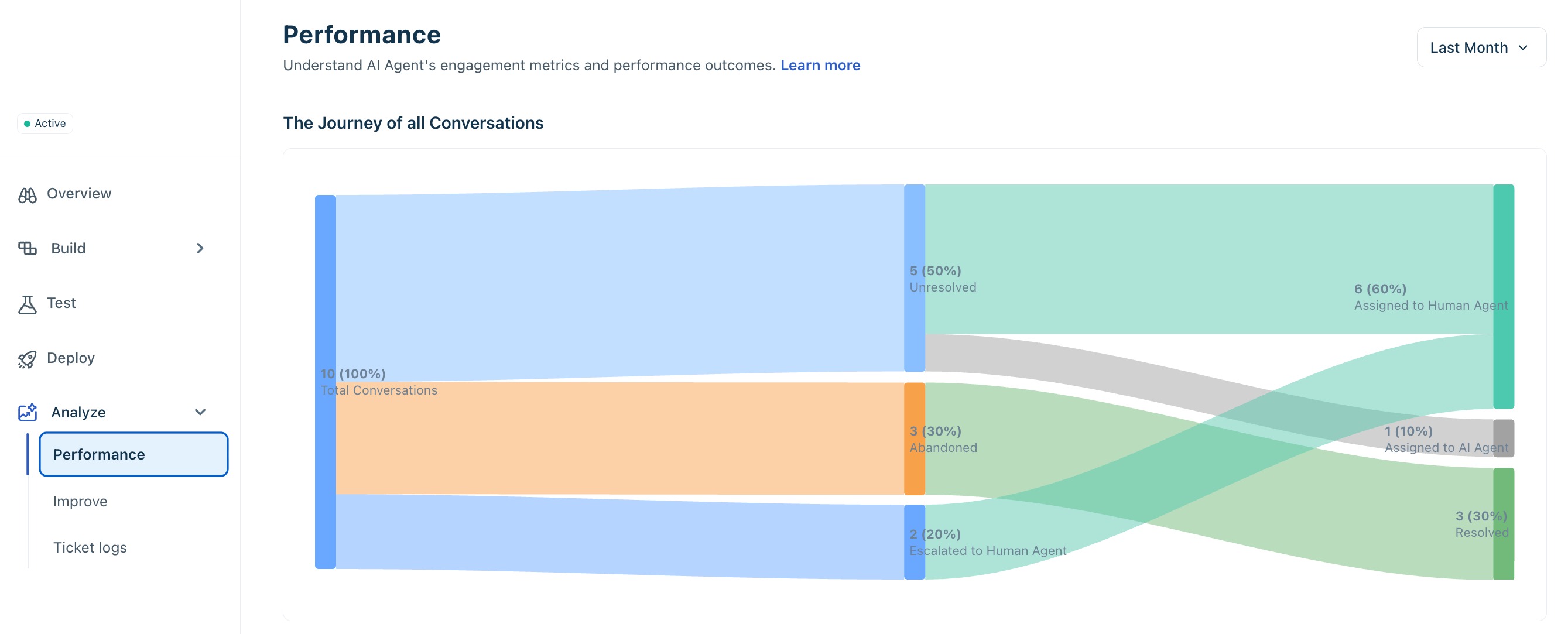
Abandoned conversations:
A conversation is marked as abandoned when the user stops responding during an interaction. This can happen after one or multiple messages. Typically, if there is no response for a defined period (for example, ~24 hours), the conversation is classified as abandoned.
In-progress conversations:
Some conversations may still be actively handled by the AI agent. These will eventually move to either resolved or escalated states.
Escalation behavior:
Escalation can happen at different stages — either immediately (for example, user requests a human) or after the AI attempts resolution.
Journey of all conversations
The Journey of all conversations chart at the top of the Performance tab maps the end-to-end flow of every conversation in the selected period. It is your top-level health indicator for the agent — the single chart to check first when something has changed. 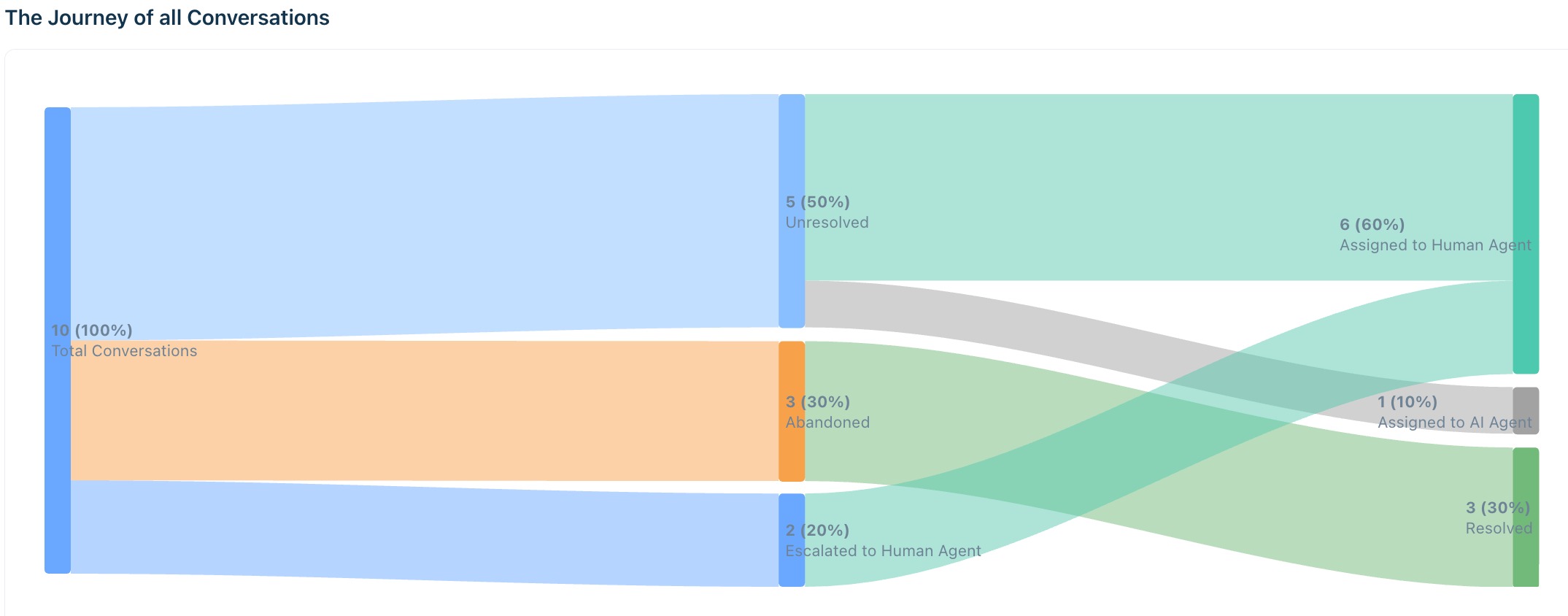
The chart plots each conversation through the following stages:
- Total conversations — the full volume entering the AI agent in the selected period.
- Unresolved — conversations the AI agent did not resolve, flowing into escalation or abandonment.
- Escalated to Human Agent — conversations transferred to a live agent at any point.
- Abandoned — conversations where the customer stopped responding before resolution.
- Resolved — conversations closed without human intervention.
- Closed — conversations marked closed, including any that were auto-closed.
Think of the chart as a helpful diagnostic signal rather than just a simple volume count. It can offer valuable insights when you interpret it as part of a bigger picture. Each outcome pattern points to a specific class of problem:
Outcome pattern | What it signals | Where to act |
High AI resolution rate | Strong knowledge coverage and workflow configuration. | Use Improve tab to maintain content freshness and prevent regression. |
High escalation rate relative to resolution | Gaps in knowledge base coverage, misconfigured workflows, or confidence thresholds set too conservatively. | Use the Improve tab to identify content gaps. Review workflow configuration and escalation threshold settings. |
High abandonment rate | Possible issues with response quality, resolution speed, or overall conversation experience. | Review the Topic distribution widget to identify which topics have the highest abandonment. Cross-reference with negative feedback in the Customer feedback widget. |
High unresolved rate flowing to escalation | The AI is attempting resolution but failing — not refusing to try. | Check the Improve tab for Edit content and tied to high-volume topics. |
Performance over time
The Performance over time chart plots conversation volume trends across the selected date range. Use it to connect changes in your agent's performance to specific events — a product launch, a knowledge base sync failure, or a workflow configuration change. 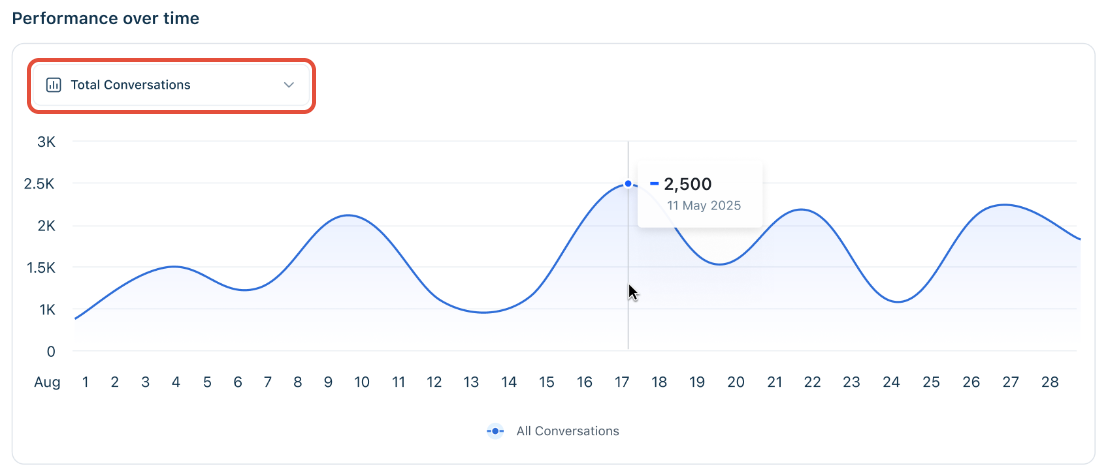
Use the metric selector dropdown to switch between four views on the same time axis:
- Total conversations
- Deflection rate
- Positive feedback
- Negative feedback
Hover over any data point to see the exact count and date. Use this chart to connect performance changes with specific events, such as a surge in escalations following a product launch or a sync failure in a knowledge source.
The most common mistake when reading this chart is treating a rising absolute number as a rising rate. Volume growth will lift every metric in parallel — what matters is the ratio between them.
Pattern to look for | What it means |
Escalation volume rising proportionally with total volume | Your escalation rate is stable — the absolute number reflects traffic growth, not a performance problem. |
Escalation volume rising faster than total volume | Your escalation rate is genuinely increasing — investigate the Improve tab for new content gaps that emerged in that period. |
Resolved by AI trending upward while total holds steady | Deflection rate is improving — a direct measure of knowledge base and workflow quality improving over time. |
Sharp drop on any metric at a specific date | Correlate with configuration changes, knowledge base syncs, or product updates from that date. Use Ticket logs to validate. |
Topic distribution
The Topic distribution widget shows the conversation volume for every topic cluster the AI agent has handled. It is your diagnostic map for prioritizing improvement effort — the starting point for any investigation into why deflection rates are low on a specific subject area.
Topic distribution refreshes biweekly - recent changes in conversation volume may take up to two weeks to appear here.
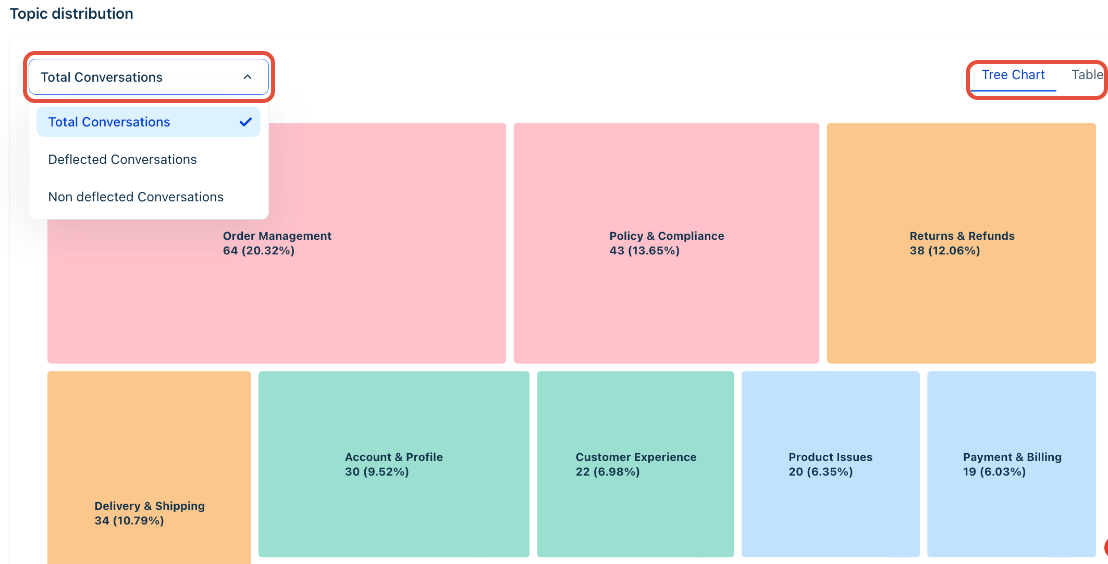
The widget offers two views of the same data. Toggle between them using the controls in the top right.
- Tree Chart : Getting an immediate visual read on which topics dominate conversation volume. Tile size is proportional to volume — the largest tile is your highest-priority investigation target when deflection is low.
- Table : Sorting and comparing exact counts and percentages across topics. Use the Table view when you need to rank topics by volume or filter for a specific segment.
The dropdown above the chart controls which conversations are included in the view. Use it to shift from a volume analysis to a quality analysis:
- Total Conversations : Understand overall topic distribution across all interactions. Use as your baseline.
- Deflected Conversations : Identify which topics the AI is resolving well. High-deflection topics represent your strongest knowledge coverage.
- Non-deflected Conversations : Isolate the topics the AI is failing on. Sort by volume in Table view to build your Improve tab priority list.
Tip: Switch to Non-deflected Conversations and sort by volume in Table view. The top rows are your immediate Improve tab priorities — navigate directly to those topics and open the Improve tab to find the content gaps driving the failures.
Topic detail page
Selecting a topic opens a dedicated detail page showing subtopic breakdown, performance over time for that topic, AI-generated recommended fixes, and the specific conversation logs driving those recommendations.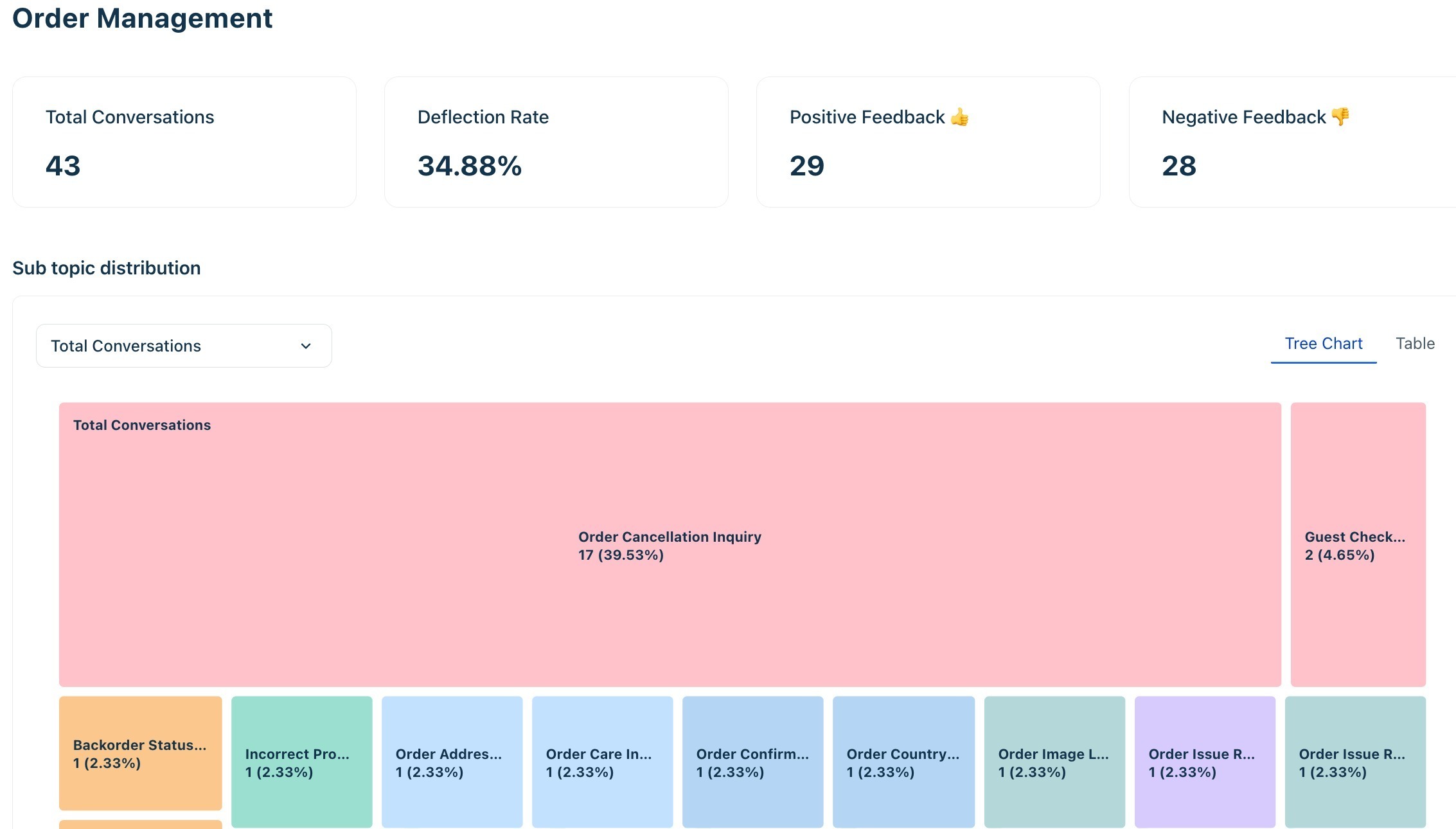
KPI card | What it measures | How to interpret it |
Total Conversations | Volume of conversations in this topic for the selected period. | High volume + low deflection = highest priority for improvement effort. |
Deflection rate | Percentage of conversations in this topic resolved by the AI without human intervention. | A higher percentage is strong. Below 60% for a high-volume topic is a red flag requiring immediate knowledge review. |
Positive feedback | Count of positive responses from customers after AI answered queries on this topic. | High positive feedback + high deflection = the agent is performing well here. |
Negative feedback | Count of negative responses from customers after AI answered queries on this topic. | High negative feedback on a high-volume topic is the most reliable signal to prioritize in the Improve tab. |
This page acts as a bridge between Performance and Improve — allowing you to move directly from identifying a problem to understanding and fixing it.
Sub topic distribution
Below the KPI cards, the sub topic distribution breaks the parent topic into its constituent subtopics. Use the same Tree Chart and Table toggle, and the same segment filter (Total, Deflected, Non-deflected), to drill into exactly which subtopics are driving poor deflection within a broad topic area.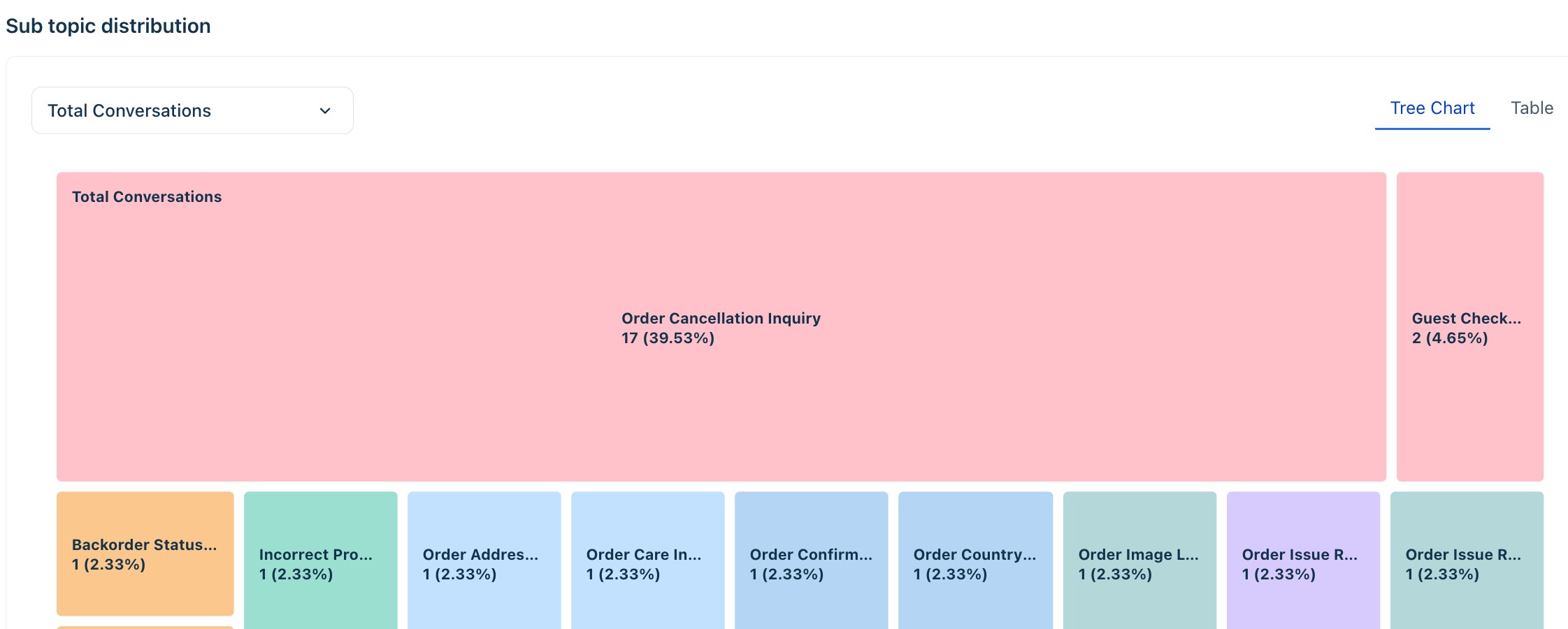
Performance over time
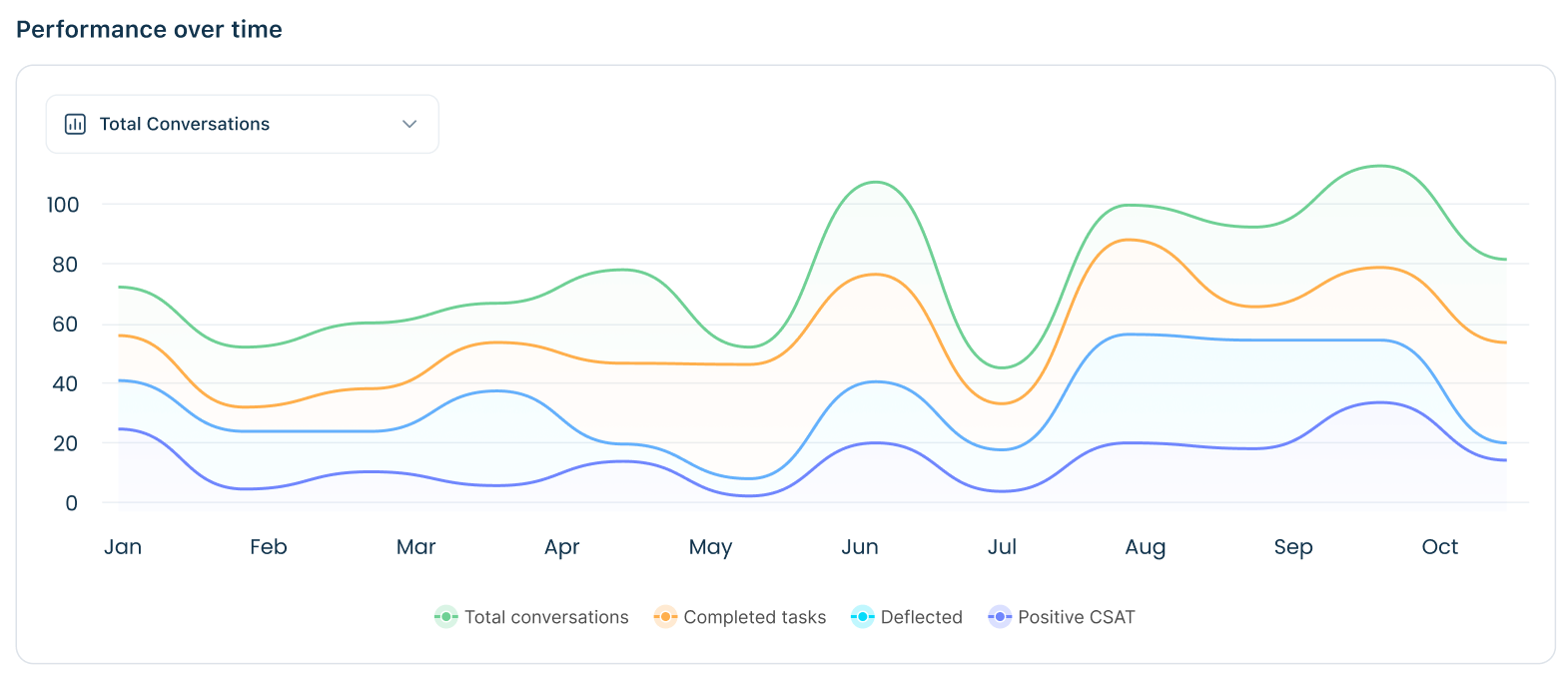
The topic-level Performance over time chart shows whether performance on this specific topic is improving or deteriorating over the selected period. Use it to confirm whether a content fix from the Improve tab has had a measurable effect — a rising deflection rate after a knowledge base update is direct evidence that the fix worked.
Conversation logs
The Conversation logs table at the bottom of the Topic detail page lists every conversation contributing to this topic in the selected period. Each row shows the Conversation ID, Customer Name, Bot Ticket Status, and last updated date, with a direct link to the full conversation.
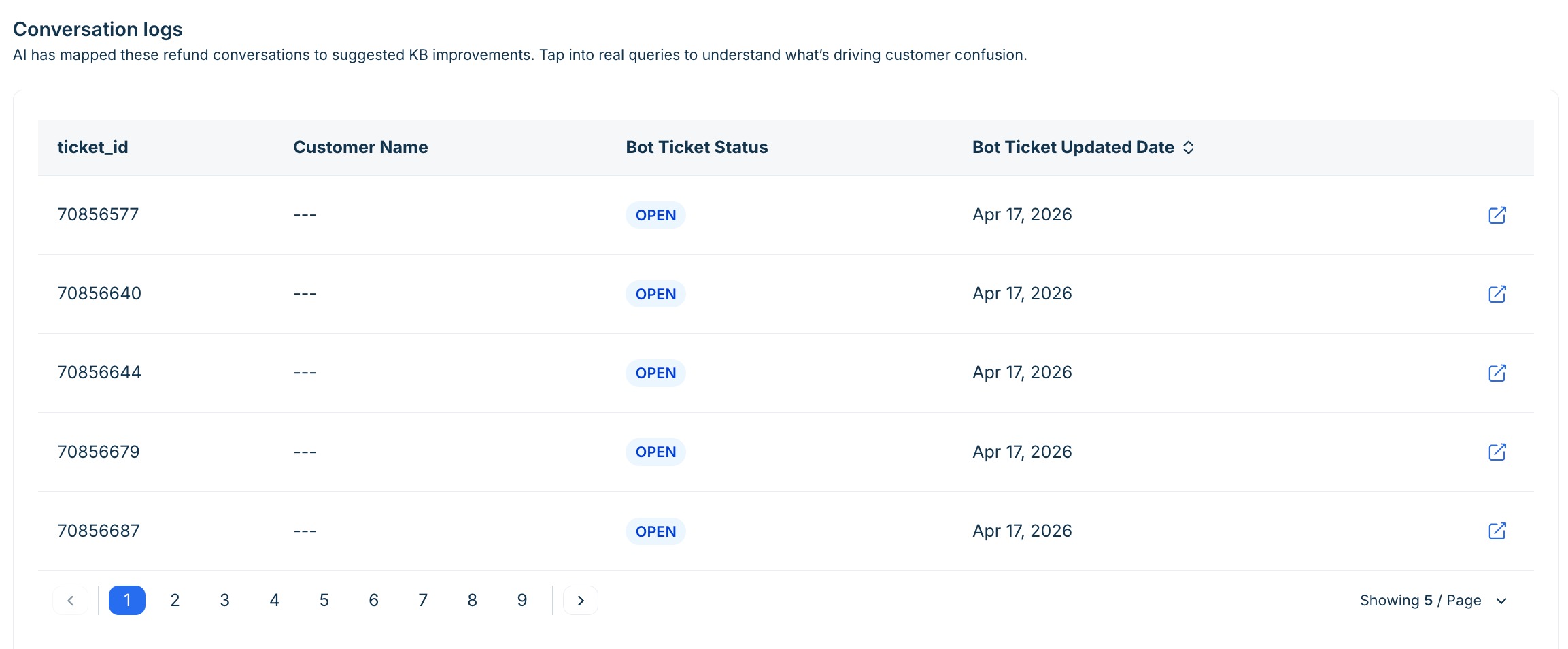
Use these logs to validate Improve tab insights before acting — reading two or three actual conversations is the fastest way to confirm that the AI is genuinely failing on a topic, not just being flagged by a data anomaly.
Channel distribution
A donut chart showing what proportion of total conversations came from each deployed channel — for example, Web Portal, Whatsapp, Chat widget, Instagram etc.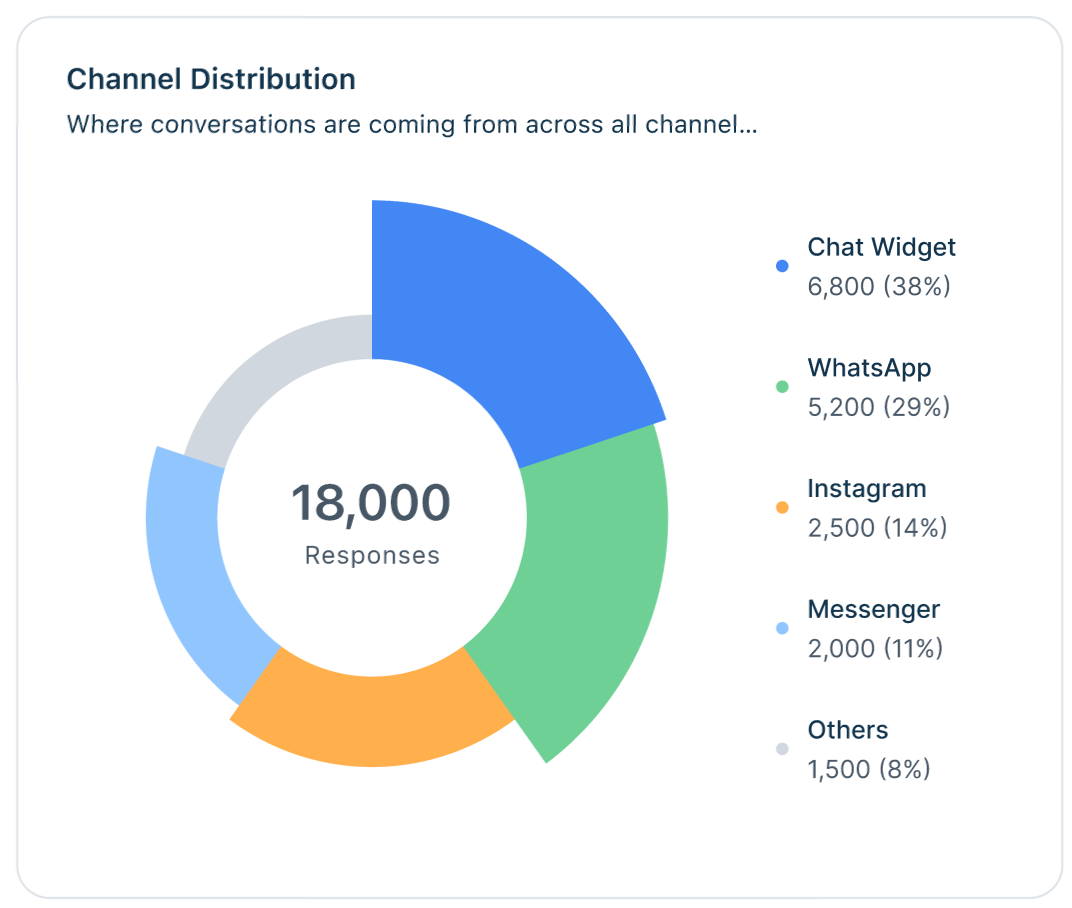
Use this to understand which channels drive the most volume and whether channel-specific issues (such as widget-loading problems or email-parsing errors) are affecting overall performance.
Customer feedback
Shows the total count of positive and negative feedback responses received in the selected period.
- Positive feedback — customer confirmed the AI response was helpful.
- Negative feedback — customer indicated the response was not helpful or requested a human.
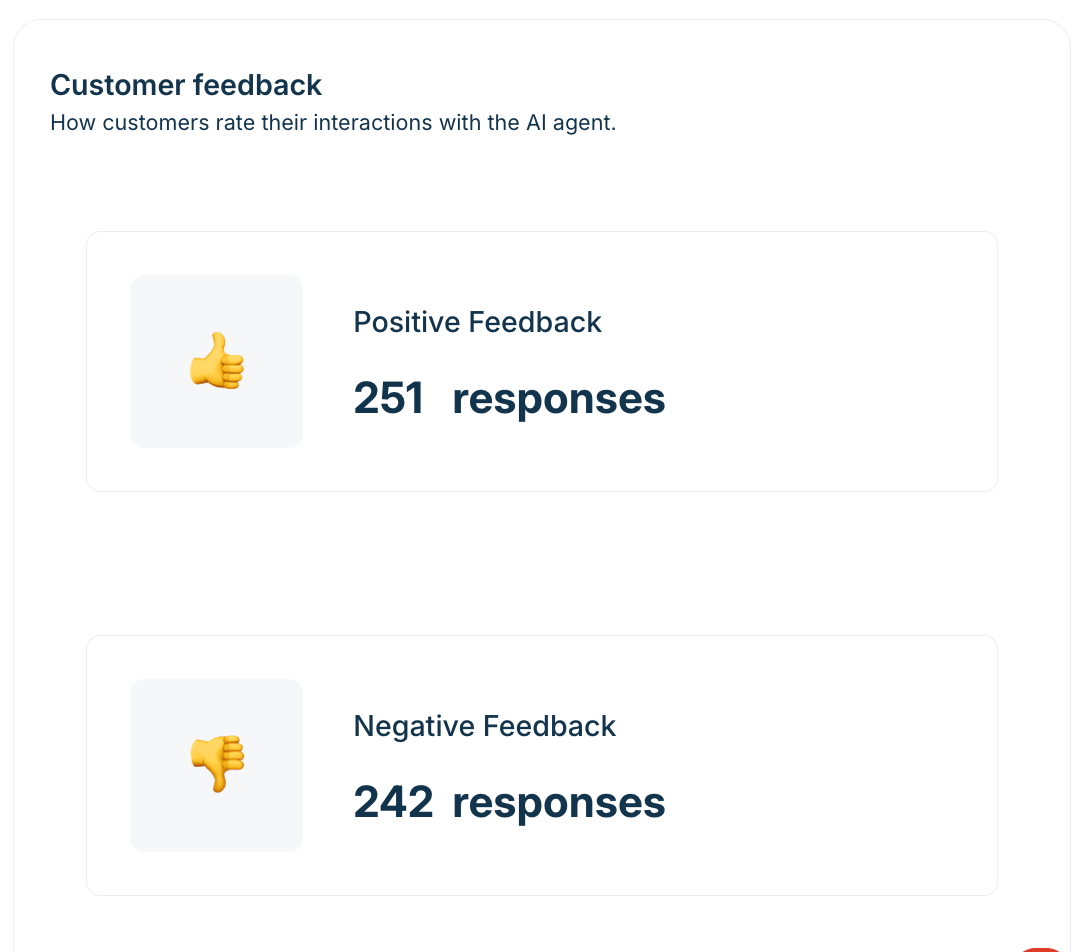
A low positive feedback rate on a high-volume topic is a reliable signal to prioritize that topic in the Improve tab.
Track the positive-to-negative ratio over time, not just absolute counts — as volume grows, both numbers will rise. The ratio is the health indicator.
Workflow performance
The Workflow performance section shows how each active workflow is performing across conversations. A workflow can complete all its steps and still end with a handover — completion rate and handover rate are independent metrics. Use this section to identify which workflows are reliably resolving queries and which are consistently failing customers despite running to completion. 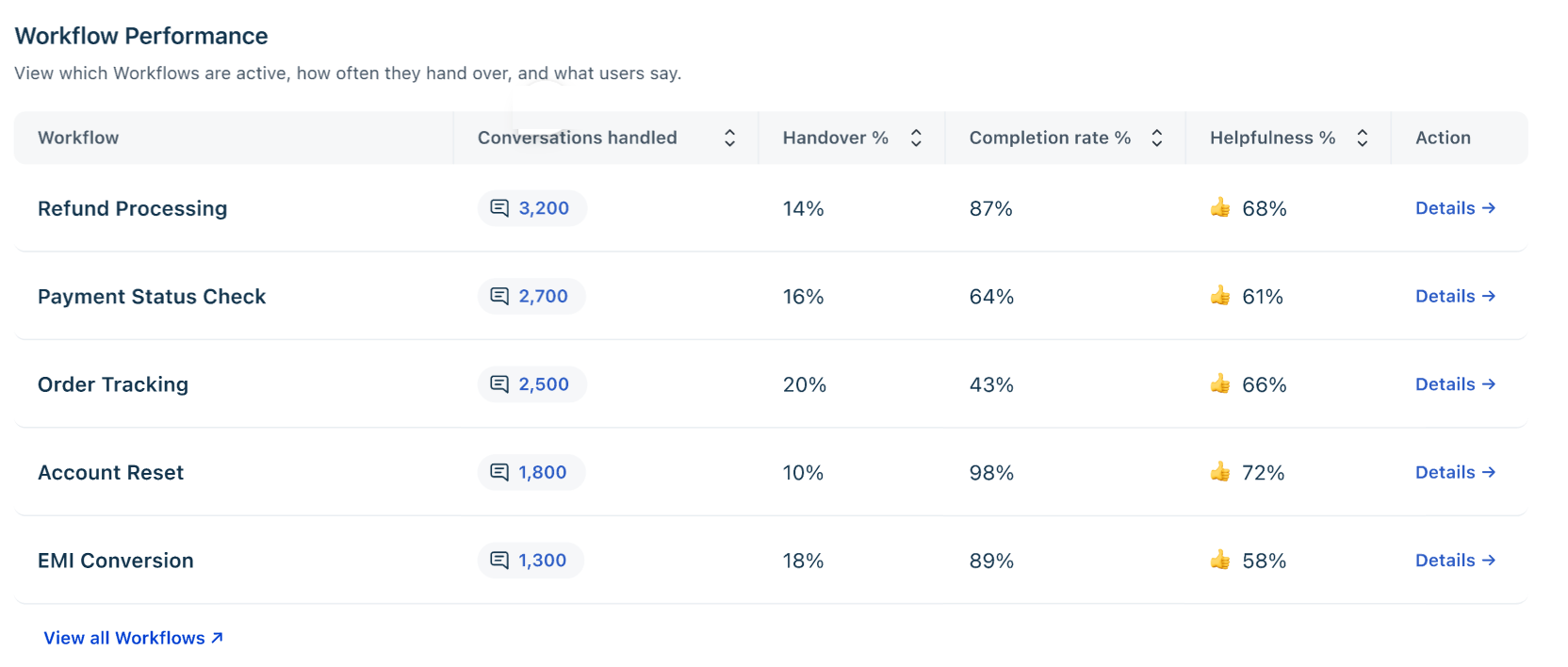
Each row in the Workflow performance table corresponds to an active workflow. The columns together tell you whether the workflow is running, completing, and satisfying customers.
Column | What it measures | How to act on it |
Conversations Handled | Number of conversations that triggered this workflow in the selected period. | High volume plus low helpfulness is the highest-priority combination to investigate. A small fix to a high-traffic workflow has an outsized impact on overall deflection. |
Handoff % | Percentage of triggered conversations that escalated to a human agent. | A high Handoff % means the workflow is not reliably resolving the query. Review the knowledge content linked to this workflow and check whether the workflow steps themselves are correctly configured. |
Completion rate % | Percentage of conversations where the workflow completed all configured steps. | Low completion rate combined with high handoff rate means customers are exiting the workflow early — the experience may be breaking down mid-flow rather than at the end. |
Helpfulness % | Percentage of customers who gave positive feedback after interacting with this workflow. | Below 60% on a high-volume workflow signals a content or instruction problem. Select View to open the workflow detail page and cross-reference with the Improve tab. |
Note:
Workflow performance data covers both user-triggered and system-triggered executions. The Triggered on column in the Workflow usage detail view distinguishes between the two.
Workflow completion rate and handover rate are not mutually exclusive. A workflow can complete all its steps and still end with a handover to a human agent.
Knowledge usage
The Knowledge sources usage section shows which of your connected knowledge sources the AI agent draws from when generating responses, and how customers rate those responses. Use it to identify sources that are frequently cited but generate negative feedback — a reliable indicator of outdated, or incomplete content.
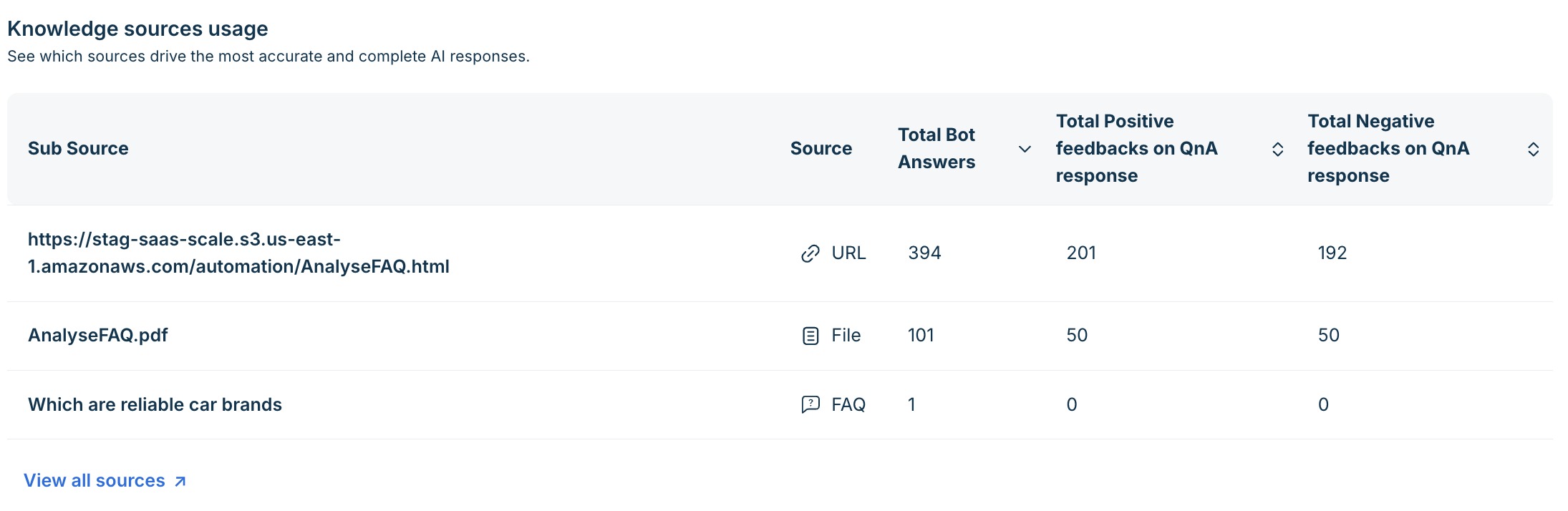
Each row in the summary table represents one knowledge source. The columns tell you how often the source is being used and whether it is helping or frustrating customers.
Column | What it measures | How to act on it |
Sub Source | The specific knowledge source — a URL, uploaded file, or FAQ entry. | — |
Source | Source type: URL, File, or FAQ. | Use to understand what kind of content the agent is drawing from. |
Total Bot Answers | Number of times this source was cited in an AI response in the selected period. | A very low count on a source you expect to be used may indicate an indexing or relevance configuration issue. |
Total Positive feedbacks on QnA response | Number of times a response citing this source received positive customer feedback. | Your per-source quality signal. A high count confirms the source is producing relevant, accurate responses. |
Total Negative feedbacks on QnA response | Number of times a response citing this source received negative customer feedback. | A high negative-to-positive ratio on a frequently cited source is your highest-priority content review target. Navigate to the Improve tab — there will likely be an Edit content tied to this source. |
Select View all sources to expand the full list. Sources with a high ratio of negative to positive feedback are candidates for immediate review in the Improve tab.
Knowledge source detail page
Selecting View all sources opens a dedicated detail page with KPI summary cards, a performance-over-time chart broken down by source type, the full source usage table, and conversation logs linked directly to that source. 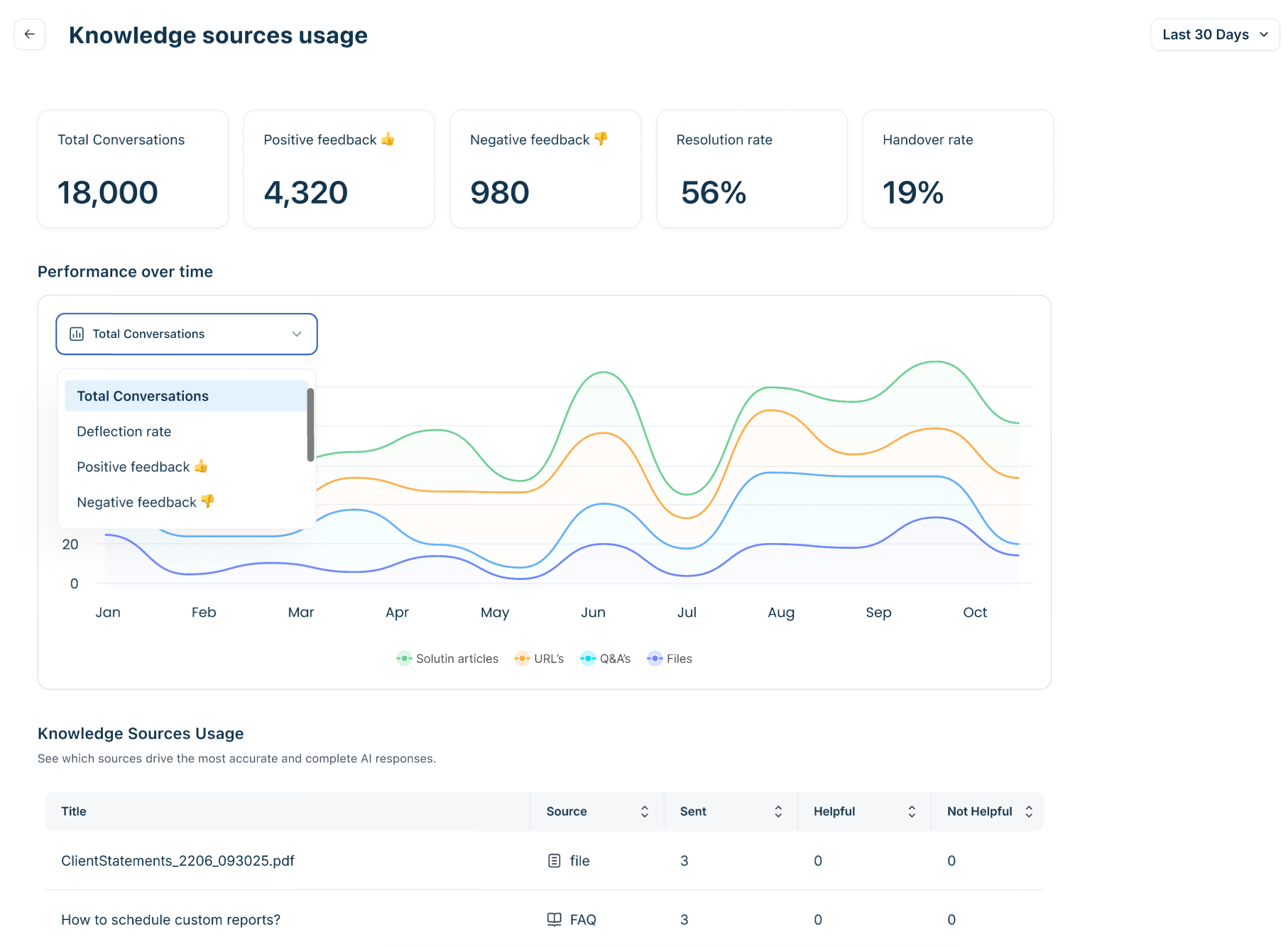
Conversation logs on the detail page
The Conversation logs table at the bottom of the Knowledge source detail page lists every conversation where this source was cited. Use it to read actual interactions and confirm whether the source is producing consistently poor responses before making content changes. A pattern of similar failed queries across multiple conversations is the confirmation signal to act.
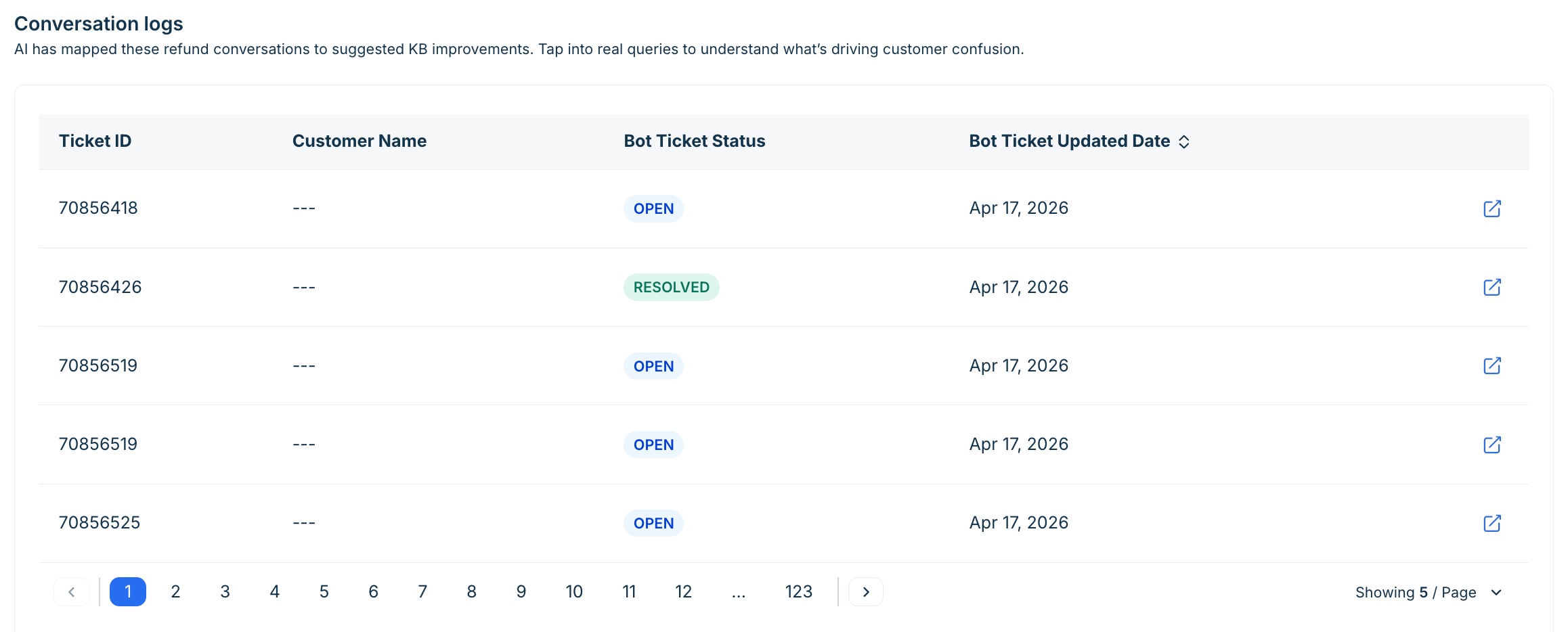
Tip: Cross-reference the Knowledge sources usage table with the Improve tab. A source appearing frequently in negative feedback will almost always have a corresponding Edit content insight in the Improve tab. Use the insight's supporting conversations count to validate the severity before prioritising your fix.
Mechanics of Improve tab
Note: All customers can access the Improve feature through September 30, 2026, as part of a limited-time promotional offer.
The Improve tab is where Performance data becomes action. It surfaces AI-generated content insights — specific, prioritized recommendations for changes to your knowledge base that would reduce repeat queries, resolve customer confusion, and improve deflection rates.
Every insight is based on actual conversation patterns: the AI reviews unresolved conversations that were escalated to a human agent and analyzes how each case was resolved. It then uses these resolutions to create a diagnosis and recommend a fix.
Use the Improve tab after reviewing the Performance tab. Bring the topic and knowledge source problems you identified there, and use the insight list to find the specific content changes that will address them.
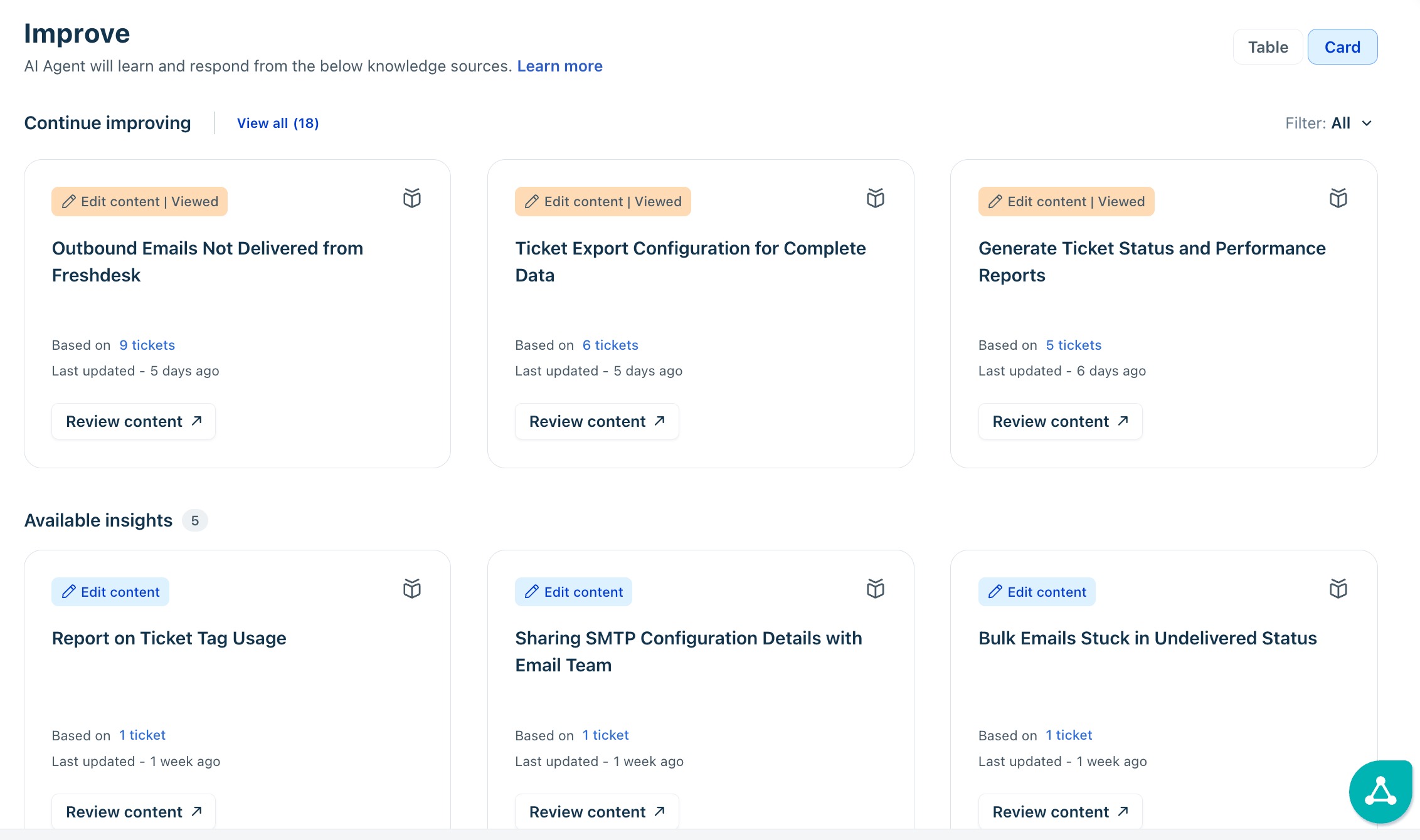
You can also view these content insights in either Table or Card format based on your preference.
Insight types
Every insight carries one of three type labels that tell you what kind of change is needed:
Insight type | What it means | Example |
New content | No existing article covers this topic — customers are asking about it but the knowledge base has no relevant entry. | Customers frequently ask how to reset their password because no clear help article exists. |
Edit content | An existing article exists but is outdated, incomplete, or misleading based on conversation patterns. | Customers struggle to reset passwords after a device change because the existing article doesn't cover this scenario. |
Insight states
Each insight moves through three states as you work through the list. The state determines where an insight appears and whether it still requires action.
State | Meaning |
Available | The insight is active and has not yet been actioned. Appears in the main Available insights section. |
Viewed | You have opened and reviewed this insight. Still actionable — shown with a Viewed badge. |
Dismissed | You chose to dismiss the insight. Dismissed insights are removed from the Available list. See Dismiss an insight below. |
View and filter insights
The insight list supports two display formats and several filter options. Use them together to work through the list systematically rather than scrolling through all available insights at once.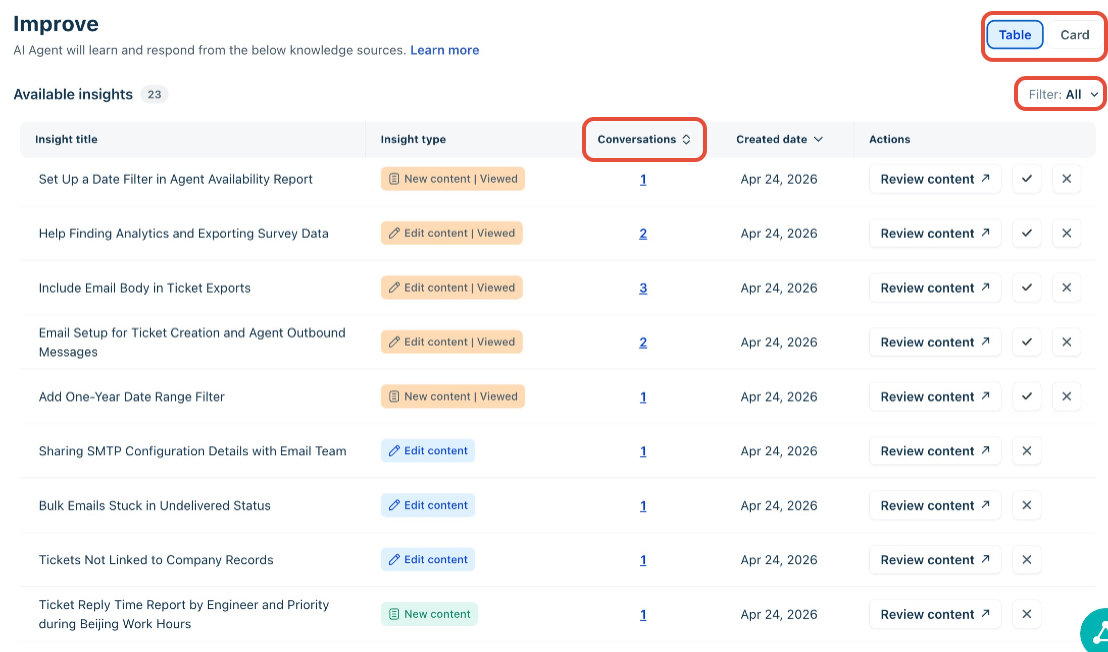
- Toggle between Card view and Table view using the controls in the top right. Card view gives a richer summary of each insight at a glance; Table view is better for sorting and comparing by volume.
- Filter by insight type using the Filter: All dropdown — select New content, Edit content, or Viewed.
- Sort the Table view by Conversations (volume of conversations supporting the insight) or Created date.
Tip: Sort by Conversations in Table view and work from the top down. High-conversation insights represent patterns the AI is failing on repeatedly — fixing these will have the largest measurable impact on deflection rate.
Review an insight
Select Review content on any insight card or table row to open the insight detail page. The detail page shows the problem description, the AI's reasoning for generating the insight, and the number of supporting conversations.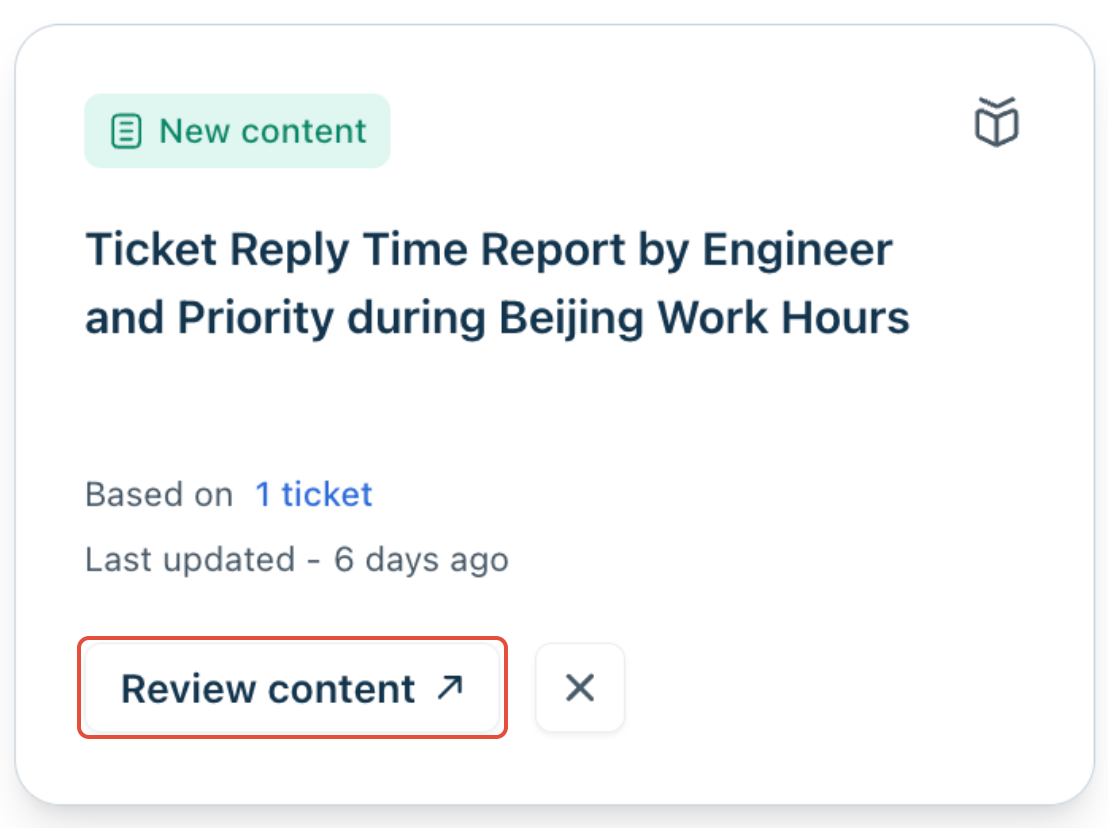
- Edit content insights : The current version of the relevant document is shown alongside the AI's suggested update. The AI highlights the specific gap or inaccuracy it identified, and provides a suggested revision. Select Go to document to open the source directly — a solution article, Confluence page, or Google Drive document — and make the change in context.
- New content insights: The AI provides a suggested draft for the new article or section, based on the patterns it identified in failed conversations. Copy the suggestion and create the content in your knowledge base. Once indexed, the AI agent will begin drawing from it — you should see the deflection rate for that topic improve in the Performance tab within the next data refresh cycle.
- Conversation validation : Every insight detail page includes a Conversations count link. Selecting it opens a filtered view of the specific conversations that led the AI to generate this insight. Read two or three of these conversations before making any content changes — it is the fastest way to confirm that the AI's diagnosis is accurate rather than acting on a false signal.
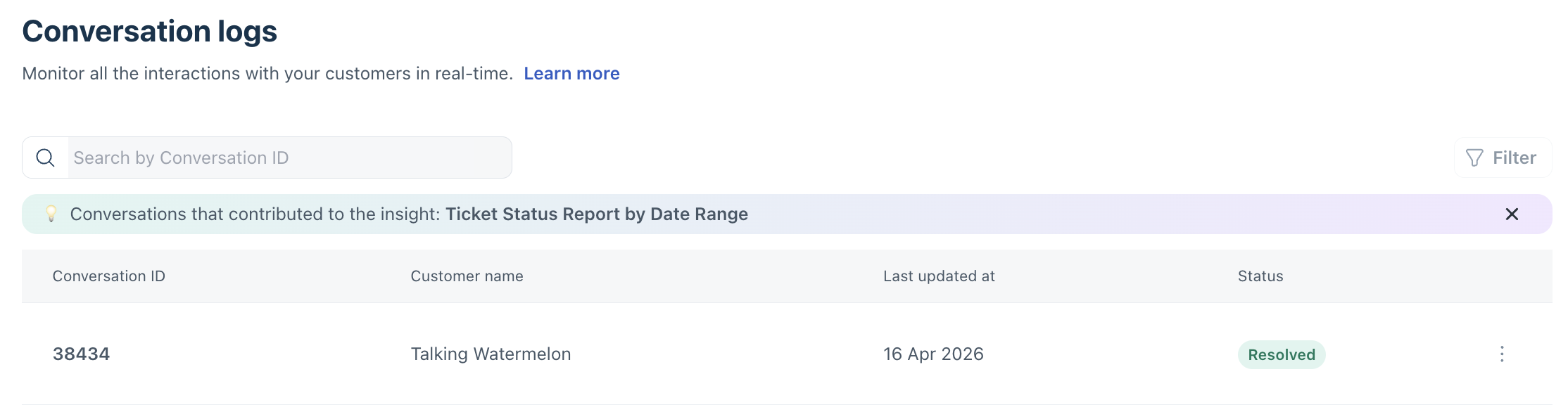
Tip: Make it a practice to review at least two supporting conversations before acting on any insight. A high conversation count is a strong signal, but the actual conversation text will tell you whether the AI's suggested fix is the right one or whether a deeper workflow or configuration issue lies behind the problem.
Dismiss an insight
Dismiss an insight when it is not relevant or is already being addressed through a separate process. Dismissal keeps the list actionable — an unmanaged list of stale insights obscures the ones that actually need attention.
- Select the dismiss icon (✕) on the insight card or in the table row action column.
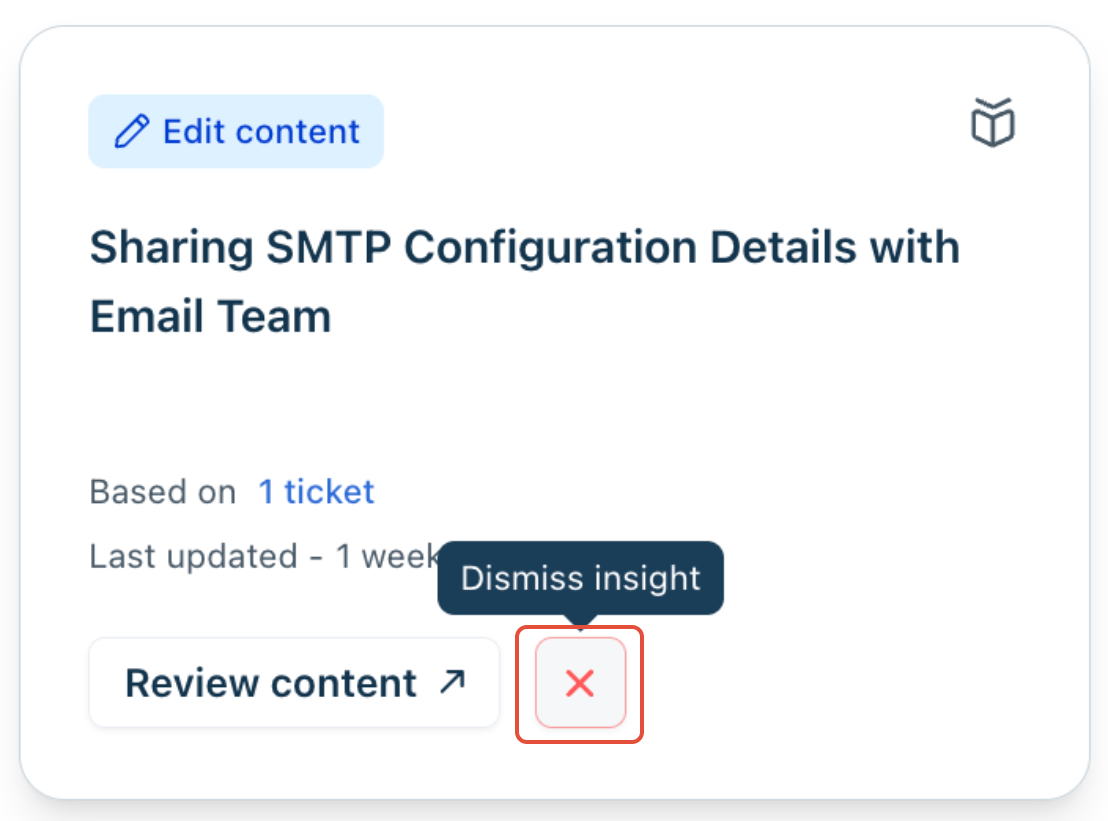
- A dismissal reason dialog appears. Select the most appropriate reason:
- Insight incorrect — the AI's diagnosis of the problem is wrong.
- Drafted content incorrect — the AI's suggested update is inaccurate.
- Not relevant right now — the insight is valid but not a current priority.
- Select Dismiss insight. The insight is removed from the Available list.
Note: Dismissed insights do not appear in the Available list but remain in the system. The AI agent may generate a new insight for the same topic if the underlying conversation pattern persists.
Use conversation logs for validation
The Conversation Logs page provides full visibility into all conversations between your customers and the AI Agent. It records all messages exchanged, allowing you to validate insights from the Performance and Improve tabs using real interaction data.
For example, if a customer reaches out about an unresolved issue, you can search the logs by ticket ID to review the full conversation before troubleshooting.
Conversation logs can be used to:
- Audit conversations and understand how your AI Agent responded to specific queries.
- Investigate issues when customers report unresolved or incorrect answers.
- Identify areas for improvement in your Knowledge Base or AI Agent training.
Tip: In addition to Conversation Logs, you can use the Performance Summary and Improve AI Agent tabs to monitor your AI Agent’s overall performance and identify areas for improvement.
View conversation logs
The Conversation Logs page displays all conversations in chronological order, with the most recent logs displayed at the top. The details include Conversation ID, Customer name, Ticket Status, and last updated time.
To view logs:
- Log in to your account.
- From the left navigation bar, click AI Agent Studio.
- On the AI Agent Studio page, click on the AI Agent.
- Click Analyze > Conversation Logs.
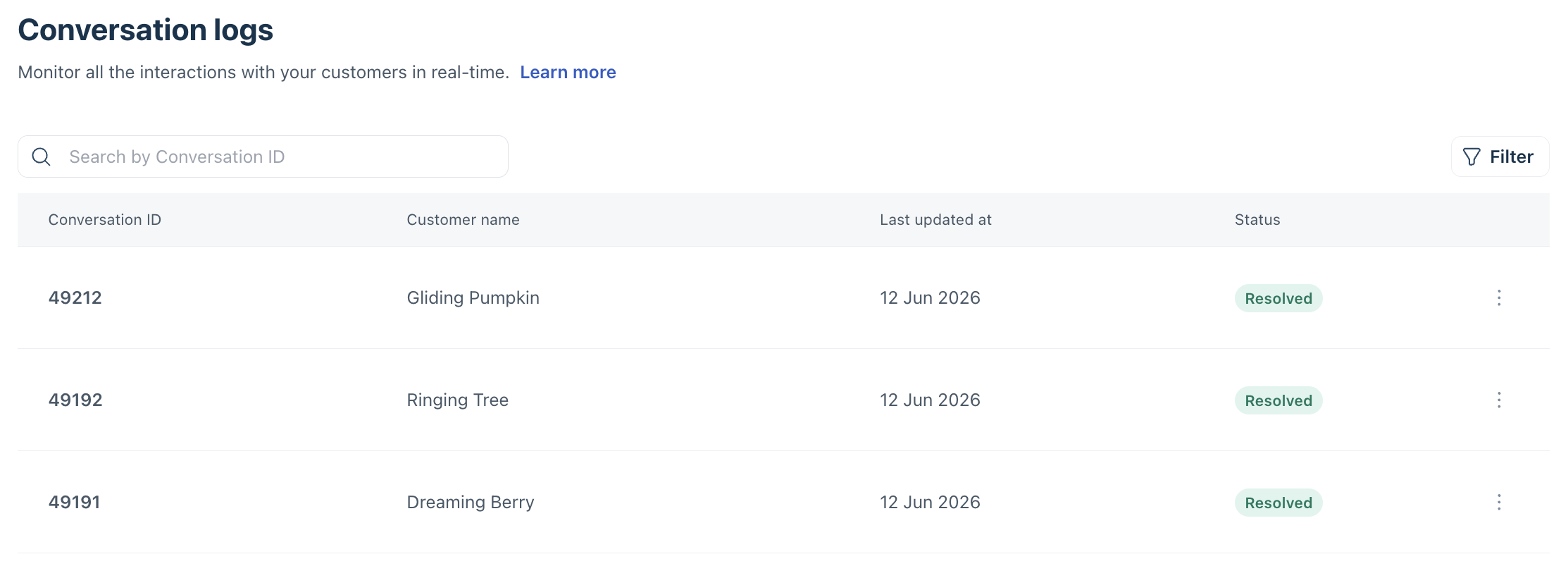 You’ll see a list of all the recorded conversations for that AI Agent, including both customer conversations and preview logs.
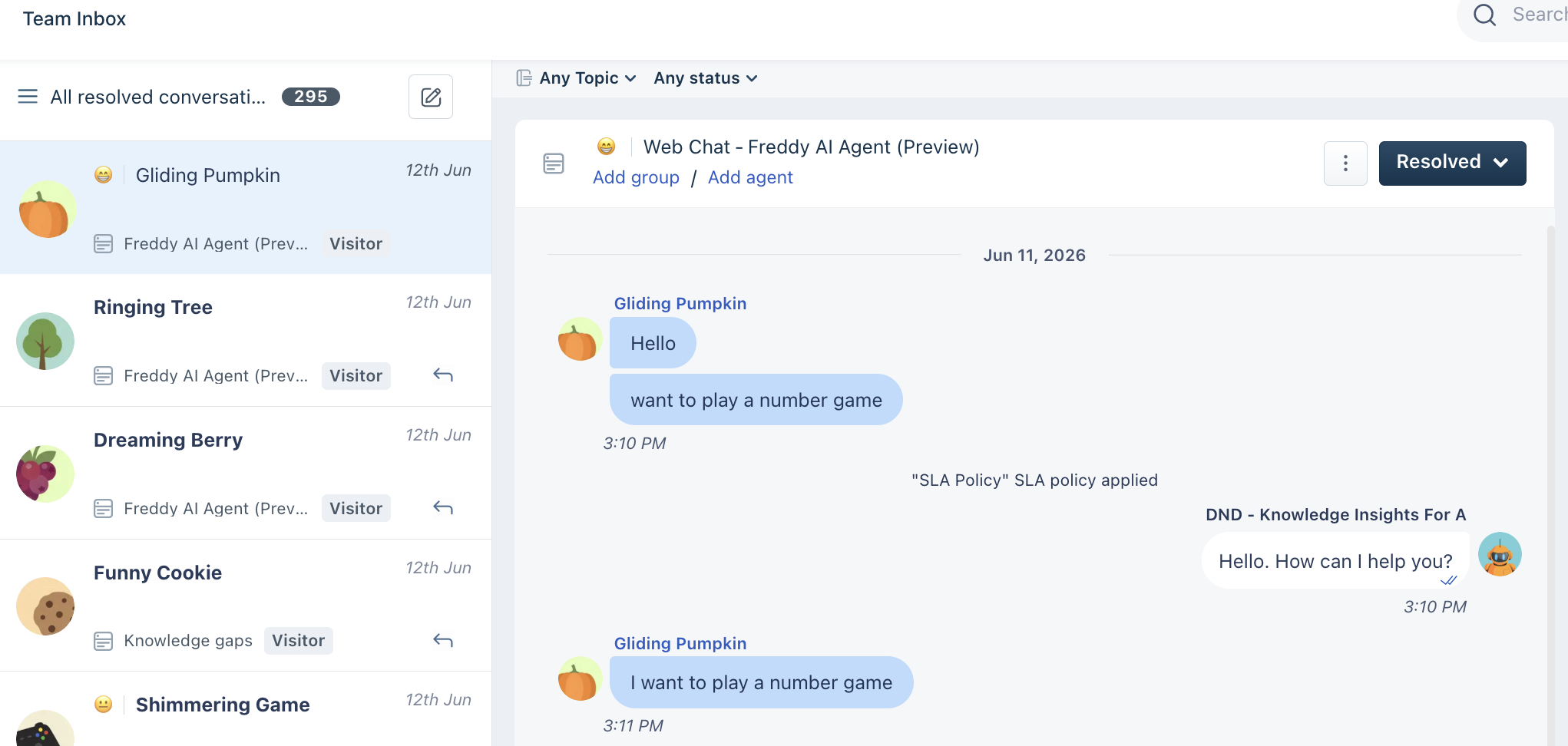
To view a ticket directly in your Logs or Inbox :
- Click the three dots next to the conversation log.
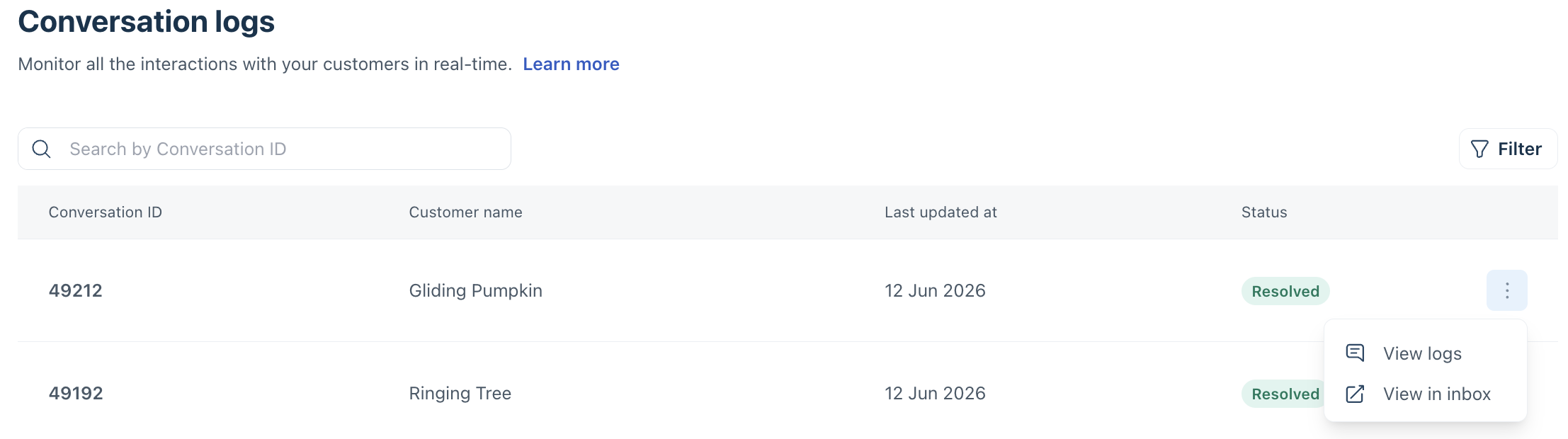
- Click View in Inbox to open the full conversation.
Filter logs
You can refine your view using filters to focus on specific tickets or time periods.
To filter logs:
- Click the Filter icon.
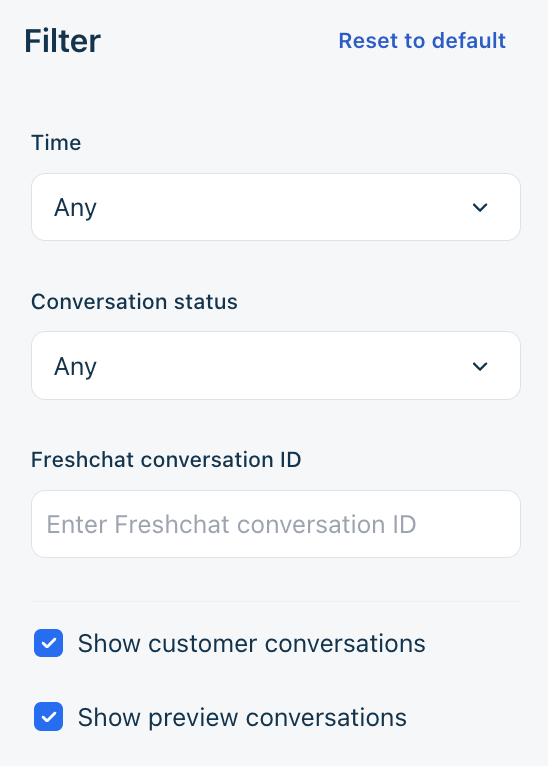
- Choose your preferred filter options:
- Time : Filter logs within a specific date range.
- Conversation status : Filter by new, open, resolved, or agent hand-off conversation.
- Freshchat conversation ID : Search for specific customer conversations using ticket ID.
- Customer or preview tickets : Choose to view real or test interactions.
- Click Apply.