The Analyze section of AI Agent Studio gives you a complete picture of how your AI agent is performing — what it resolves, where it struggles, and exactly what happened in any individual conversation. It has three tabs that serve distinct purposes:
- Performance: Quantitative metrics — conversation volumes, deflection rates, topic distribution, workflow usage, knowledge source effectiveness, and customer feedback.
- Improve: AI-generated content insights — the agent identifies gaps, and outdated content in your knowledge base and recommends specific fixes, grounded in real conversations. All customers can access the Improve feature through September 30, 2026, as part of a limited-time promotional offer.
- Conversation logs: Detailed conversation logs, including customer names, timestamps, conversation IDs, and links to the respective conversations.
Mechanics of improve tab
Note: All customers can access the Improve feature through September 30, 2026, as part of a limited-time promotional offer.
The Improve tab is where Performance data becomes action. It surfaces AI-generated content insights — specific, prioritized recommendations for changes to your knowledge base that would reduce repeat queries, resolve customer confusion, and improve deflection rates. Every insight is grounded in real conversation patterns: the AI examines interactions where it failed to resolve queries, received negative feedback, or produced inconsistent answers, then generates a diagnosis and a suggested fix.
Use the Improve tab after reviewing the Performance tab. Bring the topic and knowledge source problems you identified there, and use the insight list to find the specific content changes that will address them.
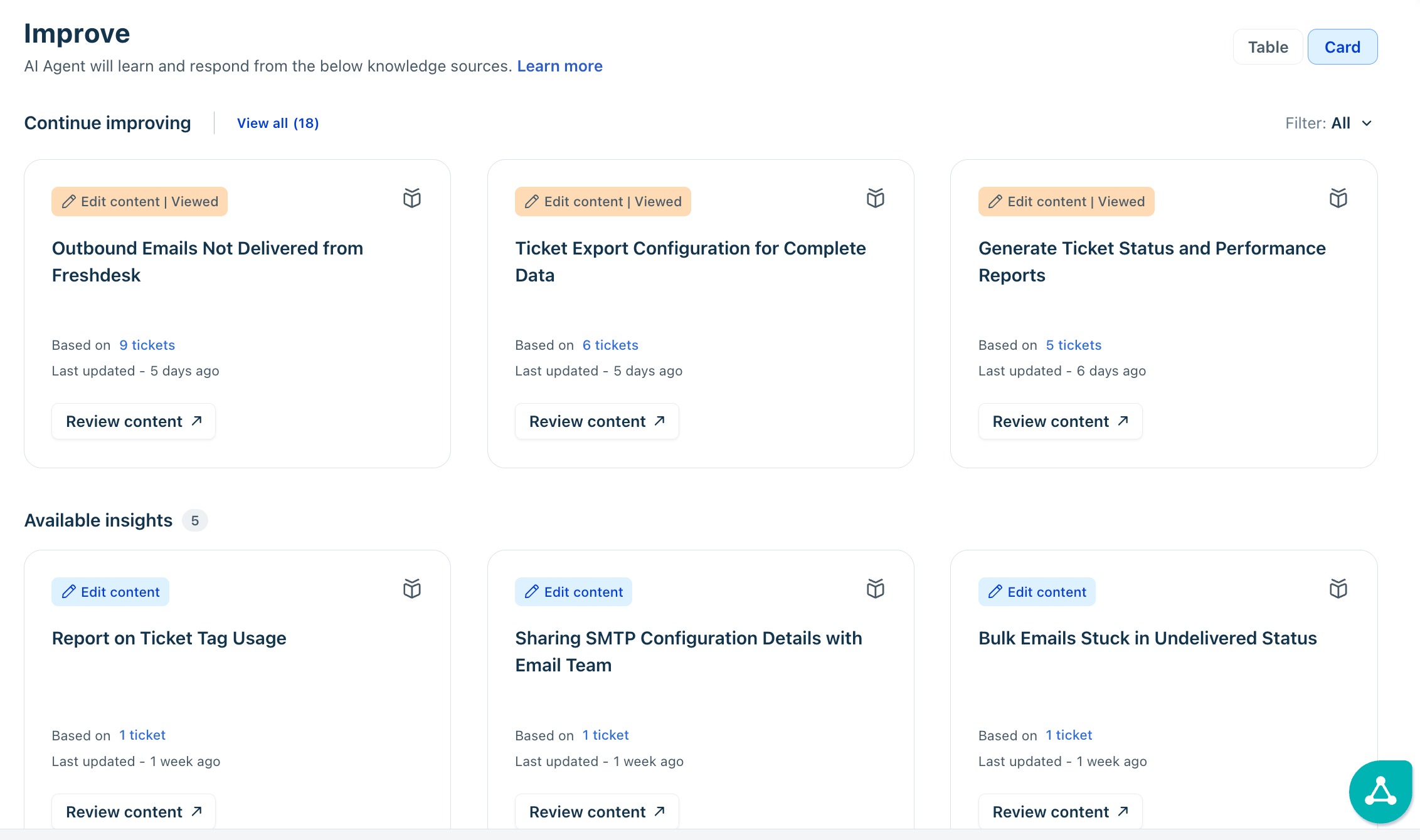
The AI agent examines patterns in conversations where it didn't resolve queries, received negative feedback, or provided inconsistent answers. It then creates insights that describe the issues and suggest solutions. You can also view these content insights in either Table or Card format based on your preference.
Insight types
Every insight carries one of three type labels that tell you what kind of change is needed:
Insight type | What it means | Example |
New content | No existing article covers this topic — customers are asking about it but the knowledge base has no relevant entry. | Customers frequently ask how to reset their password because no clear help article exists. |
Edit content | An existing article exists but is outdated, incomplete, or misleading based on conversation patterns. | Customers struggle to reset passwords after a device change because the existing article doesn't cover this scenario. |
Insight states
Each insight moves through three states as you work through the list. The state determines where an insight appears and whether it still requires action.
State | Meaning |
Available | The insight is active and has not yet been actioned. Appears in the main Available insights section. |
Viewed | You have opened and reviewed this insight. Still actionable — shown with a Viewed badge. |
Dismissed | You chose to dismiss the insight. Dismissed insights are removed from the Available list. See Dismiss an insight below. |
View and filter insights
The insight list supports two display formats and several filter options. Use them together to work through the list systematically rather than scrolling through all available insights at once.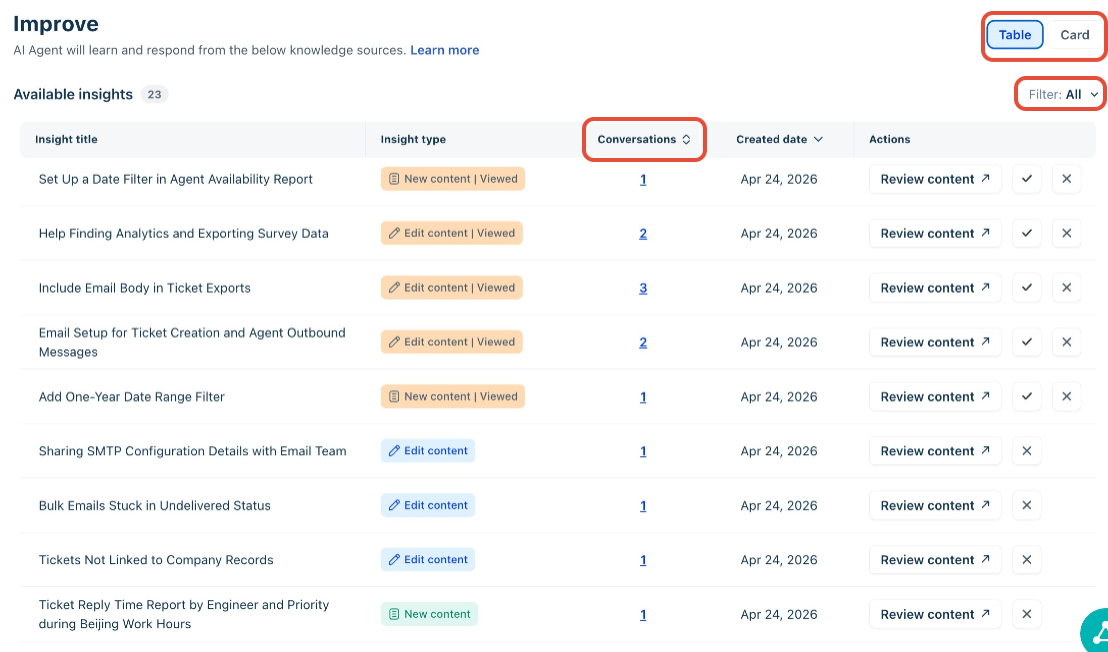
- Toggle between Card view and Table view using the controls in the top right. Card view gives a richer summary of each insight at a glance; Table view is better for sorting and comparing by volume.
- Filter by insight type using the Filter: All dropdown — select New content, Edit content, or Viewed.
- Sort the Table view by Conversations (volume of conversations supporting the insight) or Created date.
Tip: Sort by Conversations in Table view and work from the top down. High-conversation insights represent patterns the AI is failing on repeatedly — fixing these will have the largest measurable impact on deflection rate.
Review an insight
Select Review content on any insight card or table row to open the insight detail page. The detail page shows the problem description, the AI's reasoning for generating the insight, and the number of supporting conversations.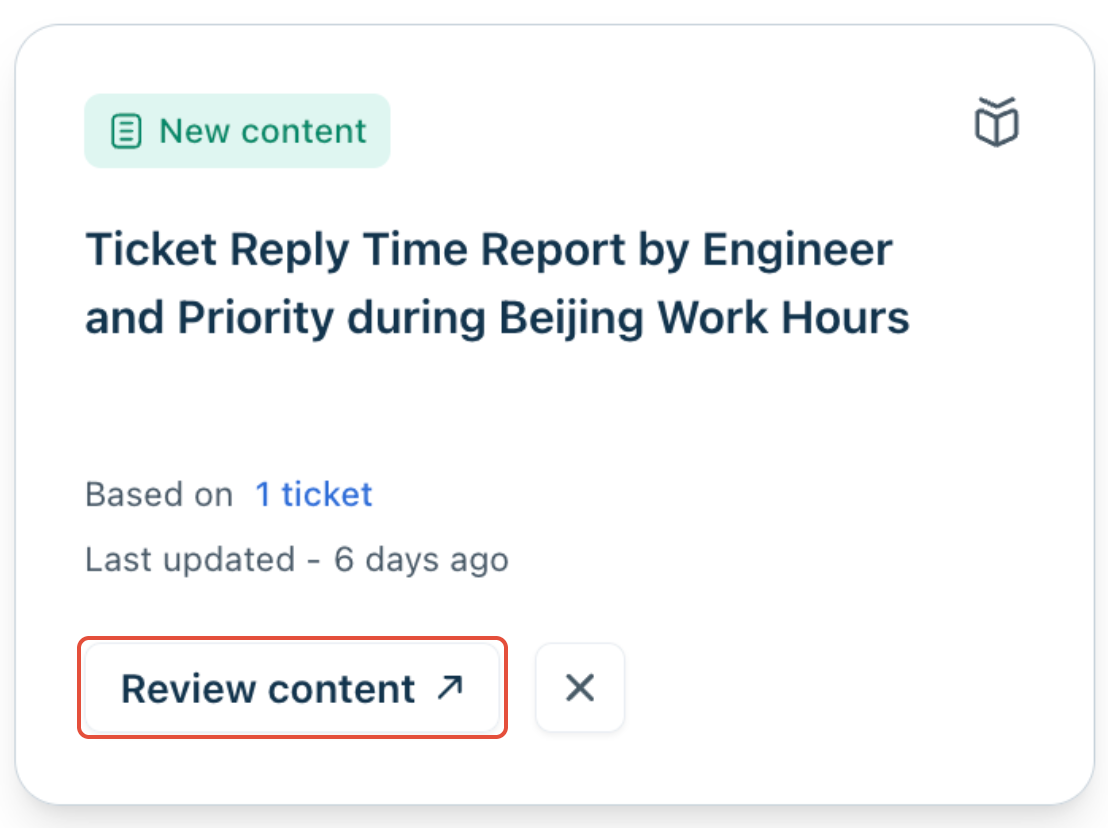
- Edit content insights: The current version of the relevant document is shown alongside the AI's suggested update. The AI highlights the specific gap or inaccuracy it identified, and provides a suggested revision. Select Go to document to open the source directly — a solution article, Confluence page, or Google Drive document — and make the change in context.
- New content insights: The AI provides a suggested draft for the new article or section, based on the patterns it identified in failed conversations. Copy the suggestion and create the content in your knowledge base. Once indexed, the AI agent will begin drawing from it — you should see the deflection rate for that topic improve in the Performance tab within the next data refresh cycle.
- Conversation validation: Every insight detail page includes a Conversations count link. Selecting it opens a filtered view of the specific conversations that led the AI to generate this insight. Read two or three of these conversations before making any content changes — it is the fastest way to confirm that the AI's diagnosis is accurate rather than acting on a false signal.
Tip: Make it a practice to review at least two supporting conversations before acting on any insight. A high conversation count is a strong signal, but the actual conversation text will tell you whether the AI's suggested fix is the right one or whether a deeper workflow or configuration issue lies behind the problem.
Dismiss an insight
Dismiss an insight when it is not relevant or is already being addressed through a separate process. Dismissal keeps the list actionable — an unmanaged list of stale insights obscures the ones that actually need attention.
- Select the dismiss icon (✕) on the insight card or in the table row action column.
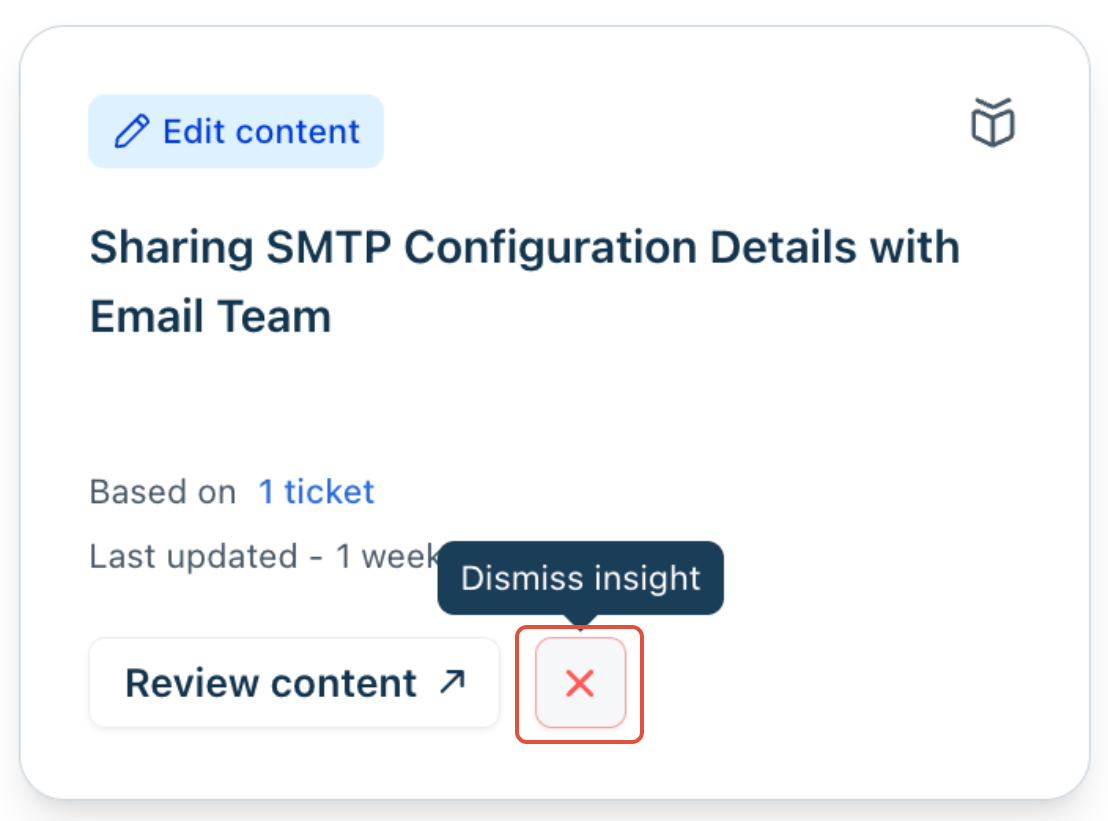
- A dismissal reason dialog appears. Select the most appropriate reason:
- Insight incorrect — the AI's diagnosis of the problem is wrong.
- Drafted content incorrect — the AI's suggested update is inaccurate.
- Not relevant right now — the insight is valid but not a current priority.
- Select Dismiss insight. The insight is removed from the Available list.
Note: Dismissed insights do not appear in the Available list but remain in the system. The AI agent may generate a new insight for the same topic if the underlying conversation pattern persists.