What is Freddy Copilot?
Freddy Copilot provides AI assistance to increase agent productivity, elevate conversation quality, and streamline admin responsibilities to drive consistency of service across the team.
Availability: Pro and Enterprise plans across CS Suite, Freshchat, Freshdesk, and Omnichannel. Learn more.
How to purchase the Freddy AI Copilot add-on?
Freshchat/ Freshdesk Omni (Online and Offline billing customers)
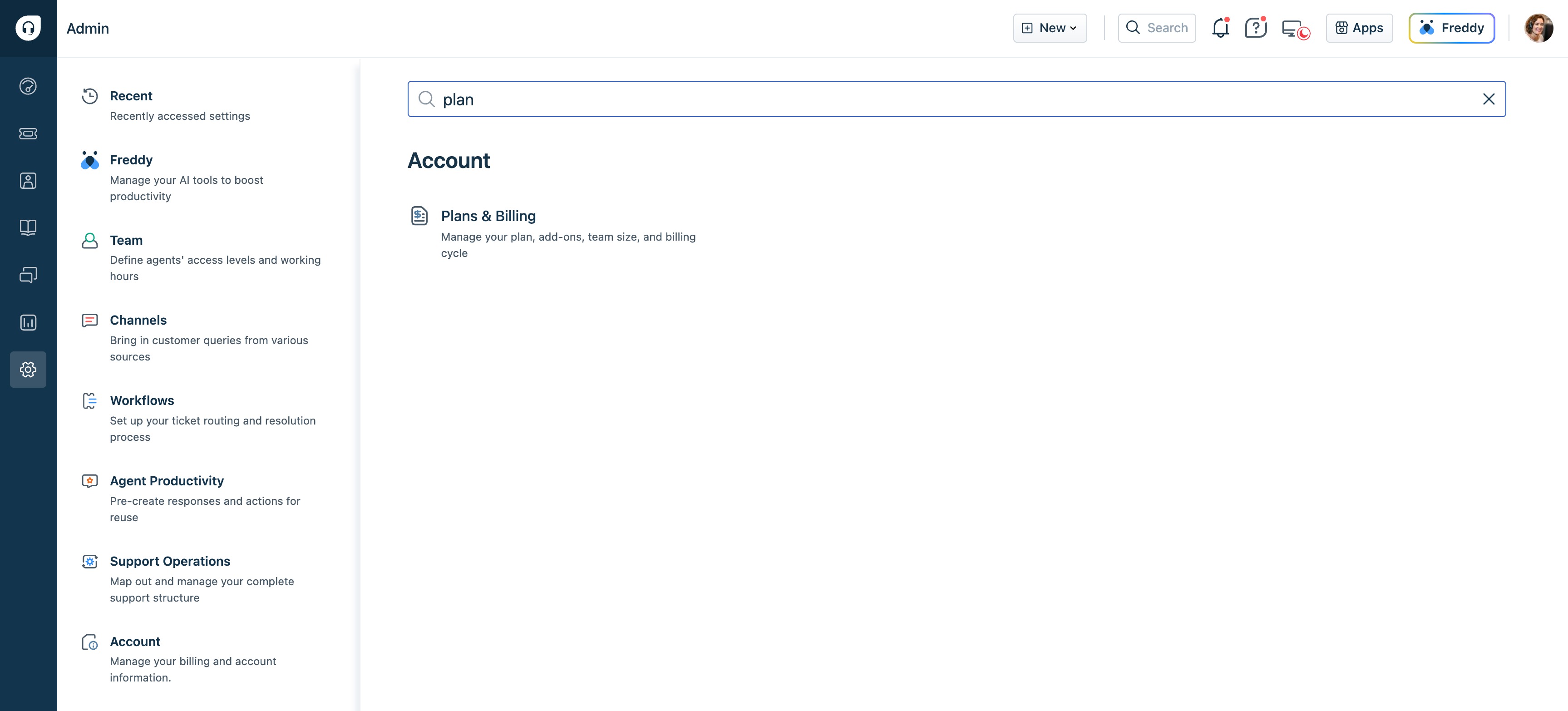
- Go to Admin Settings > Plans and Billing.
- On the Subscription page, click Manage/Buy add-on.
- Select Freddy AI Copilot and enter the number of licenses you want to purchase.
You can also contact your account manager to purchase licenses. - Click Continue.
Freshdesk/Freshdesk Omnichannel customers (Online Customers)
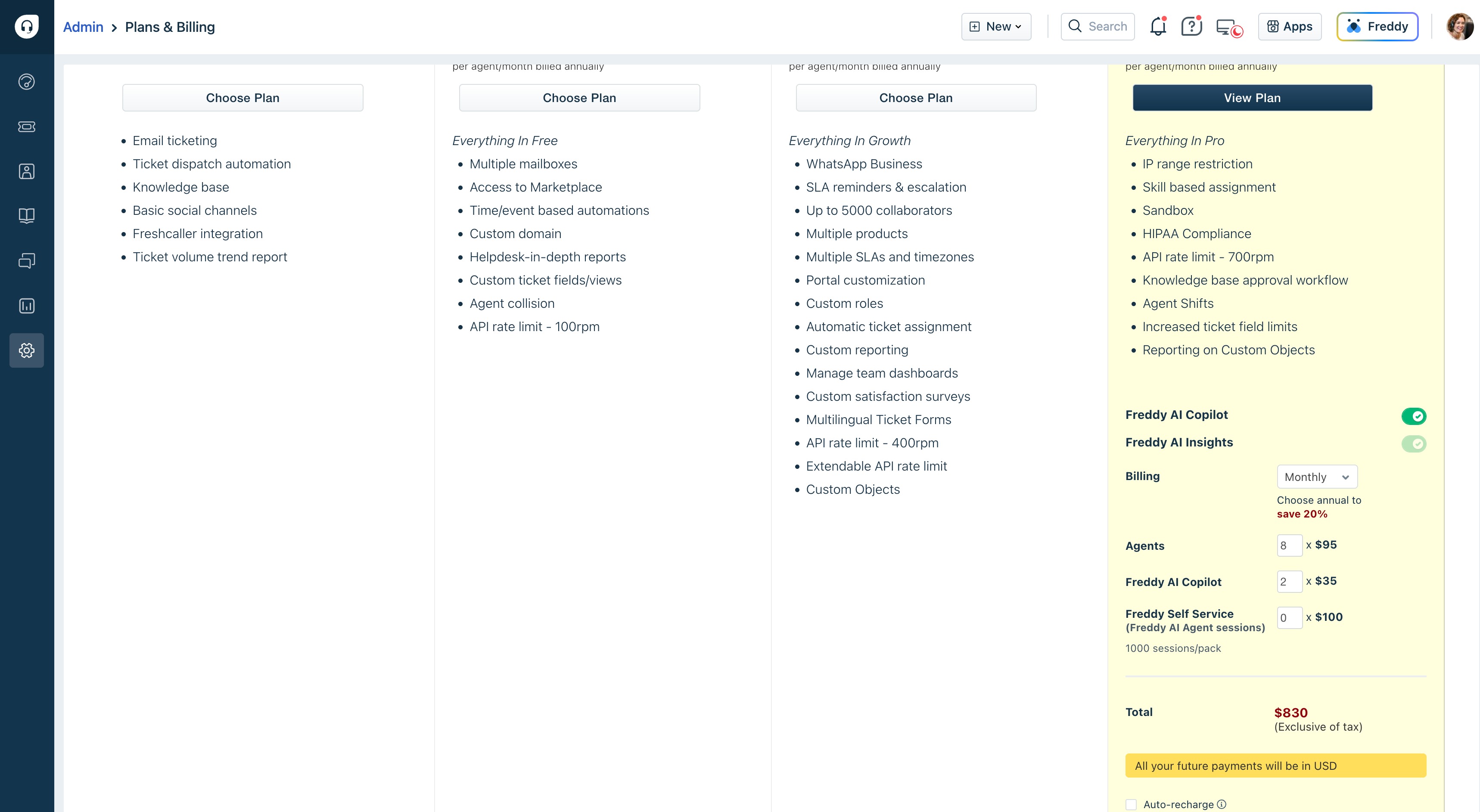
- Go to Admin > Plan and Billings.
- Select Freddy AI Copilot and enter the number of licenses. You can also contact your account manager to purchase.
Freshdesk/Freshdesk Omnichannel/ Old Freshchat customers (Offline Customers)
Contact your account manager to purchase add-ons.
Legacy Freshchat (Online Customers)
- Go to "Billings".
- Choose "Edit my plan," specify the number of Copilot licenses you need, and proceed to checkout.
How to manage Freddy AI Copilot permissions?
After purchasing Freddy AI Copilot licenses, you can create a custom role or modify an existing one to add or remove Freddy AI Copilot permissions.
Freshchat/Freshdesk Omni
Go to Admin Settings > Team Management > Roles.
Click Manage Licenses next to any custom role for which you want to enable Freddy permissions.
Select Enable Freddy AI Copilot add-on for this role and click Save.
This grants all Freddy AI Copilot permissions to the role. To modify specific Freddy permissions, add or remove them as needed:Click on the role again.
Under Permissions, click Freddy and select the Freddy Copilot permissions you want to add or remove for this role.
Note: The Freddy AI Copilot license can also be enabled for a default role. However, you cannot add/remove individual Freddy AI permissions for the default role.
Freshdesk
- Go to Admin > Roles.
- Click on the custom role for which you want to add/remove Freddy AI Copilot permissions.
- Under Permissions, scroll down to Freddy AI Copilot.
- Select Access Freddy AI Copilot add-on.
Note: In addition to assigning Freddy AI Copilot permissions to custom roles in Freshdesk, you can also assign the default Freddy AI Copilot user role to agents. For details, see Controlling agent access with roles.
For trial customers:
Starting January 24th, Freddy Copilot will be available for purchase but will be available to explore during your free trial. But access to Copilot capabilities will have to be configured from roles and permissions.
The enablement of optional functionality is subject to certain feature-specific terms and conditions set forth in the Freshworks Supplemental Terms.