The Freshdesk for Salesforce app is available in the Salesforce AppExchange and can be used with the Enterprise Edition and above.
Note: Only Salesforce Admins can install the Freshdesk-Salesforce package.Install the app from Salesforce AppExchange:
Here are the steps to install the Freshdesk package on Salesforce:
Find the App: Go to the Salesforce AppExchange and search for "Freshdesk," then click Get it Now. Alternatively, if you cannot locate the app, use this link: Freshdesk for Salesforce.
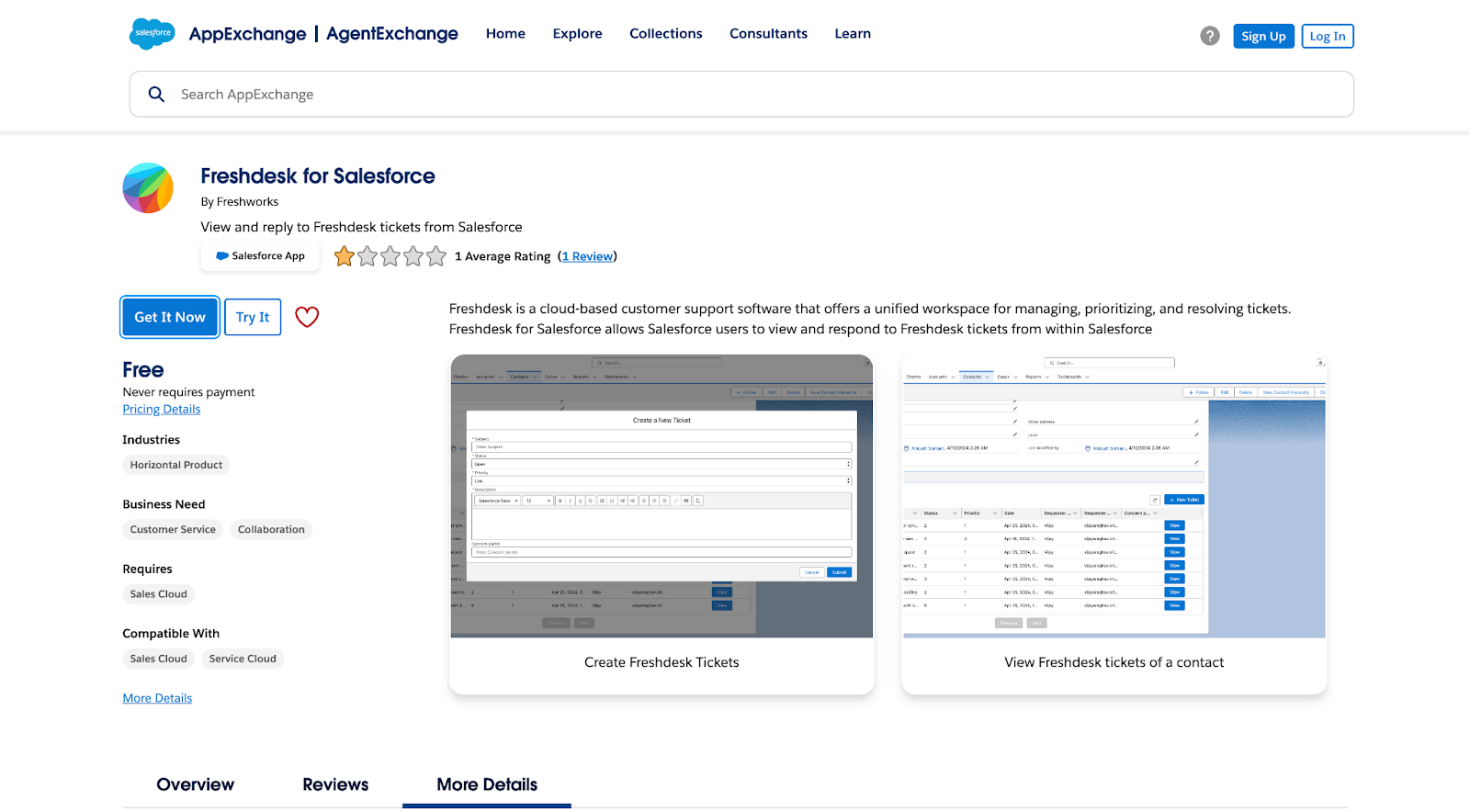
Choose Installation Environment: Select whether to install the app in your sandbox or production environment, based on your current requirement.
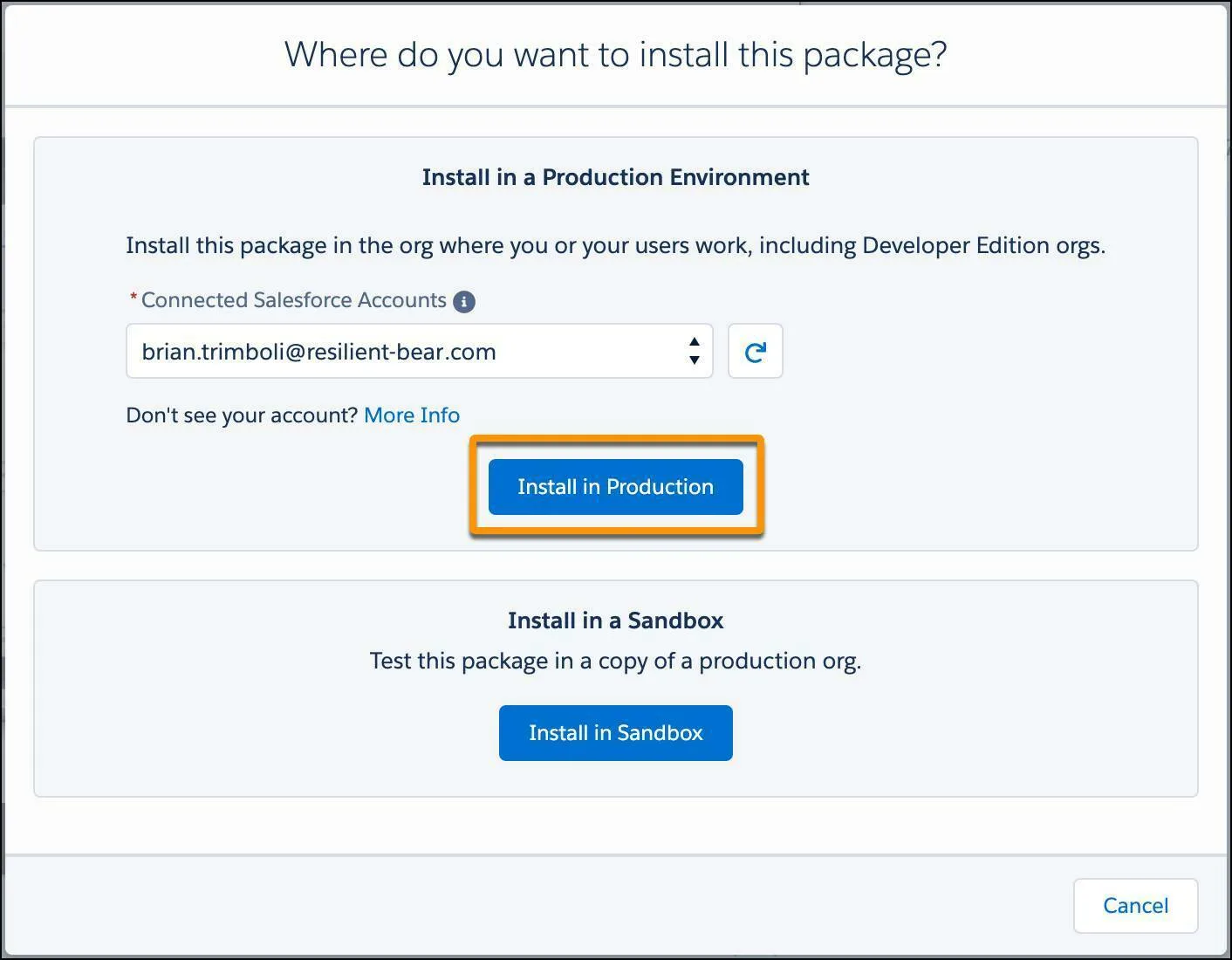
Confirm Installation:
Log in to your Salesforce account when prompted.
Accept the terms and conditions.
Choose who the app will be installed for: everyone or only Admins, depending on your specific use case..
Post-installation steps
Once the installation is complete, you will be redirected to the Installed Packages page.
From the left pane, go to Security Controls > Remote Site Settings
Click New Remote Site to create a new remote site. Enter your Freshdesk URL and name, and click Save. If you have multiple Freshdesk accounts to connect to your Salesforce org, you can add a remote site setting for all.
Freshdesk URL - This is the domain url of your freshdesk account. It should be in the format https://acme.freshdesk.com
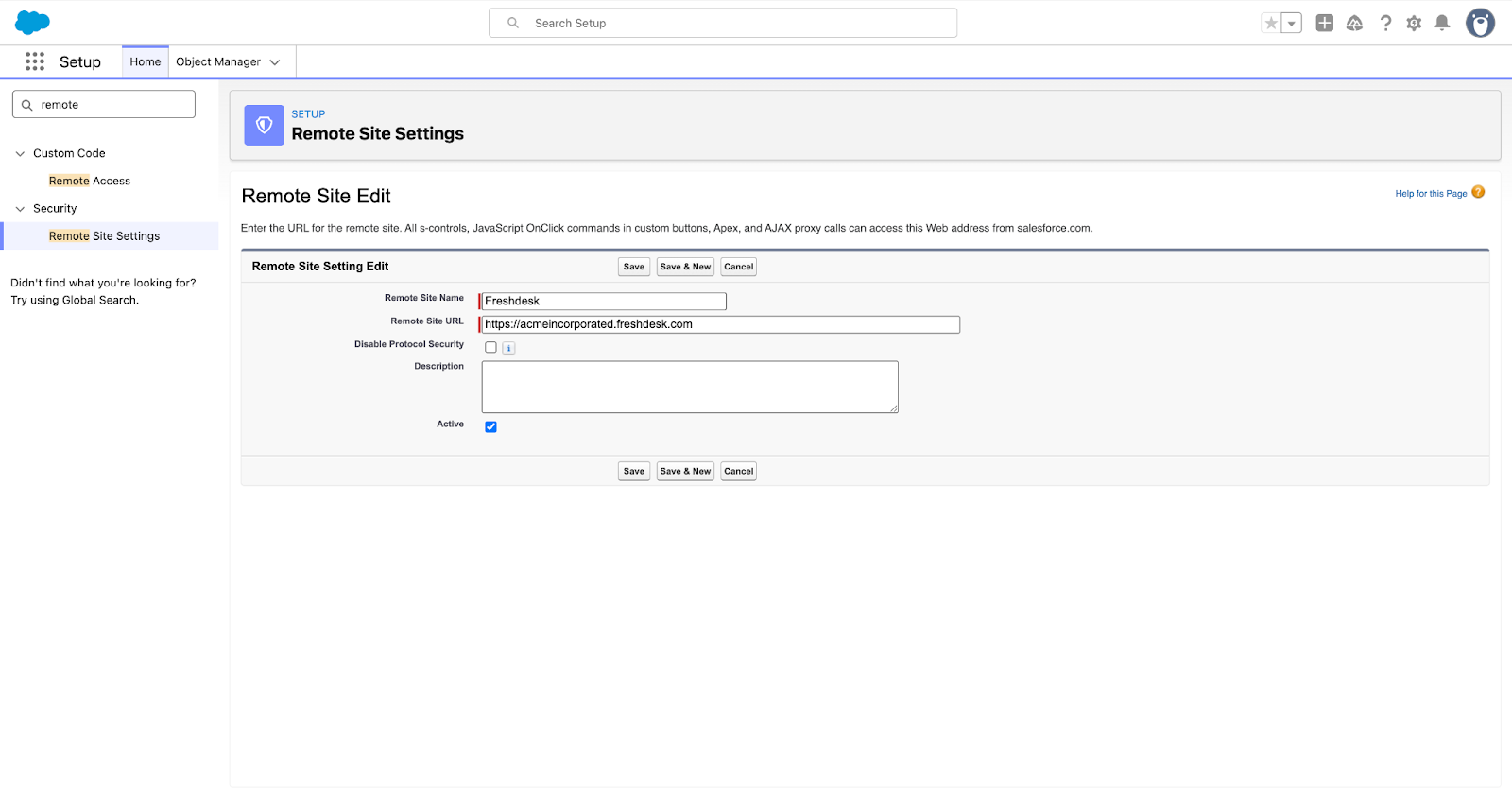
Note: The Remote Site Name must only have letters, numbers, and/or underscores. Also, the Remote Site URL must start with "https://”
User Access Configuration for Freshdesk on Salesforce
To prevent access issues, grant the user profile access to the following Apex Classes and Custom Metadata Type:
Assign the necessary permissions to control user access for Freshdesk ticket management in Salesforce. You have two options for assigning these permissions: Permission Sets for specific users or Custom Permissions for an entire profile
Option 1: Assign Permission Sets (for specific users)
Assign the appropriate Permission Set to users based on the access level required:
Option 2: Assign Custom Permissions (for the entire profile)
Assign the appropriate Custom Permission to the profile:
Configure Freshdesk Auth Settings in Salesforce
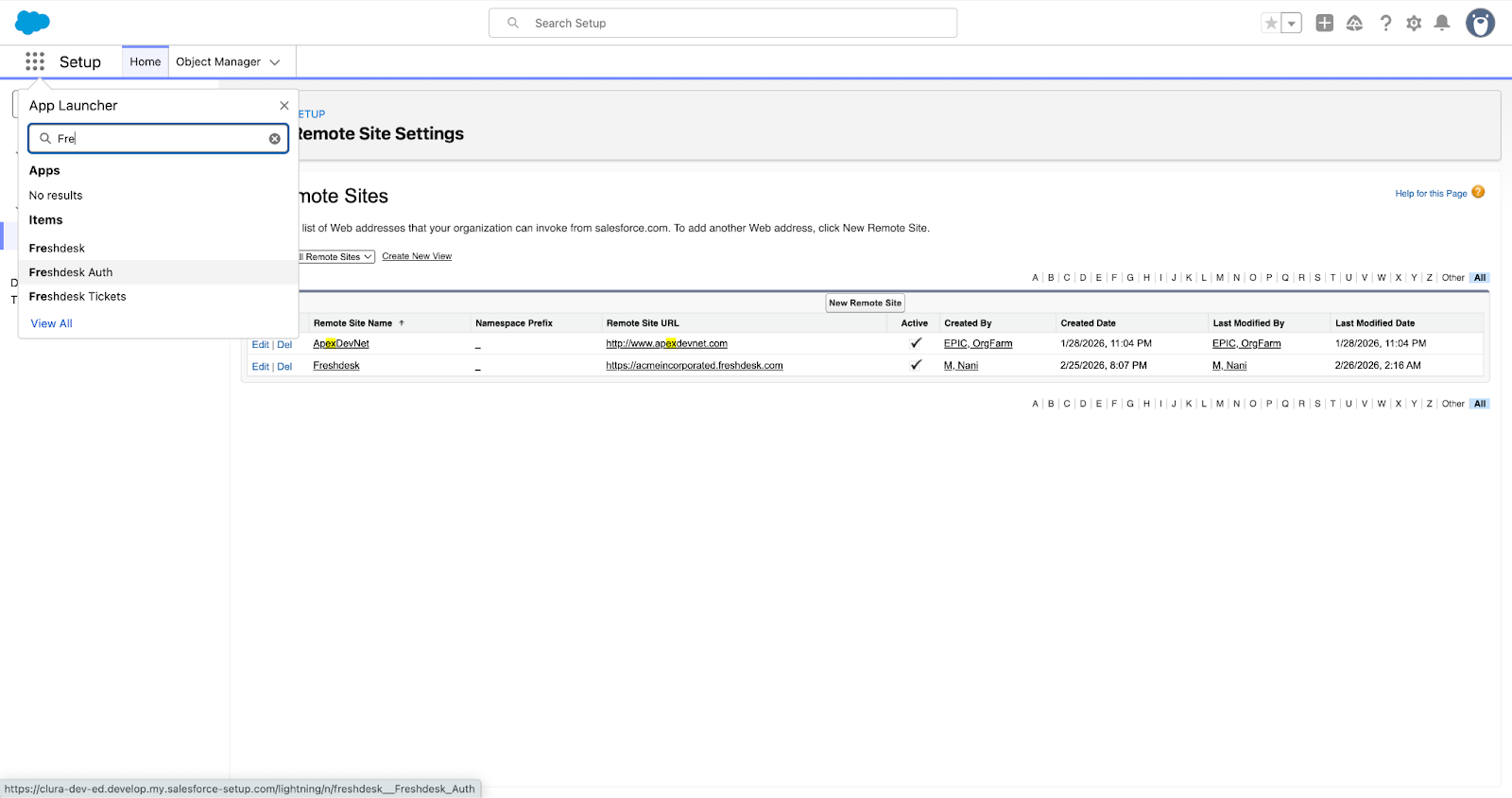
Go the App launcher icon, in the top left corner and search for the “Freshdesk Auth” and open the freshdesk Auth tab
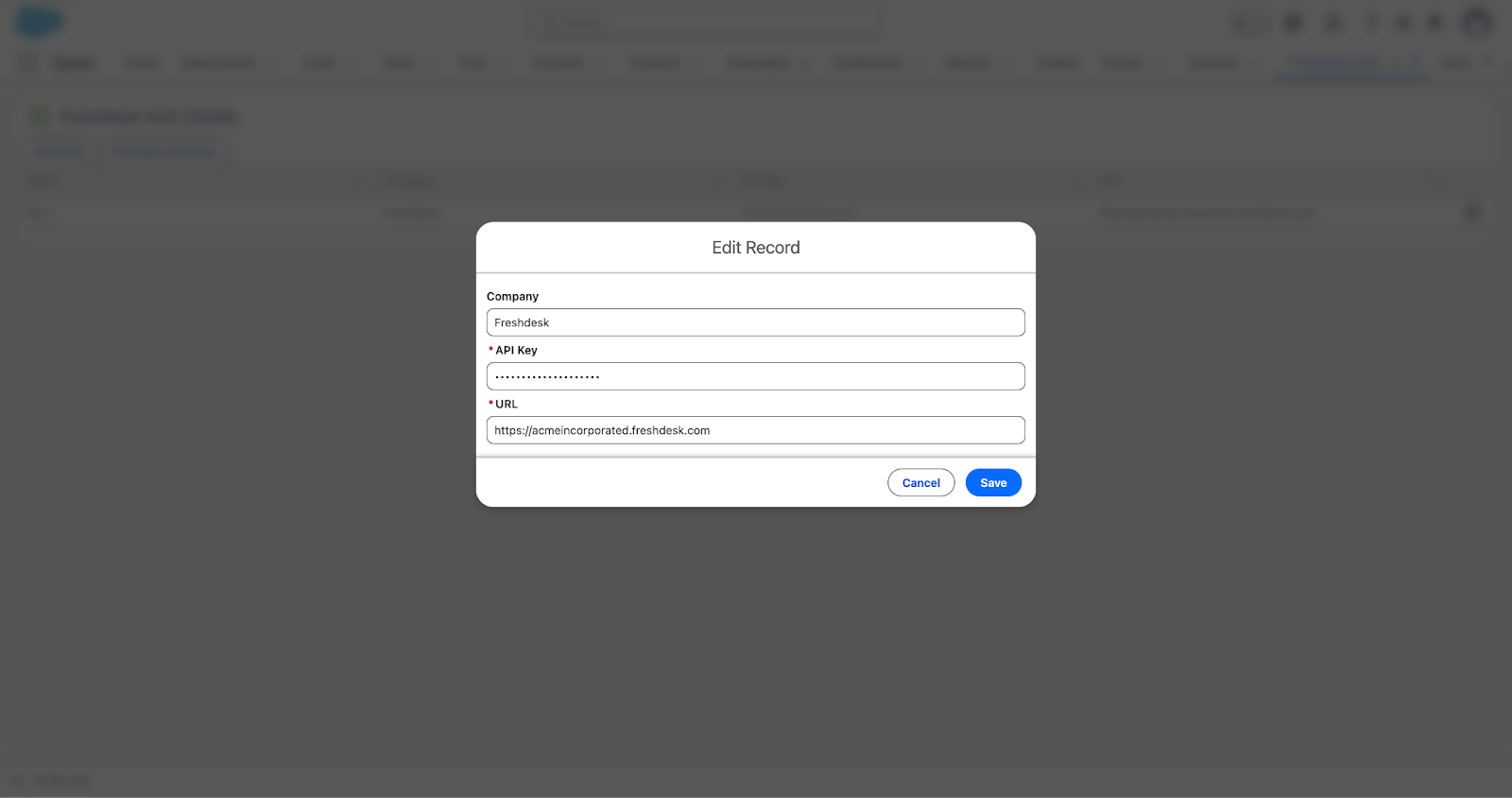
After opening the Freshdesk Auth tab, you will see the below screen. Click on the Add new button and enter the details API key, Freshdesk URL, Your company name(optional). Make sure you have “Freshdesk Auth Access” permission assigned.
Company - It’s an optional field. You can add your company name here. For example - Acme International LLC.
API Key - This is the unique alpha-numeric API key of your freshdesk account.
URL - This is the domain url of your freshdesk account from which you are fetching the tickets in the salesforce. It is the same url used for the remote site setting. https://acme.freshdesk.com
Place Freshdesk Ticket Component on Contact and Account Record Pages
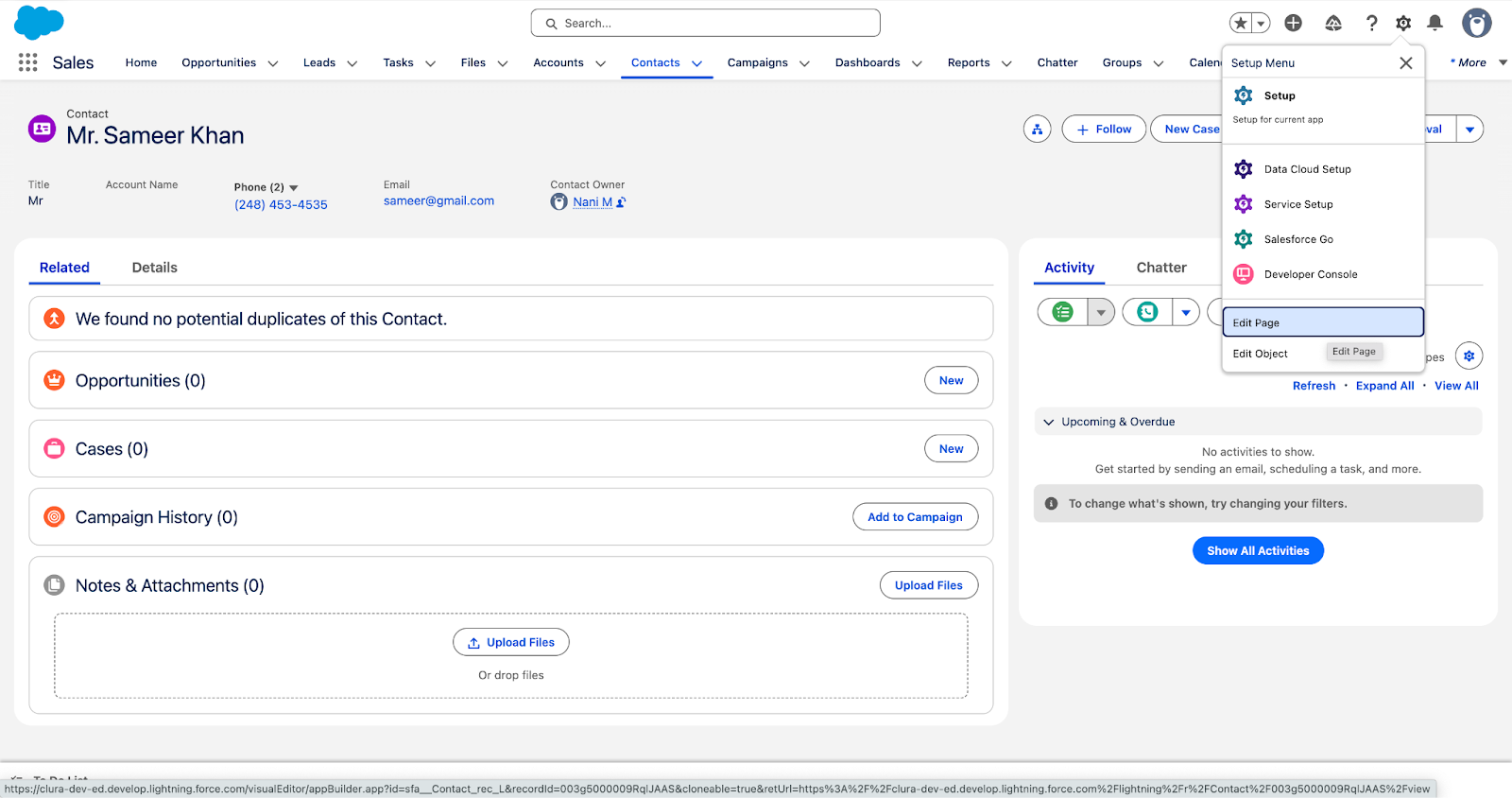
To place the Freshdesk ticket component on Account or Contact record page, open any account or contact record page.
Select Gear Icon (Top Right) > Edit page
The lightning app builder opens up with that record page. Now search for ‘showFreshdeskTicketsParent’ component and place it at the desired location on the page.
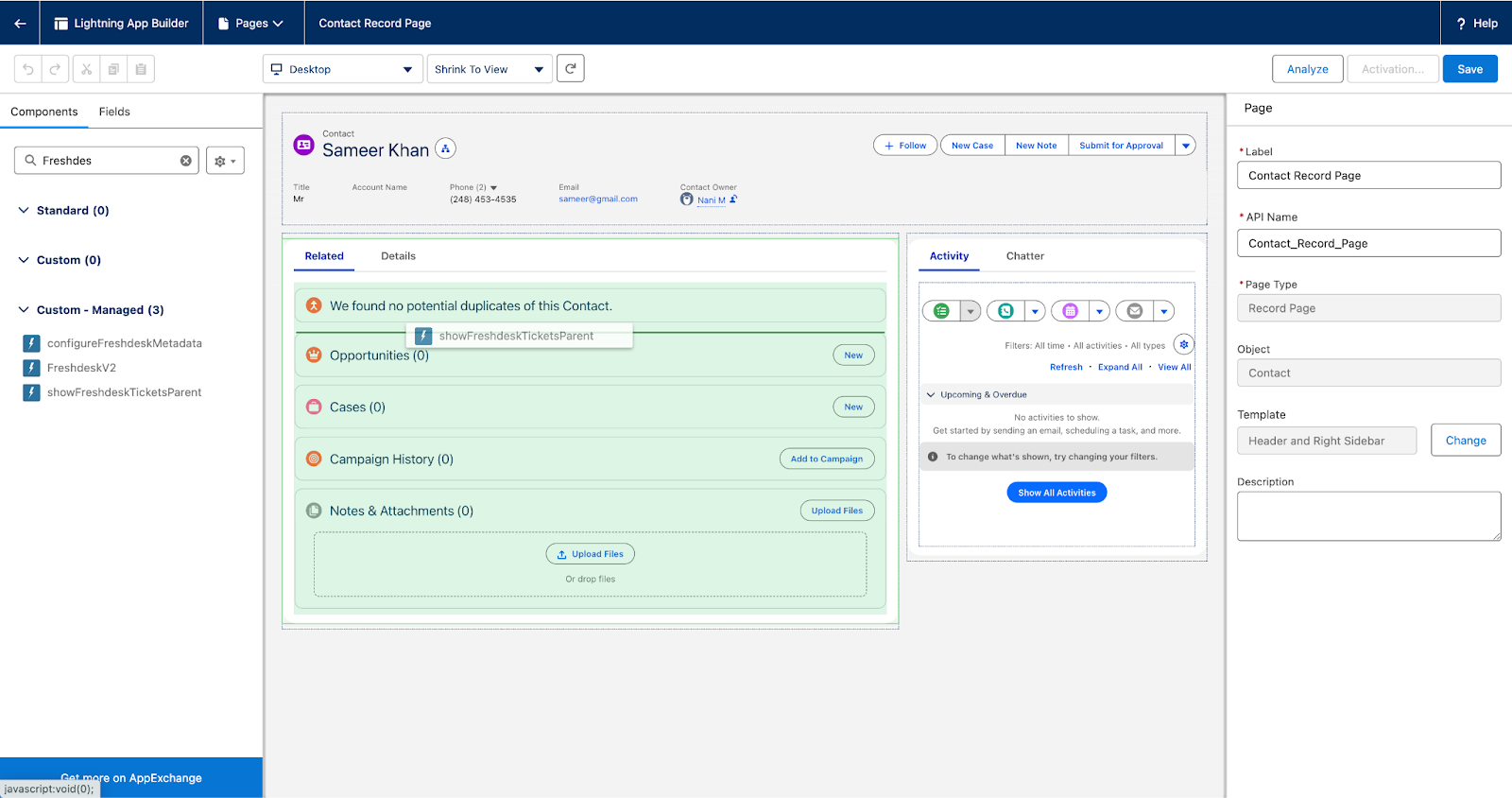
Note: Your organization might use different lightning pages in combination with App, Profile, and Record Type. Please place the component on all possible lightning pages using the Lightning App Builder.
You can edit the Contact or Account lightning record page and add the Lightning web component (LWC) accordingly.
Default behavior:
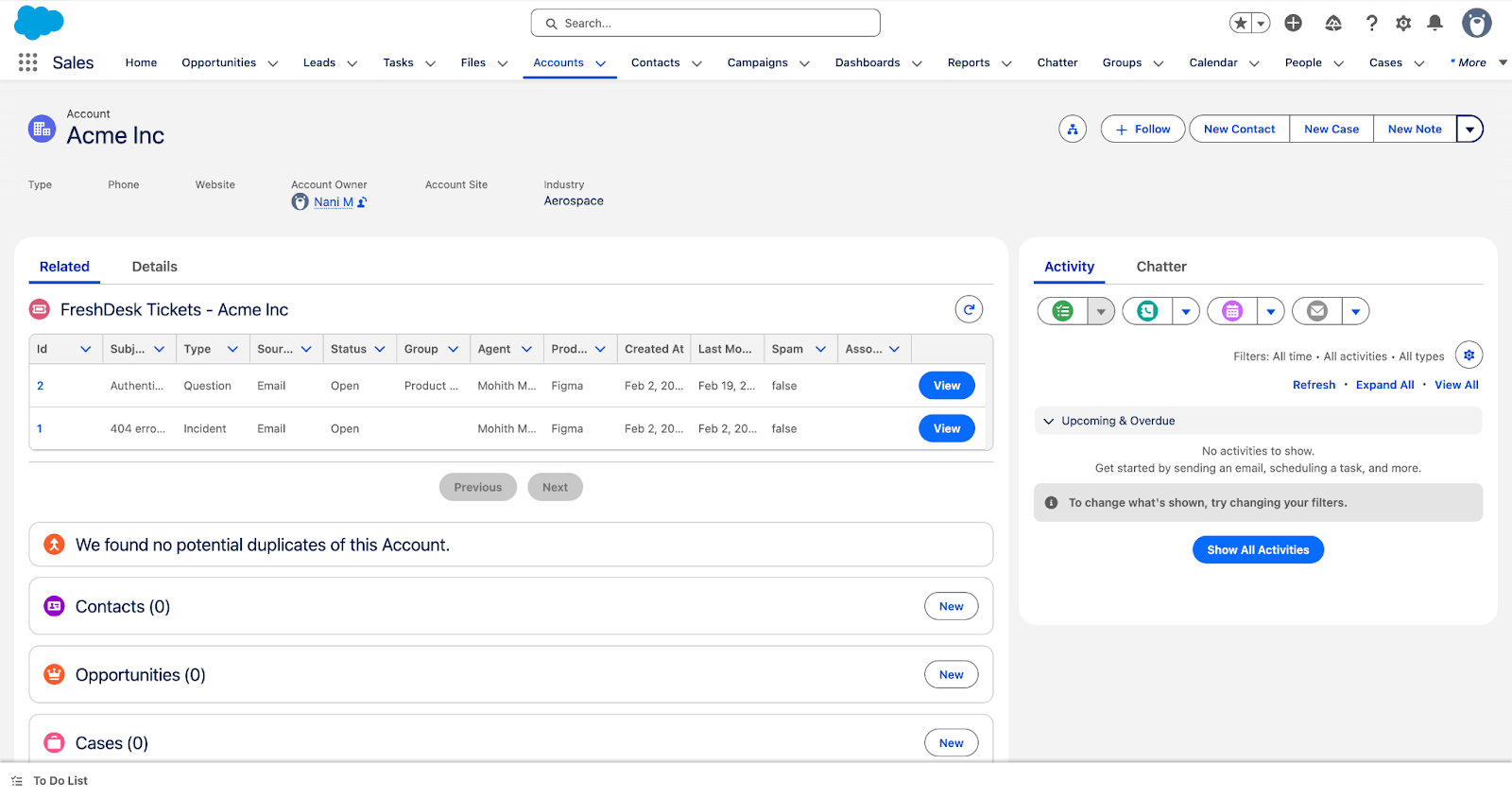
As a default standard the app uses Account/Company Name and Contact Email to identify unique records in Freshdesk and display the tickets in Salesforce Account and Contact record pages.
Alternative mapping of Salesforce Accounts with Freshdesk Company Id
For the account/company mapping between Salesforce and Freshdesk, instead of using the name, the Freshdesk ID can be used to identify unique records and fetch their tickets in the Salesforce account page.
To do that, the following steps must be followed:
Create an External ID field in Account Object.
Configure Account Identifier under Freshdesk Auth Details in Salesforce.
Update account records > external ID field with the Freshdesk company ID.
Create External Id field in Account Object
Note: This external id field should be used to store the Freshdesk Company Id
Go to Setup > Object Manager > Account > Fields & Relationships
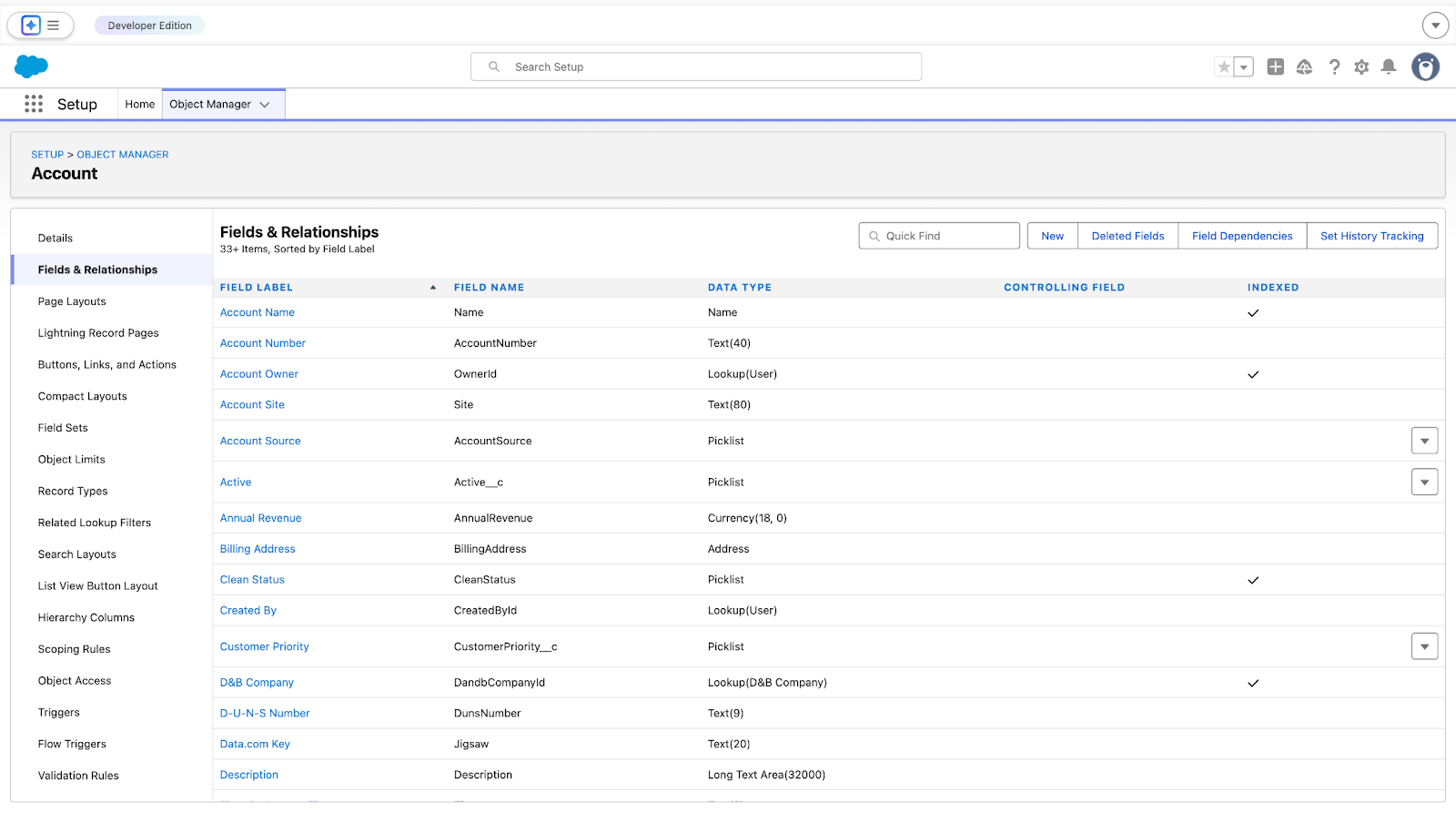
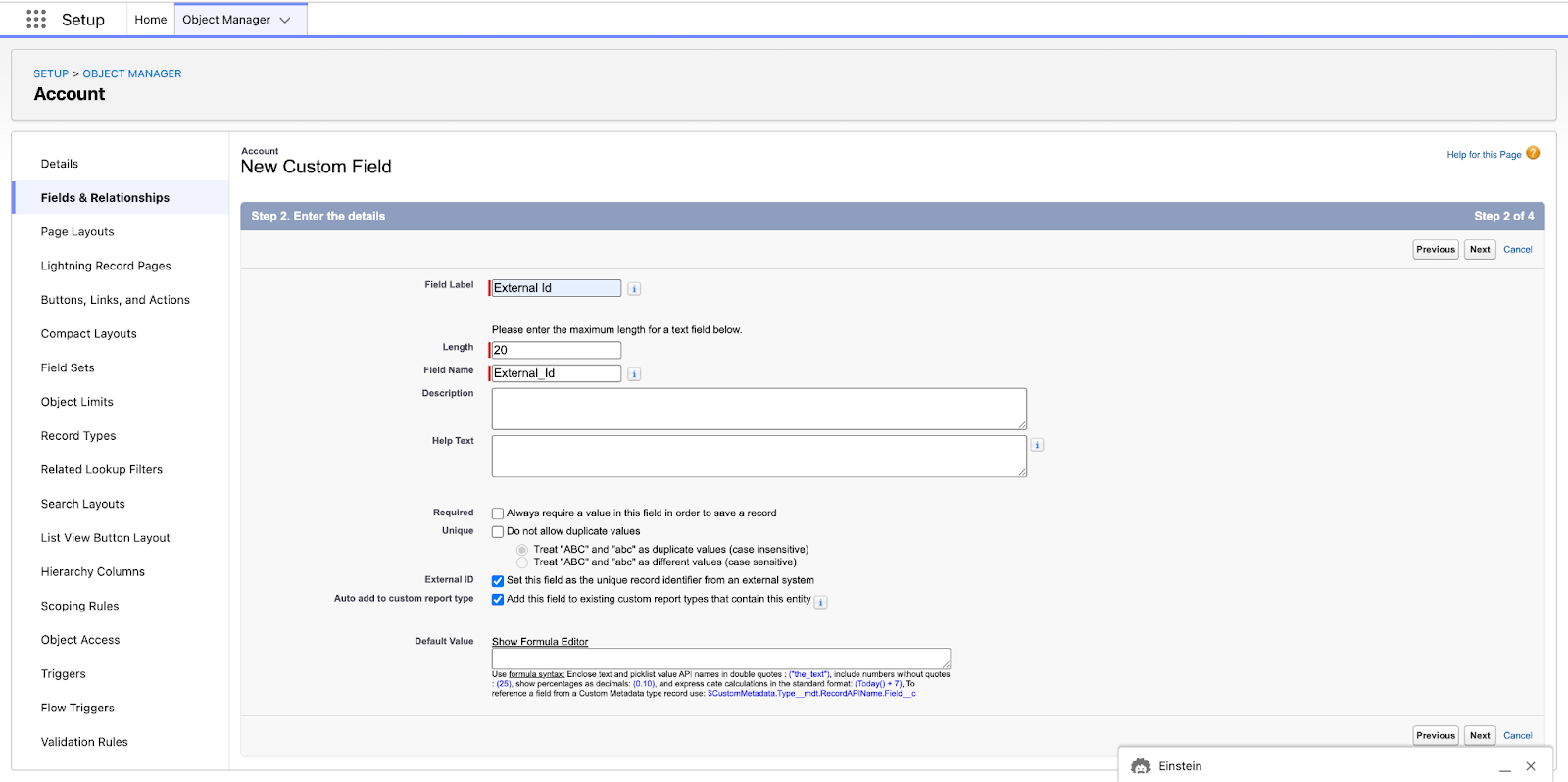
Select New and create a new field
Field type = text
Length = 20
Field Name = Anything
Check the box “Set this field as the unique record identifier from an external system”
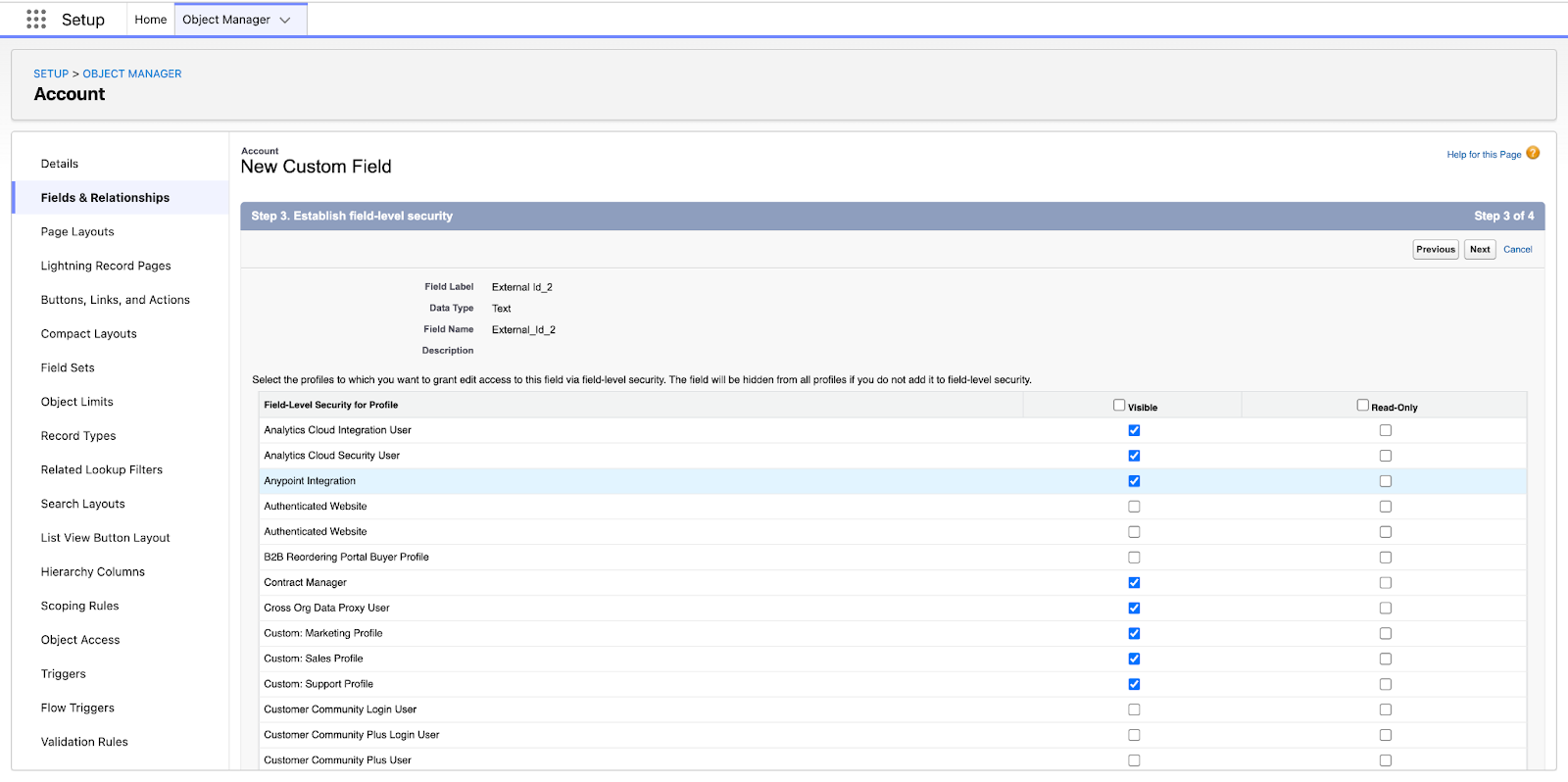
Select the required profiles that can edit the field
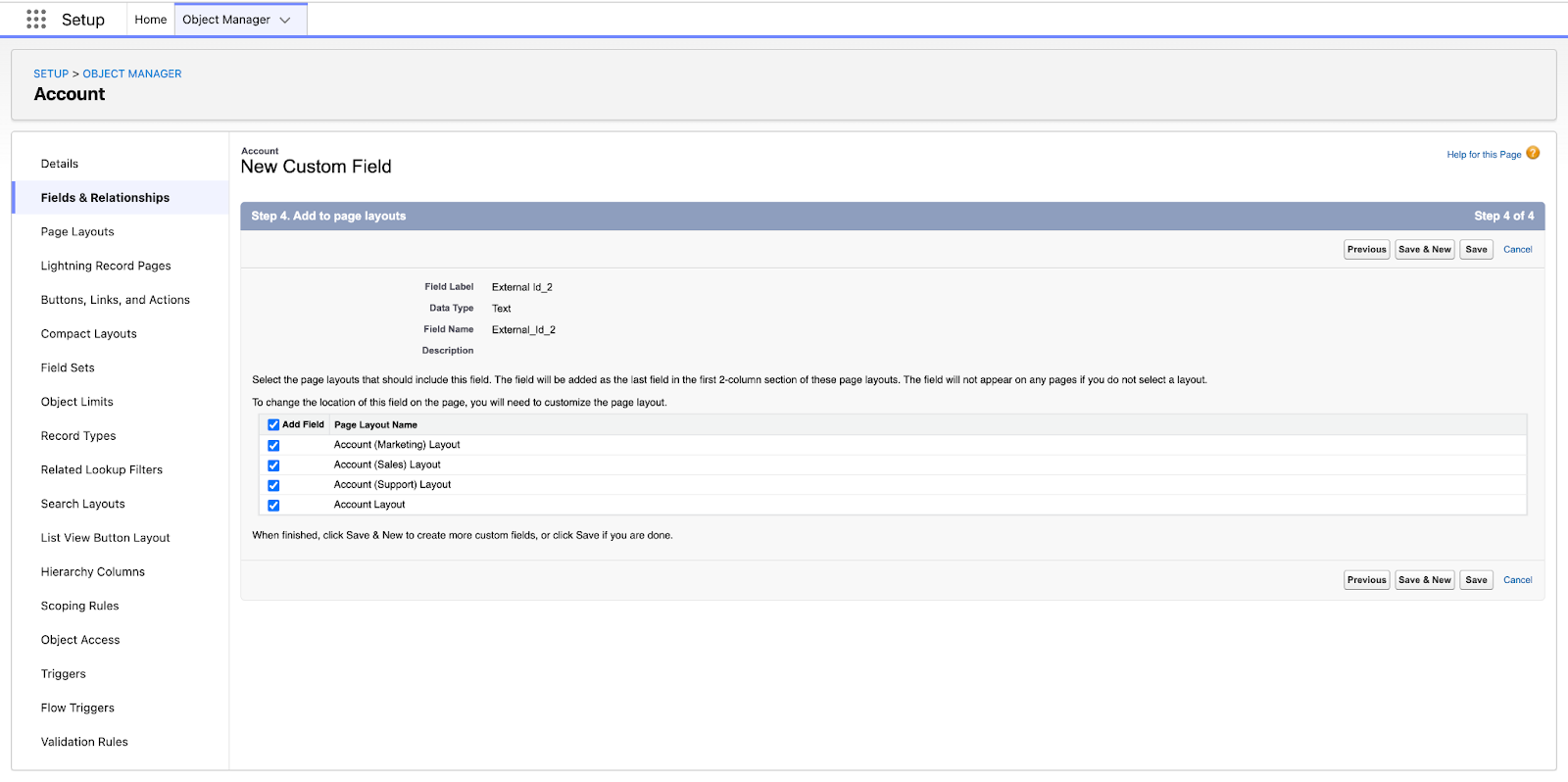
Select the page layouts that should include this field and save it.
Configure Account Identifier under Freshdesk Auth Details in Salesforce
Go to the App launcher icon, in the top left corner, and search for the “Freshdesk Auth” and open the Freshdesk Auth tab.

Select ‘Configure Settings’ from the top.
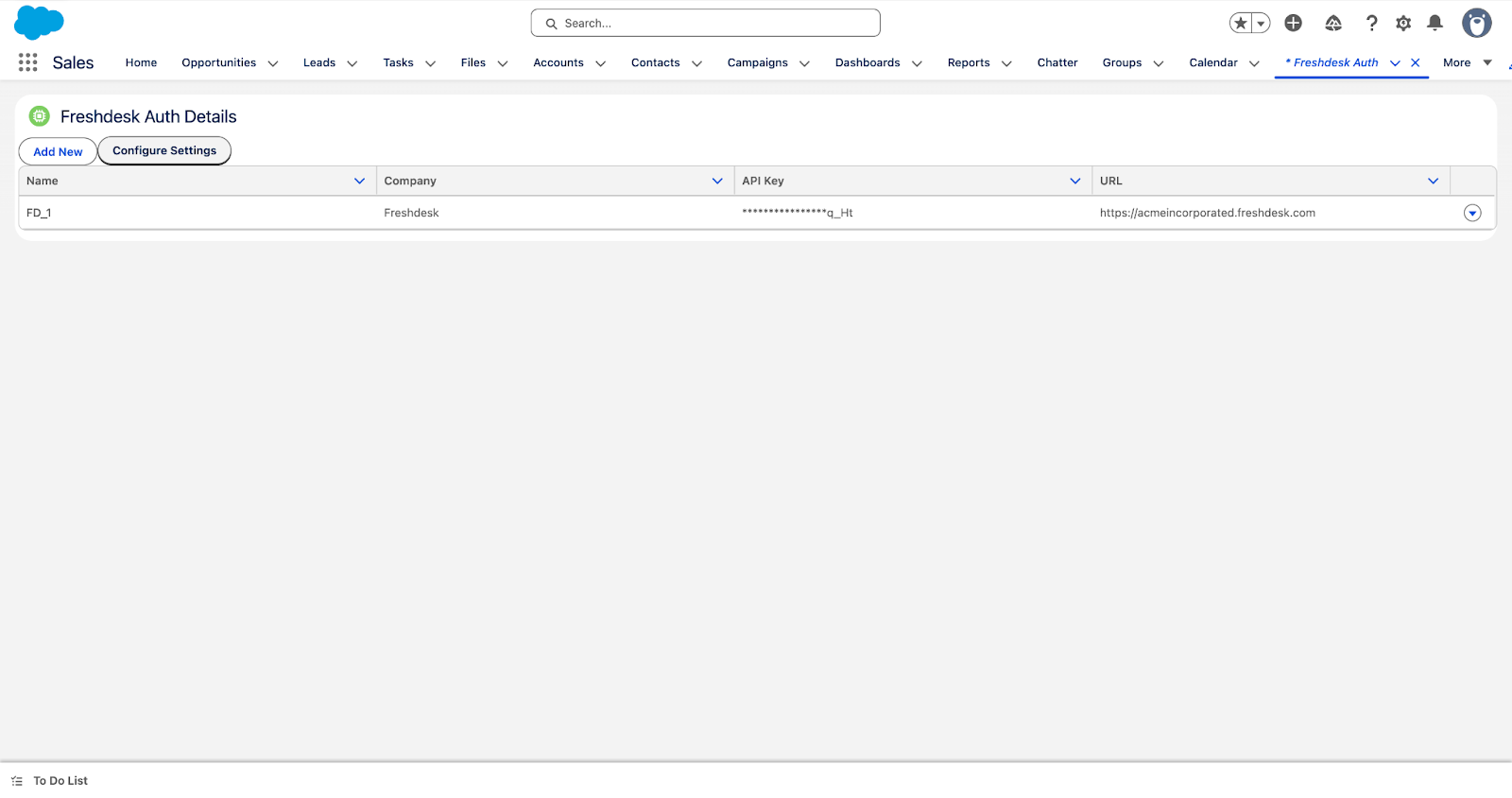
Now select the Account Identifier as ‘External ID field’ and select the newly created external id field from the previous step. Please note that the field will be shown in the dropdown if the check box “Set this field as the unique record identifier from an external system” is selected for a field.
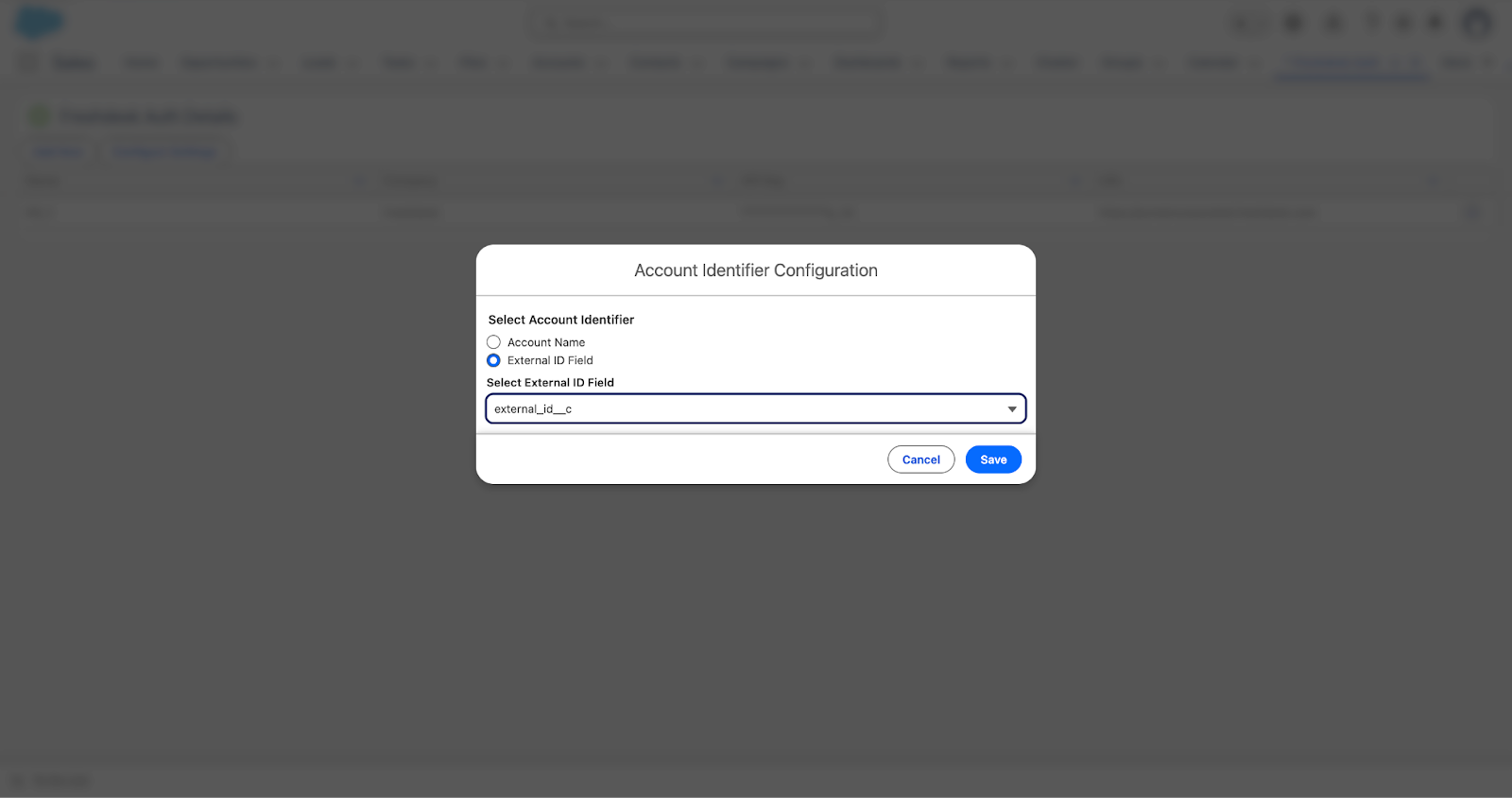
Now save the configuration to make this field as the unique identifier for Companies in Freshdesk
Update account records > external ID field with the Freshdesk company ID
Visit any account record page to see the Freshdesk tickets for that account
The tickets are only displayed if the Account’s mapped external id field contains Freshdesk’s unique company ID.