TABLE OF CONTENTS
- About Email AI Agent testing
- Preview widget overview
- Test the Email AI Agent
- Best practices for testing
- Email AI Agent Advanced Performance Report
- Troubleshooting Common Issues
This is the legacy version of Email AI Agent Studio. For the latest Email AI Agent Studio experience and updated documentation, see Email AI Agent setup and configuration.
This article provides a complete guide to testing, monitoring behavior via analytics, and troubleshooting the Email AI Agent.
About Email AI Agent testing
Before deploying your Email AI Agent to handle live customer queries, it’s essential to ensure it delivers accurate and contextually relevant responses. The Email AI Agent provides a preview widget that allows you to validate your AI Agent’s real-time performance. You can test common queries and review the full response flow without affecting live customer conversations.
You can use the preview to:
- Validate the AI agent’s accuracy before deployment
- Conduct end-to-end testing of the customer email experience
- Identify incorrect or incomplete responses
Prerequisites:
The Email AI Agent testing environment generates responses using your Knowledge Base articles. Before testing, ensure that:
- You have created and published Knowledge Base articles.
- The article visibility is set to All Users.
For more details, see Create and Organize Knowledge Base.
Preview widget overview
The Email AI Agent Preview widget replicates real-world customer interactions. It lets you test how it understands, interprets, and responds to customer emails, without sending or receiving real messages.
- Setup and learning phase
When you open the Email AI Agent for the first time, it begins learning from your connected Knowledge Base sources. A “Training in progress” message appears until the widget is ready for testing, which may take up to 30 minutes. Once training is complete, you can begin testing.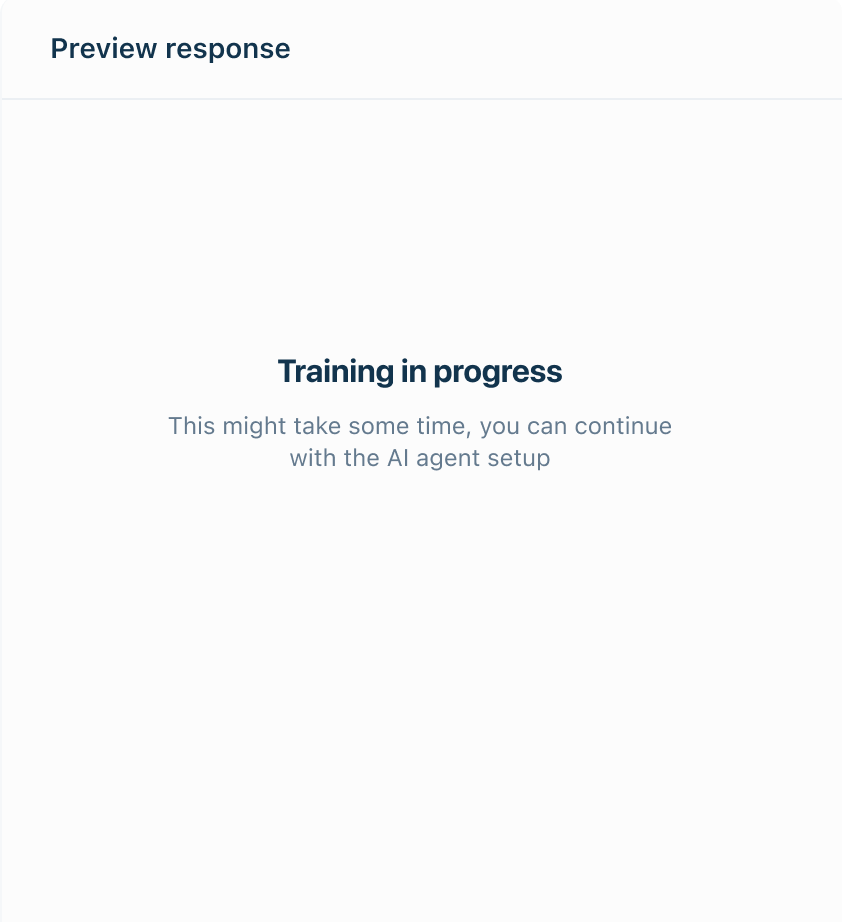
- Query testing
When you submit a test query and select a preconfigured portal email address, the widget simulates a customer email. The AI Agent then generates a response using the Knowledge Base linked to the selected portal. - Response display
The widget displays the reply along with relevant Knowledge Base articles. - Feedback collection
You can rate responses using the thumbs-up or thumbs-down icons to provide feedback.
Test the Email AI Agent
You can test the Email AI Agent in two ways:
- Use the Preview Widget with the Email AI Agent turned off
- Enable the Email AI Agent for internal testing only
Method 1: Using the preview widget with Email AI Agent turned off
You can test the Email AI Agent even when it’s turned off. In this case, the widget generates responses using the last saved configuration (rules and events) and the selected portal email address.
- Log in to your account as an admin.
- Go to Admin > Freddy > Email AI Agent.
- Click Configure.
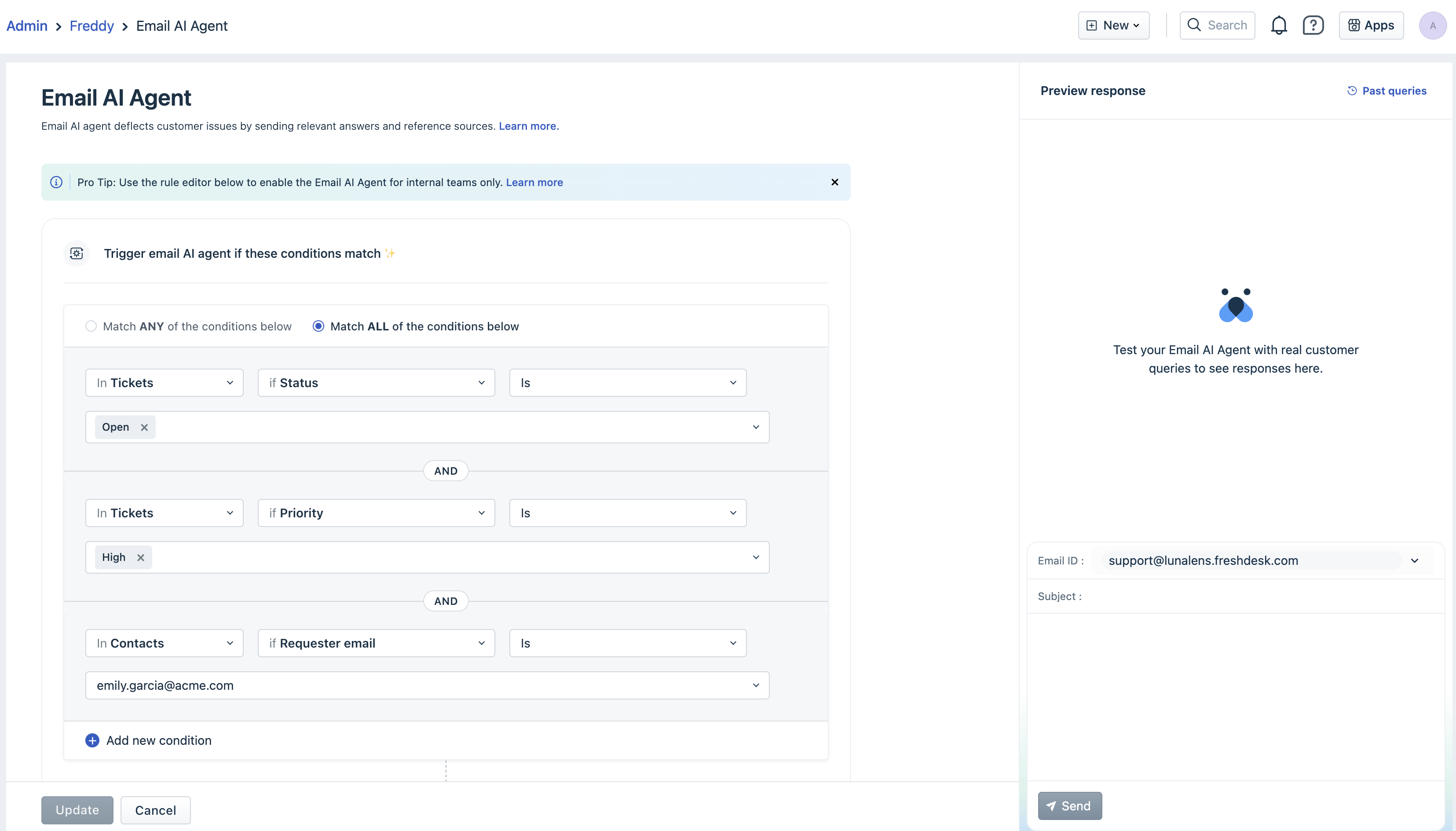
- In the Preview Responses tab on the right pane:
- Choose the preferred portal email address.
Note: The list displays product-specific portal email IDs. If multiple products exist, all linked portal addresses will appear. Responses are based on the Knowledge Base associated with that portal. - Enter the subject and add the query in the email body.
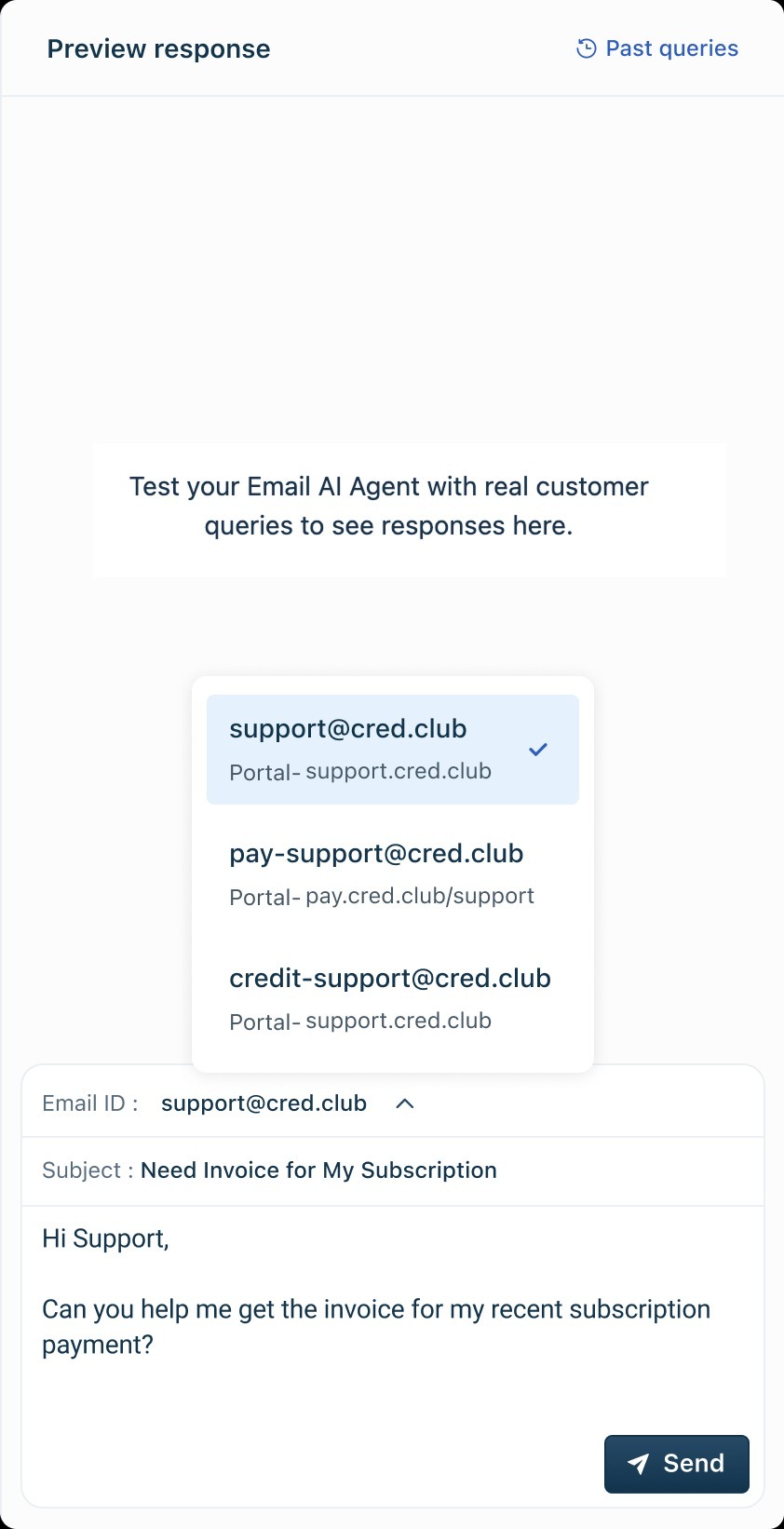
- Choose the preferred portal email address.
- Click Send.
Preview response interpretation
After you send the test query, the preview widget displays the Email AI Agent’s simulated response. This includes:
- Response Summary: A short answer based on the Knowledge Base linked to the selected portal.
- Reference Articles: Links to articles used to generate the response, helping you trace the source of information.
- Feedback Options: Thumbs-up or thumbs-down icons to rate the response’s accuracy and relevance of the repsonse. This includes:
- Yes, close my ticket: Resolves and closes ticket.
- Not, really: No further action is taken. An agent will review and respond to the ticket.
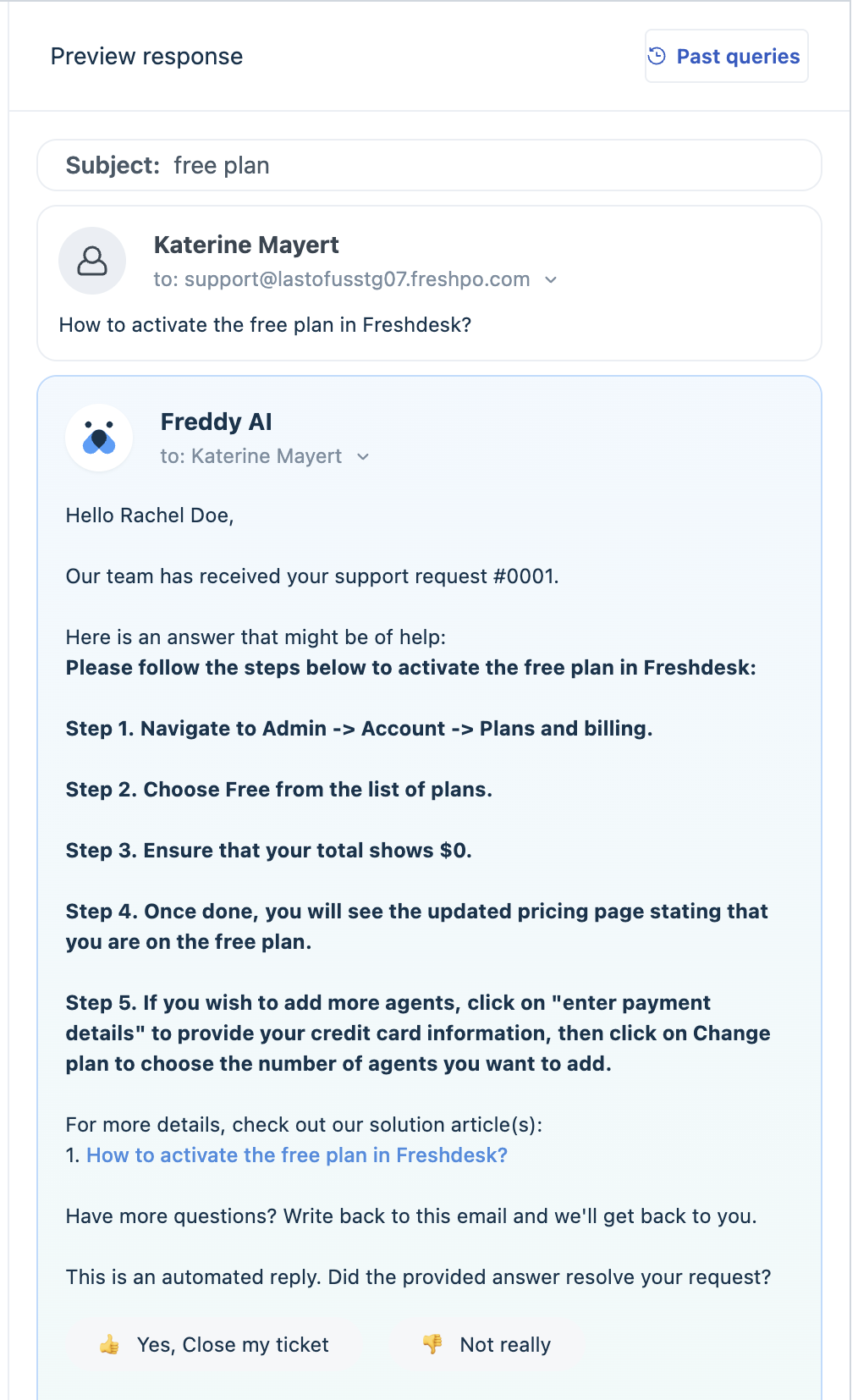
Note: The feedback choices are displayed only to evaluate the Email AI Agent's responses. Selecting "Not really" does not create a new ticket.
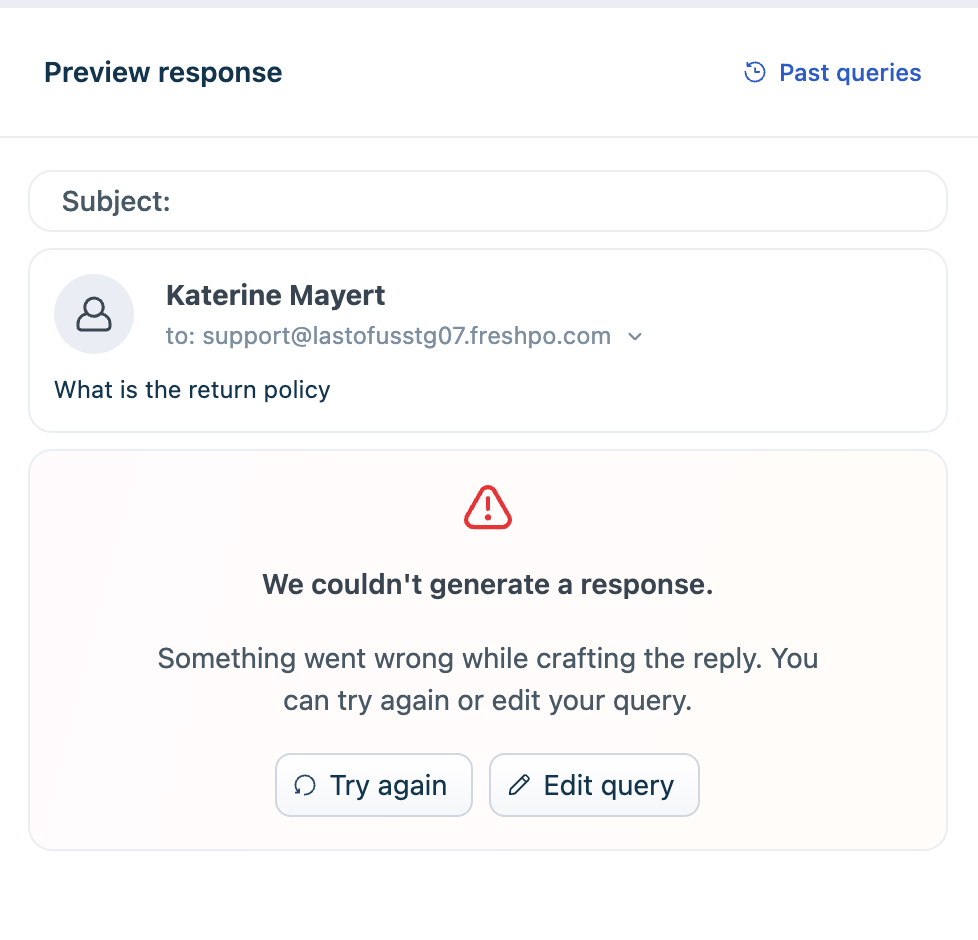
If the preview widget cannot interpret the query, you may see the following message. You can modify the query and retry.
View past queries
The Past queries option in the preview widget lets you track and analyze how the Email AI Agent preview widget handled your test runs. This helps you validate accuracy, identify gaps, and refine your configuration before going live.
- Click on the past queries option in the preview widget:
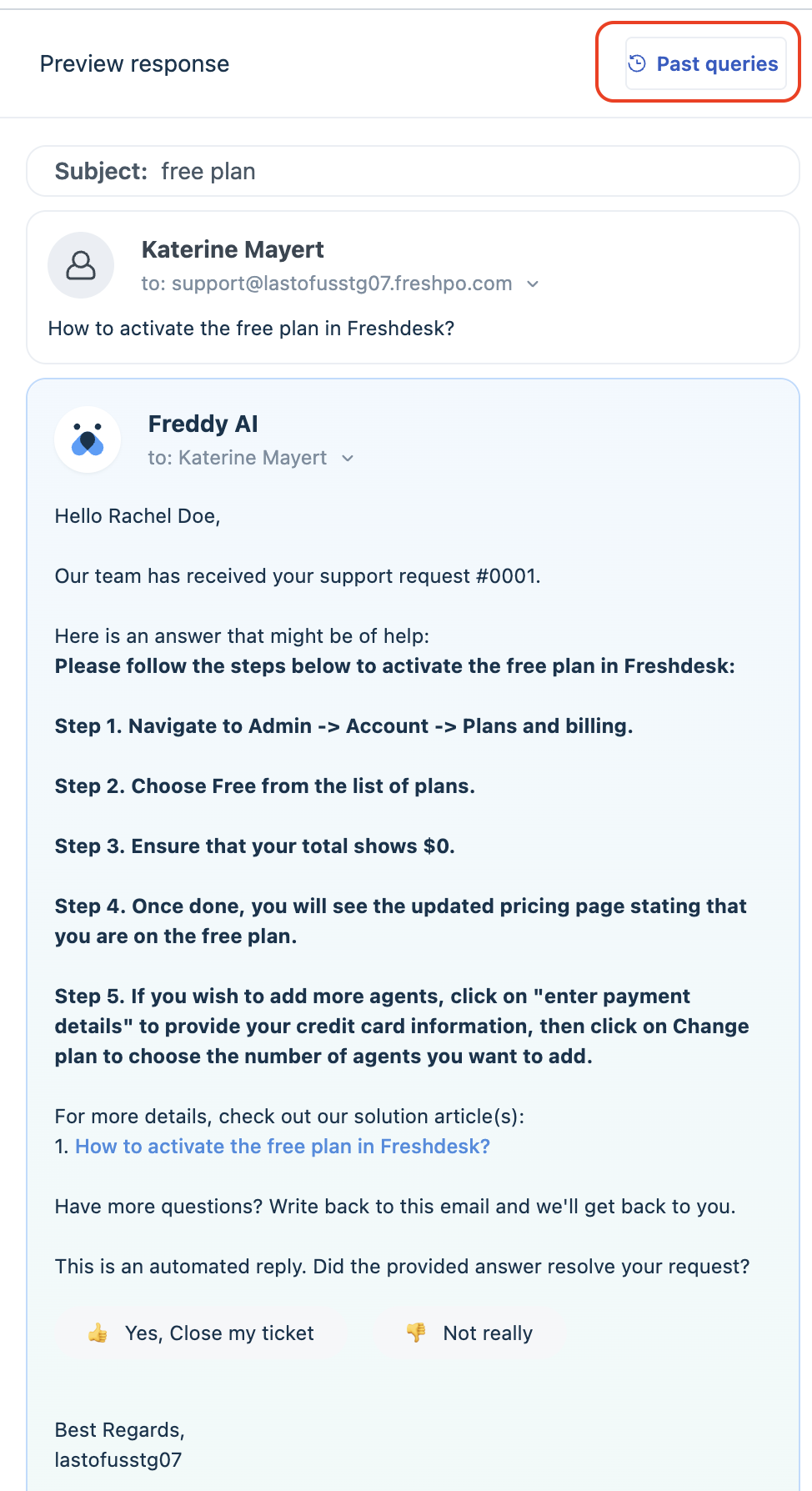
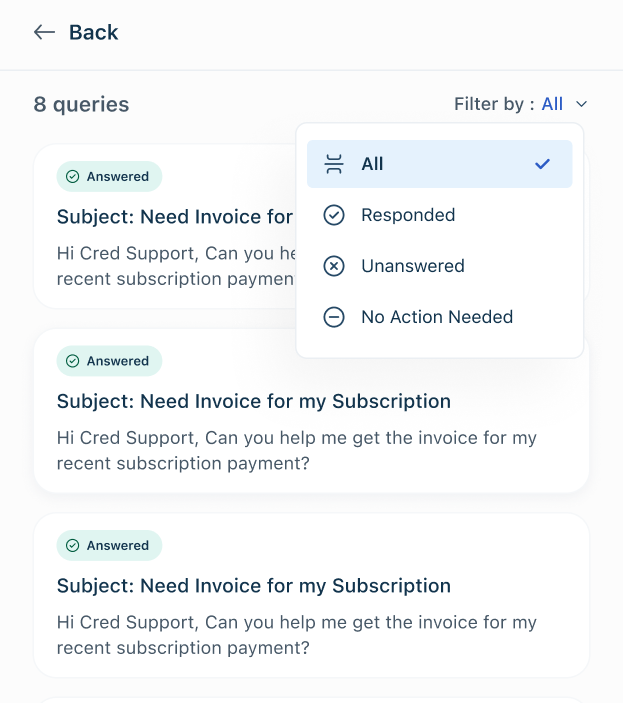
- Here’s what you can see:
- Query Status: Check if the query was answered or unanswered.
- Query preview: Preview of the query asked.
- Feedback given: Shows the feedback given by agents for the response generated.
Method 2: Testing with AI Agent turned on (Internal testing only)
Besides the preview widget, you can test responses with the Email AI Agent enabled in a live-like setup while limiting it to internal team emails. This prevents it from responding to real customer tickets during testing.
- Go to Admin > Freddy.
- Enable Email AI Agent and click Configure.
- To restrict responses to internal users, add an AND condition:
In Contacts/Tickets if Requester email is [internal email address]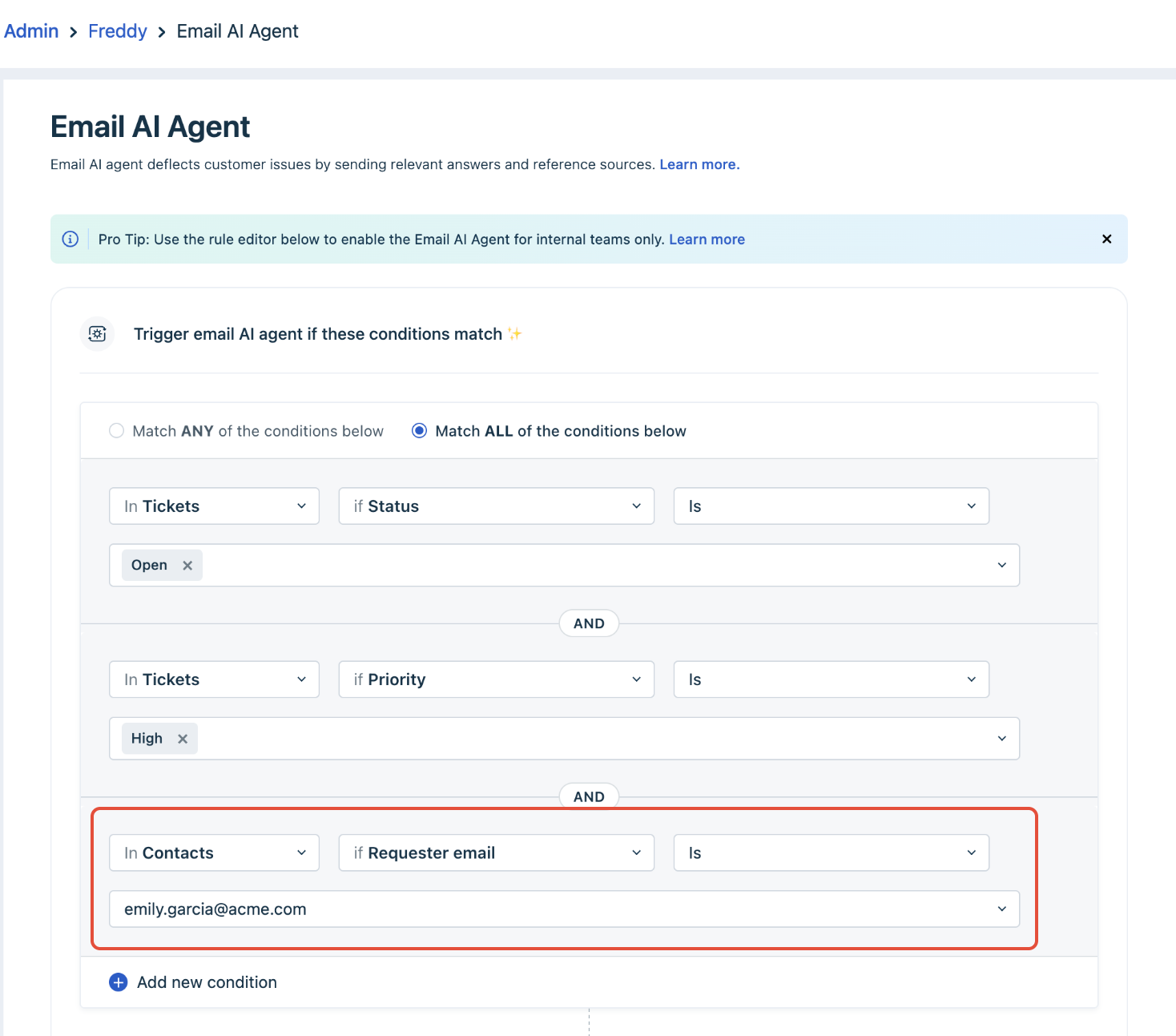
- Click Update.
- Send a test email to your support inbox from the internal requester’s address (example, emily.gracia@acme.com)
- Ensure the email body contains a clear question or intent that matches a topic already documented in your Knowledge Base.
Example:
"What’s my refund policy? "(relevant to an existing published article)
Best practices for testing
| Focus on | What to Test | Example Queries | Expected Outcome |
|---|---|---|---|
| Real scenarios | Mix of common and complex customer questions | “How do I reset my password?” “Is there a refund policy for annual plans?” | AI generates accurate, structured responses with relevant article links |
| Cross-portal validation | Test using all configured support email addresses | Use different support emails mapped to different portals | AI pulls answers from the correct portal-specific Knowledge Base |
| Edge cases | Send unclear or irrelevant queries | “Test 123” “Please ignore this email.” | AI correctly returns fallback message: “We couldn't generate a response.” |
| Article validation | Verify suggested articles | Review links in AI email response | Articles are accurate, updated, and relevant to the portal |
Email AI Agent Advanced Performance Report
Email AI Agent effectiveness can be measured using the curated Email AI Agents Advanced Performance Report. This curated dashboard is designed to help admins and leaders track adoption, engagement, and ROI metrics over time.
To access the report,
- Login as an Admin.
- Click Analytics > Curated Reports > Email AI Agent Advanced Performance Report.
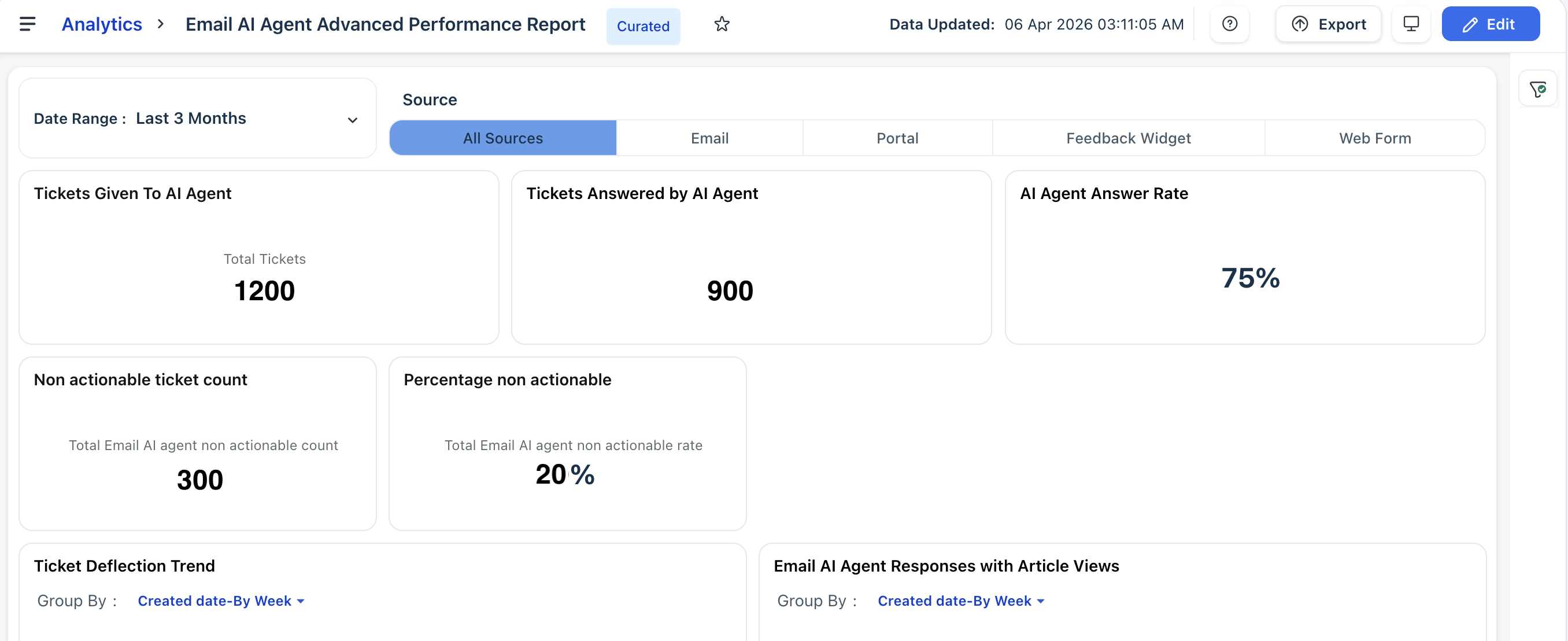
The report now shows clear breakdowns of ticket source (e.g., email, portal, web forms, etc.) and provides customer feedback metrics at the source level.
Tab 1: Absolute Metrics
Understand the number of email tickets the Email AI Agent is handling, how effective its responses are, and where improvements can be made.
This tab gives you a direct view of the Email AI Agent’s contribution to support operations, from engagement volume to helpfulness and deflection trends.
Filters Available:
- Date Range: Focus your analysis on specific weeks or months.
- Additional sources: Analyze the performance of the Email AI Agent based on specific ticket origin sources.

Key Widgets and Their Insights:
- Tickets Given to AI Agent
Track the number of email tickets passed to the Email AI Agent after satisfying trigger conditions, which is also bounded by the configured daily response limit. Use this to measure the total Email AI Agent reach over the selected time range.
- Tickets Answered by AI Agent
View how many of those tickets were successfully answered by the Email AI Agent. This helps you understand delivery success and configuration gaps. Choose how you want the data displayed: as Numbers or in Tabular format.
- AI Agent Answer Rate
Analyze what percentage of tickets were answered by the Email AI Agent.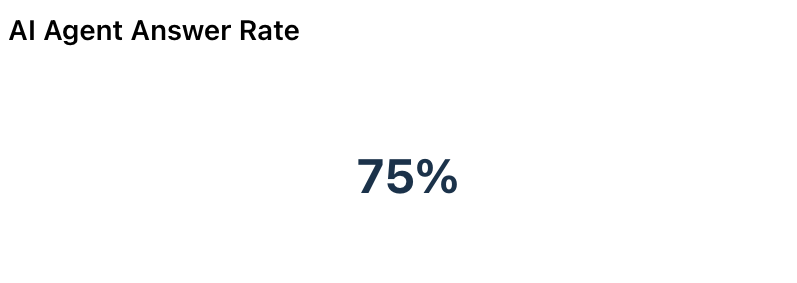
- Non actionable ticket count
Tracks the number of tickets marked as non-actionable by the AI classifier, such as spam, newsletters, or automated out-of-office replies. These tickets are filtered before knowledge search and response creation, ensuring sessions aren’t spent on irrelevant emails.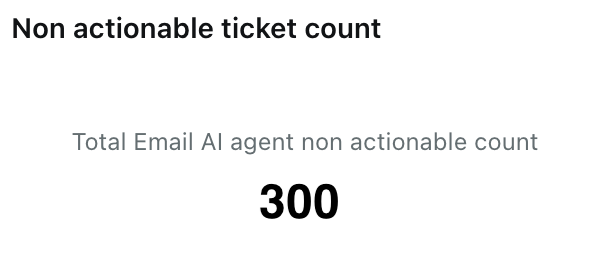
- Percentage non actionable
Shows the proportion of total incoming tickets that were classified as non-actionable. A high percentage may indicate a need to refine email routing rules or spam filters.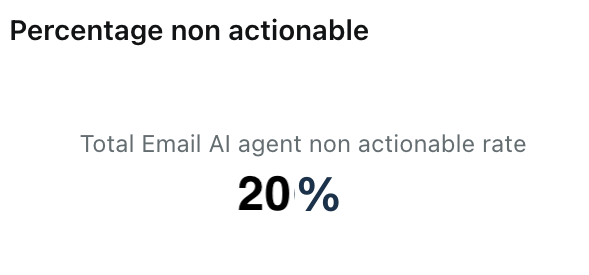
- Ticket Deflection Trend
Visualizes the number of tickets automatically resolved without human intervention over time. This typically includes specific scenarios where AI-driven outcomes occur, such as a customer marking an answer as helpful, or a ticket being closed by a human agent after the customer read an answer without further interaction.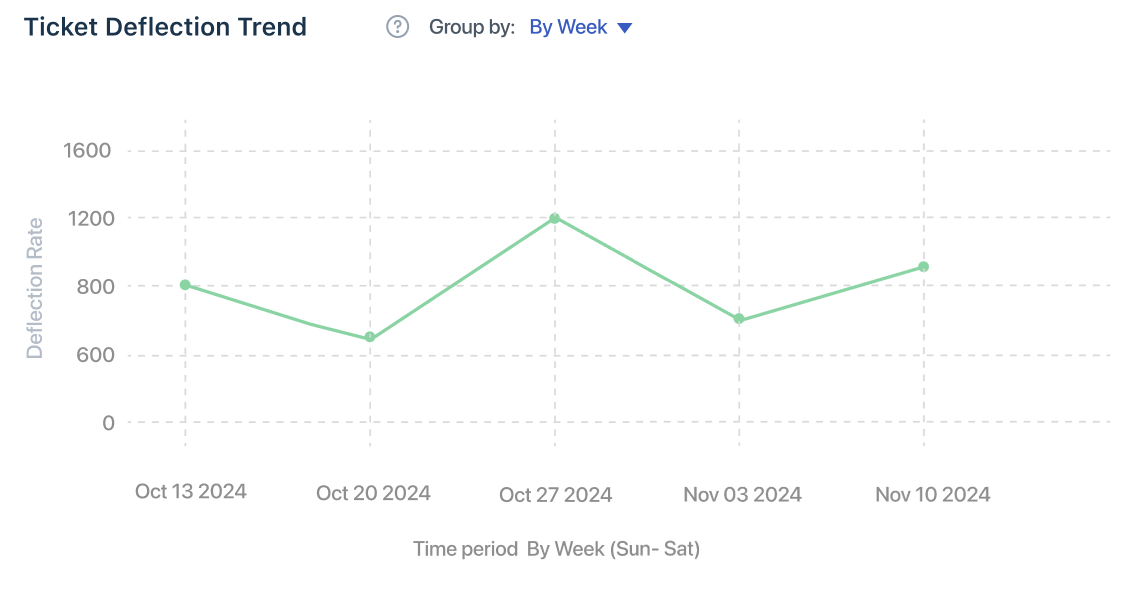
- Email AI Agent Responses with Article View
Tracks the number of AI responses that resulted in customers clicking on at least one linked article. Measures engagement with suggested resources. High article views indicate strong knowledge relevance and effective content positioning within AI responses. - AI Agent Response Rate Breakdown
Understand the distribution of Total tickets received, Tickets given to Email AI Agent, Tickets answered by the Email AI Agent, and non-actionable ticket count. The graph highlights areas that may need better templates or content tuning.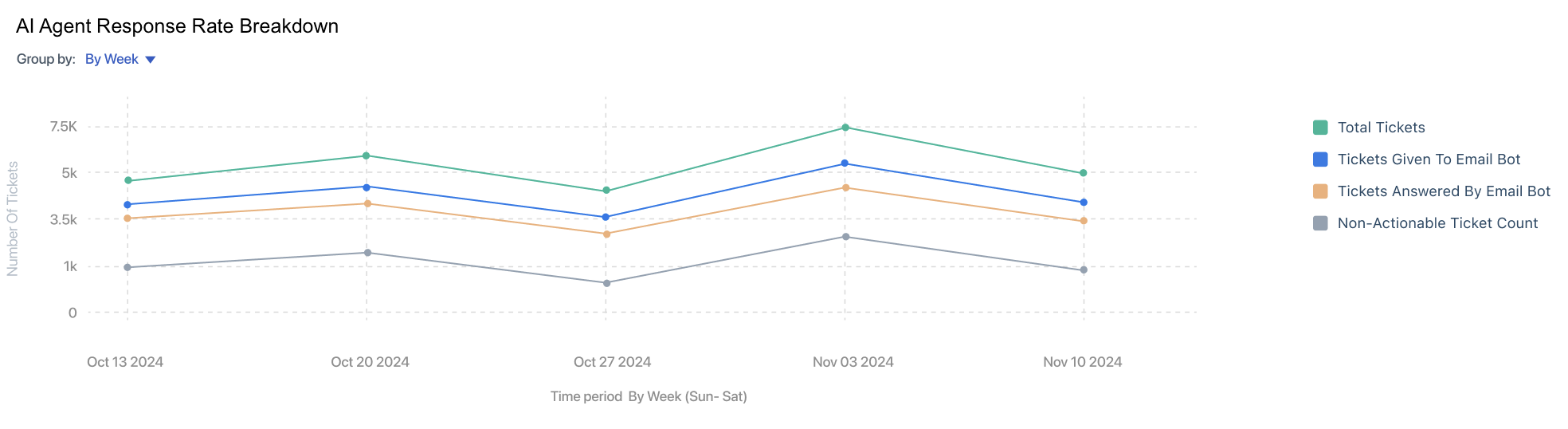
- AI Agent Customer Feedback
Review how many Email AI Agent responses customers rated as helpful. This metric is key to evaluating the quality and impact of responses. Feedback can originate from the ticket sources—Email, when customers rate responses directly from their inbox, and Answers, when feedback is submitted via the support portal.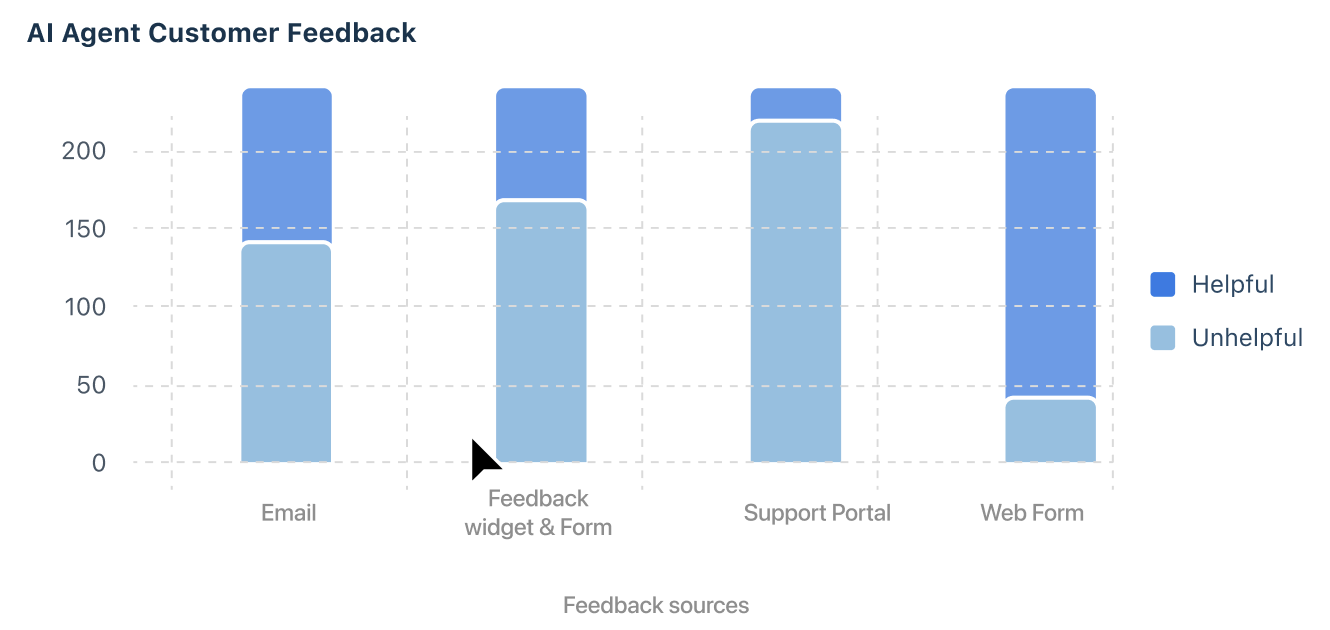
Tab 2: Session Consumption
Measure how many sessions the Email AI Agent consumes and when each occurs. This is useful for quota tracking and usage trend analysis.
Session usage is critical for licensing and planning. Each AI Agent-triggered reply counts as one session, and this tab helps monitor consumption over time.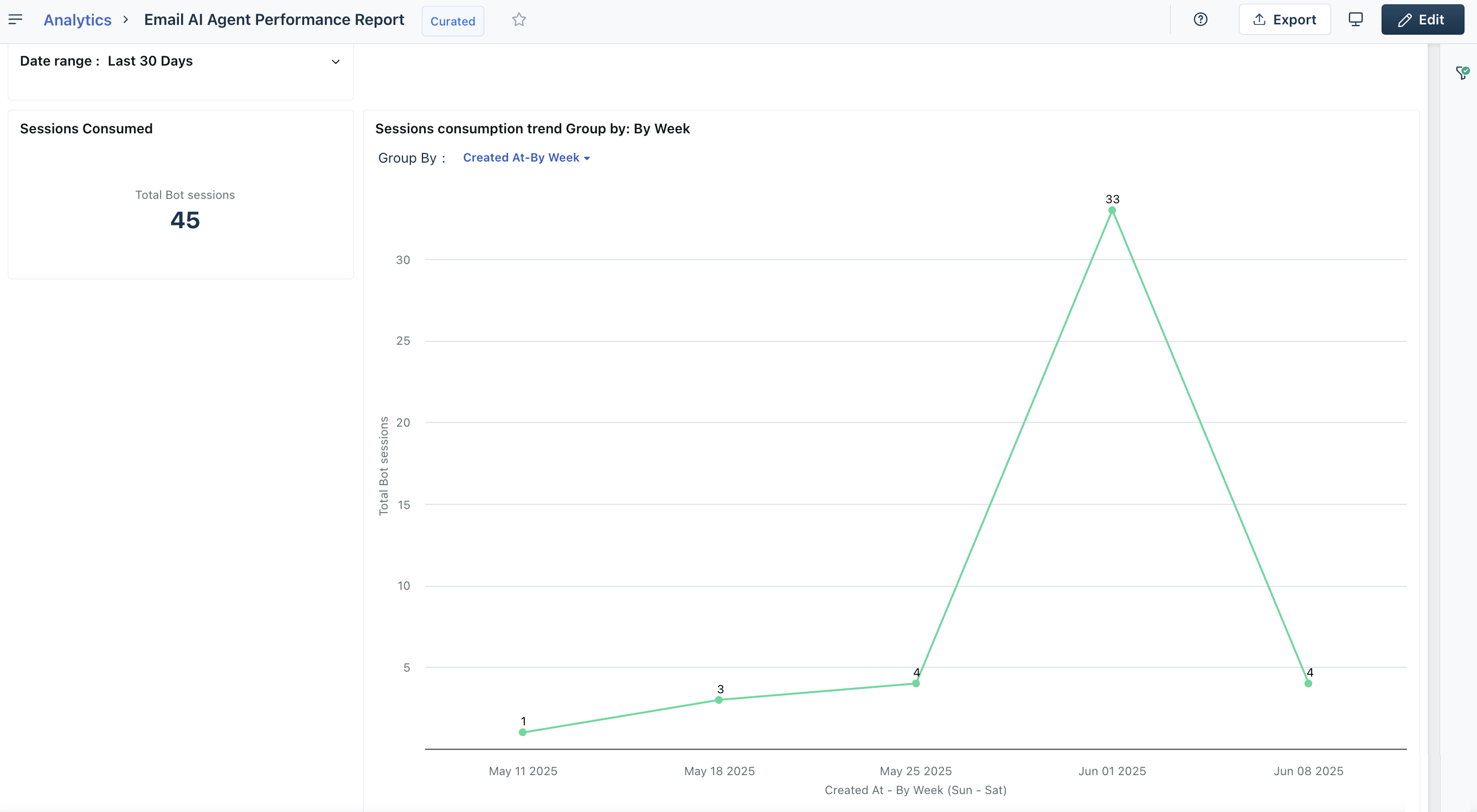
Filters Available:
- Date Range: Pinpoint usage spikes and surges.
Key Widgets and Their Insights:
- Sessions Consumed
See the total number of Email AI Agent sessions used in the selected time period. Use this to track remaining quota or investigate overages. - Sessions Consumption Trend
View a trendline of session consumption over weeks or months. Use grouping filters (e.g., language or trigger) to diagnose usage drivers.
Use the analytics insights
Utilize the Email AI Agent Performance Report to proactively fine-tune your AI deployment strategy. These insights can help you:
- Identify underperforming templates, languages, or KB articles.
- Detect high-volume automation opportunities through deflection trends.
- Justify ROI and AI investment by comparing engagement vs resolution.
- Monitor whether you're reaching session thresholds earlier than expected.
Note: The performance report is available only on select Pro and Enterprise plans with Freddy Copilot enabled. Data is refreshed every 24 hours.
Troubleshooting Common Issues
Admins may occasionally encounter configuration or runtime issues. Here’s how to identify and resolve them quickly.
| Issue | Possible cause | Resolution steps |
|---|---|---|
| Email AI Agent not responding | Email AI Agent is not enabled | Go to Admin > Freddy AI > Email AI Agent and ensure the configuration is enabled. |
| Trigger rules are invalid or misconfigured | Review trigger conditions and ensure they match the intended ticket properties. | |
| Daily response limit exhausted | Check if the daily cap has been reached. Admins receive an email notification when the limit is hit. Increase the limit or disable the cap if required. | |
| Ticket does not meet rule conditions | Verify that the ticket satisfies all configured trigger conditions (fields, keywords, priority, etc.). | |
| Templates not saving | Missing feedback widget | Ensure the required feedback widget placeholder is included in the template. |
| Unresolved or incorrectly formatted placeholders | Validate that all required placeholders are present and correctly formatted. | |
| Temporary offline or connection issue | Refresh the page and retry saving after confirming stable connectivity. | |
| Missing languages or placeholder errors | Language not supported or not enabled | Confirm that the language is supported by the Email AI Agent and enabled in both account and portal settings. |
| Incorrect placeholder formatting | Ensure placeholders use proper double curly braces format (for example, {{answer}}). | |
| Email AI Agent auto-disabled | Templates were deleted | Recreate or restore the required templates and re-enable the Email AI Agent. |
| All supported languages were disabled | Enable at least one supported language and re-enable the configuration. |
Tip: After making configuration changes, test with a sample ticket that clearly satisfies trigger conditions to validate the setup