Freshsales integration with WooCommerce [Ecommerce store] allows you to seamlessly sync customer information, purchase history, and real-time storefront events (like checkouts, abandoned carts, and orders fulfilled) directly into your CRM.
This document guides you through the following;
What is Woocommerce?
Prerequisites for the integration
Setting up WooCommerce on WordPress
Integrate woocommerce with Freshsales
Related documentations
What is Woocommerce?
Woocommerce is an E-commerce Plugin (an add-on feature) that you install inside WordPress to transform a basic website into a fully functional online store with a shopping cart, checkout, and products.

Prerequisites:
Before we start, make sure you have the following;
A live self-hosted WordPress website.
Administrator level access to your WordPress dashboard. [ Mandatory for integration ]
[ Note : Please note that wordpress is simply a Website Builder software. Its a free, open-source Content Management System (CMS) that allows you to create, manage, and publish websites by eliminating coding actions ]
Setting up WooCommerce on WordPress
If your e-commerce store isn't set up yet, you first need to add the WooCommerce plugin to your WordPress site. To do so, you follow the below steps;
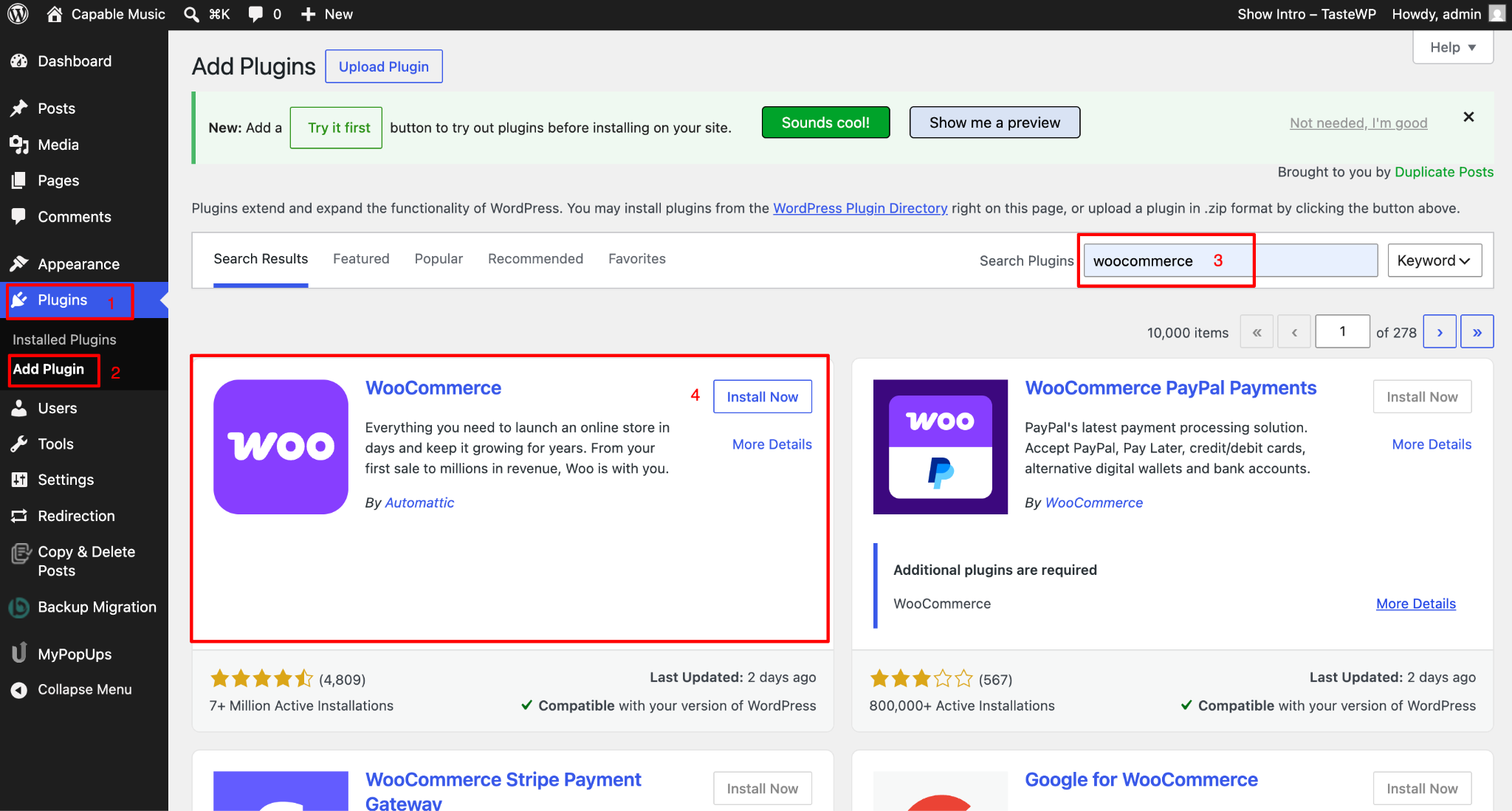
Log in to your WordPress Admin Dashboard.
Navigate to Plugins (from left navigation bar) > Add New Plugin on the left sidebar menu > In the search box on the top right > Search ‘WooCommerce’.
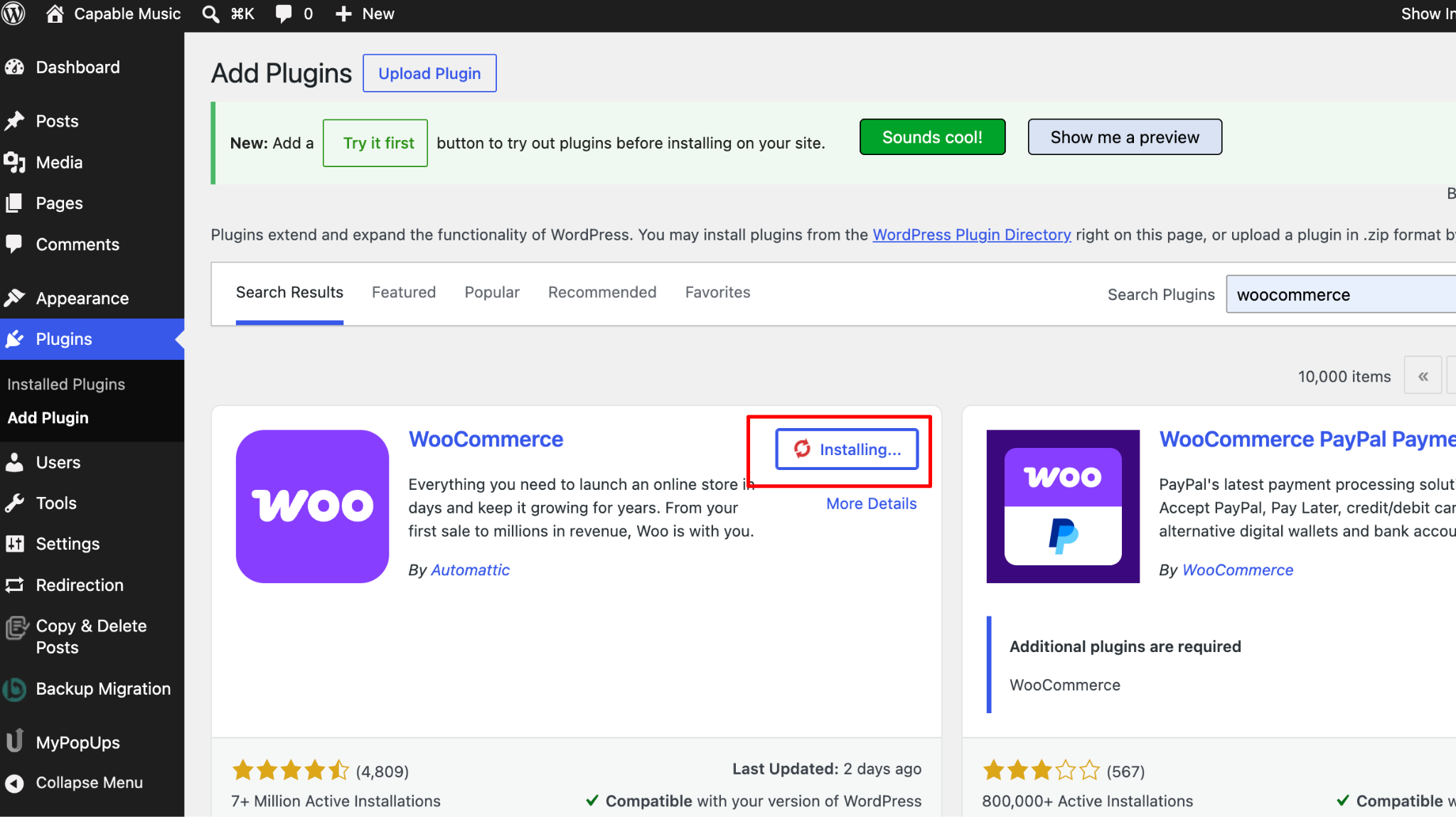
Locate the official WooCommerce plugin and click Install Now.
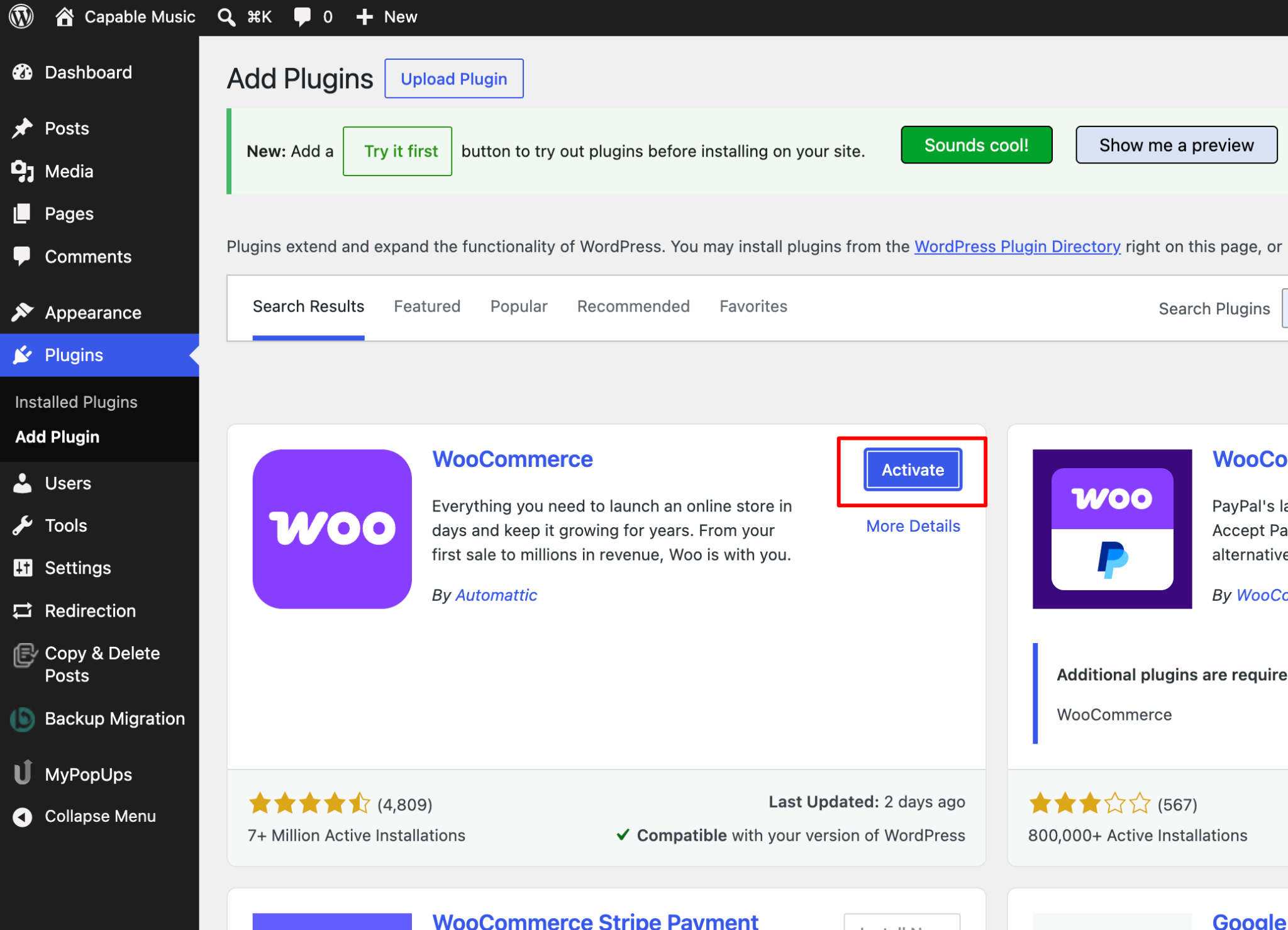
Once the installation completes, click Activate.
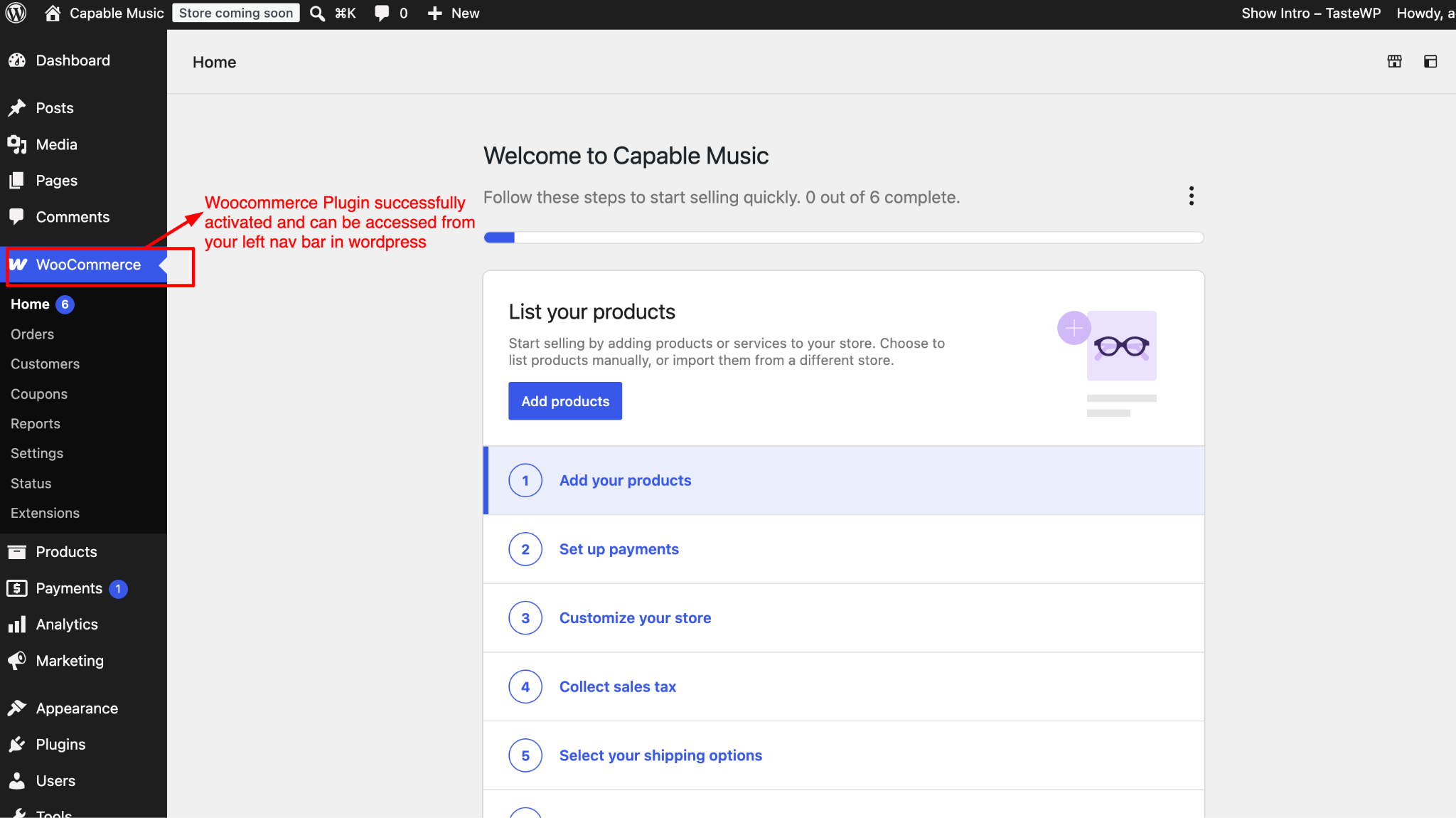
Once the activation is completed, follow the built-in WooCommerce onboarding wizard to configure your basic store details (products, payment channels, shipping).
Integrate woocommerce store with Freshsales
Log into your Freshsales Account.
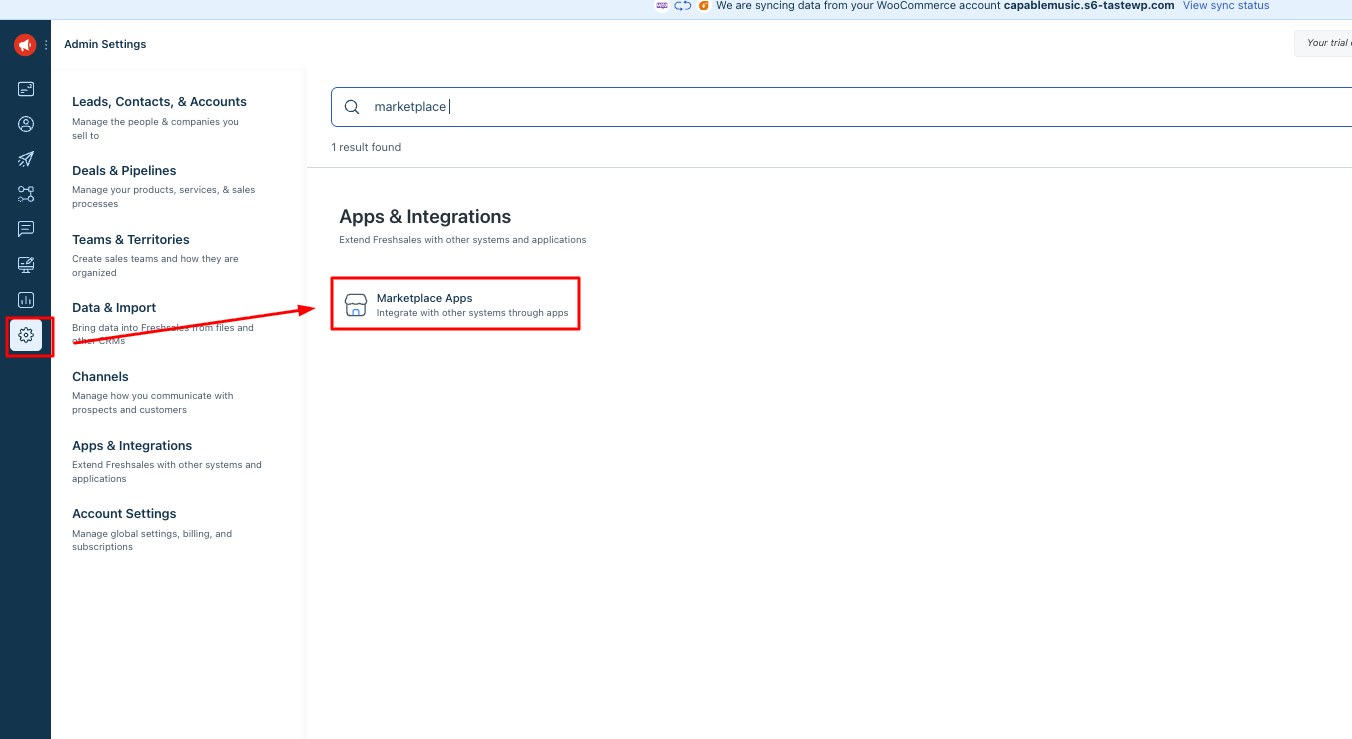
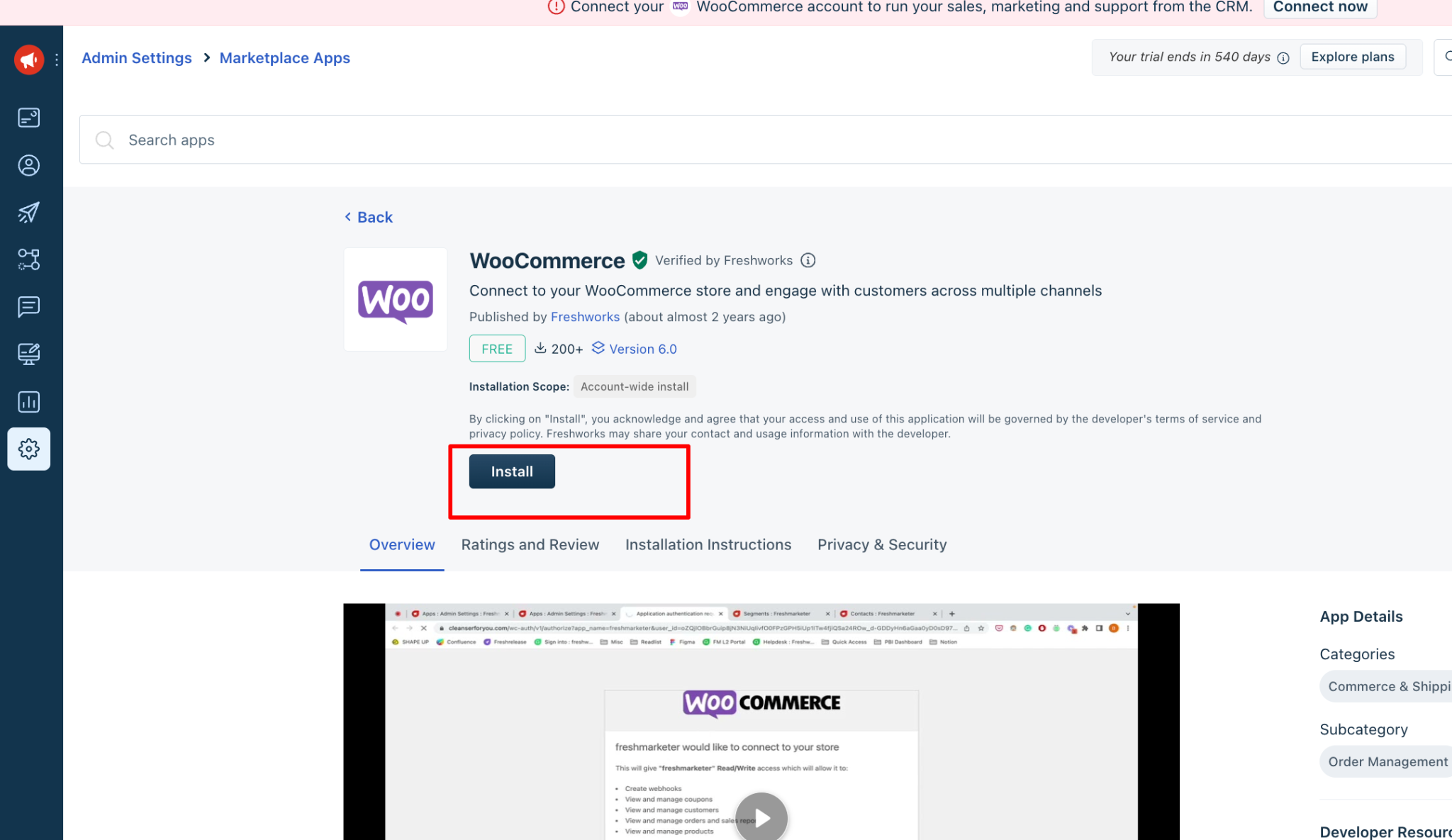
Navigate to Admin settings > Marketplace Apps > Search woocommerce > Install.
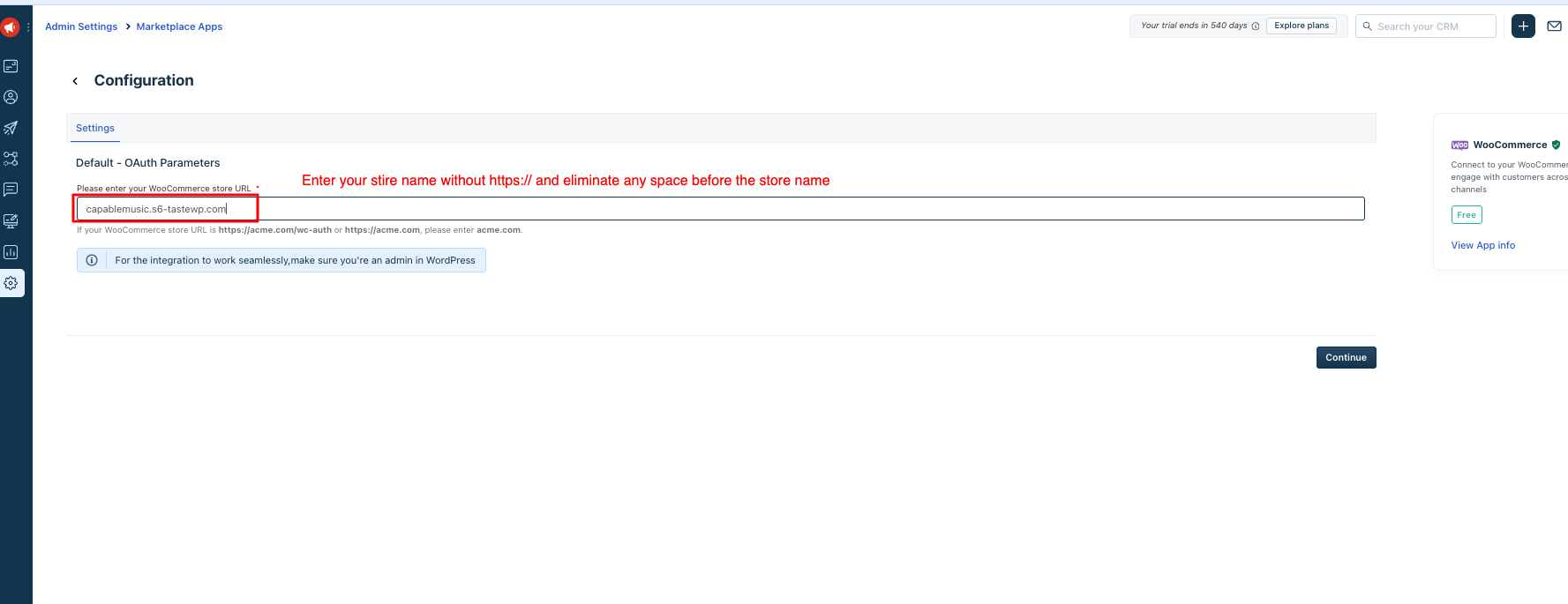
Provide your store url without https:// and make sure there are no spaces before the store name.
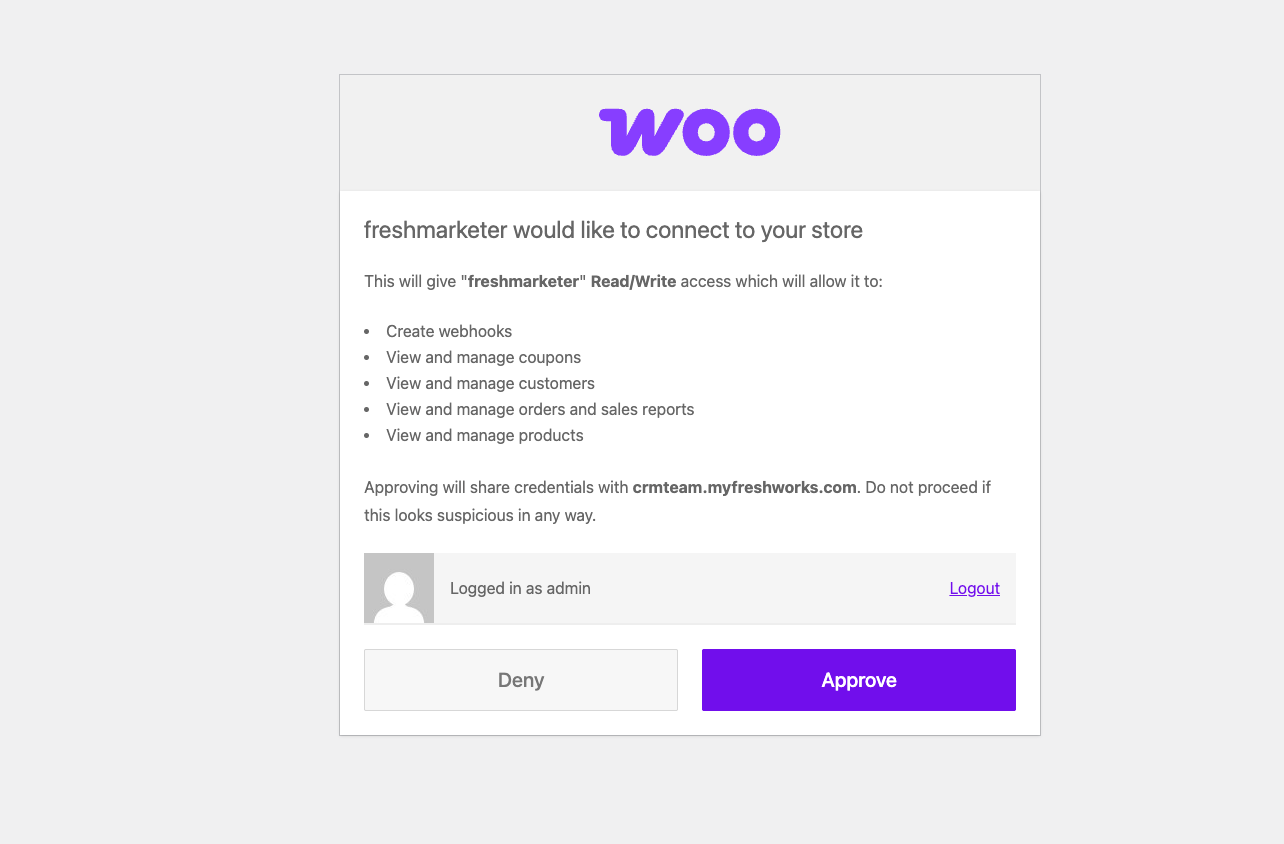
Once you enter the store name, the system will take you to approval of your woocommerce store You can click on approve to complete the integration.
Upon approving the woocommerce will successfully integrated. You can go to Admin settings > Marketplace Apps > Manage Apps > You’ll be able to see the app listed over there.
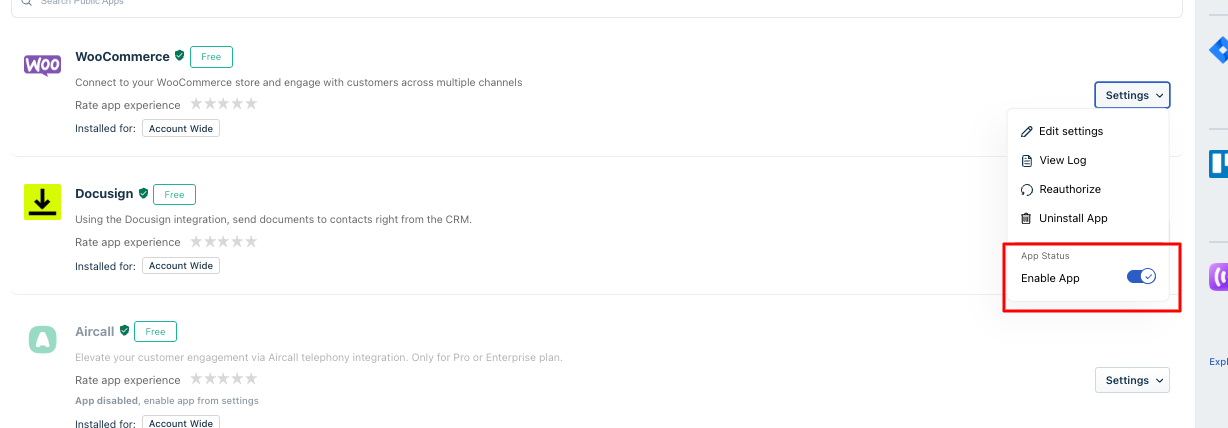
Post installation, you will be asked to download Freshmarketer plugin in wordpress from CRM itself as showcased in the following screenshot.
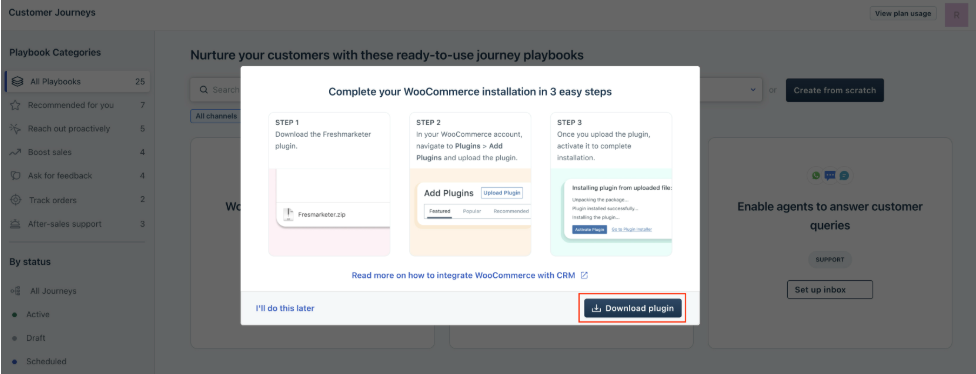
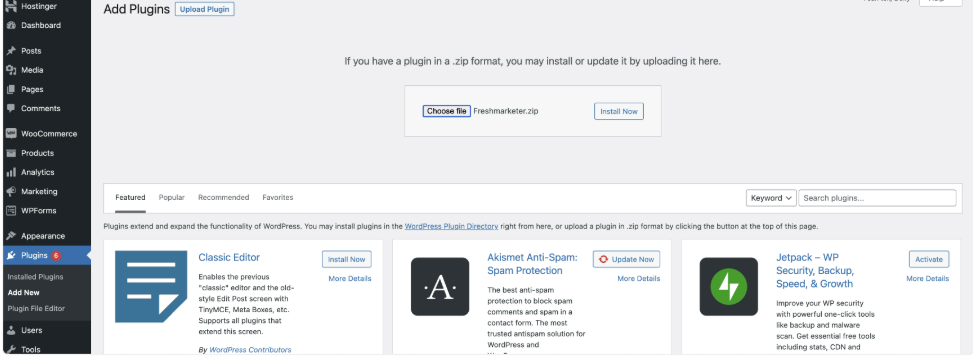
Click on download plugin and you can go to your wordpress account > plugins > upload plugin > and upload the downloaded Freshmarkter’s plugin and install.
After installing the plugin, WordPress will ask you to activate the plugin. Click on "Activate Plugin" to complete the Freshmarketer plugin installation on WordPress.
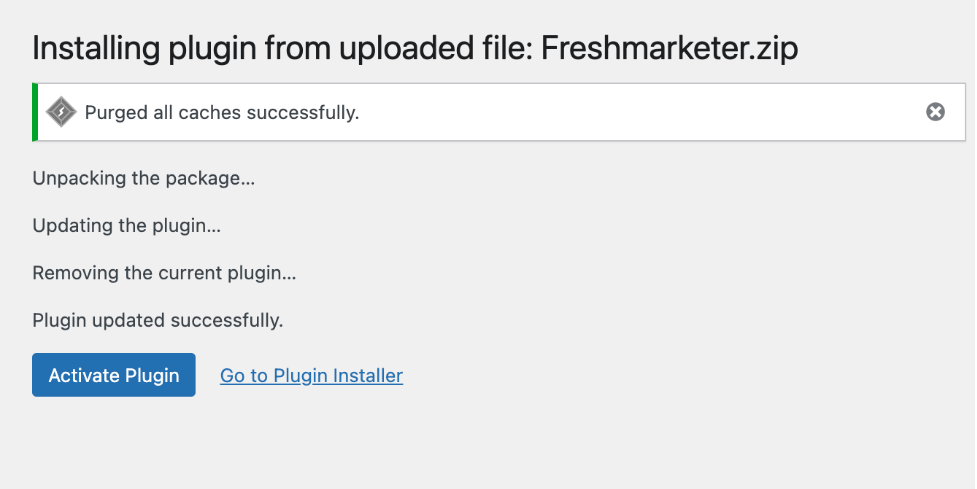
[ Note : Please be informed that this plugin is essential as it will allow you to use woocommerce events such as order placed, checkout, etc for your marketing campaigns.
Related documentations:
How to use the WooCommerce bot templates in Freshchat
How to import skipped contacts during WooCommerce historical sync