TABLE OF CONTENTS
The Allowed links setting lets Admins define a list of trusted domains that agents can use across Freshdesk. When a link from an untrusted domain is detected, Admins can choose to warn the agent before sending or publishing the link or restrict the agent from sending it, depending on the message source.
This helps reduce the risk of agents sharing or accessing potentially unsafe links.
Configure Allowed Links
To enable Allowed Links,
- Go to Admin > Security
- Under Link settings, enable Allowed links.
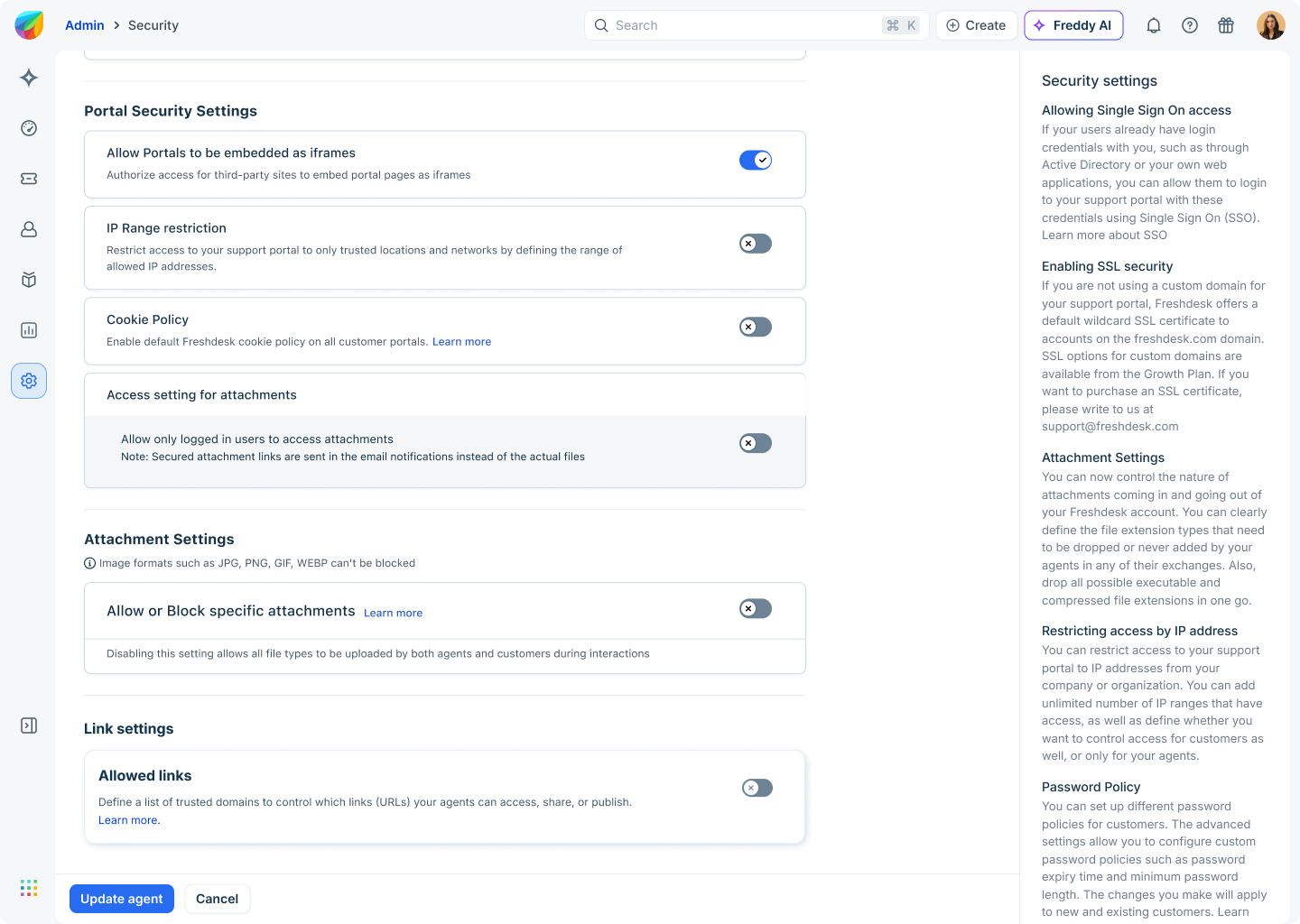
- Under Custom domain, click + Click to add domain
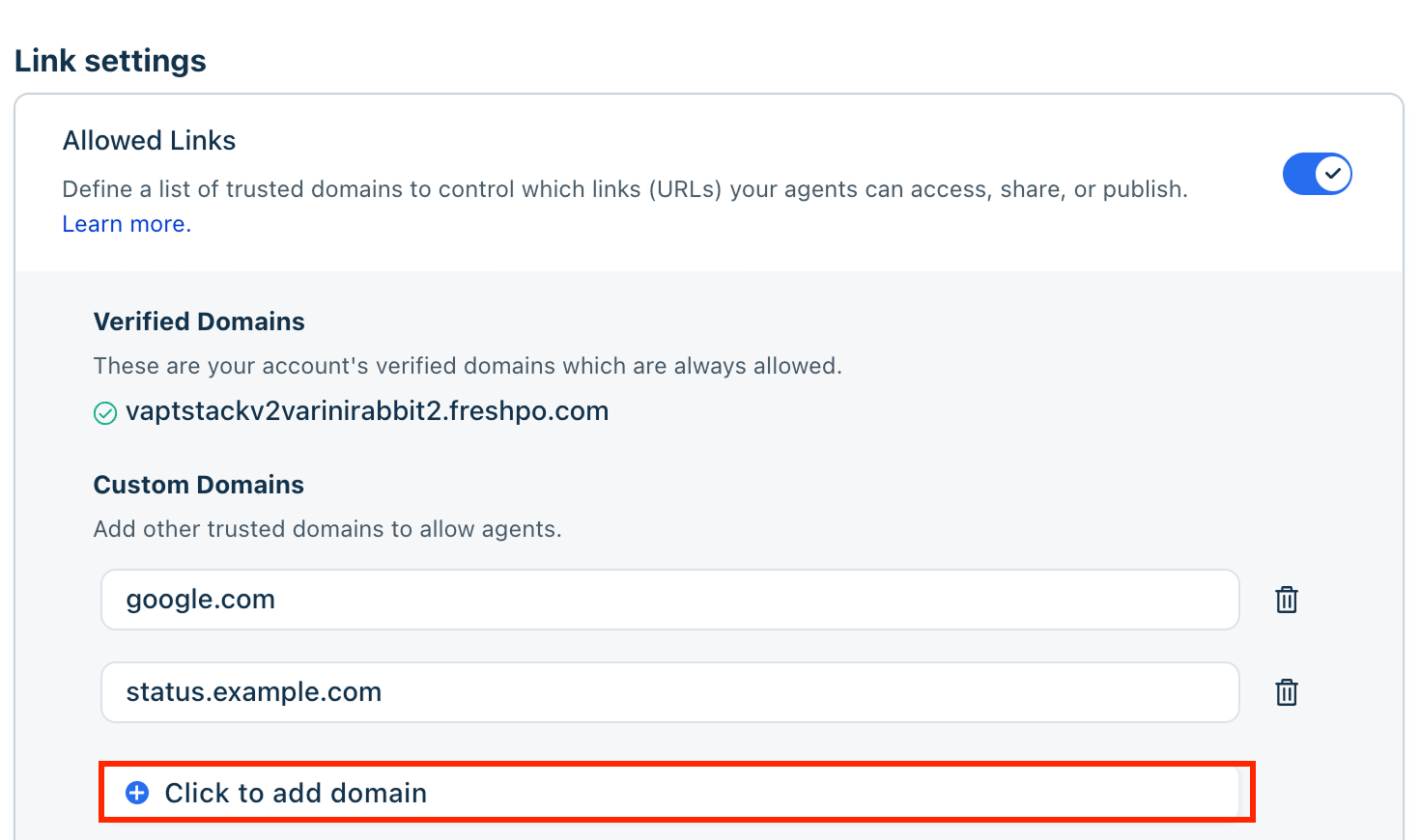
- Add one or more trusted domains that are always allowed to be sent from your Freshdesk account.
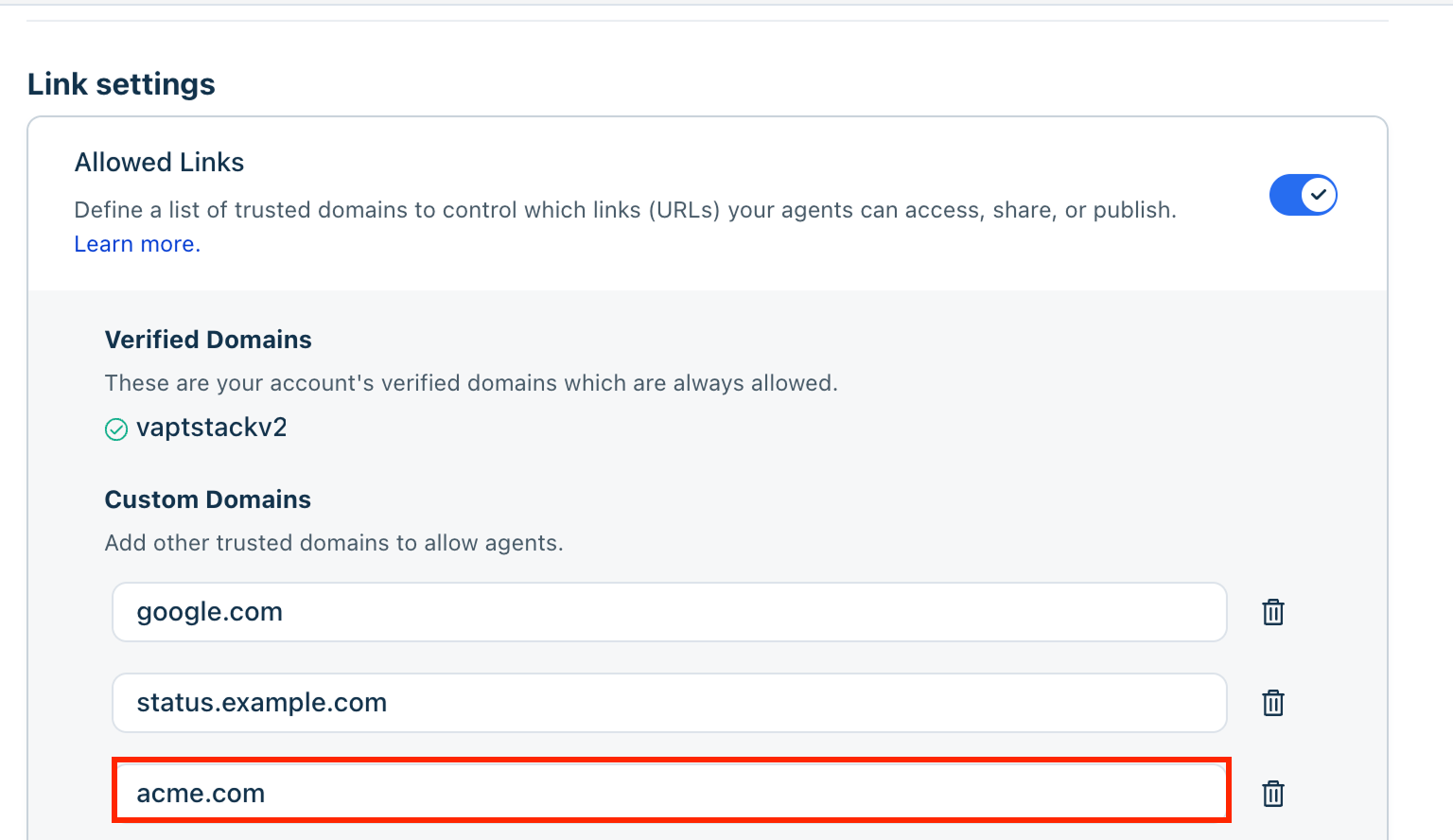
Note: Verified domains are automatically added to the Verified domains section and are always treated as trusted. Verified domains include:
- Email domains verified for your Freshdesk account.
- Custom portal domains configured for your support portal.
Verified domains cannot be removed or blocked.
- Choose how Freshdesk should handle links added or accessed by agents.
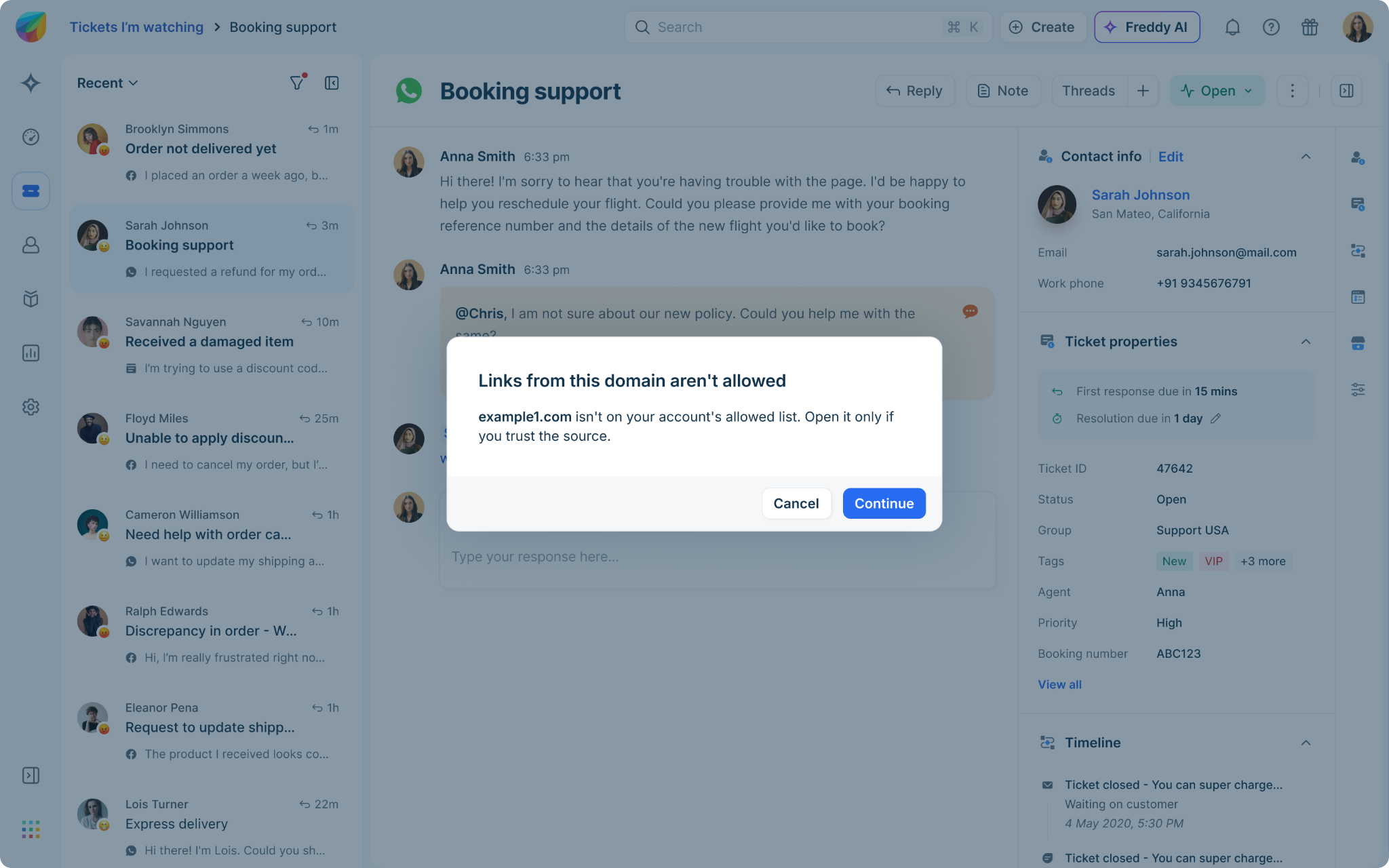
Warn
When an agent attempts to send or access a link from a domain that is not on the allowed list, Freshdesk displays a warning.
The agent can review the domain and choose whether to continue.
Note: You can add up to 50 custom domains on the Pro plan and up to 100 on the Enterprise plan.
Block
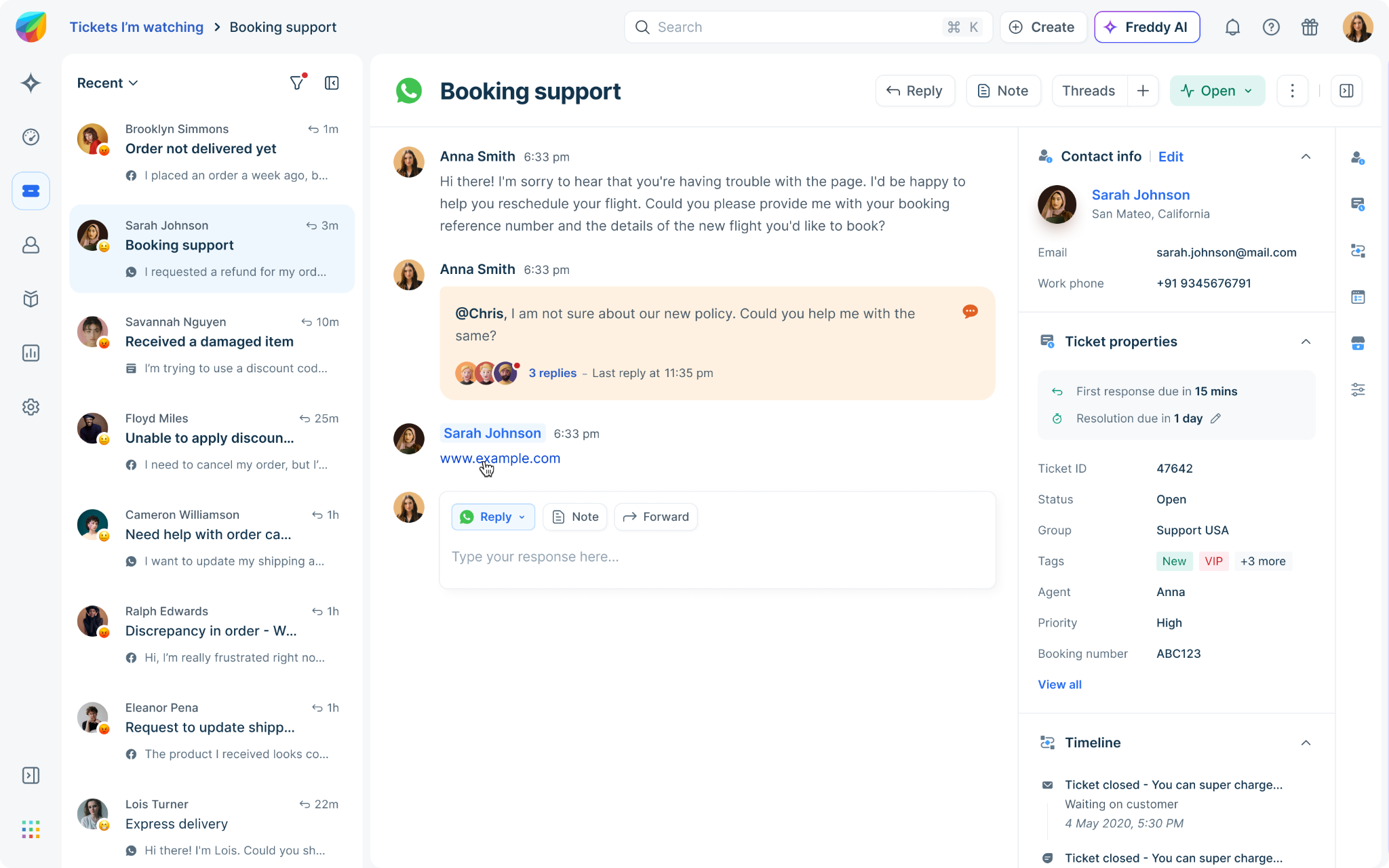
When Block is enabled, Freshdesk prevents agents from sending links from domains not on the allowed list.
If an untrusted link appears in ticket conversations or activity timelines, it is displayed as plain text rather than a clickable hyperlink.
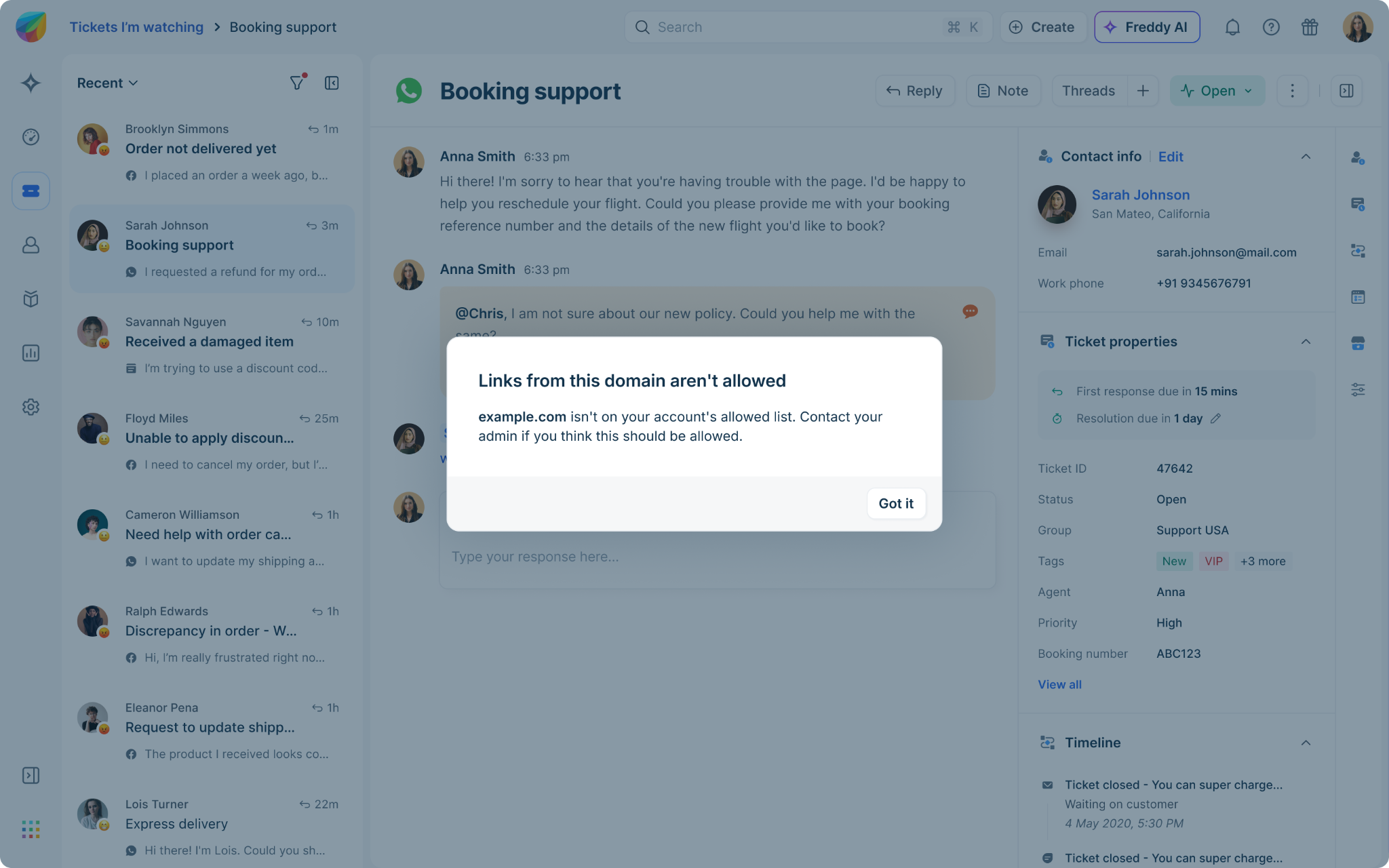
For example:
Instead of:
https://example.com/article
Freshdesk displays:
https://example[.]com/article
This prevents accidental access to untrusted websites.
When enabled, the configuration applies across supported agent experiences, such as:
Ticket interactions
- Ticket replies
- Private notes
- Public notes
- Ticket threads (discussion, private thread, and forwarded thread)
- Freshservice native thread integration
- Insert Link
- Forward email
- Attach Canned responses
- Attach FAQs
- Article cogent with URL
- Attach Canned forms
- Create ticket
- Create child ticket
- Create tracker ticket
- Edit ticket details
- Bulk reply from the ticket list page
- Reply or note from ticket list page
- Ticket activities
- Summary
- Broadcast messages to multiple tickets
- Ticket templates
- Agent signatures
- Canned responses - Import
Automations
For rules created via: Ticket Creation automations, Ticket Update automations or Hourly Trigger automations, the Allowed Links apply to the following functions:
- Add note
- Send reply
- Send email to agent
- Send email to group
- Create or add discussion thread (Discussion, Private thread, or Forward
- Create a new ticket
For rules created via Scenario Automations, the Allowed Links apply to the following functions:
- Add note
- Send reply
- Send email to agent
- Send email to group
- Send email to requester
Administrative content
- Email notification templates
- Dynamic notification templates
- Portal themes
- Security configuration dialogs
Collaboration and community
- Forums
- Topics
- Forum replies
- Social channel replies
Other supported locations
- Company notes
- Contact notes
- Audit Logs
- Metrics
- Freshmover ticket imports
How API requests are handled
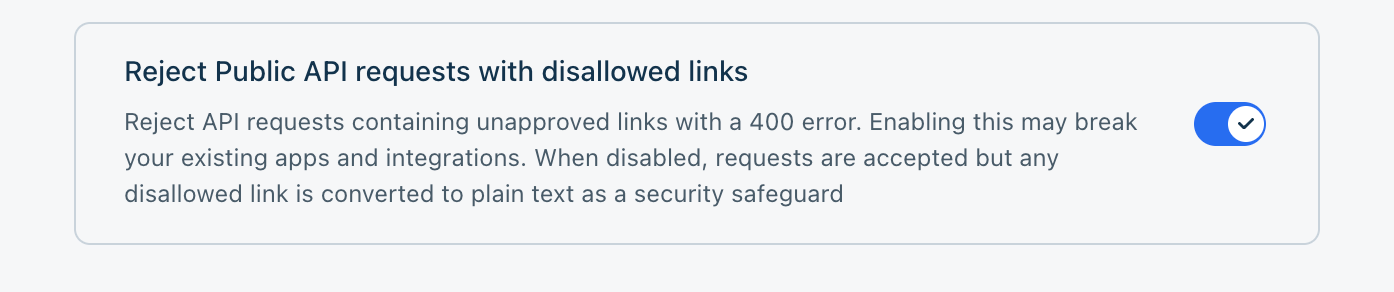
When Allowed links is enabled, and block mode is selected, API requests containing links from untrusted domains are validated against the configured policy.
- If the configured action blocks the link, the request returns an error identifying the domains that are not allowed.
Notes:
1) Enabling API link validation may impact existing applications and integrations that send links outside your configured allowed domain list. Review your integrations before enabling this setting.
2) When Reject Public API requests with disallowed links is disabled:
 - API requests containing links from any domain are accepted.
 - Links from domains not on the allowed list are converted to plain text, making them no longer clickable.
- If Warn mode is configured, API requests containing links from untrusted domains are accepted after the configured warning behavior is applied.
FAQs
- Are Freshworks domains always allowed?
Yes. Freshworks domains and verified domains are always trusted and cannot be blocked.
- What happens to blocked links?
Blocked links are rendered as non-clickable text, helping prevent accidental access while preserving the original content for reference.